
Meeting Recording to Text
Designed for meeting scenarios. Auto-generate meeting minutes and action items, improving meeting efficiency.
Get StartedCore Features
Powerful meeting recording to text features
Multi-speaker Recognition
Automatically identify different speakers in meetings, distinguish speech content from different participants for clearer and more accurate meeting records.
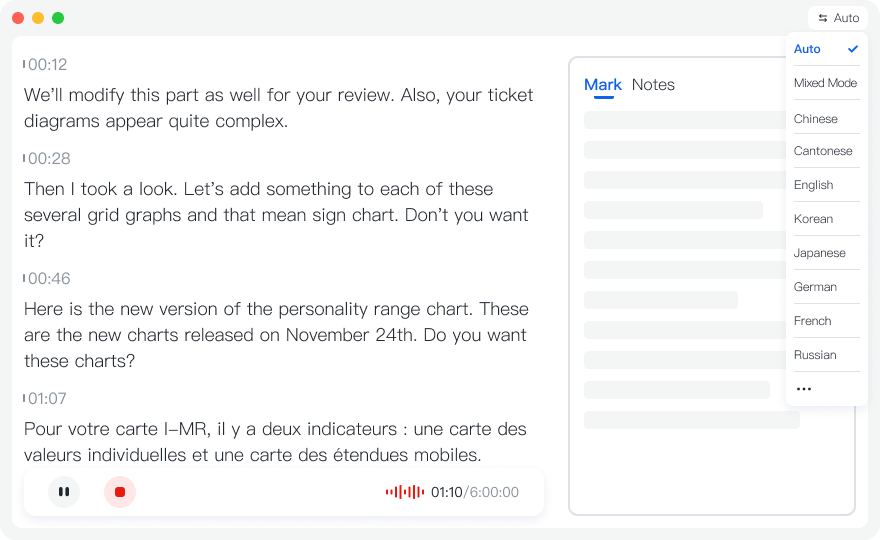
Auto-generate Meeting Minutes
AI automatically analyzes meeting content, extracts key information, decisions and discussion points, generates structured meeting minutes.
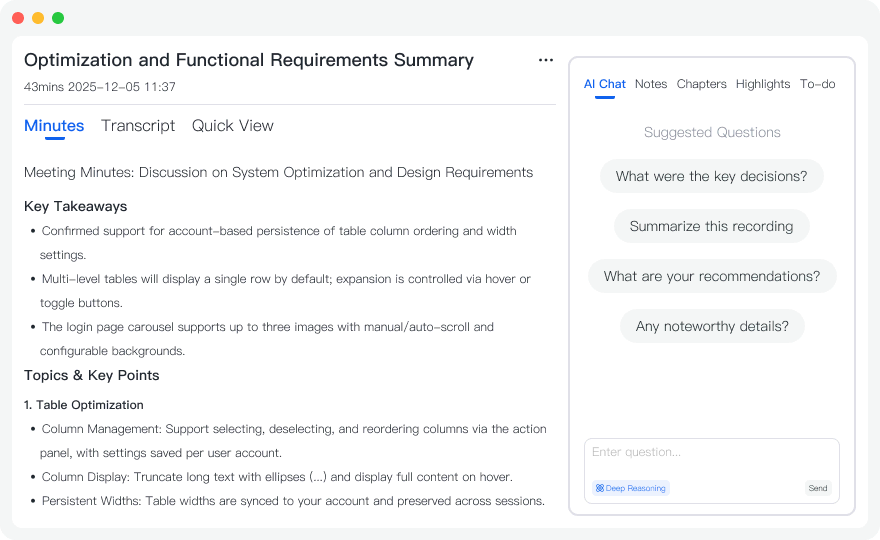
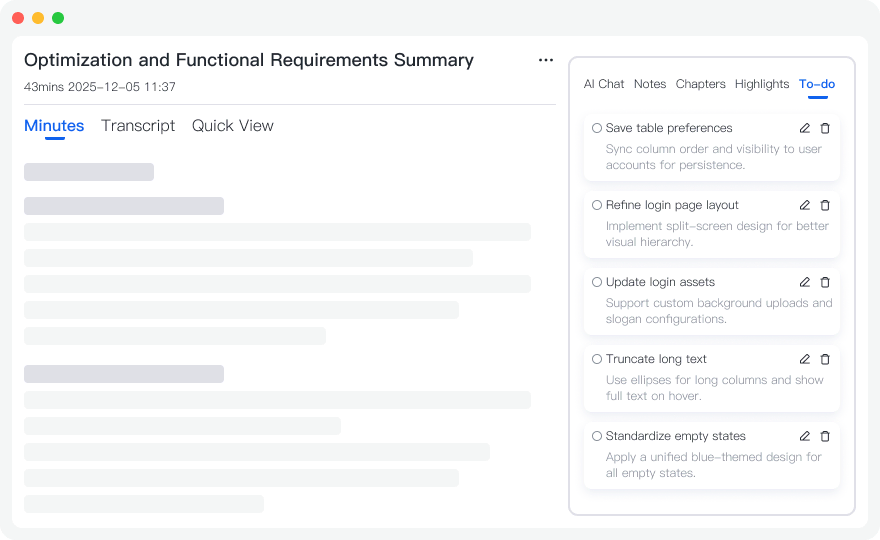
Action Item Extraction
Automatically identify tasks and to-dos from meetings, generate clear action item lists including responsible person and deadline.
Use Cases
Meeting recording to text use cases
Team Meetings
Record team meeting content, automatically generate meeting minutes and action items, improve team collaboration efficiency.
- ✓Improve collaboration efficiency
- ✓Clear task assignment
- ✓Complete meeting records
Client Meetings
Record client meeting content, quickly organize client needs and feedback for easy follow-up and service.
- ✓Client need recording
- ✓Quick feedback organization
- ✓Easy follow-up
Project Meetings
Record project meeting content, track project progress and task status, ensure projects complete on time.
- ✓Project progress tracking
- ✓Task status management
- ✓Ensure on-time completion
How to Use
Three simple steps to start using meeting recording to text
Start Meeting Recording
Before the meeting starts, click "Start Recording" button. The system will start real-time transcription of meeting content. You can choose real-time recording or upload meeting recording files.
View Transcription in Real-time
During the meeting, you can view transcription content in real-time. The system automatically identifies different speakers and distinguishes speech from different participants.
Get Meeting Minutes and Action Items
After the meeting ends, AI automatically analyzes meeting content, generates structured meeting minutes and extracts action items. You can export to Word, PDF and other formats to share with team members.
Frequently Asked Questions
How to distinguish different speakers?
Tinrec uses advanced speaker separation technology to automatically identify different speakers in meetings. The system assigns numbers to each speaker (Speaker 1, Speaker 2, etc.). You can also manually edit speaker names after transcription for clearer meeting records.
What does meeting minutes include?
AI-generated meeting minutes include: meeting topics, discussion points, important decisions, action items, etc. You can edit and adjust the generated content, or export to Word, PDF and other formats for further editing and sharing.
Can I share meeting records?
Yes. Tinrec supports generating share links. You can share meeting records with team members. When sharing, you can set permissions to control viewing, editing and other operations. You can also export to Word, PDF and other formats for sharing.
Start Using Meeting Recording to Text Now
Register now to get 60 minutes of free transcription credit. Experience the power of meeting recording to text.
Get Started