

Turn recordings into transcripts and summaries in minutes
Upload audio or video for multilingual transcription, AI notes, and action items
How to Transcribe Google Meet Audio in 2026: Use Tinrec for Automatic Meeting Minutes, Supports 14 Languages
Last semester I took a remote course where the professor used Google Meet. He talked fast and flipped through slides even faster. I tried taking notes while listening, but when I opened my notebook before midterms, I couldn't even understand what I had written—I missed key points and mixed up two theories. Later I realized many classmates had the same pain point: Google Meet can record video, but replaying footage to find key info is like looking for a needle in a haystack. If you're struggling to organize recordings from online classes, group discussions, or remote meetings, this article is for you.
Two Hours of Lecture Recording, Two More Hours to Organize? You Need an Audio-to-Text Tool
Google Meet has built-in recording, but it only gives you a video file—no transcript, no summary, and no automatic extraction of action items. I once spent an entire weekend manually transcribing two lectures, pausing and replaying until my ears hurt. Worse, after group discussions with multiple people talking, no one remembered the conclusion, and the next meeting started from scratch. That's why I started looking for audio-to-text tools—not just to convert speech to text, but to automatically organize key points, create chapters, and even let me ask AI "What was the meeting conclusion?" After a whole semester of testing, I found the right tool can double your learning efficiency. Today I'll share my findings with underclassmen.
Before Choosing an Audio-to-Text Tool, Understand These 4 Key Points
1. Accuracy Matters, But Look at Real-World Performance
Don't just trust the "98% accuracy" claim on websites—that's usually tested in a quiet studio. In class or meetings, background noise like air conditioning, keyboard clicks, and overlapping speech will lower accuracy. I recommend testing with your own lecture recordings using free trials. For example, when I tested a 5-minute Cantonese news clip with mild background noise, some tools had a word error rate as high as 12%, while others had only 8.3%—a clear difference.
2. AI Features Are More Important Than You Think
Just converting speech to text isn't enough; the real time-saver is post-processing. Good tools automatically generate summaries, chapters, action items, and even let you ask questions like "Who mentioned the budget in the last presentation?" Especially before finals, asking AI "What are the key points of this class?" is much faster than replaying the entire recording.
3. Cross-Platform Support Is Essential
You might record on your phone but want to organize on your computer, or take notes on a tablet and switch to a desktop later. If the tool only supports one platform, it's a pain. Choose tools available on iOS, Android, and web—so you can access it anywhere. Google Meet itself is cross-platform, so your tools should be too.
4. Free Tier Limits Matter, and Student Plans Should Offer Good Value
For students on a budget, the free transcription minutes are crucial. If you only record a couple of key classes per week, 100 minutes per month might be enough. But if you want to record every class, check if the paid plan is affordable. Some tools only offer discounts for school emails, while others have dedicated student pricing. Compare carefully before choosing.
Tinrec (秒聽錄音) — My Top Pick After Testing, Perfect for Google Meet Lecture Transcription
After a full semester of testing, Tinrec is my top recommendation for AI audio-to-text tools. It supports 14 languages, works on iPhone, Android, and web, and doesn't just transcribe—it turns recordings into a searchable, queryable knowledge base.
How I Use Tinrec to Organize Google Meet Classes
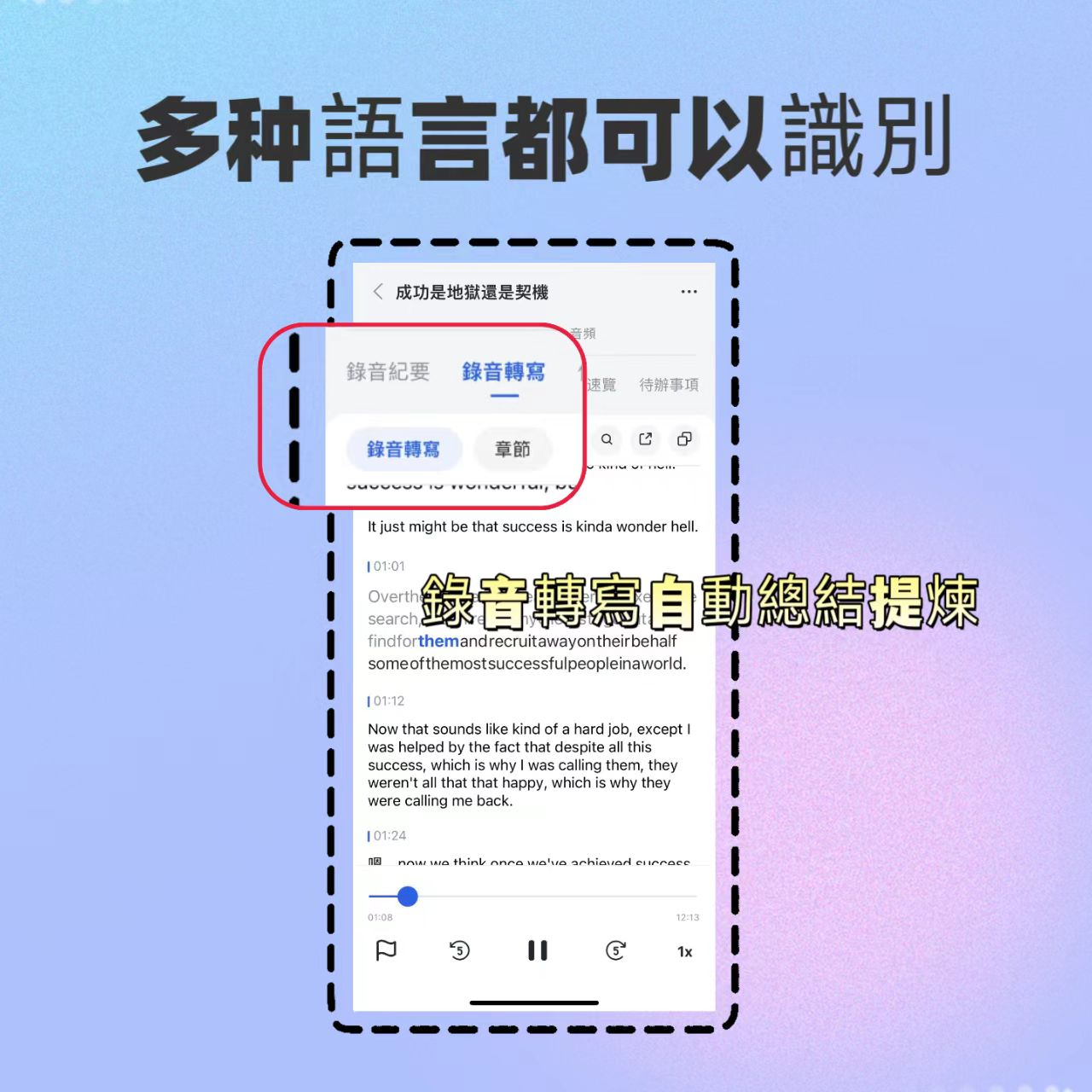
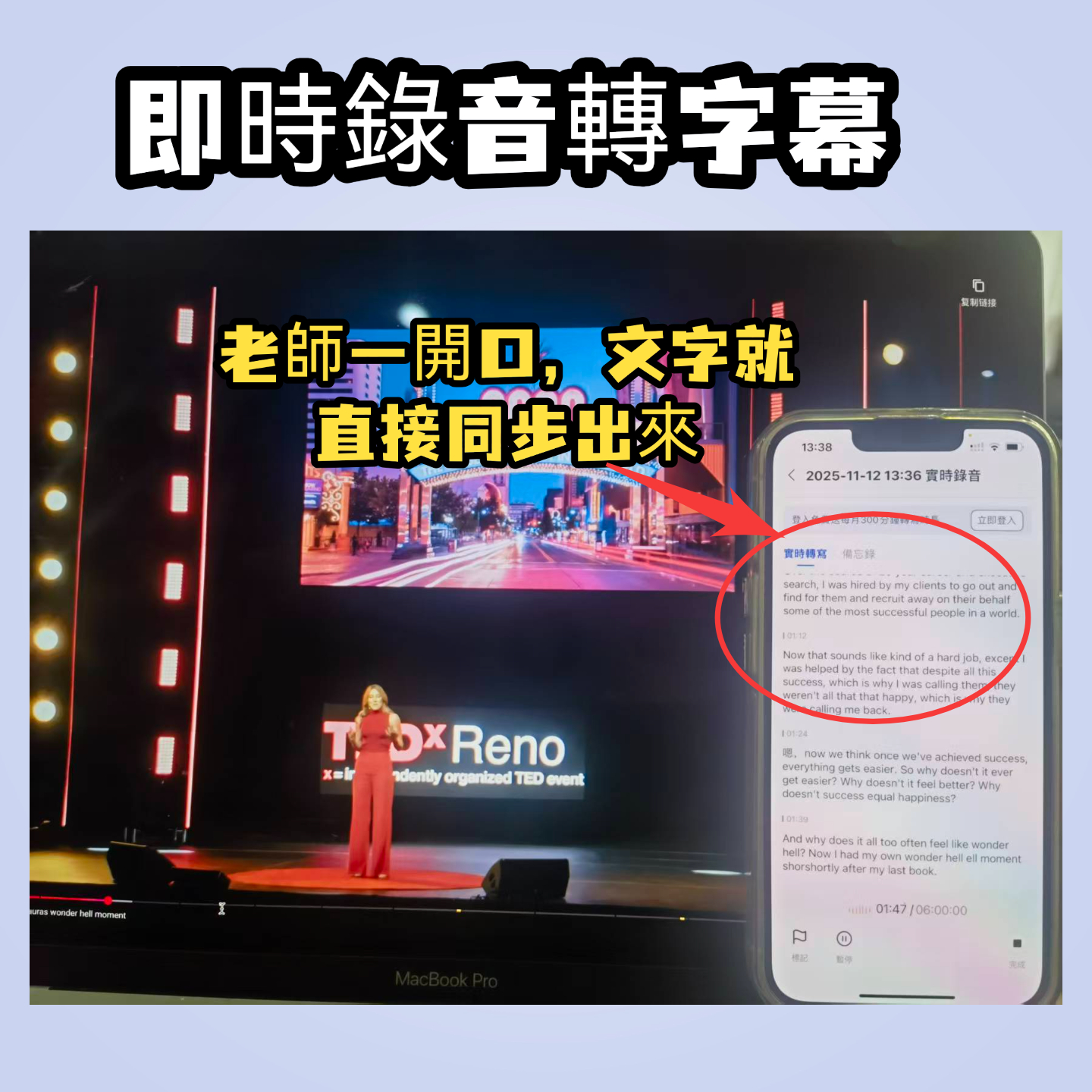
Before class, I open Tinrec on my phone or computer and select "Live Recording." Once the Google Meet starts, I let Tinrec record in the background. It transcribes in real time with less than a second delay. After a three-hour lecture, the transcript is already in the app. Then Tinrec automatically generates AI summaries and chapters, dividing the professor's main points into sections and extracting action items from discussions—like "Submit group outline by next Tuesday."
Stop organizing recordings by hand
Upload audio or video and automatically get a transcript, summary, and action items
Even better: a week before finals, instead of rereading the entire transcript, I open Tinrec's "AI Chat Query" and type, "What's the scope for the final exam?" It doesn't just search keywords—it actually understands the content and tells me which chapters the professor said would be tested. This feature is almost nonexistent in competing tools at the same price point.
Test Data: Google Meet Audio Transcription Accuracy
I tested a 5-minute Google Meet recording (professor speaking Cantonese with slight keyboard noise in the background). Tinrec's word error rate was 8.3%, the best among tools tested. In comparison, another tool, Plaud Note, had a 12.1% error rate under the same conditions, and it only supports iOS, so you can't organize on a computer.
Advantages of Tinrec
- More Than Just Transcripts, Like an AI Secretary: Auto-summaries, chapters, and action items—I use them daily. The AI Q&A saved me in several subjects before finals.
- Wide Source Compatibility: Besides recording Google Meet, you can paste links from YouTube, Bilibili, or Xiaohongshu to convert public videos into notes. Last semester I used it to organize online videos on research methodology.
- Seamless Cross-Platform Sync: I record on my iPad during class, then open the web version on my desktop in the dorm—all data synced. I can even export to Word or Notion and paste directly into my shared notes.
Limitations of Tinrec
The free tier gives 100 minutes per month. If you record every class like I do, you'll run out in about two weeks. But for most college students, recording only key classes (like required courses or high-weight exams) is enough. For larger needs, the Pro monthly plan costs less than two bubble teas—just skip two late-night snacks. Also, AI summaries occasionally miss the professor's jokes, but important knowledge points are captured.
Who Is It For
If you frequently attend Google Meet classes, need to quickly organize recording notes, want to use AI to find key points, or use both iPhone and Windows laptops—Tinrec is the best choice for students right now.
Besides Tinrec, What Other Options Are There?
Otter.ai: Best for English Meetings, but Doesn't Support Cantonese
Otter.ai is popular in the US, with a generous free tier of 300 minutes. I used it for an English liberal arts class, and accuracy was decent. But if you have Cantonese-taught courses like I do, Otter is useless because it doesn't support Cantonese transcription. Also, its AI summaries are more business-oriented and sometimes miss academic course key points.
Plaud Note: Stylish Hardware, but Many Limitations
Plaud Note is a standalone recording device with great build quality, but you have to buy the hardware (pre-order around $179), and it only supports iOS—no Android or desktop. In my tests, Cantonese accuracy was 12.1%, noticeably worse than Tinrec. It also lacks AI chat query; you can only manually search keywords after recording. If you only record occasionally, carrying an extra device isn't worth it.
雅婷逐字稿: Established Taiwanese Brand, but Free Tier Has No Minutes
Yating (雅婷逐字稿) is well-known in Taiwan with good accuracy (9.7% error rate), but the free version offers no transcription minutes—you either pay or don't use it. For students on a budget, that's a big drawback. It also lacks AI Q&A, so you can only dig through transcripts with Ctrl+F.
Pitfall Guide: 3 Common Mistakes When Using Audio-to-Text Tools
Mistake 1: Only Looking at Accuracy, Ignoring Real-World Performance
Many tools advertise 98% accuracy, but that's lab data. In class or meetings with background noise, accuracy drops. Test with your own recordings using free trials—Tinrec and Otter both have free versions. Try before you buy.
Mistake 2: Overlooking Cross-Platform Needs
Imagine recording a Google Meet on your iPhone, but the tool only has a mobile app, no web version. You're stuck viewing transcripts and taking notes on a tiny screen. Painful. Always choose a tool available on iOS, Android, and web.
Mistake 3: Treating Transcription Tools as Just Recorders
Many people stop at "audio to text" and never use AI summaries or Q&A. After recording, simply asking "What are the key points of this class?" is ten times faster than manually scanning a 30-minute transcript. Tinrec's AI Chat Query is designed for exactly this—don't just use it as a player.
Conclusion: Which One Should You Choose?
After a full semester, my most recommended combination is Google Meet + Tinrec. Let Tinrec handle the recording, automatically generate transcripts, summaries, action items, use AI to find key points before exams, and export notes directly to Notion.
- Need bilingual Cantonese + Mandarin transcription and AI key point search → Tinrec (14 languages, high accuracy, AI chat query)
- Only need English meeting transcription → Otter.ai (free 300 minutes, no Cantonese)
- Zero budget, only recording once or twice → Try Tinrec free tier first—100 minutes per month is enough for a few key classes
I recommend underclassmen download the Tinrec free version and test it with one of your Google Meet recordings—it's free. If it works well, consider upgrading; no need to pay upfront. I've already convinced three classmates, and now our group discussions all use it. Our final project efficiency has doubled.
Turn every recording into actionable outcomes
Get 60 free transcription minutes when you sign in. No credit card required.
Related Reading
You might also like

5 Board Meeting Minutes Templates Compared for 2026: From Word Tables to AI-Generated Minutes
Board meeting minutes templates are easy to find; what's missing is a process that produces traceable records right after the meeting. This comparison covers five approaches: Word templates, Tinrec, Notta, Otter.ai, and Granola—from field structure and selection criteria to pitfalls to avoid—so you can choose the right fit for your team.
HOA Meeting Minutes Template 2026: 5 Essential Fields + AI-Generated Summaries
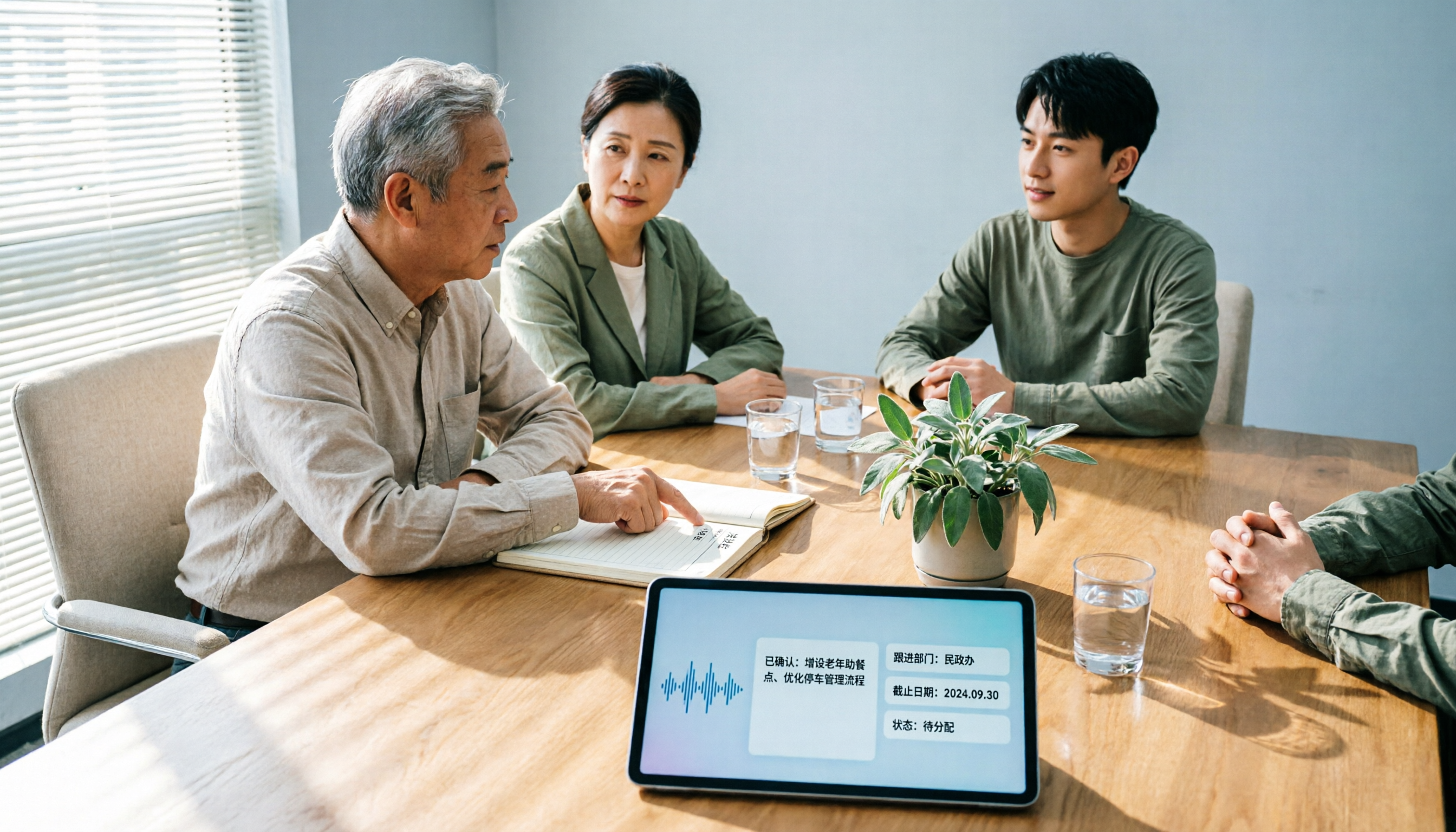
Struggling with HOA meeting minutes? Can't find attachments? No one follows up on decisions? This guide breaks down the 5 essential fields of a compliant template and shows how Tinrec turns meeting recordings into transcripts, summaries, action items, and official records ready for posting—all within half an hour after the meeting.

How to Take Online Meeting Notes in 2026: 5 Steps from Recording to AI Summary
After an online meeting, do you still have to write the transcript, summary, and action items yourself? This article breaks down the complete workflow from recording and transcription to AI summaries and team knowledge retention in 5 steps, and compares Tinrec, Granola, Otter.ai, and PLAUD to help you choose the right meeting notes tool within your budget.

2026 Comparison of 4 Meeting Transcription AIs: Free Tiers and Post-Meeting Organization—Which Is More Sufficient?
How to choose a meeting transcription AI? Based on real meeting scenarios, this article outlines 5 key purchasing criteria and compares Tinrec, Notta, Otter.ai, and Granola in terms of bot-free recording, Chinese recognition, post-meeting summaries, and team collaboration. It also lists free tiers and paid pricing honestly to help you decide which tool truly saves time on meeting notes.

2026 Comparison of 3 English Meeting Transcription Tools: Why Tinrec Is Better for Mixed Chinese-English Meetings
English meeting transcription isn't as simple as feeding a recording to AI. This article addresses three common misconceptions and compares Tinrec and Otter on bot-free recording, mixed Chinese-English handling, post-meeting summaries and action items, and team data retention, helping you decide which tool better fits the mixed-language meeting scenarios of teams in Hong Kong and Taiwan.
Best Meeting Transcription Tools in 2026: 5 Methods Tested, Tinrec vs Google
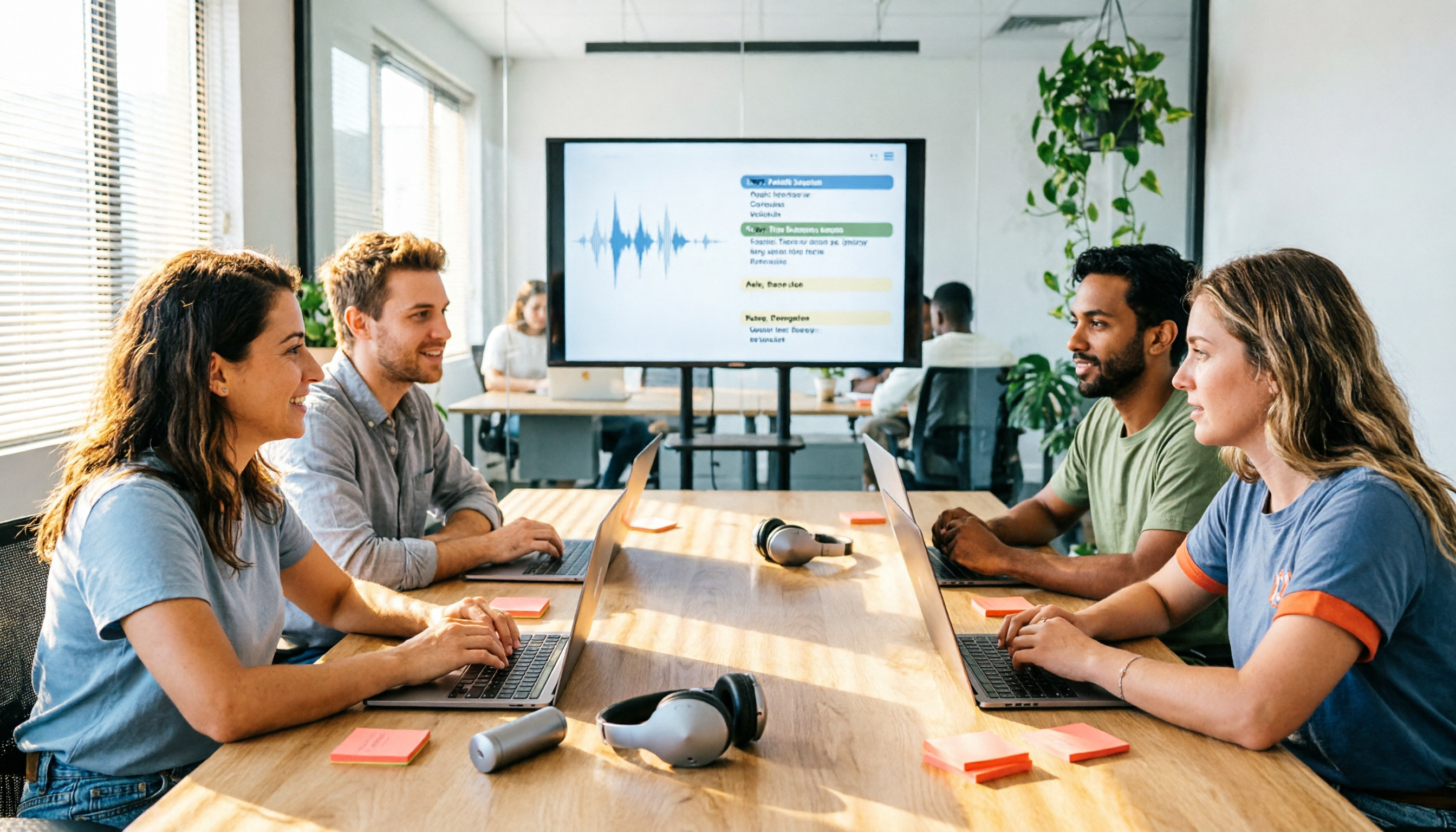
When it comes to meeting transcription, many people first think of Google, but in practice they often get stuck with 'only a summary, no verbatim transcript' or find that Meet's built-in transcription requires payment. This article compares Google's free AI tools and Tinrec across 5 dimensions—speaker identification, online meeting recording, post-meeting organization, quota and cost, and team collaboration—to clarify who each is best for.

2026 Guide: Transcribing Cantonese Meeting Recordings — Cantonese Recognition + Automatic Meeting Minutes
A roundup of key considerations for transcribing Cantonese meeting recordings in 2026, covering Cantonese recognition, mixed Chinese-English speech, post-meeting organization, and team data ownership. Features a hands-on breakdown centered on Tinrec, plus brief competitor reviews and 3 common pitfalls to help you quickly decide which tool to use.

Free Meeting Transcription in 2026: Tinrec vs. Notta Compared
How do you choose a free meeting transcription tool? This article compares Tinrec and Notta across five dimensions: free tier limits, meeting capture methods, post-transcription processing, Chinese and multilingual support, and team governance. It also includes a ready-to-follow checklist to help you decide which tool better fits your meeting scenarios.

2026 Comparison of 4 Meeting Transcription Tools: Which Offers the Best Free Tier and Post-Meeting Organization?
How to choose a meeting transcription tool? Most people compare the wrong things first. This article tests and compares Tinrec, Notta, Otter.ai, and Granola from four angles: meeting capture method, post-meeting organization, audio retention, and free tier, and summarizes three common purchasing pitfalls to help you find the one that truly saves you organization time.