
Turn recordings into transcripts and summaries in minutes
Upload audio or video for multilingual transcription, AI notes, and action items
Tinrec vs Google Meet Built-in: Quick Overview
Google Meet’s built-in transcription is great for real-time captions during meetings, but it falls short when you need post-meeting organization, summaries, or long-term storage. Tinrec is an AI-powered recording and audio/video organization tool that not only supports Google Meet recording but also handles local files, online videos, and provides summaries, action items, Q&A, and more.
Simply put: Google Meet lets you "see" the text, while Tinrec lets you "use" the text.
This article compares the two across four key dimensions and includes a step-by-step guide for using Tinrec.
| Comparison Item | Google Meet Built-in Transcription | Tinrec |
|---|---|---|
| Primary Use | Real-time meeting captions | Audio/video organization for meetings, classes, interviews, videos, etc. |
| Recording Method | Google Meet only | System audio, microphone, file import, online links |
| Post-transcription Organization | None (real-time text only) | AI summary, chapters, action items, Q&A, export |
| Pricing | Depends on Google Workspace plan | Free tier with basic credits; Pro monthly/yearly plans |
Dimension 1: Recording Sources and Flexibility
Google Meet’s built-in transcription can only be used during a Google Meet call, and it must be activated by the host or an account with permissions. After the meeting, the transcript is saved to the Google Calendar event, but if you forget to turn it on, there’s no record.
Tinrec offers "system audio recording" functionality. Just start Tinrec before the meeting, and it captures both Google Meet audio and your microphone. Even if you're just a participant, you can keep your own recording. Plus, you can use Tinrec for in-person meetings, classes, interviews, or even YouTube videos.
→ Verdict: Tinrec is clearly more flexible, especially for users who need to review later or work across different scenarios.
Dimension 2: Transcription and Organization Capabilities
Google Meet’s transcription is straightforward: text appears as you speak. But after the meeting, you get a plain text file with timestamps—no highlights, no summaries, and you can't ask "How much was the budget mentioned earlier?"
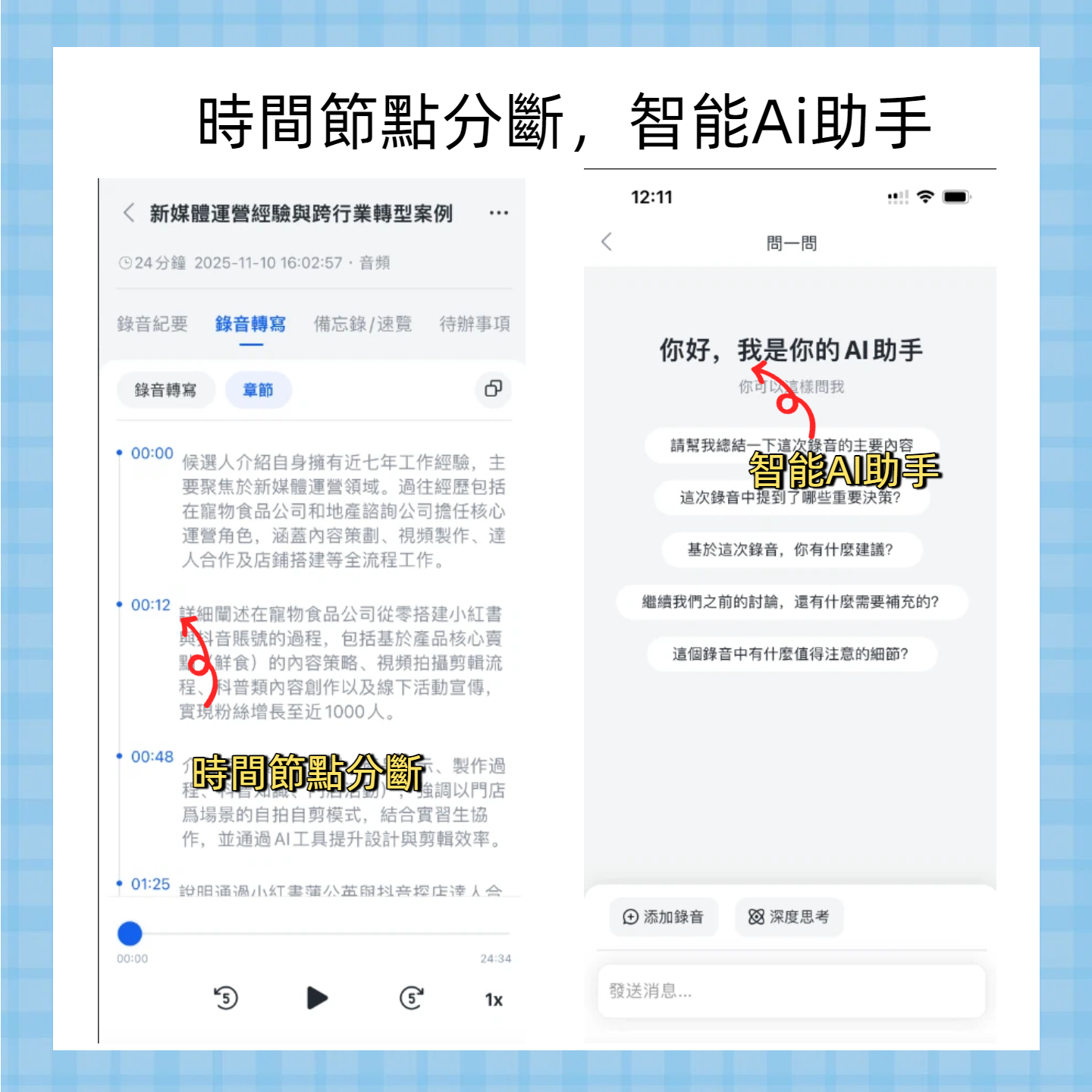
After transcription, Tinrec automatically generates an AI summary, divides the transcript into chapters, and extracts action items. You can click on any paragraph to play the audio from that point, and even use natural language queries like "Summarize the budget figures from each department." This turns recordings into truly usable knowledge.
→ Verdict: Tinrec wins hands down. Not only does it provide a full transcript, but it also enables understanding and action.
Dimension 3: Post-Meeting Applications and Export
Google Meet transcripts are saved to Google Drive. You can copy the text into a document, but any further organization, formatting, or sharing must be done manually. For example, syncing meeting decisions to Notion or sending action items to colleagues requires extra steps.
Tinrec supports exporting in multiple formats (TXT, PDF, Word, SRT subtitles) and can directly sync to Notion, Google Docs, OneNote, Dropbox, and more. You can also let AI generate meeting minutes, reports, or tables based on the recording, saving hours of documentation work.
→ Verdict: Tinrec wins big. It pushes organized data directly into your workflow—no more copy-pasting.
Stop organizing recordings by hand
Upload audio or video and automatically get a transcript, summary, and action items
Dimension 4: Pricing and Free Plans
Google Meet’s transcription is only available in paid Google Workspace plans (Business Standard and above). Free Google accounts can’t use it. If you upgrade just for transcription, the cost can be high.
Tinrec’s free plan offers basic transcription credits, enough for occasional meetings or short recordings. For frequent users, the Pro monthly plan costs just a few US dollars per month and provides plenty of minutes plus full features; the annual plan is even more cost-effective. You can try the free version first and upgrade only if needed—no upfront commitment.
→ Verdict: Tinrec has a lower entry barrier and more flexible pricing options.
How to Record a Google Meet Meeting with Tinrec

Install and open Tinrec on your computer, then select "System Audio Recording" mode.
Click the record button; Tinrec will start capturing all audio played through your computer (turn off unnecessary notification sounds).
Join your Google Meet meeting and discuss normally. Tinrec will record both system audio and your microphone to ensure complete conversation capture.
After the meeting, stop recording. Tinrec will automatically upload and transcribe the audio. In a few moments, you'll see the transcript, summary, and action items in "My Recordings."
Click the "AI Q&A" icon and ask questions in English (or Chinese) about the meeting, such as "What action items were decided in this meeting?" Tinrec will answer based on the recording.
Unique Advantages of Each
Tinrec’s Unique Advantages
- Cross-platform and multi-source: Beyond Google Meet, it also handles in-person recordings, audio/video files, YouTube, TikTok, and other online videos—all audio/video data in one place.
- Deep AI organization: Auto-summaries, chapters, action items, and conversational queries turn recordings into actionable knowledge.
- Flexible pricing: Free tier for trial; weekly pass for short-term heavy use; monthly/annual plans for regular users—no lock-in.
- Workflow integration: One-click export to Notion, Google Docs, OneNote, or generate meeting minutes and reports—ready to share.
Google Meet Built-in Transcription’s Unique Advantages
- Native integration: No extra software needed; works directly in meetings, linked with Google Calendar and Drive. Ideal for light, real-time captioning.
- Team permission management: Workspace admins can control access centrally, suitable for highly regulated enterprise environments.
Summary: Which One Should You Choose?
• If you want a complete record with summaries and action items right after a meeting, and the ability to query the content later → Tinrec (Google Meet built-in can't do this).
• If you handle not just Google Meet but also in-person meetings, classes, interviews, or online videos → Tinrec (one tool for all audio/video).
• If you need to sync meeting results to Notion, Google Docs, or generate reports → Tinrec (built-in transcription only gives you manual copy-paste).
• If you only need real-time captions during the meeting with no post-meeting organization → Google Meet built-in is enough.
Bottom line: For most people who need to turn meeting content into follow-up actions, Tinrec is the far more complete choice. We recommend downloading the free version of Tinrec and testing it with your own Google Meet meetings.
Frequently Asked Questions
Is it legal to record Google Meet meetings with Tinrec?
It's recommended to inform participants beforehand and obtain consent. Many regions allow one-party consent, but out of respect for privacy, it's best to notify everyone.
How long can I record with the free plan?
The free plan provides a monthly baseline of transcription credits. Actual minutes are subject to the official website; suitable for light use or first-time trial.
How accurate is the transcription?
Under normal meeting audio quality and standard accents, accuracy can reach over 90%. Overlapping speech, heavy background noise, or specialized terminology may reduce accuracy; we recommend reviewing important content afterward.
Can I record Google Meet on my phone?
Yes, Tinrec has iOS and Android apps. You can play Google Meet on your phone while starting Tinrec recording, or use the system audio recording feature (some phones may require a headset microphone).
Can I use the web version if I haven't installed the app?
Yes, Tinrec offers a web version where you can upload audio files or paste online video links for transcription and organization.
Besides Google Meet, can I record other meeting software?
Yes, any meeting software that outputs audio through your computer (Zoom, Microsoft Teams, etc.) can be recorded with Tinrec.
Turn every recording into actionable outcomes
Get 60 free transcription minutes when you sign in. No credit card required.
Related Reading
You might also like

2026 Audio-to-Text Comparison: Tinrec vs Otter.ai for Chinese Meetings & Team Knowledge
How to choose an audio-to-text tool in 2026? This article compares Tinrec and Otter.ai across 5 dimensions: Chinese meeting transcription, bot-free online meeting capture, audio file organization, post-meeting workflows, and team data governance. Based on public features and pricing, it helps you decide which is better suited for meeting notes needs in Taiwan.

How to Choose an Online Audio-to-Text Tool in 2026: 5 Steps to Pick the Right One and Get a Transcript
How do you choose an online audio-to-text tool? This article reviews 6 online options—Tinrec, MyEdit, cSubtitle, CyberLink, Yating Transcript, and Monica—comparing free quotas, Chinese recognition, export formats, and team collaboration. It also walks you through 5 steps to turn an audio file into a transcript.
2024 Review of 4 Audio-to-Text Tools: Which Saves the Most Time on Chinese Meeting Transcripts and AI Summaries?
The 2024 audio-to-text comparison isn't just about transcription speed—it's about whether the tool can organize your meeting notes afterward. Based on real meetings and interviews, this review compares Tinrec, Notta, Granola, and PLAUD on audio sources, transcripts, AI summaries, action items, team collaboration, and pricing limits to help you choose the right tool.

4 Free Online Audio-to-Text Tools Compared (2026): Which Offers the Best Free Tier and Chinese Recognition?
A comparison of Tinrec, MyEdit, cSubtitle, and Monica's free online audio-to-text offerings, covering free quotas, Chinese recognition, export formats, and post-meeting AI organization to help you decide which suits meetings, interviews, and subtitles.

4 Free AI Audio-to-Text Tools Tested: Which Free Tier Is Enough in 2026?
There are many free AI audio-to-text tools, but free quotas, single-recording length limits, Chinese recognition, and post-meeting organization capabilities vary widely. This article compares the free plans and use cases of 4 tools, using Tinrec's no-bot recording, AI Q&A, and team spaces as selection references.

2026 Comparison of 2 Online Audio-to-Text Tools: Tinrec vs Otter.ai — Which Is Better for Chinese Meetings?
Starting from common misconceptions, this comparison examines Tinrec and Otter.ai in Chinese meetings, bot-free recording, post-meeting organization, real-time translation, and team data retention to help you decide which online audio-to-text tool fits your daily work.

2026 Comparison of 2 Audio-to-Text Platforms: Free Tiers, Chinese Recognition, and Post-Meeting Organization at a Glance
A side-by-side comparison of Tinrec and Notta across free tiers, Chinese recognition, online meeting recording, post-meeting organization, and team collaboration, helping you decide whether the free version is enough and when to upgrade.

iPhone Voice Memos vs Tinrec in 2026: 5-Dimension Comparison — Is Free Transcription Enough?
iPhone's built-in Voice Memos can now transcribe recordings for free, so do you still need a separate tool? This article compares iPhone's built-in features with Tinrec across 5 practical dimensions and honestly explains where the free limits are, helping you decide which approach fits your meeting volume.

4 Free Audio-to-Text Tools Tested for 2026: Which Free Tier Is Actually Enough?
There are plenty of free audio-to-text tools, but few can handle a full meeting. This hands-on comparison tests the free plans of Tinrec, Otter.ai, Notta, and TurboScribe—breaking down how limits are calculated, transcript post-processing, audio retention, and team collaboration—to help you decide which free version is truly usable.