

Turn recordings into transcripts and summaries in minutes
Upload audio or video for multilingual transcription, AI notes, and action items
Last semester I took a class where the professor used Google Meet for remote lectures. One day my microphone suddenly stopped working—no one in the whole class could hear me. Unfortunately, it was my turn to lead the group presentation that day, making things incredibly awkward. Even worse, while frantically trying to fix the mic, I missed all the key points the professor covered, nearly failing the midterm exam.
After that class, I started seriously looking into ways to ensure I never miss important content if Google Meet acts up again. I tried three methods and eventually stuck with one for the rest of the semester. Today I'm sharing a side-by-side comparison of these three strategies for anyone else who's tired of online meeting glitches.
When Google Meet Audio Fails, Here's How to Save Yourself
During online meetings or classes, sudden audio loss or being muted is usually caused by things like microphone permissions not being granted, driver conflicts, network lag, or misconfigured Google Meet settings. Fixing these issues can take seconds or drive you crazy. Instead of spending time troubleshooting, it's smarter to make sure the meeting content is recorded. Here are three strategies I personally tested.
Strategy 1: Google Meet's Built-in Recording
Google Meet has a built-in "Record meeting" feature, but it comes with limitations: only the meeting host can start recording, the video is saved to Google Drive (which might consume your school's limited storage), and it doesn't automatically generate transcripts. Plus, if the host doesn't enable recording permissions, you simply can't record. In that nearly failing class, the professor forgot to hit record, leaving us with nothing afterward.
Strategy 2: Built-in Recording Apps on Phone or Computer
Many classmates simply use their phone's voice recorder aimed at the speaker or a computer recording app. It's free and easy, but drawbacks are clear: poor audio quality, background noise, and you have to manually transcribe everything later. A two-hour lecture takes an entire evening just to organize notes—no time for that before exams.
Strategy 3: Tinrec—Not Just Recording, But Summarizes for You
Tinrec is the solution I've been using consistently. It can record system audio directly on your computer (including Google Meet audio) and transcribe it in real-time. After the meeting, it automatically generates summaries and action items, and you can even ask it questions like "Who mentioned the midterm scope?" via AI Q&A. For students, this isn't just a backup—it's like having a meeting secretary.
Tinrec's Core Capabilities: More Than Just Recording, It's Your Meeting Secretary
After using it for a semester, here are the most useful features I found:
Stop organizing recordings by hand
Upload audio or video and automatically get a transcript, summary, and action items
- Real-time transcription: Captions appear as you record, with less than a second delay. During class, you can read along to ensure you don't miss anything, and mark key points before the session ends.
- AI summaries and chapter organization: For a two-hour lecture, Tinrec automatically divides it into thematic sections and provides concise summaries. No need to listen to everything; jump straight to parts you need to review.
- Action item extraction: Group discussions often end with no one remembering conclusions. Tinrec pulls out "who, what, by when" from the conversation, turning it into a clear to-do list.
- AI Q&A: The transcribed content becomes a searchable database. Ask things like "What are the key points for the final?" or "Which part is Xiao Ming responsible for?" and get instant answers.
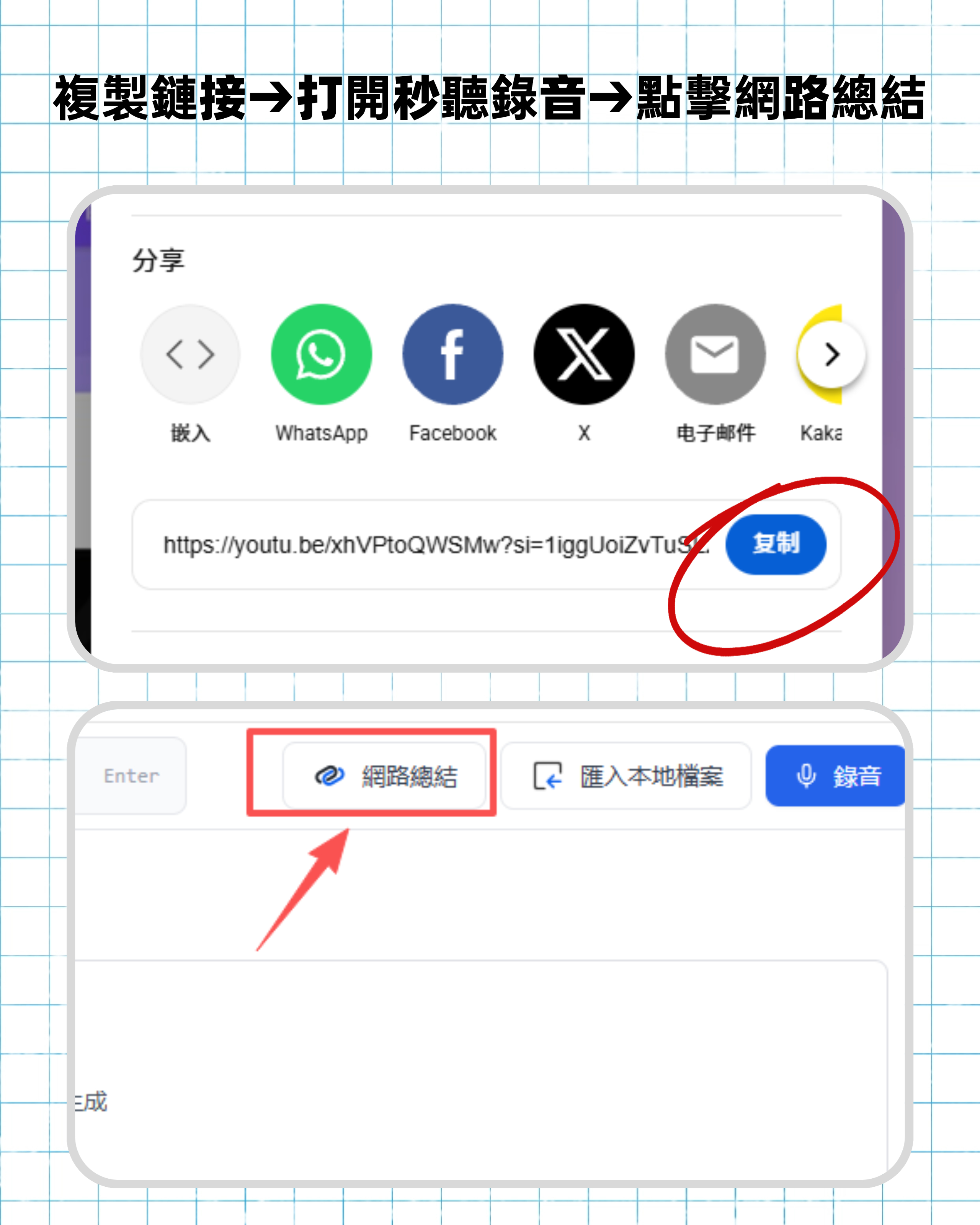
- Multi-source support: Besides system recording, you can upload audio files or paste YouTube links for transcription. Great for organizing online courses or interview practice videos.
Real-World Use Cases: How Students Use Tinrec
Scenario 1: Recording Online Classes & Reviewing
I run Tinrec in the background during Google Meet lectures to record system audio. After class, I check the AI summary to confirm I didn't miss any key points. For exam prep, I ask the AI Q&A questions like "What is Chapter 4 about?"—much faster than flipping through the textbook.
Scenario 2: Group Online Discussions
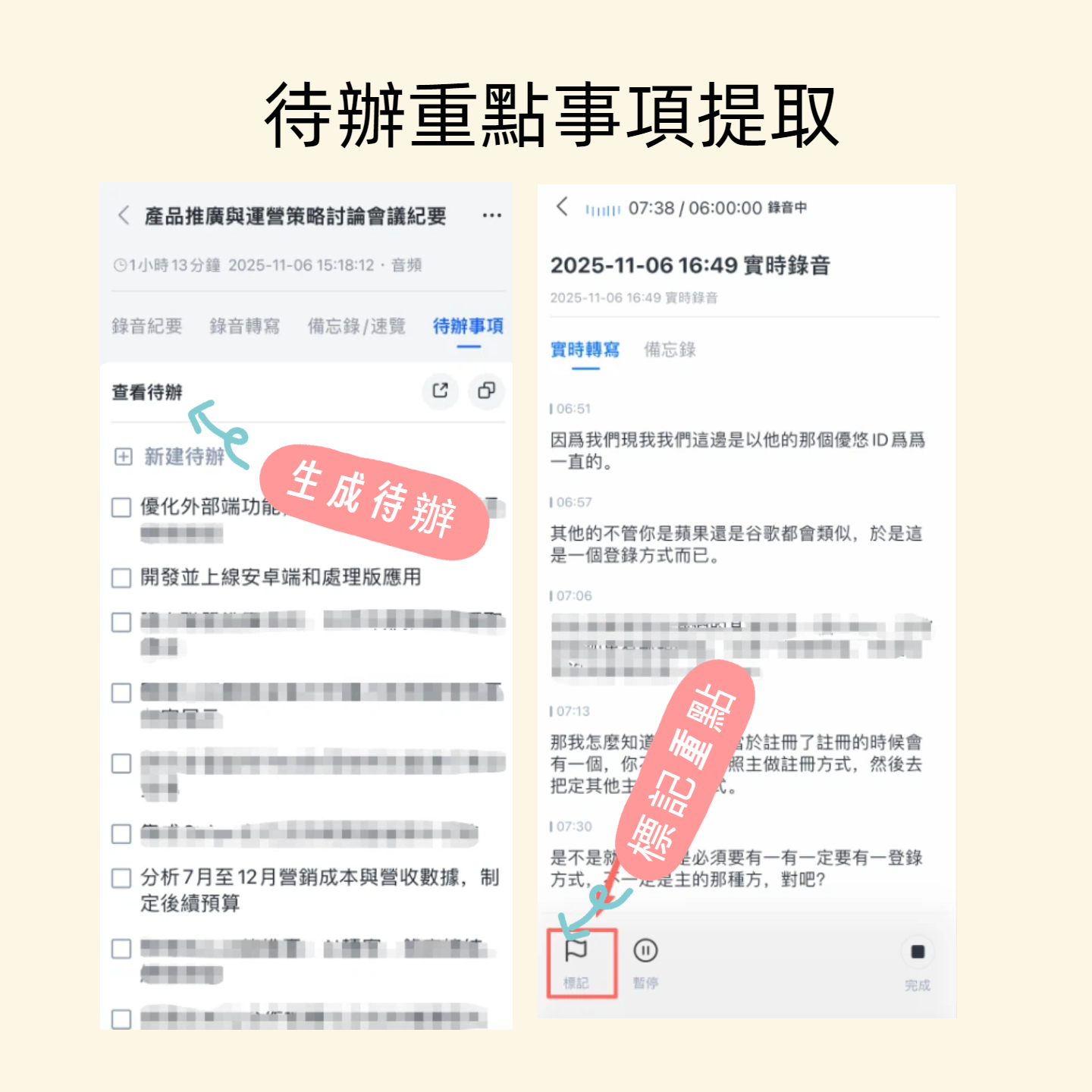
Group projects are notorious for everyone forgetting what was decided. Now I start Tinrec before each meeting and share the action items screenshot in our group chat afterward. No one can deny their responsibilities. Initially skeptical, my roommate now uses it after seeing how much it boosted my final project efficiency.
Scenario 3: Watching YouTube Tutorials
Some supplementary materials are YouTube videos. Previously, I had to pause and take notes constantly. Now I just paste the link into Tinrec, get the transcription and summary, and finish an hour-long video in 30 minutes.
Scenario 4: Interview Prep
I uploaded recordings of mock interviews to Tinrec, analyzing my speaking logic and filler words. It even helped train my English speaking—this was my secret weapon to landing an offer.
3 Things to Consider When Choosing a Meeting Recording Tool
If you're looking for a backup solution for online meetings, here are three key points from my personal experience:
- Can it record system audio?: Many apps only record microphone input, but Google Meet audio comes from system output. Tinrec's desktop version can directly record system sound, so you won't end up with empty files.
- Post-transcription organization: A plain transcript isn't enough. You need summaries, action items, and a searchable database. This is where Tinrec outshines other recording apps.
- Student-friendly pricing: Tinrec's free version offers a monthly transcription quota. If you only record key lectures or discussions, it's sufficient. I have about two meetings a day and use the Pro monthly plan—costs about as much as a bubble tea. Skip one late-night snack and you're covered.
Frequently Asked Questions
Q: Can Tinrec record Google Meet? Yes. On your computer, open Tinrec and select "Record system audio" to capture Google Meet audio completely while transcribing in real time.
Q: Is the free version's quota enough? If you only record two or three lectures or meetings per week, the free version is plenty. I use about 60 minutes daily, so I upgraded to Pro—the monthly fee is cheaper than my Netflix subscription.
Q: How's the recording quality? Does background noise affect it? As long as the original audio is clear, Tinrec's transcription accuracy is high. Of course, if many people talk simultaneously or there's echo, quality drops—but that's true for any tool.
Q: What platforms does it support? Tinrec is available on iOS, Android, and web. On desktop, you can use the web version to record system audio; the mobile app is handy for quick recordings.
Conclusion
Google Meet audio issues are frustrating, but missing important lectures or meetings doesn't have to be. Instead of relying on luck, find a reliable backup. I started with the free version and moved to Pro, using it all semester. Tinrec has become an essential part of my study routine. If you're also a student overwhelmed by online classes, try the free version first—it's saved me tons of note-taking time.
Turn every recording into actionable outcomes
Get 60 free transcription minutes when you sign in. No credit card required.
Related Reading
You might also like

Best Speech-to-Text Tools 2026: Traditional Chinese Recognition + AI Meeting Notes
How to choose a speech-to-text tool in 2026? We break down four dimensions: Traditional Chinese recognition, meeting recording methods, post-meeting summaries and AI Q&A, and team collaboration. We also compare Tinrec, Yating Transcription, Otter.ai, and Notta to help you decide which one truly fits your meeting and transcription needs.

2026 Speech-to-Text Tools Compared: Tinrec vs. Notta vs. Otter — Which Should You Choose?
Which speech-to-text tool is best? This article moves beyond the common mistake of comparing only recognition accuracy and instead compares Tinrec with Notta, Otter, and other popular tools across five dimensions: post-meeting organization, online meeting recording, Chinese-language experience, cross-device use, and team data ownership. It also highlights key considerations and FAQs when choosing a tool.

2026 Comparison of 3 English Transcription Apps: Tinrec, Yating, and Otter.ai – Which Saves More Time with Mixed Chinese-English?
This article addresses common misconceptions about English transcription apps and compares Tinrec, Yating, and Otter.ai in terms of English and mixed Chinese-English transcription, post-meeting workflows, online meeting recording, team collaboration, and plan flexibility. Based on public product information, it helps you decide which app to choose for pure English scenarios, mixed Chinese-English meetings, and team data retention.
5 Best Voice Transcription Software in 2026: Free Tiers, Chinese Accuracy, and Post-Meeting Organization Compared
Starting from the common pitfalls students face with transcription software, this hands-on comparison tests five types of tools on free tiers, Chinese recognition, and post-meeting organization. Using Tinrec across four scenarios—classes, group discussions, thesis interviews, and online meetings—plus five buying checkpoints and FAQs, it helps you choose the right tool on a limited budget.

Tinrec vs Notta 2026: 5-Dimension Comparison — Which Is Better for Chinese Meetings and Team Knowledge Retention?
Compare Tinrec and Notta across five dimensions: transcription, bot-free recording, post-meeting organization, team governance, and pricing. Includes selection criteria, pitfalls to avoid, and ideal use cases.

4 Free Voice Transcription Tools Compared: Which Offers the Most Free Minutes in 2026?
Want to transcribe meeting recordings for free but keep getting cut off after a few minutes? This article compares Tinrec, cSubtitle, inFin, and Atter on free quotas, Chinese recognition, online meeting recording, and post-meeting organization to help you find a truly usable voice transcription tool.

Best Meeting Transcription Tools 2026: No-Bot Recording + AI Summary Tested
How to choose a meeting transcription tool? This guide starts from real meeting pain points, outlines 4 key buying factors, tests Tinrec's no-bot recording, AI summaries, action items, and AI Q&A, and compares Granola and TurboScribe use cases to help you find a free-enough or worth-paying solution.

5 Limited Company Meeting Minutes Templates Tested for 2026: Which Format Actually Tracks Decisions and Action Items?
How to choose a limited company meeting minutes template? First distinguish between the 'statutory document you need to submit' and the 'internal record you use to track progress,' then compare 5 approaches: Word, Excel, Notion, and AI meeting tools. The article includes a copy-paste field checklist, filled-in examples, 4 common mistakes, and the most time-saving workflow after testing.

2026 Free Online Transcription Tools Compared: Which Free Tier Is Actually Enough?
There are many free online transcription tools, but free tiers differ greatly—whether they limit time or features. Based on real-world scenarios, this article compares the free rules, ability to handle online meetings directly, post-meeting organization capabilities, and data retention limits of Tinrec, cSubtitle, MyEdit, and Transcribe, helping you decide which one is truly sufficient.