

Turn recordings into transcripts and summaries in minutes
Upload audio or video for multilingual transcription, AI notes, and action items
The other day, I had a very important online meeting with a partner. I needed to share a product demo video and also let them hear the audio. So I clicked "Share screen" in Google Meet, selected the tab, and checked "Share audio"—but they still said they couldn't hear anything.
Later I realized I hadn't adjusted some settings—the audio source wasn't switched properly.
But that incident reminded me of a more fundamental issue: even if you successfully share screen and audio, after the meeting ends, the key discussion points, action items, and commitments quickly disappear in the busyness if no thorough record is kept.
Instead of spending ages trying to get the screen audio sharing right, it's better to first ensure the meeting's "knowledge" is truly preserved.
Over the past few years, I've increasingly relied on AI recording tools for online meetings. Especially tools like Tinrec, which not only record Google Meet audio but also transcribe the meeting into text, generate summaries and action items, and even let me review key points through Q&A afterward.
In this article, I want to share a methodology I've developed using Tinrec to handle Google Meet recording and organization.
What Can Google Meet Recording Do for You?
In my own team operations, meeting recording and organization solve at least three common pain points.
Scenario 1: Get a Complete Meeting Record Within 5 Minutes
Previously, after a two-hour meeting, I'd spend another hour listening back, typing a transcript, and organizing key points. Now with Tinrec, it starts live transcription as the meeting goes—by the time the meeting ends, a report including transcript, summary, and action items is already generated.
(Screenshot: Tinrec live recording and transcription interface, arrow pointing to the real-time transcription text area)
Scenario 2: Cross-Team Communication No Longer Misses Tasks
We have a cross-department project. After every meeting, someone would complain, "I didn't hear about that." Tinrec's action item extraction automatically picks out "who does what by when." I then paste this list into the group chat for everyone to check their parts. Since then, no one has used "I didn't know" as an excuse.
Scenario 3: Historical Meetings Become a Searchable Knowledge Base
In a meeting three months ago, we discussed a supplier's pricing proposal. I didn't take notes then, and later when I needed to trace it, I couldn't find it at all. Now all meeting recordings stay in Tinrec, and I can simply ask: "What was Supplier A's quote last time?" It will find the conversation semantically.
(Screenshot: Tinrec AI conversation query interface, arrow pointing to the input box and answer)
What Are the Core Capabilities of Google Meet Recording?
When choosing a meeting recording tool, I care about more than just "recording." Transcription is only the first step. What matters is whether the tool can help me organize and let me continue to "use" the content afterward.
Here are the core capabilities that have truly impacted my workflow after using Tinrec.
Real-Time Recording to Transcript
Tinrec transcribes during the meeting, not after. You can see the text appearing in real time on the screen, ensuring no key remarks are missed. The latency is very low—almost as soon as someone finishes speaking, the text appears. This is especially useful when you need to confirm content synchronously.
AI Summary and Chapters
It doesn't just condense the transcript into one paragraph; it organizes it structurally. Meeting topics, discussion conclusions, and decisions are listed separately. Even better, it automatically splits long meetings into chapters so you can jump directly to the section you're interested in without listening from start to finish.
(Screenshot: Tinrec meeting summary interface, arrow pointing to AI-generated summary block)
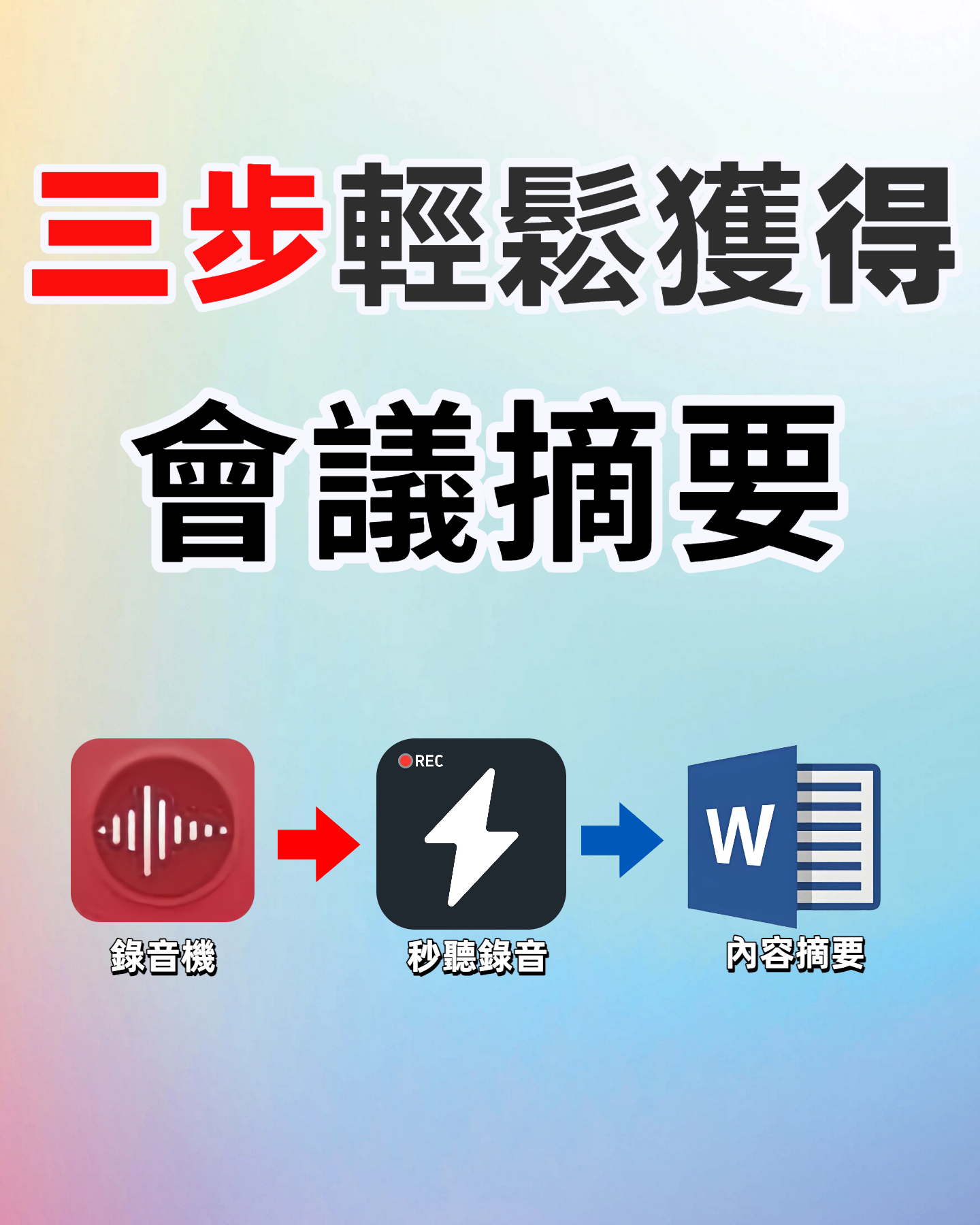
Action Item Extraction
Stop organizing recordings by hand
Upload audio or video and automatically get a transcript, summary, and action items
This feature has saved me countless times. During meetings, people chatter away, and often no clear conclusion emerges about who should do what. Tinrec automatically extracts "action items" from the conversation, listing assignees and deadlines. I immediately screenshot and send to the team, eliminating later excuses.
(Screenshot: Tinrec action item list, arrow pointing to auto-generated to-dos)
AI Conversation Search
You can use Tinrec as a "search engine" for your meetings. After transcription, simply ask questions in the chat, such as: "Who mentioned budget overrun in the last meeting?" or "What are the client's key requirements?" It will directly reply with key points based on semantic understanding, so you don't have to scroll through the transcript.
Multi-Format Export
Organized content can be exported as text files, PDFs, or synced directly to Notion, Google Docs, etc. I usually paste the meeting summary into a Notion project page to centralize all related information.
Practical Application Scenarios
Different meeting types call for slightly different uses of Tinrec. Here are three scenarios I encounter most often.
Project Meetings
Weekly progress meetings focus on status updates and task assignment. I start Tinrec's live recording before the meeting and fully engage in the discussion. When the meeting ends, I immediately use the action item list to verify each person's tasks, then share the summary with those who couldn't attend.
Client Interviews
During requirement gathering interviews, I don't want to keep my head down taking notes—it disrupts the conversation flow. Tinrec allows me to focus on asking questions and listening, then extract key requirements from the transcript and summary later.
Online Courses
When attending external online lectures or training, I used to listen and write at the same time, often missing key points. Now I record the entire session (with respect for copyright and instructor consent) and use Tinrec's chapter feature to review sections later. If I want to revisit a specific part, I just type a keyword in the search bar.
4 Points to Consider When Choosing a Google Meet Recording Tool
Through testing various recording and organization tools, I've identified several criteria that truly affect user experience.
1. Transcription Accuracy
Don't just rely on official marketing numbers. Test it in your actual environment—with your accent, multi-speaker scenarios, etc. In my tests, Tinrec performs very well on Chinese and mixed Chinese-English scenarios, especially with clear audio sources, requiring almost no corrections.
2. Organization Capability
Transcription is only the basics. Whether the tool can further summarize, create chapters, and extract action items determines how much time you'll spend afterward. Tinrec not only does these but also offers AI Q&A, so you don't even need to search—just ask.
3. Language Support
If you need mixed Chinese-English transcription, make sure the tool supports it. Some tools perform well on English meetings but frequently make errors with Chinese. Tinrec is especially friendly to Chinese and mixed-language scenarios, which is why I chose it.
4. Cross-Platform
Ensure the tool works on your commonly used devices. Tinrec has iOS and Android apps plus a web version. When using Google Meet on my laptop, I use the web version to record system audio directly; on the go with my phone, I use the app to record.
Frequently Asked Questions
Q: How do I record Google Meet audio with Tinrec?
The simplest way: open the Tinrec web version, select "Live Recording," and set the audio source to "System Audio." It will directly record all audio from the Google Meet, including your microphone and any media played during the meeting.
Q: Is the free plan sufficient? How long can I record?
If you just want to try it out, the free plan offers a monthly base quota that covers a few typical meetings. But since I have frequent meetings, I eventually subscribed to Pro for more comfortable monthly limits. I recommend starting with the free plan to experience how much time the auto-generated summaries and action items can save you.
Q: Can the accuracy be 100%? Will it miss anything?
No tool can guarantee 100% accuracy. Actual transcription is affected by network stability, speaker accents, multiple people talking at once, etc. But in my experience, Tinrec's accuracy in normal environments is high enough to trust. For critical content, I still cross-check with the transcript.
Q: Can it distinguish between different speakers?
Yes. Tinrec can automatically identify different speakers and label them as Speaker 1, Speaker 2, etc., in the transcript, so you know who said what. This is especially useful for interviews or multi-person meetings.
Q: Can I export the recorded data to other places?
Yes. You can export the transcript, summary, or full report as TXT, PDF, etc. It also supports direct sync to Notion, Google Docs, OneNote, and other tools for easy archiving and collaboration.
Summary
Recording and organizing Google Meet meetings into useful content is no longer a complicated technical task—it's something you can do immediately after every meeting.
If you have meetings more than three times a week, I highly recommend trying Tinrec. Download the free version and use the monthly quota to experience a few meetings—see what it feels like to have AI organize your meeting notes and automatically extract action items.
When meeting knowledge is truly preserved, searchable, and trackable, you'll find that not only do you save organization time, but your entire team's collaboration becomes smoother.
Turn every recording into actionable outcomes
Get 60 free transcription minutes when you sign in. No credit card required.
Related Reading
You might also like

Best Speech-to-Text Tools 2026: Traditional Chinese Recognition + AI Meeting Notes
How to choose a speech-to-text tool in 2026? We break down four dimensions: Traditional Chinese recognition, meeting recording methods, post-meeting summaries and AI Q&A, and team collaboration. We also compare Tinrec, Yating Transcription, Otter.ai, and Notta to help you decide which one truly fits your meeting and transcription needs.

2026 Speech-to-Text Tools Compared: Tinrec vs. Notta vs. Otter — Which Should You Choose?
Which speech-to-text tool is best? This article moves beyond the common mistake of comparing only recognition accuracy and instead compares Tinrec with Notta, Otter, and other popular tools across five dimensions: post-meeting organization, online meeting recording, Chinese-language experience, cross-device use, and team data ownership. It also highlights key considerations and FAQs when choosing a tool.

2026 Comparison of 3 English Transcription Apps: Tinrec, Yating, and Otter.ai – Which Saves More Time with Mixed Chinese-English?
This article addresses common misconceptions about English transcription apps and compares Tinrec, Yating, and Otter.ai in terms of English and mixed Chinese-English transcription, post-meeting workflows, online meeting recording, team collaboration, and plan flexibility. Based on public product information, it helps you decide which app to choose for pure English scenarios, mixed Chinese-English meetings, and team data retention.
5 Best Voice Transcription Software in 2026: Free Tiers, Chinese Accuracy, and Post-Meeting Organization Compared
Starting from the common pitfalls students face with transcription software, this hands-on comparison tests five types of tools on free tiers, Chinese recognition, and post-meeting organization. Using Tinrec across four scenarios—classes, group discussions, thesis interviews, and online meetings—plus five buying checkpoints and FAQs, it helps you choose the right tool on a limited budget.

Tinrec vs Notta 2026: 5-Dimension Comparison — Which Is Better for Chinese Meetings and Team Knowledge Retention?
Compare Tinrec and Notta across five dimensions: transcription, bot-free recording, post-meeting organization, team governance, and pricing. Includes selection criteria, pitfalls to avoid, and ideal use cases.

4 Free Voice Transcription Tools Compared: Which Offers the Most Free Minutes in 2026?
Want to transcribe meeting recordings for free but keep getting cut off after a few minutes? This article compares Tinrec, cSubtitle, inFin, and Atter on free quotas, Chinese recognition, online meeting recording, and post-meeting organization to help you find a truly usable voice transcription tool.

Best Meeting Transcription Tools 2026: No-Bot Recording + AI Summary Tested
How to choose a meeting transcription tool? This guide starts from real meeting pain points, outlines 4 key buying factors, tests Tinrec's no-bot recording, AI summaries, action items, and AI Q&A, and compares Granola and TurboScribe use cases to help you find a free-enough or worth-paying solution.

5 Limited Company Meeting Minutes Templates Tested for 2026: Which Format Actually Tracks Decisions and Action Items?
How to choose a limited company meeting minutes template? First distinguish between the 'statutory document you need to submit' and the 'internal record you use to track progress,' then compare 5 approaches: Word, Excel, Notion, and AI meeting tools. The article includes a copy-paste field checklist, filled-in examples, 4 common mistakes, and the most time-saving workflow after testing.

2026 Free Online Transcription Tools Compared: Which Free Tier Is Actually Enough?
There are many free online transcription tools, but free tiers differ greatly—whether they limit time or features. Based on real-world scenarios, this article compares the free rules, ability to handle online meetings directly, post-meeting organization capabilities, and data retention limits of Tinrec, cSubtitle, MyEdit, and Transcribe, helping you decide which one is truly sufficient.