

Turn recordings into transcripts and summaries in minutes
Upload audio or video for multilingual transcription, AI notes, and action items
What is the Google Meet Recording Feature?
Google Meet is a video conferencing service provided by Google Workspace (formerly G Suite) with built-in meeting recording that saves the entire session as a video file. This feature is primarily available to Google Workspace users, including Business, Enterprise, and Education editions; free personal accounts are not supported. After recording, the file is automatically saved to the meeting organizer's Google Drive for playback, sharing, or downloading.
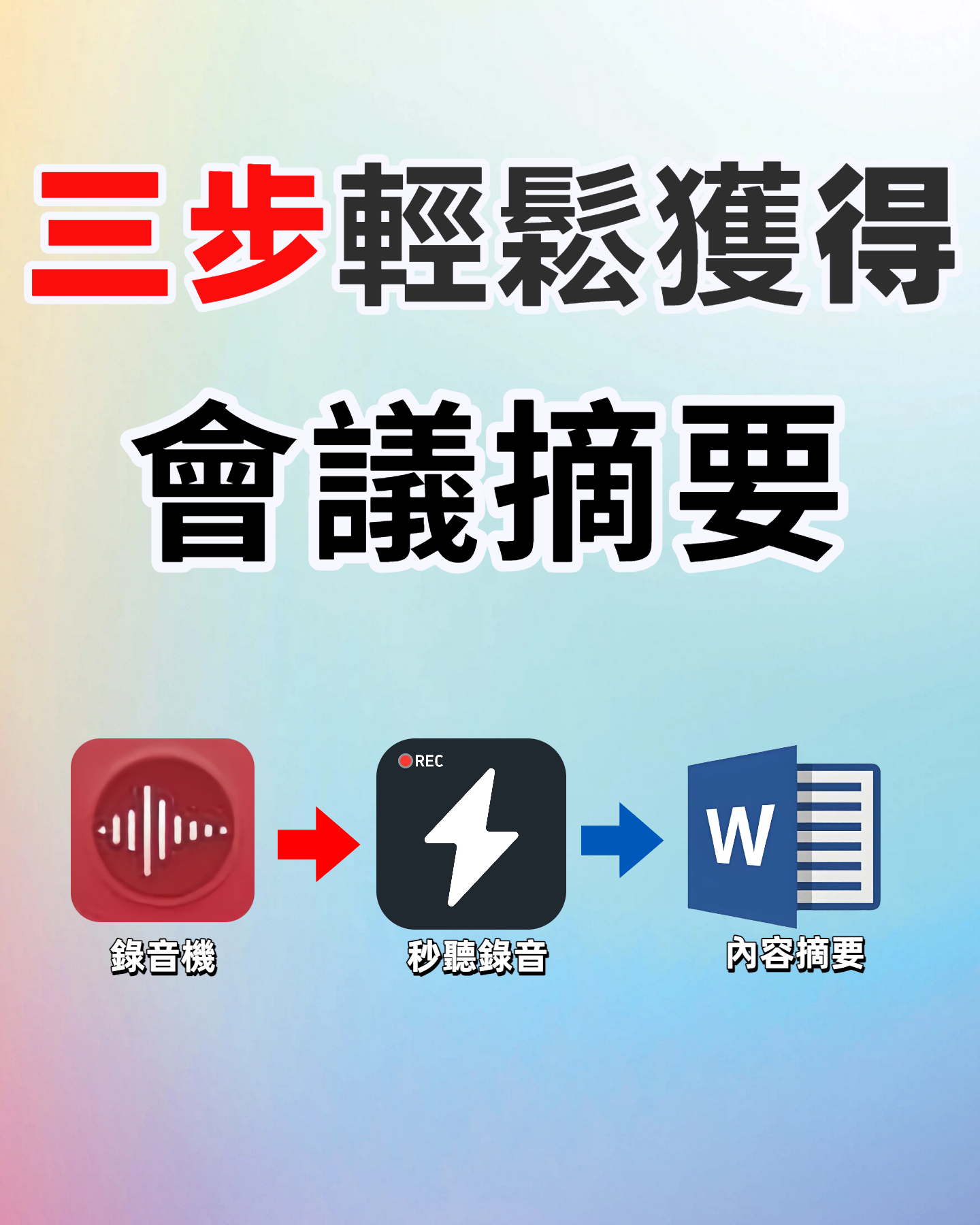
Key Features and Highlights
- Automatic Cloud Storage: After recording, the video is saved directly to Google Drive without needing to download or transfer manually.
- Permission Management: Organizers can set sharing permissions to allow team members or external people to view the recording.
- Caption Support: The recording file automatically generates speech recognition captions for easy searching of key meeting points.
- Cross-Platform Access: View recordings on Google Drive from your computer, phone, or tablet.
Pricing Plans
The Google Meet recording feature is not billed separately but is included in Google Workspace paid plans:
- Free Google Account: Recording not supported.
- Google Workspace Individual: Approximately NT$300 per month (may vary by region), recording supported.
- Business Starter / Standard / Plus: Starting at NT$200 per user per month, all plans support recording.
- Enterprise and Education: Recording enabled by default.
Please note that recording files consume your Google Drive storage. It is recommended to regularly clean up or upgrade your storage plan.
Stop organizing recordings by hand
Upload audio or video and automatically get a transcript, summary, and action items
Tutorial: 3 Steps to Find Google Meet Recording Location
Step 1: Confirm You Are the Meeting Organizer
Recording files are only saved to the meeting organizer's Google Drive. If you are an invited participant, you must ask the organizer to share the recording link. Log in to your Google account and verify that the recorded meeting was created by you.
(Caption: Log in to Google Calendar and check the organizer field in the meeting details.)
Step 2: Go to Google Drive and Find the "Meet Recordings" Folder
After recording, the system automatically creates a "Meet Recordings" folder in the organizer's Google Drive (the Chinese version may show as "Meet 錄製內容"). Go to drive.google.com, click "My Drive" in the left sidebar, and you'll see the folder; you can also use the search bar to quickly locate it by entering "Meet Recordings".
(Caption: Google Drive interface with the Meet Recordings folder in the left sidebar)
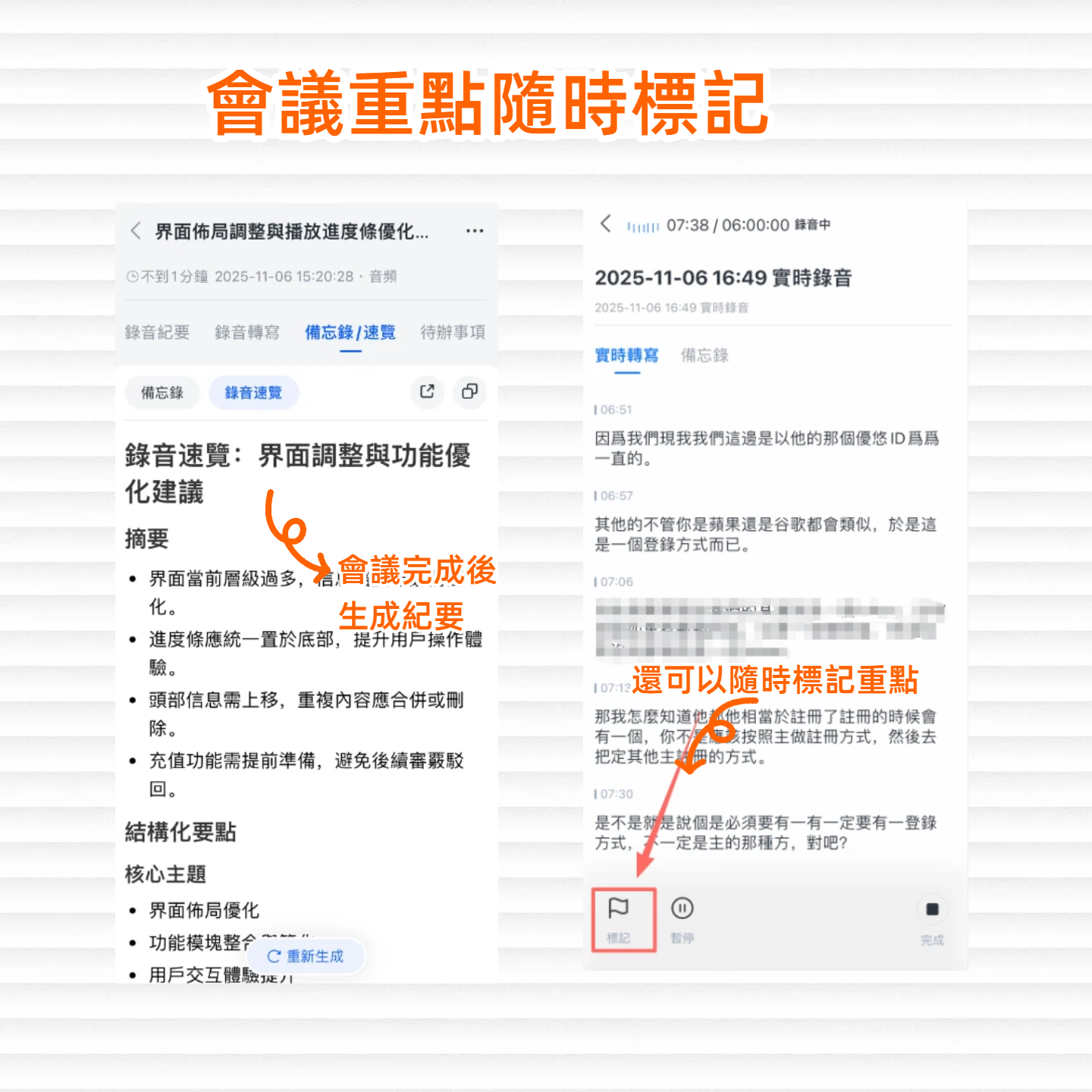
Step 3: Open the Recording File and Manage Access
Once inside the folder, recording files are named after the meeting in MP4 format. Click the file to play it online, or use the "Share" button in the top right to set viewing permissions. You can also download it to your computer or move the file to another folder.
(Caption: Preview of an MP4 file in Google Drive with sharing options.)
Frequently Asked Questions
Why don't I see the recording option in Meet?
Only meeting organizers with a paid Google Workspace account will see the recording button. If you are using a free Gmail account or you are simply a participant, the option will not appear. Ask the meeting host to start recording and share the link with you afterward.
How much storage space do recording files take up?
The file size depends on the meeting length and quality. Typically, a 1-hour meeting takes about 500 MB to 1 GB. Google Workspace plans usually offer 30 GB to unlimited storage (depending on the plan). If you run out of space, consider cleaning up old recordings or upgrading your plan.
Can I save recordings to other cloud storage?
Yes, after downloading the MP4 file from Google Drive, you can manually upload it to Dropbox, OneDrive, or your own server. However, Meet currently does not have a built-in feature to automatically transfer recordings to other cloud storage.
If I delete the Meet Recordings folder, will the recordings be lost?
Yes, if you delete the recording file or the entire folder from Google Drive, it will be moved to the trash. Unless restored within 30 days, it will be permanently deleted. It's recommended to backup important meeting recordings to another location.
Can I record only a specific speaker's video?
Meet recordings capture the entire meeting screen, including all participants' video and shared content. It is not possible to record only a single speaker. If you need a clip of a specific speaker, you can edit it later with video editing software.
Turn every recording into actionable outcomes
Get 60 free transcription minutes when you sign in. No credit card required.
Related Reading
You might also like

2026 Audio-to-Text Comparison: Tinrec vs Otter.ai for Chinese Meetings & Team Knowledge
How to choose an audio-to-text tool in 2026? This article compares Tinrec and Otter.ai across 5 dimensions: Chinese meeting transcription, bot-free online meeting capture, audio file organization, post-meeting workflows, and team data governance. Based on public features and pricing, it helps you decide which is better suited for meeting notes needs in Taiwan.

How to Choose an Online Audio-to-Text Tool in 2026: 5 Steps to Pick the Right One and Get a Transcript
How do you choose an online audio-to-text tool? This article reviews 6 online options—Tinrec, MyEdit, cSubtitle, CyberLink, Yating Transcript, and Monica—comparing free quotas, Chinese recognition, export formats, and team collaboration. It also walks you through 5 steps to turn an audio file into a transcript.
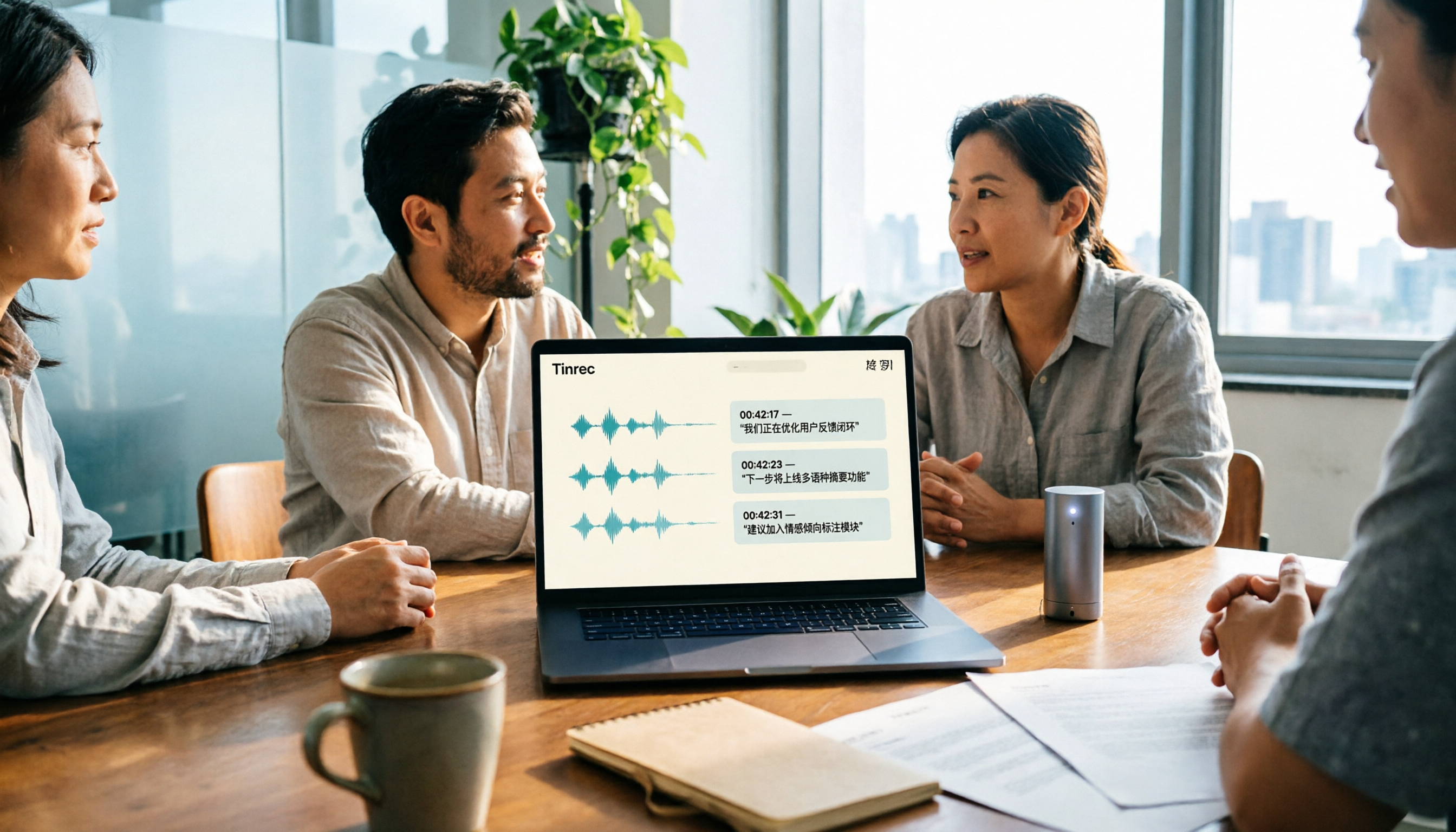
2024 Review of 4 Audio-to-Text Tools: Which Saves the Most Time on Chinese Meeting Transcripts and AI Summaries?
The 2024 audio-to-text comparison isn't just about transcription speed—it's about whether the tool can organize your meeting notes afterward. Based on real meetings and interviews, this review compares Tinrec, Notta, Granola, and PLAUD on audio sources, transcripts, AI summaries, action items, team collaboration, and pricing limits to help you choose the right tool.

4 Free Online Audio-to-Text Tools Compared (2026): Which Offers the Best Free Tier and Chinese Recognition?
A comparison of Tinrec, MyEdit, cSubtitle, and Monica's free online audio-to-text offerings, covering free quotas, Chinese recognition, export formats, and post-meeting AI organization to help you decide which suits meetings, interviews, and subtitles.

4 Free AI Audio-to-Text Tools Tested: Which Free Tier Is Enough in 2026?
There are many free AI audio-to-text tools, but free quotas, single-recording length limits, Chinese recognition, and post-meeting organization capabilities vary widely. This article compares the free plans and use cases of 4 tools, using Tinrec's no-bot recording, AI Q&A, and team spaces as selection references.

2026 Comparison of 2 Online Audio-to-Text Tools: Tinrec vs Otter.ai — Which Is Better for Chinese Meetings?
Starting from common misconceptions, this comparison examines Tinrec and Otter.ai in Chinese meetings, bot-free recording, post-meeting organization, real-time translation, and team data retention to help you decide which online audio-to-text tool fits your daily work.

2026 Comparison of 2 Audio-to-Text Platforms: Free Tiers, Chinese Recognition, and Post-Meeting Organization at a Glance
A side-by-side comparison of Tinrec and Notta across free tiers, Chinese recognition, online meeting recording, post-meeting organization, and team collaboration, helping you decide whether the free version is enough and when to upgrade.

iPhone Voice Memos vs Tinrec in 2026: 5-Dimension Comparison — Is Free Transcription Enough?
iPhone's built-in Voice Memos can now transcribe recordings for free, so do you still need a separate tool? This article compares iPhone's built-in features with Tinrec across 5 practical dimensions and honestly explains where the free limits are, helping you decide which approach fits your meeting volume.

4 Free Audio-to-Text Tools Tested for 2026: Which Free Tier Is Actually Enough?
There are plenty of free audio-to-text tools, but few can handle a full meeting. This hands-on comparison tests the free plans of Tinrec, Otter.ai, Notta, and TurboScribe—breaking down how limits are calculated, transcript post-processing, audio retention, and team collaboration—to help you decide which free version is truly usable.