

Turn recordings into transcripts and summaries in minutes
Upload audio or video for multilingual transcription, AI notes, and action items
2026 Comparison of 3 Google Meet Note-Taking Tools: No More Time-Consuming Post-Meeting Organization
Recently, I took on a project that required frequent Google Meet meetings with an international team.
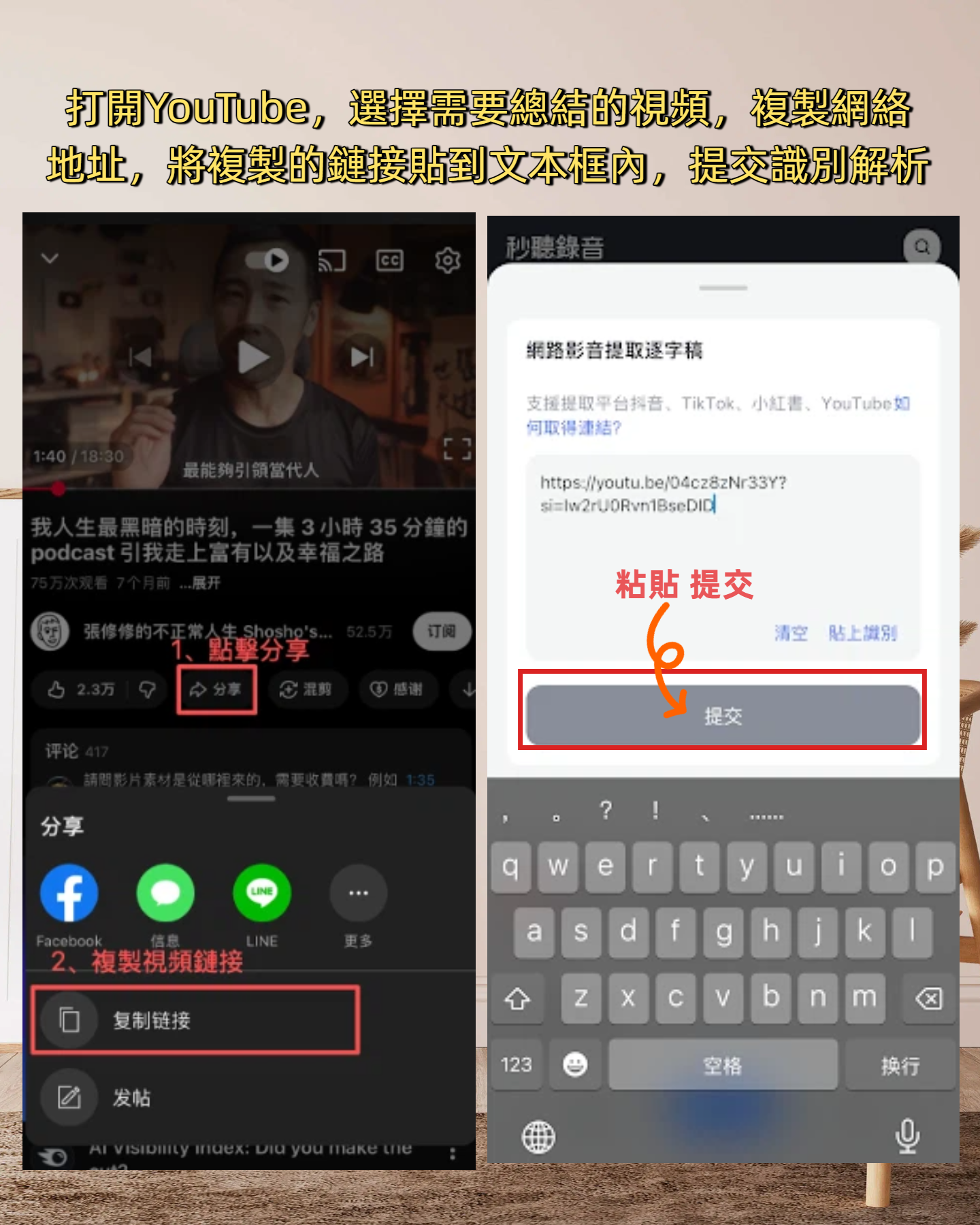
After every meeting, I had to manually convert the discussion from the screen recording into action items—eating up nearly half my post-meeting time.
I thought, isn't there a better way?
So I started looking for tools that could automatically organize meeting recordings.
I tried several options.
Some tools only provided transcripts, but what I needed wasn't a lengthy dialogue log; I needed "who should do what and what the conclusion was."
I also tried dedicated meeting bots, but setup was complicated, you had to invite the bot into the meeting room, and sometimes the internet was unstable, causing the bot to disconnect and lose the entire meeting record.
Then I started using Tinrec.
It not only solved my Google Meet organization problem but also handled lecture recordings, interview recordings, and even online videos—all through the same streamlined process.
In this article, I want to share with you: how to turn the post-meeting organization of Google Meet from manual labor into an automated workflow.
What Can Google Meet Meeting Automation Do for You?
Scenario 1: Meeting Notes Ready 5 Minutes After the Meeting
Before, after a two-hour Google Meet, you might spend another hour organizing notes.
Now, with Tinrec for example, by the time the meeting ends, AI has already generated a summary, conclusions, and action items—who is responsible for what and deadlines, all at a glance.
(Screenshot here: Tinrec meeting note summary screen, arrows pointing to the summary block and action item list)
Scenario 2: Look Up Meeting Content Without Re-listening to the Recording
"Who mentioned the budget in the last meeting?"
With Tinrec's AI dialogue search, you can directly ask a question and it will find the answer from the recording.
No more scrubbing through the timeline.
(Screenshot here: Tinrec AI Q&A interface, showing input question and corresponding segment output)
Scenario 3: Turn Meeting Discussions into Action Lists
Many meeting notes are full of text but no one knows the next step.
Tinrec automatically extracts action items from the conversation and lists them.
You can also export them to Notion, Google Docs, seamlessly integrating with your existing workflow.
(Screenshot here: Tinrec action item list, arrow pointing to export button)
Scenario 4: Integrate All Audio/Video Content, Not Just Meetings
If you think Tinrec only handles meetings, you're underestimating it.
Online tutorial videos, podcasts, interview recordings—as long as you can record, upload, or paste a link, it can transcribe and summarize.
All equally.
What Are the Core Capabilities of AI Meeting Note Tools?
Real-Time Transcription: Transcribe While Recording, Not After
During a Google Meet, you can record with Tinrec simultaneously, and the screen shows real-time transcription text.
Latency is less than a second, so you can check if you missed any key points during the meeting.
(Screenshot here: Tinrec real-time transcription screen, left side shows recording status, right side shows transcript area)
AI Summary: Not Just Condensation, but Structuring
Common transcription tools may only give you a condensed paragraph.
But Tinrec's summary automatically breaks down into: meeting topic, discussion conclusions, action items, responsible persons—crystal clear.
Stop organizing recordings by hand
Upload audio or video and automatically get a transcript, summary, and action items
You don't need to categorize it yourself.
AI Dialogue Search: Query the Recording Like a Database
Once the recording is transcribed and stored, you have a searchable database.
Want to know "What was the client's feedback on the new design?" Just ask Tinrec, and it will give you the answer based on semantic understanding.
(Screenshot here: Tinrec AI dialogue search, showing question input and relevant segments returned)
Multiple Output Formats: Take Results to Your Preferred Tools
Organized content can be exported as TXT, DOCX, PDF, or synced directly to Notion, Google Docs.
You don't have to change your existing habits to use Tinrec.
(Screenshot here: Tinrec export options, showing multiple formats and third-party integrations)
Not Just English, Chinese Content Organization Is Better
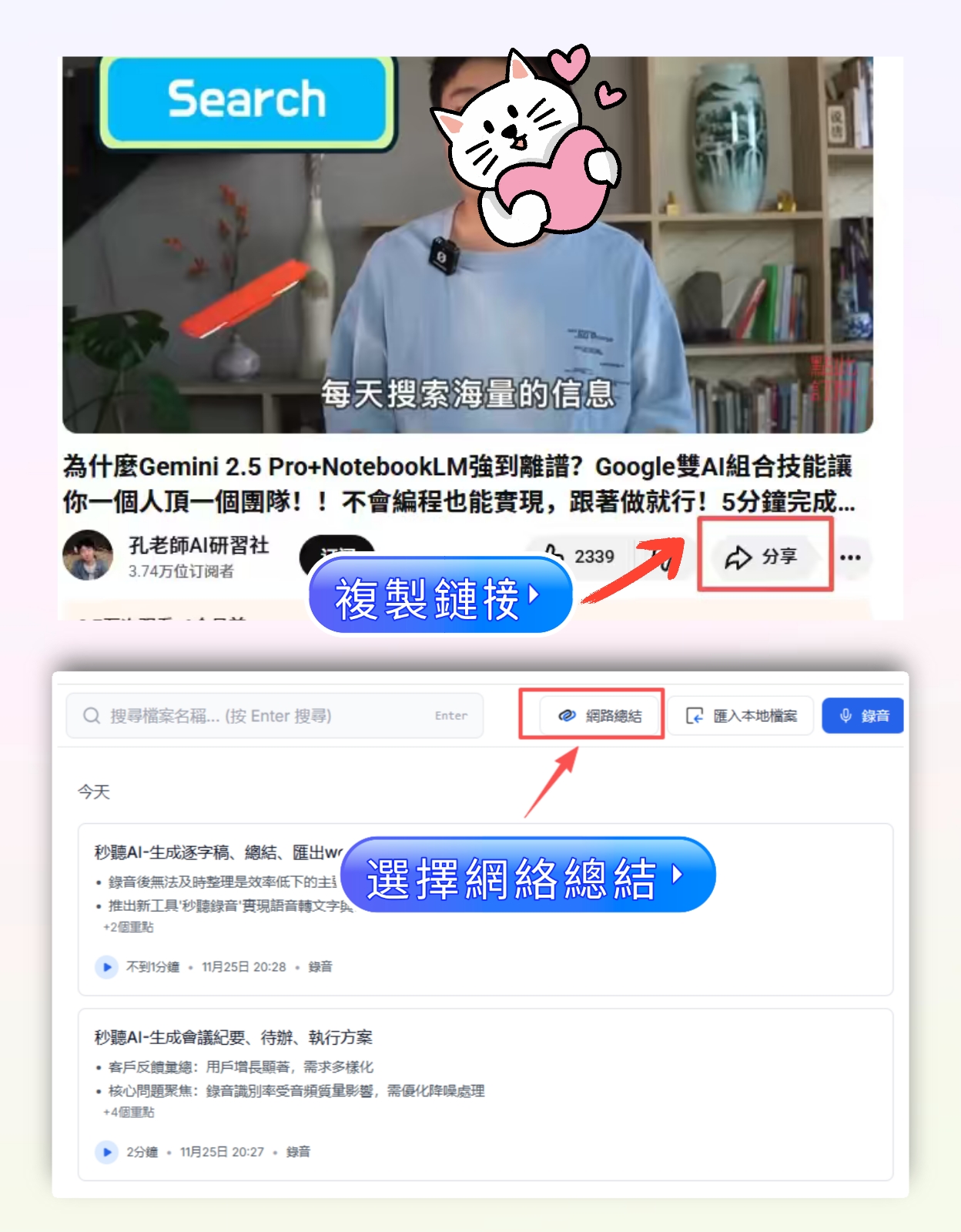
If you mainly handle Chinese meetings or courses, Tinrec's Chinese transcription and summary quality, in my experience, is more natural than most foreign tools.
However, actual results may vary depending on recording quality and accents—but overall, it's very friendly to Chinese users.
Practical Application Scenarios
Remote Team Meetings: Automatically Generate Bilingual Meeting Notes
Our team includes both Chinese and English speakers.
We use Tinrec to record Google Meet, and after the meeting, it generates summaries in both Chinese and English.
Save translation and organization time, and send directly to all attendees.
Online Course Review: Turn a 2-Hour Lecture into Key Points in Minutes
After listening to a long lecture, I use Tinrec to transcribe it, and the AI summary extracts three core concepts.
It also automatically divides into chapters, making review super fast.
Client Interview Organization: Extract Insights Without Manual Marking
Import interview recordings into Tinrec; it not only provides a transcript but also highlights key sentences.
Then I use AI Q&A to pull out all paragraphs about "budget considerations"—a two-hour task now done in ten minutes.
4 Things to Watch When Choosing a Google Meet Note-Taking Tool
1. Not Just Transcription, But Organization
If the tool only gives you a transcript, you still have to read it yourself.
Tinrec's summary, action items, and Q&A help you jump straight to the next step.
2. Test Chinese Quality Yourself
Don't just rely on claims of Chinese support.
Use your own meeting recordings to test. After my tests, Tinrec's Chinese summary and keyword extraction are indeed more accurate.
3. Input Sources Should Be Broad
Some tools only record meetings, but your content might come from videos, audio files, podcasts.
Tinrec handles live recording, file uploads, and pasted links—one tool covers most needs.
4. Export and Integration Are Essential
Organized data needs to be portable.
Tinrec supports multiple export formats and integrates with note-taking apps, so meeting results flow directly into your workflow.
Frequently Asked Questions
Q: Can Tinrec automatically join Google Meet meetings?
Yes. Tinrec supports recording system audio. Once set up, it can capture the full Google Meet conversation.
No need to invite a bot.
Q: Is the free version enough?
If you only have a few meetings per week, the free monthly allowance is sufficient to experience full transcription, summary, and export features.
Heavy users can consider the Pro plan.
Q: Can it distinguish different speakers in a group meeting?
Yes. Tinrec automatically recognizes speakers, labeling them as Speaker 1, Speaker 2 in the transcript, so you know who said what.
Q: Where are the recordings stored? Is it secure?
Files are encrypted and stored in the cloud. Only you can access them, and you can delete them anytime.
Please refer to the official website for the privacy policy, but in my experience, data management is rigorous.
Conclusion
From manually organizing Google Meet notes to now letting Tinrec handle most of it automatically, the biggest difference isn't "saving a few minutes" but "no longer having a backlog of post-meeting tasks I wanted to do but never got to."
If you have more than three meetings a week, I highly recommend trying this approach.
Download the free version of Tinrec and experience automatic organization for one meeting.
You'll find that post-meeting can be so easy.
Quick Start Checklist
- Set up Tinrec and select "Record System Audio" to capture Google Meet.
- Start recording during the meeting and watch the real-time transcript.
- After the meeting, click AI Summary to get a structured record.
- Use AI Q&A to find specific discussion content.
- Export action items to your task management tool.
- Import all historical recordings into Tinrec to build a searchable database.
Test step by step, and you'll gradually master this method.
Turn every recording into actionable outcomes
Get 60 free transcription minutes when you sign in. No credit card required.
Related Reading
You might also like

2026 Audio-to-Text Comparison: Tinrec vs Otter.ai for Chinese Meetings & Team Knowledge
How to choose an audio-to-text tool in 2026? This article compares Tinrec and Otter.ai across 5 dimensions: Chinese meeting transcription, bot-free online meeting capture, audio file organization, post-meeting workflows, and team data governance. Based on public features and pricing, it helps you decide which is better suited for meeting notes needs in Taiwan.

How to Choose an Online Audio-to-Text Tool in 2026: 5 Steps to Pick the Right One and Get a Transcript
How do you choose an online audio-to-text tool? This article reviews 6 online options—Tinrec, MyEdit, cSubtitle, CyberLink, Yating Transcript, and Monica—comparing free quotas, Chinese recognition, export formats, and team collaboration. It also walks you through 5 steps to turn an audio file into a transcript.

2024 Review of 4 Audio-to-Text Tools: Which Saves the Most Time on Chinese Meeting Transcripts and AI Summaries?
The 2024 audio-to-text comparison isn't just about transcription speed—it's about whether the tool can organize your meeting notes afterward. Based on real meetings and interviews, this review compares Tinrec, Notta, Granola, and PLAUD on audio sources, transcripts, AI summaries, action items, team collaboration, and pricing limits to help you choose the right tool.

4 Free Online Audio-to-Text Tools Compared (2026): Which Offers the Best Free Tier and Chinese Recognition?
A comparison of Tinrec, MyEdit, cSubtitle, and Monica's free online audio-to-text offerings, covering free quotas, Chinese recognition, export formats, and post-meeting AI organization to help you decide which suits meetings, interviews, and subtitles.

4 Free AI Audio-to-Text Tools Tested: Which Free Tier Is Enough in 2026?
There are many free AI audio-to-text tools, but free quotas, single-recording length limits, Chinese recognition, and post-meeting organization capabilities vary widely. This article compares the free plans and use cases of 4 tools, using Tinrec's no-bot recording, AI Q&A, and team spaces as selection references.

2026 Comparison of 2 Online Audio-to-Text Tools: Tinrec vs Otter.ai — Which Is Better for Chinese Meetings?
Starting from common misconceptions, this comparison examines Tinrec and Otter.ai in Chinese meetings, bot-free recording, post-meeting organization, real-time translation, and team data retention to help you decide which online audio-to-text tool fits your daily work.

2026 Comparison of 2 Audio-to-Text Platforms: Free Tiers, Chinese Recognition, and Post-Meeting Organization at a Glance
A side-by-side comparison of Tinrec and Notta across free tiers, Chinese recognition, online meeting recording, post-meeting organization, and team collaboration, helping you decide whether the free version is enough and when to upgrade.

iPhone Voice Memos vs Tinrec in 2026: 5-Dimension Comparison — Is Free Transcription Enough?
iPhone's built-in Voice Memos can now transcribe recordings for free, so do you still need a separate tool? This article compares iPhone's built-in features with Tinrec across 5 practical dimensions and honestly explains where the free limits are, helping you decide which approach fits your meeting volume.

4 Free Audio-to-Text Tools Tested for 2026: Which Free Tier Is Actually Enough?
There are plenty of free audio-to-text tools, but few can handle a full meeting. This hands-on comparison tests the free plans of Tinrec, Otter.ai, Notta, and TurboScribe—breaking down how limits are calculated, transcript post-processing, audio retention, and team collaboration—to help you decide which free version is truly usable.