
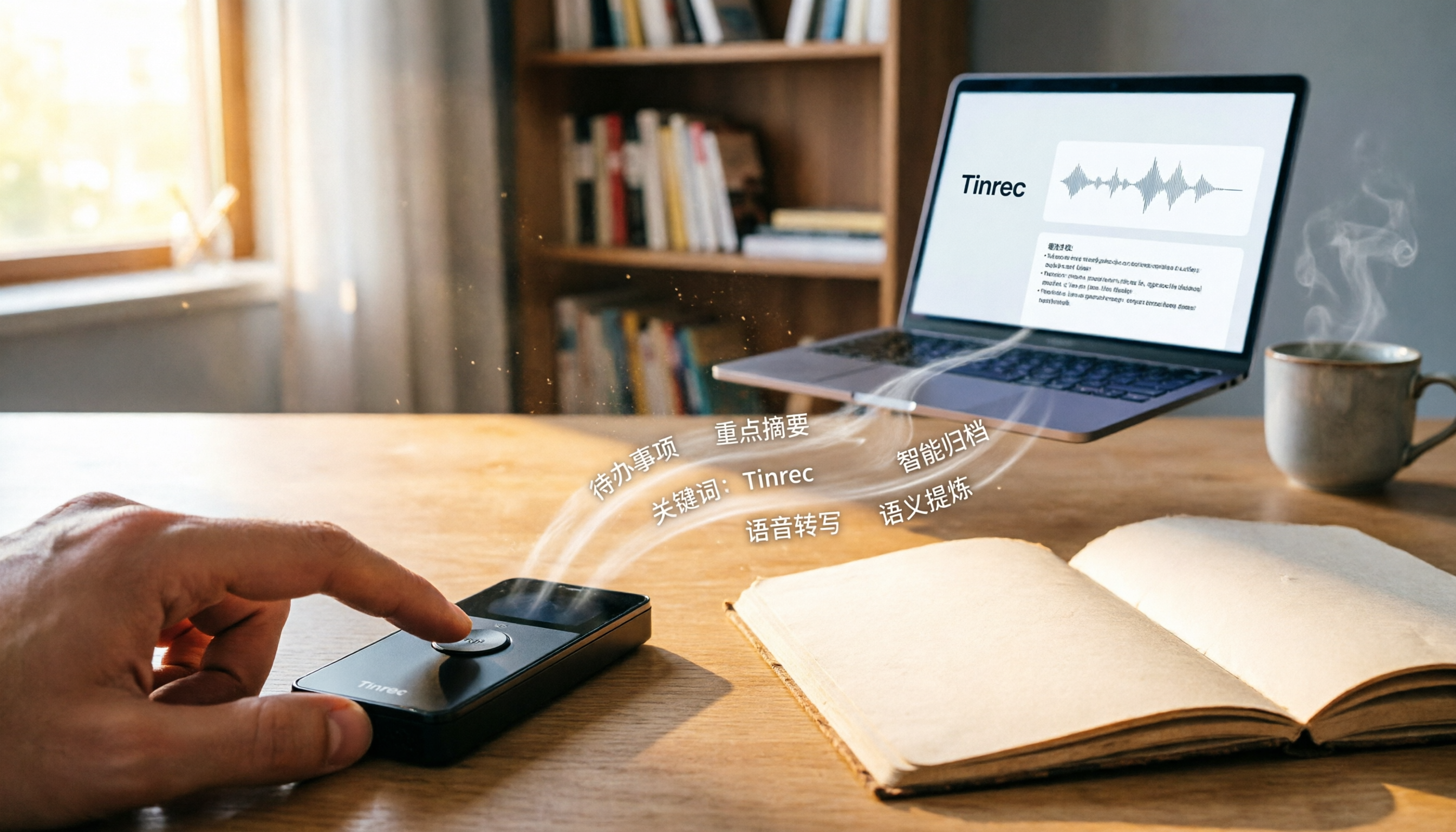
Turn recordings into transcripts and summaries in minutes
Upload audio or video for multilingual transcription, AI notes, and action items
I attend about 15 meetings a week. In the past, the most painful part wasn't the meetings themselves—it was what came after. Each meeting generated a pile of decisions and action items, and just organizing the meeting notes would take up half my work time. It wasn't until I started using a voice recorder with Tinrec (Instant Audio Transcription) that I cut this process down significantly. This guide will walk you through the steps to turn your voice recorder from a simple recording tool into a true mobile knowledge base.
Before You Begin | What You Need
- A voice recorder (or use your phone's built-in recording feature, but a dedicated recorder usually captures clearer audio)
- Install the Tinrec app on your phone or computer (supports iOS, Android, and web; log in with your Google or Apple ID)
- An audio recording you want to process (meetings, lectures, interviews all work)
- A stable internet connection (real-time transcription requires internet; if you want to work offline, download the language pack in advance)
- A determination to never manually organize meeting notes again
Step 1 | Record Clear Audio with Your Voice Recorder
The goal of this step is to obtain a high-quality audio file—the foundation for all subsequent AI processing.
Place the voice recorder in the center of the conference table or close to the main speaker. The closer it is, the clearer the audio capture, and the higher the transcription accuracy will be. For one-on-one interviews, place it between the two people; for group meetings, put it right in the middle. Avoid placing it on a vibrating surface or near an air conditioning vent.
Why emphasize recording quality? Because the accuracy of AI transcription directly depends on audio quality—no matter how powerful the transcription engine, it can't handle blurry audio. It's better to spend 30 seconds checking the placement during recording than to spend hours proofreading afterward.
After recording, you'll have an audio file ready for processing. The next step is to feed this raw data into Tinrec and let the AI do its work.
(Illustration: A person recording a meeting in a conference room, with the voice recorder placed in the center of the table, surrounded by participants, in a professional and natural setting)
Step 2 | Import the Audio File into Tinrec
Now it's time to get the file from your voice recorder into Tinrec for processing.
Open the Tinrec app, tap 'Import Audio/Video File', and select your recording from your phone's storage. Tinrec supports common formats like WAV, MP3, M4A, MP4, so almost any voice recorder file will work. Once selected, the system automatically uploads and begins analysis.
Why use Tinrec to import? Because it doesn't just transcribe; it also automatically detects language, segments the audio, and timestamps everything, preparing for summaries and Q&A later. Typical voice recorder software only syncs files without AI processing.
After importing, you'll see the file on the Tinrec main screen with a status like 'Transcribing' or 'Completed'.
Step 3 | Let AI Transcribe the Audio
After importing, Tinrec automatically starts transcription. You don't need to do anything.
While waiting, you can check the language setting (auto-detect by default, but if the meeting is mainly in Chinese, selecting 'Traditional Chinese' manually improves accuracy). Transcription time depends on file length; typically, a 1-hour recording takes about 3-5 minutes. This is more than ten times faster than manual transcription.
Once complete, you'll get a transcript with timestamps. Each sentence has a time marker; clicking it jumps to that point in the audio. This feature is especially handy when you're trying to find what the boss said last time.
(Illustration: Tinrec screen showing the real-time transcript with timestamps, every sentence of the speaker precisely marked)
Stop organizing recordings by hand
Upload audio or video and automatically get a transcript, summary, and action items
Step 4 | Use AI Chat to Quickly Find Key Points
The transcript can be long, but you don't have to read it all. Tinrec's built-in AI chat lets you directly 'ask' about the recording.
Click the 'AI Chat' feature for that file, and type your questions. For example: 'What decisions were made in this meeting?', 'Was the budget mentioned?', 'Who is responsible for each action item?' The AI pulls relevant segments directly from the recording and provides timestamps for verification.
Why is this better than searching the transcript? Because you can ask in natural language without guessing keywords. Before reporting to my boss, I use this feature to quickly review key points, saving a lot of time scrolling. This is something traditional voice recorders can't do.
Step 5 | Export Action Items and Meeting Minutes
The ultimate goal of organizing is to produce actionable results. Tinrec can automatically generate meeting minutes and action items, and export them in your preferred format.
In the transcript screen, click 'AI Summary' to get a structured meeting minutes document (including discussion topics, conclusions, and action items). For to-do lists, click 'Action Item Extraction', and it will find all potential tasks from the conversation. These results can be exported as PDF, Word, TXT, or synced directly to tools like Notion and Google Docs.
My personal habit: as soon as a meeting ends and transcription is complete, I generate action items immediately and paste them into the team's Slack channel. What used to take 20 minutes now takes just 3.
Frequently Asked Questions and Troubleshooting
Q: The transcription has many errors. What should I do? A: This is usually due to a noisy environment or the recorder being too far away. Tinrec has built-in smart noise reduction, which you can enable in settings before transcription. For already recorded files, you can manually select 'High Noise Environment' mode after import. Most transcription tools on the market only offer default settings without such adjustments.
Q: My voice recorder file is in MP3 format. Can it be transcribed after import? A: Yes. Tinrec supports common formats like MP3, WAV, and M4A. If the file is too large, you can trim it within the app to reduce processing time.
Q: During meetings, some people speak Taiwanese or mix Chinese and English. Is the transcription accurate? A: Currently, the main supported languages are Chinese and English. It handles mixed Chinese-English quite well, but accuracy drops with pure Taiwanese or heavy accents. In clear environments, the accuracy for mixed Chinese-English is around 90% or higher. For important occasions, it's recommended to verify against the original audio.
Q: Is the free version sufficient for me? A: The free version offers 100 minutes of transcription per month. If you only have 2-3 short meetings per week, the free version is sufficient. If you're in meetings daily like me, go for the Pro version with 1,800 minutes per month—that's just the cost of two Starbucks drinks a month.
Pro Tips | 3 Ways to Double Tinrec's Efficiency
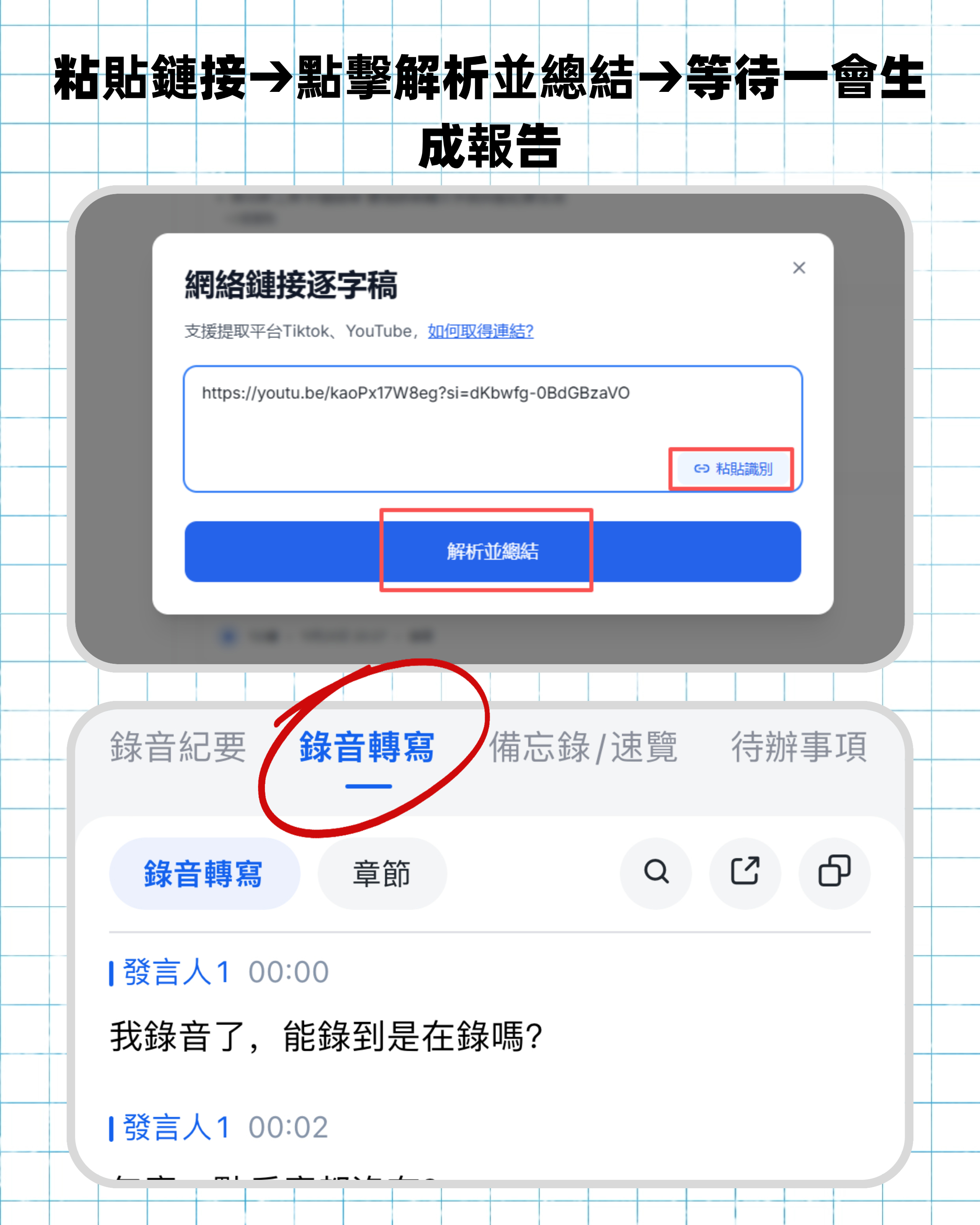
1. Use Tinrec to directly analyze online videos or podcasts Just paste a public YouTube, Bilibili, or podcast link, and Tinrec can directly download the audio and convert it to text and summaries. This is especially convenient for managers who need to quickly organize market intelligence or learn new skills. Currently, most transcription tools only handle local files; video link parsing is a unique feature of Tinrec.
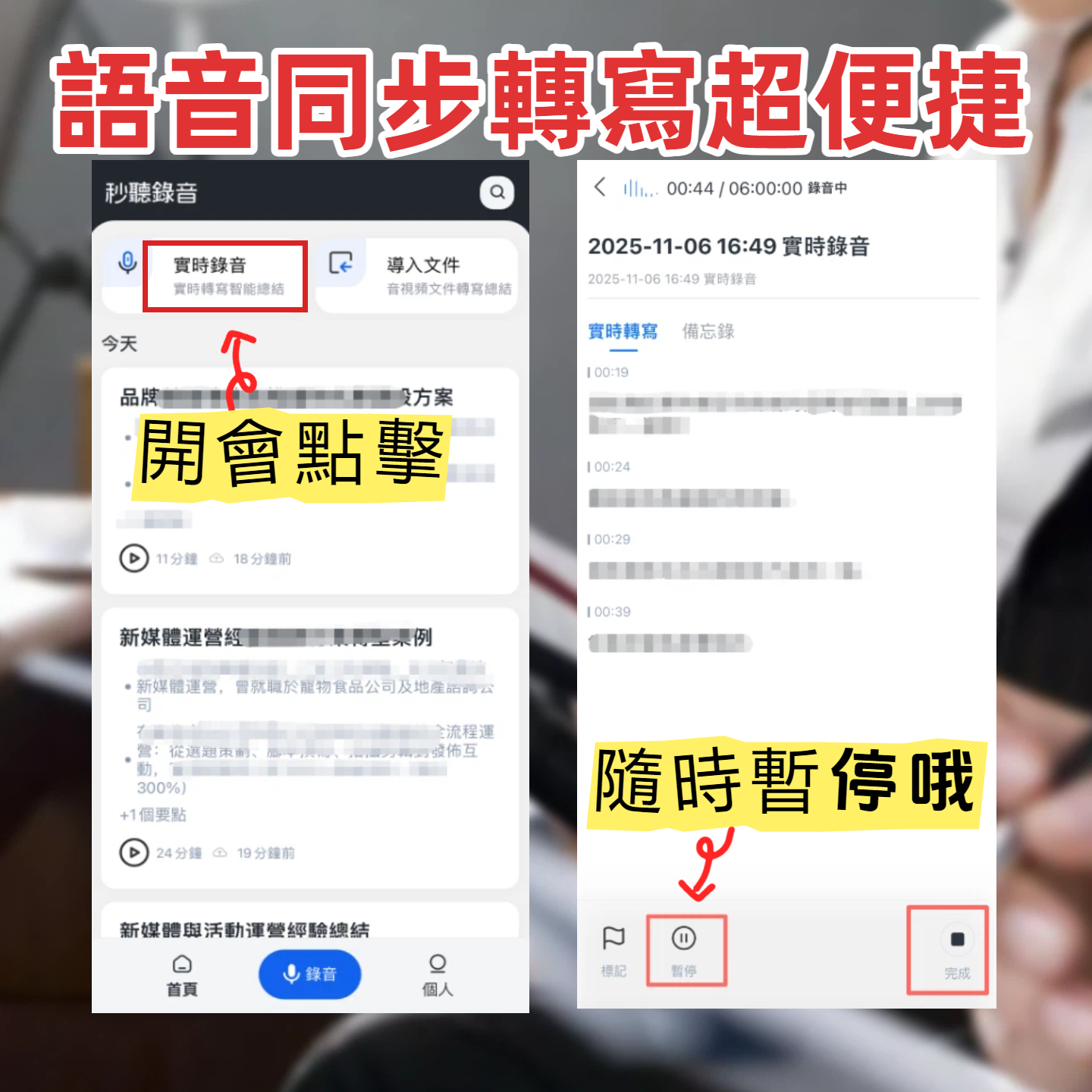
2. Use the 'Memo' feature to mark key moments in a meeting During recording, you can tap 'Mark' in Tinrec to record a timestamp and type notes. When reviewing later, these marks jump directly to that part of the audio, ensuring no insights are missed. Competing tools often require manual timeline adjustments afterward; Tinrec integrates marking into live recording, providing finer granularity for meeting notes.
3. Seamless cross-device sync for uninterrupted meeting notes I record on my phone in the conference room, and back at my desk, I open the web version on my computer to continue editing and extracting key points. All files sync in real-time without manual transfers. For managers juggling multiple projects, this saves significant switching costs. While Notta and Otter also offer cross-device support, Tinrec's sync speed and stability for simultaneous editing have become very mature after multiple updates.
If You Don't Use Tinrec, Here Are Alternatives
Otter.ai: Strengths in English online meetings, accurate speaker identification, good for global teams. However, summarization quality for Chinese is below expectations, and the price is higher (Pro plan about 270 TWD per month).
Notta: Very fast transcription, comprehensive multilingual support, free version offers 120 minutes per month. However, the AI Q&A capability is basic, and it does not support online video parsing. If you just need pure transcription, Notta is good; but if you also need organization, summarization, and action item generation, Tinrec's post-processing is more complete.
Conclusion
Now that you've learned these 5 steps, you can upgrade your voice recorder from a simple hardware recording device into a mobile knowledge base that automatically organizes, summarizes, answers questions, and exports. Tinrec has freed me from being tied down by meeting notes, allowing me to spend time on real communication and decision-making.
Next step: Download the free version of Tinrec, and try it with one of your own recordings. The monthly 100-minute free allowance is enough to experience two or three meetings. After trying it, you'll probably find yourself unable to go back to manual organization.
Turn every recording into actionable outcomes
Get 60 free transcription minutes when you sign in. No credit card required.
Related Reading
You might also like

2026 AI Meeting Notes Comparison: Beyond Notion AI Free — Who Is Tinrec For?
Starting from student use cases, this article debunks common misconceptions about 'Notion AI free meeting notes' and presents Tinrec as an alternative, comparing meeting capture, free quotas, post-meeting organization, and team collaboration, with practical examples for classes, group discussions, and internship interviews.

5 Transcription Tools Tested and Compared in 2026: Is Google Translate Transcription Good Enough? Which Saves the Most Time for Meeting Notes?
Google Translate's Transcribe feature can generate transcripts while recording audio, but it only supports Android and 8 languages, and cannot upload existing audio files. This article walks through its usage and limitations, then compares the scenarios where Tinrec, Otter.ai, Notta, and TurboScribe each fit best.

2026 Comparison of 3 Meeting Notes Methods: LINE vs ChatGPT vs Tinrec — Which Saves the Most Time?
After the meeting ends, the LINE group is still buzzing, but no one has organized the recording? This article compares three meeting notes approaches — LINE, ChatGPT, and Tinrec — covering bot-free recording, transcript organization, AI action items, and team data governance. It includes hands-on workflow tests and pitfalls to help you choose a meeting notes solution that truly saves time.

2026 Meeting Minutes Tools Buying Guide: 3 Hands-On Tests and Chinese Meaning of Meeting Minutes
The Chinese for 'meeting minutes' is '會議紀錄' (meeting record), not '會議幾分鐘' (how many minutes the meeting lasts). This article first explains the Chinese meaning of 'minutes', its plural usage, and common misunderstandings, then outlines the fields a meeting record should have and 4 key points for choosing a tool. It also compares Tinrec, Otter.ai, Notta, and Granola in hands-on tests, covering differences, quotas, and limitations, and finally provides a pitfall guide and selection advice.

How to Take Gemini Meeting Notes in 2026: 5 Steps from Recording to AI Summary
Before searching for a 'Gemini meeting notes app,' determine three things: your Google plan eligibility, whether your meeting is multilingual, and whether the notes are for personal or team use. This article breaks down the real limitations of Google Meet's 'Take notes for me,' compares Tinrec, Otter.ai, and Notta with hands-on testing, and includes a 5-step workflow plus 4 common pitfalls to avoid.

iPhone Voice Memos vs Tinrec in 2026: 5-Factor Comparison — Which Is Better for Transcribing Meetings?
From the built-in iPhone Voice Memos app to Tinrec, we compare 5 practical factors to help you decide which iPhone transcription solution best fits your meetings, interviews, and team collaboration.

4 AI Meeting Notes Tools Tested for 2026: Which Saves the Most Time for Cantonese Meetings?
Cantonese meetings with mixed Chinese and English, then having to listen to recordings and type up minutes yourself? This article breaks down 4 key factors for choosing an AI meeting notes tool and compares Tinrec, Subanana, Notta, and PLAUD to clarify which suits Hong Kong teams and which are traps.

2026 Comparison of 3 Meeting Minutes Templates: Tinrec Auto-Generates Chinese Minutes Fastest
When searching for meeting minutes Chinese templates, most people want a format they can directly apply. This article provides 3 Chinese meeting minutes templates for enterprise project meetings, client interviews, and school club meetings, and compares Tinrec and Notta on bot-free recording, Chinese transcription, post-meeting outputs, and team data retention, helping you decide whether to write manually or use a tool.

2026 Mac Transcription Software Guide: Tinrec's Bot-Free Recording + AI Q&A for Meeting Notes
The real difference between Mac transcription apps isn't how fast they transcribe—it's how much time you spend organizing afterward. This guide compares MacWhisper and Tinrec across five dimensions: how meetings are captured, post-meeting output, AI follow-up questions, cross-language handling, and team data ownership. Includes a ready-to-use starter checklist.