

Turn recordings into transcripts and summaries in minutes
Upload audio or video for multilingual transcription, AI notes, and action items
I have about 15 meetings a week—weekly check-ins, project updates, one-on-ones, cross-departmental syncs. What used to bug me most wasn’t the meetings themselves, but the aftermath: each meeting had a ton of decisions and action items to sort out. I tried handwritten notes (too slow), recording and listening back (too time-consuming), until I discovered Tinrec (a speech-to-text tool). It took over the most mechanical part. This isn’t a sponsored post—it’s a tutorial based on my team’s actual testing, taking you from 0 to 1 on using speech-to-text to handle meetings, lectures, and interviews.
Before You Start | What You Need to Prepare
• A smartphone (iPhone or Android—Tinrec supports both platforms)
• Download the Tinrec app (free from App Store or Google Play; registration only requires a Google or Apple ID)
• Prepare an audio recording you want to transcribe (can be a meeting, class, or interview recording)
• A stable internet connection (real-time transcription requires internet; if you need offline use, download the language pack in advance)
Step 1 | Record the Content You Want to Transcribe
The goal of this step is to get a clear audio file—the foundation for all subsequent steps.
Open Tinrec and tap the record button on the main screen to start recording. When recording, keep your phone close to the speaker—the closer, the clearer the audio, and the higher the transcription accuracy later. For one-on-one interviews, place the phone between the two people; for multi-person meetings, put it in the center of the table.
Why emphasize audio quality? Because AI transcription accuracy depends on audio quality—even the best transcription engine can’t do much with fuzzy recordings. Instead of spending extra time proofreading later, take 30 seconds to check the positioning during recording.
After finishing, you’ll see the recording on Tinrec’s main screen with its duration and file size displayed.
Step 2 | Let AI Transcribe It into a Verbatim Transcript
The goal of this step is to turn the audio into readable text so you can easily organize and search it later.
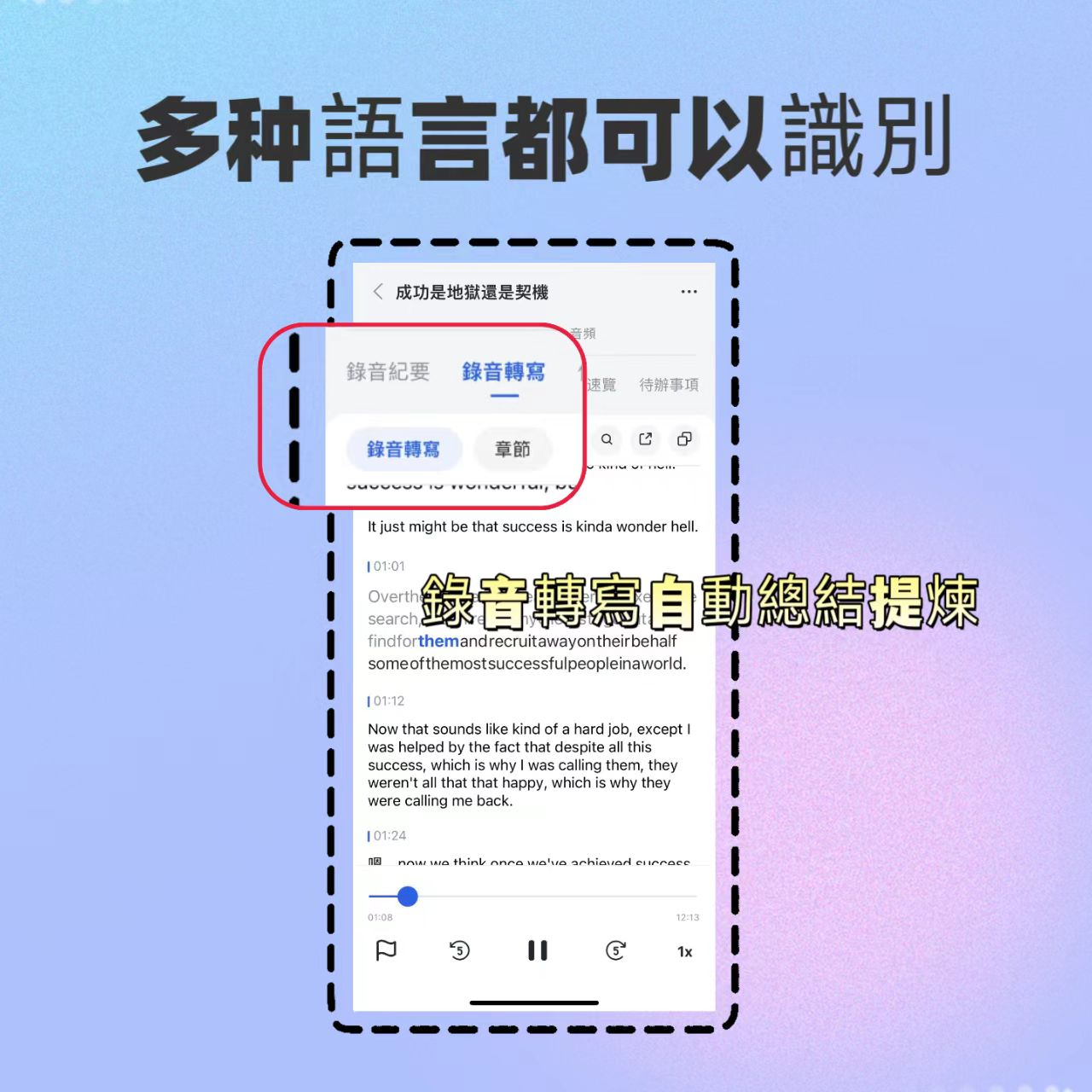
Find your recording in the list, tap it, and Tinrec will start transcribing automatically. Usually, text appears within seconds—for longer files, a progress bar shows the processing status. Tinrec doesn’t just support real-time recording; you can also import local audio/video files or paste links to public videos like YouTube or TikTok to parse online content directly.
Why use AI transcription instead of typing it yourself? I once tried to manually transcribe a 1-hour meeting and spent nearly 3 hours. AI transcription isn’t 100% perfect, but with clear audio, accuracy can reach over 80%, meaning fewer than two words are wrong in every ten sentences. Proofreading saves at least 70% of the time.
Once transcription is complete, you’ll see the full verbatim transcript, which you can scroll through and also search for keywords.
Step 3 | Quickly Proofread the Verbatim Transcript
The goal of this step is to verify accuracy and mark key points, so you don’t miss critical information when organizing later.
After transcription, the transcript appears on screen. Tinrec has a built-in “notes” feature—long-press any text to mark it as important or add comments. I usually skim through quickly, marking key decisions and action items for later organization. If I spot obvious typos, I edit them directly.
Why proofread before organizing? Because AI sometimes gets proper nouns or mixed-language sentences wrong. Using an unproofread transcript to generate a summary might produce inaccurate conclusions. Spending 5 minutes to give it a quick scan greatly improves the quality of the meeting notes.
When done, your transcript will have highlights and notes, making it easier to extract key points.
Stop organizing recordings by hand
Upload audio or video and automatically get a transcript, summary, and action items
Step 4 | Let AI Generate Meeting Minutes
The goal of this step is to condense the lengthy transcript into a structured summary so you can grasp the key points in 3 minutes.
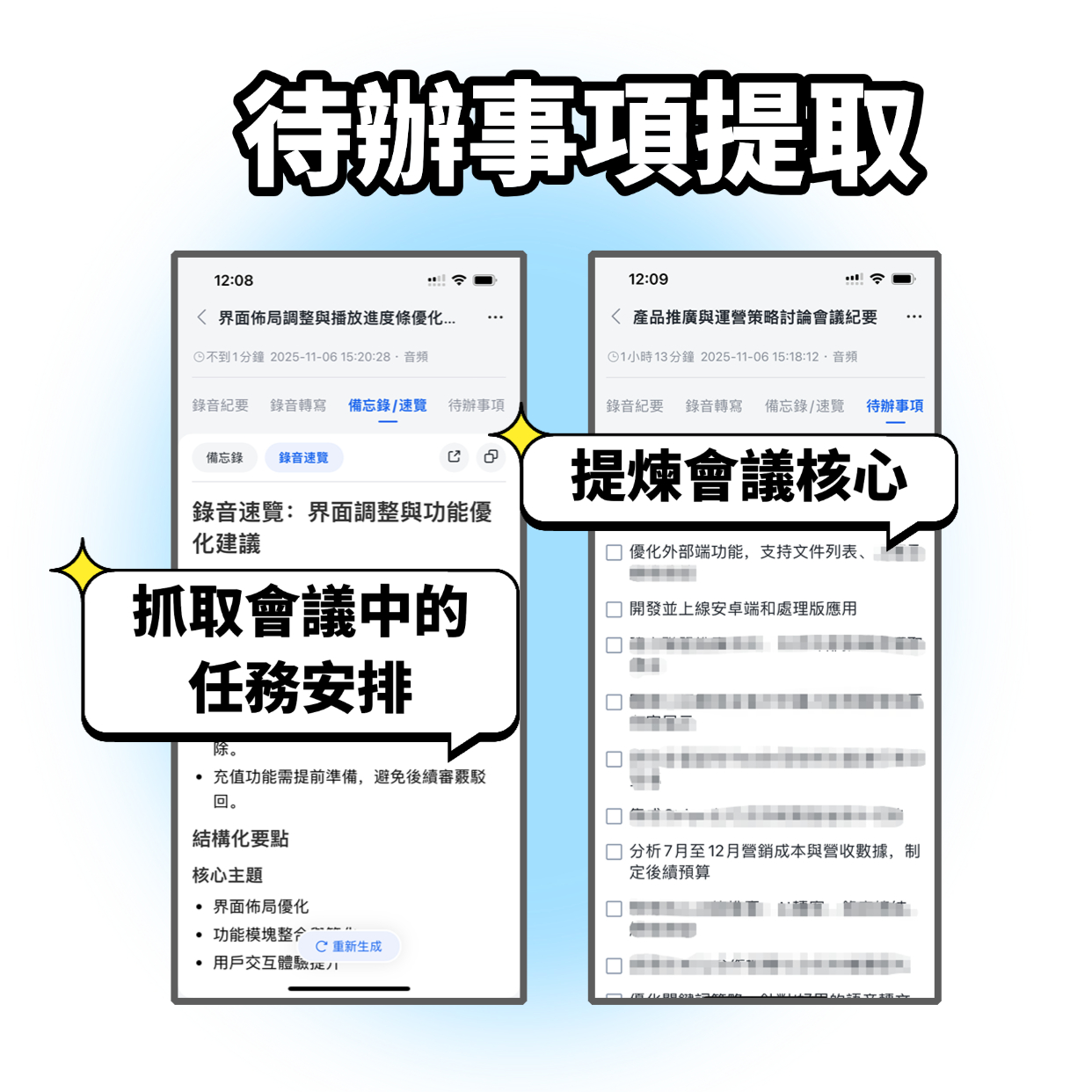
After proofreading, tap “AI Summary.” Tinrec will automatically generate a structured summary including discussion topics, key conclusions, and action items. You can also ask the AI directly: “What decisions were made in this meeting?” or “List all action items.” It will answer based on the recording. This feature acts like a personal assistant—you can follow up on details anytime.
Why not organize it yourself? In the past, I would listen to the recording, type a transcript, then write a summary myself—post-meeting organizing would take 2 hours. Now Tinrec generates a draft in seconds; I just tweak it a bit before sending it to the boss or team.
The generated meeting minutes appear below; you can copy, edit, or export them.
Step 5 | Export and Share
The goal of this step is to put the organized material into your usual workflow so that your team or boss can use it immediately.
Tap Export. Tinrec supports multiple formats: TXT, PDF, Word, Notion, etc. I usually export meeting minutes as a PDF to send to my boss, and import action items into Notion or Google Docs for team tracking. If you prefer other note-taking apps, you can sync directly.
Why export? Because recordings and transcripts are ultimately means to action—exporting into shareable formats truly reduces communication overhead.
After exporting successfully, you’ll find the file in the corresponding app or cloud storage, ready for review or further editing.
Frequently Asked Questions & Troubleshooting
Q: The transcribed text has many typos. What should I do?
Usually it’s due to a noisy environment or being too far from the speaker. Tinrec has built-in smart noise reduction—enable it in settings before recording. If you’re using an existing recording, you can manually select the “High Noise Environment” mode after importing. Most other transcription tools don’t have this option—they use a default mode for all recordings.
Q: In multi-person meetings, I can’t tell who said what?
Tinrec automatically labels different speakers (Speaker 1, Speaker 2). In mixed Chinese-English meetings, its speaker differentiation accuracy is better than Otter and Notta, which I’ve tried. However, if multiple people talk at the same time, it can still get confused—this is a common limitation of all current AI tools.
Q: Is the free version enough?
The free version gives you a basic monthly transcription quota (about 100 minutes). If you only attend 3 meetings a week, it might just be enough. For someone like me who has 15 meetings a week, I directly got the Pro monthly plan—it costs less than two Starbucks drinks a month. Start with the free version; if it meets your needs, upgrade.
Advanced Tips | 3 Ways to Double Tinrec’s Efficiency
1. Use AI Q&A to Dig Up Decisions from Past Meetings
Tinrec’s AI Q&A isn’t limited to a single recording. You can ask, “What was the conclusion about the budget in last month’s project meeting?” It will scan all relevant recordings and answer. I haven’t seen this feature in any other tool yet—it’s very useful for managers tracking long-term projects.
2. Turn Online Videos into Text Materials
Paste a YouTube, TikTok, or Xiaohongshu video link, and Tinrec will transcribe it into a verbatim transcript and summary. I use it to organize competitor videos, industry trends, or even for reports by parsing public course videos, saving the time of watching them myself.
3. Seamless Cross-Platform Work Continuation
Record and transcribe on your phone, then sync automatically to your computer where you can continue editing and exporting. I don’t need to transfer files back and forth—when writing a report, I just switch to the desktop version, which saves a lot of time.
If You Don’t Use Tinrec, Here Are Some Alternatives
Otter.ai: Its strength is English meetings and team collaboration. The free version offers 300 minutes per month, but its ability to organize Chinese content isn’t as good as Tinrec’s. If you mainly have English meetings, consider it; but for handling Chinese lectures or interviews, Tinrec is more convenient.
Notta: It’s also a decent multilingual transcription tool. The free version gives 120 minutes per month, and the Pro plan offers generous minutes. However, it’s more focused on one-off transcription; its summary and Q&A features aren’t as deep as Tinrec’s.
I’ve used both, but I ended up coming back to Tinrec because I often deal with Chinese meetings and online videos—Tinrec’s overall workflow is the most complete.
Summary
Now that you’ve learned the 5 steps, you can use Tinrec to turn any recording into a verbatim transcript, automatically generate meeting minutes, and even use AI Q&A to quickly find key points. Next step: download the free version of Tinrec and try it with one of your own recordings. The monthly free quota of 100 minutes is enough to experiment with two or three meetings. If you find it useful, upgrade to Pro to save even more time—this investment is definitely worth it.
Turn every recording into actionable outcomes
Get 60 free transcription minutes when you sign in. No credit card required.
Related Reading
You might also like

4 Free AI Meeting Notes Tools Tested for 2026: Which Free Tier Is Most Generous?
Are free AI meeting notes tools actually usable? This article examines four tools with free plans—Tinrec, Otter.ai, Notta, and Granola—through three key questions: how meetings get into the tool, how free quotas are calculated, and whether recordings are retained. It compares their free limits, ideal use cases, and common pitfalls when choosing, so you can confirm whether a tool can truly produce usable meeting notes without spending money.

4 AI Meeting Transcription Tools Tested: Which Free Tier Handles Cantonese Best in 2026?
Meetings in Cantonese mixed with English still require manual notes afterward? This article compares 4 AI meeting transcription tools that support Cantonese from a mid-level manager's real-world perspective, breaking down free tiers, language processing, post-meeting organization, and team collaboration as 4 key purchasing factors. It also explains Tinrec's actual performance and limitations in bot-free recording, AI Q&A, and team knowledge retention.

4 Online To-Do List Tools Tested and Compared in 2026: Which One Automatically Generates Action Items After Meetings?
After a meeting ends, you often have to recall and manually enter action items yourself—missing one or two is the norm. This article compares the practical differences among 4 online to-do list tools: what scenarios StickyList, Zenlist, and Microsoft To Do are each suited for, and how Tinrec automatically generates transcripts, summaries, and action items from meeting recordings, including team plan roles, seats, and pricing details.

The Complete 2026 To-Do List Guide: 5 Keys to Turn Recordings into Actionable Lists
Many people download countless to-do list apps but still miss tasks. This guide, based on real student scenarios, explains common pitfalls of to-do list management, the core capabilities a tool should have, and how to use Tinrec to automatically turn class recordings, group discussions, and interviews into actionable to-do lists.

6 AI Meeting Note Tools Tested for 2026: Is the Free Version Enough?
Starting from the real pain point of a mid-level manager with 15 meetings a week, this hands-on comparison tests 6 AI meeting note tools—Tinrec, Otter.ai, Notta, Granola, TurboScribe, and PLAUD—and gives actionable advice on the questions most often asked on Dcard: "Is the free version enough?" "How accurate is Chinese?" and "Is it easy to use?" It also covers free quotas, post-meeting organization, and buying considerations for team collaboration.

5 iPhone LINE Call Recording Methods Compared (2026): System Calls, On-Device Capture, and Post-Call Organization
A practical guide to recording iPhone system calls and LINE calls, comparing built-in call recording, iOS on-device capture, speakerphone with an external recorder, computer-based tools, and post-call organization solutions, with notes on regional restrictions, legal requirements, and consent.

2026 Comparison of 5 Call Recording Apps: Common PTT Recording Issues and Tinrec's Organization Solution
Starting from common pain points of call recording apps discussed on PTT, this article explains why free call recording often fails to capture the other party, results in 0-second files, or involves trial billing issues. It then demonstrates how Tinrec can convert call recordings and meeting content into transcripts, summaries, action items, and team data.

5 iPhone Call Recording Methods Compared for 2026: PTT-Favorite Solutions and AI Transcription
PTT discussions about iPhone call recording usually get stuck on two things: the notification sound and device restrictions of iOS built-in call recording, and having no time to listen back after recording. This article covers 5 common solutions and compares iOS built-in features with Tinrec across 5 dimensions—transcripts, internet calls, team collaboration, workflow, and cost—to help you decide which combination suits you.

2026 Phone Call Recording Apps Compared: Solving Two-Way Audio and Post-Call Organization Issues Common on PTT
A common PTT discussion is that free phone call recording apps only capture your own voice. This article covers four phone call recording and post-call organization solutions, explains iPhone, Android, and LINE call limitations, and compares how Tinrec turns audio files into transcripts, summaries, and action items.