
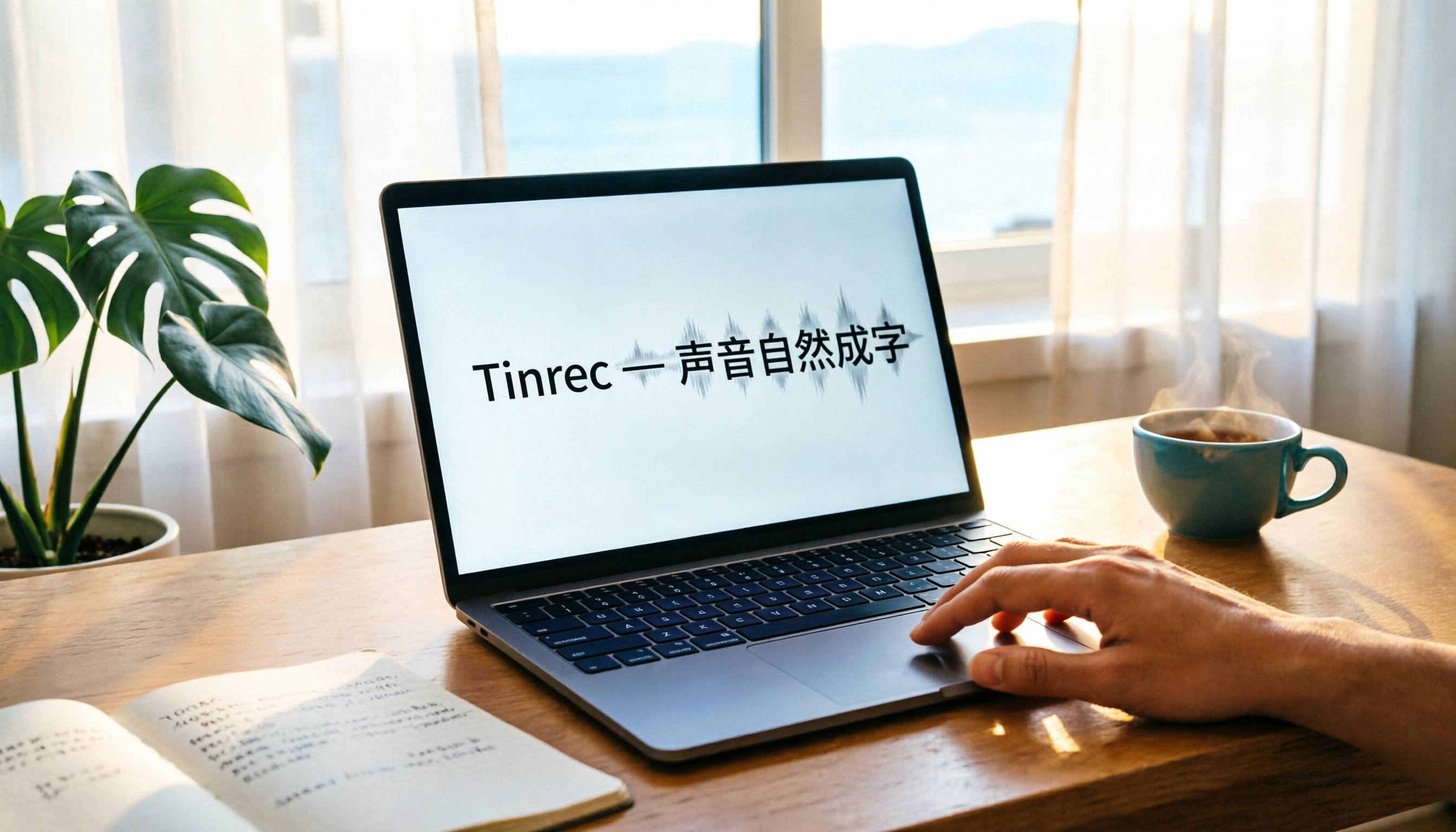
Turn recordings into transcripts and summaries in minutes
Upload audio or video for multilingual transcription, AI notes, and action items
Before You Begin | What You’ll Need
- A laptop (Windows or Mac): This guide uses Windows as an example; the Mac workflow is similar.
- A stable internet connection: Uploading recordings and AI transcription require internet access.
- A microphone (optional, but recommended): The built-in laptop mic works, but an external mic can significantly improve pickup quality.
- Recording software: Windows’ built-in Voice Recorder is sufficient—no need to install anything else.
- A Tinrec account: Register free on the official website or via the App Store / Google Play. Monthly free transcription minutes are enough for several test runs.
Quick tip: Before you begin, choose a quiet space and make sure your laptop is fully charged or plugged in, so it doesn’t run out of power mid-recording.
Step 1 | Record Clear Audio on Your Laptop
This step is about getting a quality recording file—it’s the basis for every step that follows.
Open Windows’ Voice Recorder (search for “Voice Recorder” in the Start menu). Click the microphone icon to start recording. When you finish, it is automatically saved as an .m4a file in the Recordings folder inside Documents.
Keep two things in mind while recording:
- Place the mic close to the speaker: If you’re speaking by yourself, the built-in mic is OK; for multi-person meetings, an external omnidirectional mic placed in the center of the table works best.
- Watch the sound level: In Windows Voice Recorder, the live waveform should reach at least half the height. If it’s lower, the audio is too quiet and transcription will be error-prone.
Why spend time on recording quality? Because AI transcription accuracy depends directly on audio clarity—no matter how powerful the engine, it can’t handle muddy sound. Spending 30 seconds checking your mic position during recording beats spending 30 minutes later fixing mistakes.
When you’re done, you’ll see an .m4a file in the Recordings folder. Keep its location in mind—you’ll need it in the next step.
(Placeholder image: a person sits at a laptop during a meeting, an external mic sits on the table, the screen shows a recording waveform, the room is quiet with natural light.)
Step 2 | Upload the Recording to Tinrec
This sends the file into Tinrec, where AI turns it into text.
Open Tinrec in your browser, or use the Tinrec mobile app. Click Import Audio/Video and choose the .m4a file you just recorded. After uploading, Tinrec starts transcribing automatically. A typical 30-minute meeting recording takes about 3–5 minutes to process (actual time depends on file length and internet speed).
If your recording is from an online meeting (e.g., Zoom or Google Meet), you can also drag the file directly from the meeting app’s storage folder into Tinrec—that’s supported.
Why Tinrec instead of other tools? Because it doesn’t just transcribe—it also creates summaries, extracts to-dos, and even answers questions about the content, turning a static recording into an interactive knowledge base.
Once the upload is complete, the page opens the transcription result and you can view the full transcript immediately.
(Placeholder image: a browser window shows the Tinrec upload page, the user drags a file into the dashed box, and the background is a modern office desk with bright screen lighting.)
Step 3 | Review and Proofread the AI Transcript
This step quickly fixes obvious transcription errors so the text matches the original meaning more closely.
Tinrec’s output includes timestamps and automatically separates speakers (if the audio contains multiple voices). You can play the recording while following the text; when you find an error, click that segment and edit it directly.
Common transcription errors include:
- Proper nouns (names, product names) are converted to different characters by sound.
- Mixed Chinese-English phrases or English abbreviations get dropped.
- Numbers or date formats become scrambled.
Why proofread? If you only need the transcript for your own review, 80–90% accuracy is fine. But if it will be shared with a client, your manager, or used as an official document, a 5-minute pass is safer. Tinrec also lets you save the edited version as a new document while preserving the original.
Once proofreading is done, you have a trustworthy transcript that you can search and cite at any time.
(Placeholder image: the screen shows the transcript on the left and audio waveform on the right, and the user is editing a typo with a focused but relaxed expression.)
Step 4 | Let AI Generate Meeting Minutes or Key Points
This step saves you from re-listening and hand-writing notes by giving you ready-to-use highlights.
On the Tinrec transcript result page, click AI Summary. The system will analyze the entire conversation and produce a structured summary that includes:
Stop organizing recordings by hand
Upload audio or video and automatically get a transcript, summary, and action items
- Topics discussed
- Key conclusions
- Action items (to-dos)
- Sections (long recordings are split into easy-to-browse chunks)
For a meeting, I also recommend the Extract To-Dos feature. It automatically scans for phrases that specify “who, when, and what” and creates a checklist. You can check off completed items and use it as a meeting tracker.
Why do this? Re-listening to a 60-minute meeting takes at least an hour, but an AI summary can show you the main points in under 30 seconds. Sending that summary to team members who missed the meeting is far more useful than sending the raw recording.
Now you have a full meeting record that includes a transcript, summary, and to-do list.
(Placeholder image: a phone screen displays Tinrec’s AI summary, clearly listing topics, conclusions, and a to-do list; the user is pinching to zoom.)
Step 5 | Export and Share Your Results
This step takes the processed content out of Tinrec and puts it into the tools you use every day.
Tinrec supports several export formats:
- Plain text (TXT)
- Word document
- Direct share links (recipients can view them without installing Tinrec)
- Sync to Notion, Google Docs, OneNote, Dropbox, and other third-party services
General recommendations:
- Meeting minutes → export to Word, tweak the formatting slightly, then email to your team.
- Course notes → sync to Notion and build a database with section titles.
- Interview materials → export to TXT for easy insertion into reports or slides.
Why export? Tinrec is a processing tool, not a final storage space. Moving your knowledge into the systems you use daily makes searching, reorganizing, and repurposing content easier.
Once exported, the value of the entire recording is fully retained.
(Placeholder image: a laptop screen shows icons for Notion, Word, and Gmail, and a file exported from Tinrec is being dragged into Notion, symbolizing seamless integration.)
FAQ & Troubleshooting
Q: The transcript has too many mistakes. What now?
Noisy recording environments or a mumbling speaker are the most common causes. During recording, place the mic closer to the speaker and avoid background TV or music. If the audio quality is already poor, just rely on the AI summary to get the key points instead of trying to correct every word; summaries usually handle minor recognition issues well.
Q: If my uploaded file is large, will Tinrec take a long time?
Transcription time scales with the file length; a 1-hour recording usually finishes in 5–8 minutes. If you regularly process many long files, you might consider the Pro plan (with higher priority and batch processing) or split your long recordings into shorter segments and upload them separately.
Q: My recording mixes Chinese and English. Can Tinrec understand it?
Yes—Tinrec supports mixed-language scenes. In real tests with Chinese-English meetings, common tech phrases (like deadline or brainstorm) are recognized correctly, but rare proper nouns still need manual proofreading.
Q: How much free quota do I get? Will it run out after one use?
The free plan gives you a fixed monthly transcription allocation (see the official site for the exact number), which is usually enough for 2–3 test meetings. If you only need to process recordings occasionally, the free tier is plenty. For weekly meetings, a monthly or yearly Pro subscription offers better value.
Pro Tips | 3 Ways to Double Tinrec’s Efficiency
1. Use AI Chat to Dig Out Key Information
After uploading, you can ask direct questions in Tinrec in natural language, such as “Did this meeting mention the budget?” or “What were the client’s opinions on pricing?” The AI scans the full transcript and returns only the relevant parts. This is much faster than searching by keyword or scrolling through the entire document, especially for 2–3 hour interviews or classes.
2. Turn Online Videos into Text Materials
Tinrec supports pasting public video links from YouTube, Bilibili, TikTok, and similar sites. It automatically downloads the audio and transcribes it. If you often need to reference competitors’ video content or turn webinars into text, this feature saves you from screen recording and file conversion.
3. Build a Personal Knowledge Base with the Export Features
Sync every transcript, summary, and to-do list you create to Notion or Google Docs. Over time, you’ll have a searchable audio database. If you want to recall conclusions from a meeting six months ago, just search a Notion title instead of digging through email.
These capabilities are unique to Tinrec (most competitors either focus only on live meetings or only provide transcripts) and allow you to maximize the value of your recordings.
If You Don’t Use Tinrec, Here Are Other Options
- Otter.ai: Its strength is joining online meetings like Zoom and Meet automatically, providing English meeting notes and team collaboration. It suits full-English environments and teams with heavy meeting volumes, but its Chinese support and post-processing (e.g., sections, action items) are weaker.
- Notta: Fast transcription, supports multiple languages and subtitles, and is competitively priced. Yet it leans toward “pure transcription,” lacking AI Q&A and the ability to transcribe online videos directly, so you still need other tools to polish the output.
All in all, if you need a tool that handles meetings, courses, interviews, and videos, and then exports organized content directly into your workflow, Tinrec is the more complete choice.
Summary
Now that you know these 5 steps, you can:
- Record high-quality audio with your laptop;
- Upload it to Tinrec to get an automatic transcript;
- Use AI to summarize key points and extract action items;
- Export the output to the tools you commonly use.
Next step: Sign up for Tinrec’s free plan, then try it with one of your own meeting or course recordings. The monthly free quota is enough for 2–3 tests, letting you experience the transition from audio to knowledge first-hand.
References
- How to Record on a Laptop? - 超人行銷
- 4 Ways to Record Computer Audio! Easy Ways to Record PC Sound [2026 Latest]
- Can’t Keep Up in Video Classes or Meetings? Windows’ Built-in Voice Recorder Helps You Capture the Content—Step-by-Step Guide | 數位時代 BusinessNext
- Sound Recorder App for Windows FAQ | Microsoft Support
- Super Easy Computer Recording Solutions
Turn every recording into actionable outcomes
Get 60 free transcription minutes when you sign in. No credit card required.
Related Reading
You might also like
2026 Hands-On Comparison of 2 Recording-to-Transcript Tools: Which One Saves More Time with AI Organization and Post-Processing?
How can meeting recordings, course audio, and interview notes be quickly turned into transcripts? This article tests Tinrec and Yating Transcript, comparing AI features, input sources, Chinese organization, and downstream applications to determine which tool better turns your audio/video data into actionable knowledge.

Tinrec vs Notion AI Meeting Notes in 2026: A 5-Dimension Comparison for Chinese Meeting Minutes
This article compares Tinrec and Notion AI Meeting Notes across five dimensions: Chinese speech recognition, multi-source support, automated sync, AI post-processing, and pricing flexibility. It also demonstrates a complete workflow using Tinrec to automatically organize meeting recordings into Notion.

Tinrec Review 2026: AI-Powered Audio-to-Text with One-Click Sharing & Chat-Based Search
This article reviews several audio-to-text tools, focusing on how Tinrec uses AI to organize meetings, courses, and video content, and supports one-click export to common tools for quick sharing and collaboration.

2026 Comparison of 2 Audio-to-Text Tools: Tinrec vs Notta – Which Is Better for Chinese Content Organization?
Still deciding between Tinrec and Notta? This article compares them across 5 key dimensions: Chinese recognition, online video transcription, AI Q&A, post-processing capabilities, and pricing plans, to help you find the best tool for organizing meeting, course, and interview recordings.

4 Best Recording-to-Text Apps Tested in 2026: Which AI Meeting Notes Really Save You Time?
A mid-level manager who attends 15 meetings a week tests 4 recording-to-text apps, from meeting notes and AI Q&A to cross-platform support, to find the tool that truly saves you time on organizing.

2026 AI Meeting Note Tools Buyer's Guide: 4 Hands-On Tests and Recommendations
Are AI meeting notes really accurate? I tested Tinrec, Notta, Plaud Note, and Otter.ai, evaluating accuracy, Chinese language support, AI post-processing capabilities, and cross-platform experience. This guide helps you find the right solution for your needs.

2026 Guide: Auto-Sync Meeting Minutes to Google Docs with AI Transcription & One-Click Export
Tired of manually taking meeting notes? Using the wrong tool only makes it worse. This first-hand review compares AI voice-to-text tools to find the best option for auto-syncing with Google Docs, so meeting minutes no longer become a burden.

How to Save Google Meet Recordings in 2026: 5 Steps to Auto-Archive and Transcribe with Tinrec
Tired of Google Meet recordings only saving as video files? This tutorial shows you how to use Tinrec to automatically save meeting audio to the cloud and convert it into transcripts, summaries, and action items. From recording to transcription to organization, get it all done in 5 steps—perfect for mid-level managers and professionals who need to quickly organize meeting notes.

2026 Free Speech-to-Text Solutions: 3 Tools Compared
We tested the free tiers of 3 speech-to-text tools, from meeting rooms to online courses, to find the best SRT subtitle and transcript solution for mid-level managers.