

Turn recordings into transcripts and summaries in minutes
Upload audio or video for multilingual transcription, AI notes, and action items
You Don't Need Another Subtitle Tool—You Need a Real Time-Saver
Have you ever spent hours editing a video, only to get stuck on the subtitles—typing line by line, syncing to the timeline, until your eyes cross?
Or maybe you've uploaded your video to some free online tool, only to find the generated timestamps are completely off, riddled with typos, and fixing them takes longer than doing it from scratch.
Not to mention tools that seem free but slap a watermark on export or limit video length, leaving you stuck halfway through.
If any of this hits home, this article is for you.
Before Choosing an Auto Subtitle Tool, Understand These 4 Key Points
Many people think auto subtitles are just about converting speech to text and pasting it on, but these factors actually determine how smoothly it works for you.
1. It's Not Just Accuracy—It's Ease of Editing
The 98% accuracy claims are usually measured in a quiet recording studio. What you really need to check is whether you can quickly fix typos, adjust timestamps, or split segments after generation. Some tools only let you edit one line at a time, which is a nightmare for long videos; good tools let you search, replace, and batch-adjust styles like a word processor.
2. Is the Free Plan Actually Enough?
Many tools tout "free" but limit you to 3 minutes, add watermarks, or restrict export quality. If you only make short videos occasionally, it might be fine; but if you subtitle videos weekly, you need to check whether the free quota is "minutes per month" or "permanently free but crippled."
3. Are Subtitles the End or Just the Beginning?
For most people, once subtitles are done, the video is finished. But if you also need to turn your video into articles, highlight key points, or translate it, a tool that only generates subtitles means extra work later. Some tools now generate summaries, chapters, or even let you ask questions about the video content alongside subtitles.
4. Does It Handle Your Language and Accent Well?
Many international tools claim to support 100+ languages, but accuracy drops significantly with Taiwanese Mandarin, code-switching, or Taiwanese Hokkien. If you mainly process Chinese content, test how well it recognizes Taiwanese expressions first.
Tinrec (秒听录音) — Our Top Pick After Testing
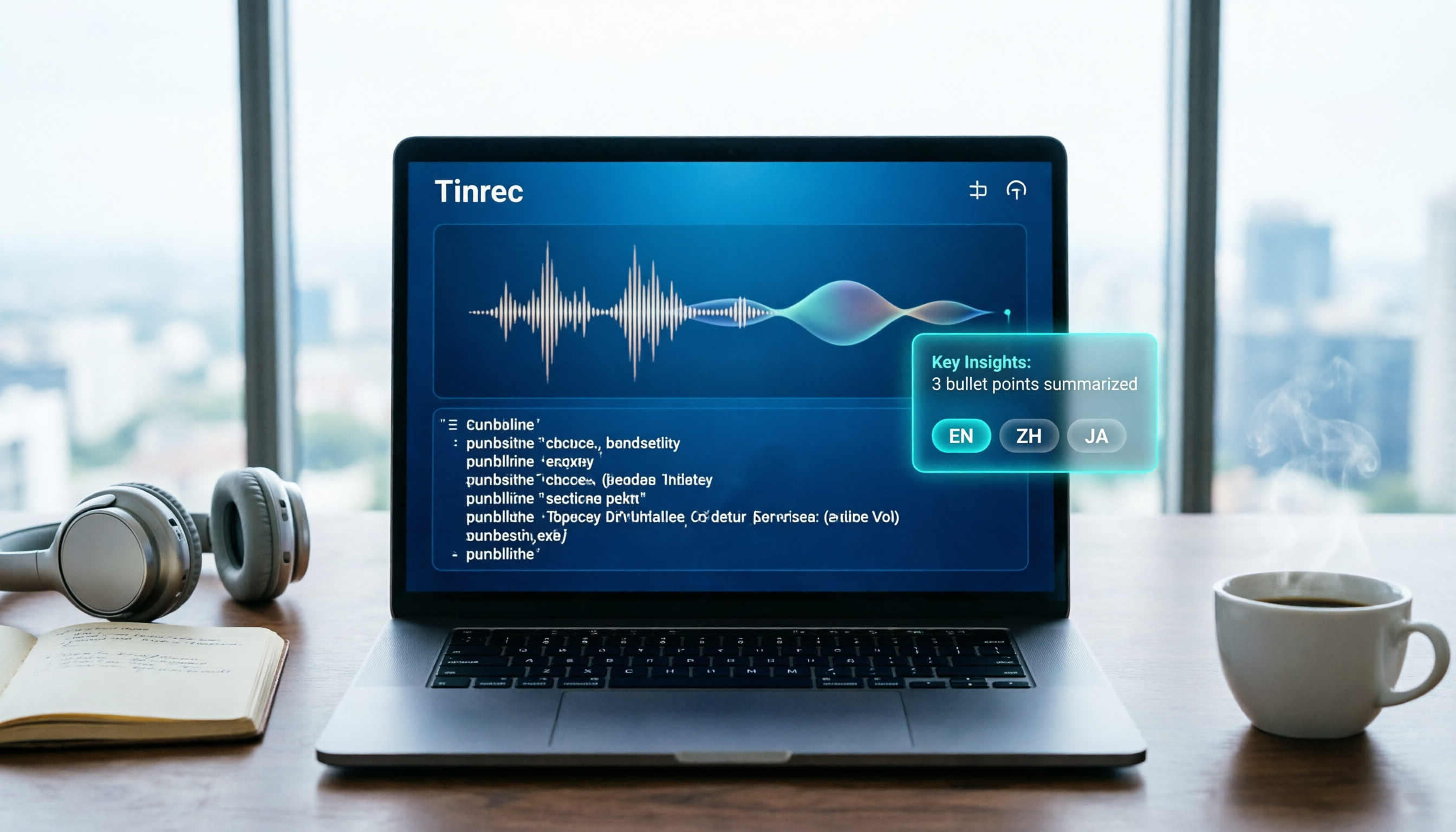
Tinrec is an AI recording and audio/video organization tool, but if you only use it for subtitles, you're only tapping into 30% of its potential. We chose it as our top pick because it doesn't just handle subtitles—it turns your video into a reusable knowledge asset.
Here's how the subtitle generation process works:
Upload your video to Tinrec (or paste a YouTube link), and it automatically detects the language and starts transcribing. Once the transcript is ready, switch to "Subtitles" mode, and the system has already synced the text to the timeline. You can play, pause, and fine-tune timing and text line by line in the preview window.
What's more, Tinrec's editing interface is similar to a word processor, so you can quickly search for keywords, replace typos globally, and even adjust font, color, and position—no more clicking through line by line.
But is it accurate?
We tested it with a 5-minute Taiwanese YouTuber conversation video (with background music and slight interruptions). Tinrec's subtitles required only a few homophone corrections, and its Chinese recognition was genuinely impressive. The timestamps were also stable, with no noticeable lag or early cues.
But what really sets Tinrec apart is what happens after subtitles are generated.
Say you upload a 30-minute interview video. Tinrec doesn't just give you subtitles—it also generates an AI summary, splits it into chapters, and even extracts action items. You can even open an AI chat and ask, "What books did the guest recommend?" and it will answer based on the video content—no more scrubbing through the timeline to find answers.
Stop organizing recordings by hand
Upload audio or video and automatically get a transcript, summary, and action items
Pros:
- Intuitive subtitle editing with bulk replace and style adjustments
- High Chinese recognition accuracy, adapts well to Taiwanese accents
- Goes beyond subtitles with AI summaries, chapters, and Q&A
- Supports direct transcription from video links without downloading
Things to note:
- Free plan has monthly transcription limits (but sufficient for typical short videos)
- For professional subtitle formats (e.g., .srt, .ass), you currently need to manually export the transcript and convert
Who is it for?
If you want to not only add subtitles but also organize video highlights, create articles or notes, or frequently search past video content, Tinrec is the best-integrated choice right now.
Alternatives to Tinrec
Clideo: A Pure Online, No-Install Emergency Option
Clideo is a straightforward online auto subtitle generator. The upside is that you don't need to register—just open the webpage and use it. However, its recognition is only passable; Taiwanese Mandarin often results in unnatural sentence breaks, and editing features are basic. Compared to Tinrec, it has no AI organization or Q&A capabilities—subtitles are the end of the line. If you only need to handle a 3-minute English video, it's fine for emergencies; but for regular use, it feels restrictive.
CapCut: Lots of Templates, Great for Short Videos, but Export Has Trade-offs
CapCut's auto subtitle feature is a favorite among TikTok and Reels creators because it has a ton of dynamic subtitle templates that make subtitles look stylish with one click. The downside is that the free version may add a watermark on export, and high-quality or long videos require payment. Compared to Tinrec, it completely lacks post-transcription content organization. If you want to derive articles or summaries from a video, you'll have to figure that out yourself.
Canva: Handy for Designers, but Subtitle Generation Is Cumbersome
Canva added auto subtitles in recent years, which is convenient for designers already using it for graphics—you can add subtitles directly in the editor. But the subtitle generation process is convoluted: you have to go to "File > Page Display Settings" to enable it, and editing flexibility is less than dedicated tools. The biggest difference is that Tinrec lets you ask questions and extract key points from video content, while Canva just puts text on screen—it can't "understand" the video.
Pitfall Guide: 3 Common Mistakes When Choosing an Auto Subtitle Tool
1. Only Looking at Official Accuracy Claims Many tools claim "98% accuracy," but those are lab numbers. What you should do is test the free version with your own video (with background noise and accents) to see the actual error rate and timing performance.
2. Ignoring What Happens After Subtitles Are Generated If you only need subtitles, any tool will do. But if you plan to extract articles, do SEO keyword research, or collaborate with a team on video content, choosing a tool with AI organization features from the start will save you tons of time. Otherwise, you're just using the tool as a typewriter.
3. Choosing "Permanently Free" to Save Money, but Spending More Time Fixing Later Many permanently free tools impose limits on video length, export quality, or add watermarks. As a result, you spend hours removing watermarks or fixing truncated subtitles, which is worse than starting with a reasonably priced, full-featured tool.
Conclusion: Which One Should You Choose?
Let's be direct: most people should start with Tinrec.
- If you want a free, no-frills subtitle tool for emergencies and don't mind manual adjustments → Clideo
- If you only make short videos and have a high need for dynamic subtitle templates → CapCut
- If you already use Canva for design and just need a lightweight subtitle feature → Canva
- If you want subtitles plus summaries, highlights, and the ability to search video content later → Tinrec
Tinrec isn't the most specialized auto subtitle software, but it's the only one that combines subtitles, AI organization, Q&A, and cross-platform sync. We recommend trying the free version with one video first—there's a basic monthly quota, so no rush to pay. Once you experience the feeling of "subtitles done and summary auto-generated," it's hard to go back.
References
Turn every recording into actionable outcomes
Get 60 free transcription minutes when you sign in. No credit card required.
Related Reading
You might also like

Is Notta Worth It in 2026? 5 Key Tests and a More Comprehensive Alternative
Notta is an AI meeting notes tool that supports 58 languages. This article tests its language support, AI summaries, meeting integrations, free plan limitations, and user reviews, and introduces Tinrec as a more comprehensive alternative to help you decide which one suits you better.

2026 Hands-On Comparison of 3 AI Speech-to-Text Tools: Notta Online vs Tinrec – Which Is Better for Chinese Speakers?
This article compares three popular AI speech-to-text tools – Notta Online, Tinrec, and Otter.ai – based on hands-on testing. It evaluates features, pricing, Chinese language support, and real-world use cases to help you find the best option for transcribing meetings, lectures, and interviews.

4 Best Speech-to-Text Tools in 2026 Compared: From Notta to Tinrec—Which One Suits Taiwan Users Best?
Struggling to turn meeting recordings and course audio into text quickly? This article tests four tools—Notta, Tinrec, Otter, and TurboScribe—covering free quotas, Chinese accuracy, AI post-processing features, and cross-platform support to help you find the best speech-to-text solution.
Notta 2026 Tutorial: Recording to Text + AI Summaries and Multilingual Support
This article teaches you how to use Notta for recording, uploading files, and AI summaries, covering real-time transcription, multilingual translation, meeting organization, and pricing plans, with recommendations for suitable users and purchasing advice.

Which Country Is Notta in 2026? 5 Steps to Choose a Better AI Recording Tool
Notta was founded by a Chinese team, with headquarters in Singapore, R&D center in Shenzhen, and an office in Japan. This article provides 5 steps to help you choose Tinrec, an AI audio-video organization tool better suited for Chinese users.

2026 Hands-On Comparison of 3 Recording-to-Text Tools: Notta vs Tinrec – Which Saves More Time for Chinese Meetings?
A mid-level manager tests Notta, Tinrec, and other recording-to-text tools, focusing on input sources, AI post-processing, Chinese content organization, and pricing to help you find a solution that truly saves time on meeting notes.

How to Choose a Recording-to-Text Tool in 2026? Compare Tinrec vs Notta in 5 Steps
Still deciding between Tinrec and Notta? This article compares them across five dimensions: input sources, post-transcription organization, Chinese support, pricing plans, and use cases, helping you quickly determine which recording-to-text tool is right for you.

Tinrec vs Otter 2026: 5-Dimension Comparison for Chinese Audio/Video Transcription
Looking for a Notta tutorial? The differences between Tinrec and Otter are also crucial. This article compares 5 dimensions—input sources, post-processing, Chinese support, AI Q&A, and pricing flexibility—to help you decide which AI transcription tool suits Chinese users better.

2026 Review of 5 Audio-to-Text Tools: Which Is Best for Meetings, Courses, and Online Videos?
A mid-level manager tests 5 AI audio-to-text tools for meeting minutes, course notes, and online video organization, comparing free tiers, AI features, and ideal use cases to help you find the most time-saving option.