

Turn recordings into transcripts and summaries in minutes
Upload audio or video for multilingual transcription, AI notes, and action items
At 10 a.m., you open Zoom to meet with a client. During the meeting, you're busy jotting down notes but still miss key requirements the client mentions. After the meeting, you stare at messy notes, unsure how to turn them into action items. This scenario is all too familiar.
If you already use Notion to manage projects and notes, you can let Notion AI automatically handle meeting notes without installing any bots or extra software. This article shares how to use Notion AI's meeting notes feature.
What is Notion AI Meeting Notes?
Notion AI's AI Meeting Notes feature (also known as AI Note Writer) is Notion's built-in AI meeting notes tool. It can automatically record system audio during meetings, transcribe in real time, and generate organized summaries and action items after the meeting.
Its biggest highlight is that you don't need to invite a meeting bot to join. Just type /meeting in a Notion page, add the meeting from Notion Calendar, or wait for Notion to detect the meeting and remind you, and you can start recording.
If you're already used to organizing work with Notion, this feature turns meeting notes directly into part of your database, making follow-up, search, and collaboration more convenient.
Core Features and Highlights
1. Bot-Free Recording of Online Meetings
Notion AI Note Writer records system audio, so it can capture meetings on Zoom, Google Meet, or Teams without requiring additional bots or software. You just need to open Notion on your computer and allow it to record system sound.
2. Accurate Transcripts with Semantic Correction
Notion AI's AI Meeting Notes feature supports real-time recording and transcription. It not only accurately distinguishes between speakers but also includes semantic correction, automatically filtering filler words and correcting technical terms to ensure highly accurate transcripts and summaries.
3. Automatic Summaries and Action Items
After the meeting, AI Note Writer immediately generates an organized summary. You can see key points, decisions, and next steps without manually sorting through the transcript. Even better, it extracts action items from the discussion, showing who is responsible for what and deadlines at a glance.
4. Ask AI Questions to Review Past Meetings
You can ask any question about past meetings, and the tool provides answers with full context. For example, ask "What budget issues were mentioned in last week's client meeting?" and AI will give you the answer directly, complete with original sources, so you don't have to flip through transcripts one by one.
5. Enterprise-Grade Security and Governance
Notion AI offers enterprise-specific security features: workspace owners can set automatic transcript deletion periods and decide whether to store audio locally. It also provides audit logs, granular permissions, and single sign-on, creating triple protection for sensitive information.
Pricing
Notion AI is a paid add-on for Notion and is not included in the free plan. Pricing varies by plan; Notion offers Personal, Team, and Enterprise plans. We recommend checking the Notion website for the latest prices.
According to a report from Homeplus, Notion AI has different pricing for various plans in 2026, with student discounts available. The free plan is only for trial purposes with limited functionality. If you have occasional meetings, you can try the free allowance; if you have meetings daily, consider upgrading to a paid plan.
Stop organizing recordings by hand
Upload audio or video and automatically get a transcript, summary, and action items
Tutorial: 3 Steps to Master Notion AI Meeting Notes
Step 1: Create a Meeting Notes Page
In any Notion page, type /meeting and Notion will create a meeting notes page for you. You can also add a meeting from Notion Calendar, or wait for Notion to detect the meeting and remind you.
Step 2: Allow Recording and Start the Meeting
Before the meeting starts, open the Notion page and allow Notion AI to record system audio. It will automatically start recording the meeting content without needing to invite a bot. If you're using Zoom, Google Meet, or Teams, make sure to play the meeting audio on your computer so Notion can capture the system sound.
Step 3: Review Summary and Action Items
After the meeting, Notion AI immediately generates an organized summary. You can review the transcript, key sections, and action items. If you need to revisit details, just ask AI a question like "What was the conclusion of the meeting?" and it will provide the answer.
FAQ
Which meeting platforms does Notion AI Meeting Notes support?
Notion AI Meeting Notes supports online meeting platforms like Zoom, Google Meet, and Teams. It records computer system audio, so as long as your computer can play meeting audio, it can record.
Where are audio recordings stored? Can I download them?
Audio recordings are stored locally on the device you use for recording (e.g., your computer). On the meeting notes page, you'll see an Audio option to download the recording. Note that if you record on a laptop and later open the page on a desktop, the download button won't appear on the desktop because the audio file is stored locally, not in the cloud.
Can I use Notion AI Meeting Notes with the free plan?
The free plan only allows you to experience some features, with actual usage limited. For detailed free allowances and restrictions, we recommend checking Notion's official documentation. If you have occasional meetings, you can try the free allowance first.
What extra features does the Enterprise plan offer?
The Enterprise plan offers automatic transcript deletion period settings, local audio storage options, audit logs, granular permissions, and single sign-on, suitable for teams that need high security and governance.
Can I ask questions about meeting content afterward?
Yes. Notion AI supports asking questions about past meetings. You can ask any meeting-related question, and it will provide answers with full context and links to original sources.
Do I need to install a meeting bot?
No. Notion AI Meeting Notes directly records system audio, so you don't need to install any bots or extra software, avoiding disruption to other participants.
References
- AI Note Writer: Capture Everything from Meetings | Notion
- Notion AI Complete Guide: 3 Steps to Automated AI Meeting Notes, Features, Pricing, and Free Limits | Homeplus
- Notion's AI Meeting Notes feature is one I've personally used and really like...
- Notion's Premium Meeting Templates | Notion Marketplace
- Sharing a small tip for Notion AI Meeting. It's not a hidden feature, but it's something people might overlook. Although Notion AI Meeting records are presented as transcripts, it actually saves the audio file locally on your recording device. Usually, if you're using a computer, the audio file is stored in the meeting notes path on that device. You can refer to the screenshot I took: ▌ 1. Open the meeting notes ▌ 2. You'll see an Audio option to download. Note that
Turn every recording into actionable outcomes
Get 60 free transcription minutes when you sign in. No credit card required.
Related Reading
You might also like

2026 Smart Meeting Notes Software Comparison: Which One's Output Is Ready to Use?
Meeting notes aren't just about typing—they're about post-meeting organization and follow-up. This article compares Tinrec, Otter.ai, Granola, and PLAUD Note across four dimensions: output format, audio capture method, post-meeting processing, and team knowledge retention. It also includes a ready-to-use meeting notes template and a guide to avoiding common pitfalls.

4 Free AI Meeting Notes Apps Tested: Is the Free Tier Enough?
There are plenty of free AI meeting notes apps, but few can actually deliver a finished record right after a meeting. This article tests Tinrec, Otter.ai, Notta, Granola, and TurboScribe across four dimensions—free tier limits, online meeting audio capture, post-meeting organization, and AI Q&A—to help you decide which free version is truly sufficient.

2026 AI Meeting Notes Apps Free Plans Compared: 5 Options Reviewed
There are many free AI meeting notes apps, but they differ greatly in recording time limits, whether they can record online meetings, and what you get beyond transcription. This article uses the criterion of 'can the free plan handle a complete meeting?' to review five common options and explains Tinrec's actual performance in Chinese meetings, bot-free recording, and team knowledge retention.

2026 Smart Meeting Notes Apps Compared: How Tinrec Turns Meetings into Queryable Team Data
Starting from common misconceptions, this article explains why getting only a transcript doesn't solve the meeting notes problem. It focuses on Tinrec and compares Notta, PLAUD, and Granola in terms of meeting capture methods, post-meeting outputs, Chinese language experience, and team data retention. It concludes with purchasing considerations and FAQs.

3 Smart Meeting Notes Tools Tested for 2026: Which One Really Saves Time with Online Transcripts and AI Q&A?
Meeting notes don't end with turning audio into a transcript. This article starts with the three most common misconceptions and compares Tinrec, Notta, Otter.ai, and Granola on transcripts, AI Q&A, cross-device online viewing, and team knowledge retention. It outlines 4 key buying criteria and 4 pitfalls to avoid, then gives selection advice based on use cases.

Best AI Meeting Recorder in 2026? Hands-On Test of Tinrec vs PLAUD Note
Many people choose an AI meeting recorder based only on recording and transcription, overlooking post-meeting organization and team handoff. This article compares two approaches—Tinrec and PLAUD Note—across meeting capture, Chinese and cross-language support, post-meeting organization, data retention, and team governance, with actionable selection advice and a starter checklist.

4 Smart Meeting Notes Apps Tested for 2026: Free Tiers, Transcripts, and AI Summaries Compared
Smart meeting notes software is more than just audio-to-text. This article addresses three common misconceptions, explains the real value of AI meeting notes tools across four stages—capture, organize, use, and govern—then compares Tinrec and Notta across five dimensions: meeting capture, transcripts and languages, post-meeting output, team governance, and pricing/quotas. Finally, six FAQs help you decide if a free version is enough and how team plans differ.

2026 Smart Meeting Notes App Comparison: Which One Actually Saves You Time?
Spending two hours after a meeting to organize notes is a daily reality for many professionals. This hands-on comparison of Tinrec, Otter.ai, Notta, and PLAUD Note evaluates how each records meetings, what they produce afterward, their Chinese-language experience, and team management features. We break down 4 key buying factors and 3 common pitfalls to help you choose the one that truly saves time.
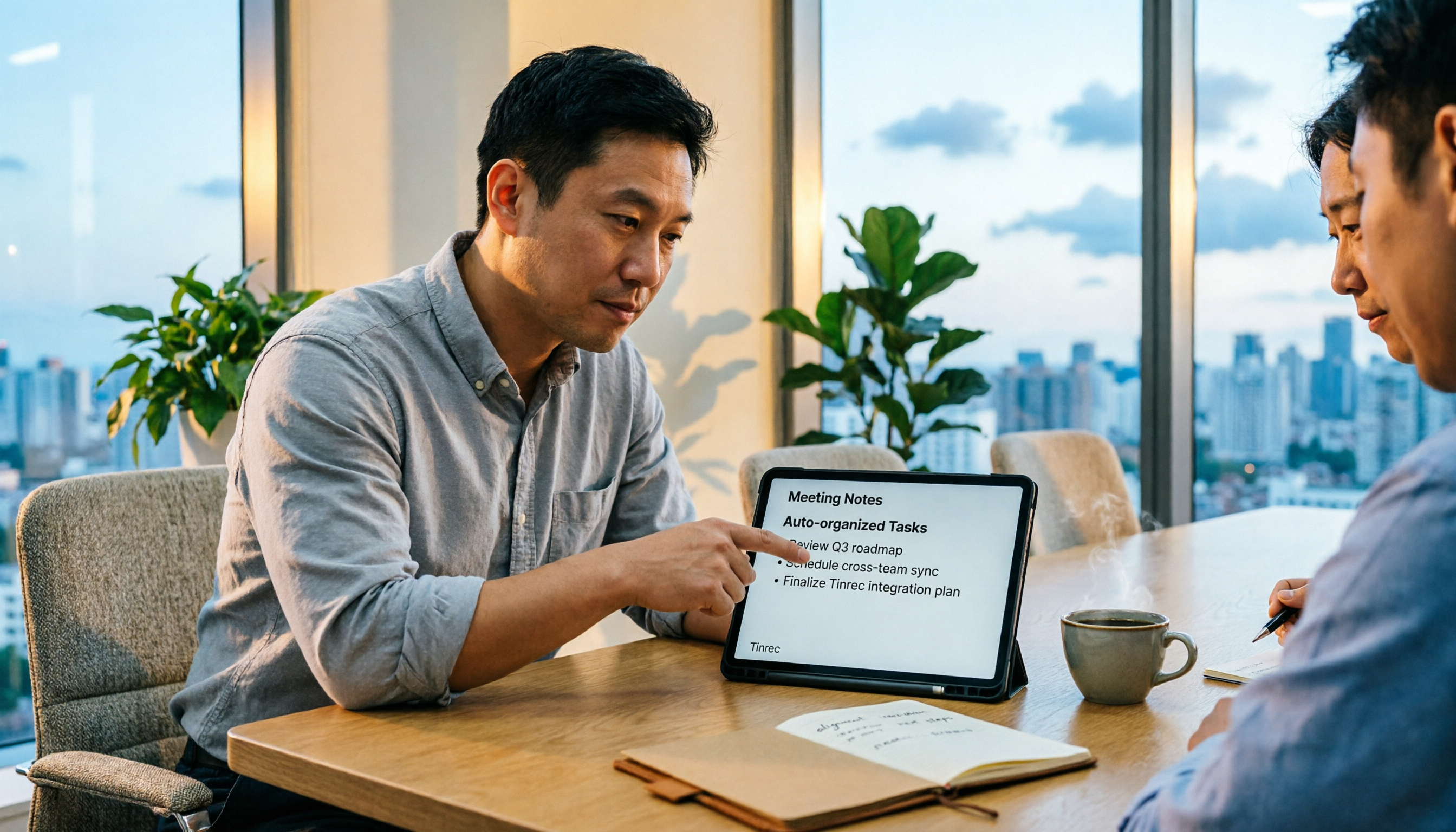
Best AI Meeting Notes Tools in 2026: 5 Tested + Automatic To-Do Summaries
A mid-level manager who runs 15 meetings a week tested popular AI meeting note tools, covering Chinese recognition, how meetings are recorded, post-meeting output, team data ownership, and quota calculations. He shares 5 key selection criteria and 4 common mistakes, and explains why he ultimately kept Tinrec as his daily go-to.