
Turn recordings into transcripts and summaries in minutes
Upload audio or video for multilingual transcription, AI notes, and action items
Want to record a tutorial video but there's no sound? iPhone screen recording has more audio limitations than you think
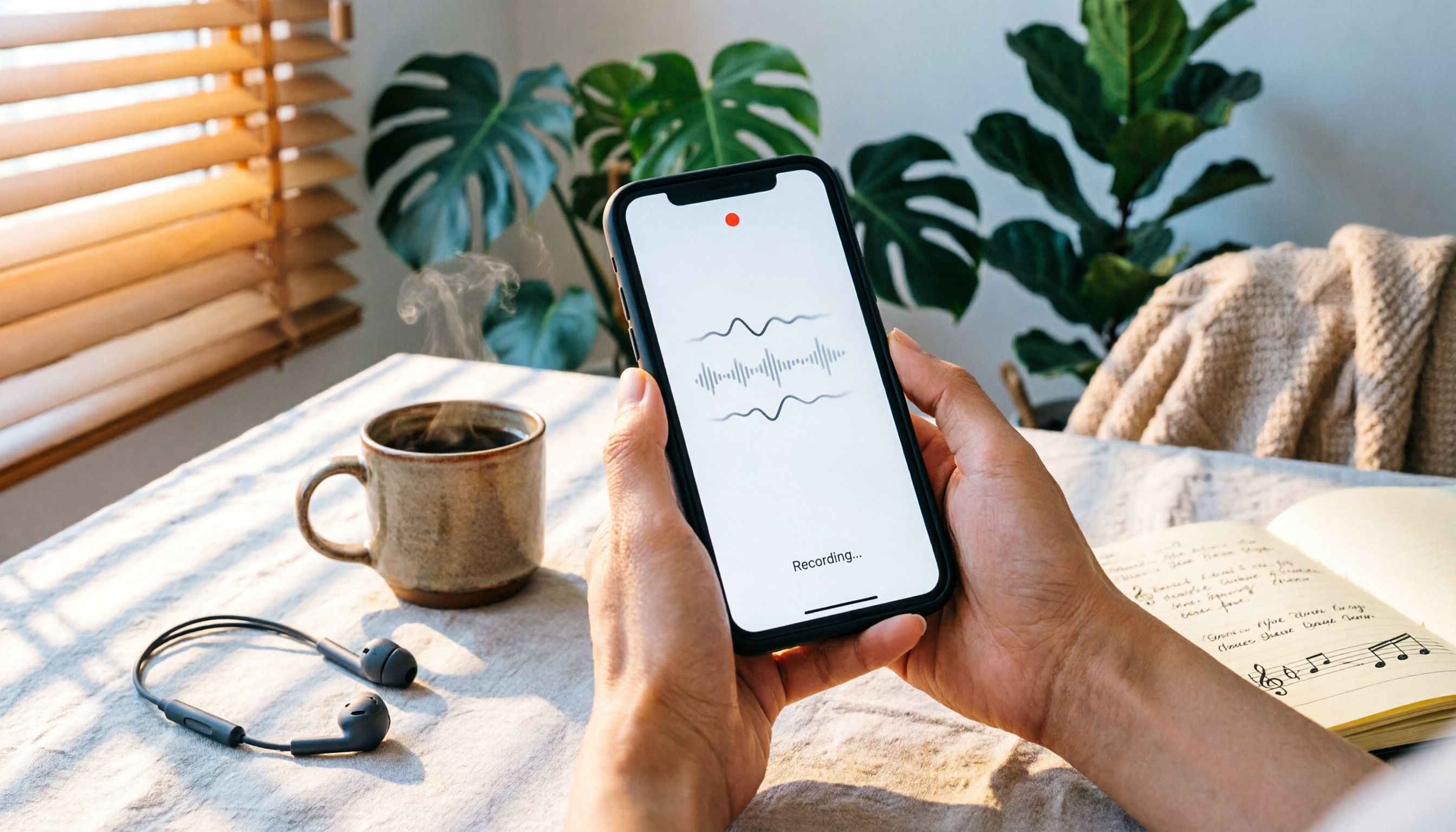
Many people use iPhone screen recording for the first time and only realize after recording that the video is silent. The most common reason: iPhone's built-in screen recording does not enable the microphone by default, and not all app sounds can be captured.
If you need to record operation tutorials, video conference highlights, or gameplay, first clarify three things: do you want to record "your own voice," "the sound playing on your phone," or "both parties' voices in a call"? These three needs require completely different approaches on iPhone.
Before choosing a screen recording audio solution, understand these 4 key points
1. Microphone recording is a manual toggle, not enabled by default
iPhone's built-in screen recording only captures the screen by default. To record your own narration, you must long-press the screen recording icon in Control Center, tap "Microphone" to enable it, and then start recording. Many people miss this step and only discover there's no sound after recording the entire tutorial.
2. The difference between system audio and ambient sound
When audio is playing through the iPhone speaker, screen recording will capture the system sound. If you also want to record your own voice, you need to enable the microphone. However, note: once the microphone is enabled, what gets recorded is the ambient sound picked up by the mic, not purely the system audio source.
3. Call audio is an iOS system limitation
iPhone cannot use screen recording to capture the "other party's" voice in LINE, regular phone calls, or FaceTime. This is due to iOS privacy and system architecture design, not a settings error. If you need to record two-way calls, screen recording is not a reliable solution.
4. Some apps restrict recording content
Certain video, streaming, or copyright-protected apps may not allow screen or audio recording. Additionally, iPhone cannot simultaneously perform screen recording and screen mirroring; recording will be disabled when using AirPlay.
iPhone built-in screen recording — a no-install basic solution
iPhone's built-in screen recording is the most direct choice for "operation tutorials + your own narration," requiring no additional tools, and recorded videos are automatically saved to the Photos app.
Correct setup process:
Go to "Settings > Control Center" and ensure "Screen Recording" is added to the controls. Before recording, swipe down from the top-right corner of the screen to open Control Center, long-press the screen recording icon, tap "Microphone" to enable it, then tap "Start Recording" and wait for the 3-second countdown to begin.
Suitable use cases:
- Recording app operation steps to show colleagues or clients
- Explaining features verbally while operating the phone
- Recording gameplay and commentary that doesn't involve calls
Advantages of the built-in solution:
- No installation, no cost
- Simple operation path; recordings go straight to the photo library
- Ideal for ad-hoc, short recording needs
Limitations of the built-in solution:
- Cannot capture the other party's voice in LINE or phone calls
- No transcripts, AI summaries, or key point extraction after recording
- Limited video editing, search, and management capabilities
- Only produces a video file; no searchable text record is directly available
Stop organizing recordings by hand
Upload audio or video and automatically get a transcript, summary, and action items
Who it's for: General users who occasionally record a tutorial and don't need subsequent text organization.
Beyond built-in screen recording, what other options are there?
Third-party screen recording apps: Some iOS screen recording tools offer more options than the built-in feature, such as adjusting resolution, editing, or export formats. However, these apps are equally limited by iOS and cannot bypass call recording restrictions. Most still focus on capturing the screen and won't automatically generate transcripts or meeting highlights. If you just need to capture the screen, the built-in feature is usually sufficient; if you want to "quickly find key points after recording," you'll need to pair it with other tools.
Professional recording-to-text tools: If your focus isn't the screen but the "content" of meetings, interviews, or lectures, consider AI recording tools like Tinrec. For example, in a meeting scenario, Tinrec can generate a transcript in real-time and automatically produce summaries, chapters, and action items. You can even ask it, "Who mentioned the budget just now?" This is something the built-in screen recording completely lacks.
Hardware recording devices: If you need to record in situations where the phone's microphone isn't usable, or you want audio quality independent of the phone, consider external recording devices. However, these options require extra cost, and post-recording content organization still needs to be handled in software.
Pitfall guide: 4 most common mistakes in iPhone screen recording audio
Pitfall 1: Assuming recording automatically captures audio
iPhone screen recording does not enable the microphone by default. If you find no sound after recording, first check whether you forgot to long-press the icon to enable the microphone. This is the root cause of most "screen recording no sound" issues.
Pitfall 2: Trying to record LINE calls with screen recording
iPhone cannot capture the other party's voice in LINE or phone calls via screen recording. If you need to save call content, you should use other recording methods and ensure compliance with local laws, obtaining consent from the other party when necessary.
Pitfall 3: Realizing after recording that there's only video and no searchable content
Screen recording produces a video file, so to find a specific sentence later, you have to replay and listen carefully. If your goal is to organize meeting or interview highlights, tools that provide transcripts, summaries, and AI search after recording are more practical than pure screen recording.
Pitfall 4: Ignoring recording consent and privacy
Whether recording meetings, calls, or interviews, you should confirm compliance with local regulations before recording and obtain consent from participants when needed. Tools can help you record, but the responsibility for compliance lies with the user.
Summary: Which one should you choose?
If you just need to record an iPhone operation tutorial with your own narration, the built-in screen recording with the microphone enabled is sufficient—no installation, no cost.
If you need to record both parties' voices in LINE or phone calls, iPhone screen recording can't do it; this is a system limitation, not a settings issue.
If what you truly need is to "turn meeting, interview, or lecture content into searchable, queryable, and collaborative material," then the focus isn't on recording the screen but on automatic transcription and organization after recording. For such needs, consider Tinrec: it generates transcripts in real-time, automatically produces summaries and action items, allows you to ask AI about key points, and keeps meeting materials in a team space for ongoing use.
First, confirm your core need: if you want "visuals," use the built-in screen recording; if you want "content," choose a recording-to-text tool. Don't buy features you won't use just to record a tutorial, and don't expect screen recording to bypass iOS's call recording limitations.
References
- Take a screen recording on iPhone - Apple Support (Taiwan)
- Record the screen on iPhone, iPad, or iPod touch - Apple Support (Taiwan)
- How to record system sound and ambient sound on iPhone screen recording, 5 methods - EaseUS
- How to record system sound and ambient sound on iPhone screen recording? Complete tutorial | Girl Tech | LINE TODAY
- How to record sound with screen recording (2026) | Complete guide for iPhone, Mac, Windows with audio settings
Turn every recording into actionable outcomes
Get 60 free transcription minutes when you sign in. No credit card required.
Related Reading
You might also like

How to Do Real-Time Translation in Teams Meetings in 2026: A 5-Step Guide
How to do real-time translation in Teams meetings in 2026? This article uses 5 criteria to compare Microsoft Teams' built-in interpreter and Tinrec across launch method, bilingual transcripts, post-meeting organization, team collaboration, and cross-platform support, and provides a 5-step quick-start checklist to help you choose the right real-time translation and meeting notes workflow for your team.

Outlook Scheduling Teams Meetings vs Tinrec in 2026: 5-Dimension Showdown — Which Keeps Your Meeting Records?
Scheduling Teams meetings from Outlook only solves 'when everyone logs on,' not 'what's left after the meeting.' This article starts with the real pain points of student project meetings, breaks down 5 key aspects of scheduling Teams meetings, the account limitations and common pitfalls of the Outlook add-in, and compares Tinrec, Teams built-in, Otter.ai, and Granola on transcripts, AI Q&A, audio retention, and free quotas. It ends with practical selection advice for students.

How to Use Live Captions in Microsoft Teams Meetings (2026): 5-Step Guide
Microsoft Teams meetings include built-in live captions that let you read along during the meeting and even get real-time translation. However, captions are not saved—if you need a transcript afterward, you must turn on transcription separately. This guide walks you through 5 steps to enable and adjust live captions in Teams, get a text record after the meeting, and avoid common mistakes. It also explains how Tinrec can fill the gap for post-meeting organization and team collaboration.

5 Ways to Take Attendance in Microsoft Teams Meetings (2026 Tested Comparison): Which One Misses the Fewest People?
There's no one-size-fits-all attendance button for Microsoft Teams meetings. This article compares five methods—meeting chat + Microsoft Forms, attendance report, manual roll call, meeting invite responses, and post-meeting form submission—based on real meeting hosting experience. It outlines the scenarios each method suits, their limitations, and key pitfalls to avoid, plus how to use Tinrec to organize meeting notes after taking attendance.

2026 Comparison of 2 Teams Meeting Recording Methods: Where Recordings Are Stored, How to Find Them, and Which Is Better?
Many people can't find the recording after a Teams meeting. In fact, native Teams recordings are stored in OneDrive or SharePoint depending on the meeting type. This article compares native Teams recording with Tinrec desktop bot-free recording across 5 dimensions to help you quickly locate recording files and determine which method better suits your team.

3 Ways to Remove Someone from a Teams Meeting in 2026: Don't Confuse Kicking with Canceling
There are three common scenarios for removing members from Teams meetings: kicking someone out during a meeting, removing them from the invite list, and canceling the meeting. This article covers the steps, common pitfalls, and how to use Tinrec to keep post-meeting transcripts and summaries.

2026 AI Meeting Notes Showdown: Tinrec vs Otter.ai for Chinese Meetings
Tired of replaying an hour-long recording after a meeting? This hands-on comparison of Tinrec and Otter.ai tests five dimensions: bot-free recording, Chinese and mixed Chinese-English transcription, post-meeting summaries and AI Q&A, team knowledge retention, and historical meeting organization. It also outlines a ready-to-use AI meeting summary workflow and buying advice to help you decide which tool fits your meeting scenarios.

5 AI Meeting Notes Tools Compared for 2026: Examples & Prompt Templates
Tired of endless meeting notes? This article breaks down AI meeting notes with real examples: a three-part summary, action items, and prompt templates. It also compares five common tool approaches and explains how Tinrec uses bot-free desktop recording, AI Q&A, and team spaces to turn a meeting into searchable, trackable team knowledge.

2026 AI Meeting Notes Tools Compared: How to Calculate Costs Without Getting Burned
AI meeting notes tools don't use the same pricing unit: some charge monthly, some per minute, some per hour. This article converts 5 mainstream options to a "cost per meeting hour," breaks down hidden costs like free plan ceilings, overage charges, and manual cleanup time, and uses Tinrec's team plan as a real example to help you bring numbers to your procurement meeting.