
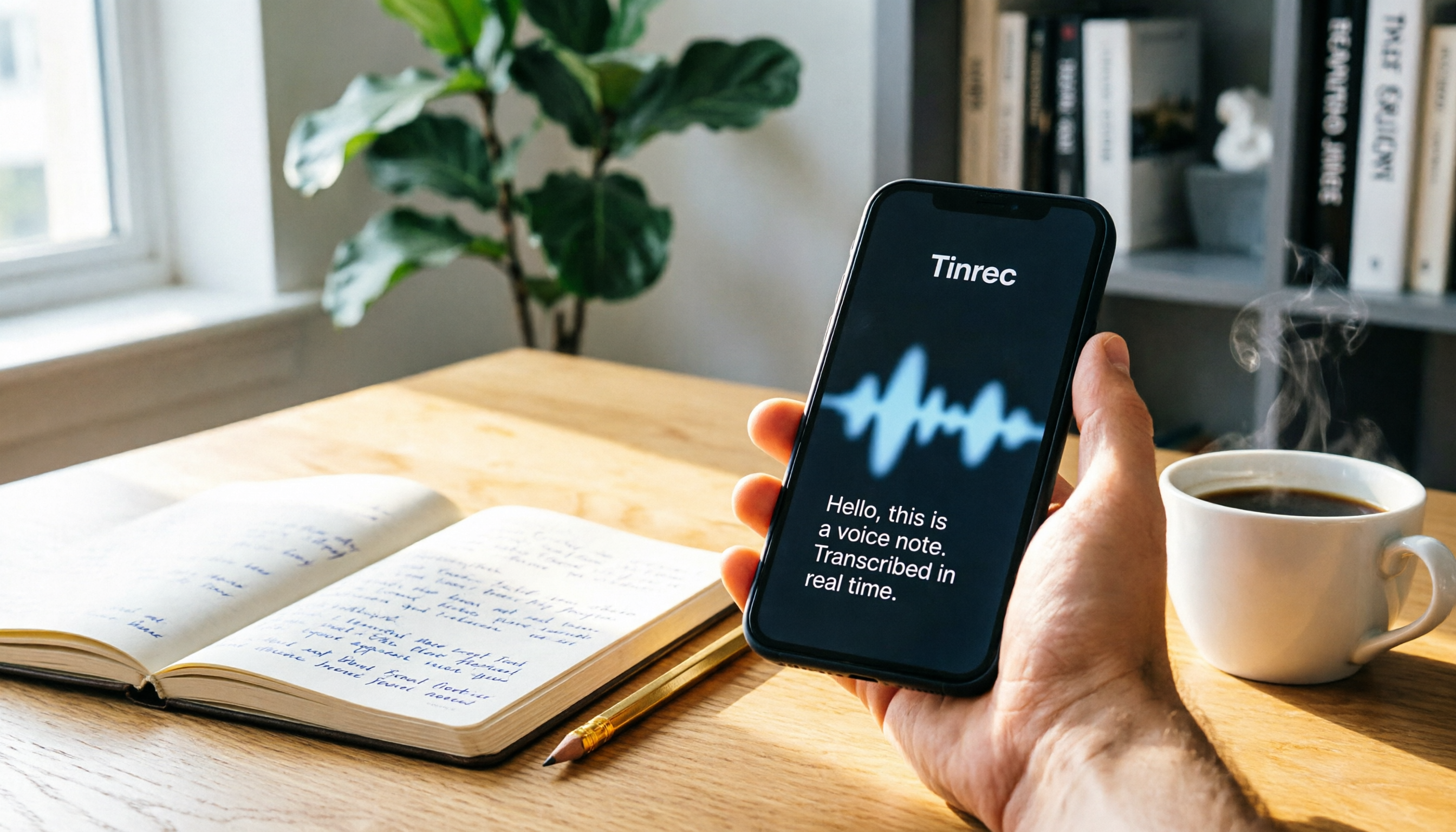
Turn recordings into transcripts and summaries in minutes
Upload audio or video for multilingual transcription, AI notes, and action items
Bottom Line: Try iPhone Built-In Features First, Save AI Tools for "Organizing" Needs
I've noticed that many people, when they hear "voice to text," immediately go download an app.
But if you just want to turn a recording into text, iPhone's built-in features can do it.
This article first tests three native iOS options, then explains when you actually need AI meeting tools like Tinrec.
iPhone Built-In Voice-to-Text: Know These Three Methods
Method 1: Voice Memos Transcript
This is my current top pick among built-in features.
Starting with iOS 18, Apple lets iPhone 12 or later models transcribe recordings directly in the Voice Memos app.
Supported languages include English, Spanish, Portuguese, Italian, French, German, Japanese, Korean, and more.
Note: If your recording was made on iOS 17 or earlier, opening the audio file in Voice Memos will automatically attempt transcription.
The steps are simple:
- Open the Voice Memos app, usually in the Utilities folder.
- Tap the recording you want to transcribe.
- The waveform temporarily disappears, and the transcript appears, highlighting the word currently playing.
- To copy the text, tap the "…" icon in the top-right corner and select "Copy Transcript."
What's even better is that it automatically adds punctuation and paragraph breaks.
In my own testing, Chinese interview recordings in a quiet environment transcribed faster than expected, and the text was easy to organize.
Method 2: Keyboard Dictation
If what you need isn't "recording to text" but "speak and type," Dictation is more direct.
On any text field on your iPhone, tap the microphone icon at the bottom-right of the keyboard to start dictating.
Supported languages depend on the keyboard you're currently using.
Built-in dictation automatically inserts commas, periods, and question marks.
If you don't want this auto-punctuation, go to Settings > General > Keyboard and turn off "Auto-Punctuation."
This feature is great for quickly replying to messages or jotting down ideas, but not for handling long meeting recordings.
Method 3: iMessage Voice Message Transcription
Starting with iOS 17, iMessage voice messages can also be transcribed.
This is best for recording short thoughts—after you send it, it automatically converts to a text transcript.
But its purpose is real-time messaging, not formal documentation.
If you want to copy the content, it's a bit roundabout: you'll need to take a screenshot and then select and copy the text.
Are Built-In Features Enough? Three Common Misconceptions
Misconception 1: Thinking All Models Support Voice Memos Transcripts
No.
Voice Memos transcripts currently require an iPhone 12 or later.
If you have an older model, you won't see the transcription option when opening a recording.
Misconception 2: Thinking Voice Memos Can Transcribe Any Format
No.
Common audio files like .mp3 need to be converted to a format supported by Voice Memos, typically .m4a.
If you're not a Mac user, you can search for "xx to m4a" and find many online conversion services.
Misconception 3: Assuming Chinese Support Is Always Reliable
The official support list for transcripts mainly includes English, Spanish, Portuguese, Italian, French, German, Japanese, Korean, and more.
Actual Chinese performance can be affected by recording quality, accents, and background noise.
My advice: record a 30-second test first to check the results before committing.
Stop organizing recordings by hand
Upload audio or video and automatically get a transcript, summary, and action items
When Should You Upgrade to AI Meeting Tools?
Built-in features solve the "voice to text" problem.
But if you want "meetings to become data," then you should consider tools like Tinrec.
Tinrec isn't just about recording-to-text; it turns meeting content into searchable, collaborative, trackable team knowledge.
4 Things Built-In Features Can't Do
First, no bot needed for online meetings.
Tinrec's desktop app can directly capture system audio from your computer, handling online meetings on Zoom, Google Meet, Microsoft Teams, Webex, and more.
No need to add a meeting bot as a participant.
Second, post-transcription organization.
Beyond the transcript, Tinrec automatically generates summaries, chapters, key points, and action items.
You can even ask it: "What objections did the client raise in this meeting?"
Third, multi-format export.
Meeting results can be exported to tools like Notion, Google Docs, OneNote, and Dropbox, integrating with your existing workflow.
Fourth, team knowledge accumulation.
Personal plans keep data under individual control, while team plans provide a dedicated team space.
When a member leaves or is removed, meeting data doesn't disappear—it's handed over to other active members.
Free vs. Paid Plans
Tinrec's personal plan has a free tier, letting you try recording, importing, summarization, and transcription with basic credits.
If you have a short period of intense meetings, consider a weekly pass.
For consistent weekly use, the Pro monthly plan is a better fit.
For long-term recording storage, the annual plan offers a lower monthly equivalent.
Team plans are priced per paid seat, with each paid seat providing 2,000 minutes of shared team import credits per month.
Actual pricing is subject to the official purchase page; we don't endorse any fixed numbers here.
My Testing Advice: Use in Stages
Stage 1: Start with built-in features.
Open Voice Memos, record a meeting or interview, and see if the transcript quality meets your standards.
If it does, you might not even need to download an app.
Stage 2: Upgrade when you hit organizing needs.
When you find yourself spending 2 hours a week turning transcripts into meeting notes, or needing to find a specific decision across three recordings, that's when tools like Tinrec become necessary.
Stage 3: For team collaboration, go straight to the team plan.
If your department's meeting notes are scattered across everyone's phones and you have to ask around to find records, the value of a team space becomes obvious.
FAQ
Does iPhone Voice Memos transcript support Chinese?
The official support list mainly includes English, Spanish, Portuguese, Italian, French, German, Japanese, Korean, and more. Actual Chinese performance depends on recording quality and accents, so we recommend recording a test first.
Can Voice Memos transcribe .mp3 files?
Standard .mp3 audio files need to be converted to .m4a format first before they can be transcribed in Voice Memos.
What's the difference between built-in Dictation and Voice Memos transcripts?
Dictation is real-time voice input, ideal for replying to messages and capturing ideas. Voice Memos transcripts are for transcribing already-recorded or in-progress audio, suitable for meetings and interviews.
How is Tinrec different from a regular recording app?
Regular recording apps just capture audio. Tinrec goes further by converting to text, generating summaries and action items, supporting AI Q&A, and allowing meeting data to be stored in a team space.
Is Tinrec's free plan enough?
Light users can start with the free plan to test recording, importing, summarization, and transcription. As usage increases, you can choose a weekly pass or Pro plan based on your needs.
What should I keep in mind when using voice-to-text?
When recording and transcribing involves others' voices, you should comply with local laws and obtain participants' consent when necessary.
References
- View Voice Memos transcripts on iPhone - Apple Support (Taiwan)
- iPhone's Voice Recognition Feature: Voice Memos, Auto Punctuation and Paragraphs - AI - Let's Write
- iPhone Voice-to-Text Settings Tips: 5 Ways to Convert Recordings to Text - Mr. Mad
- Voice-to-Text iPhone: A Practical Guide
- Dictate text on iPhone - Apple Support (Taiwan)
Turn every recording into actionable outcomes
Get 60 free transcription minutes when you sign in. No credit card required.
Related Reading
You might also like

2026 AI Meeting Notes Software: 5 Top Picks Tested and Compared — Is the Free Version Enough? Post-Meeting Organization Is Key
From free usage limits, Chinese transcription, bot-free recording, to team seat management, here are the key factors to consider when choosing AI meeting notes software in 2026. We also demonstrate Tinrec's complete workflow for post-meeting summaries, action items, AI Q&A, and team knowledge retention.

Best AI Meeting Notes Platforms in 2024: Testing 4 Options, Tinrec Excels for Chinese Meetings and Team Knowledge Retention
Many people treat AI meeting note platforms as simple audio-to-text converters, only to find themselves re-listening and catching up on action items afterward. This article covers selection criteria, pitfalls to avoid, and the positioning of Tinrec, Otter.ai, Notta, and Granola to help you determine which platform suits Chinese meetings, bot-free recording, and team knowledge retention.

2026 Free AI Meeting Notes Generators Compared: 5 Tools to Try
The meeting ends, and the overtime begins. This article examines five AI meeting notes generators from four angles: how free quotas work, how meetings are recorded, what you can do after the meeting, and how teams can take over later. It breaks down who Tinrec, Notta, Otter.ai, Granola, and TurboScribe are each best for, so you can verify—without spending money—whether a tool actually understands your meetings.

2026 AI Meeting Notes Comparison: 5 Tools Tested Without Bots — Which Handles Chinese Summaries Best?
For small-team leaders choosing an AI meeting notes tool, the real questions are where your meeting audio comes from and what you need after the meeting. This article tests 5 tools — Tinrec, Notta, Otter.ai, Granola, and PLAUD — across 4 key criteria: bot-free recording, post-meeting outputs, quotas, and team governance, to help you find the right fit for your meeting style.

5 AI Meeting Recorders Tested and Compared in 2026: Which Is More Practical—Bot-Free Recording or Chinese Language Experience?
This article clarifies the three most common misconceptions about AI meeting recorders, covering recording methods, Chinese recognition, post-meeting organization, and team permissions. It explains what to really look for when choosing one, and uses Tinrec as an example to demonstrate bot-free recording, real-time transcription, AI Q&A, and how team meeting data can be retained and utilized.

2026 AI Meeting Recorder Comparison: 5 Tools Tested for Chinese Transcription, Free Tiers, and Post-Meeting Organization
Starting from real student use cases, this comparison focuses on what AI meeting recorders often get wrong: it's not about who transcribes fastest, but who can turn transcripts into summaries, action items, and searchable data. The main tool tested is Tinrec, breaking down what it can do, five core capabilities, campus and team scenarios, five must-check points before buying, and whether the free tier is enough for students.

Tinrec vs Notta 2026: 5-Factor Comparison — Which Is Better for Chinese Meeting Notes?
Most people install an AI meeting notes app only to get a raw transcript. This article breaks down 5 buying factors, tests Tinrec's bot-free recording, AI Q&A, and team knowledge retention workflow, and briefly reviews Notta, Otter.ai, and PLAUD for their best-fit scenarios.

5 Free AI Meeting Notes Apps Tested in 2026: Which Free Tier Actually Works?
Is a free AI meeting notes app enough? This article starts from the decision point of 'how many meetings do you have per month' and compares the free plan limits of Tinrec, Notta, Otter.ai, TurboScribe, and PLAUD. It breaks down four key criteria: per-recording limit, online meeting support, post-meeting output, and team data ownership, helping you choose the right tool without spending money.

2026 AI Meeting Notes Showdown: Tinrec vs Plaud Note — Which Saves More Time?
The meeting ends, but the pain begins. We tested Tinrec and Plaud Note across five dimensions — audio capture, post-meeting organization, Chinese recognition, team collaboration, and pricing — to help you decide which tool truly saves time on replaying recordings and typing notes.