
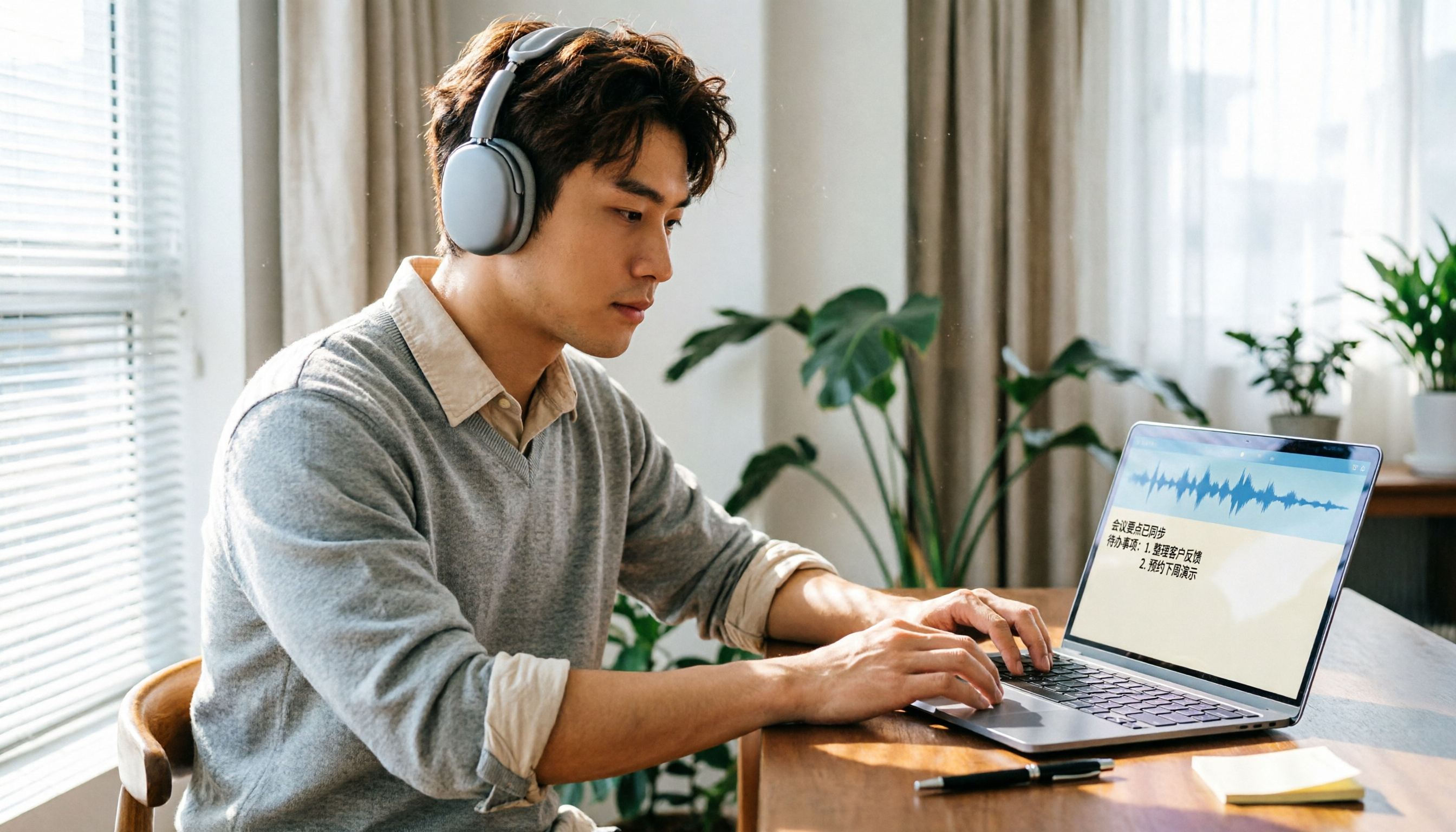
Turn recordings into transcripts and summaries in minutes
Upload audio or video for multilingual transcription, AI notes, and action items
Want to record on your computer during a meeting, but not sure if Notta has a desktop app?
Many people first encounter Notta on their phone, recording an interview and finding the transcription quality impressive. Then, back at the office, they want to record Zoom or Google Meet meetings on their computer and start searching for "Notta desktop app download."
After browsing the official website, App Store, and Windows download sites, they end up more confused: some pages mention a Desktop App, others say Beta, and some recommend using the web version.
If you're in this situation, this article will clarify things: whether Notta has a desktop app, how to install it, the differences between Mac and Windows, and other more stable options for your computer.
Quick Answer: Notta Has a Desktop App, but It's Still in Beta
According to Notta's official Help Center, there are two recommended platforms for computer use: Notta Web and Notta Desktop App (Beta).
In other words, Notta does have a desktop application, but it's still labeled as Beta. The official recommendation for Mac users is more conservative: if you're on a Mac, prioritize the more stable Notta web version or the Desktop App (Beta).
Also, note that the Notta app on the Mac App Store is based on the iPad version, and the company explicitly states it hasn't been officially tested for macOS. So if you see Notta on the Mac App Store, it's not an officially recognized Mac desktop version.
In short:
- Windows: You can download the official .exe installer to use the desktop app.
- Mac: There's a Desktop App (Beta), but the web version is officially recommended.
- Mac App Store version: This is the iPad version and shouldn't be used as a Mac desktop app.
What Can You Do with Notta Desktop?
The core function of Notta Desktop is to let you record meetings directly on your Mac or PC and transcribe them, without needing an extra bot to join the meeting.
This is a practical design for those who don't like having a "stranger" in the meeting room. Just open Notta Desktop on your computer, and it captures system audio to record content from online meetings like Zoom, Google Meet, Microsoft Teams, and Webex.
Beyond recording and transcription, the desktop app retains Notta's main workflow: viewing transcripts, editing content, generating summaries, and searching history. After completing meeting notes on your computer, you can organize key points without switching back to your phone.
Before Using Notta Desktop, Check These 3 Things
1. System Requirements
Before installing, make sure your computer meets the basic requirements. The official installation guide lists system requirements. Windows users can directly download the .exe installer, while Mac users need to watch for security prompts on first launch.
2. Mac Security Warning on First Launch
When you first open Notta on a Mac, the system may show a message like "Notta is an application downloaded from the Internet." This is normal; just click "Open." Notta has been notarized by Apple, and this prompt only appears on the first launch.
3. Different Closing Behavior on Mac and Windows
This is easy to overlook:
- macOS: Closing the main window doesn't fully quit Notta; the app stays in the menu bar. To fully quit, right-click the menu bar icon and select "Quit Notta."
- Windows: Closing the main window exits the app completely.
If you're recording, it's best to minimize the window rather than close it, to avoid interrupting the recording.
4 Steps to Start Using Notta for Audio-to-Text on Your Computer
Step 1: Download the Installer from the Official Website
Go to Notta's official website and download the appropriate installer. Windows users download the .exe, and Mac users download the desktop installer. During installation, you can customize the path and choose whether to create a shortcut.
Step 2: Log In to Your Notta Account
After installation, log in with your existing Notta account. Once logged in, the left menu will show the main screen, recording history, and scheduled meetings.
Step 3: Set System Audio Permissions
To record online meetings, Notta needs access to your computer's system audio. Mac users need to grant this permission in System Settings; if this step is missed, the recording will have no sound.
Stop organizing recordings by hand
Upload audio or video and automatically get a transcript, summary, and action items
Step 4: Start Recording and View the Transcript in Real Time
Open your online meeting, return to Notta Desktop, and start recording. During recording, the transcript is generated in real time. After the meeting, you can edit, search, or generate a summary directly.
If You're Still Unsure, Start with the Web Version
Honestly, if your need is quick meeting notes, you don't necessarily need to install the desktop app. Notta's web version is feature-complete; just open your browser, log in, and use it—no installation or system permissions required.
Especially for Mac users, the company itself recommends the web version first. The desktop app is still in Beta, so stability may not match the web version.
However, if you frequently record online meetings on your computer, the desktop app's system audio capture is more direct than working in a browser. You can install it to try, and if it's not smooth, switch back to the web version.
Beyond Notta: Other Options for Computer Audio-to-Text
If Notta's Beta status makes you uneasy, there are other tools on the market to consider.
Tinrec
Tinrec is an AI meeting notes and collaboration tool. Its desktop app also uses a bot-free approach to capture system audio, suitable for Zoom, Google Meet, Microsoft Teams, and Webex meetings.
Compared to Notta, Tinrec emphasizes the post-meeting workflow: besides transcripts, it generates summaries, chapters, action items, and mind maps. You can also ask AI questions about the meeting content, like "Who mentioned the budget in the last meeting?" and get direct answers based on semantics, not just keyword search results.
The team version centralizes meeting data in a team space, where admins can allocate seats, view usage, and export audit logs. This is more practical for departments that need to accumulate meeting knowledge over time, compared to a simple transcription tool.
Otter.ai
Otter is mature for English meetings, with a free plan offering 300 minutes per month—a good deal for those who only record English content. But if you mainly handle Chinese meetings, Otter's advantages are less obvious.
Granola
Granola, like Tinrec, uses bot-free desktop recording, but it doesn't support uploading pre-recorded audio files and doesn't retain meeting audio. If you need to verify the original recording later, Granola isn't suitable.
Desktop or Web? Ask Yourself These 3 Questions
Are you on Mac or Windows?
Windows users can directly download and use the desktop app. Mac users should prioritize the web version unless you're willing to accept minor issues from the Beta version.
Do you need to record online meetings, or just organize audio files?
If you only need to transcribe audio files, uploading them to the web version is enough. If you need to record meeting audio playing on your computer, the desktop app's system audio capture is more convenient.
Do you value stability or the convenience of a desktop app?
The desktop app offers a separate window and direct operation. The web version's advantages are no installation, always available, and officially considered more stable.
Summary: Notta Has a Desktop App, but It May Not Be Your Best Choice
Back to the original question: Does Notta have a desktop app?
The answer is: Yes, but it's currently in Beta. Windows users can download the .exe from the official website, and Mac users have a Desktop App, but the web version is officially recommended. The Notta on the Mac App Store is the iPad version and shouldn't be used as a Mac desktop app.
If you need stable, ready-to-use meeting notes on your computer, start with Notta's web version. If you want more than transcription—like automatic action items, AI Q&A to quickly find key points, or turning meeting data into team assets—tools like Tinrec might be closer to what you actually need than a simple desktop app.
FAQ
Does Notta have a Windows desktop app?
Yes. You can download the .exe installer from Notta's official website, install it, and log in to use it.
Does Notta have a Mac desktop app?
There's a Desktop App (Beta), but the official recommendation for Mac users is to use the web version. The Notta on the Mac App Store is the iPad version and hasn't been officially tested for macOS.
Does Notta Desktop cost money?
Installing Notta Desktop itself doesn't require extra payment, but transcription quotas depend on your Notta plan. The free plan has a monthly minute limit, so check your plan's benefits before use.
What's the difference between Notta Desktop and the web version?
The desktop app is a standalone application that can capture system audio, suitable for recording online meetings. The web version requires no installation and is more stable, but recording computer audio may be less direct.
Does closing the Notta Desktop window quit the app?
On Windows, closing the main window exits the app. On macOS, closing the main window doesn't quit; the app stays in the menu bar, and you need to manually select "Quit Notta."
If I just need to organize audio files, do I need the desktop app?
No. You can use Notta's web version to upload audio or video files and get transcripts and summaries. The desktop app is mainly for recording meeting audio on your computer.
References
Turn every recording into actionable outcomes
Get 60 free transcription minutes when you sign in. No credit card required.
Related Reading
You might also like

4 Vocal AI Tools Compared in 2026: From Music Creation to Meeting Notes
The keyword 'vocal ai' splits into two distinct searches: half are looking for AI vocal generation and vocal isolation, while the other half want tools that turn meeting audio into usable data. This article compares four tools side by side, breaks down selection criteria, testing context, and common pitfalls, and explains how Tinrec performs in mixed Chinese-English meeting transcription, post-meeting organization, and team collaboration, ending with clear scenario-based recommendations.

VOCOlinc App Troubleshooting 2026: 5 Scenarios and Fixes
VOCOlinc App won't open, all devices offline, stuck on 'Linking to Vocolinc cloud', or can't find the app on Google Play? Based on user reports and official support, this guide breaks down 5 common scenarios and tells you what to do first, what not to do, and when to contact support.

VOCOlinc App vs Apple Home App in 2026: 4-Factor Comparison for Light Effect Control
VOCOlinc App is the official control app for VOCOlinc smart home accessories, available on iOS and Android. This article compares VOCOlinc App with Apple's built-in Home app across 4 practical dimensions, summarizes real user feedback from the App Store and Google Play, and lists the 3 most common setup pitfalls to help you decide which app to use day-to-day.

2026 Vocol Online Transcription Free Plan Guide: 4 Tools Compared
Many people think online transcription just means uploading a recording and getting a transcript, but the file ends up sitting in the cloud unused. This guide compares the free tiers of Vocol.ai, Tinrec, Notta, and TurboScribe, explains the difference between V-Points and minute-based plans, and compares post-transcription features like summaries, action items, and AI Q&A to help you choose the tool you'll actually come back to.

6 Free Speech-to-Text Tools Tested in 2026: Is Vocol's Free Plan Really Enough?
Many people search for Vocol free usage, only to discover before midterms that the free quota isn't unlimited. This article, based on real campus scenarios, compares the free plans and pricing logic of 6 speech-to-text tools, including Vocol's free quota and point rules, the differences between Tinrec's free and team versions, and highlights the three most common mistakes students make when choosing a tool, helping you avoid wasted effort before finals.

Tinrec vs PLAUD Note in 2026: 5-Dimension Comparison — Which Is the Better Meeting Notes Assistant?
The real hassle begins after the meeting ends. This comparison examines five dimensions — online meetings, hardware requirements, post-meeting organization, Chinese recognition, and team sharing — to compare the software-based Tinrec with the hardware-based PLAUD recorder (Note, Note Pro, NotePin). It lists actual pricing and limitations to help you decide which approach fits your meeting style.
Best Free Vocal AI Splitters in 2026: 5 Options Reviewed
If you want to split a song into vocals, drums, and bass for practice or karaoke, a free vocal AI splitter can get the job done. This guide covers 4 online stem-splitting tools, honestly explains each one's free-tier limits, and then addresses a step most people overlook: how to turn isolated vocals into a transcript and key takeaways.

2026 AI Vocal Tools Compared: Singing Generation vs. Speech-to-Text — How to Choose
People searching for 'vocal ai singer' actually have three different needs: generating singing vocals, converting timbre, and turning recorded vocals into usable text. This article first clarifies the differences among these three tool categories, then uses Tinrec to demonstrate the complete workflow of speech-to-text and post-meeting organization, along with key buying considerations and FAQs.
Vocal AI Cover Tutorial 2026: 5 Tools Tested + No-Install Workflow
Want to try vocal AI covers? The first decision isn't which tool is best—it's whether to use existing voices or clone your own. This guide compares five browser-based tools: Musicfy, Jammable, VoiceDub, Vocalize, and Vocal Remover. It breaks down the process into five steps and covers advanced tips like pitch adjustment and multi-voice harmonies, plus copyright considerations.