

Turn recordings into transcripts and summaries in minutes
Upload audio or video for multilingual transcription, AI notes, and action items
Your Wednesday afternoon project meeting just ended, and you have a 50-minute recording. Your boss wants the meeting minutes before you leave. Listening to it from the beginning and typing as you go will take two hours—this is probably the most common reader email I get.
This article uses Tinrec as an example to walk you through the complete speech recognition workflow in meetings: recording, transcription, proofreading, generating minutes, and exporting/sharing. At the end, I'll compare Tinrec and Notta, which is often compared alongside it, across 5 dimensions.
Before You Start | What You Need to Prepare
- A phone or computer. Tinrec has iOS, Android apps, and a desktop version. For online meetings, the desktop version works best.
- A recording you want to convert to text. Meetings, interviews, and classes all work. For my own testing, I used a 50-minute project meeting recording.
- A stable internet connection. Real-time transcription requires internet access, so make sure your connection is good before the meeting.
- An account. Start with the free version to try recording, importing, summarizing, and transcribing within the basic quota. If it works for you, consider upgrading.
- If your meeting is on Zoom, Google Meet, Microsoft Teams, or Webex, remember to install the desktop version first. Tinrec directly captures your computer's system audio and does not require inviting a meeting bot to join.
- Before recording, be aware of local laws and obtain consent from participants if necessary.
Step 1 | Record the Content You Want to Convert to Text
The goal of this step is to get a clean recording file, which is the foundation for all subsequent steps.
Open Tinrec and press the record button on the main screen to start. For in-person meetings, place your phone in the center of the table. For online meetings, switch to the desktop version so it captures the meeting audio playing on your computer. Participants will not see any extra bot joining.
Why pay special attention to microphone placement? Because speech recognition accuracy is directly related to audio quality—if the distance is too far or the environment is too noisy, even the best model cannot save it. Instead of spending 20 minutes proofreading later, spend 30 seconds confirming the position before recording.
After recording, the audio file stays in Tinrec, showing its duration and creation time, ready to be processed whenever you want.
(Illustration: Three or four people in a meeting room, phone placed in the center of the table recording, natural atmosphere)
Step 2 | Let AI Transcribe for You
The goal of this step is to turn sound into editable, searchable text.
For real-time recording, Tinrec transcribes as it records. While the meeting is still going, the transcript appears line by line. For pre-recorded material, simply upload the audio or video, and it can also be organized into text.
Tinrec focuses more on Chinese and mixed Chinese-English meeting content. For cross-language meetings, you can enable real-time translation during recording and view in original, translated, or bilingual mode.
Note that no speech recognition tool should promise a fixed accuracy rate. Actual performance is affected by recording quality, background noise, accents, multiple people speaking at once, and technical terminology; the cleaner the environment, the more stable the results.
When finished, you get a timestamped transcript that you can search directly by keyword.
(Illustration: Transcript text on a laptop screen increases in real time as the meeting progresses, speaker is talking)
Step 3 | Quickly Proofread the Transcript
The goal of this step is not to retype every word, but to confirm key passages clearly.
The transcript corresponds to recording timestamps. When you encounter an uncertain sentence, just replay that moment to confirm—no need to listen to the entire meeting repeatedly. I usually scan for three types of content first: conclusions, numbers, and names—these are the most troublesome if wrong.
If the team adds product names, project codes, or internal terminology to hotwords in advance, these words are more likely to be recognized correctly, further reducing proofreading time.
After completion, the transcript can move to the next step, where AI will summarize and organize it.
(Illustration: A person wearing headphones looking at the transcript on screen, cursor paused on a sentence ready to replay)
Step 4 | Let AI Generate Meeting Minutes for You
The goal of this step is to turn the transcript into meeting minutes you can read directly.
Tinrec automatically generates AI summaries and chapters, breaking long meetings into several key sections and extracting action items from the discussion. The half hour you used to spend identifying key points and aligning formats is now mostly saved.
If you need something more formal, you can use Agent post-processing to further generate reports, tables, or documents from the meeting content—this is the part I find most convenient. The skeleton of weekly reports or project closing documents can grow directly from the meeting content.
When finished, you have summaries, chapters, key points, and action items. If needed, you can also view the topic structure of the entire meeting with a mind map.
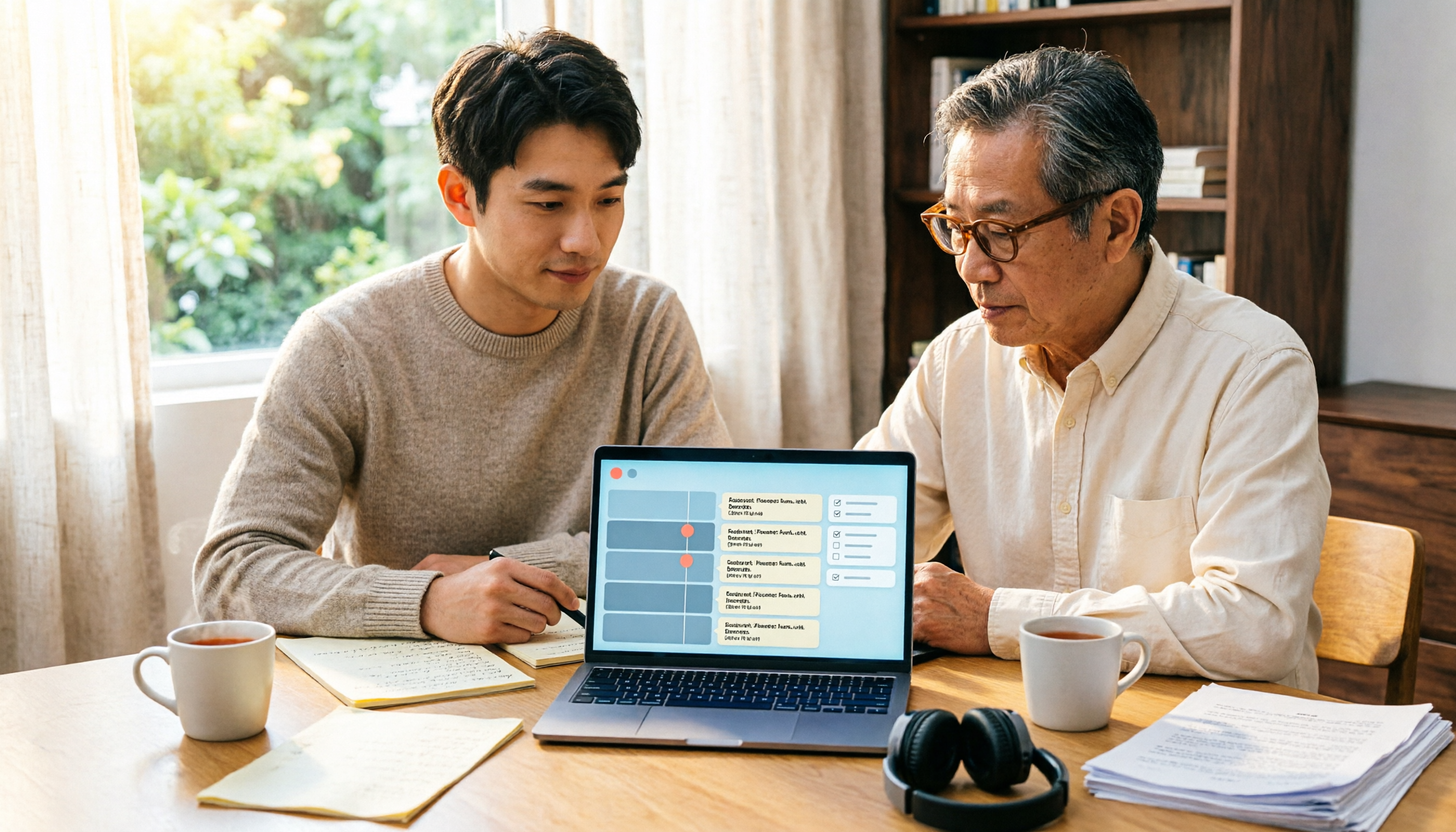
(Illustration: Transcript on the left side of the screen, summary and action items on the right)
Step 5 | Export and Share
The final step is to send the organized content to where you will actually use it.
Tinrec supports export in multiple file formats and can also bring results to Notion, Google Docs, OneNote, Dropbox, and other tools for further editing. For your boss, export as a document; for project management, copy the action items over.
Stop organizing recordings by hand
Upload audio or video and automatically get a transcript, summary, and action items
For team use, meeting data can be stored centrally in a team space. New members can also see past meeting records without having to ask colleagues for files one by one.
After completion, the meeting is truly closed—and it becomes searchable data, not a recording lying on someone's phone.
(Illustration: Workflow screen of meeting data being exported from the tool to documents and note-taking software)
Common Questions and Troubleshooting
Q: There are many typos in the transcribed text. What should I do? This is usually a recording environment issue. If the distance is too far or the background is too noisy, recognition results suffer. Before recording, try to keep the microphone close to the main speaker. For existing files, confirm the language setting is correct when reprocessing. If specific terminology appears often in your team, you can add it to team hotwords first, and the same word will be less likely to be misrecognized later.
Q: How do I record online meetings? Do I need a bot to join? No. The Tinrec desktop version directly captures your computer's system audio. For meetings on Zoom, Google Meet, Microsoft Teams, or Webex, you do not need to invite an extra bot as a participant. Note that currently the user must actively start recording; it does not automatically join every meeting on your calendar.
Q: Is the free version enough? How do I choose a paid plan? The free version lets you try recording, importing, summarizing, and transcribing within the basic quota. It's fine for occasionally organizing one or two recordings. If you have meetings to organize every week, consider Pro. If it's just short-term intensive interviews or classes, a weekly pass is more suitable. If you need long-term accumulation of recording data, the annual plan has a lower monthly cost. Actual quotas and prices are subject to the official purchase page.
Q: For team use, how should meeting data be managed? The team version provides an independent team space where recordings, folders, and action items can be stored centrally. Note that "role" and "seat" are two different things: roles determine who can manage members and team settings, while seats determine who can record, upload, edit, and export. Members without a seat can still view and play team data, but cannot perform editing operations. When a member leaves, team resources also need to be handed over to other active members.
Q: Can deleted recordings be recovered? The team version has an audio recycle bin. Before permanent cleanup, recordings can be restored. The current retention period is 30 days. However, it's still recommended to export and back up important meeting data—it's safer to build that habit.
Q: Can I demand 100% accuracy? It's not recommended to expect that. A more practical approach is to treat Tinrec as a tool that "organizes most of the content first," and then verify important numbers, commitments, and conclusions against the recording. It saves time on manual typing, but does not replace your responsibility to judge the content.
Advanced Tips | 3 Ways to Double Tinrec's Efficiency
1. Use AI Q&A to turn historical meetings into a queryable database If you only get the transcript after a meeting, you're only using half of it. Tinrec's AI Q&A lets you continue asking questions about meeting content, such as "What did this product line commit to last quarter?" You can ask about a single meeting or across meetings. Most transcription tools give you a document and stop there; you still have to go back and search yourself.
2. Team hotwords: train recognition for technical terms Words like product codes, internal abbreviations, and client names are where general models make the most mistakes. Team hotwords let you add them to the team first, so recognition leans toward the correct spelling. This is especially noticeable for the mixed Chinese-English meetings common in Taiwan, like sentences such as "this Q3 target number." Most personal transcription tools do not have team-level vocabulary settings.
3. Agent post-processing plus multi-format export, directly connecting to your workflow What really takes time after a meeting is often turning it into something others need to see. Tinrec can generate reports, tables, and documents based on meeting content, then export to Notion, Google Docs, OneNote, Dropbox. It's like completing the "organizing" part as well.
If You Don't Use Tinrec, Here Are Other Options
If you're deciding between Tinrec and Notta, I've organized a table using 5 dimensions:
| Comparison Dimension | Tinrec | Notta |
|---|---|---|
| Meeting capture method | Desktop version directly captures system audio; no meeting bot required | Mainly meeting bots, desktop client, and file upload |
| Chinese and multilingual | Chinese, mixed Chinese-English, and multilingual meetings; supports real-time translation and bilingual viewing | Mature multilingual transcription and translation |
| Post-meeting output | Summaries, chapters, action items, mind maps, AI Q&A, report and document generation | Mainly subtitles, translation, and summaries |
| Team collaboration and governance | Team space, roles, seats, usage analytics, audit logs, audio recycle bin | Business plan provides role permissions and usage reports |
| Pricing and quota | Personal: free, weekly, monthly, annual plans; Team: USD 29.80 per paid seat per month, annual USD 199 per paid seat per year (about USD 16.58 per month, 2,000 minutes of team shared import quota per paid seat per month) | Free: 120 minutes per month (max 3 minutes per session); Pro annual about USD 8.17 per month; Business annual about USD 16.67 per seat per month |
Prices and benefits may change. Before deciding, refer to each company's official page.
Notta: The competitor with the highest overlap with Tinrec, with mature multilingual transcription and translation. If you mainly process large numbers of existing files and don't need team data accumulation, Notta is worth trying.
TurboScribe: If you need long files and batch uploads, such as dropping 50 files at once for subtitles, it offers great value. The downside is it focuses on file transcription; real-time meetings and post-meeting collaboration are not its main strength.
Back to meeting notes: Tinrec's value lies in handling everything from recording to post-meeting output and team accumulation—a segment that pure transcription tools rarely cover.
Summary
With the 5 steps above, you can now use Tinrec to turn a meeting recording into a transcript, summary, and action items, even generate a report draft directly, and finally export to the tools you normally use. When used by a team, putting data in the team space adds a layer of searchable, traceable accumulation.
The next step is simple: take out that unorganized recording you have, run it through the free version once, and see how much time it can save you.
References
Turn every recording into actionable outcomes
Get 60 free transcription minutes when you sign in. No credit card required.
Related Reading
You might also like

How to Transcribe Interview Recordings in 2026: 5 Steps from Audio to Transcript
Transcribing interview recordings isn't about finding the tool with the highest accuracy—it's about building a workflow from recording to transcript. Using Tinrec as an example, this article walks you through real-time transcription, AI summaries, AI Q&A, multi-format export, and team collaboration, plus 5 buying tips and FAQs.

How to Choose a Transcription Tool for Students in 2026: 5-Step Guide
From not being able to finish taking notes in class, to no one remembering the conclusions of group discussions, to needing to transcribe interviews for graduation projects—this article uses a student's perspective to outline 5 steps for choosing a recording-to-text tool, and shares how Tinrec is used in classrooms, discussions, interviews, and online courses.
Free YouTube Video Analysis Options in 2026: A Look at Tinrec's 3 Plans
YouTube videos too long and you just want the highlights? This article rounds up free YouTube video analysis options in 2026 and uses Tinrec as an example to show how to turn video links or audio files into transcripts, AI summaries, chapters, to-dos, and Q&A notes. It also compares the free version, individual paid plans, and team plans to help you decide which approach best fits your viewing and organizing habits.

4 Short Video AI Summary Tools Tested: Which One Best Captures Key Points from Course Videos?
As a senior information management student, I used AI video summary tools this semester to turn online courses, lecture videos, and my own class recordings into reviewable notes. This hands-on comparison of 4 short video AI summary tools breaks down 4 key points to consider when choosing, 4 common pitfalls, and which tool fits which use case.

Tinrec vs PLAUD Note 2026: 6-Dimension Comparison for Audio Transcription — Which Should You Choose?
Many people think audio-to-text transcription is simple, but the real challenge is that the output isn't directly usable. This article compares Tinrec and PLAUD across six dimensions—ease of use, online meetings, post-meeting organization, Chinese translation, team governance, and pricing—to help you decide which approach better fits your needs.

2026 Video Content Organization Tools Compared: Which Course Video Summarizer Saves the Most Time?
Discovering 18 hours of course videos before finals? This student-tested comparison of 4 video content organization tools covers Chinese course video transcription, AI summary chapters, conversational queries, and free version limits. Learn which tools suit remote classes, English courses, and group projects to find the one that truly saves time.

5 Best Audio to MP3 Converters in 2026: Free Online Tools Compared, Plus How to Turn Audio into Transcripts
Which audio to MP3 converter should you use? This guide compares five free online tools—Online Audio Converter, AConvert, Transcribe, VEED.IO, and FlexClip—across four key dimensions: supported formats, audio quality settings, ease of use, and file privacy. It also explains how Tinrec picks up where converters leave off, turning meetings and interviews into transcripts and action items.

2026 Comparison of 3 Google Audio-to-Text Solutions: Why Tinrec Is the More Complete Choice
How do you turn recordings in Google Drive into text? This article compares Google Docs voice typing, Google Cloud Speech-to-Text, and Tinrec, explaining how Tinrec fills the second half of the workflow with bot-free online meeting recording, existing audio file import, AI summaries, and conversational queries. It also breaks down personal and team plans, seats, and quota details to help you make a purchasing decision.

How to Do Video Capture in 2026: 5 Steps to Turn Video Content into Searchable Data
Video capture isn't just about editing or screenshots. This article breaks down the most common misconceptions, outlines 5 key points for choosing a tool, and compares Tinrec, Bandicut, Adobe Express, and FlexClip. Learn how to use 5 steps to turn meeting, interview, and course videos into transcripts, summaries, and action items.