
Turn recordings into transcripts and summaries in minutes
Upload audio or video for multilingual transcription, AI notes, and action items
Putting Google Meet on Your TV Starts With a Choice
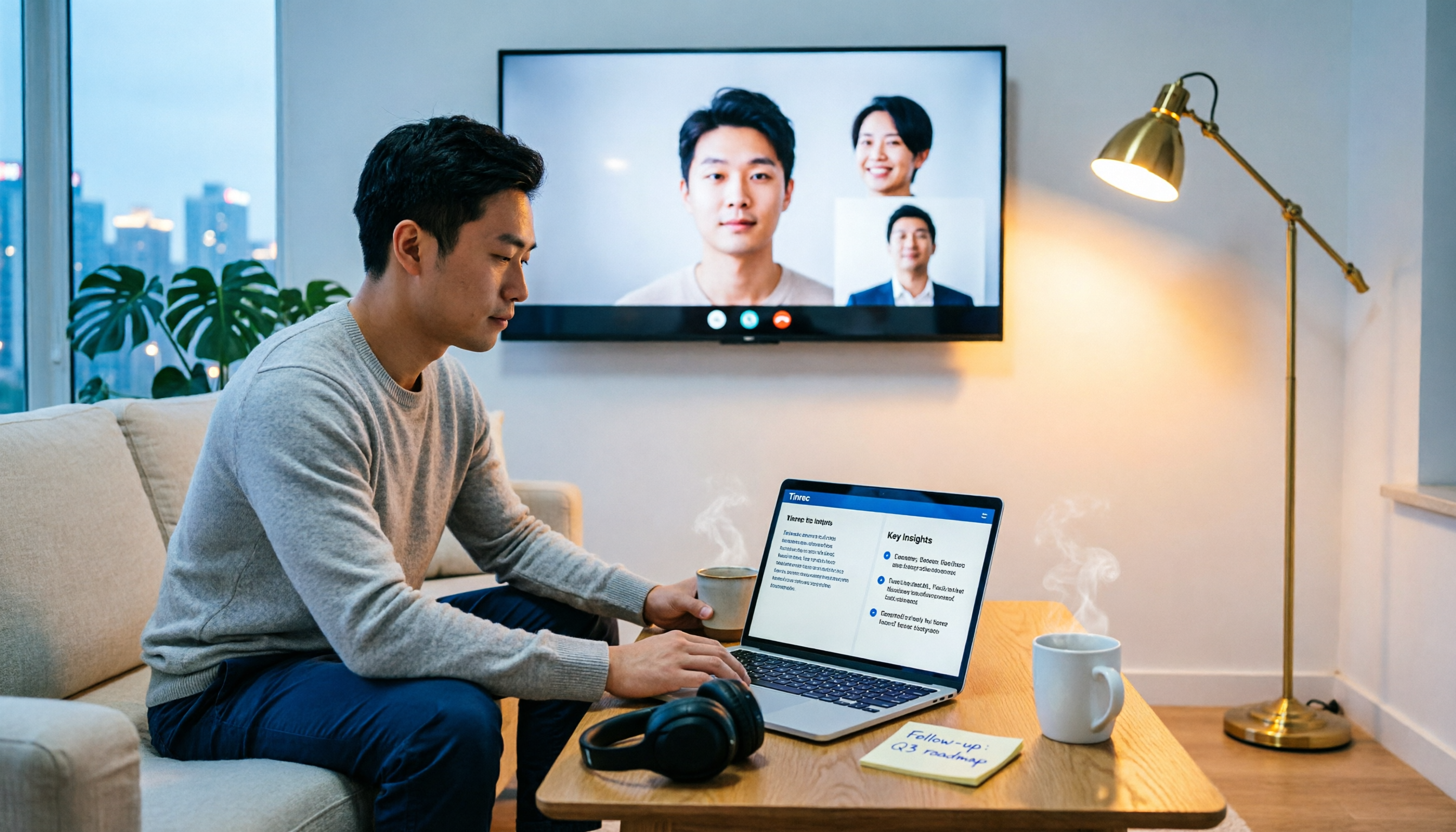
You've probably thought about this: your living room TV is 55 inches — why are you still crammed in front of a 14-inch laptop for meetings?
But when you actually try to do it, the questions start. Should you cast with Chromecast? Open the TV's built-in Meet? Or just keep things as they are and figure out meeting notes separately?
This article starts with that choice. First the decision points, then three practical routes with their limitations, and finally a clear recommendation for which path to take.
Why Would You Want Google Meet on Your TV?
The first scenario is family. Video chatting with relatives far away alongside parents and kids — everyone squeezed in front of a small screen that only fits two faces at a time.
The second is a small conference room. The discussion room at work has no projector, just a TV, and everyone huddles around a laptop to hear the other side.
The third is online classes and lectures. Staring at a screen for a two-hour class is exhausting — you'd rather sit comfortably on the couch and listen on the big screen.
What all three scenarios have in common: making the picture bigger is easy, but the workflow itself doesn't get any simpler. Audio, recording, post-meeting organization — it all still comes back to that same computer.
So the real question isn't "how do I cast to the TV" but "after I cast, what do I actually have left from this meeting?"
5 Decision Points Before You Put Google Meet on Your TV
1. What kind of TV do you have? This is the most critical question. Whether your TV supports Google Cast, has a Chromecast plugged in, runs Android TV or Google TV built-in, or is a Samsung Tizen or LG webOS — the approach is completely different. Buying the wrong device costs more than the time you save.
2. Do you need a "meeting" or a "call"? Google's official documentation is clear: the Android TV version of Meet can make and receive one-on-one and group video calls, but "Meetings are not supported on Android TV." That means if you're trying to hold a formal meeting, the approach will be different.
3. Where are the microphone and camera? Casting only sends the "picture" to the TV. Audio and camera stay on your phone or computer. Many people discover on their first cast that the TV has no microphone — the other side still hears you talking into your laptop.
4. Do you need transcripts and notes after the meeting? Casting won't leave you any text. The meeting ends, the screen goes dark, and the content only exists in your memory. This is what most people think of last — and regret most often.
5. Who should own the meeting data? If it's just a one-time family video chat, it doesn't matter. But if it's a team weekly meeting or a client interview, the data should live in a team space, be searchable, and be transferable — that's a whole different level of need.
Tinrec — The Easiest Approach We Found After Testing
Tinrec is an AI meeting notes and collaboration tool for individuals and teams, available on web, desktop, and mobile.
What it solves isn't "getting the picture onto the TV" — it's the part casting can't do: what happens after the meeting ends.
Bot-free recording of online meetings Tinrec's desktop app captures your computer's system audio directly, handling meetings played on your computer like Zoom, Google Meet, Microsoft Teams, and Webex — no need to invite a bot to join as a participant. For small meetings, this is practical — you don't have to explain to a client "who is that account on the screen?"
The transcript is just the beginning It records and transcribes in real time during the meeting, then automatically generates summaries, chapters, and action items when the meeting ends. Who's responsible for what, what to follow up on next time — it's all listed right there, no need to re-listen to an hour of recording.
You can ask questions about the meeting content This is where it differs most from ordinary transcription tools. After recording, you can directly ask: "Which part of the last client call mentioned the budget?" It finds the answer by meaning, rather than dumping a pile of keywords for you to dig through yourself.
Bilingual view for cross-language meetings During recording, you can switch between original text, translation, or bilingual side-by-side — especially useful for mixed Chinese-English meetings.
Results you can take with you Supports export to Notion, Google Docs, OneNote, Dropbox, and other tools, and can use Agent post-processing to directly generate reports, tables, and meeting notes.
Team plan keeps data with the team If what matters to you is "people leave, data stays," the team plan offers independent team spaces, member and role management, seat allocation, usage analytics, audit logs, and an audio recycle bin. Current internal configuration: eligible teams can try free for 7 days with 1 free seat and 300 minutes of shared team import quota; monthly billing is USD 29.80 per paid seat per month, annual billing is USD 199 per paid seat per year (about USD 16.58 per month), with each paid seat providing 2,000 minutes of shared team import quota per month. Under an active team plan, live recording currently does not deduct minutes; file and web imports use the shared team quota.
Stop organizing recordings by hand
Upload audio or video and automatically get a transcript, summary, and action items
To be honest, its limitations should be stated clearly too Tinrec is not a casting tool — it won't send your picture to the TV. Its accuracy is also affected by recording quality, background noise, accents, and multiple people talking over each other; for important content, we recommend cross-referencing the transcript timestamps and re-listening. Also, the free version only has a basic quota — if you have several meetings every week, you'll eventually need a paid plan.
Who it's for If you're holding formal Google Meet or Teams meetings, need post-meeting transcripts and action items, and want data to accumulate rather than scatter across personal devices, Tinrec will be far more practical than casting alone.
Beyond Tinrec: 3 Other Routes for Google Meet on TV
Route 1: Cast with Chromecast devices (officially supported by Google)
This is currently the most standard approach. Officially supported devices include Chromecast (2nd generation and later), Chromecast with Google TV, Google TV Streamer (4K), TVs supporting Google Cast, and Nest smart displays.
The general sequence: first confirm the TV has one of the above devices connected to the network; connect your phone or computer to the same Wi-Fi; tap the "Cast" icon in the Google Meet app (Android) or the Meet web version open in Chrome, and select your TV; once the meeting starts, the picture and sound are on the TV while the microphone and camera remain on your original device; when finished, select "Stop casting meeting."
Note that Google also states Meet is not supported on "Chromecast devices that are not Android TV," and casting itself does not generate any transcript. The picture gets bigger, but after the meeting you still have nothing — which is exactly the gap Tinrec fills.
Route 2: Built-in Meet on Android TV / Google TV
Some Android TV or Google TV devices can install Meet; according to official documentation, you can make and receive one-on-one and group video calls. If the device doesn't have a built-in camera and microphone, you'll need to connect a USB camera and microphone — for an Android TV Box, plug them into the box's USB ports.
But the same official documentation also highlights: Meetings are not supported on Android TV. Additionally, platforms like Samsung Tizen and LG webOS have no official Meet app — basically a dead end.
If you just want to sit in front of the TV and chat with family, this route works; if you're holding a company meeting, it won't be the best choice. And it also won't leave transcripts, summaries, or action items — those still need tools like Tinrec.
Route 3: Cast a Chrome tab
If you already have Google Meet open in a browser on your computer, casting the entire tab or entire screen from Chrome is a common alternative — any TV supporting Google Cast can use it.
The downside is it sends "everything on your computer" out — notifications, tabs, and messages may all appear on the TV. Screen aspect ratio and the mouse cursor can also interfere with viewing. It's suitable for one-off temporary needs, not for recurring weekly meetings.
Pitfall Guide: 5 Most Common Mistakes When Choosing Google Meet on TV
Pitfall 1: Assuming you can start a "meeting" directly on Android TV. Google explicitly states meetings are not supported on Android TV. Discovering after buying a TV that it only supports calls is frustrating. Confirm whether you need calls or meetings before purchasing.
Pitfall 2: Assuming Chromecast means you can meet on TV. Chromecast devices that are not Android TV do not support Meet — this is stated in official documentation. Don't just look at "Supports Google Cast" on the box and hit buy.
Pitfall 3: Assuming the TV will pick up audio after casting. It won't. Your voice still goes through your original computer or phone microphone. For better audio quality, improving your local microphone is more effective than changing TVs.
Pitfall 4: Forgetting devices need to be on the same network. If your phone and TV aren't on the same Wi-Fi, the cast icon simply won't appear. Check five minutes before the meeting — don't wait until it starts to figure it out.
Pitfall 5: Focusing only on the picture and forgetting to keep a record. This is the most painful one afterward. No matter how big the picture, when the meeting ends, everything is gone. If the meeting has any follow-up actions, recording, transcripts, summaries, and action items are the truly valuable output.
Conclusion: Which Route Should You Take?
One-sentence conclusion: First ask yourself "what do I need to keep after this meeting ends," then decide whether to cast to the TV.
Scenario breakdown — find yourself:
- Just want to video chat with family and have a bigger picture → Cast with Chromecast or Google TV Streamer — simplest.
- Want to take video calls on TV and the device has a camera and microphone → Try built-in Meet on Android TV / Google TV, but remember it doesn't support formal meetings.
- One-time need and Meet is already open on your computer → Chrome tab casting is fastest, but mind your privacy.
- Holding a company meeting and need transcripts, summaries, and action items → Record with Tinrec desktop — whether to cast the picture is a separate matter.
- Team needs to accumulate meeting data and members come and go → Tinrec team plan — data belongs to the team, with seat and permission management.
Overall, casting solves "watching comfortably," while Tinrec solves "remembering, finding, and handing off." These two things don't conflict — many people use both together.
If you're still not sure whether you need it, we suggest trying Tinrec's free version for two or three meetings first, see if transcripts and summaries help you, then decide whether to upgrade. No need to pay from the start.
References
Turn every recording into actionable outcomes
Get 60 free transcription minutes when you sign in. No credit card required.
Related Reading
You might also like

3 Mac Meeting Transcription Tools Tested: Which Saves the Most Time After Google Meet? (2026)
Hosting a Google Meet on Mac is easy—the real challenge is post-meeting organization. This guide covers how to open Google Meet on Mac, install it as a PWA, and set up audio, then puts three meeting transcription solutions to the test: Tinrec, Google Meet's built-in transcription, Otter.ai, and Granola. Find out which one truly captures your meeting content.

How to Take Google Meet Meeting Notes in 2026: 5 Steps from Recording to AI Summary
Google Meet makes meetings fast, but writing up notes afterward is the real grind. This article first clears up common misconceptions like 'subscribing to Google One unlocks all Meet features,' then gives 4 key buying criteria, Tinrec's 5-step post-meeting workflow, and a quick review of Otter.ai, Fireflies.ai, and Notta's best-use scenarios—helping Hong Kong office workers save hours of transcription time every week.

How to Use Google Meet on Nest Hub in 2026: A 4-Step Guide
Can you still use Google Meet on Nest Hub Max? This guide covers device checks, voice commands, and answering/ending calls in 4 steps. It also explains why you should switch to a computer for formal meetings and how to capture transcripts, summaries, and action items afterward.

2026 Comparison of 3 Meeting Notes Solutions: Google Meet Built-in, Tinrec, Otter.ai
Google Meet now in Gmail makes meetings easier, but post-meeting organization remains a pain point. This article compares Google Meet's built-in Gemini notes, Tinrec, and Otter.ai, covering bot-free recording, Chinese transcription, AI Q&A, team data retention, and pricing limits to help you find the best meeting notes solution.

5 Google Meet Instant Link Methods Tested for 2026: Get a Link in 30 Seconds
Need to start a meeting on the fly? You need a Google Meet link you can paste to colleagues right away. This guide covers 5 ways to get a google meet now link: the meet.google.com homepage, Google Calendar, Gmail, the mobile app, and entering a meeting code. Each method explains how fast you get the link and when it's best used. It also covers post-meeting transcription, summaries, and action items with Tinrec, plus an FAQ.

2026 Google Meet Free Plan Comparison: 5 Options Reviewed
A 2026 comparison of free plans for Google Meet, Tinrec, Otter.ai, Notta, and Granola, covering free limits, whether free tiers suffice, how to fill gaps in transcripts and meeting notes, and team plan seats, quotas, and pricing.

Google Meet vs Tinrec in 2026: 5-Factor Comparison — Presentation Audio vs. Meeting Notes
Google Meet now lets you share full system audio during presentations, but it's off by default, has OS version requirements, and won't save meeting notes for you. This article compares Google Meet and Tinrec across 5 dimensions to help you decide when to use built-in sharing and when to use Tinrec for recording, transcription, AI summaries, and team collaboration.

Google Meet On-the-Go vs. Tinrec: Which Actually Saves Post-Meeting Time?
Google Meet's On-the-Go mode lets you join meetings while walking or commuting, but does it solve participation or documentation? This article breaks down On-the-Go's real boundaries across 5 dimensions and compares Tinrec's approach to post-meeting organization, cross-platform support, and team knowledge retention, helping you decide how to divide mobile meeting tasks.

Google Meet Transcription vs. Tinrec: Which Saves More Time After Meetings? (2026 Test)
If you already use Google Meet, the real challenge often comes after the meeting ends. This article compares Google Meet's built-in transcription and Tinrec across five dimensions: meeting source coverage, post-meeting organization depth, Chinese and cross-language experience, team data retention and governance, and adoption cost. It helps you decide which recording method fits your meeting workflow.