

Turn recordings into transcripts and summaries in minutes
Upload audio or video for multilingual transcription, AI notes, and action items
How to Use Good Tape in 2026: 5-Step Tutorial + 2-Tool Comparison — From Transcript to Post-Meeting Notes
A 47-minute interview would take about 3 to 4 hours to transcribe by hand. That's why most people open Good Tape: drop in the audio and get back a timestamped transcript.
Good Tape is an online speech-to-text tool developed by Danish news outlet Zetland, powered by OpenAI's Whisper technology. It supports over 40 languages including Chinese, English, Japanese, Korean, German, and French. The process is simple: upload the audio file, receive an email, and download the transcript or .srt subtitle file.
This article walks you through the complete workflow in the order you'll actually use it, and clarifies the tricky parts (language selection, timecodes, and errors caused by noise).
Before You Start | What You'll Need
- A recording you want to convert to text: meetings, interviews, lectures, podcasts all work
- An email address that can receive messages: the system will send you a download link when transcription is complete
- A stable internet connection: the audio file needs to be uploaded to the website for processing
- If you need video subtitles, confirm you need an .srt file
- Get consent from participants before recording — this is basic courtesy and a legal requirement
Good Tape is a web-based tool, so no app installation is needed. It works in any browser on your phone or computer. Currently, you can upload without registering, and files are stored for three days in unregistered status.
Step 1 | Prepare Your Audio File
The only goal of this step is to reduce errors in the resulting text.
Before uploading, make sure the recording doesn't have loud background music, fan noise, or air conditioning hum. For multi-person meetings, place the recording device near the center of the table and close to the speakers. Also give the file a clear name, like "2026-03-Client Interview," so you can easily identify the transcript later.
Why emphasize this? Because Good Tape is relatively sensitive to noise and unusual accents. In noisy environments or with heavy accents, transcription accuracy drops. Rather than spending half an hour fixing errors afterward, spend 30 seconds checking your audio file before uploading.
Step 2 | Upload the Audio and Set the Language
Go to the Good Tape website, select the recording you want to upload, enter your email, set the language of the recording, and submit.
Make sure you select the correct language. If you choose the wrong language, the entire transcript will be off and you'll have to start over. For a meeting that mixes Chinese and English, choose the language of the primary speaker and manually proofread the mixed sections.
Good Tape also lets you customize the time interval between transcript segments. This setting is useful later when creating subtitles — decide whether you want "paragraphs that are easy to read" or "short sentences that are easy to edit into video."
The purpose of entering your email: transcription takes some time, and the system will notify you when it's done, so you don't have to sit at your computer refreshing the page.
Step 3 | Receive the Email and Open the Transcript
When transcription is complete, you'll receive an email. Click the link inside to view the transcript.
The transcript includes timecodes so you can cross-reference with the audio. You can save it as a plain text .txt file or download it as an .srt subtitle file.
I recommend saving both files. Keep the txt for editing, writing articles, and organizing meeting notes; keep the srt for video subtitles.
Step 4 | Proofread the Transcript
AI-generated transcripts always contain errors. The key is not to edit from the first line to the last — that's inefficient.
I usually scan three areas first: names of people and companies, proper nouns, and numbers and amounts. These are the most troublesome and easily overlooked errors. Then I go back and fix sentences that clearly don't make sense — usually sections where the recording was too noisy, multiple people spoke at once, or accents were heavy.
Use timecodes during proofreading. If a sentence sounds wrong no matter how you read it, go back and listen to those few seconds using the timecode — much faster than replaying the whole segment.
Stop organizing recordings by hand
Upload audio or video and automatically get a transcript, summary, and action items
Step 5 | Export and Apply
The final step is to bring the results to where you actually work.
The txt file is great for dropping into note-taking apps or documents to rewrite into meeting notes, interview drafts, or article material. The srt file can be attached directly to editing software as subtitles, saving hours of manual transcription.
Note that in unregistered status, files are kept for three days, after which the website deletes them. Download as soon as transcription is done — don't leave them sitting there.
Common Questions and Troubleshooting
Q: The transcript has many errors. What should I do?
First check the recording quality. Loud noise, distance from the microphone, and multiple people speaking at once all increase errors. If the file is already recorded, re-uploading with the correct language setting usually improves things somewhat.
Q: Does it support Traditional Chinese?
Good Tape supports over 40 languages including Chinese. Actual output quality depends on recording conditions. For Chinese meetings, it's best to use one language throughout — mixing too many languages increases proofreading burden.
Q: Will my files be retained?
Data transmission is encrypted, data stays within the EU and is protected by GDPR; in unregistered status, files are stored for three days and then deleted by the website. If the content involves sensitive information, check your company's policies before uploading.
Q: Is it free?
You can currently use it directly on the website without registering. For plans, quotas, and future changes, refer to the official page announcements.
Q: Can I create video subtitles?
Yes, the output format includes .srt. If subtitle lines are too long or too short, adjust the time interval setting before uploading.
Advanced Tips | 3 Ways to Make Your Transcript More Useful
- Use two different time interval settings: narrow for subtitles so each line is short and easy to read; wider for article drafts so paragraphs flow better.
- Create a proper nouns list first: list company names, product names, and people's names, then use find-and-replace to fix them all at once — much faster than reading line by line.
- Download both txt and srt: from the same recording, one for writing and one for video editing — no need to transcribe twice.
If You Need "Transcribe and Keep Working": Another Approach
Good Tape excels at quickly turning audio files into transcripts and subtitles — short workflow, easy to learn. But if you're dealing with recurring weekly meetings and need post-meeting summaries, action items, and team sharing, that's a different workflow.
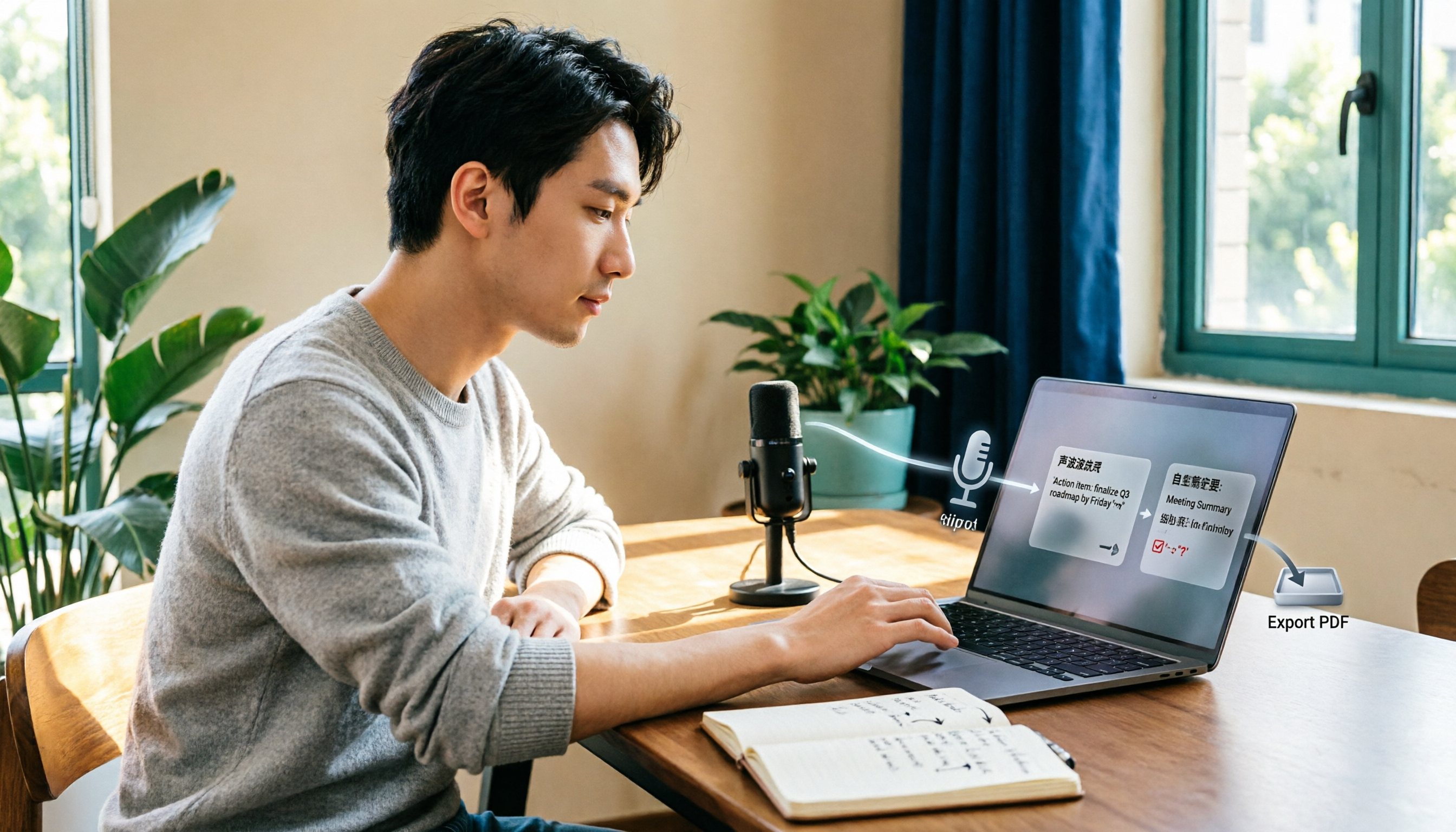
Tinrec takes a "meeting notes + post-meeting organization" approach. Its desktop version captures computer system audio directly, so it can record online meetings on Zoom, Google Meet, Microsoft Teams, Webex, and others without needing an extra meeting bot to join. It transcribes in real time during recording and lets you view translations simultaneously.
After transcription, it automatically generates summaries, chapters, and action items. You can continue asking questions about the meeting content and export to tools like Notion, Google Docs, OneNote, and Dropbox.
The team version centralizes meeting data in a team space, offering role and seat management, usage analytics, audit logs, audio recycle bin, and team hotwords. Eligible teams get a 7-day trial (1 free seat, 300 minutes of shared import quota); monthly USD 29.80 per paid seat per month, annual USD 199 per paid seat per year, with each paid seat providing 2,000 minutes of team shared import quota per month. Real-time recording under active seats is currently not deducted by minutes. The personal version offers a free plan, weekly card, Pro monthly card, and annual card. Prices and benefits are subject to the official purchase page.
Note that any transcription tool's performance is affected by recording quality, accents, noise, and overlapping speakers. For important content, always cross-check with the audio.
Summary
The Good Tape workflow can be remembered in five steps: prepare audio, upload and select language, receive email and open transcript, proofread key areas, export and apply. What really affects results is usually not the tool itself, but whether the recording you uploaded is clean enough.
If you only occasionally need a transcript or subtitles, this workflow is sufficient. If meetings are routine and you also need summaries, action items, and team sharing, consider comparing tools like Tinrec that handle post-meeting organization as well, then decide which fits your work rhythm better.
Finally, don't forget: inform and get consent before recording — that's more important than any tool setting.
References
- Good Tape Tutorial | Audio-to-Transcript Tool, Supports Chinese and 40 Other Languages | Manager Today
- Good Tape Speech-to-Text Software: Meetings, Interviews, Video Subtitles Made Easy — Better Than Whisper? | by Kevin Malamute | Medium
- Beating Yating, Reporters Cry Tears of Joy — What Makes Good Tape So Amazing? | CommonWealth Magazine
- Good Tape Features, Pros and Cons, Pricing, and Tutorial All in One! [2024 Update]
- Good Tape Automated Audio-to-Transcript Tool, Supports Chinese and Multiple Languages
Turn every recording into actionable outcomes
Get 60 free transcription minutes when you sign in. No credit card required.
Related Reading
You might also like

4 Audio Transcription Tools Tested in 2026: Good Tape vs. Tinrec — Which Saves More Time?
How do you use Good Tape, and is it worth it? This practical comparison puts Good Tape, Tinrec, Otter.ai, and Notta side by side, covering four key buying factors: Chinese recognition, input sources, post-meeting organization, and team data ownership. It also lists four common pitfalls to help you choose the tool that truly saves time.
2026 Free Audio-to-Text Options Compared: Good Tape, Tinrec, and Yating Transcription
Starting from the question 'Which Good Tape is better?', I used Tinrec to go through the 5 steps of recording, transcription, proofreading, generating meeting minutes, and exporting, and at each step compared the applicable scenarios of Good Tape and Yating Transcription. This is not a spec comparison, but to help you decide: where your meeting data will ultimately be stored and what it will become.

2026 Comparison of 3 Audio Transcription Tools: What to Know Before Downloading Good Tape
Many people search for 'how to download Good Tape' but only after downloading do they discover that the timeline format, file retention period, and team sharing features don't meet their needs. This article starts with the most common misconceptions, breaks down 4 key purchasing criteria, compares the actual differences between Good Tape, Notta, Otter, and Tinrec, and includes complete steps for downloading Good Tape's web version and Google Play app and obtaining transcripts.

2026 AI Meeting Notes Comparison: Toruno vs Notta vs Tinrec — Which Is Best for Chinese-Speaking Teams?
Many people choose meeting notes tools based only on free minutes, overlooking post-meeting organization and team knowledge retention. This article compares Toruno, Notta, and Tinrec, covering their positioning, meeting capture, post-meeting organization, team permissions, and pricing. It also explains how Tinrec uses bot-free recording, AI summaries, action items, Q&A, and team spaces to help Chinese-speaking teams turn meetings into searchable, collaborative data.

4 Best Audio-to-Text Tools to Try in 2026: Is Good Tape Worth It? Download Guide Explained
A mid-level manager who attends over a dozen meetings a week puts Tinrec, Good Tape, Notta, and Otter.ai to the test. This article starts from the decision point of 'do you need a verbatim transcript or usable meeting data?' and explains whether Good Tape is worth it, the two meanings of 'Good Tape download' (the app and the transcript file), plus key buying criteria, pitfalls to avoid, and how to evaluate free tiers.

2026 Speech-to-Text Tools Compared: Beyond Good Tape, Which One Is Best for Chinese Meetings?
Good Tape is great, but it only handles the 'audio to text' part. This article compares Good Tape, Yating Transcription, Notta, and Tinrec from four angles: online meetings, Chinese transcripts, post-meeting summaries, and team data ownership, to help you decide which tool truly saves time.

Good Tape Country of Origin: Denmark — Why Tinrec May Be a Better Fit for Students in 2026
Good Tape is from Denmark, owned by Danish media company Zetland. This article starts from real campus use cases, explains Good Tape's background, and compares Tinrec's differences in Chinese meetings, bot-free recording, post-meeting summaries, and team collaboration to help you decide which tool suits classes, projects, and internships.

How to Use Good Tape in 2026: 5 Steps to Transcribe Audio + Tips for Chinese Meeting Notes
How do you use Good Tape? This guide walks you through the complete 5-step process: uploading, waiting, receiving email, downloading transcripts and SRT subtitles. It also covers the 4 most common pain points in Chinese transcription and compares Tinrec, Notta, and Otter.ai for meeting notes and post-meeting organization, helping you decide whether to use a free transcription tool or switch to a meeting workflow that builds a long-term knowledge base.

Good Tape vs Tinrec 2026: 5-Dimension Comparison — Which Is Better for Chinese Meeting Notes?
Good Tape is easy to use, but it struggles with Chinese meetings, automatic punctuation, and post-meeting action items. This article tests six tools — Tinrec, Good Tape, Notta, Otter.ai, TurboScribe, and Granola — across five dimensions: transcription quality, Chinese-language experience, post-meeting organization, team collaboration, and pricing, to help you find the one that truly works for you.