

Turn recordings into transcripts and summaries in minutes
Upload audio or video for multilingual transcription, AI notes, and action items
How to Record a Teams Meeting in 2026: 5 Steps from Built-in Recording to AI Summaries
When you want to record a Teams meeting, the record button on the meeting control bar is probably the first thing that comes to mind. But what you really need to decide first is: do you want to "save a video file" or "save meeting materials that you can later search for key points"? These two goals require different approaches.
Why did you record the Teams meeting but still can't find the key points?
Last semester, our group used Teams for our graduation project, and each discussion lasted at least 40 minutes. The student who hosted the meeting pressed record, and we all thought we were saved—but after the meeting, the video was sitting in the organizer's OneDrive, and everyone else had to wait for a share. A guest senior who wanted to watch the replay couldn't see it because they weren't a member. Even worse, when we had to compile interview conclusions at the end of the term, we had to scrub through the 40-minute video from start to finish and manually note who said what.
If you've also experienced "recorded but can't find it, can't download it, and no one wants to rewatch it," this article is for you.
First, the basics: 4 steps for Teams built-in meeting recording
Microsoft's official documentation calls Teams recording "convenience recording," and the recorded content is saved to OneDrive or SharePoint in Microsoft 365. The general steps are:
- Check recording permissions: The meeting organizer's cloud recording policy must be enabled; eligible people can start or stop recording during the meeting.
- Start recording during the meeting: Press record in the Teams meeting to capture audio, video, and screen sharing.
- Stop recording at the end: Remember to press stop at the end of the meeting to avoid recording post-meeting chit-chat.
- Find the recording in the meeting chat: Look for the recording in the meeting chat; clicking it opens in the browser's video player. Private meetings are saved in the organizer's OneDrive "Recordings" folder; channel meetings are saved in the channel's Files tab.
Here are a few rules that are easily overlooked: guests and external attendees can only view the recording if it is "explicitly shared with them"; recordings have an expiration date, which the organizer can change; if you want to download, you usually need the organizer to grant edit permissions.
The advantage of built-in recording is that it's free and done directly in Teams, suitable for meetings where you "just want to archive for reference." But if, like me, you want to quickly find key points after recording, it falls short in the ways described in the next section.
Understand before you choose: 3 key decision points for Teams meeting recording
- Permissions and sharing audience: Recordings are not automatically visible to everyone. Private meetings are in OneDrive, channel meetings in SharePoint, and guests need explicit sharing to view. If there are external participants, think ahead about how to share the link after the meeting.
- Storage location and download restrictions: Private and channel meetings have different storage locations; whether channel recordings can be downloaded may also be controlled by Teams management policies. Don't assume you can always download after recording.
- Post-recording organization cost: Teams built-in recording provides video and automatic transcription options, but if you want an actionable summary like "who is responsible for what and what the conclusions are," you usually still have to re-listen or use another tool.
This is why I later separated "recording" and "organizing": Teams handles recording, and Tinrec turns the recorded content into searchable, queryable data.
Tinrec (Miao Ting Lu Yin) — My go-to for supplementing post-Teams recording organization
Tinrec is an AI meeting notes and collaboration tool for individuals and teams. It's different from meeting bots: the desktop version directly captures computer system audio, processing Teams, Zoom, Google Meet, and Webex meetings played on the computer, without pulling an extra bot into the meeting. For our group using school accounts on Teams, having one less bot join makes the screen much cleaner.
The 5 steps I actually use are:
Stop organizing recordings by hand
Upload audio or video and automatically get a transcript, summary, and action items
- Start the Teams meeting: Join the meeting as usual, and make sure the sound is playing from the computer.
- Open Tinrec desktop: Select system audio (add microphone if necessary) to let it receive the Teams meeting content.
- Press record: It transcribes while recording, and participants' speech is instantly converted to text.
- After the meeting, view summaries, chapters, and action items: AI breaks the long meeting into sections, organizing key points and action items; instead of re-listening to 40 minutes, I look at this page first.
- Ask AI directly or export: For example, ask "Who is responsible for the literature review in this discussion? What is the deadline?" It answers based on the meeting content; you can also export transcripts and summaries to Notion, Google Docs, and other tools for further use.
What I like most is that "you can still ask follow-up questions after recording." Teams built-in recording gives you a video file, while Tinrec turns the same meeting into searchable, queryable, and handover-ready data. It also supports real-time translation; if the project requires watching English interviews or discussing with international students, you can switch between original text, translation, or bilingual view.
Of course, it has limitations: the free version has a basic quota, not unlimited; you must open the desktop version yourself to start recording—it's not a bot that automatically joins all calendar meetings; AI summaries may miss details, so for important conclusions, it's recommended to cross-check with transcript timestamps and the recording.
If you're an individual user, you can try the free version to record a group discussion once, and if it works well, consider a weekly pass (for short-term intensive meetings) or a Pro monthly/yearly plan (for regular weekly use). If the entire project group needs to share meeting materials, the team version offers independent team spaces, member roles and seat management, team hotwords, usage analytics, and audit logs; currently, the team monthly payment is USD 29.80 per paid seat per month, and yearly is USD 199 per paid seat per year (about USD 16.58 per month). Eligible teams get a 7-day trial, 1 free seat, and 300 minutes of shared onboarding quota for the first time. For student groups, first confirm whether everyone needs a "usage seat" before deciding whether to upgrade.
Besides Tinrec, what other options are there?
Microsoft Teams built-in recording: Free and done directly in the meeting, suitable for occasions where you only need archiving. But it gives you video and transcription, without Tinrec's AI conversational query and cross-meeting Q&A; permissions are tied to the organizer and meeting type, and external guests often get stuck.
Otter.ai: A mature choice for English meetings, with a generous Basic free plan of 300 minutes per month. If all your recordings are English interviews, it's cost-effective; but Chinese meetings and "directly recording Teams audio played on the computer" are not its strong suits. Tinrec's Chinese transcription and post-meeting Q&A are more aligned.
Notta: Good multilingual transcription and file import capabilities, suitable for organizing existing audio files. However, if you want to record Teams system audio directly without inviting a meeting bot, Tinrec desktop is more straightforward; Notta also emphasizes less on AI conversational query and Agent post-processing workflows like "continued processing after the meeting."
Pitfall guide: 3 most common mistakes when recording Teams meetings
Pitfall 1: Assuming the recording is automatically visible to everyone. Teams private meeting recordings are in the organizer's OneDrive, channel meetings in the channel Files; guests and external attendees need explicit sharing to view. Confirm the sharing scope right after recording, so you don't find out later that your senior can't open it.
Pitfall 2: Ignoring download permissions and expiration dates. Downloading usually requires the organizer to grant edit permissions; channel recording downloads may also be locked by management policies. Also, recordings have an expiration date that the organizer can adjust; remember to confirm the retention period for important files.
Pitfall 3: Recording without organizing. If your meeting recording is never opened a second time, it's as good as not recorded. Rather than keeping a 40-minute video, use Tinrec to turn transcripts into summaries and discussions into action items, and look at the conclusions directly after the meeting.
Pitfall 4: Forgetting to inform participants. Inform meeting members before recording, and obtain consent if necessary; Teams also provides a mechanism to require participants' consent to be recorded. Following the rules is more important than remedying afterwards.
Conclusion: Which one should you use?
In a word: Teams built-in recording is for "archiving," Tinrec is for "turning meetings into usable data."
If you just want to keep meeting records and all participants are in the same organization, Teams built-in recording is enough; if you need Chinese transcripts, AI summaries, action item extraction, or want to directly ask after the meeting "who mentioned the budget in the last meeting," Tinrec desktop saves more time. For English meetings with zero budget, you can start with Otter.ai Basic; if the project group needs to share historical meetings and member management, then consider Tinrec team version.
My own approach is: use Teams for group discussions, and simultaneously open Tinrec desktop to record system audio. After the meeting, first drop the AI summary into the group chat, and if details are needed, ask AI or check the transcript. Try the free version quota once, upgrade if it's enough, and don't pay from the start.
References
- Manage Teams meeting and event recording policies - Microsoft Teams | Microsoft Learn
- Start, stop, and find meeting recordings in Microsoft Teams | Microsoft Support
- How to download Microsoft Teams meeting recordings | Subanana Help Center
- Manage recording and transcription options for sensitive Microsoft Teams meetings - Microsoft Teams | Microsoft Learn
- Play, share, and download meeting recordings in Microsoft Teams | Microsoft Support
Turn every recording into actionable outcomes
Get 60 free transcription minutes when you sign in. No credit card required.
Related Reading
You might also like

Tinrec vs Good Tape 2026: 5-Dimension Comparison — Which Handles Chinese Meetings and Post-Meeting Organization Better?
Good Tape has built a solid reputation for cloud transcription, but if you need meeting recordings that can be organized, queried, and shared with your team, the choice is different. This article compares Tinrec and Good Tape across 5 dimensions—meeting capture, Chinese transcription, post-meeting organization, team collaboration, and plan flexibility—to help you decide which better fits your workflow.

Good Tape Brand Origin 2026: Complete Guide to Danish Background and Chinese Transcription Tools
Good Tape is a Danish brand owned by Zetland, a Danish digital news outlet. This article clarifies its origin and background, addresses common misconceptions, and explains why origin shouldn't be the top priority when choosing a tool. It also demonstrates Tinrec's practical approach to Chinese meeting transcription, AI summaries, action item extraction, and team knowledge retention.

How to Use Good Tape in 2026: A 5-Step Guide to Transcribing Audio to Text
Good Tape is an online transcription tool built by Danish news organization Zetland using OpenAI Whisper, supporting over 40 languages. This guide walks you through the complete 5-step process—from uploading audio and selecting the language to downloading the transcript and proofreading/exporting. It also honestly explains its limitations with noise, accents, and post-meeting organization, helping you decide when to use Good Tape and when to switch to a different workflow.
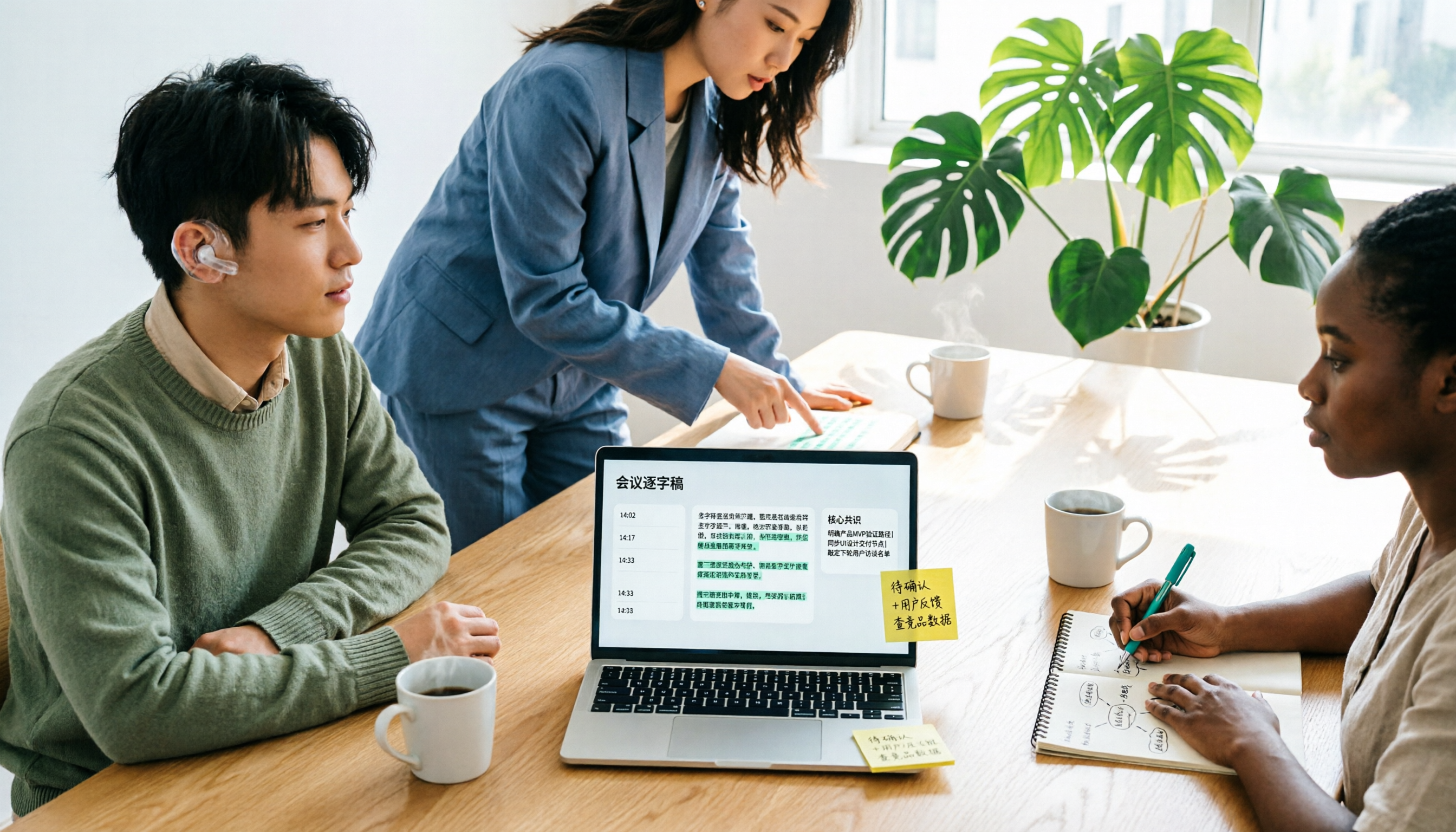
2026 Speech-to-Text Tool Comparison: Good Tape vs. Tinrec for Chinese Meetings
Is Good Tape, the tool buzzing on Dcard, really worth it? This article compares Good Tape, Tinrec, and other speech-to-text tools from a student's perspective, focusing on Chinese meetings, post-meeting organization, and team collaboration. It covers free tiers, pricing, and key buying factors to help you avoid the trap of getting a transcript but still having to re-listen to everything.

How to Cancel Your Good Tape Subscription in 2026: 4-Step Guide & What to Know
Can't find the cancel auto-renewal button after subscribing to Good Tape? This guide walks you through the cancellation process in 4 steps, explains what to check before canceling—payment channel, access until expiration, and backup—and answers common questions. It also compares alternative transcription tools to help you decide whether to renew or switch.
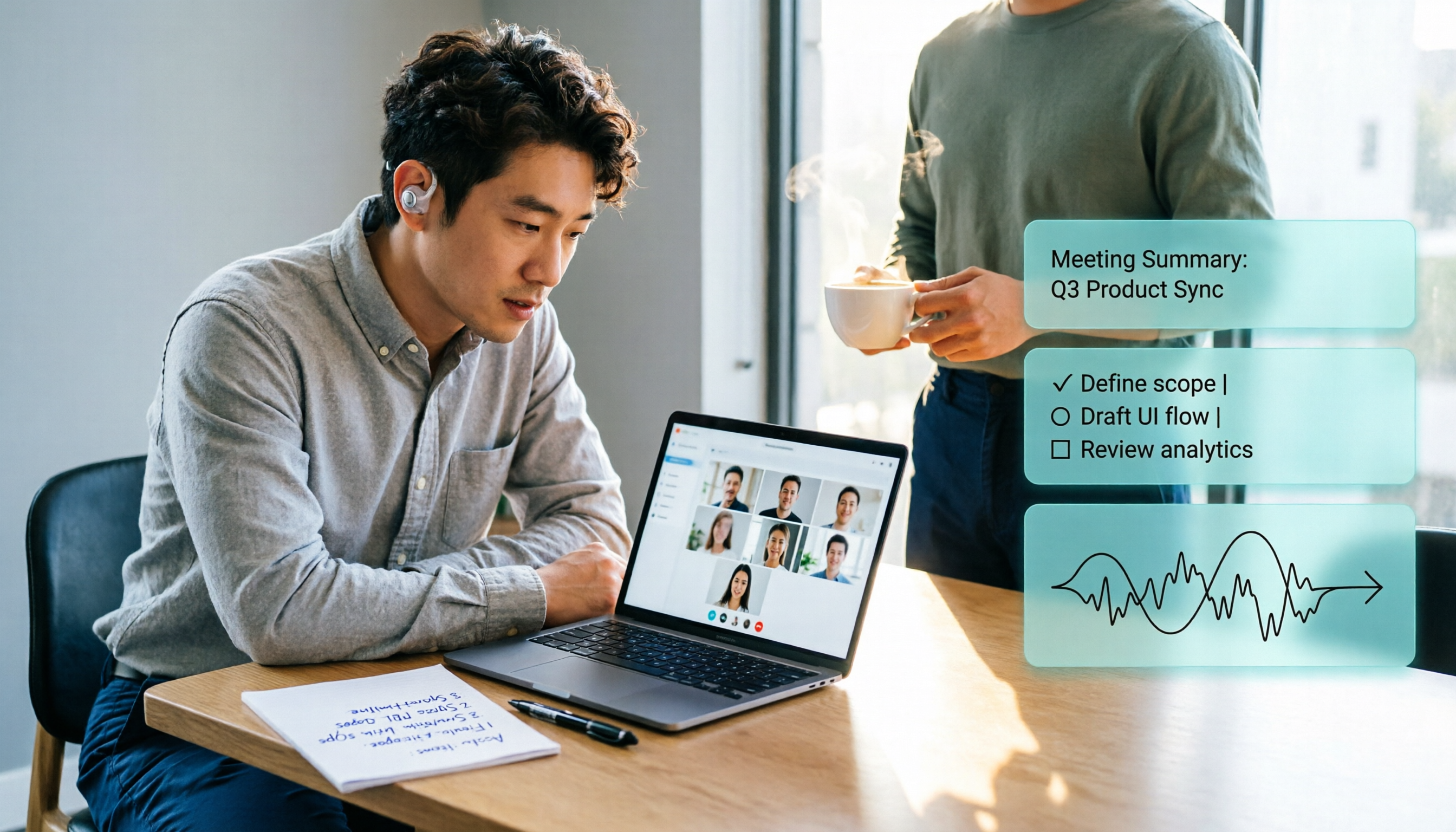
4 Ways to Record Teams Meetings in 2026: Built-in Recording vs. Desktop Audio vs. AI Notes
How do you record a Teams meeting? First understand organizer permissions, cloud recording policies, and where recordings are stored, then decide between built-in recording and desktop audio tools. This article compares 4 recording methods, contrasting Teams built-in recording, Granola, Notta, and Tinrec in post-meeting organization, to help you choose the easiest option.

2026 Complete Guide to Sharing Your Screen in Teams Meetings: 3 Modes and Post-Meeting Workflow Tested
Starting from common mistakes, this guide explains the correct ways to share your desktop, window, and presentation in Teams meetings, Mac permissions and stopping sharing, and outlines a practical workflow for recording meetings with Tinrec after sharing.

2026 Teams Screen Sharing Test: 4 Modes Compared & Post-Meeting Notes Solutions
Sharing your screen in a Teams meeting looks like a single click, but there are actually four modes, each with its own quirks. This guide covers pre-share checks, desktop and window sharing steps, PowerPoint Live usage, Mac permissions, and system audio settings—all in one place. It wraps up with practical methods for post-meeting transcripts and notes.

How to Start a Teams Meeting in 2026: 4 Methods + Automatic Post-Meeting Summaries
2026 guide on starting Teams meetings: instant meetings, calendar scheduling, channel meetings, and free version. Plus Tinrec as a recommended tool for automatic post-meeting transcription, summaries, and action items.