

Turn recordings into transcripts and summaries in minutes
Upload audio or video for multilingual transcription, AI notes, and action items
The meeting started three minutes ago, and you can't find the "Join" icon in your Teams channel.
You restart Teams. Nothing.
You reboot your computer. Still nothing.
Finally, you message a colleague: "Can you see it?" They reply: "Yeah, I'm already in."
Now you're even more anxious.
I've dealt with many situations like this, and the most common inefficient approach I see is starting with a restart.
Restarting isn't wrong, but if it's your first step, you're treating a permissions and settings issue as a software glitch.
The troubleshooting paths for these two problems are completely different.
Why "Restarting Teams" Almost Never Solves It—First, Identify the Layer
When Teams doesn't show a meeting, it's usually not a single cause but one of three layers.
Layer 1: Account and policy. Are you using an organizational account or a personal account? Has an admin disabled meeting features for certain accounts?
Layer 2: The meeting itself. Is it actually scheduled as an online meeting? Did the organizer enable Teams meetings?
Layer 3: Your client. Are you using desktop, browser, or mobile?
Most people only focus on Layer 3, so restarting ten times won't help.
The test is simple: if some people can see it and others can't, and it's not always the same people, the problem is almost certainly not your computer but the account or policy layer.
In that case, the right action is to ask IT or an admin to run backend diagnostics from the admin center, not to keep guessing on the user side.
Before Troubleshooting, Understand These 5 Key Points
Key Point 1: Are You Signed In with an Organizational Account?
When signed in with a personal account, the meeting icon may not appear at all.
This is the most overlooked and easiest to check. First, confirm that the avatar in the top-right corner is your work or school account.
Key Point 2: Has a "Disable Meetings" Policy Been Applied to Your Account?
Admins can turn off meeting features for specific accounts.
It's worth noting that even if everyone "appears" to have the default global policy, the actual application can differ due to group membership or licensing status. That's why "the same meeting shows an icon for some but not others."
If you've confirmed the account type is correct and checked meeting settings but it's still intermittent, it's time to use the admin center support channel.
Key Point 3: Is This Meeting an "Online Meeting"?
If you don't see a "Join" option at all, the meeting may not have been scheduled as an online meeting in the first place.
The organizer can open the meeting details from the Teams calendar and check if the Teams meeting toggle is on.
As a participant, you can ask the organizer: "Is this a Teams meeting?"
Key Point 4: Are You Stuck in the Lobby?
Some organizers set up a lobby so participants wait until someone inside admits them.
In this case, you're not "not seeing the meeting"—you're "not able to enter the meeting." The on-screen message will tell you.
Key Point 5: Does Your Client Support It?
Teams meetings currently don't support mobile browsers.
If you're joining from a mobile or tablet browser, you likely won't see anything. Switching to the desktop app or mobile app usually resolves it.
The Same Logic Behind These Five Key Points
I've organized the troubleshooting into a sequence for a simple reason:
Start with the least likely areas to change, not the easiest to click.
Account type → Policy → Meeting settings → Lobby → Client.
This order makes sense. The first two require others to change; the last three you can verify yourself.
Ask "Can I change this?" first, then decide whether to act. This saves a lot of reboot time.
Tinrec: When You Don't Want to Be Tied to the "Meeting Entrance" Anymore
After troubleshooting, meetings usually go smoothly.
But there's another scenario: the meeting entrance is fine, but the problem is "after the meeting."
My own approach has shifted to extracting "recording" from the meeting platform. Instead of hunting for an icon in Teams, give meeting content an independent, controllable home.
Tinrec is that place. It's an AI meeting notes and collaboration tool for individuals and teams, available on web, desktop, and mobile.
First scenario: online meetings. The desktop version captures system audio directly, handling meeting audio from Zoom, Google Meet, Microsoft Teams, Webex, and other platforms without pulling an extra bot into the meeting room. You start recording manually, and it transcribes as it records.
To be clear: it's not a tool that "automatically joins all your calendar meetings." You still have to open it and press start. But that also means no stranger suddenly appears in your meeting.
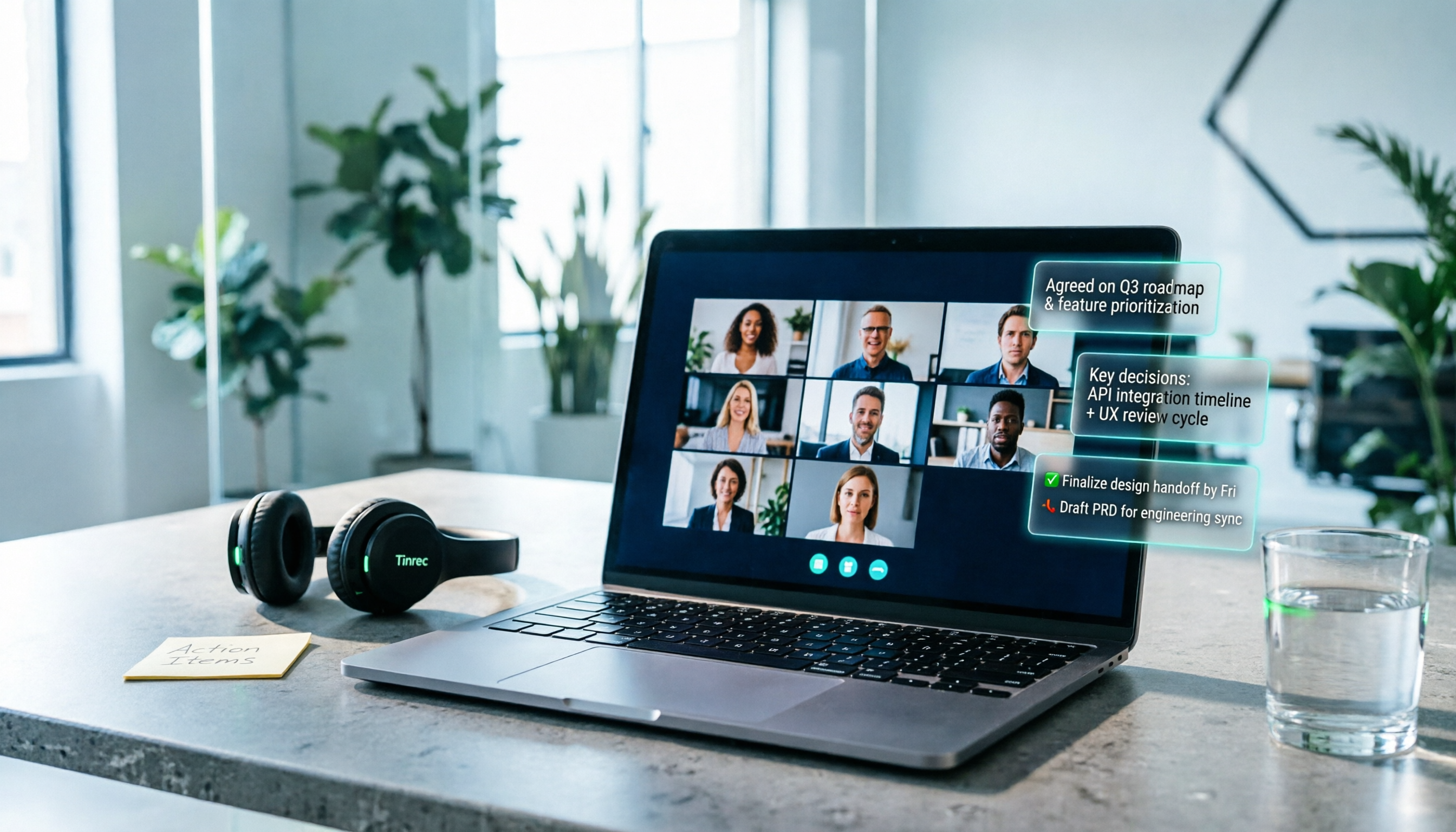
Second scenario: after the meeting. Once recorded, it generates a transcript, summary, chapters, and organizes action items into to-dos. Long meetings can be skimmed by chapter, no need to read from start to finish.
Third scenario: finding answers later. This is where it stands out from ordinary transcription tools—you can ask questions directly about the meeting content, such as "Who mentioned the budget cap last time?" It answers based on semantics, not by dumping keywords for you to compare.
Stop organizing recordings by hand
Upload audio or video and automatically get a transcript, summary, and action items
It also offers real-time translation (original, translated, or bilingual view) and export to Notion, Google Docs, OneNote, Dropbox, and other common tools. For more advanced output, you can use Agent to turn meeting content into reports, tables, or documents.
The team version turns this into a team asset. Meeting data is stored in the team space, not in someone's personal account. Management distinguishes between "roles" and "seats": roles determine who can manage members, audit, and team settings; seats determine who can record, upload, edit, and import/export. Members without seats can still view, play, and read team data.
Current team plan: eligible teams can try free for 7 days, 1 free seat, 300 minutes of shared team import quota; monthly USD 29.80 per paid seat per month, annual USD 199 per paid seat per year (about USD 16.58/month), each paid seat provides 2,000 minutes of shared team import quota per month. Real-time recording under an active team plan is currently not deducted by minutes; file and web link imports consume shared team import minutes.
Limitations to note. File and web imports use the shared team quota, not personal quota; accuracy is affected by recording quality, noise, accents, overlapping speakers, and technical terms, and shouldn't be promised as a fixed number. For important decisions, cross-check with transcript timestamps and recording playback.
Besides Tinrec, What Are the Alternatives?
Otter.ai: A mature AI meeting assistant with a strong foundation in English business meetings. Basic free plan offers 300 minutes per month; Pro annual billing is about USD 8.49/user/month, including 1,200 minutes of in-app recording and 10 file imports per month. If your meetings are almost entirely in English and you need mature English summaries and team analytics, it's a reasonable choice. But if meetings are mainly in Chinese, Tinrec's focus on Chinese meetings and real-time translation will be more relevant.
Granola: Also takes a bot-free approach, using desktop system audio for real-time transcription, combined with your handwritten notes to generate content. Basic is free; Business is USD 14/user/month. It's great for people who "listen and take key notes." But note: it doesn't support uploading pre-recorded audio files and doesn't save meeting audio. If you need to keep recordings or add files afterward, that's something Tinrec does and it doesn't.
Notta: A competitor with high overlap with Tinrec, offering multi-platform transcription, meeting notes, file import, translation, and team plans. Free plan: 120 minutes per month (max 3 minutes per session); Pro annual billing about USD 8.17/month, 1,800 minutes per month. If you mainly batch-process files and need lots of minutes, it's worth evaluating; but if you want desktop bot-free recording plus team space storage, Tinrec's approach is more direct.
TurboScribe: Essentially a cost-effective file transcription tool, strong in long files and batch uploads—paid version supports up to 10 hours or 5 GB per file, up to 50 files at once, Unlimited annual USD 120. It's suitable for "I have a bunch of recordings to transcribe." But real-time meetings, post-meeting summary Q&A, to-dos, and team collaboration are not its strong suit—that's exactly where Tinrec fills the gap.
Pitfall Guide: 4 Most Common Mistakes When Handling "Can't See Meeting"
Pitfall 1: Treating a settings issue as a software issue. Restarting, reinstalling, switching devices—these actions are completely ineffective at the "account policy" layer. First confirm whether others in the same meeting have the same account type as you.
Pitfall 2: Signing in to an organizational meeting with a personal account. This happens almost every time. A personal account not seeing the meeting icon is not a malfunction; it's by design.
Pitfall 3: Assuming "someone can see it" means "everything is fine." "Some can see it, some can't, and it's not always the same people"—this inconsistency often points to backend policy or licensing status, requiring admin intervention, not something users can fix themselves.
Pitfall 4: Thinking a transcript is the end. A transcript is raw material, not a finished product. What really saves time is the summary, chapters, to-dos, and a queryable database. For the same two-hour meeting, with and without organization, the difference is "whether you need to spend another hour recalling."
Conclusion: How Should You Choose?
In one sentence: Fix the entrance first, then talk about storage.
Follow the troubleshooting order: Account type → Meeting policy → Whether the meeting is online → Lobby settings → Client support.
If the result you want is—
- Meetings mainly in Chinese, need transcripts, summaries, and real-time translation → Tinrec
- Need to record Teams/Meet/Zoom audio without a bot → Tinrec desktop version
- Want to ask questions directly about the meeting after recording → Tinrec's AI Q&A
- Want to turn meetings into team-searchable, transferable data → Tinrec team version
- Meetings all in English, need mature English meeting analysis → Otter.ai
- Just want to batch transcribe long recordings → TurboScribe
Most people will fall into the first four. You can try the free version first, record a real meeting, run through the process once, then decide whether to move to the team version.
Quick Start Checklist
- Confirm you're signed in with an organizational account in the top-right corner of Teams.
- Ask colleagues in the same meeting: what account type they use and whether they see the icon.
- Ask the organizer to confirm the Teams meeting toggle is on in the meeting details.
- If stuck in the lobby, contact the organizer to admit you.
- Switch to the desktop app; don't join from a mobile browser.
- Before the meeting starts, open Tinrec desktop version and confirm system audio is captured correctly.
- After the meeting, spend three minutes reviewing the summary and to-dos, adding owners and deadlines.
- Put the meeting in the team space so those who missed it can catch up.
In troubleshooting, the most time-consuming part is never the operation—it's the order.
With the right order, many "can't see" situations are just "haven't looked in the right place yet."
Test step by step, and you'll gradually master this method.
References
Turn every recording into actionable outcomes
Get 60 free transcription minutes when you sign in. No credit card required.
Related Reading
You might also like

6 AI Meeting Transcription Tools Tested for 2026: Which One Actually Saves You Post-Meeting Cleanup Time?
The real difference between AI meeting tools isn't transcription speed—it's whether you can use the output right after the meeting. This article tackles three common misconceptions and compares six tools—Tinrec, Notta, Meeting Ink, PLAUD, Granola, and TurboScribe—on positioning, standout features, pricing, and best-fit scenarios. It also includes a copy-paste follow-up prompt template and a getting-started checklist.

2024 AI Meeting Notes Tools Compared: Which Handles Chinese Meeting Minutes Best?
How to choose a meeting notes tool without pitfalls? This article examines four key aspects—meeting capture methods, post-meeting output, Chinese recognition, and team data governance—and compares Tinrec, Otter.ai, Notta, and PLAUD through hands-on testing. It also includes three must-know tips before purchasing and scenario-based selection advice.

2026 AI Meeting Notes Tools Tested: Which Summaries Actually Save Time?
Tired of spending hours after meetings organizing transcripts and summaries? This article starts from the real need for post-meeting organization, breaks down 4 key criteria for choosing an AI meeting notes tool, and then tests and compares Tinrec, Otter.ai, Notta, and Granola on transcription, summarization, AI Q&A, and team collaboration. It includes a 3-step practical workflow and 4 common pitfalls to help you choose the right tool and save valuable time.

2026 AI Meeting Notes Comparison: Which Tool Best Handles Chinese Summaries and Action Items?
Tired of transcripts that look like gibberish after your meeting? This hands-on guide covers four key factors for choosing an AI meeting notes tool and compares Tinrec, Otter.ai, Notta, and Granola on Chinese meetings, mixed Chinese-English, post-meeting AI Q&A, and team collaboration—plus four common pitfalls and selection advice.

2024 AI Meeting Notes Review: Tinrec vs Notta 5-Dimension Comparison, Which to Choose for Chinese Meetings?
How to choose an AI meeting notes tool in 2024? This article compares Tinrec and Notta across five dimensions: recording sources, post-meeting organization, Chinese recognition, team pricing, and data retention. It also includes use cases for alternatives like Otter.ai and PLAUD, plus tips to avoid common pitfalls.

2026 AI Meeting Notes Tools Compared: How to Choose a Free Version Without Getting Burned
Free AI meeting notes tools aren't unusable—they often hide limits on session length, audio retention, and team ownership. This article covers four common misconceptions, key buying criteria, hands-on experience with Tinrec, and how Notta, TurboScribe, and Otter.ai differ, plus the biggest pitfalls to avoid.

Tinrec vs Otter.ai in 2026: 5-Dimension Comparison — Which AI Meeting Notes & Summary Tool Is Better?
How to choose an AI meeting notes tool in 2026? This article compares Tinrec and Otter.ai across 5 dimensions and provides a hands-on tutorial covering recording, transcription, three-part summaries, and What/Who/When action items to help you pick the right solution for Chinese-language meetings and team collaboration.
How to Use Zoom Personal Meeting Room in 2026: 5 Steps from Download to Meeting Notes
Many people search for "Zoom personal meeting room software download," but what they really want is to avoid ending meetings with nothing to show for it. This article walks through getting the Zoom desktop app, setting up your Personal Meeting ID (PMI), and using Tinrec to turn recordings into transcripts, summaries, and action items—with 5 steps, common pitfalls, and scenario-based recommendations.

Zoom Personal Meeting ID (PMI) in 2026: Real-World Comparison of 3 Meeting Scenarios and the Most Time-Saving Recording Methods
Zoom Personal Meeting ID (PMI) is convenient, but it's often treated as a universal link, which can become a security loophole. This article addresses three common misconceptions, walks you through PMI setup steps, and compares Zoom's built-in meeting recording with Tinrec across five dimensions—post-meeting organization, Chinese transcription, and team data retention—to help you decide the best combination for your needs.