

Turn recordings into transcripts and summaries in minutes
Upload audio or video for multilingual transcription, AI notes, and action items
Ask Yourself Three Questions Before Deciding to Use an AI Meeting Assistant
Search for "AI meeting assistant" in the app store, and every one claims to automatically transcribe and summarize. But what you really need to judge is not how many lines are on the feature list, but what level you want it to help you achieve: just turning voice into text, or turning the meeting into a document you can continue working with.
In practice, before purchasing or implementing, confirm three things:
- Where is the meeting held? Online meetings (Zoom, Google Meet, Microsoft Teams, Webex) and offline in-person meetings require completely different audio capture methods.
- Who will use this data after the meeting? If only you will look at it, versus the entire department sharing and tracking action items, the version choice and cost difference are significant.
- Do you want a transcript or conclusions? A transcript solves "did we miss anything," while summaries and action items solve "what to do next."
This article uses Tinrec (秒听录音) as an example to break down "how to use it" into steps you can follow, and clearly explains the differences between the personal and team versions, so you know which level to choose before trying it out.
Why Most People Use an AI Meeting Assistant but Still Feel They Haven't Saved Time
The common situation is this: a meeting bot joins the meeting, recording and transcript are available, but the transcript is full of colloquialisms, digressions, and repeated remarks. In the end, someone still has to read through it to extract conclusions. Another situation is that meeting notes are scattered across everyone's personal accounts, and when a colleague leaves or changes projects, the data is lost.
There's an even more fundamental gap: most people only use the "transcribe to text" part and don't use the subsequent summarization, action items, Q&A, and export. It's like buying a complete toolset but only using the first slot.
If you've encountered these situations, the problem is usually not the tool, but that the usage workflow hasn't been completed.
How to Use Tinrec: 4 Steps from Recording to Meeting Minutes
Step 1: First Confirm Which Input Method You Need
Tinrec supports four sources. Choosing the wrong method directly affects subsequent organization efficiency:
- Real-time recording: Suitable for offline meetings, interviews, and on-site discussions.
- Desktop bot-free recording: Captures online meeting audio played on the computer without inviting an extra bot to join the meeting as a participant.
- Audio/video file upload: Suitable for organizing historical meeting recordings and existing interview materials.
- Mobile recording: Suitable for on-the-go, ad-hoc communication, and quick notes.
Note that Tinrec is not a bot mode that "automatically joins all calendar meetings"; you need to actively start recording. This point should be clarified upfront during evaluation so you don't have wrong expectations after purchase.
Step 2: View While Recording, Start Distilling During the Meeting
After starting recording, text is generated synchronously. You can check for missing key sentences while the meeting is ongoing, without waiting until after the meeting to discover a segment wasn't recorded. If the meeting involves foreign languages or mixed Chinese-English, you can enable real-time translation and view in original, translated, or bilingual mode.
The value of this step is "real-time correction": when you notice key numbers or decision sentences are missed, confirming on the spot is much cheaper than listening to an hour of recording afterward to remedy it.
Step 3: Use AI Summaries, Chapters, and Action Items to Converge Content After the Meeting
After the meeting ends, Tinrec produces summaries, chapters, and key points, breaking long meetings into scannable paragraphs. For scenarios like project meetings and client meetings where "someone must be responsible for something," action item extraction is the most practical slot—rather than going back through the transcript to find names, you can directly view the organized action items.
One reminder: AI organization is an aid. For important numbers, legal, or contract-level content, it's recommended to go back to the transcript timestamp and recording for verification.
Step 4: Use AI Q&A to Follow Up, Then Export to Your Existing Workflow
This step is the most overlooked but actually saves the most time. Rather than rereading thirty pages of transcript, just ask: "What were the conclusions of this meeting?" "Who is responsible for what?" "What were the three concerns the client mentioned?" Tinrec supports AI Q&A around meeting content and can also generate reports, tables, and documents based on meeting content.
Finally, export to existing tools—Notion, Google Docs, OneNote, Dropbox, etc.—so meeting results directly enter your original workflow, rather than creating another folder no one revisits.
Stop organizing recordings by hand
Upload audio or video and automatically get a transcript, summary, and action items
Three Common Scenarios and How to Operate Them
Online weekly meetings and cross-department meetings. Use the desktop version to start recording and directly capture the meeting audio played on the computer, so participants don't see an extra bot account. After the meeting, paste the summary and action items into the project group, and keep the decision basis in the same transcript.
Client interviews and requirements communication. Use real-time recording or desktop recording during the interview. After the meeting, use AI Q&A to extract the client's requirements, objections, and commitments, then organize them into follow-up materials. This is much more reliable than writing visit notes from memory.
Classes, lectures, and personal data distillation. Upload existing audio files or record on-site. When you need to cite a certain statement later, use search and Q&A to locate it without re-listening to the entire segment.
Tinrec Core Features Overview
- Real-time recording to text: Transcribe while recording; the transcript is largely formed by the end of the meeting.
- Bot-free online meeting recording: The desktop version captures system audio, handling meeting audio played on the computer from platforms like Zoom, Google Meet, Microsoft Teams, and Webex.
- Real-time translation: For cross-language meetings, switch between original, translated, or bilingual view.
- Audio/video file transcription: Organize historical meetings and existing materials.
- Summaries, chapters, and action items: Turn long meetings into scannable structures and action lists.
- AI Q&A: Ask follow-up questions around single or multiple meetings, suitable for review and research.
- Agent post-processing and multi-format export: Generate reports, tables, and documents to bring into existing workflows.
- Team space and hotwords: Meeting data is centrally stored, and professional terminology can be maintained through team hotwords to improve recognition experience.
Accuracy is affected by recording quality, noise, accents, overlapping speakers, and professional terminology. When evaluating, it's recommended to test with your own team's real meeting recordings rather than just looking at official numbers.
How to Choose Between Personal and Team Versions: First See If You Want "Personal Use" or "Team Sharing"
Personal use depends on task frequency: for occasional recording organization, start with the free version's basic quota; for short-term intensive meetings or interviews, consider a weekly card; for stable weekly needs, the Pro monthly card is more suitable; for long-term recording data distillation, the annual card has a lower monthly equivalent.
Team use requires attention: the team version is not "multiple people sharing one personal account," but an independent team space. Currently, the team version offers a 7-day first trial with 1 free seat, including 300 minutes of team shared import quota; monthly payment is USD 29.80 per paid seat per month, annual payment is USD 199 per paid seat per year (about USD 16.58 per month), and each paid seat provides 2,000 minutes of team shared import quota per month. Under a valid team plan and valid seats, real-time recording is currently not deducted by minutes; file and network imports consume team shared import minutes. Prices and promotions are subject to the official purchase page.
Another commonly misunderstood aspect of the team version: roles and seats are two different things. Roles determine who can manage the team, members, audit, and settings; seats determine whether members can record, upload, edit, import, and export. Members who are valid but have no seat can still view, play, and read team data, but cannot perform uploads and edits. Additionally, the team currently focuses on team-level sharing, not a file-level granular permission system. When evaluating, don't expect it to "set permissions independently for each file."
As for data ownership, team resources belong to the team; when a member exits, is removed, or loses their seat, the team resources they are responsible for need to be handed over to other valid members. After team audio enters the recycle bin, it can be restored before permanent cleanup; the current retention period is 30 days.
Points to Note When Choosing an AI Meeting Assistant
- Performance with Chinese and mixed Chinese-English. Meetings in Taiwan rarely use pure Chinese or pure English; the ability to handle mixed sentences is more critical than the number of languages on the spec sheet.
- Whether audio is retained. Some tools keep only text and not files, making it difficult to verify tone and context afterward.
- Whether post-meeting outputs are sufficient. Having only a transcript means the organization work is returned to you unchanged.
- How quotas are calculated. Real-time recording and file import often have two sets of rules; clarify before purchasing.
- Team governance capabilities. Members, seats, usage, and audit are pain points that emerge after implementation.
- Compliance and authorization. Recording and transcription involve local regulations; obtain participant consent when necessary.
Conclusion: Run Through the Complete Workflow Once Before Discussing Payment
Most people feel AI meeting assistants are "not very useful" because they only use recording and transcription and don't reach the summarization, Q&A, and export steps. Tinrec's difference is that it connects the post-meeting segment: from transcript to summary, action items, Q&A, and team space, meeting content has the opportunity to become searchable, collaborative data.
If you're using it personally, it's recommended to take a real meeting and run through the complete workflow of "record → summarize → Q&A → export" with the free version's basic quota, then decide whether to upgrade. If a department will share it, first use the team version's trial space to invite two or three colleagues to actually operate it, and confirm that seat allocation and data handover methods match your work habits—this is closer to the real answer than any review.
References
- The Most Recommended AI Meeting Minutes Tool of 2026, a Must-Have for Time-Saving Meetings!
- How to Use AI for Meeting Minutes? How to Organize Meeting Transcripts? | AI Voice-to-Transcript Tutorial | 104 Workplace Power
- Intelligent Productivity with Microsoft Teams Advanced - Microsoft Support
- SeaMeet
- Meeting.ai: Agent for Work - Google Play App
Turn every recording into actionable outcomes
Get 60 free transcription minutes when you sign in. No credit card required.
Related Reading
You might also like

4 AI Meeting Assistants Tested for 2026: Which Free Version Is Actually Enough?
The meeting ends, but the real work begins. This hands-on comparison of Tinrec, Otter.ai, Notta, and Granola looks at how meetings are captured, what happens after transcription, whether audio is retained, and how team licensing works. We break down each tool's free tier, limits, and best-fit scenarios so you can decide which one truly saves you post-meeting cleanup time.

2026 AI Meeting Assistant Comparison: Which Type Actually Saves Post-Meeting Time?
AI meeting assistants aren't just about turning speech into text. This article starts from real mid-level manager meeting scenarios, breaks down the differences between meeting bots, built-in platform transcription, and bot-free desktop recording, and uses Tinrec to demonstrate the complete workflow from transcripts and summaries to action items, AI Q&A, and team knowledge retention. It also includes 5 key buying criteria and FAQs.

2026 AI Meeting Assistant Comparison: 4 Tools Tested from Recording to Minutes—Which Saves the Most Time?
How can you use an AI meeting assistant without wasting time? Starting from real meeting scenarios, this article breaks down how AI meeting assistants capture audio, what they produce after the meeting, their Chinese-language performance, and differences in quotas. It also walks through the complete Tinrec workflow—from recording, transcription, and summary action items to AI Q&A and team sharing—while briefly reviewing when Otter.ai, Notta, and Granola are suitable.

2026 AI Meeting Assistant Free Plans Compared: 5 Options at a Glance
Which AI meeting assistant is best? Instead of comparing feature tables, first determine what level you actually need. This article uses Tinrec's five plans—Free, Weekly Pass, Pro Monthly, Pro Annual, and Team—to break down the capabilities to look for, real-world use cases, and purchasing considerations, helping you decide if the free version is enough and when to upgrade.

2026 AI Meeting Assistant Comparison: 5 Tools Tested for Chinese Meetings and Post-Meeting Productivity
Most people choose an AI meeting assistant by looking at free minutes—that's the biggest pitfall. This hands-on comparison of Tinrec, Otter.ai, Fireflies.ai, Notta, and Granola examines how meetings are captured, what you get after transcription, and how team data is managed. Plus 5 buying checkpoints and FAQs to help you find the tool that truly saves time.

2024 AI Meeting Assistant Comparison: Which One Actually Saves Time on Chinese Meeting Notes?
A practical comparison of six popular AI meeting assistants in 2024, covering differences in no-bot recording, Chinese transcription, post-meeting summaries, action item extraction, and team knowledge retention. We also list each tool's free tier and paid pricing to help you decide which one truly saves time on meeting notes.

6 AI Meeting Assistants Tested for 2026: Which Handles Chinese Meetings and Post-Meeting Notes Best?
Meeting just ended, but no one remembers who owns the action items? This article reviews 6 AI meeting assistants in 2026, comparing Chinese transcription, bot-free recording, post-meeting summaries, and team collaboration to help you pick the one that truly saves time.
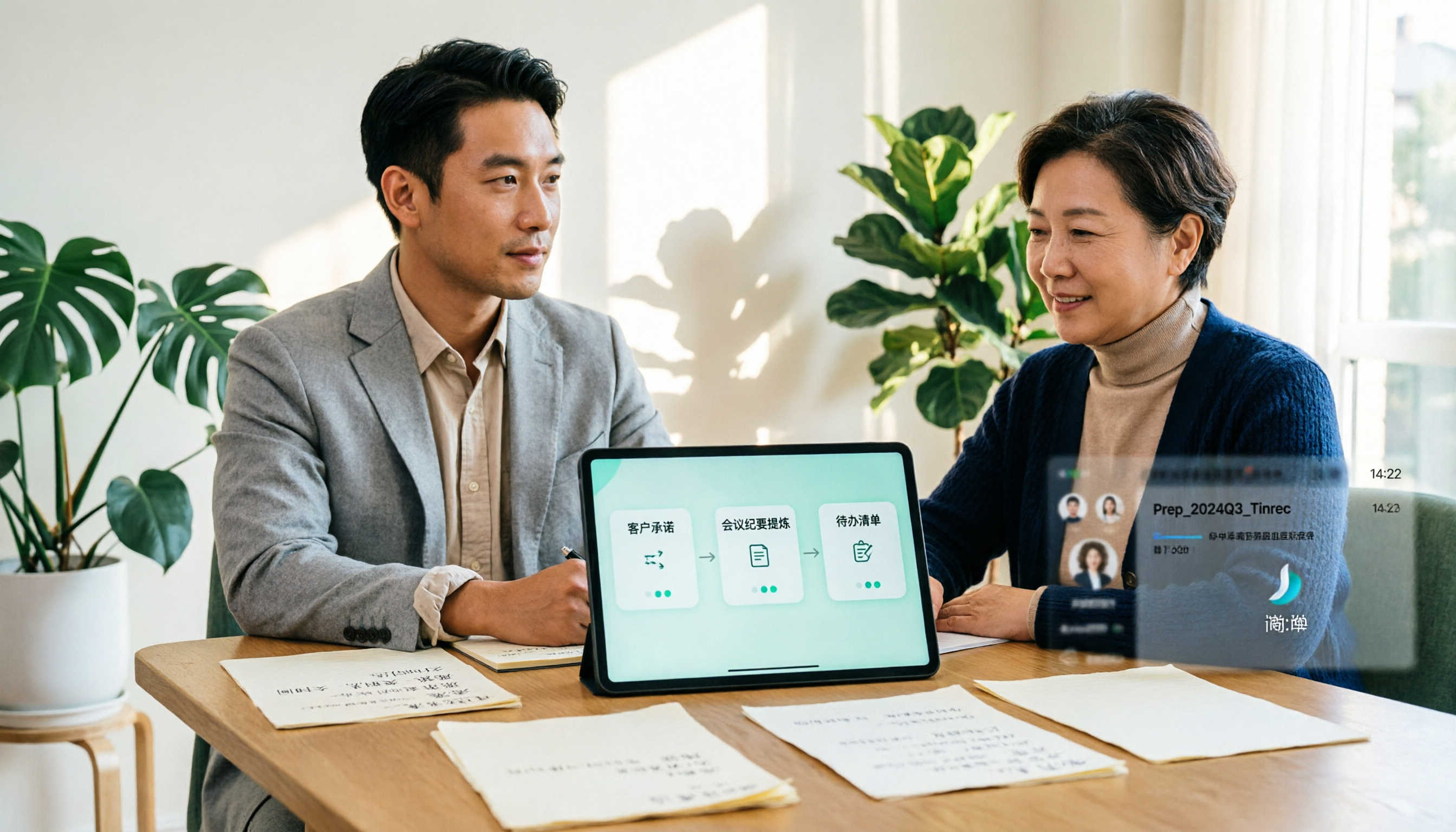
2026 Comparison of 4 Online Sales Meeting Notes Tools: Which One Turns Customer Promises into Action Items?
Starting from the customer promises and action items most often missed in sales meetings, this comparison covers four types of online creation methods. Using Tinrec as an example, it demonstrates pre-meeting preparation, bot-free recording during meetings, post-meeting summaries and action item export, plus team edition governance and a buying FAQ.

Tinrec vs Notta 2026: 5-Dimension Comparison — Which Sales Meeting Notes App Is More Worth Recommending?
How to choose a sales meeting notes app? Using Tinrec as an example, this article breaks down real-world usage from customer interviews and online quote meetings to weekly sales meetings and team handovers — covering bot-free recording, transcripts, AI summaries, action item extraction, AI Q&A, and team spaces — and outlines 5 key purchase considerations plus FAQs.