
Turn recordings into transcripts and summaries in minutes
Upload audio or video for multilingual transcription, AI notes, and action items
Whether for business meetings, customer service calls, or important interviews, many people struggle with "How do I record a call on iPhone?" Due to Apple's privacy policies, call recording has been challenging; plus, after recording, sorting through audio files and finding key points is time-consuming.
This article thoroughly breaks down 5 effective iPhone call recording solutions, provides an objective tool comparison table, a legal compliance guide, and practical steps to quickly convert recordings into transcripts and to-do items.
Quick Navigation:
- Looking for a basic, no-third-party-app recording experience → Upgrade to and use iOS 18's built-in feature.
- Need cross-language meeting records and auto-generated summaries and action items → Pair with AI transcription tools like Tinrec.
1. Does iPhone Have a Built-in Call Recording Feature? iOS 18 Solution Revealed
Previously, iPhones did not have built-in call recording, mainly because Apple prioritizes privacy and compliance with local laws. However, since Apple released iOS 18 in September 2024, it finally added "Call Recording" and "Speech-to-Text" features, significantly lowering the barrier for users.
How iOS 18's Built-in Recording Works
- Privacy Notification for Both Parties: When users tap the "Call Recording" button at the top left during a call, a 3-second countdown occurs, followed by an announcement "This call will be recorded" heard by both parties. The call continues only if neither party hangs up, implying consent.
- Auto-Save to Voice Memos: After the call ends, the audio file is automatically saved in the built-in Voice Memos app and can be synced via iCloud.
- Basic Built-in Transcription: Using Apple Intelligence, speech is preliminarily converted to text, supporting Chinese, English, Japanese, and other languages (check official support list).
2. 5 iPhone Call Recording Methods & Alternative Solutions Reviewed
If your device hasn't been updated or iOS's built-in feature doesn't meet your cross-platform meeting needs, consider the following 5 common solutions:
1. iOS 18 Built-in Call Recording
- Pros: Completely free, no additional app download, intuitive operation.
- Cons: Mandatory recording notification can be awkward for natural conversations (e.g., news interviews); transcription cannot auto-generate high-level meeting decision summaries.
2. Third-Party Recording Apps (e.g., TapeACall Pro / Easy Call Recorder)
- Pros: Some offer unlimited recording time and can record incoming and outgoing calls.
- Cons: Mostly require paid subscription (monthly/yearly); technically use a three-way call merging line for recording, making the process cumbersome; limited carrier support (some may not work in certain regions).
3. VoIP Apps (e.g., Skype, Zoom, WhatsApp)
- Pros: If the call itself is on these platforms, they often have built-in recording with stable audio quality.
- Cons: Limited to in-app internet calls, cannot record regular landline or mobile calls.
4. External Recording Devices
- Pros: The most straightforward method, least restricted by software and system. Put the call on speaker and record with another phone or voice recorder.
- Cons: Prone to background noise; audio quality depends on equipment and environment.
5. AI Transcription & Summarization Tools (e.g., Tinrec)
- Scenario Solution: The biggest pain point of traditional recording is low information density and high review cost. No matter which method you use to record a call (e.g., saved in Voice Memos), you can import the audio into AI tools like Tinrec. It not only generates transcripts but also automatically creates meeting minutes, conclusions, and action items, turning recordings into actionable assets.
3. iPhone Call Recording & Transcription Tool Comparison: Which Is Best for You?
Facing different tools, here's a minimal decision table to help you quickly evaluate:
Stop organizing recordings by hand
Upload audio or video and automatically get a transcript, summary, and action items
| Dimension | iOS 18 Built-in | TapeACall Pro (3rd-party) | Teams / Meet (built-in) | Tinrec (AI Recording Assistant) |
|---|---|---|---|---|
| Recording Method | Tap button during call | Requires three-way call merging | In-app button | Supports live recording, audio import, web parsing |
| Language Support & Recognition | Supports a few major languages | Recording only, no built-in advanced recognition | Relies on platform's built-in captions | Auto-detects 10 languages including Chinese, English, Japanese, Cantonese, Taiwanese |
| AI Summary / Action Items | None, only basic transcript | None | Requires paid upgrade for advanced AI | Auto-generates meeting minutes, conclusions, and action items |
| AI Conversation Query | None | None | Depends on enterprise plan | Yes, you can ask AI about key details in the recording |
| Export & Cross-Platform Integration | Stays in Apple ecosystem (Voice Memos) | Supports cloud drive sharing | Stored in platform cloud space | Multi-platform (iOS, Android, Web) and multiple export formats |
| Price / Free Tier | Free (requires iOS 18) | Paid subscription (usually annual/monthly) | Free basic, paid advanced | Free: 100 minutes/month; Paid: from $4.9/month |
4. Hands-On Tutorial: How to Efficiently Record Calls & Convert to Text & Action Items
Getting a recording is just the first step; extracting value from the conversation is key. Here's a 4-step workflow using Tinrec to complete "Record → Understand → Act."
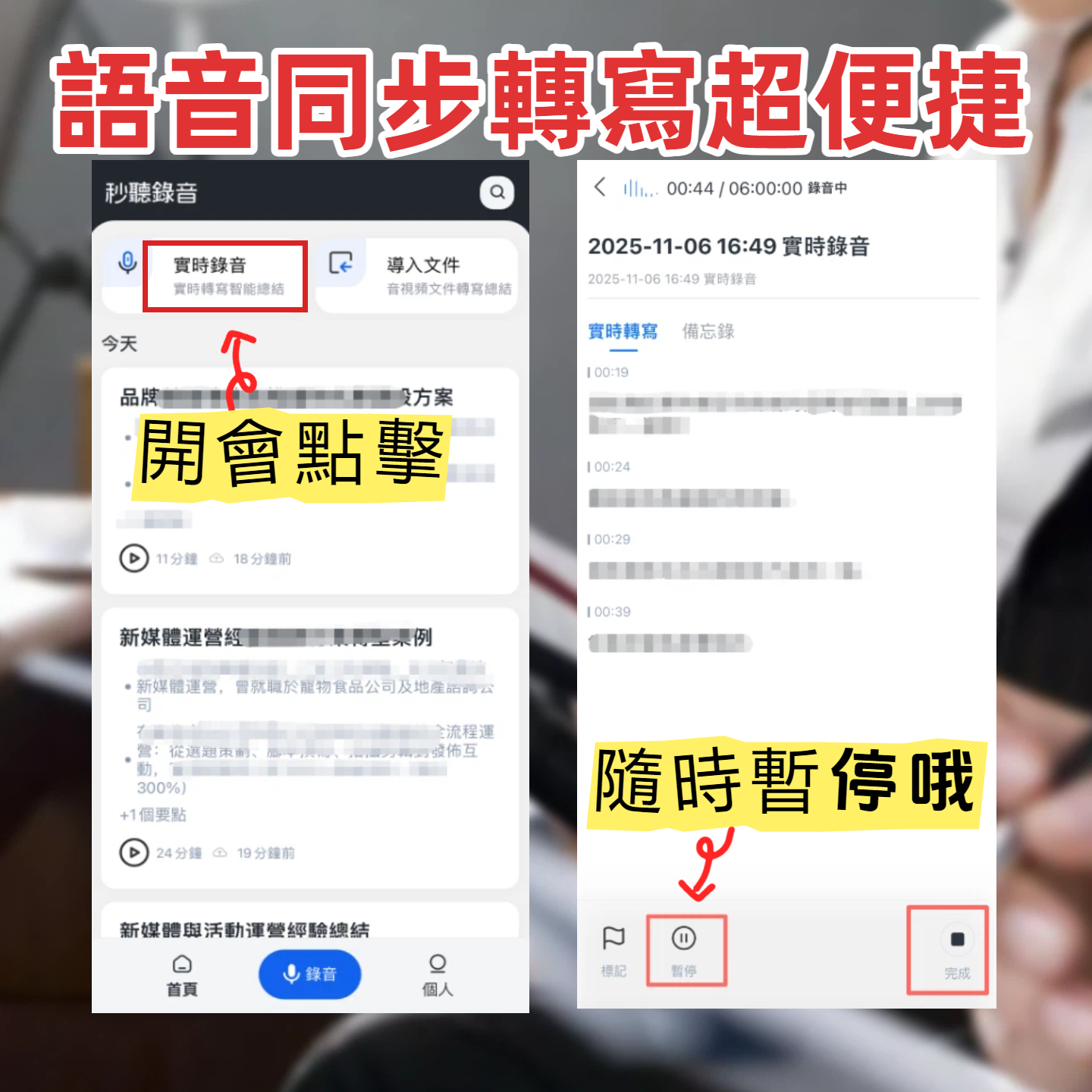
Step 1: Live Recording to Text (for speakerphone calls or in-person meetings)
If you're using speakerphone or in an in-person meeting, you can start live recording. The system transcribes speech in real time with no waiting.
- How to access: Go to Live Recording to Text and tap start.
- Key feature: Automatically differentiates speakers and lets you mark important points instantly.
Step 2: Audio File to Text (for iOS Voice Memos export)
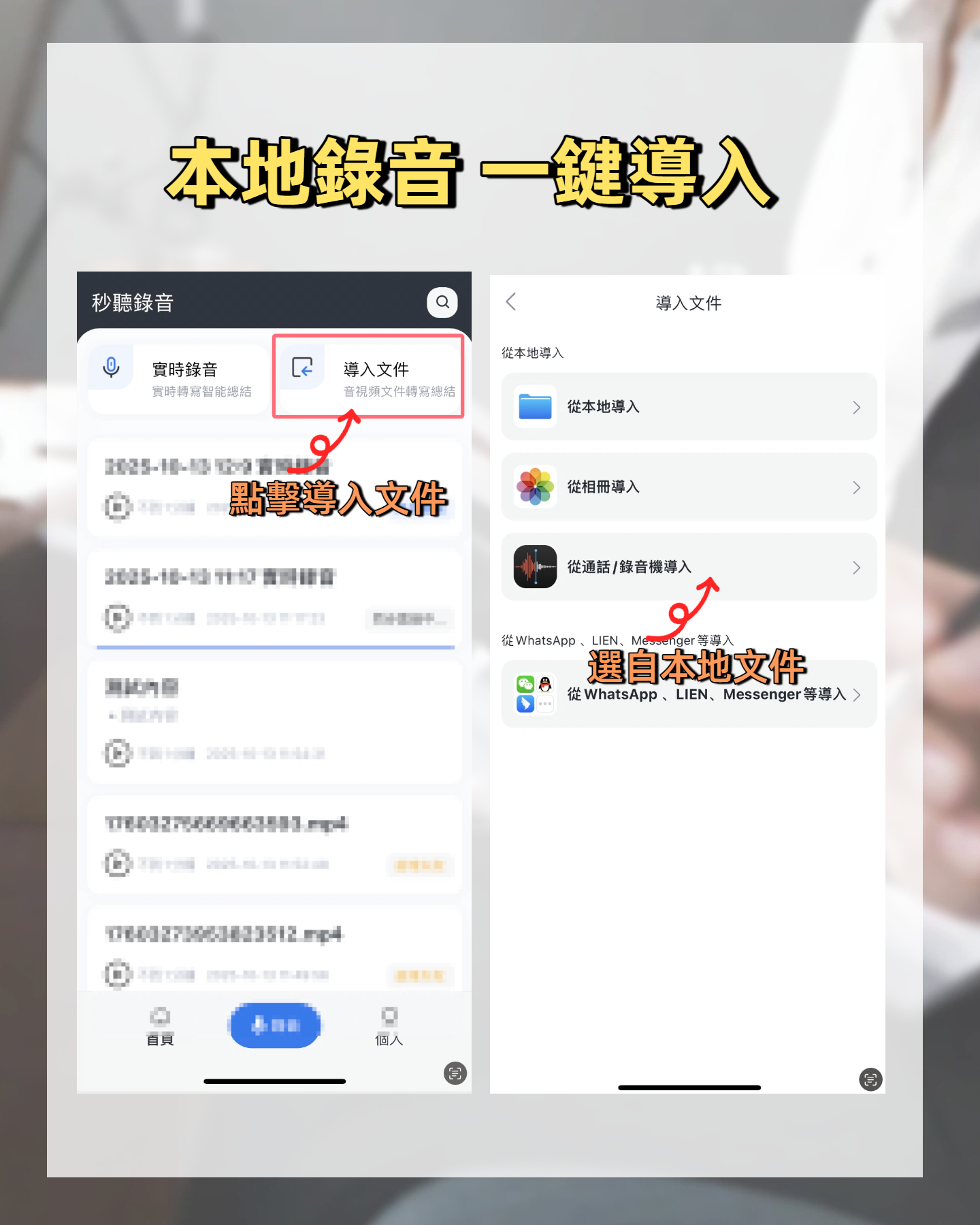
After recording a call with iOS 18 or other apps, the file is usually saved on your phone. Upload it and AI will organize everything.
- How to access: Save the file to your device folder, then go to Audio File to Text and upload.
- Key feature: In minutes, you get an accurate transcript and automatically extracted to-do list, saving you an hour of post-meeting work.
Step 3: Online Video or Webinar to Text (for remote calls)
If your call is on a platform that provides a recording link (e.g., meeting or podcast), no need to download—just paste the URL.
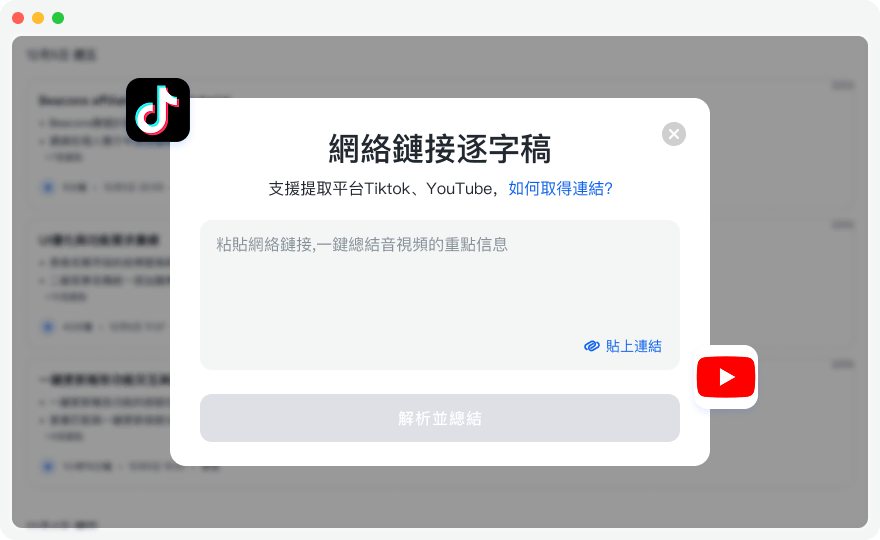
- How to access: Copy the link, go to Podcast/Online Video to Text and paste.
- Key feature: Eliminates download time for large media files.
Step 4: Use AI Conversation Query for Key Decisions
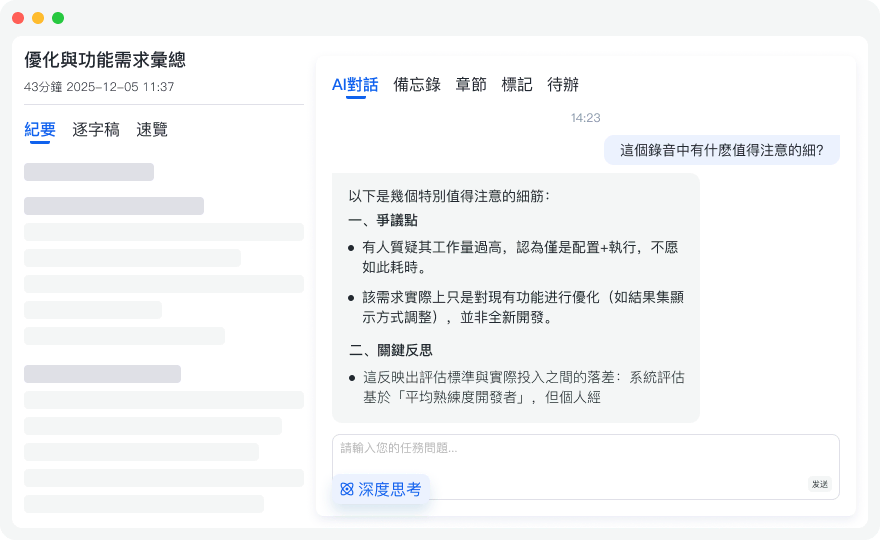
Traditional transcripts require Ctrl+F keyword search, but you may not recall the exact words. With semantic understanding, you can directly "ask" AI about recording content.
- How to access: On the processed file page, open AI Conversation Query.
- Key feature: Type "What concerns did the client have about the quote?" or "Who is responsible for the next phase?" AI gives precise answers and locates the relevant recording segment.
5. Legal & Shopping Guide: What iPhone Users Should Know About Call Recording
While enjoying technological convenience, be aware of these potential risks:
- Two-Party Consent vs. One-Party ConsentPrivacy laws vary greatly by country/region. Some require explicit consent from all parties; others allow one-party consent (only one person in the call needs to know). Recording without consent may lead to legal liability.
- Cross-Border Call Legal DifferencesIf the call involves parties in different jurisdictions (e.g., some US states require two-party consent), it's safest to announce at the beginning: "I'm recording this call for accurate minutes." Obtain consent to be safe.
- Prevent Privacy LeaksCall recordings often contain confidential business or personal data. When choosing third-party tools, ensure they don't misuse your files. Store recordings securely in cloud or local devices.
- Third-Party App 'Three-Way Call' LimitationsMany paid apps require specific area codes or carrier support for three-way calling to work. Always use a free trial to test with your carrier before purchasing.
6. FAQ
Q1: If I use iOS 18 to record a call on iPhone, will the other person know?Yes. When recording starts, a 3-second countdown occurs, then both parties hear an announcement "This call will be recorded." This is a mandatory privacy compliance feature from Apple.
Q2: How can I record calls without the other person hearing a notification?To avoid the system notification, the safest and legally compliant method (ensure you follow local consent laws) is to put the call on speaker and use a second phone, voice recorder, or computer microphone to capture audio externally, then import the file into an AI tool for transcription.
Q3: Can I record calls on the mobile version of Teams or Google Meet?Yes. These VoIP apps usually have built-in recording, but you must be the meeting host or have permission. Recordings are typically saved in the platform's cloud storage.
Q4: Can recorded Voice Memos be automatically transcribed into meeting notes?iOS 18 has basic speech-to-text. For accurate punctuation, speaker separation, multi-language recognition (e.g., Taiwanese, Cantonese), or auto-generated action items, export the audio and use a dedicated AI tool like Tinrec.
Q5: Do free transcription tools have usage limits?Most quality AI tools offer free tiers. For example, Tinrec provides 100 minutes per month free; heavy users (e.g., sales, journalists) can subscribe to the basic plan at $4.9/month for 600 minutes.
Q6: Why are most third-party call recording apps on the App Store paid?Because iOS does not grant call audio access to third-party apps. These apps must set up their own servers and use carrier three-way calling to route calls for recording, incurring high line and server costs, hence subscription fees.
Turn every recording into actionable outcomes
Get 60 free transcription minutes when you sign in. No credit card required.
Related Reading
You might also like

Tinrec Meeting Data Access Permissions Guide 2026: Role Authorization + Seat Management
When meeting data is seen by other departments or disappears when members leave, the problem usually stems from unclear permissions. This article starts with common misconceptions, breaks down Tinrec's team space, roles, seats, and audit mechanisms, and teaches you how to set up meeting data access so you control who can view, use, and edit. It also covers 5 purchasing considerations and FAQs.

How to Assign Project Meeting Tasks in 2026: 5 Steps from Meeting to Action Items
How do you assign project meeting tasks in 2026? This article compares Tinrec and PLAUD Note across five dimensions: meeting recording methods, action item extraction, post-meeting follow-up, export workflows, and cost, helping you determine which approach ensures tasks are truly assigned and progress is trackable.

2026 Cross-Departmental Meeting Collaboration Tools Compared: Which Saves More Time with Chinese Transcripts and Post-Meeting Action Items?
Cross-departmental project meetings often end with everyone interpreting things differently. This article starts with common pitfalls and outlines 4 key factors for choosing a cross-departmental meeting collaboration tool. It compares Tinrec, Granola, Notta, and Otter.ai in real tests, focusing on Chinese transcripts, post-meeting action items, and team knowledge retention, plus a guide to avoid pitfalls and selection advice.

Best Project Meeting Action Item Follow-Up Tools in 2026: We Tested 2, and This One Is Best for Chinese-Speaking Teams
The real breakdown in project meetings often happens after the meeting, not during it—specifically, in following up with action item owners. This article starts with common follow-up pitfalls, compares Tinrec and Otter.ai across 6 dimensions including action item extraction, Chinese-language meetings, team seats, and post-meeting deliverables, and summarizes pricing and FAQs to help you decide which tool better fits your project team.

Tinrec vs Notta 2026: 5-Dimension Comparison — Which Meeting Notes Tool Is Better for SMBs?
SMBs dread meetings that end without decisions, and post-meeting recording cleanup is time-consuming. This guide reviews 6 meeting notes tools — Tinrec, Otter, Notta, Fireflies, Granola, and TurboScribe — comparing Chinese language support, bot-free recording, AI Q&A, team collaboration, and pricing to help you find the best fit for your SMB.

2026 Comparison of 4 Meeting Knowledge Asset Tools: Which One Turns Meetings into Searchable Team Assets?
Meetings end and data scatters? This article uses 5 dimensions—capture method, audio retention, post-meeting output, team governance, and Chinese language experience—to compare Tinrec, Notta, Granola, and Otter.ai. It breaks down how to choose and avoid pitfalls for team meeting knowledge assets, and explains the difference between roles and seats.

2026 Team Meeting Transcription Tools Compared: Tinrec vs Otter.ai — Which Is Better for Chinese-Speaking Teams?
Choosing between Tinrec and Otter.ai for team meeting notes in 2026? This hands-on comparison focuses on Chinese-language meeting scenarios common in Taiwan-based teams, evaluating five dimensions: Chinese transcription, bot-free recording, post-meeting AI organization, team data ownership, and trial barriers. We break down each tool's unique strengths and ideal users to help you find the best meeting transcription tool for your team.

How to Manage Team Meeting Data in 2026: 5 Steps from Recording to Team Knowledge Base
Team meeting data often ends up scattered across personal computers and chat logs. This article uses Tinrec and PLAUD Note as examples to compare team meeting data management tools across 5 dimensions: meeting capture methods, team spaces and governance, AI post-meeting organization, cross-platform flexibility, and pricing. It also includes FAQs to help you find the right meeting notes and knowledge retention solution for your team.

How to Take Multi-Person Meeting Notes in 2026: 5 Steps from Recording to AI Summary
The pain point of multi-person meeting notes is never typing speed—it's the lack of manpower to organize afterward. This article addresses three common misconceptions, breaks down the core capabilities a multi-person meeting notes tool should have, a 5-step implementation process, purchasing checkpoints, and FAQs. It uses Tinrec as an example to demonstrate the complete workflow from recording, transcription, to AI summaries and action items.