
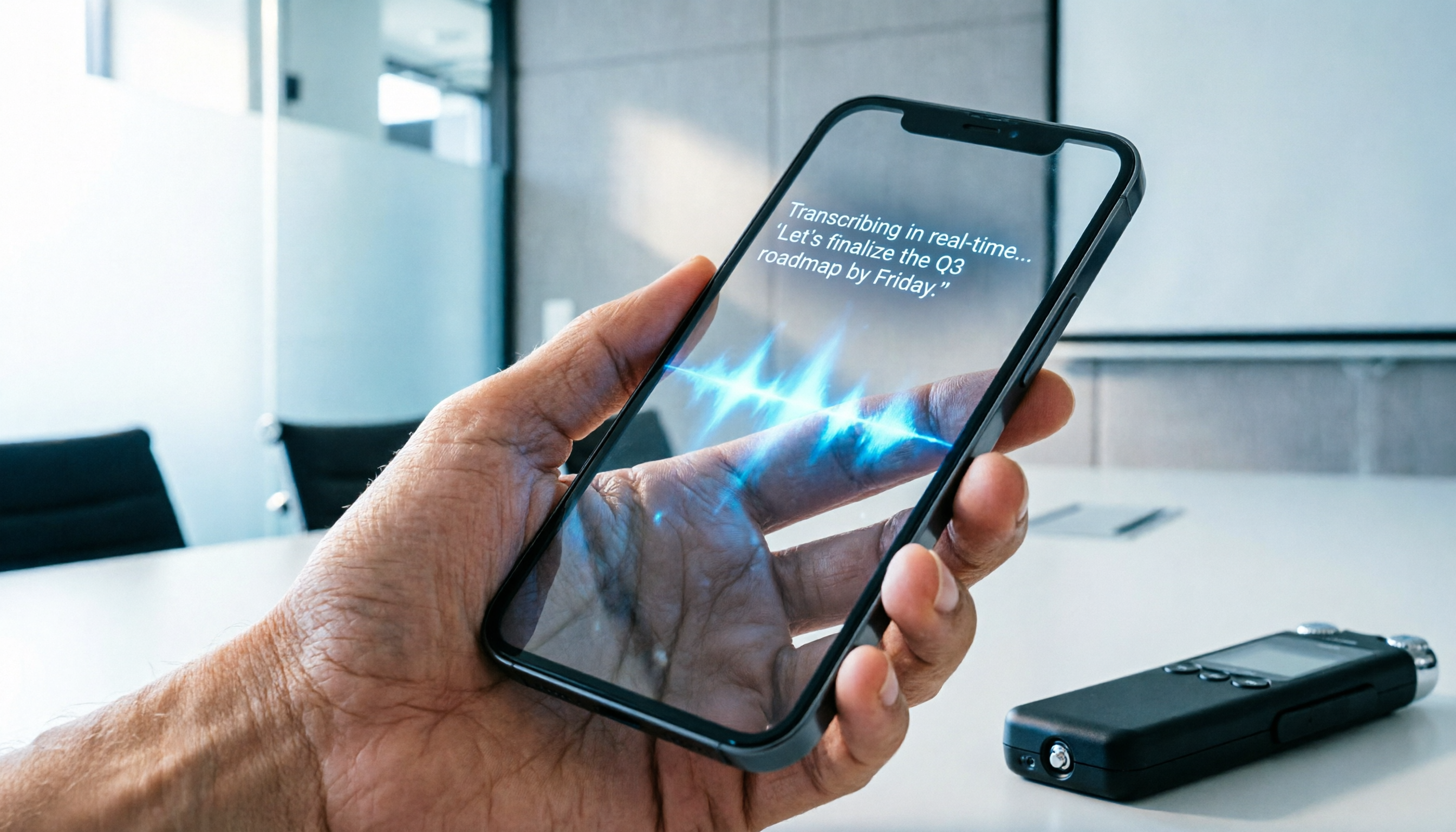
Turn recordings into transcripts and summaries in minutes
Upload audio or video for multilingual transcription, AI notes, and action items
Before You Buy: Traditional Voice Recorder vs. AI Recording Software
Many people searching for "where to buy a voice recorder" only focus on hardware specs, overlooking the pain point of post-processing. Traditional voice recorders can capture audio but cannot automatically transcribe it into text, leaving you to spend hours listening and summarizing after a meeting. If you value "information digestion efficiency" over mere recording, modern AI recording software might be a better solution. Among the many tools, Tinrec is one candidate that offers a complete workflow from recording to summary, but you still need to evaluate based on your needs.
This article provides the following to help you decide:
- A comparison table of 5 evaluation dimensions, clearly showing the differences between hardware and software.
- A step-by-step tutorial demonstrating how to use your smartphone for professional recording and transcription.
- An FAQ section answering questions about iPhone, Teams meetings, and free quotas.
Quick Navigation Conclusion:
- For high-fidelity hardware recording in offline environments → Choose Sony or Philips traditional voice recorders.
- For meeting summaries, automatic transcription, and cross-device sync → Prioritize AI recording software (e.g., Tinrec, Otter.ai).
- For limited budgets and frequent transcript needs → Smartphone paired with AI tools offers the best value.
2026 In-Depth Review of 6 Popular Recording Tools
To ensure objective evaluation, we set the following test standards: 30-minute meeting audio, mixed Chinese and English environment, and noise interference test. Metrics include word error rate, segmentation quality, summary quality, export efficiency, and price.
Tool Comparison Table: Hardware vs. Software
| Tool Name | Language Support | Real-time Transcription | Summary / Action Items | AI Chat Query | Price / Free Tier |
|---|---|---|---|---|---|
| Sony ICD-UX570 | Recording only | Not supported | Not supported | Not supported | Starting from about 4,000 yuan (hardware) |
| Philips VTR5100 | Recording only | Not supported | Not supported | Not supported | Starting from about 2,000 yuan (hardware) |
| Otter.ai | English primarily | Supported | Supported | Supported | Free 300 minutes/month, weak Chinese support |
| Notta | 50+ languages | Supported | Supported | Partial support | Free 120 minutes/month, higher paid tiers |
| Tinrec | 10 languages (incl. Chinese/Taiwanese) | Supported | Auto-generated | Supported | Free 100 minutes/month, flexible paid plans |
| TurboScribe | Multilingual | Upload & transcribe | Basic summary | Not supported | Generous free tier, no live recording |
Test Results and Scenario Analysis
In a 30-minute Chinese meeting test, traditional voice recorders only provided audio files, requiring about 90 minutes to transcribe manually. Among AI tools, Otter.ai had frequent sentence segmentation errors in Chinese; Notta performed steadily but had a higher price barrier. Tinrec excelled in mixed Chinese and Taiwanese scenarios, and its auto-generated action items reduced post-processing time. For users who need cross-language meetings or foreign language courses, multilingual automatic recognition is crucial.
Stop organizing recordings by hand
Upload audio or video and automatically get a transcript, summary, and action items
Tinrec: Value and Limitations
Tinrec's strength lies in transforming recordings into actionable information—not just verbatim transcripts but also meeting minutes and to-do items. Its limitation is that it requires an internet connection for real-time processing, and the free version has a minute limit. It suits office workers, students, and content creators who frequently organize meeting notes. If you need fully offline functionality or ultimate audio quality, traditional hardware remains the first choice.
Practical Tutorial: How to Use Your Smartphone as a Voice Recorder with Auto-Transcription
If you decide on an AI tool solution, here are the specific steps covering four common entry points to help you get started.
Step 1: Real-time Recording & Transcription
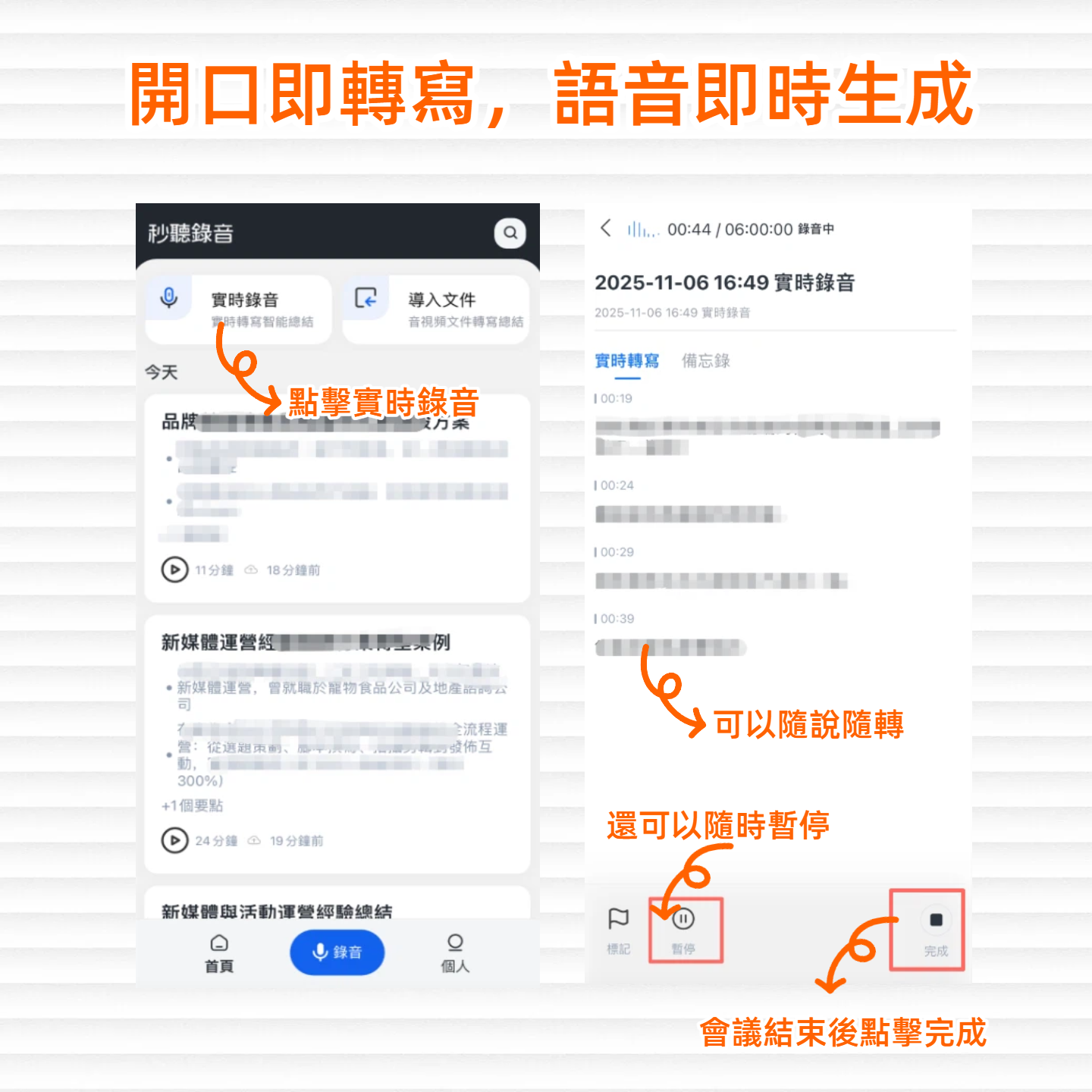
Open the app and select the live recording feature—your smartphone acts as the microphone. Text appears on screen in real time without waiting for the recording to end.
- Tap the record button on the main page.
- Confirm language settings (supports auto-detection).
- After recording ends, the summary and transcript are auto-generated.
Step 2: Upload Audio Files for Transcription
If you have audio files from a voice recorder or other devices, you can upload them directly for conversion.
- Select the import audio file feature.
- Supports multiple formats (MP3, WAV, M4A, etc.).
- After processing, the system generates an editable text file.
Step 3: Transcribe Video Links
For online meeting recordings or YouTube videos, paste the link to extract the audio.
- Copy the video URL.
- Paste it into the video-to-text entry point.
- Audio track is extracted, and key summary is auto-generated.
Step 4: AI Chat to Query Key Content
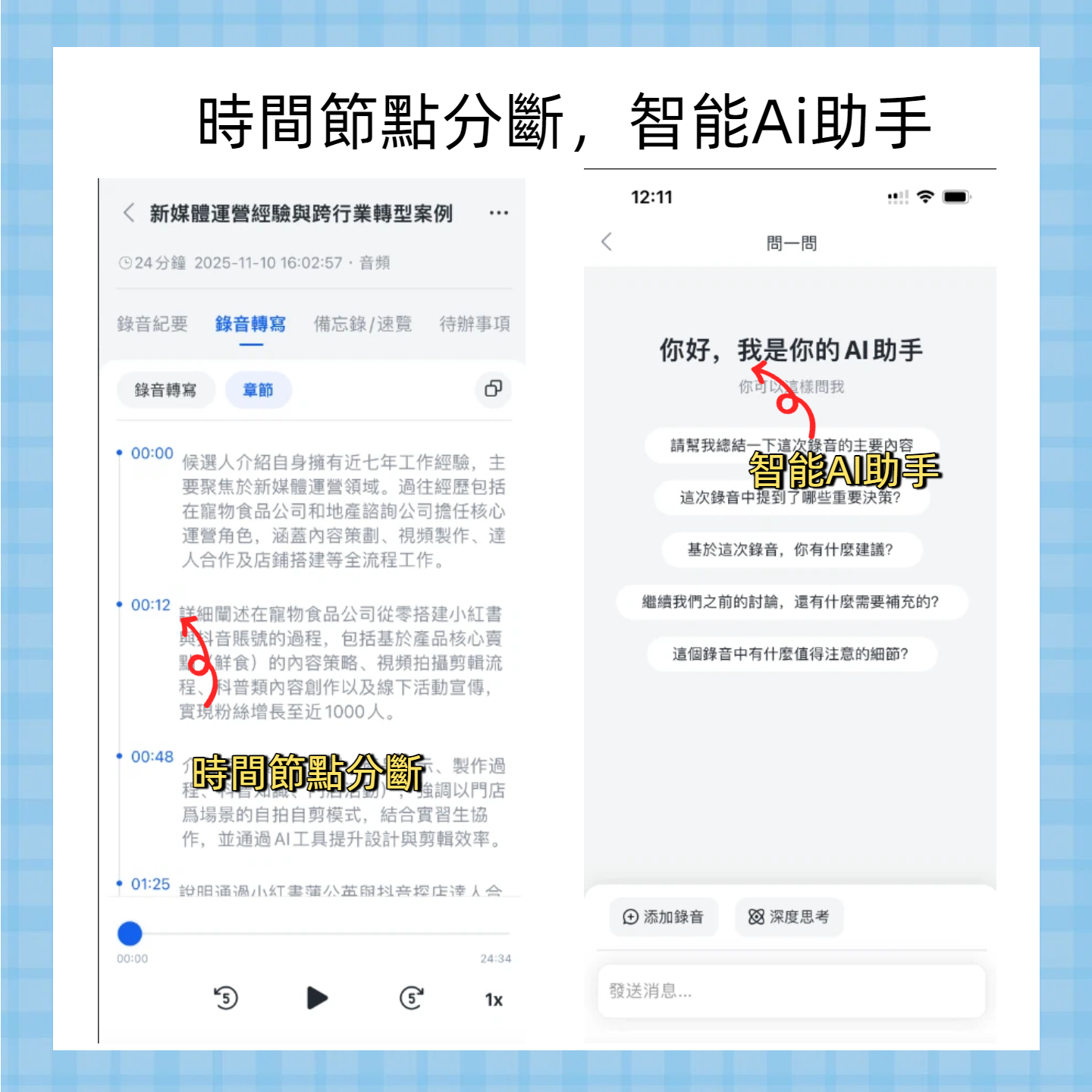
This is the biggest difference from traditional tools—you can ask questions about the recording as if talking to someone.
- Enter the chat query interface.
- Type a question (e.g., "What was the budget mentioned in the meeting?").
- The AI provides precise answers with timestamps based on the recording content.
Recommended Recording Solutions for Different Scenarios
Learning Scenario: Classes and Self-Study
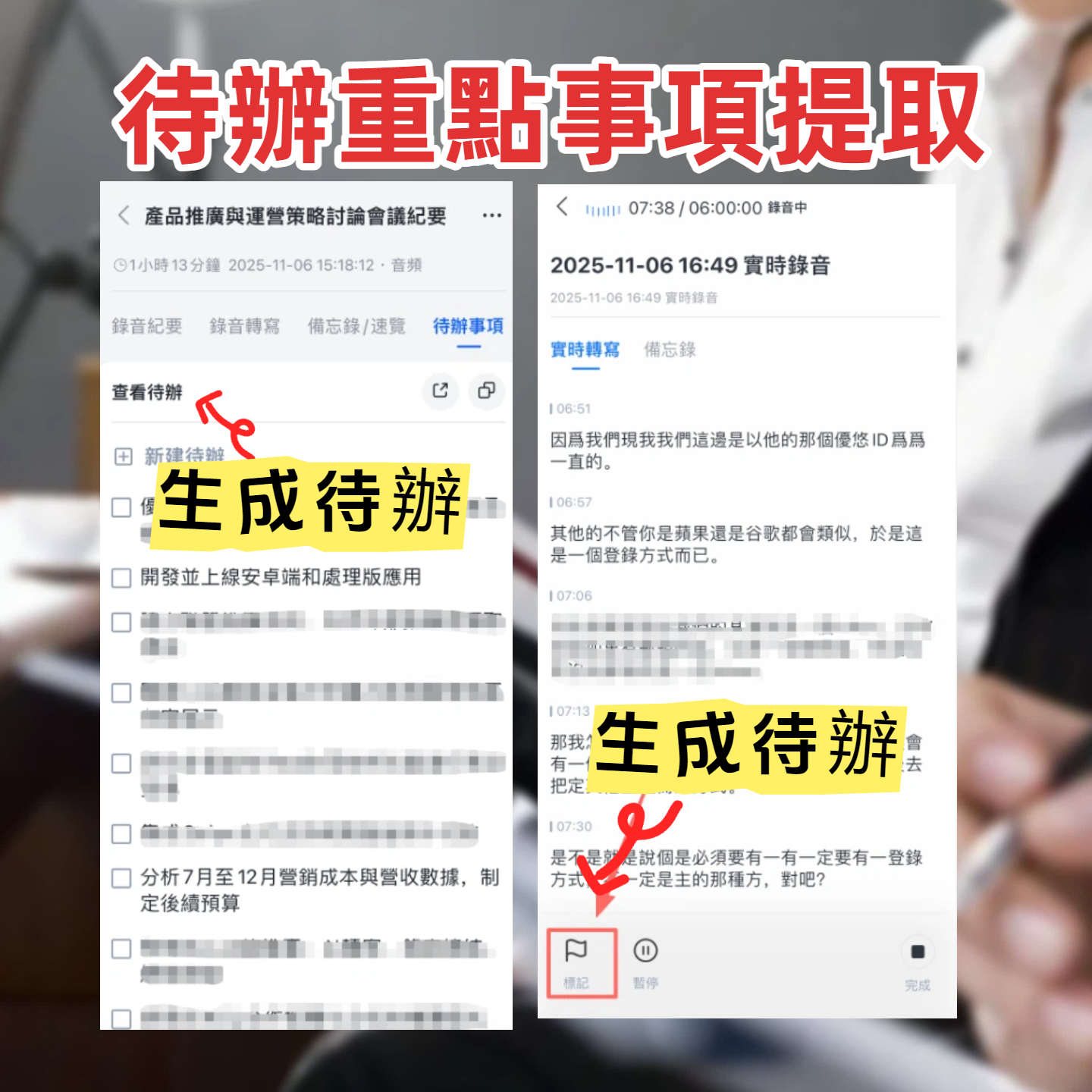
Students value efficient note-taking and review. Use tools that support multilingual recognition, especially for foreign language courses. A smartphone paired with AI software can mark key points in real time, allowing you to export notes directly after class, avoiding time-consuming manual copying.
Work Scenario: Remote and In-Person Meetings
Office workers need to handle a large number of meeting records. For Teams or Meet, use software that records and transcribes directly. For in-person meetings, place your smartphone on the table—the key is follow-up on action items to ensure meeting conclusions are implemented.
Content Creation: Interviews and Podcasts
Creators need high-accuracy transcripts as raw material. Hardware voice recorders can serve as backup, but main processing should be handled by AI tools. Support for video link transcription helps quickly organize online interview content.
Frequently Asked Questions (FAQ)
1. Where can I buy a voice recorder at a lower price?
Traditional hardware like Sony or Philips is available on e-commerce platforms or physical electronics stores, but you must factor in the cost of subsequent transcription. If your budget is tight, a smartphone with a free AI tool is a more economical choice.
2. Which iPhone voice-to-text tool works best?
iOS users can choose tools that support multi-device sync. Note that some tools may be interrupted by iOS background recording restrictions; look for apps specifically optimized for background recording.
3. Does it support meeting recordings for Teams or Google Meet?
Some tools support joining as a meeting bot for recording. If not, use your system's built-in recording feature with a transcription tool. Make sure the tool supports virtual audio input.
4. Do free transcription tools have limits?
Most free plans have a minute cap, e.g., 100 to 300 minutes per month. If you use it frequently, consider the per-minute cost of paid plans, which is usually more cost-effective than buying hardware.
5. How accurate is mixed Chinese and Taiwanese speech recognition?
Traditional tools typically do not support dialects. When choosing, confirm whether the tool explicitly supports Taiwanese or Cantonese. Some AI tools have optimized mixed-language recognition, suitable for localized meeting scenarios.
6. Can I export the transcript to Word?
Mainstream tools support exporting to TXT, Word, or PDF. Before choosing, confirm whether the export includes timestamps, which is important for later proofreading.
Turn every recording into actionable outcomes
Get 60 free transcription minutes when you sign in. No credit card required.
Related Reading
You might also like

2026 Audio-to-Text Comparison: Tinrec vs Otter.ai for Chinese Meetings & Team Knowledge
How to choose an audio-to-text tool in 2026? This article compares Tinrec and Otter.ai across 5 dimensions: Chinese meeting transcription, bot-free online meeting capture, audio file organization, post-meeting workflows, and team data governance. Based on public features and pricing, it helps you decide which is better suited for meeting notes needs in Taiwan.

How to Choose an Online Audio-to-Text Tool in 2026: 5 Steps to Pick the Right One and Get a Transcript
How do you choose an online audio-to-text tool? This article reviews 6 online options—Tinrec, MyEdit, cSubtitle, CyberLink, Yating Transcript, and Monica—comparing free quotas, Chinese recognition, export formats, and team collaboration. It also walks you through 5 steps to turn an audio file into a transcript.

2024 Review of 4 Audio-to-Text Tools: Which Saves the Most Time on Chinese Meeting Transcripts and AI Summaries?
The 2024 audio-to-text comparison isn't just about transcription speed—it's about whether the tool can organize your meeting notes afterward. Based on real meetings and interviews, this review compares Tinrec, Notta, Granola, and PLAUD on audio sources, transcripts, AI summaries, action items, team collaboration, and pricing limits to help you choose the right tool.

4 Free Online Audio-to-Text Tools Compared (2026): Which Offers the Best Free Tier and Chinese Recognition?
A comparison of Tinrec, MyEdit, cSubtitle, and Monica's free online audio-to-text offerings, covering free quotas, Chinese recognition, export formats, and post-meeting AI organization to help you decide which suits meetings, interviews, and subtitles.

4 Free AI Audio-to-Text Tools Tested: Which Free Tier Is Enough in 2026?
There are many free AI audio-to-text tools, but free quotas, single-recording length limits, Chinese recognition, and post-meeting organization capabilities vary widely. This article compares the free plans and use cases of 4 tools, using Tinrec's no-bot recording, AI Q&A, and team spaces as selection references.

2026 Comparison of 2 Online Audio-to-Text Tools: Tinrec vs Otter.ai — Which Is Better for Chinese Meetings?
Starting from common misconceptions, this comparison examines Tinrec and Otter.ai in Chinese meetings, bot-free recording, post-meeting organization, real-time translation, and team data retention to help you decide which online audio-to-text tool fits your daily work.

2026 Comparison of 2 Audio-to-Text Platforms: Free Tiers, Chinese Recognition, and Post-Meeting Organization at a Glance
A side-by-side comparison of Tinrec and Notta across free tiers, Chinese recognition, online meeting recording, post-meeting organization, and team collaboration, helping you decide whether the free version is enough and when to upgrade.

iPhone Voice Memos vs Tinrec in 2026: 5-Dimension Comparison — Is Free Transcription Enough?
iPhone's built-in Voice Memos can now transcribe recordings for free, so do you still need a separate tool? This article compares iPhone's built-in features with Tinrec across 5 practical dimensions and honestly explains where the free limits are, helping you decide which approach fits your meeting volume.

4 Free Audio-to-Text Tools Tested for 2026: Which Free Tier Is Actually Enough?
There are plenty of free audio-to-text tools, but few can handle a full meeting. This hands-on comparison tests the free plans of Tinrec, Otter.ai, Notta, and TurboScribe—breaking down how limits are calculated, transcript post-processing, audio retention, and team collaboration—to help you decide which free version is truly usable.