
Turn recordings into transcripts and summaries in minutes
Upload audio or video for multilingual transcription, AI notes, and action items
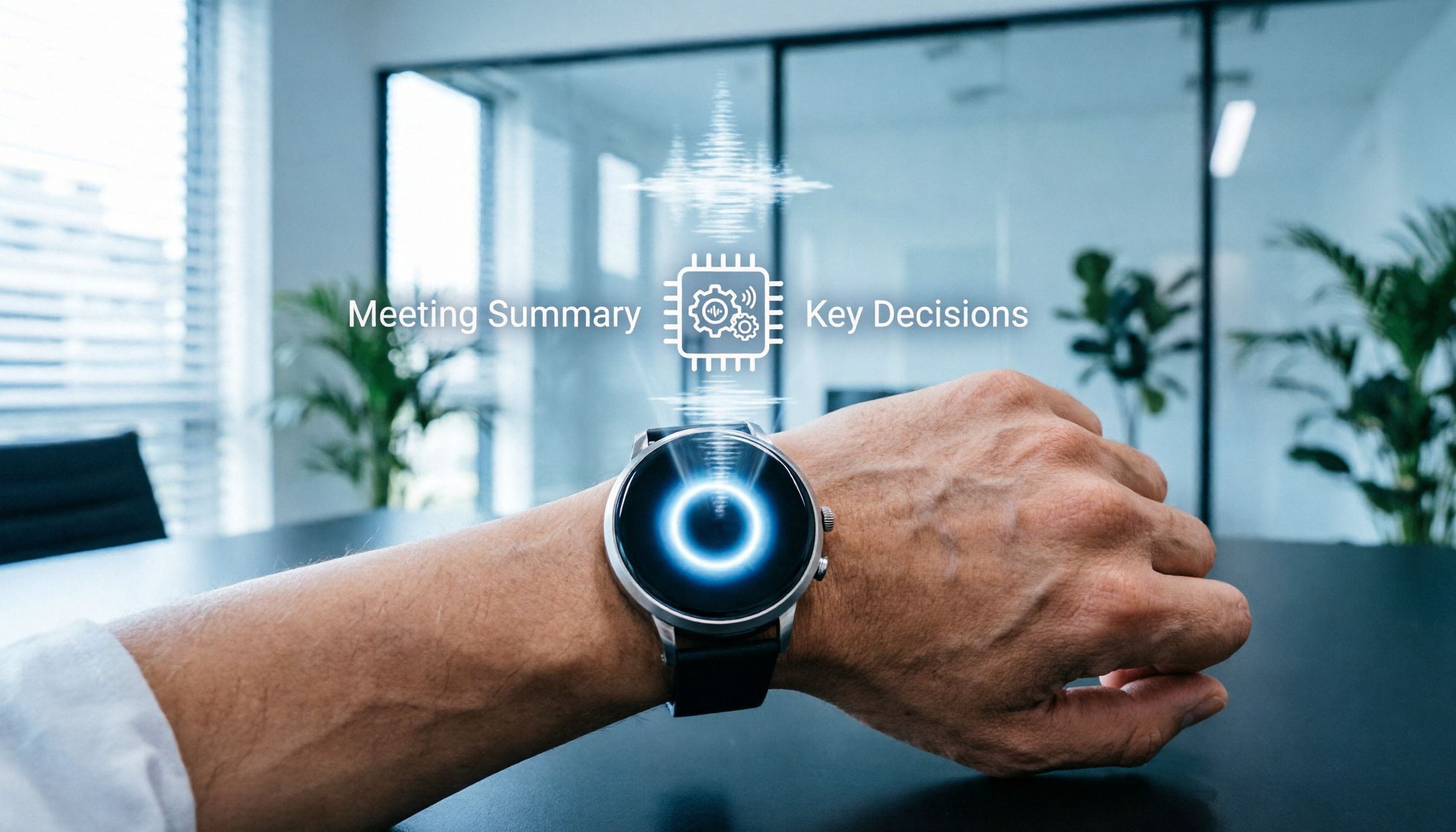
Introduction: Why Are Apple Watch Recordings Often Left Unused?
Many users quickly capture ideas or meeting snippets with Apple Watch, but often face the dilemma of "not wanting to listen" or "difficulty finding key information." Watch recordings are limited by screen size and cannot be edited in real time. Without a post-processing tool, these audio files can quickly become digital clutter.
This article focuses on the workflow after Apple Watch recording, comparing 5 mainstream transcription tools with evaluation criteria, step-by-step guides, and FAQs. We will explore how to turn audio synced from your watch to your phone into searchable, actionable notes.
Quick Navigation Conclusion:
- Prioritize Chinese accuracy & meeting summaries → Choose AI tools that support Traditional Chinese (e.g., Tinrec, Notta)
- Need real-time transcription on a budget → Consider plans with higher free quotas
- Heavy Apple ecosystem user → Verify the tool supports iOS file import
Limitations of Apple Watch Recording & Workflow Optimization
Apple's native Voice Memos app syncs to iPhone but lacks structured organization. To make recordings valuable, establish a full workflow: record → transcribe → summarize → act.
Common Pain Points
- No real-time preview: Small watch screen makes it hard to verify recording quality.
- Lack of text indexing: Pure audio can't be quickly searched for keywords.
- Time-consuming to process: Manual dictation is inefficient and easily misses key points.
Solution Architecture
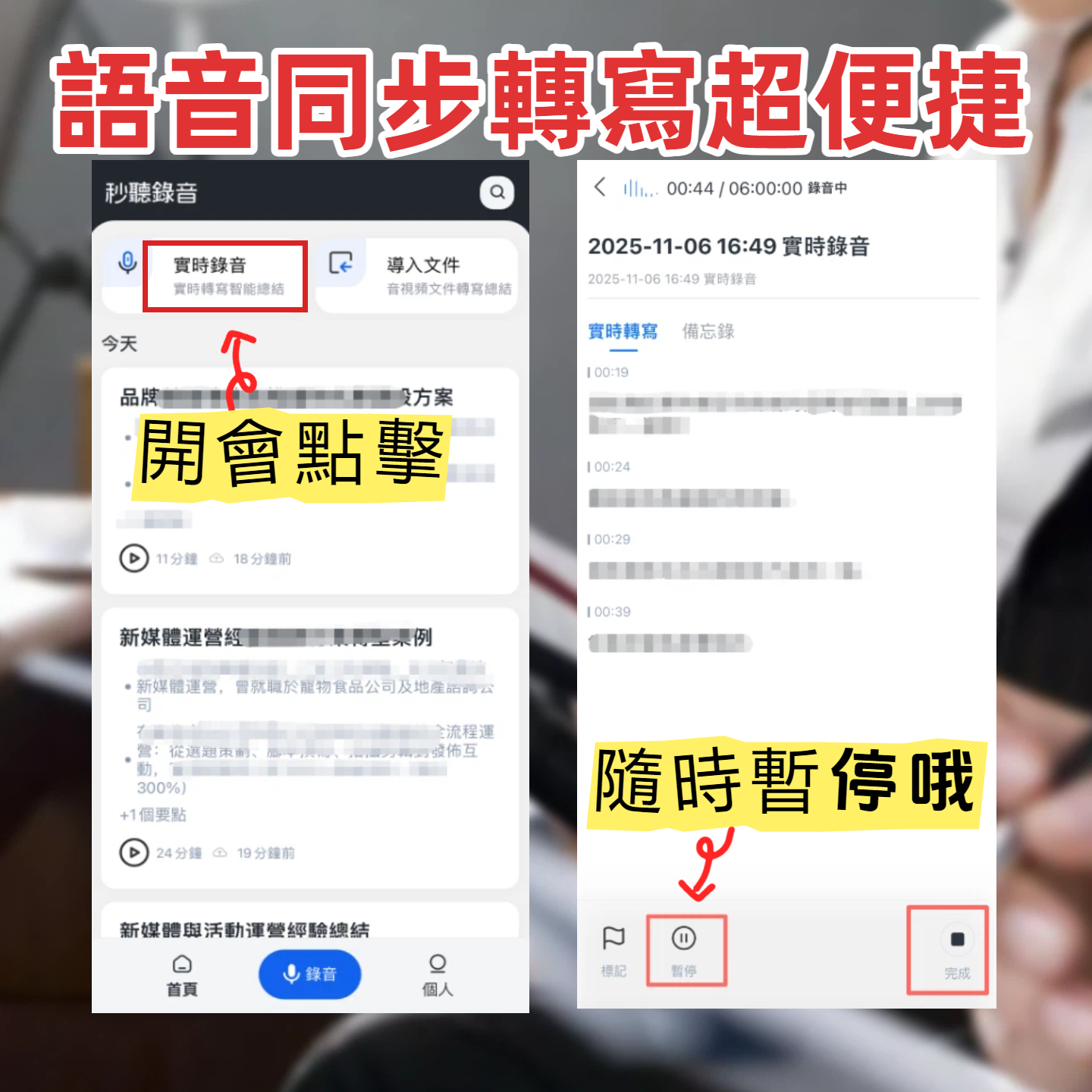
An ideal tool chain includes: watch recording → sync to iPhone → upload to transcription platform → AI-generated summary. In this workflow, Tinrec serves as a candidate solution, offering end-to-end service from audio-to-text to AI dialogue query, helping users bridge the gap from recording to understanding.
In-Depth Comparison of 5 Transcription Tools
Below is a multi-dimensional comparison of popular tools to help you choose based on your needs.
| Tool | Languages Supported | Real-time | Summaries/Action Items | AI Query | Export/Integration | Price/Free Quota |
|---|---|---|---|---|---|---|
| Tinrec | Chinese, English, Japanese, etc. (10+) | High | Auto-generated meeting minutes | Supports semantic queries | Multiple formats | Free: 100 min/month |
| Otter.ai | Primarily English | High | Keyword extraction | Supported | Integrates with Zoom/Teams | Free: 300 min/month |
| Notta | 50+ languages | High | Auto-summary | Partial | SRT/TXT | Limited free plan |
| Apple Voice Memos | System language | No transcription | None | None | Apple ecosystem only | Free |
| TurboScribe | 99 languages | Medium (upload-based) | None | None | Multiple formats | Free: 3 files/day |
Selection Tips
- Meeting notes: Prioritize tools that auto-differentiate speakers and generate action items.
- Interview processing: Focus on Chinese accuracy and export formats that are easy to edit.
- Personal notes: Free quota and cross-platform sync are key considerations.
Stop organizing recordings by hand
Upload audio or video and automatically get a transcript, summary, and action items
Tutorial: Turning Recordings into Usable Notes (4 Main Methods)
This section uses a general workflow to show how to convert audio from different sources into knowledge assets. The steps below cover core features of mainstream tools.
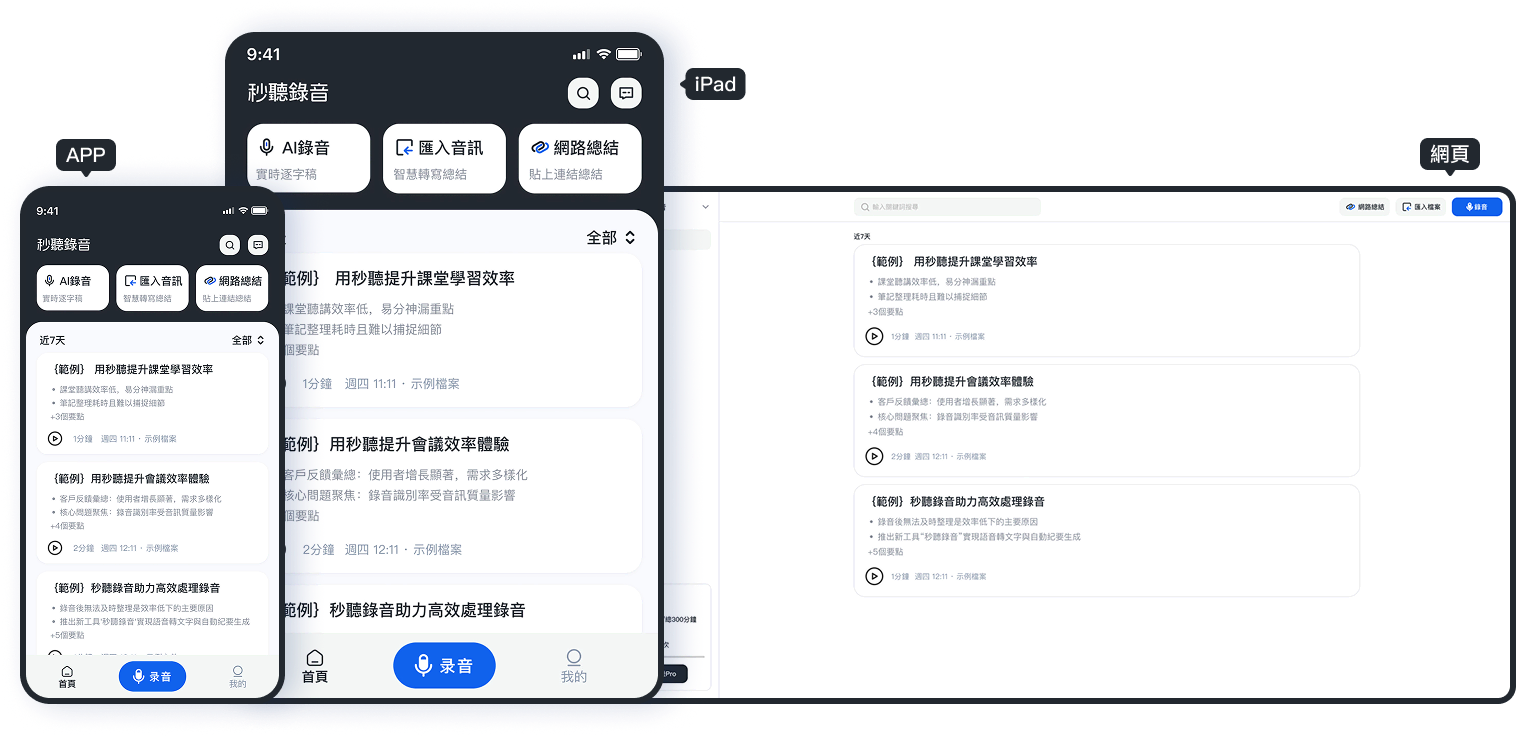
Step 1: Real-time Transcription (For Live Meetings)
If you can't use the watch, you can use your phone for real-time recording and transcription.
- Action: Open the tool's real-time recording feature and place your phone at the center of the meeting table.
- Expected outcome: Speech is converted to text in real time with timestamps.
- Note: Ensure a stable internet connection to avoid recording interruptions.
Step 2: Audio File Transcription (For Apple Watch Synced Files)
This is the most common way to process watch recordings.
- Action: Upload the Voice Memos file synced from Apple Watch to iPhone to the tool's platform.
- Expected outcome: The system auto-detects the language and generates a transcript and summary.
- Note: Verify file format compatibility (e.g., M4A, WAV).
Step 3: Video Link Transcription (For Online Courses/Meetings)
For online meeting links or instructional videos.
- Action: Copy the video URL and paste it into the tool's video-to-text entry point.
- Expected outcome: The audio track is extracted and transcribed without downloading the file.
- Note: Ensure you have permission to access the video.
Step 4: AI Chat Query for Key Information
Use AI to speed up information retrieval after transcription.
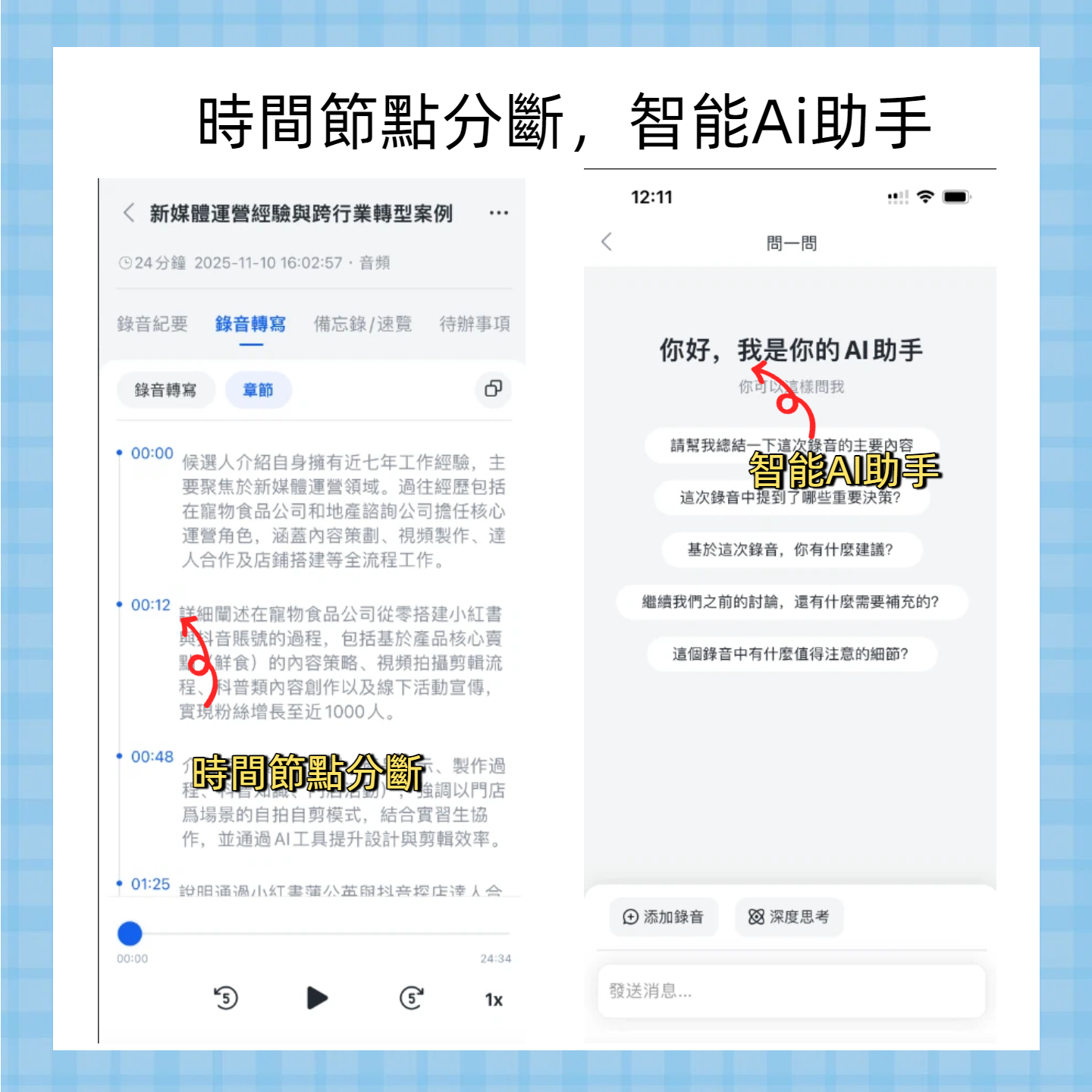
- Action: Open the AI chat feature in the tool and ask a question (e.g., "What was the deadline the boss mentioned?").
- Expected outcome: The AI answers based on the recording content and provides time references.
- Note: Be specific with your questions to avoid vague answers.
Common Mistakes & Quality Criteria
Avoiding common pitfalls can greatly improve efficiency when using transcription tools.
Common Mistakes
- Excessive background noise: Reduces accuracy; use an external microphone.
- Overlapping speakers: Can confuse speaker identification; may need manual correction.
- Using output without proofreading: Proper nouns may be misrecognized; always review.
Quality Checklist
A "usable transcript" should meet these standards:
- Key terms correct: Names, project names, and numbers are accurate.
- Timestamps are clickable: Clicking text jumps to the corresponding audio position.
- Action items actionable: Tasks in the summary have clear owners and deadlines.
Sample Template
Meeting Minutes Template:
- Meeting Topic: [Topic]
- Attendees: [List]
- Key Conclusions: [Summary]
- Action Items: [Item] - [Owner] - [Deadline]
FAQ
1. How do I import Apple Watch recordings into a transcription tool?
Apple Watch recordings sync automatically to the iPhone Voice Memos app. On your iPhone, share the file or save it to the Files app, then upload it to a transcription tool that supports audio files.
2. Do these tools offer free usage?
Most tools provide free quotas. For example, Tinrec offers 100 minutes per month in its free plan, suitable for light users; heavy users may consider paid plans for more minutes and advanced features.
3. How accurate is Chinese recognition?
Accuracy varies significantly between tools. International tools like Otter.ai focus primarily on English, with weaker Chinese support. Tools with better local support like Tinrec or Notta generally perform better with Traditional Chinese and technical terms.
4. Do they support online meetings like Teams or Google Meet?
Some tools offer direct integration with meeting software or browser extensions for recording. If not, you can record via system audio and upload the file for processing.
5. How is privacy and data security ensured?
When choosing a tool, review its privacy policy. Enterprise users should opt for solutions that offer data encryption and access control to prevent sensitive meeting content from leaking.
6. Can I export the transcribed files?
Most tools support export to TXT, PDF, SRT, or Word. Check if the tool supports the formats used by your preferred editing software for further processing and archiving.
Turn every recording into actionable outcomes
Get 60 free transcription minutes when you sign in. No credit card required.
Related Reading
You might also like

2026 Audio-to-Text Comparison: Tinrec vs Otter.ai for Chinese Meetings & Team Knowledge
How to choose an audio-to-text tool in 2026? This article compares Tinrec and Otter.ai across 5 dimensions: Chinese meeting transcription, bot-free online meeting capture, audio file organization, post-meeting workflows, and team data governance. Based on public features and pricing, it helps you decide which is better suited for meeting notes needs in Taiwan.

How to Choose an Online Audio-to-Text Tool in 2026: 5 Steps to Pick the Right One and Get a Transcript
How do you choose an online audio-to-text tool? This article reviews 6 online options—Tinrec, MyEdit, cSubtitle, CyberLink, Yating Transcript, and Monica—comparing free quotas, Chinese recognition, export formats, and team collaboration. It also walks you through 5 steps to turn an audio file into a transcript.

2024 Review of 4 Audio-to-Text Tools: Which Saves the Most Time on Chinese Meeting Transcripts and AI Summaries?
The 2024 audio-to-text comparison isn't just about transcription speed—it's about whether the tool can organize your meeting notes afterward. Based on real meetings and interviews, this review compares Tinrec, Notta, Granola, and PLAUD on audio sources, transcripts, AI summaries, action items, team collaboration, and pricing limits to help you choose the right tool.

4 Free Online Audio-to-Text Tools Compared (2026): Which Offers the Best Free Tier and Chinese Recognition?
A comparison of Tinrec, MyEdit, cSubtitle, and Monica's free online audio-to-text offerings, covering free quotas, Chinese recognition, export formats, and post-meeting AI organization to help you decide which suits meetings, interviews, and subtitles.

4 Free AI Audio-to-Text Tools Tested: Which Free Tier Is Enough in 2026?
There are many free AI audio-to-text tools, but free quotas, single-recording length limits, Chinese recognition, and post-meeting organization capabilities vary widely. This article compares the free plans and use cases of 4 tools, using Tinrec's no-bot recording, AI Q&A, and team spaces as selection references.

2026 Comparison of 2 Online Audio-to-Text Tools: Tinrec vs Otter.ai — Which Is Better for Chinese Meetings?
Starting from common misconceptions, this comparison examines Tinrec and Otter.ai in Chinese meetings, bot-free recording, post-meeting organization, real-time translation, and team data retention to help you decide which online audio-to-text tool fits your daily work.

2026 Comparison of 2 Audio-to-Text Platforms: Free Tiers, Chinese Recognition, and Post-Meeting Organization at a Glance
A side-by-side comparison of Tinrec and Notta across free tiers, Chinese recognition, online meeting recording, post-meeting organization, and team collaboration, helping you decide whether the free version is enough and when to upgrade.

iPhone Voice Memos vs Tinrec in 2026: 5-Dimension Comparison — Is Free Transcription Enough?
iPhone's built-in Voice Memos can now transcribe recordings for free, so do you still need a separate tool? This article compares iPhone's built-in features with Tinrec across 5 practical dimensions and honestly explains where the free limits are, helping you decide which approach fits your meeting volume.

4 Free Audio-to-Text Tools Tested for 2026: Which Free Tier Is Actually Enough?
There are plenty of free audio-to-text tools, but few can handle a full meeting. This hands-on comparison tests the free plans of Tinrec, Otter.ai, Notta, and TurboScribe—breaking down how limits are calculated, transcript post-processing, audio retention, and team collaboration—to help you decide which free version is truly usable.