
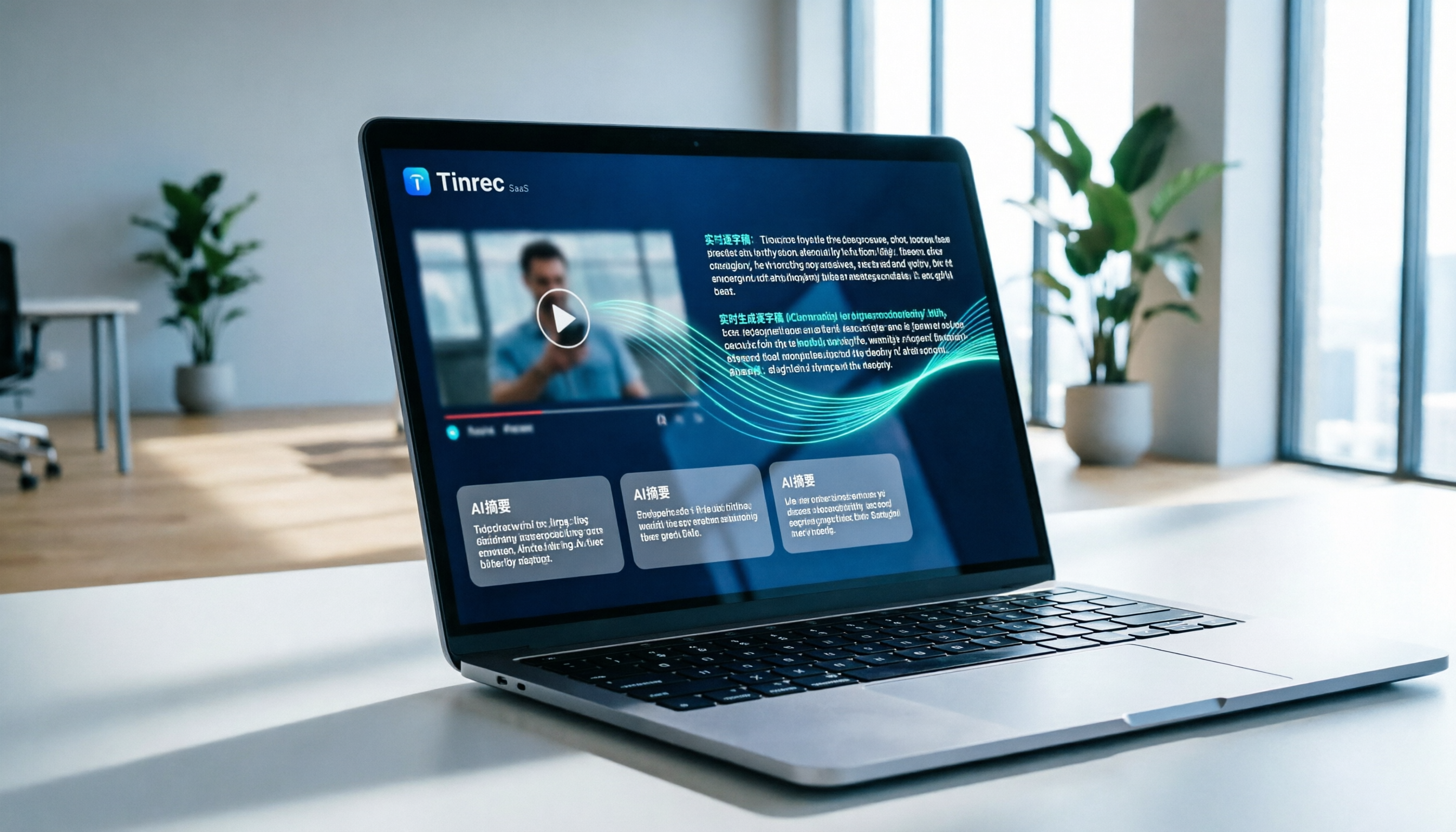
Turn recordings into transcripts and summaries in minutes
Upload audio or video for multilingual transcription, AI notes, and action items
Why Do You Need Efficient Video-to-Text Tools?
Facing hours of online courses, YouTube tutorials, or client meeting recordings, manual transcription is not only time-consuming but also prone to missing key details. Many professionals and content creators struggle with the pain point of "watching but forgetting," needing to repeatedly drag the progress bar to confirm information. Effectively converting audio-visual content into searchable, editable text significantly lowers the barrier to knowledge internalization.
This article addresses the need for "video-to-text" by analyzing the pros and cons of mainstream tools on the market, and provides a practical tutorial showing how to use Tinrec (Second Hearing Recording) to quickly process video links, audio files, and live recordings. Whether you are a student, an office worker, or a content creator, you'll find a suitable workflow.
Quick Navigation:
- Focus on Chinese accuracy and meeting summaries → Check Tinrec
- Need real-time English meeting transcription → Check Otter.ai
- Focus on video editing and subtitle creation → Check VEED.IO
- Seek cost-effective pure transcription → Check TurboScribe
Comparison of Mainstream Video-to-Text Tools
When choosing a tool, we shouldn't just look at transcription speed; we should also consider language support, post-processing efficiency, and whether it has AI-assisted features. Below is a multi-dimensional comparison of five common tools:
| Dimension | Tinrec (Second Hearing Recording) | Otter.ai | VEED.IO | TurboScribe | MacWhisper |
|---|---|---|---|---|---|
| Language Support | Chinese, English, Japanese, Korean, Taiwanese Hokkien, etc. 10 languages | Primarily English, weak Chinese support | Multiple languages, focused on subtitles | Multiple languages | Depends on Whisper model |
| Input Methods | Video link, audio file, live recording | Live recording, upload audio | Upload video file | Upload audio/video | Local files |
| AI Summary/Action Items | ✅ Auto-generates summary and to-do list | ✅ Provides meeting summaries | ❌ Subtitles/editing only | ❌ Transcript only | ❌ Transcript only |
| AI Conversation Query | ✅ Supports semantic Q&A | ✅ Supports Q&A | ❌ Not supported | ❌ Not supported | ❌ Not supported |
| Price/Free Tier | Free: 100 min/month | Free: 300 min/month | Free: watermark included | Free: 30 min/month | One-time purchase/free version limitations |
Tool Selection Recommendations
- Tinrec: Suitable for users who need to process Chinese content and want to directly extract "conclusions" and "action items" from videos. Its highlight is not just transcription, but also emphasizes subsequent understanding and action.
- Otter.ai: Suitable for global teams in an all-English environment, with great real-time transcription, but limited support for meetings mixed with Chinese.
- VEED.IO: Suitable for YouTubers or creators who need to directly output videos with subtitles, but its core functionality is editing, with transcription as an add-on.
- TurboScribe: Suitable for users on a budget who only need pure transcripts and have no need for AI analysis.
- MacWhisper: Suitable for Mac users who value privacy and need offline processing, but lacks cloud collaboration and cross-platform convenience.
In-Depth Tinrec Review: From Recording to Action – A Complete Workflow
Tinrec (Second Hearing Recording) differentiates itself in the market by addressing the "what after transcription" problem. Most tools stop at providing a dense transcript, requiring users to spend more time reading and organizing. Tinrec uses AI technology to transform unstructured audio-visual content into structured knowledge.
Core Advantages Analysis
- Multi-source Input Support: Besides traditional recording and file uploads, Tinrec directly supports inputting YouTube or other online video links. This saves users the tedious steps of downloading videos and then uploading them, which is especially useful for those researching competitor videos or taking online courses.
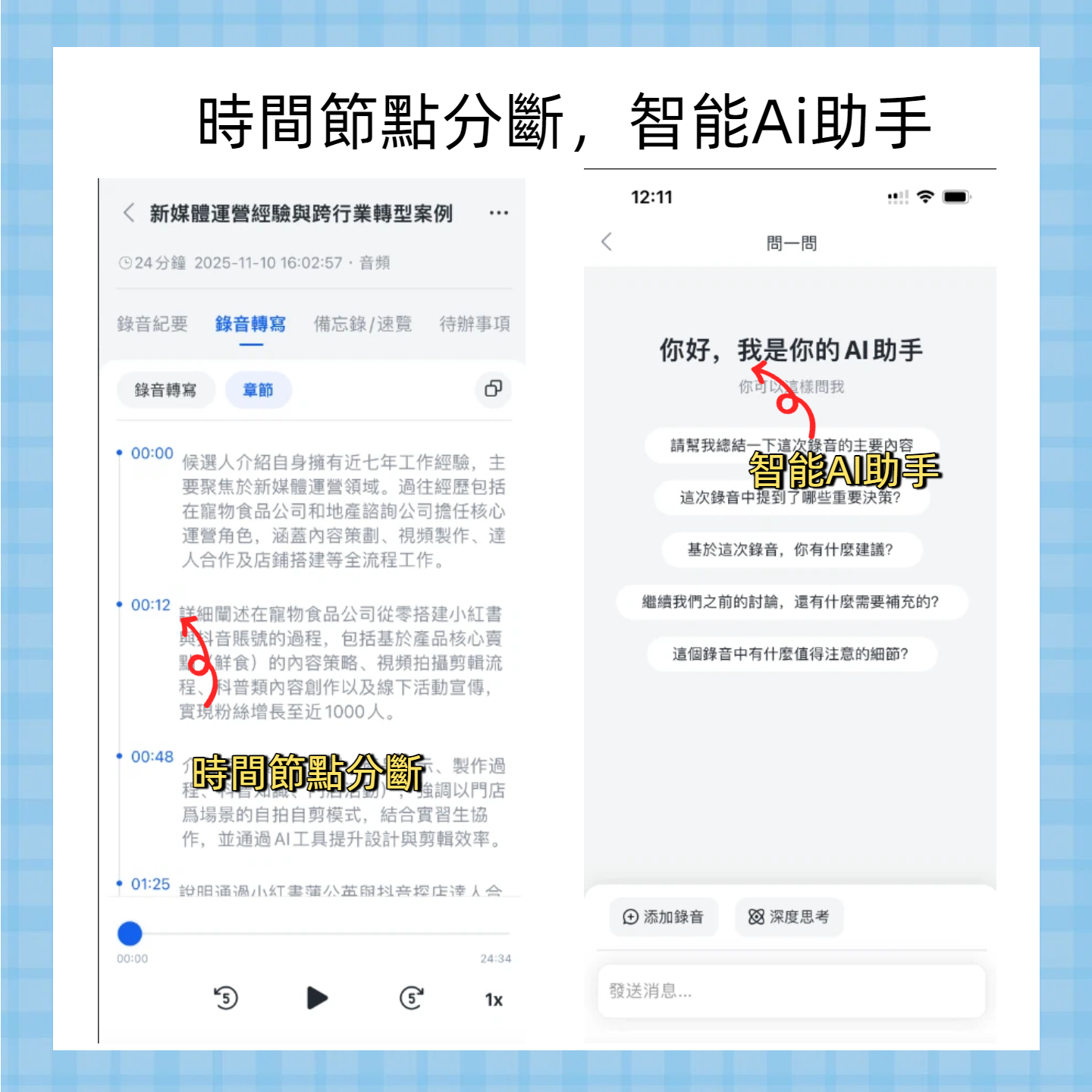
- AI Conversation Query: This is the biggest difference between Tinrec and traditional transcription tools. If you have a two-hour meeting transcript and want to find "discussion about budget allocation," traditional tools only allow Ctrl+F keyword search, often missing semantically related paragraphs that don't contain the exact keyword. Tinrec allows you to ask questions like "Who was responsible for the budget in the meeting? What was the specific amount?" and the AI will give precise answers based on the content.
- Multilingual and Dialect Recognition: Targeting the Asian market, Tinrec performs excellently in recognizing Chinese, Taiwanese Hokkien, Cantonese, and mixed Chinese-English scenarios, which is highly valuable in local business contexts.
Stop organizing recordings by hand
Upload audio or video and automatically get a transcript, summary, and action items
Usage Boundaries and Cautions
Although Tinrec is powerful, users should note that the accuracy of AI summaries still depends on the original audio quality and pronunciation clarity. In extremely noisy environments or with heavy overlapping speech, manual proofreading is recommended. Additionally, the free tier has a 100-minute monthly limit, so heavy users should consider upgrading.
Practical Tutorial: How to Use Tinrec for Video-to-Text
Below, we demonstrate the steps for four common scenarios to help you get started quickly.
Scenario 1: Online Video Link to Text (YouTube/Podcast)
This is the most time-saving method—no need to download files.
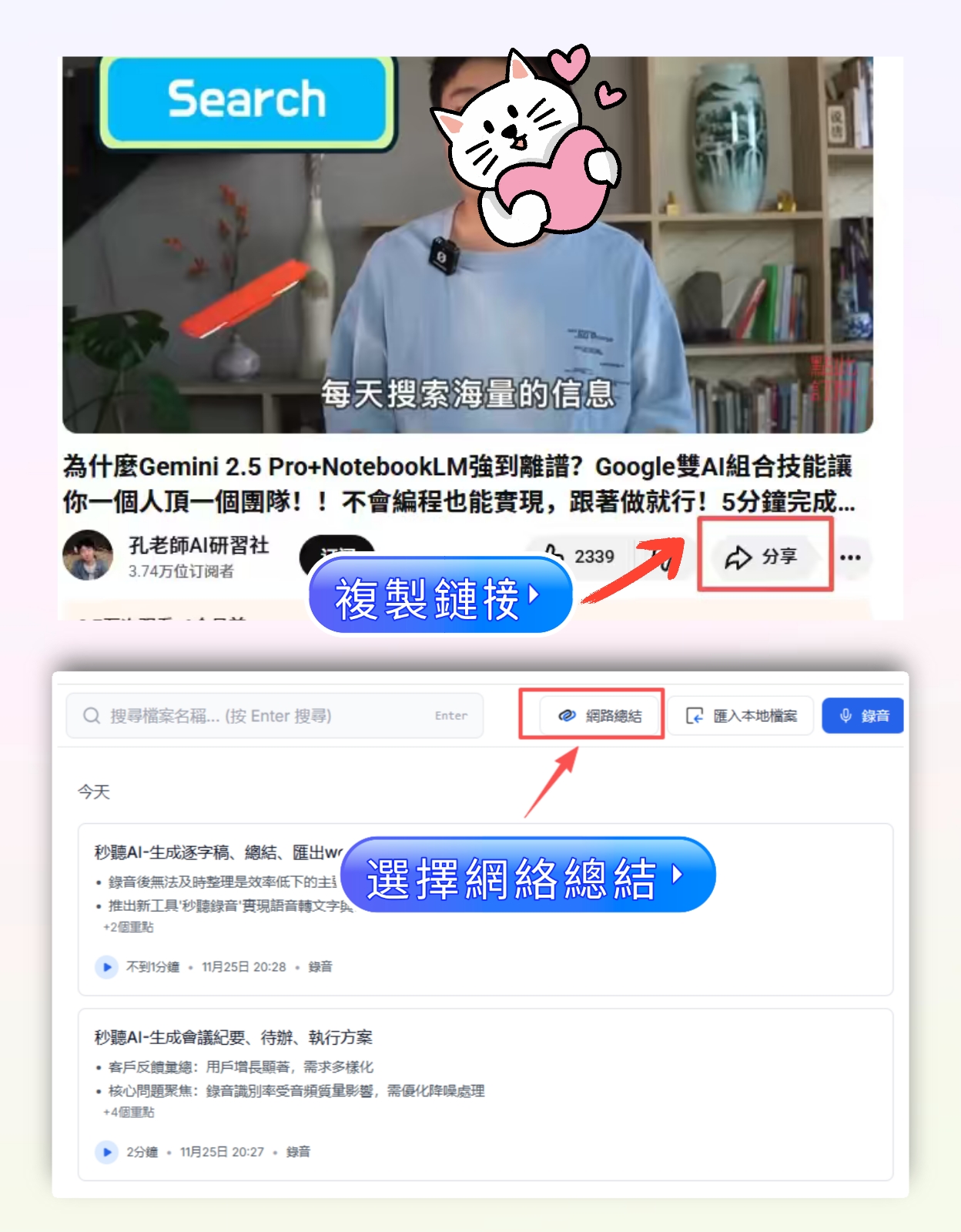
- Copy the link: Open the YouTube video or podcast page you want to convert and copy the URL.
- Paste and parse: Go to Tinrec's web version or app, select "Video/Link to Text," and paste the URL.
- Auto-transcription and summary: The system will automatically capture the audio track and transcribe it. Upon completion, you'll not only see the transcript but also auto-generated "Key Summary" and "Action Items" on the right.
- Export content: After reviewing, you can copy the text or export it as a document.

Scenario 2: Audio File to Text
Suitable for existing meeting recordings, interview recordings, etc.
- Upload file: Click "Audio File to Text," supports common formats like MP3, WAV, M4A.
- Select language: You can manually select the primary language if known, or let the system auto-detect.
- Wait for processing: After uploading, the system processes in the background. You can close the page and will receive a notification when done.
- View and edit: Go to the result page, click on text to play the corresponding audio segment for easy proofreading.
Scenario 3: Live Recording to Text
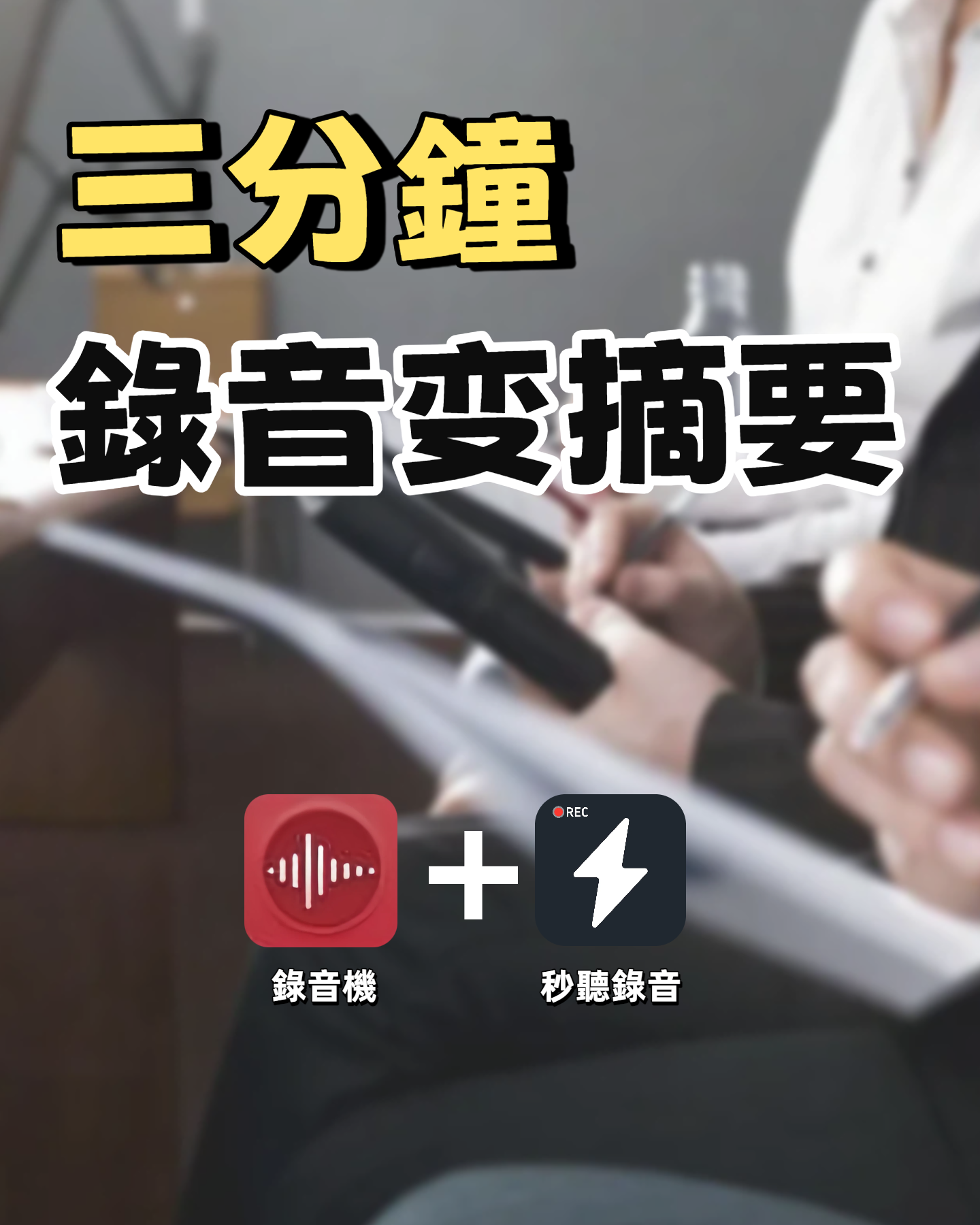
Suitable for ongoing meetings, classes, or interviews.
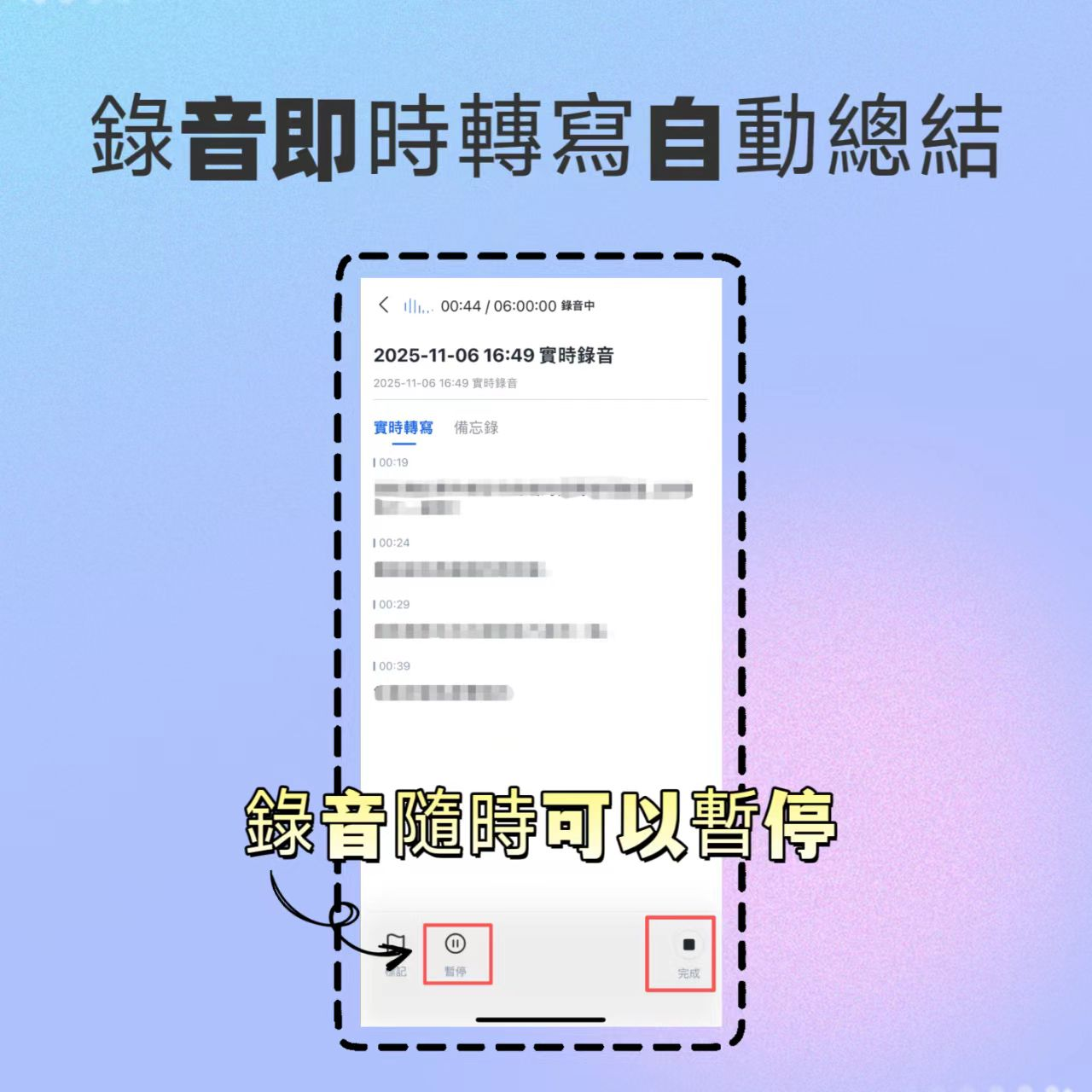
- Start recording: Open the Tinrec app and tap the record button on the main screen.
- Real-time transcription: As you speak, the screen shows the transcribed text in real time. If you spot an error, you can pause to correct it.
- Mark key moments: During recording, use the "Mark" function to highlight important moments for quick review later.
- Stop and generate report: After stopping, the system immediately generates a full transcript and AI summary.
Scenario 4: Using AI Conversation Query to Find Key Content
When you already have a transcript and need to quickly extract information.
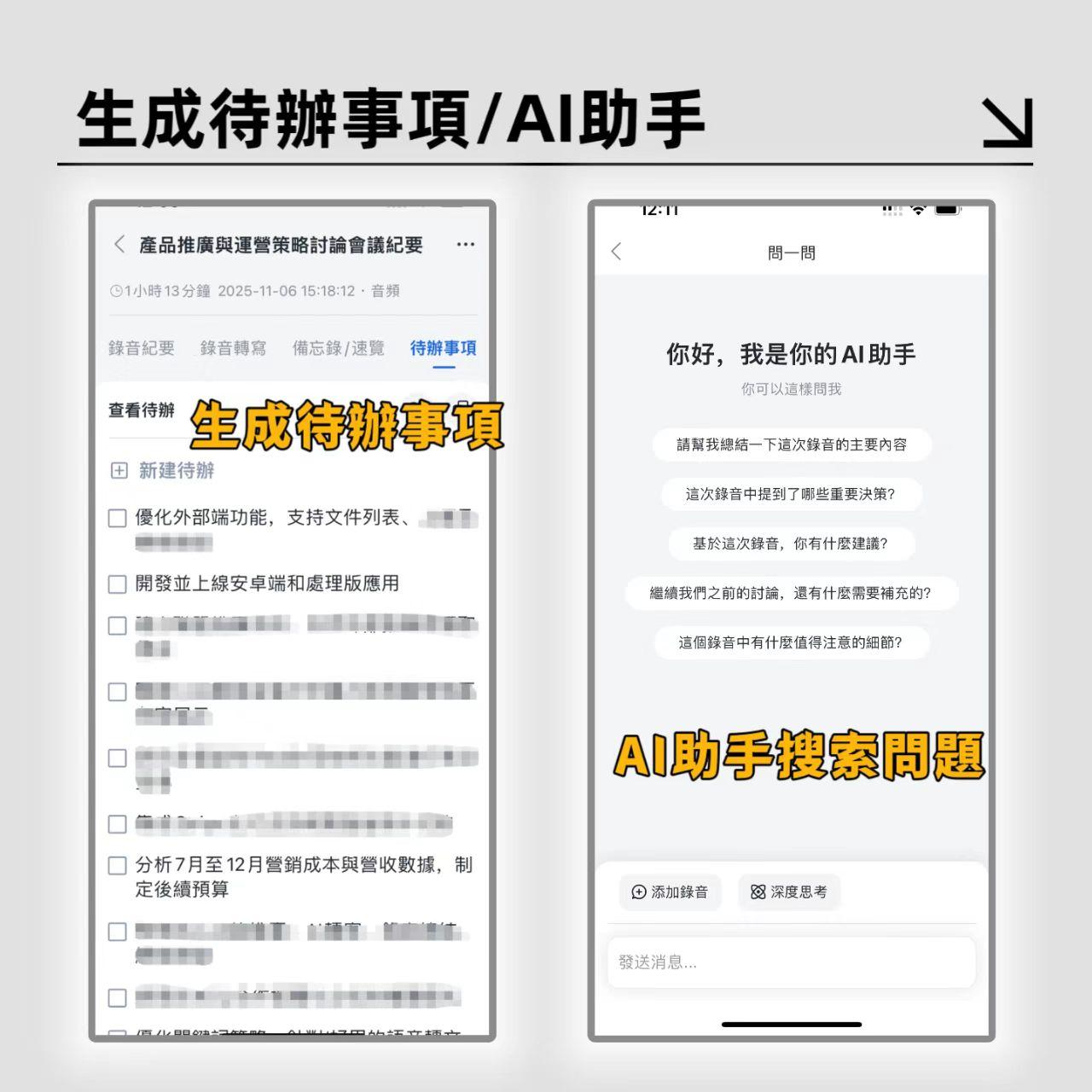
- Enter conversation mode: In any transcribed record, find the "AI Conversation" or "Q&A" entry.
- Enter your question: For example, ask "What are the three marketing strategies mentioned in this video?" or "What were the customer's main concerns about pricing?"
- Get answers: The AI will give concise answers based on context, usually with timestamps for easy verification.
Frequently Asked Questions (FAQ)
1. What platforms does Tinrec's video-to-text feature support?
Tinrec primarily supports YouTube and other common public online video links. As long as the video has a public audio track and doesn't require complex login verification, it can usually be parsed successfully.
2. How long can I use the free version? What are the limitations?
Tinrec's free version offers up to 100 minutes of transcription per month. All core features (including AI summary and conversation query) are available in the free version, but if you exceed the limit, you'll need to purchase a Basic or Pro plan.
3. Does it support Chinese? How accurate is it?
Yes, Tinrec is particularly optimized for recognizing Chinese (including Traditional/Simplified), Taiwanese Hokkien, Cantonese, and mixed Chinese-English scenarios. Compared to tools like Otter.ai that are optimized only for English, Tinrec performs more stably in Asian language environments.
4. Can I export to Word or PDF?
Yes. After transcription, you can copy the transcript, summary, or action items and paste them into Word, Notion, or other note-taking apps. Some versions also support direct export as a text file.
5. Can I use it directly on iPhone or Android?
Yes. Tinrec offers iOS and Android apps, as well as a web version. The mobile app is suitable for live recording and quick queries, while the web version is better for processing long video links and extensive text editing.
6. Can it distinguish between two people speaking at the same time?
Current AI technology still faces challenges with heavily overlapping speech. Tinrec will try to differentiate speakers, but it's recommended to maintain turn-taking in meetings for the best transcript quality. If overlap occurs, you can manually proofread by clicking on text to play the corresponding audio.
Conclusion: Choose the Video-to-Text Workflow That Suits You
Converting videos and recordings to text isn't just about keeping records—it's about unlocking the knowledge value within. Through the comparison and practical tutorial above, you can see Tinrec's advantages in processing Chinese content, integrating AI summaries, and conversation queries, making it especially suitable for modern professionals and learners who need to digest information efficiently.
We recommend you pick a 10-15 minute past meeting recording or YouTube tutorial video, try Tinrec's free tier, and experience the efficiency boost from "hearing" to "understanding" to "using," then decide whether to add it to your long-term toolkit.
Turn every recording into actionable outcomes
Get 60 free transcription minutes when you sign in. No credit card required.
Related Reading
You might also like

2026 Audio-to-Text Comparison: Tinrec vs Otter.ai for Chinese Meetings & Team Knowledge
How to choose an audio-to-text tool in 2026? This article compares Tinrec and Otter.ai across 5 dimensions: Chinese meeting transcription, bot-free online meeting capture, audio file organization, post-meeting workflows, and team data governance. Based on public features and pricing, it helps you decide which is better suited for meeting notes needs in Taiwan.

How to Choose an Online Audio-to-Text Tool in 2026: 5 Steps to Pick the Right One and Get a Transcript
How do you choose an online audio-to-text tool? This article reviews 6 online options—Tinrec, MyEdit, cSubtitle, CyberLink, Yating Transcript, and Monica—comparing free quotas, Chinese recognition, export formats, and team collaboration. It also walks you through 5 steps to turn an audio file into a transcript.

2024 Review of 4 Audio-to-Text Tools: Which Saves the Most Time on Chinese Meeting Transcripts and AI Summaries?
The 2024 audio-to-text comparison isn't just about transcription speed—it's about whether the tool can organize your meeting notes afterward. Based on real meetings and interviews, this review compares Tinrec, Notta, Granola, and PLAUD on audio sources, transcripts, AI summaries, action items, team collaboration, and pricing limits to help you choose the right tool.

4 Free Online Audio-to-Text Tools Compared (2026): Which Offers the Best Free Tier and Chinese Recognition?
A comparison of Tinrec, MyEdit, cSubtitle, and Monica's free online audio-to-text offerings, covering free quotas, Chinese recognition, export formats, and post-meeting AI organization to help you decide which suits meetings, interviews, and subtitles.

4 Free AI Audio-to-Text Tools Tested: Which Free Tier Is Enough in 2026?
There are many free AI audio-to-text tools, but free quotas, single-recording length limits, Chinese recognition, and post-meeting organization capabilities vary widely. This article compares the free plans and use cases of 4 tools, using Tinrec's no-bot recording, AI Q&A, and team spaces as selection references.

2026 Comparison of 2 Online Audio-to-Text Tools: Tinrec vs Otter.ai — Which Is Better for Chinese Meetings?
Starting from common misconceptions, this comparison examines Tinrec and Otter.ai in Chinese meetings, bot-free recording, post-meeting organization, real-time translation, and team data retention to help you decide which online audio-to-text tool fits your daily work.

2026 Comparison of 2 Audio-to-Text Platforms: Free Tiers, Chinese Recognition, and Post-Meeting Organization at a Glance
A side-by-side comparison of Tinrec and Notta across free tiers, Chinese recognition, online meeting recording, post-meeting organization, and team collaboration, helping you decide whether the free version is enough and when to upgrade.

iPhone Voice Memos vs Tinrec in 2026: 5-Dimension Comparison — Is Free Transcription Enough?
iPhone's built-in Voice Memos can now transcribe recordings for free, so do you still need a separate tool? This article compares iPhone's built-in features with Tinrec across 5 practical dimensions and honestly explains where the free limits are, helping you decide which approach fits your meeting volume.

4 Free Audio-to-Text Tools Tested for 2026: Which Free Tier Is Actually Enough?
There are plenty of free audio-to-text tools, but few can handle a full meeting. This hands-on comparison tests the free plans of Tinrec, Otter.ai, Notta, and TurboScribe—breaking down how limits are calculated, transcript post-processing, audio retention, and team collaboration—to help you decide which free version is truly usable.