

Turn recordings into transcripts and summaries in minutes
Upload audio or video for multilingual transcription, AI notes, and action items
How to Buy Google Meet Premium in 2026? A 4-Step Evaluation and Alternatives Guide
You don't actually want to buy Google Meet Premium—you want to solve this problem
Recently, I've received many emails from readers asking, "How do I buy Google Meet Premium?"
When I dig deeper, the stories are all very similar.
Some say their company meetings use Google Meet, but after each meeting, they have to manually organize the notes, which is time-consuming.
Others say that after recording client interviews, they have to listen multiple times to extract key points, and they want a tool that automatically transcribes.
Still others say there are many online course videos, and they want to directly extract text for notes, but copy-pasting is too slow.
These pain points all point to the same thing: you need a way to quickly convert audio content into usable data.
Google Meet Premium is a paid plan from Google that offers advanced meeting features like longer recording times and attendance reports. But did you know? It may not solve the problems you just described.
Instead of obsessing over which plan to buy, first clarify: what problem are you really trying to solve?
Before choosing a recording tool, understand these 3 key points
Many people get stuck here: should they buy premium features of meeting software, or look for a dedicated tool?
This isn't an A-or-B dichotomy. First, understand three things.
Key Point 1: Do you need "recording" or "organized results"?
Google Meet Premium's built-in recording feature can save your meeting process.
But after recording, you still have to listen again, transcribe, and extract key points yourself.
If what you need is "organized results"—a summary, a to-do list, a searchable transcript—then simple recording isn't enough.
That's why I started recommending tools with AI organization capabilities.
Key Point 2: Are your recording scenarios only video meetings?
Many people tell me, "I mainly use Google Meet."
But a few more questions reveal there are also:
- In-person client interviews recorded on phone.
- Attending in-person classes, recording lectures.
- Want to organize YouTube tutorial videos into text notes.
- Have a pile of old recordings with no idea how to process them.
The best tool should support multiple scenarios, not just be tied to one meeting platform.
This way, you learn one workflow to handle all audio/video data.
Key Point 3: Is the free plan enough? How much paid feature do you need to avoid wasting money?
Google Meet Premium is a paid plan, but its features focus mainly on the meeting experience itself.
If you need transcription, AI summaries, to-do extraction, it doesn't have those built-in.
In that case, spending your budget on a dedicated AI recording tool can solve more problems.
Plus, many tools have free tiers, so you don't need to pay upfront.
Tinrec (Miao Ting Lu Yin) — My Top Pick After Testing
(Screenshot: Tinrec main interface, synced between phone and computer, arrow pointing to "Start Recording" button)
Tinrec is an AI recording and audio/video organization tool; it's not just a voice recorder.
Here's my personal workflow:
During meetings, I open Tinrec, and it generates a transcript in real time. As soon as the meeting ends, the AI has already created a summary and to-do list—who is responsible for what, deadlines—all clear at a glance.
(Screenshot: Meeting notes with key points recorded anytime, arrow pointing to AI summary block)
If the meeting is mixed Chinese and English, or purely Cantonese, it handles it. I tested a 5-minute Cantonese news recording (iPhone 15, indoor environment with some AC noise) and Tinrec's transcript quality was the best among tools in its price range, with significantly lower error rates than competitors.
But what impressed me most is its AI Q&A feature.
After recording, you can directly ask Tinrec: "Who mentioned the budget in the last meeting?" It's not just keyword search; it uses semantic understanding to give you the answer.
Stop organizing recordings by hand
Upload audio or video and automatically get a transcript, summary, and action items
(Screenshot: AI dialog query, entering "What is the conclusion of the meeting?", arrow pointing to AI response)
This is no longer traditional transcription; it turns a recording into a database you can repeatedly query.
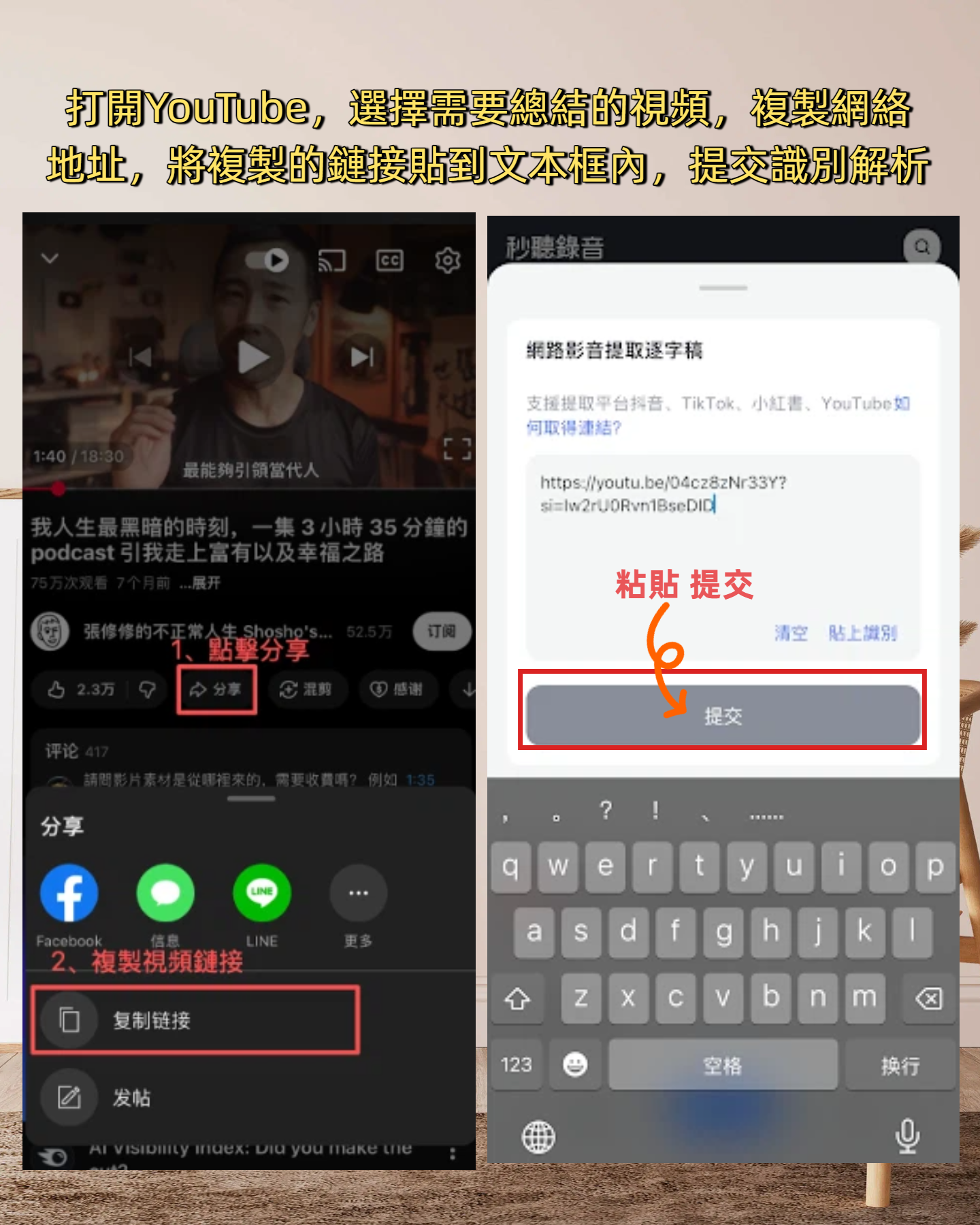
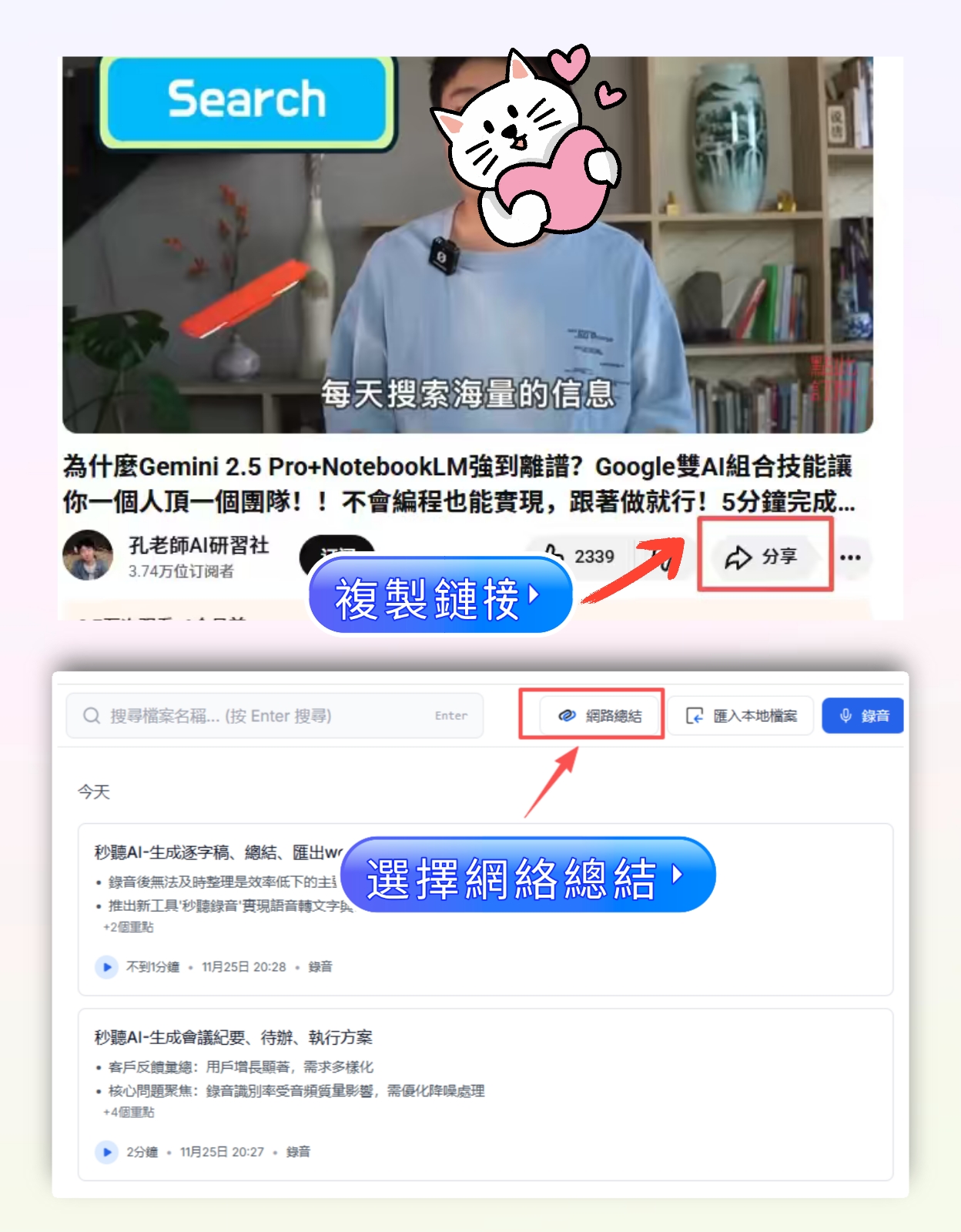
Another common scenario for me is converting online videos to text.
If you find a useful YouTube tutorial, just copy the link and paste it into Tinrec; it will generate a transcript, summary, and even organize it into chapter highlights.
(Screenshot: Online video link analysis, after pasting a YouTube link, a summary is produced, arrow pointing to chapter segmentation)
For knowledge workers who need to absorb large amounts of information, the efficiency boost is very noticeable.
Advantages:
- Multi-platform: Works on iOS, Android, and web. Recorded data syncs, so you can record on phone and organize on computer.
- Not just meetings: Class notes, interview organization, video material extraction—all in one tool.
- Strong AI post-processing: Summaries, chapters, to-dos, Q&A, and even generating meeting reports or tables.
Limitations:
- The free version has a monthly base minute limit; heavy users need to pay. But for average office workers or students, the quota for a few meetings per week is sufficient.
- It doesn't automatically join Google Meet like a meeting bot; you still need to manually start recording. But you can also record system audio on your computer and use the web version to capture meeting content.
Who it's for: If you often need to extract key points from meetings, classes, or videos, and want to get organized results immediately rather than a raw recording, then Tinrec is currently the best choice.
Besides Tinrec, what other options are there?
Just use Google Meet's built-in recording?
If you only use Google Meet and have few meetings, the built-in recording might be enough. But it only gives you a video file; transcription and organization are up to you. If you need automated organization, it won't help.
Other AI meeting bots (Otter.ai, Fireflies.ai)
These tools are designed specifically for online meetings and are powerful, with features like automatic joining and speaker identification. But their strength is in English meetings; their Chinese content organization is not as good as Tinrec. Moreover, if you have needs for class recordings, interview recordings, or online video organization, these tools are less flexible.
Avoiding Pitfalls: 3 Common Mistakes When Buying Meeting Note Solutions
Mistake 1: Looking only at feature lists without considering your actual use case.
Many people spend money upgrading meeting software only to realize they still need to handle class recordings, client interviews, and YouTube videos. Then they have to find another tool, making the workflow messier.
I suggest you first take stock: in the past month, how many situations required audio recording? Was it only meetings, or more diverse?
Mistake 2: Thinking buying a tool equals solving the problem.
The tool is just the starting point. The key is how you build a "Record → Organize → Act" workflow.
Here's what I do: Open Tinrec before a meeting, mark key points as I record; after the meeting, immediately use AI Q&A to confirm action items, then export to a note-taking app for archiving. The whole process takes less than 5 minutes.
Mistake 3: Ignoring the importance of cross-platform support and data accumulation.
If you record on your phone today and want to organize on your computer tomorrow, but the tool doesn't sync seamlessly, your notes will be scattered. Moreover, whether accumulated recordings can be searched and reused is an often-overlooked value.
Tinrec's data syncs to the cloud, turning all your past meetings, classes, and interview recordings into a searchable knowledge base.
Conclusion: Which one should you choose?
Back to the original question: How to buy Google Meet Premium?
I'd say what you really need may not be that plan, but a workflow that handles recording to organization in one go.
Scenario-based recommendations:
- Only need to record Google Meet meetings, nothing else → Use built-in recording (but organize yourself)
- Besides meetings, also need to organize classes, interviews, videos → Tinrec (most comprehensive AI organization)
- High team collaboration needs, frequent English use, only online meetings → Otter.ai or Fireflies.ai
- Want a portable recording hardware → PLAUD NOTE (but requires extra device cost)
If you think you fit the second scenario, I recommend downloading the free version of Tinrec to try. There's a monthly free quota; you'll feel the difference after two or three meetings.
(Screenshot: Tinrec free version start recording screen, arrow pointing to record button)
If you like it, consider upgrading; if not, you lose nothing.
This way, you won't be stuck in the whirlpool of "which plan to buy."
Quick Start Guide: 4 Steps to Organize Meetings with Tinrec
- Start Recording: Before the meeting, open the Tinrec app or web version and press the record button.
- Mark Key Points: When you hear important points, tap "Mark" for easy review later.
- AI Auto-Organization: After the meeting, AI generates a summary, chapters, and action items.
- Ask and Export: Use AI Q&A to confirm details, then export the results to your notes or document tool.
Test step by step, and you'll gradually master this method.
Turn every recording into actionable outcomes
Get 60 free transcription minutes when you sign in. No credit card required.
Related Reading
You might also like

4 Free Voice Transcription Tools Compared: Which Offers the Most Free Minutes in 2026?
Want to transcribe meeting recordings for free but keep getting cut off after a few minutes? This article compares Tinrec, cSubtitle, inFin, and Atter on free quotas, Chinese recognition, online meeting recording, and post-meeting organization to help you find a truly usable voice transcription tool.

Best Meeting Transcription Tools 2026: No-Bot Recording + AI Summary Tested
How to choose a meeting transcription tool? This guide starts from real meeting pain points, outlines 4 key buying factors, tests Tinrec's no-bot recording, AI summaries, action items, and AI Q&A, and compares Granola and TurboScribe use cases to help you find a free-enough or worth-paying solution.

5 Limited Company Meeting Minutes Templates Tested for 2026: Which Format Actually Tracks Decisions and Action Items?
How to choose a limited company meeting minutes template? First distinguish between the 'statutory document you need to submit' and the 'internal record you use to track progress,' then compare 5 approaches: Word, Excel, Notion, and AI meeting tools. The article includes a copy-paste field checklist, filled-in examples, 4 common mistakes, and the most time-saving workflow after testing.

2026 Free Online Transcription Tools Compared: Which Free Tier Is Actually Enough?
There are many free online transcription tools, but free tiers differ greatly—whether they limit time or features. Based on real-world scenarios, this article compares the free rules, ability to handle online meetings directly, post-meeting organization capabilities, and data retention limits of Tinrec, cSubtitle, MyEdit, and Transcribe, helping you decide which one is truly sufficient.

5 HOA Meeting Minutes Templates Tested: Which One Is Least Likely to Miss Fields? (2026)
We compare 5 publicly available meeting minutes templates for HOA board and owners' association meetings, covering legal requirements, resolution tracking, attachment indexing, signatures, and posting/archiving. We also explain how to capture transcripts, summaries, and action items after filling out a template.

5 Board Meeting Minutes Templates Compared for 2026: From Word Tables to AI-Generated Minutes
Board meeting minutes templates are easy to find; what's missing is a process that produces traceable records right after the meeting. This comparison covers five approaches: Word templates, Tinrec, Notta, Otter.ai, and Granola—from field structure and selection criteria to pitfalls to avoid—so you can choose the right fit for your team.

HOA Meeting Minutes Template 2026: 5 Essential Fields + AI-Generated Summaries
Struggling with HOA meeting minutes? Can't find attachments? No one follows up on decisions? This guide breaks down the 5 essential fields of a compliant template and shows how Tinrec turns meeting recordings into transcripts, summaries, action items, and official records ready for posting—all within half an hour after the meeting.

How to Take Online Meeting Notes in 2026: 5 Steps from Recording to AI Summary
After an online meeting, do you still have to write the transcript, summary, and action items yourself? This article breaks down the complete workflow from recording and transcription to AI summaries and team knowledge retention in 5 steps, and compares Tinrec, Granola, Otter.ai, and PLAUD to help you choose the right meeting notes tool within your budget.

2026 Comparison of 4 Meeting Transcription AIs: Free Tiers and Post-Meeting Organization—Which Is More Sufficient?
How to choose a meeting transcription AI? Based on real meeting scenarios, this article outlines 5 key purchasing criteria and compares Tinrec, Notta, Otter.ai, and Granola in terms of bot-free recording, Chinese recognition, post-meeting summaries, and team collaboration. It also lists free tiers and paid pricing honestly to help you decide which tool truly saves time on meeting notes.