

Turn recordings into transcripts and summaries in minutes
Upload audio or video for multilingual transcription, AI notes, and action items
What Can Google Meet Participant Management and Meeting Minutes Do for You?
Scenario 1: Quickly confirm all attendees during a meeting In the past, when you had a Google Meet with more participants than fit on one screen, you had to manually scroll the "People" panel and sometimes miss those who were offline. Now, if you record the meeting with Tinrec, the speaker identification in the transcript lets you see everyone who spoke that day, even those without cameras on.
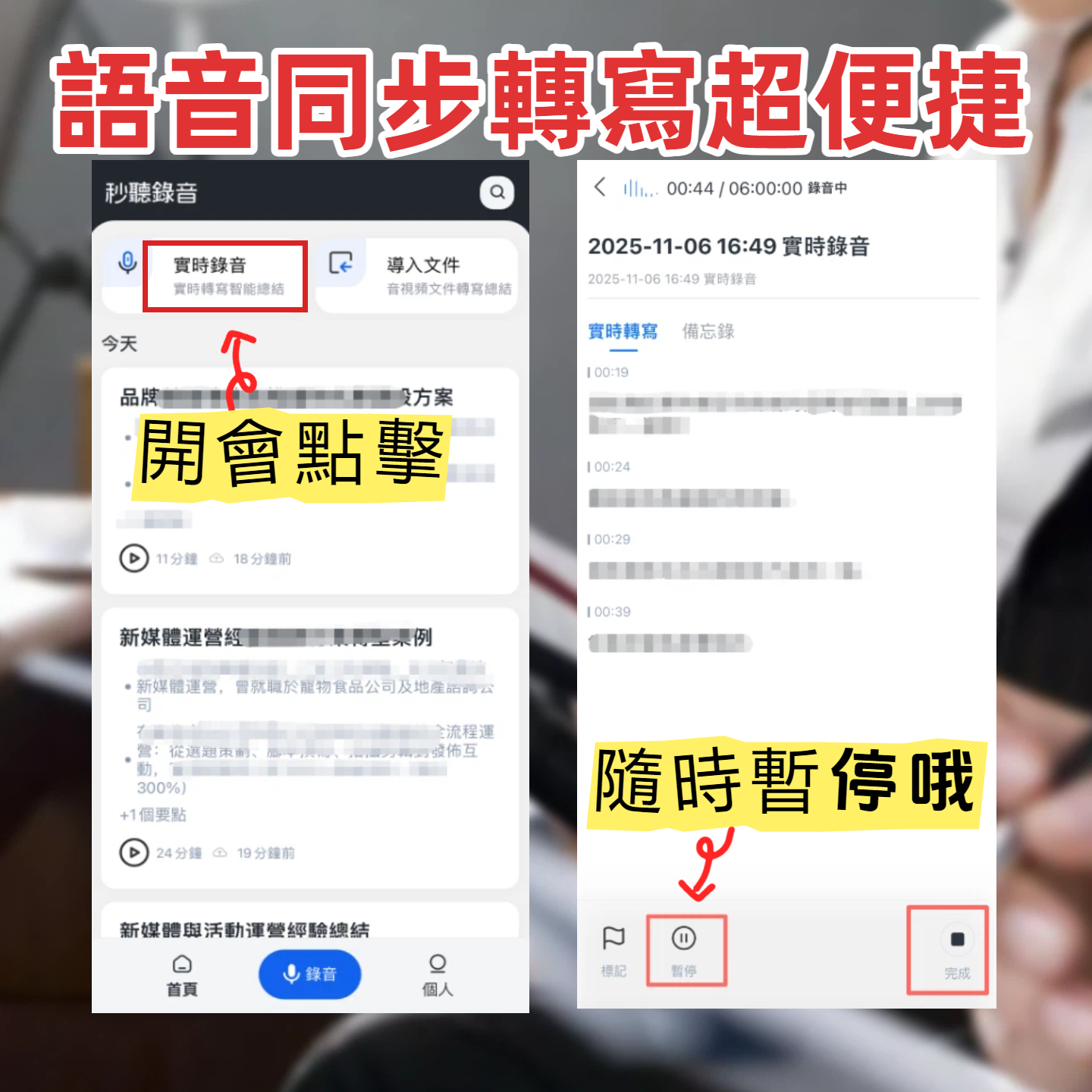
Scenario 2: Automatically generate a complete participant list after the meeting For example, if you have five cross-department meetings per week with different attendees each time. After recording with Tinrec, its AI distinguishes speakers by voiceprint and tags them. You don't need to manually note who attended; when organizing notes, you can match specific people. You can even ask Tinrec directly: "Who spoke in this meeting?"
Scenario 3: Meeting minutes and action items in one go Besides seeing participants, you need to know the meeting conclusions. Tinrec not only records audio but also automatically generates summaries, action items, and key points. It solves both "who came" and "what was discussed" without you having to watch the screen and take notes simultaneously.
What Are the Core Capabilities of Google Meet Participant Management and Meeting Minutes?
Real-time recording and speaker separation Tinrec supports computer meeting recording. Start recording while in Google Meet, and it automatically distinguishes different speakers when generating the transcript. Unlike built-in captions that only show real-time text without identifying who spoke, Tinrec's transcript clearly labels Speaker 1, Speaker 2, allowing you to reconstruct the full participant context.
AI-generated participant summaries After recording, Tinrec's AI chat feature lets you ask questions like "Who spoke today?" or "Who mentioned the budget?" It answers based on semantic understanding, no need to manually re-listen to the recording. This saves a lot of verification time for those writing meeting minutes or reporting upwards.
Automatic meeting minutes organization after the meeting Tinrec is more than just a recorder. It automatically generates structured minutes based on the entire meeting: meeting topic, discussion conclusions, action items, and responsible persons, all listed separately. These can be exported to Google Docs or Notion, allowing your team to grasp the full picture even if they missed the meeting.
Cross-platform and multilingual support Tinrec has iOS, Android, and web versions, so you can record with one click regardless of which device you use for Google Meet. It also supports transcription in 14 languages, so if your meeting includes foreign language speech, it can still process it accurately.
Stop organizing recordings by hand
Upload audio or video and automatically get a transcript, summary, and action items
Practical Application Scenarios
Scenario: Weekly cross-department progress meeting Every Wednesday, you host a 15-person progress meeting on Google Meet. In the past, you had to manually screenshot the participant window and jot down key points. Now, simply open the Tinrec web version at the start of the meeting and begin recording. The audio is transcribed in real time, and AI automatically tags speakers. After the meeting, open Tinrec, click "AI Chat," type "List all speakers today," and get a complete list in seconds. Then click "Summary" to get key points, decisions, and action items already organized. You can export the results to Google Docs and share with colleagues who couldn't attend.
Scenario: Training or online courses If you attend an external instructor's online course, record with Tinrec while on Google Meet. After the course, you'll have a full transcript with speaker tags for the instructor and other students who asked questions, making it easy to search "Who asked what" for more efficient review.
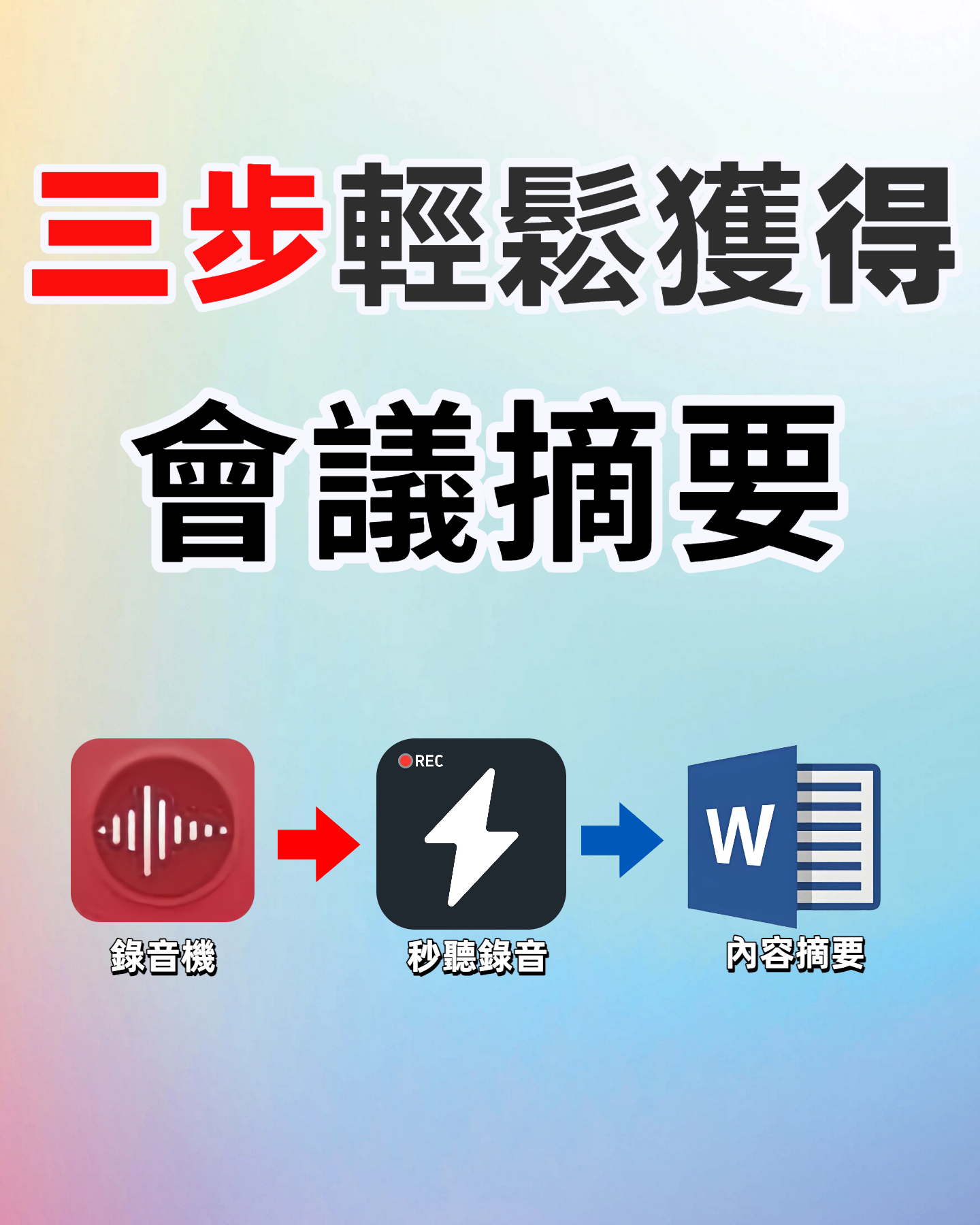
Scenario: Client communication and interviews The same applies to Google Meet meetings with clients. Tinrec can automatically extract action items, such as "Provide a quote by next Monday," and tag which speaker proposed it. You'll never forget commitments and won't need to re-listen to recordings for details.
3 Things to Consider When Choosing a Meeting Minutes Tool
- Speaker identification: Don't just look for recording support. Tinrec's speaker separation clearly labels different speakers in the transcript, allowing you to reconstruct the participant list from text rather than a jumbled block.
- AI organization features: Transcription is just the first step. Tinrec automatically generates summaries, action items, chapters, and lets you query audio content like asking a person (e.g., "Who mentioned annual goals?"), saving more time than simple transcripts.
- Platform compatibility: Ensure the tool supports your devices. Tinrec has iOS, Android, and web versions so you can start recording with one click whether using a computer or phone for Google Meet.
Frequently Asked Questions
Q: Can I really know all participants by recording a Google Meet meeting with Tinrec? A: Yes. Tinrec's transcript automatically identifies different speakers. Although it doesn't show faces like video, you can clearly see who spoke today from the text record. For non-speakers, we recommend combining with Google Meet's built-in participant list for a manual roll call.
Q: My Google Meet has many people. Can Tinrec handle it? A: Tinrec's recording and transcription are not limited by participant count. As long as audio is clear, it can distinguish multiple speakers taking turns. However, if many people talk simultaneously, accuracy may decrease slightly, but it's still far more precise than fully manual records.
Q: Is the free version of Tinrec enough? A: The free version provides a basic monthly transcription allowance, enough to try a few 1-hour meetings. If you're a frequent meeting user, Pro monthly or yearly plans offer more minutes and are more cost-effective in the long run.
Q: Can I share the recorded content with colleagues? A: Yes. Tinrec supports exporting as text, Word, PDF, or sharing via a link. Team members don't need to install Tinrec to view the meeting minutes.
Summary
To view all participants in Google Meet, instead of struggling with small windows or installing extensions, consider a different approach: let Tinrec record your meeting, automatically organize who spoke and what they said, turning it into truly usable data. Whether you're a meeting host, student, or someone who frequently interviews clients, you'll save hours of organizing time. Try the free version on the Tinrec website now, and you'll see the difference after just one meeting.
Turn every recording into actionable outcomes
Get 60 free transcription minutes when you sign in. No credit card required.
Related Reading
You might also like

4 Free Voice Transcription Tools Compared: Which Offers the Most Free Minutes in 2026?
Want to transcribe meeting recordings for free but keep getting cut off after a few minutes? This article compares Tinrec, cSubtitle, inFin, and Atter on free quotas, Chinese recognition, online meeting recording, and post-meeting organization to help you find a truly usable voice transcription tool.

Best Meeting Transcription Tools 2026: No-Bot Recording + AI Summary Tested
How to choose a meeting transcription tool? This guide starts from real meeting pain points, outlines 4 key buying factors, tests Tinrec's no-bot recording, AI summaries, action items, and AI Q&A, and compares Granola and TurboScribe use cases to help you find a free-enough or worth-paying solution.

5 Limited Company Meeting Minutes Templates Tested for 2026: Which Format Actually Tracks Decisions and Action Items?
How to choose a limited company meeting minutes template? First distinguish between the 'statutory document you need to submit' and the 'internal record you use to track progress,' then compare 5 approaches: Word, Excel, Notion, and AI meeting tools. The article includes a copy-paste field checklist, filled-in examples, 4 common mistakes, and the most time-saving workflow after testing.

2026 Free Online Transcription Tools Compared: Which Free Tier Is Actually Enough?
There are many free online transcription tools, but free tiers differ greatly—whether they limit time or features. Based on real-world scenarios, this article compares the free rules, ability to handle online meetings directly, post-meeting organization capabilities, and data retention limits of Tinrec, cSubtitle, MyEdit, and Transcribe, helping you decide which one is truly sufficient.
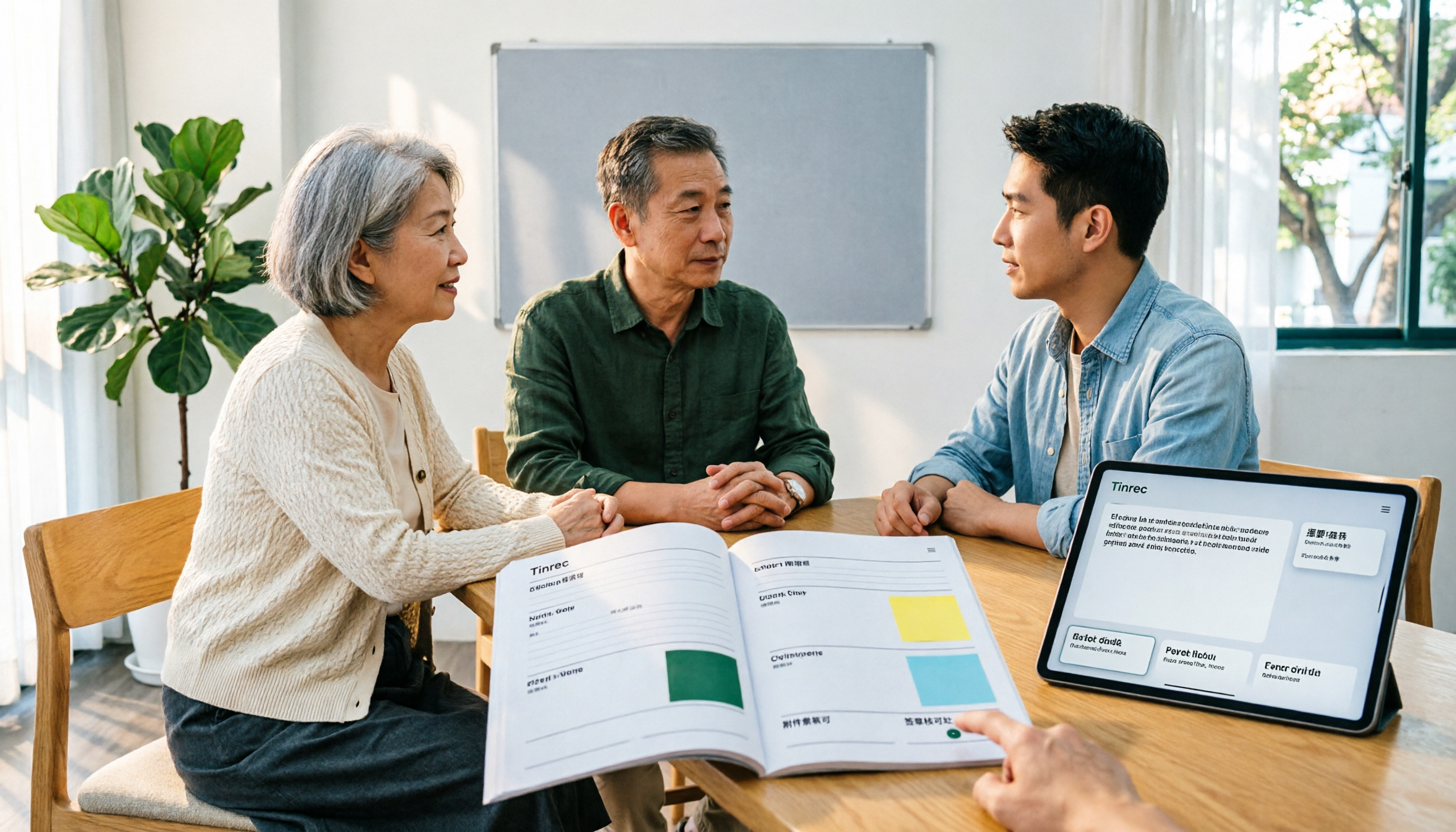
5 HOA Meeting Minutes Templates Tested: Which One Is Least Likely to Miss Fields? (2026)
We compare 5 publicly available meeting minutes templates for HOA board and owners' association meetings, covering legal requirements, resolution tracking, attachment indexing, signatures, and posting/archiving. We also explain how to capture transcripts, summaries, and action items after filling out a template.

5 Board Meeting Minutes Templates Compared for 2026: From Word Tables to AI-Generated Minutes
Board meeting minutes templates are easy to find; what's missing is a process that produces traceable records right after the meeting. This comparison covers five approaches: Word templates, Tinrec, Notta, Otter.ai, and Granola—from field structure and selection criteria to pitfalls to avoid—so you can choose the right fit for your team.
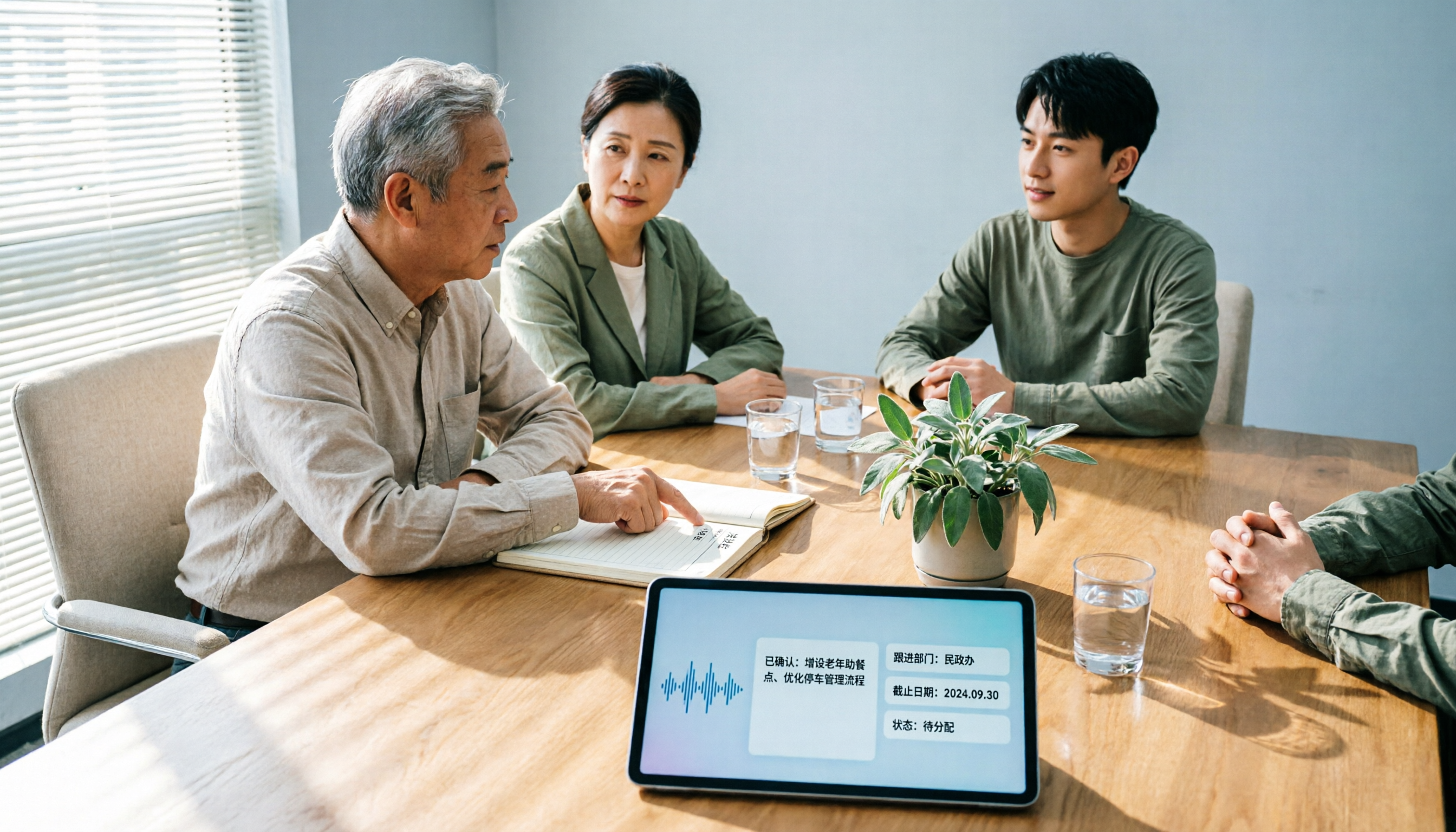
HOA Meeting Minutes Template 2026: 5 Essential Fields + AI-Generated Summaries
Struggling with HOA meeting minutes? Can't find attachments? No one follows up on decisions? This guide breaks down the 5 essential fields of a compliant template and shows how Tinrec turns meeting recordings into transcripts, summaries, action items, and official records ready for posting—all within half an hour after the meeting.

How to Take Online Meeting Notes in 2026: 5 Steps from Recording to AI Summary
After an online meeting, do you still have to write the transcript, summary, and action items yourself? This article breaks down the complete workflow from recording and transcription to AI summaries and team knowledge retention in 5 steps, and compares Tinrec, Granola, Otter.ai, and PLAUD to help you choose the right meeting notes tool within your budget.

2026 Comparison of 4 Meeting Transcription AIs: Free Tiers and Post-Meeting Organization—Which Is More Sufficient?
How to choose a meeting transcription AI? Based on real meeting scenarios, this article outlines 5 key purchasing criteria and compares Tinrec, Notta, Otter.ai, and Granola in terms of bot-free recording, Chinese recognition, post-meeting summaries, and team collaboration. It also lists free tiers and paid pricing honestly to help you decide which tool truly saves time on meeting notes.