

Turn recordings into transcripts and summaries in minutes
Upload audio or video for multilingual transcription, AI notes, and action items
2026 Head-to-Head: Google Meet Built-in Transcription vs Tinrec – Which Is Right for You?
Daily meetings running into after-work hours, and still have to do overtime to create meeting minutes? Have you ever experienced the pain of listening back to a Google Meet recording to type out a transcript? This article uses Tinrec as an example to walk you through converting Google Meet recordings into text and summaries, and also compares it with Google Meet's built-in transcription to see which one suits Hong Kong office workers better.
Before You Start: What You Need
• A computer or mobile phone that can run Google Meet and the Tinrec app (Tinrec supports iOS, Android, and web version).
• Download the Tinrec app (free from App Store or Google Play, register with Google or Apple ID).
• A Google Meet account to start or join meetings, with recording enabled (recording is available on some Google Workspace plans).
• A stable internet connection, as real-time transcription requires connectivity; for offline use, download language packs in advance.
Step 1: Record Your Meeting in Google Meet
The goal of this step is to obtain a clear recording file – it is the foundation for all subsequent steps.
In the Google Meet meeting, click the "Activities" icon in the bottom right, then select "Record" to start recording the entire meeting. During recording, make sure everyone speaks loud enough and is not too far from the microphone – Google Meet automatically captures all participants' voices. For important meetings, it is recommended to test the recording effect beforehand to avoid discovering poor audio halfway through.
Why care so much about recording quality? Because the accuracy of AI transcription largely depends on audio quality – even the most advanced transcription engines cannot handle blurry recordings. Rather than spending time editing later, it is better to spend an extra 30 seconds confirming the environment during recording.
Once finished, Google Meet automatically saves the recording file to your Google Drive, where you can download the MP4 file (which includes audio and video).
(Image placeholder: Person using a computer for a Google Meet meeting, screen showing recording in progress, with a phone next to them opening Tinrec for later processing)
Step 2: Use Tinrec to Transcribe the Recording (Compared with Google Meet's Built-in Transcription)
The goal is to convert the recording into text so you can quickly browse the content.
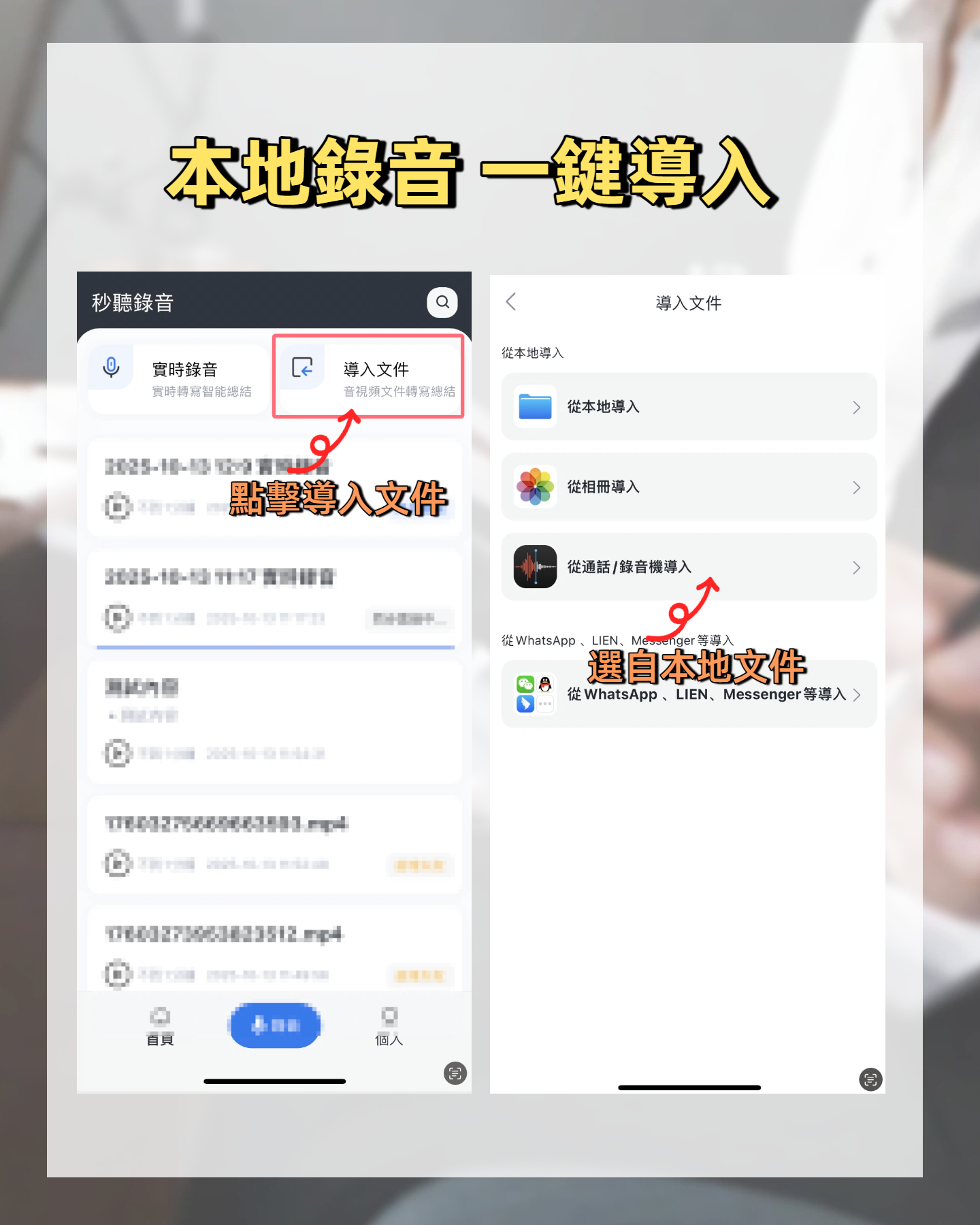
Open the Tinrec app or web version, click "Import Audio/Video File", and select the MP4 recording file you downloaded from Google Drive. Tinrec will automatically start transcribing and generate a transcript within minutes.
At this point, you might ask: Google Meet itself has live captions and transcription, so why use Tinrec? The key is in "post-processing." Google Meet's built-in transcription only shows captions during the meeting or saves a plain text record – no summaries, no highlights, no action items, and no ability to search past meetings. In contrast, Tinrec not only transcribes but also automatically extracts summaries, chapters, action items, and even lets you ask AI questions about the content. If you only need a basic text record, Google Meet's built-in transcription may suffice; but if you want to turn meeting content into truly useful work materials, Tinrec is clearly more complete.
Once done, you will see the full transcript in the Tinrec interface, with timestamps on the side for quick navigation.
Step 3: Quickly Proofread the Transcript
This step helps improve text accuracy, especially when dealing with proper nouns or accents.
Stop organizing recordings by hand
Upload audio or video and automatically get a transcript, summary, and action items
Tinrec's AI conversation feature can help with quick proofreading – you can directly ask, "Where was Q3 performance mentioned?" or "Which project is this segment about?" and the AI will immediately find the relevant sections. If you find errors, you can manually edit them; but honestly, with normal meeting recording quality, the accuracy is already quite good, reducing proofreading time by 90% compared to listening to the entire recording.
Why proofread? Because although AI transcription is smart, it still lacks human contextual understanding – especially when Cantonese is mixed with English or industry jargon, a manual check ensures reliability.
(Image placeholder: Using Tinrec's AI conversation feature to query meeting content and quickly locate key parts)
Step 4: Let AI Generate Meeting Minutes for You
The goal is to refine the transcript into structured meeting notes for easy sharing and follow-up.
In Tinrec, click "AI Summary" and it will automatically generate a concise meeting overview. You can also select "Action Items," and the AI will extract who needs to do what and by when – a feature completely absent in Google Meet's built-in transcription. Additionally, if you need a formal meeting minutes format, you can use Tinrec's Agent post-processing feature to generate a complete document with title, participants, discussion points, and resolutions.
Once done, you can view the meeting minutes and action items directly in the Tinrec interface at a glance.
Step 5: Export and Share
The final step is to share the organized meeting materials with colleagues or save them for archiving.
Tinrec supports multiple export formats, including PDF, Word, TXT, and even direct sync to Notion, Google Docs, or Dropbox. Simply click "Export," choose the format and destination, and it is done in seconds. Google Meet's built-in transcription records exist only as plain text in Google Drive, requiring copy-paste for further processing, which is time-consuming.
(Image placeholder: Tinrec export interface showing multiple formats at a glance)
FAQ and Troubleshooting
Q: Is Google Meet's built-in transcription sufficient?
If you only need a basic text record, the built-in transcription can handle it. But if you want automatic summaries, action items, or even later search through meeting content, Tinrec is more complete. Especially for Cantonese meetings, Tinrec's handling of Chinese and mixed Chinese-English is clearly superior.
Q: The transcript has many errors, what should I do?
Usually, the recording environment is too noisy or speech is unclear. Tinrec has built-in smart noise reduction, which can be enabled before recording to significantly improve accuracy. For already recorded files, after importing, you can manually select the "High noise environment" mode. Google Meet's built-in transcription has no such option and uses default processing for everything.
Q: Is the free version enough?
Tinrec's free version offers a basic monthly transcription quota, suitable for occasional meetings. If you have meetings daily, it is recommended to use the Pro monthly or yearly card, with lower monthly cost. Google Meet's built-in transcription is included in the Google Workspace subscription, suitable for teams already using Workspace.
Advanced Tips: 3 Ways to Double Your Efficiency with Tinrec
- AI Conversation for Historical Search: Tinrec's AI conversation is not limited to a single recording; it can also search across meetings – for example, ask "What was the budget adjustment discussed in Q4 last year?" and it will scan all relevant recordings to give you the answer. This is hard for other tools to achieve.
- Works with Online Videos Too: Although this article focuses on Google Meet, Tinrec also supports converting links from YouTube, Bilibili, or even TikTok videos into text and summaries, ideal for those who need to organize online resources.
- Cross-Platform Sync: Record on your phone, edit on your computer, and view notes on your tablet – all data syncs automatically, eliminating manual transfers.
Alternatives to Tinrec
• Google Meet Built-in Transcription: Completely free (requires Workspace subscription), sufficient for basic use but lacks post-processing features, suitable for those who only need a text record.
• Otter.ai: Strong in English meetings and team collaboration, but Chinese support and Cantonese accuracy are clearly inferior to Tinrec, and the monthly fee is higher.
In summary, if you primarily handle Chinese meetings and need comprehensive meeting organization features, Tinrec remains the most cost-effective choice.
Conclusion
By following these 5 steps, you can now easily convert Google Meet recordings into transcripts, automatically generate meeting minutes and action items, and even use AI conversation to review key points. Next step: Download the free version of Tinrec, try it with one of your own Google Meet recordings – the monthly 100-minute free quota is enough for two to three meetings. No more overtime listening to recordings and typing; leave work on time!
Turn every recording into actionable outcomes
Get 60 free transcription minutes when you sign in. No credit card required.
Related Reading
You might also like

4 Free Voice Transcription Tools Compared: Which Offers the Most Free Minutes in 2026?
Want to transcribe meeting recordings for free but keep getting cut off after a few minutes? This article compares Tinrec, cSubtitle, inFin, and Atter on free quotas, Chinese recognition, online meeting recording, and post-meeting organization to help you find a truly usable voice transcription tool.

Best Meeting Transcription Tools 2026: No-Bot Recording + AI Summary Tested
How to choose a meeting transcription tool? This guide starts from real meeting pain points, outlines 4 key buying factors, tests Tinrec's no-bot recording, AI summaries, action items, and AI Q&A, and compares Granola and TurboScribe use cases to help you find a free-enough or worth-paying solution.

5 Limited Company Meeting Minutes Templates Tested for 2026: Which Format Actually Tracks Decisions and Action Items?
How to choose a limited company meeting minutes template? First distinguish between the 'statutory document you need to submit' and the 'internal record you use to track progress,' then compare 5 approaches: Word, Excel, Notion, and AI meeting tools. The article includes a copy-paste field checklist, filled-in examples, 4 common mistakes, and the most time-saving workflow after testing.

2026 Free Online Transcription Tools Compared: Which Free Tier Is Actually Enough?
There are many free online transcription tools, but free tiers differ greatly—whether they limit time or features. Based on real-world scenarios, this article compares the free rules, ability to handle online meetings directly, post-meeting organization capabilities, and data retention limits of Tinrec, cSubtitle, MyEdit, and Transcribe, helping you decide which one is truly sufficient.

5 HOA Meeting Minutes Templates Tested: Which One Is Least Likely to Miss Fields? (2026)
We compare 5 publicly available meeting minutes templates for HOA board and owners' association meetings, covering legal requirements, resolution tracking, attachment indexing, signatures, and posting/archiving. We also explain how to capture transcripts, summaries, and action items after filling out a template.

5 Board Meeting Minutes Templates Compared for 2026: From Word Tables to AI-Generated Minutes
Board meeting minutes templates are easy to find; what's missing is a process that produces traceable records right after the meeting. This comparison covers five approaches: Word templates, Tinrec, Notta, Otter.ai, and Granola—from field structure and selection criteria to pitfalls to avoid—so you can choose the right fit for your team.

HOA Meeting Minutes Template 2026: 5 Essential Fields + AI-Generated Summaries
Struggling with HOA meeting minutes? Can't find attachments? No one follows up on decisions? This guide breaks down the 5 essential fields of a compliant template and shows how Tinrec turns meeting recordings into transcripts, summaries, action items, and official records ready for posting—all within half an hour after the meeting.

How to Take Online Meeting Notes in 2026: 5 Steps from Recording to AI Summary
After an online meeting, do you still have to write the transcript, summary, and action items yourself? This article breaks down the complete workflow from recording and transcription to AI summaries and team knowledge retention in 5 steps, and compares Tinrec, Granola, Otter.ai, and PLAUD to help you choose the right meeting notes tool within your budget.

2026 Comparison of 4 Meeting Transcription AIs: Free Tiers and Post-Meeting Organization—Which Is More Sufficient?
How to choose a meeting transcription AI? Based on real meeting scenarios, this article outlines 5 key purchasing criteria and compares Tinrec, Notta, Otter.ai, and Granola in terms of bot-free recording, Chinese recognition, post-meeting summaries, and team collaboration. It also lists free tiers and paid pricing honestly to help you decide which tool truly saves time on meeting notes.