

Turn recordings into transcripts and summaries in minutes
Upload audio or video for multilingual transcription, AI notes, and action items
This guide uses Tinrec (Quick Voice Recorder) as an example to walk you through recording, transcribing, organizing, and exporting Google Meet meetings step by step. Whether you are an office worker, student, or freelancer, you can use this process to turn meeting content into searchable, reviewable resources.
Before You Start | What You Need
- A computer (Windows or Mac; Tinrec offers a web version and desktop app)
- Download or open Tinrec (register on the official website to start for free; supports Google or Apple ID login)
- Prepare the Google Meet meeting link you will join
- Stable internet connection (real-time transcription requires internet; for longer meetings, a wired connection is recommended)
Step 1 | Record the Google Meet Meeting
The goal of this step is to obtain a complete recording of the meeting—this is the foundation for all subsequent organizing work.
After joining the Google Meet meeting, open Tinrec on your computer and select "Record Computer Audio" mode. Then let Tinrec run in the background; it will automatically capture the entire conversation. For clear audio, use a headset microphone to avoid echo interference with transcription quality.
Why record first? Real-time transcription is convenient, but keeping the original audio lets you double-check later or refer back to details. Tinrec saves both the audio file and the real-time transcription text, so you won't miss anything.
After recording, you will see the meeting recording on Tinrec's main screen, with duration and file size displayed.
(Illustration: a person sitting at a computer in a Google Meet meeting, with Tinrec recording in the background and real-time transcription text appearing on the screen)
Step 2 | Let AI Transcribe It Into a Transcript
If you enabled real-time transcription in Step 1, a preliminary transcript will be available when recording ends. But if you only recorded audio, or want to reprocess, you can transcribe later.
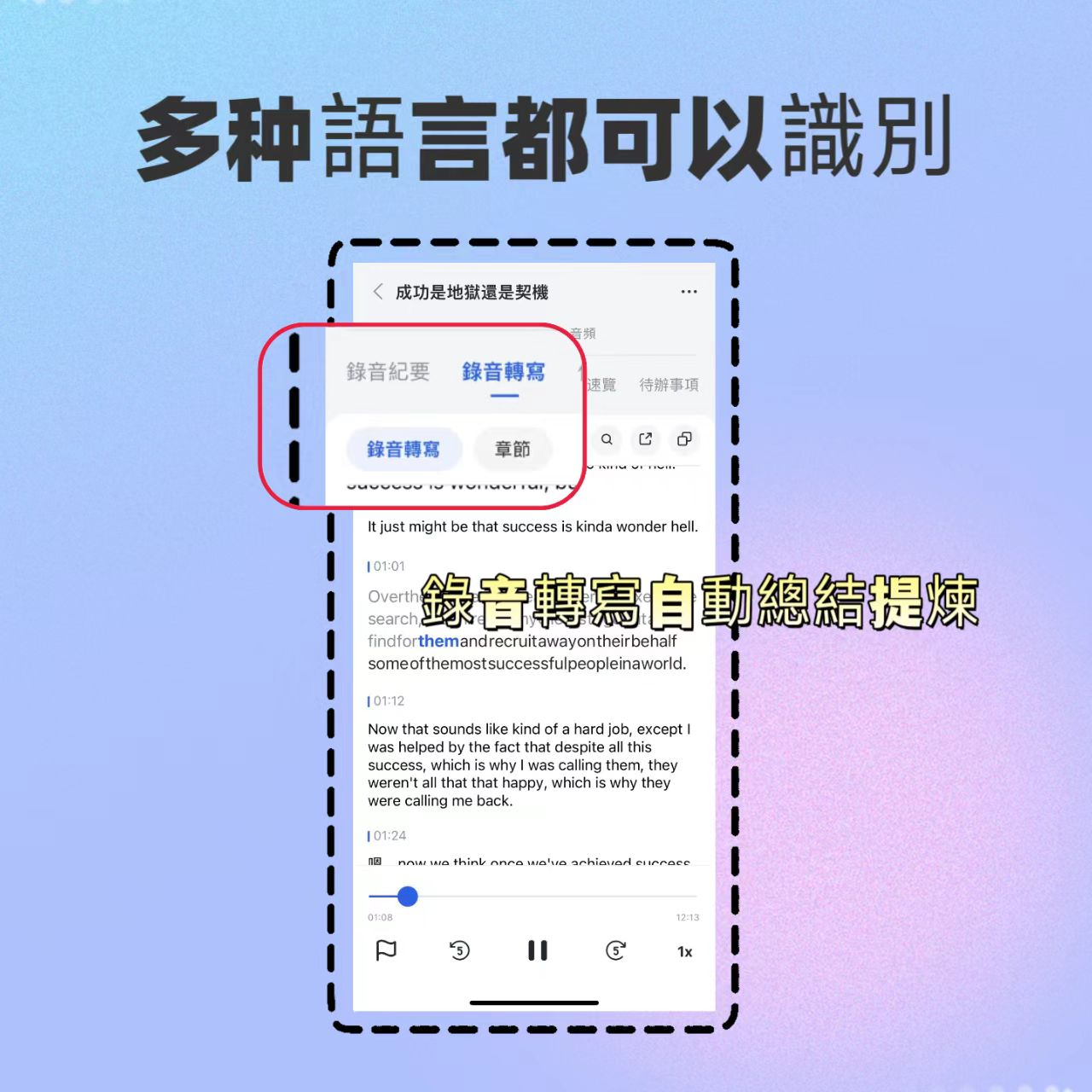
In Tinrec's recording list, find the meeting recording and click "Transcribe." The system will automatically detect the language (supports Chinese, English, mixed Chinese-English, etc.) and generate a transcript. Transcription time depends on recording length; a few minutes of meeting usually completes in tens of seconds.
Why recommend Tinrec for transcription? Besides basic transcription, it automatically labels different speakers (speaker diarization), making the transcript look more like a conversation record rather than a block of text. This helps greatly with subsequent organizing.
When done, you get a clean transcript with paragraphs separated by speaker.
(Illustration: transcript screen with original audio waveform on the left and speaker-separated text paragraphs on the right)
Step 3 | Quickly Proofread the Transcript
Although the transcribed text is highly accurate, minor errors may occur due to accents, proper nouns, or background noise. Spending a few minutes to scan it ensures more accurate summaries and minutes later.
You can listen to the audio while reading the text and correct errors directly in the editor. Tinrec's player has a "click text to jump to that timestamp" feature, making it very convenient to cross-reference.
Another tip: if the meeting mentions names, product names, or technical terms, standardize the spelling manually in this step. The AI-generated minutes will then use your version.
After proofreading, you will have a clean transcript.
Stop organizing recordings by hand
Upload audio or video and automatically get a transcript, summary, and action items
Step 4 | Let AI Generate Meeting Minutes
This is one of Tinrec's most valuable features: it doesn't just give you text; it helps you understand the content.
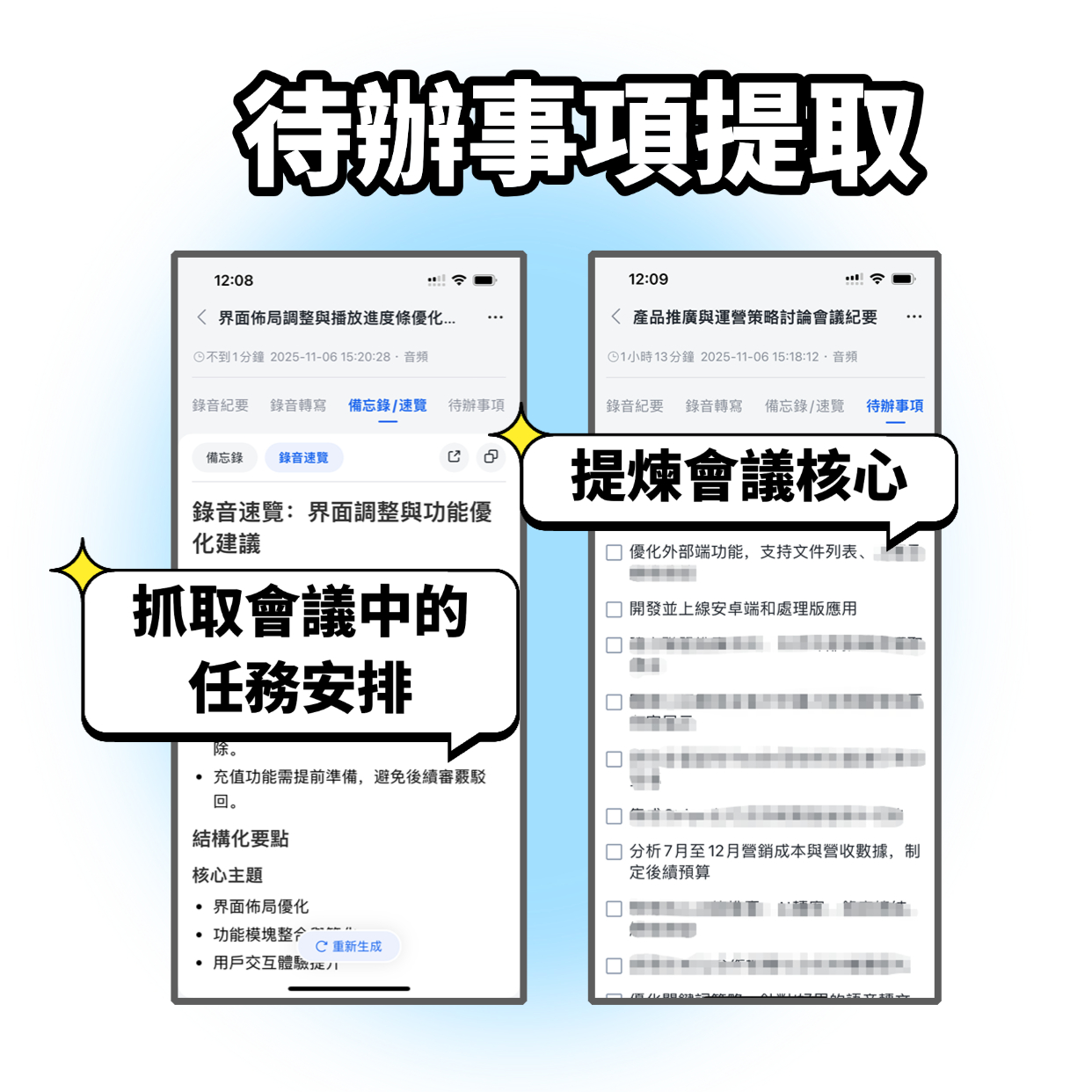
On the proofread transcript page, click "AI Summary" or "Generate Meeting Minutes." Tinrec automatically analyzes the entire meeting, extracting discussion points, decisions, and action items. You can choose the output format, such as a pure summary, bullet-point key points, or a meeting record with a to-do list.
The generated meeting minutes include timestamp information, making it easy to review which event was discussed at which time. For more details, you can use the AI Q&A feature to ask questions directly, such as "What was discussed about the budget?" or "Who is responsible for the marketing campaign?" Tinrec will find the relevant paragraphs from the transcript to answer.
(Illustration: meeting minutes screen with summary section at the top and automatically extracted to-do list below)
Step 5 | Export and Share
The organized data shouldn't stay only in Tinrec. You can export the transcript, meeting minutes, or to-do list in various formats, including plain text, PDF, Word, or send directly to cloud tools like Notion, Google Docs, and OneNote.
If you need to share with colleagues who didn't attend the meeting, export as PDF or Word and email it; if your team uses a shared Notion database, one-click sync is even more convenient.
When exporting, you can choose which content to include: transcript only, minutes only, or a complete package.
FAQs and Troubleshooting
Q: What if the transcribed text has a high error rate? Usually due to a noisy recording environment, multiple people talking simultaneously, or poor microphone quality. Tinrec has built-in smart noise reduction; enable it in settings before recording to improve quality. If you're using an already recorded audio file, you can manually select "High Noise Environment" mode after importing to improve recognition. Most other transcription tools don't have this option; they use default settings for all audio.
Q: Does the Google Meet recording include other people's voices? If you use "Record Computer Audio" mode, Tinrec captures all audio from your computer's speakers, meaning all participants' speech. However, make sure to obtain consent before recording and comply with relevant regulations.
Q: Is the free version sufficient? Tinrec's free version provides a monthly transcription quota suitable for light users who have occasional meetings. If you have multiple meetings per week, consider the Pro plan (monthly or yearly), which offers a higher quota and supports longer single recordings. For short-term intensive use, you can also purchase a weekly card.
Q: Can meeting minutes be automatically sent to attendees? Currently, Tinrec does not have a built-in automatic sending feature, but you can export and manually email them, or sync to a cloud drive and share a link.
Advanced Tips | 3 Ways to Double Tinrec's Efficiency
1. Use "AI Q&A" to direct grab key points without reading the entire transcript After a meeting, you can ask Tinrec directly like ChatGPT: "What was the conclusion of this meeting?" or "Who said the report is due next week?" It will immediately find relevant paragraphs from the transcript. This deep interaction is something most meeting bots or transcription tools can't do.
2. Cross-platform sync: record on computer, view on phone Tinrec supports iOS, Android, and web versions with cloud sync for all data. You can record a Google Meet meeting on your computer and view the transcript or minutes on your phone during your commute, without transferring files.
3. Turn historical meetings into a searchable database All meeting recordings and transcripts are saved in your account. Even six months later, you can use keywords to search previous discussions or use AI Q&A to trace the context of a decision. This is especially useful for long-term project management.
If You Don't Use Tinrec, Here Are Alternatives
- Otter.ai: Strong for English meetings and team collaboration, but its Chinese transcription experience is less localized than Tinrec.
- Notta: Offers complete transcription and translation features, but lacks online video parsing and deep AI Q&A post-processing.
Overall, if you need a tool designed for Chinese meetings and can turn meeting content into actionable materials, Tinrec offers higher integration.
Summary
With these 5 steps, you can now use Tinrec to record every Google Meet meeting, transcribe it, proofread, generate meeting minutes, and even extract key points with AI dialogue. Next step: download the free version of Tinrec, try it out in your next meeting. The monthly free quota is enough for two or three meetings, letting you experience the convenience of automatic organization.
Turn every recording into actionable outcomes
Get 60 free transcription minutes when you sign in. No credit card required.
Related Reading
You might also like

2026 Audio-to-Text Comparison: Tinrec vs Otter.ai for Chinese Meetings & Team Knowledge
How to choose an audio-to-text tool in 2026? This article compares Tinrec and Otter.ai across 5 dimensions: Chinese meeting transcription, bot-free online meeting capture, audio file organization, post-meeting workflows, and team data governance. Based on public features and pricing, it helps you decide which is better suited for meeting notes needs in Taiwan.

How to Choose an Online Audio-to-Text Tool in 2026: 5 Steps to Pick the Right One and Get a Transcript
How do you choose an online audio-to-text tool? This article reviews 6 online options—Tinrec, MyEdit, cSubtitle, CyberLink, Yating Transcript, and Monica—comparing free quotas, Chinese recognition, export formats, and team collaboration. It also walks you through 5 steps to turn an audio file into a transcript.
2024 Review of 4 Audio-to-Text Tools: Which Saves the Most Time on Chinese Meeting Transcripts and AI Summaries?
The 2024 audio-to-text comparison isn't just about transcription speed—it's about whether the tool can organize your meeting notes afterward. Based on real meetings and interviews, this review compares Tinrec, Notta, Granola, and PLAUD on audio sources, transcripts, AI summaries, action items, team collaboration, and pricing limits to help you choose the right tool.

4 Free Online Audio-to-Text Tools Compared (2026): Which Offers the Best Free Tier and Chinese Recognition?
A comparison of Tinrec, MyEdit, cSubtitle, and Monica's free online audio-to-text offerings, covering free quotas, Chinese recognition, export formats, and post-meeting AI organization to help you decide which suits meetings, interviews, and subtitles.

4 Free AI Audio-to-Text Tools Tested: Which Free Tier Is Enough in 2026?
There are many free AI audio-to-text tools, but free quotas, single-recording length limits, Chinese recognition, and post-meeting organization capabilities vary widely. This article compares the free plans and use cases of 4 tools, using Tinrec's no-bot recording, AI Q&A, and team spaces as selection references.

2026 Comparison of 2 Online Audio-to-Text Tools: Tinrec vs Otter.ai — Which Is Better for Chinese Meetings?
Starting from common misconceptions, this comparison examines Tinrec and Otter.ai in Chinese meetings, bot-free recording, post-meeting organization, real-time translation, and team data retention to help you decide which online audio-to-text tool fits your daily work.

2026 Comparison of 2 Audio-to-Text Platforms: Free Tiers, Chinese Recognition, and Post-Meeting Organization at a Glance
A side-by-side comparison of Tinrec and Notta across free tiers, Chinese recognition, online meeting recording, post-meeting organization, and team collaboration, helping you decide whether the free version is enough and when to upgrade.

iPhone Voice Memos vs Tinrec in 2026: 5-Dimension Comparison — Is Free Transcription Enough?
iPhone's built-in Voice Memos can now transcribe recordings for free, so do you still need a separate tool? This article compares iPhone's built-in features with Tinrec across 5 practical dimensions and honestly explains where the free limits are, helping you decide which approach fits your meeting volume.

4 Free Audio-to-Text Tools Tested for 2026: Which Free Tier Is Actually Enough?
There are plenty of free audio-to-text tools, but few can handle a full meeting. This hands-on comparison tests the free plans of Tinrec, Otter.ai, Notta, and TurboScribe—breaking down how limits are calculated, transcript post-processing, audio retention, and team collaboration—to help you decide which free version is truly usable.