

Turn recordings into transcripts and summaries in minutes
Upload audio or video for multilingual transcription, AI notes, and action items
Last semester I took a super tough class. The professor talked faster than a machine gun. I scribbled notes until my wrist hurt, but when I flipped through them before the final, I couldn't understand a word I'd written. Then I started using a lecture recording transcription tool and finally escaped note-taking hell. This article uses Tinrec, which I used all semester, as an example to walk you through lecture transcription step by step.
Before You Start | What You Need
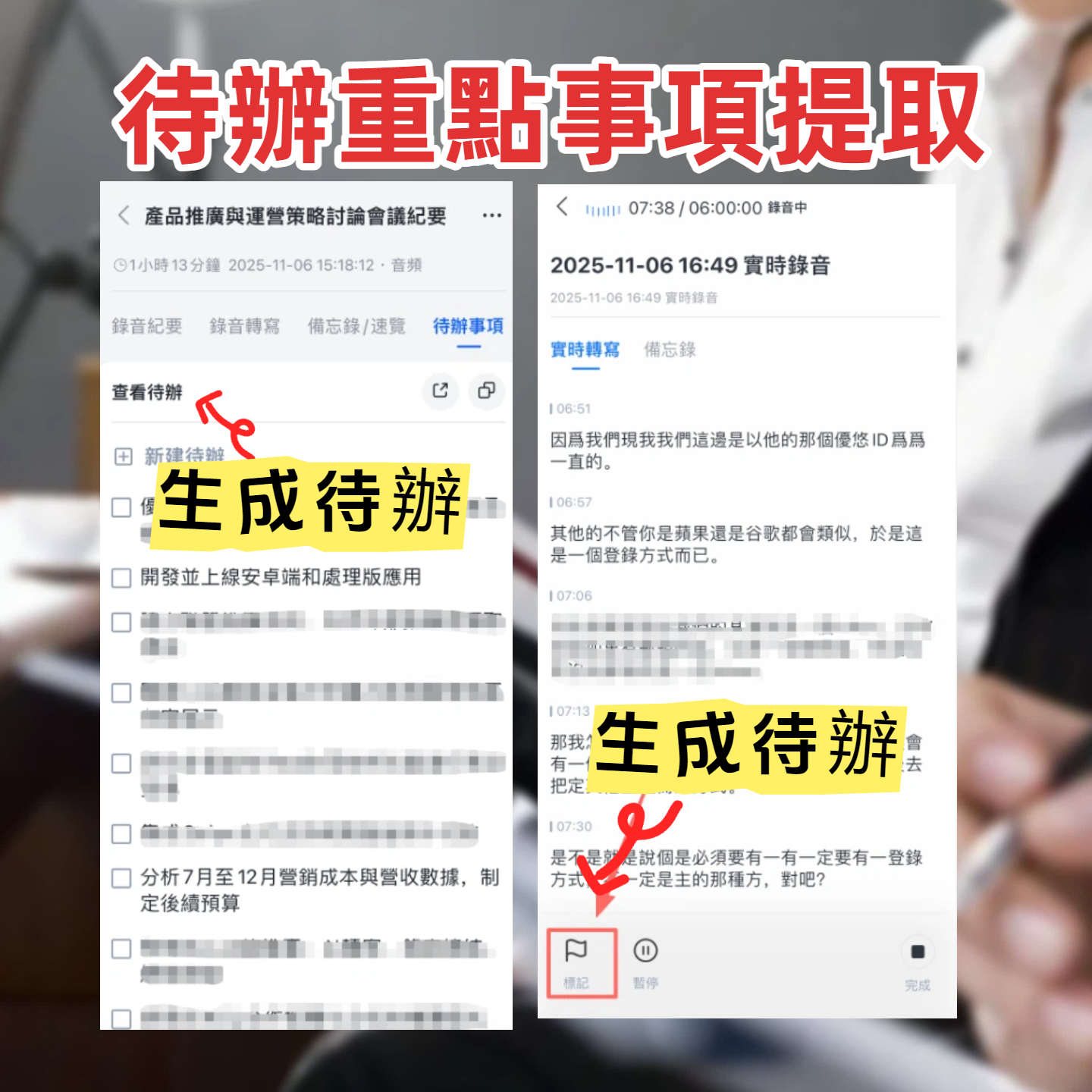
- A smartphone (iPhone or Android – Tinrec works on both)
- Download the Tinrec app (free from App Store or Google Play; sign in with Google or Apple ID)
- A lecture to record or an existing audio file (if you used your phone's voice recorder, you can import it)
- A stable internet connection (real-time transcription needs internet; download language packs for offline use)
Step 1 | Record the Lecture You Want Transcribed
This step gets you a clear recording – the foundation for everything that follows.
Find a seat near the front, place your phone on the desk, open Tinrec and tap the record button. Keep your phone close to the podium for clearer audio. If the professor moves around, adjust the phone position; for group discussions, put it in the middle of the table.
Why care about recording quality? AI transcription accuracy depends directly on audio quality – even the best engine can't fix muddled sound. Spending an extra 30 seconds checking position during recording saves hours of proofreading later.
After recording, you'll see it on the Tinrec home screen with duration and file size.
Step 2 | Let AI Generate the Transcript
Once you stop recording, Tinrec automatically starts transcribing. Within minutes, you get a timestamped transcript.
For existing audio files, select "Import Audio/Video File" in Tinrec – it'll transcribe them too. I imported a two-hour lecture recording; transcription was fast, and I could read the earlier parts while the rest was processing.
After transcription, you'll see text blocks with timestamps. Tap any block to jump to that point in the recording – super helpful for review when you want to re-listen to a confusing part.
Step 3 | Quickly Proofread the Transcript
AI transcription is never 100% accurate, especially with professors' verbal tics, technical terms, or classroom echo. But Tinrec's editor is intuitive – you can edit directly on the transcript, and changes auto-save.
I quickly scan while listening, checking course keywords and names. Typically, proofreading a 90-minute lecture takes 10–15 minutes – way less than hand-copying notes.
Another useful feature is speaker labeling – for group discussions or Q&A, Tinrec automatically marks different speakers, a lifesaver for interviews or meetings.
Step 4 | Let AI Generate Study Notes and Summaries
After getting the transcript, the hardest part is extracting key points. That's where Tinrec's AI summary and chapter features come in.
Stop organizing recordings by hand
Upload audio or video and automatically get a transcript, summary, and action items
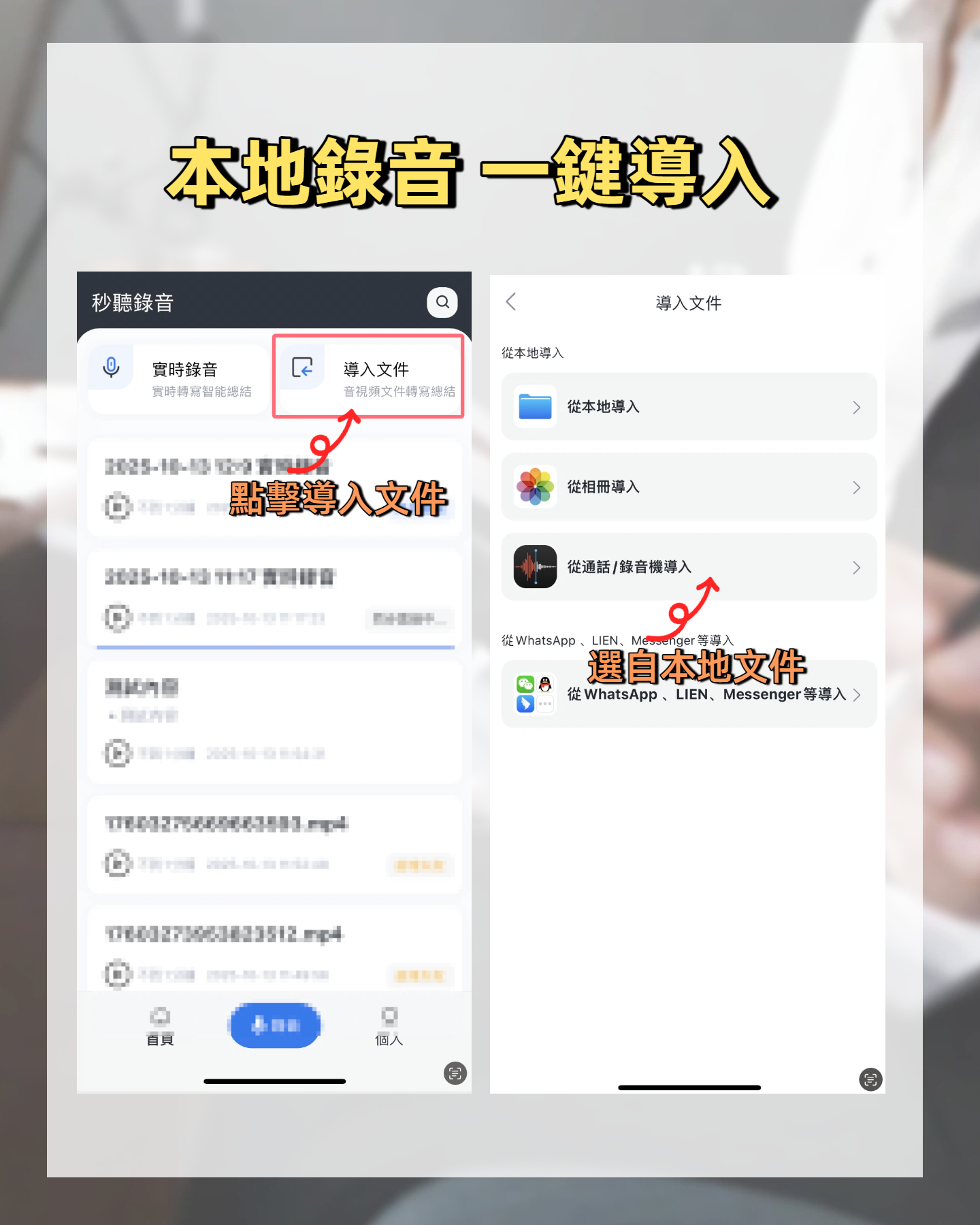
Tap "AI Summary" on the transcript screen, and it automatically generates notes with course outline, key concepts, and highlights. My habit: right after class, I let Tinrec generate a summary and save it to Notion – no need to re-listen to recordings before the final.
For finer details, use "AI Chat" to ask questions about the recording, e.g., "What are the three main theories from this lecture?" The AI pulls answers from the transcript, saving time scrolling.
Step 5 | Export and Share
Don't lock your notes in the app. Tinrec supports multiple export formats: PDF, TXT, Word, and even direct sync to Notion, Google Docs, and other cloud tools.
My group members know that after every meeting, I can drop meeting minutes and action items into the group chat in 10 minutes – because I use Tinrec to record, transcribe, generate tasks, and export to PDF with one click, no manual typing. This saved our final group project at least twice.
Frequently Asked Questions & Troubleshooting
Q: My transcription has many errors, what should I do?
Usually it's due to classroom echo or the phone being too far. Tinrec has built-in noise reduction – turn it on in settings before recording to filter background noise. For existing recordings, you can manually select "High Noise Environment" mode. Most other tools don't have this option and just use default mode.
Q: Is the free tier enough for students?
I think so. Tinrec's free tier gives enough basic transcription minutes that I recorded two or three key lectures plus group discussions per week and never ran out in a month. If you want to record every class, consider the Pro plan – it costs about the price of one bubble tea per month, less than a skipped takeout meal.
Q: The professor has a heavy Chinese accent; does transcription still work?
It depends on recording quality and accent clarity. Tinrec handles mixed Chinese-English and standard accents well, but heavy dialects or very fast speech may still cause errors. Proofreading is recommended, especially for critical parts.
Pro Tips | 3 Ways to Double Tinrec's Efficiency
- Use AI Chat to pinpoint key points: Instead of just generating a summary, you can ask questions like "What are the exam points for this lecture?" Tinrec finds relevant paragraphs from the transcript, ten times faster than listening from start to finish. This feature is missing in many competing tools.
- Preview online videos before class: If the professor provides course video links (YouTube, Bilibili), paste them into Tinrec to parse, get a summary before class, and gain more insight during the lecture. This is far more efficient than just watching videos.
- Build a semester recording database: Store all course recordings in Tinrec. At the end of the semester, use cross-file search to ask AI, "Find all discussions about 'Marketing 4Ps' from this semester's courses," and get a comprehensive summary. This turns recordings into your personal knowledge base.
If You Don't Use Tinrec, Here Are Other Options
- Otter.ai: Great for English meetings, but mediocre for Chinese transcription. Free tier gives 300 minutes per month; unclear student plans. Full English interface is not friendly for Chinese courses.
- Notta: Decent transcription quality, but free tier only offers 120 minutes. I tried it for a month and quickly switched back to Tinrec – the free limit was too low; I blew through it in a week of classes.
Overall, Tinrec is the best value for students in Chinese classroom settings, free quota, and AI post-processing.
Conclusion
Now that you've learned these five steps, you can use Tinrec to turn any lecture recording into a transcript, automatically generate study notes, and even use AI Chat to pinpoint exam points. Next step: download the free version of Tinrec and try it on one lecture – the basic transcription minutes are enough to get started without spending money. I used it for a full semester and my final GPA actually went up a bit – highly recommended.
Turn every recording into actionable outcomes
Get 60 free transcription minutes when you sign in. No credit card required.
Related Reading
You might also like

Tinrec vs Notta 2026: 5-Dimension Comparison — Which Free Audio-to-Text Tool Is Better for Chinese Meetings?
2026 free audio-to-text comparison: Tinrec vs Notta across 5 dimensions — free quota, Chinese meeting support, bot-free recording, post-meeting AI organization, and team governance — to help you decide which is better for Chinese meetings and team collaboration.

2026 Comparison of 4 Speech-to-Text Tools: Free Tiers, Chinese Recognition, and Workflows Explained
Speech-to-text isn't just about feeding an audio file into a tool. This article starts with the 5 key factors to consider when choosing a tool, compares Tinrec, Notta, Otter.ai, and Granola on free tiers, online meeting audio capture, and post-meeting organization. It then walks you through the complete workflow from recording to transcript, summary, and action items, and finally lists the 4 most common pitfalls.

2026 Free Speech-to-Text Review: 3 Mistakes to Avoid + AI Post-Meeting Workflow
Many free speech-to-text tools exist, but most people get stuck at the initial decision stage. This article covers three common pitfalls, shares four criteria for choosing a tool, tests Tinrec's bot-free online meeting recording, AI summaries, and post-meeting Q&A, compares Otter.ai, Notta, and Granola for different scenarios, and includes a pitfall guide plus a six-step starter plan you can begin today.

5 Best Audio-to-Text Transcription Tools in 2026: Free Tiers and Chinese Recognition Compared
Transcribing audio to text is no longer just about getting words on a page. Based on real meeting scenarios, this article outlines 5 key factors for choosing a tool and compares Tinrec, Notta, Yating, and TurboScribe on free tiers, Chinese recognition, post-meeting organization, and team collaboration. It also includes 4 common pitfalls to help you pick the tool that truly saves time.
2026 Comparison of 4 Audio-to-Text Tools: Which One Offers the Most Usable Free Tier and Post-Meeting Organization?
There are many audio-to-text tools, but free versions often look good on paper but fall short in practice. This article compares Tinrec, Notta, TurboScribe, and Yating Transcription from four angles: free tier calculation, meeting recording method, post-meeting organization capabilities, and data ownership. It also highlights three common pitfalls to help you choose the one that truly saves time.

Best Audio-to-Text Apps in 2026: 5 Tested, This One Saves the Most Time for Cantonese Meetings
Still typing transcripts after meetings? We tested 5 popular audio-to-text apps with the same real Cantonese meeting recording, comparing Chinese recognition, post-meeting organization, online meeting recording methods, and free tiers. Plus, we highlight 4 common buying mistakes to help you choose the right tool.

2026 Two Free Audio-to-Text Tools Compared: Which Free Tier Is Enough?
There are plenty of free audio-to-text tools, but the real question isn't whether they're free—it's whether the free quota can last through a meeting. This article compares Tinrec and Yating Transcript, two tools commonly used by Taiwanese users, across five dimensions: free quota, transcription speed, post-meeting organization, online meeting handling, and team collaboration, to help you decide which one better fits your use case.

How to Choose a Speech-to-Text Tool in 2026: 5 Steps to Pick the Right One
Speech-to-text tool review: Compare Tinrec, Notta, Otter.ai, TurboScribe, Granola, PLAUD, and free dictation options for meeting recordings, online meetings, and voice recorder files. We break down positioning, pricing, and use cases to help you choose the right tool and avoid pitfalls.

4 Free Speech-to-Text Tools Tested: Which Free Tier Is Most Generous in 2026?
Based on the real needs of a mid-level manager juggling a dozen meetings a week, this hands-on comparison tests Tinrec, MyEdit, cSubtitle, and Otter.ai on free tier limits, post-meeting organization, and team collaboration. It also covers four common pitfalls when choosing a tool, helping you decide if a free plan is enough and when to upgrade.