

Turn recordings into transcripts and summaries in minutes
Upload audio or video for multilingual transcription, AI notes, and action items
2026 Student Classroom Notes AI Free Plan Roundup: 3 Tools at a Glance
There are many AI note-taking tools on the market. This article rounds up 3 free plans suitable for students: Tinrec, Otter.ai, and Notta. All three can convert lecture recordings into text, but each has its own features. We will use Tinrec as an example to walk you through the entire process of creating classroom notes, and finally briefly introduce the differences of the other two tools to help you make a choice.
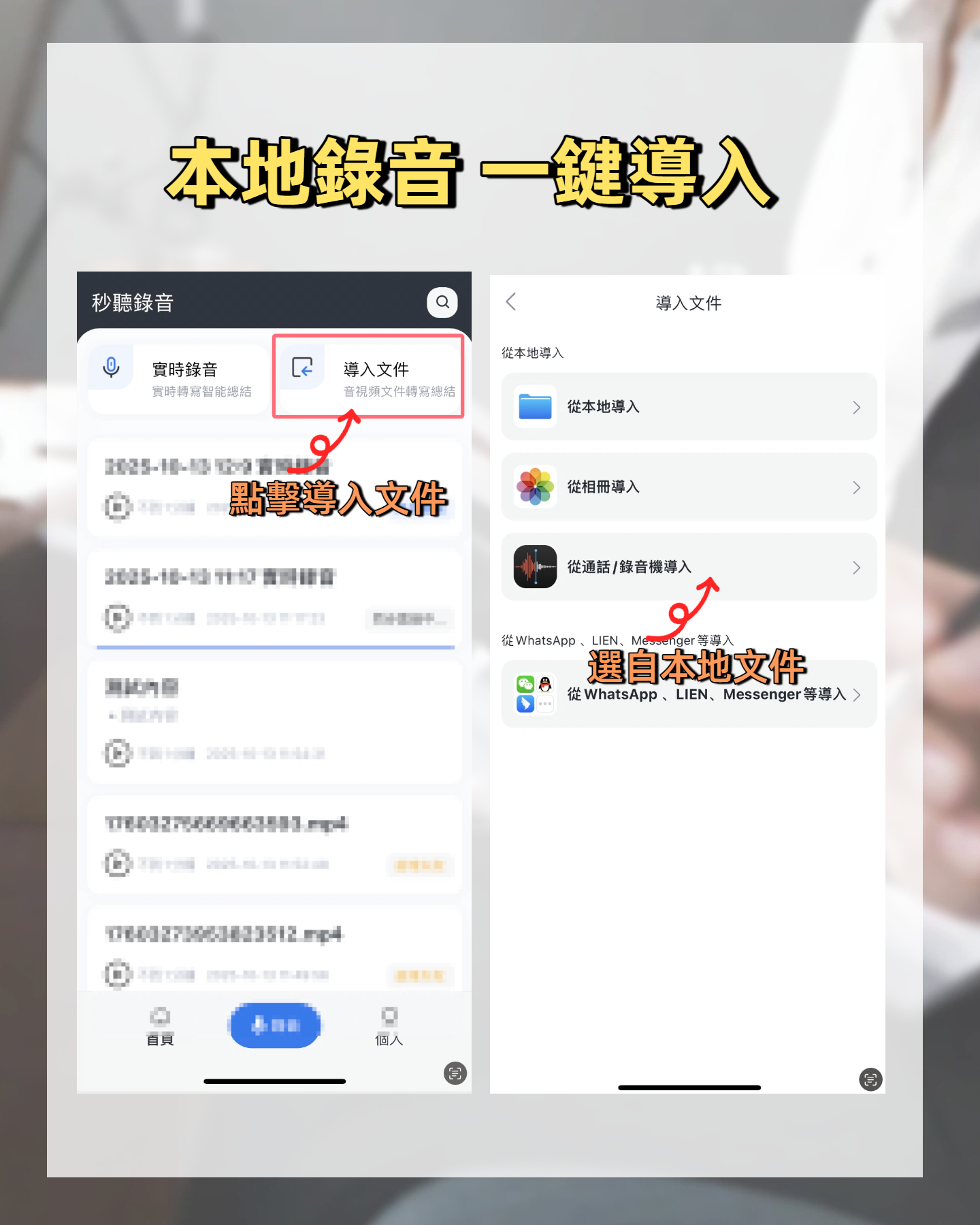
Before You Start | What You Need to Prepare
- A smartphone (iPhone or Android, Tinrec supports both platforms)
- Download the Tinrec app (free from App Store or Google Play; registration only requires Google or Apple ID login)
- Ensure your phone can record clear audio during class: place it in the center of the desk, near the podium, or use an external microphone; the closer it is, the higher the transcription accuracy
- A stable internet connection (real-time transcription requires internet; if the classroom network is unstable, it's recommended to record first and upload the file for transcription after class)
Step 1 | Record the Lecture
The goal of this step is to obtain a high-quality recording—subsequent transcription and summarization depend on it.
Open Tinrec and tap the record button on the main screen to start recording. You don't need to watch the screen during class; just let it run in the background. Pay attention to the phone's position: for a large lecture hall, placing it on the front desk is better than in a back pocket; for a small seminar, the center of the group works best.
Why focus on recording quality? Because the accuracy of AI transcription is directly related to audio clarity. It's better to spend 30 seconds adjusting the position than to spend hours correcting errors afterwards. After recording, you'll see the file on the main screen, including duration and file size.
Step 2 | Let AI Transcribe It into Text
After recording, the next step is to turn it into text. This process is almost fully automatic in Tinrec.
Tap the recording file, and the system will automatically start transcription. If you chose to record offline, now you can connect to the internet and let it upload for processing. A typical 50-minute lecture recording can be transcribed in a few minutes. Tinrec supports Chinese recognition, which is most friendly to Taiwanese students—something many foreign tools cannot do.
Why transcribe to text first? Because it is the foundation for all subsequent organization: with a complete text record, you can quickly search for keywords, mark highlights, and even let AI summarize. After transcription, you'll see the full transcript on the screen, and tapping any line will jump to the corresponding recording position for playback.
Step 3 | Quickly Proofread the Transcript
Although AI transcription is convenient, it can still make mistakes with proper nouns, accents, or background noise. A quick proofread makes subsequent notes more accurate.
Tinrec's interface lets you edit while listening: tap a word to edit, and the recording will automatically play from that position. Typically, the key points of a lecture are concentrated in the first 20% and last 20%. You only need to correct the critical sections, not listen from beginning to end.
This design saves at least half of your organizing time. After proofreading, you'll have a reliable lecture transcript that can be used directly for review or note-taking.
Stop organizing recordings by hand
Upload audio or video and automatically get a transcript, summary, and action items
Step 4 | Let AI Generate Key Lecture Summaries
Getting the transcript is just the first step; the real time-saver is letting AI automatically summarize and extract key points.
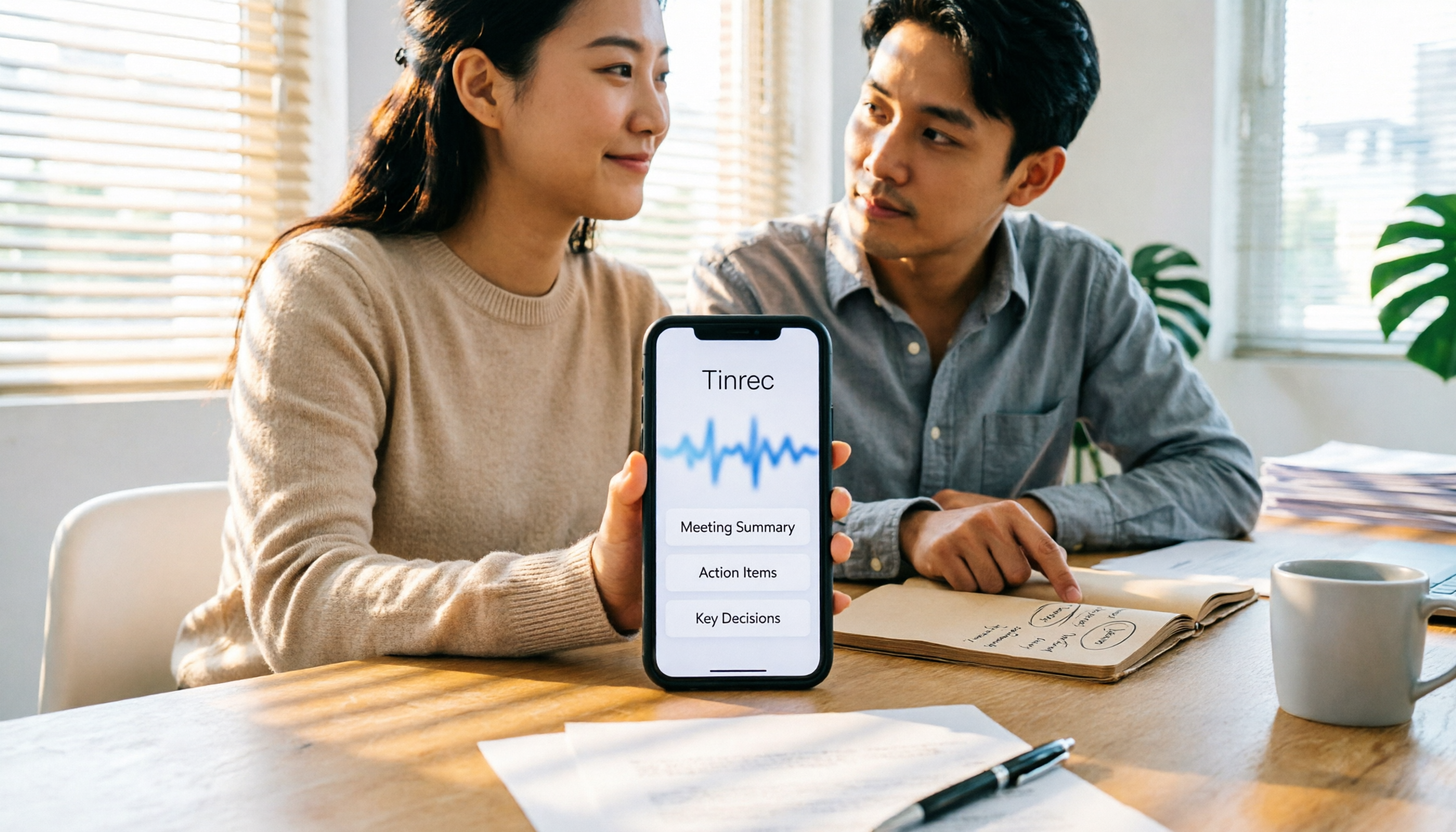
In Tinrec, tap "AI Summary" and it will extract key sections from the entire transcript. You can choose "Short Summary" or "Detailed Notes"; the latter will list chapter titles, core concepts, and even test points mentioned by the teacher. If you need a visual organization, you can also generate a mind map with one click.
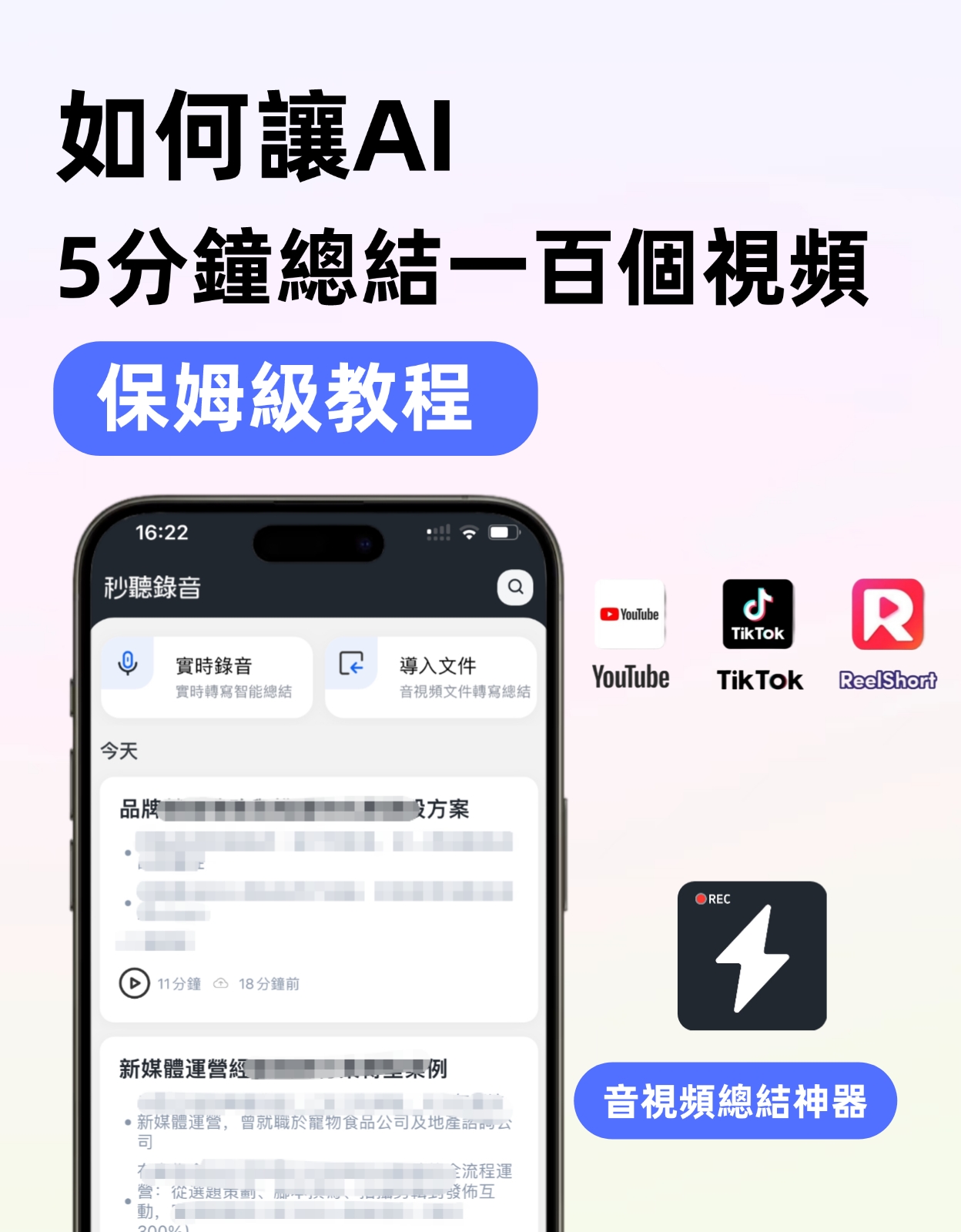
For a two-hour lecture, manually organizing notes might take half an hour, but with Tinrec, you can get a structured summary in just 1 minute. Then you only need to supplement details for parts you're weak on, rather than starting from scratch and re-listening.
Step 5 | Export and Share
Once the notes are ready, the next step is to put them into the tools you normally use.
Tinrec supports multiple export formats: plain text, Word, PDF, and can also directly convert to a Notion page or send to Google Docs. If you collaborate with classmates on shared notes, exporting to Word allows joint editing.
It is recommended to check "Include timestamps" when exporting, making it easier to cross-reference with the recording during review. This step moves your lecture notes out of the app silo and into your knowledge management system.
Frequently Asked Questions & Troubleshooting
Q: What if the transcription has many errors? A: It usually depends on the recording environment or distance. Tinrec has built-in smart noise reduction; enabling it in settings before recording can improve things significantly. If you're using a pre-recorded file, you can manually select the "High Noise Environment" mode after uploading to increase recognition accuracy. Compared to most transcription tools that only offer a default mode, this feature is especially useful in noisy classrooms.
Q: What if I run out of free plan minutes? A: The Tinrec free plan provides a fixed number of minutes per month, suitable for students with 2–3 lectures per week. If you have midterms, final projects, or intensive courses, consider a weekly pass first, or leave less important recordings to be processed next month. Also, use the "record first, transcribe later" strategy to only consume minutes when needed.
Q: Can it differentiate speakers in a group discussion or team presentation? A: Yes. Tinrec supports speaker separation and will automatically label Speaker 1, Speaker 2, etc. during transcription. Although it cannot automatically identify individuals by name, it's enough to know who said what, making it convenient for organizing dialogic classroom discussions.
Advanced Tip | Use AI Chat to Quickly Review Lecture Highlights
This feature is a unique advantage of Tinrec—most free tools don't have it.
After transcription, tap "AI Chat" and ask questions about the recording content as if you were having a conversation. For example: "What exam points did the teacher mention in this lecture?" or "What is the core concept of Chapter 3?" Tinrec will answer based on the transcript and even cite the original source. This essentially turns each lecture recording into a searchable database. Before finals, you don't have to re-listen to all recordings; just ask and get the key points.
If You Don't Use Tinrec, Here Are Other Options
Otter.ai (Best for English Courses)
Otter is the most well-known AI meeting note tool in the US, offering 300 minutes per month on the free plan. Its English transcription quality is excellent, but its Chinese recognition is not as good as Tinrec's, and the interface is entirely in English, so the barrier is higher for Taiwanese students. If you major in English or study abroad, give it a try.
Notta (Multi-language Transcription but Lower Free Allowance)
Notta supports multiple languages and has a friendly interface. The free plan only offers 120 minutes per month, and its summary and export features are relatively basic. It's suitable for light users who occasionally need transcription, but if you record lectures weekly, you'll quickly run out of minutes.
Overall, Tinrec is more suitable for Taiwanese students' classroom note-taking needs in terms of Chinese recognition, free plan flexibility, and post-processing (summaries, AI Q&A, export).
Summary
After learning these 5 steps, you can now use Tinrec to convert lecture recordings into text, automatically summarize key points, and even use AI Chat to quickly extract critical content before exams. Next step: download the free version of Tinrec and try it with a lecture recording. The monthly free minutes are enough for you to organize notes for two to three lectures per week. Instead of continuing to scramble to take notes manually, let AI handle the repetitive work, and use the saved time to truly understand the content.
Turn every recording into actionable outcomes
Get 60 free transcription minutes when you sign in. No credit card required.
Related Reading
You might also like

Best Speech-to-Text Apps in 2026: We Tested 4, and This One Is the Easiest for Chinese Meetings
If you're constantly chasing meeting notes, comparing free minutes isn't as important as finding a tool that actually captures decisions and action items after the meeting. Written from a mid-level manager's real-world perspective, this article covers 4 key factors for choosing a speech-to-text app, tests Tinrec, Granola, Notta, and PLAUD, and includes a pitfalls guide plus scenario-based recommendations.

4 Free Speech-to-Text Platforms Tested and Compared in 2026: Which One Makes Meeting Notes and Post-Meeting Cleanup Easier?
How do you choose a free speech-to-text platform? This article compares Tinrec, TurboScribe, Granola, and Otter.ai from four angles: free quota, input sources, post-meeting organization, and team collaboration. It helps you determine which one suits meeting notes, interview transcription, and team sharing, and summarizes common limitations and pitfalls of free versions.
2026 Comparison of 3 Free Speech-to-Text Solutions: Tinrec, Granola, and Google Docs Voice Typing — Which Is Enough?
Starting from common misconceptions about free speech-to-text, this hands-on comparison tests the free workflows of Tinrec, Granola, and Google Docs Voice Typing. It breaks down file import, audio retention, post-meeting organization, Chinese translation, team collaboration, and export limits to help you decide which free solution is sufficient.

2026 Voice-to-Text Tools Compared: Which Handles Chinese Meetings Best?
PTT is full of voice-to-text tools, but the real challenge is post-meeting wrap-up. This article compares Tinrec, Otter.ai, Notta, and Granola across Chinese meetings, online recording, AI summaries, and team collaboration to help you choose the right tool for your meeting scenario.

6 Speech-to-Text Tools Tested and Compared for 2026: Which One Has the Best Chinese Accuracy and Free Tier According to PTT?
Starting from common misconceptions on PTT, this article reviews six speech-to-text tools in 2026, including Tinrec, Notta, Otter.ai, TurboScribe, Granola, and PLAUD Note. It compares Chinese recognition, free quotas, post-meeting summaries, and student budgets to help you avoid the trap of getting only a transcript that's unusable.

2026 Speech-to-Text App Review: Tinrec Bot-Free Meeting Recording + AI Summaries & Action Items
2026 speech-to-text app review and buying guide, covering Chinese meetings, mixed Chinese-English, post-meeting summaries and action items, and team knowledge retention. Compare Tinrec, Otter.ai, Granola, and TurboScribe to choose the right meeting notes tool.
2026 Free Speech-to-Text Tools Buying Guide: 4 Hands-On Tests and Recommendations
There are plenty of free speech-to-text tools, but free quotas, Chinese recognition, and post-meeting organization capabilities vary widely. This article starts from actual usage workflows and compares the free plans and limitations of Tinrec, Google Docs voice typing, Monica, and MyEdit to help you choose a tool that truly saves transcription time.

2026 Tinrec Free Speech-to-Text Review: 3 Key Factors + Automatic Meeting Minutes
There are many free speech-to-text tools, but what really matters is free quota, Chinese recognition, post-meeting organization, and team collaboration. This article breaks down the differences between Tinrec, Otter.ai, Notta, and TurboScribe using 4 key purchasing factors, and summarizes 3 common pitfalls to help you choose a tool that turns meetings into usable data.

5 iPhone Speech-to-Text Solutions Compared for 2026: From Built-in Dictation to AI Meeting Notes
Built-in iPhone dictation, Voice Memos transcripts, or AI meeting note tools—which should you choose? This article splits the decision into two paths: real-time input and post-meeting organization. It compares 5 iPhone speech-to-text solutions, outlines selection criteria, common mistakes, and my own workflow, so you can figure out which one fits your needs.