

Turn recordings into transcripts and summaries in minutes
Upload audio or video for multilingual transcription, AI notes, and action items
Decision Focus: Do You Want to "Turn Speech into Text" or "Turn Meetings into Data"?
When you pick up your iPhone to turn speech into text, most people think it's one thing, but in reality, you're standing at two completely different forks in the road.
The first path is "real-time input": you speak into the keyboard, and the words appear on the spot—great for replying to messages, writing quick notes, or capturing a fleeting idea.
The second path is "post-meeting organization": you record the audio first, then later turn it into a transcript, summary, and to-dos.
There's also a third, more distant path that most people actually need: turning the transcribed text into data that can be searched, queried, and shared with your team.
The most common failure I see isn't "not knowing how to use the tool."
It's using a dictation feature designed for short phrases to handle a one-hour meeting, or saving a transcript in a notebook that no one can find two months later.
So this article doesn't start with a feature list.
I'll give you the criteria first, then explain how I divide the work on iPhone after testing.
The Pain Isn't Transcription—It's That No One Uses the Transcript
I've heard too many times about two-hour meetings followed by two hours of organizing.
But the real trouble is often not the typing—it's the state of things after typing.
A transcript sitting in your phone's notes app looks complete at the moment, but two weeks later, no one can dig it up.
Another common scenario is interview or lecture recordings.
The recording goes smoothly, but when you need to quote a specific sentence, you have to fast-forward and listen segment by segment.
If you're using an iPhone, these situations actually have corresponding solutions—they're just scattered in different places: some hidden in the keyboard, some in Voice Memos, and some only complete on the desktop.
This article's job is to line them up into a workflow you can actually finish.
Before Choosing an iPhone Speech-to-Text Solution, Understand These 5 Key Points
1. Are You Doing "Real-Time Input" or "Post-Meeting Organization"?
Dictation is a keyboard feature: you speak a sentence, it outputs a sentence—good for real-time.
Transcribing audio files is a different matter; it requires a tool that can handle long recordings.
Get this wrong, and everything else is moot.
2. Will This Recording Be Looked Up Again Later?
If it's just a quick note, transcribing to text is the end of it.
But for meetings, interviews, or lectures, you'll definitely want to go back and check: "Who mentioned the budget that time?"
Whether it's searchable and whether you can ask questions about the content determines if this transcript is data or garbage.
3. Real-World Performance with Chinese and Mixed Chinese-English
In Taiwan's work scenarios, there's almost no pure Chinese meeting. Product names, job titles, and system names are all in English.
So don't just look at "how many languages it supports"—look at whether it can handle the real situation where you speak mixed Chinese-English with lots of technical terms.
4. Which Device Does the Data Stay On?
The advantage of iPhone's built-in features is that they're free and instant; the limitation is that they basically stay on your phone.
If you have meetings on a computer or share data with colleagues, this becomes a decisive factor.
5. Quotas and Costs Should Fit Your Own Pace
Using it occasionally, using it regularly every week, or having a whole team use it—the suitable solutions are completely different.
Figure out your usage frequency first, then look at solutions; that way you're less likely to buy something you won't use.
Tinrec — I Place It in the Middle of the Workflow
My positioning of Tinrec: it's not a "recording app," but a tool that turns meeting content into data you can continue working with.
In one sentence: iPhone handles the recording, Tinrec handles turning the recording into something you can use.
During the meeting: The desktop version directly captures your computer's system audio—works with Zoom, Google Meet, Microsoft Teams, and Webex, and you don't need to invite a meeting bot as a participant.
This makes a big difference for me. Previously, with tools that required a bot to join, the meeting list would have an extra unknown account, and I'd have to explain it during external meetings.
After the meeting: The transcript is generated as you record, and after the meeting, summaries, chapters, and to-dos are automatically created.
My own order: I don't read the transcript from the beginning; I first look at the chapters to grasp the structure, then check the to-dos to confirm who does what, and finally go back to verify any doubtful paragraphs.
For the same content, reading time differs by several times.
Looking things up later: This is my most-used feature—asking questions directly about the meeting content.
For example, "Last time we discussed the budget, what were the client's concerns?" It gives an answer based on the content, rather than throwing a bunch of keywords for you to dig through yourself.
Among tools at the same price point, "asking follow-up questions about meeting content" is not something every tool does well.
Stop organizing recordings by hand
Upload audio or video and automatically get a transcript, summary, and action items
Other features I use: real-time translation (for cross-language meetings, view the original and bilingual text), audio/video file upload transcription (to organize old recordings on your phone), multi-format export to Notion, Google Docs, and other common tools, and using Agent to generate reports or tables from meeting content.
Limitations to be clear about: The free version has a basic quota, not unlimited; file imports consume quota, and heavy use requires upgrading. Also, it doesn't automatically join every meeting on your calendar—you need to initiate recording yourself. Actual performance is also affected by recording quality, noise, accents, multiple people talking over each other, and technical terminology.
Who it's for: If you have Chinese meetings, need post-meeting organization, and want data to accumulate rather than start over each time, it will save you a lot of time compared to pure transcription tools.
If a whole team will use it, the Team version is a separate team space: you can create multiple spaces, invite members via link, set owners and admins, and assign seats. Meeting data belongs to the team; members without a seat can still view, play, and read data, but need a seat to record, upload, edit, and export. When a member leaves or is removed, data can be transferred to other active members and won't disappear with the individual account. The admin side also shows usage trends, member rankings, and audit logs. The team paid seat is USD 29.80 per month, or about USD 16.58/month when billed annually, with each paid seat providing 2,000 minutes of team shared import quota per month. Actual benefits and amounts are subject to the official purchase page.
Besides Tinrec, What Other Options Are There on iPhone?
iPhone Built-in Combo: Keyboard Dictation + Voice Memos Transcript
Completely free, no installation needed—this is my first-line tool every day.
Keyboard dictation is good for short phrases and real-time input, supports Chinese; after iOS 18, Voice Memos on iPhone 12 and later can directly generate transcripts, highlighting the corresponding segment during playback, and you can copy snippets to paste into emails or documents.
Its biggest limitation is that it "stops there": the transcribed text doesn't automatically become summaries and to-dos, it's not easy to collaborate across devices and teams, and you can't ask follow-up questions about the content. Suitable for lightweight, single-person, short-duration notes.
Notta
A multi-platform transcription tool that supports file import, translation, and team plans. Its Chinese performance is decent, and the free version has monthly quota and per-recording length limits.
If your main need is "uploading existing audio files to transcribe subtitles," it's a reasonable option. But if you want bot-free recording during meetings, post-meeting follow-up questions, and team data accumulation, Tinrec's workflow is more complete.
PLAUD NotePin
AI recording hardware that you wear and it records—suitable for situations like moving around or phone calls that are hard to handle with a phone.
Its value is in the hardware form factor; the cost is carrying an extra device and an extra equipment expense, and organizing online meetings still requires software in the end. If 90% of your meetings are on a computer, a pure software solution is more direct.
Pitfall Guide: The 5 Most Common Mistakes with iPhone Speech-to-Text
Pitfall 1: Using dictation for long meetings.
Dictation is a keyboard feature, suitable for speaking sentence by sentence. Asking it to listen continuously for an hour easily leads to interruptions or missing words. For long recordings, use a dedicated transcription workflow.
Pitfall 2: Thinking the transcript is the end.
A transcript without summaries, chapters, or searchability has low practical value. How you organize after transcription is where you truly save time.
Pitfall 3: Testing mixed Chinese-English only with press releases.
Only by testing with your own real meeting recordings will you know how technical terms are recognized. Choosing the wrong test material is as good as not testing.
Pitfall 4: Rebooting repeatedly when dictation suddenly stops responding.
First check if dictation is enabled in keyboard settings, whether the network is normal, and then check the system version. These situations are mostly due to settings gone wrong, not a broken phone.
Pitfall 5: Recording without informing others.
Recording and transcription involve local regulations and others' rights. Inform participants before formal meetings and obtain consent when necessary—this is basic professional practice.
Conclusion: Which One Should You Choose?
Let's go back to the two forks in the road from the beginning.
Just jotting a quick note or replying to a message → iPhone built-in dictation, free, zero cost, no doubt.
Turning a recording into a transcript, occasional single-person use → Voice Memos transcript feature (iOS 18, iPhone 12 and later) is sufficient.
Meetings to record, post-meeting organization, and later look-up → Tinrec. It handles the "after the meeting" part, which is where most people get stuck.
90% of meetings on a computer, and more than one person needs to view → Tinrec Team version, using team spaces to accumulate meeting data and manage members, seats, and usage.
Large batch of existing audio files to transcribe subtitles → A dedicated file transcription tool is more suitable; this is not Tinrec's main strength.
Quick Start: How I Suggest You Begin
- First confirm that dictation is enabled on your iPhone keyboard; use it for short phrases.
- Update to iOS 18, record a meeting with Voice Memos, and tap "Show Transcript" to see the actual result.
- Take a representative real recording (preferably with mixed Chinese-English) as test material.
- Try Tinrec with the same material, focusing on how accurately it captures summaries and to-dos.
- After the meeting, don't rush to read the transcript; look at chapters and to-dos first, then go back to verify key paragraphs.
- If a team will use it, first create a team space, invite members, assign seats, and then start recording.
Tools will keep changing, but the criteria won't change much: will this content be looked up and used again later?
If yes, it's worth putting into a searchable, queryable, and transferable workflow.
Test step by step, and you'll gradually find the set that works for you.
References
- iPhone Voice-to-Text Setup Tips: 5 Methods to Transcribe Recordings - Mr. Mad
- [iPhone Voice Memos to Text] Complete Guide to 3 Methods! iOS Built-in, App, Recorder—Which is Best?
- View Voice Memos Transcripts on iPhone - Apple Support (Taiwan)
- iPhone's Speech Recognition Feature: Voice Memos, Automatic Punctuation and Paragraphing - Let's Write
- 2026 Apple Phone Speech-to-Text Not Working/iPhone Dictation Fails? 7 Fixes and 3 Alternative Tools (including Tinrec) - Tinrec Blog
Turn every recording into actionable outcomes
Get 60 free transcription minutes when you sign in. No credit card required.
Related Reading
You might also like

2026 Speech-to-Text App Review: Tinrec Bot-Free Meeting Recording + AI Summaries & Action Items
2026 speech-to-text app review and buying guide, covering Chinese meetings, mixed Chinese-English, post-meeting summaries and action items, and team knowledge retention. Compare Tinrec, Otter.ai, Granola, and TurboScribe to choose the right meeting notes tool.
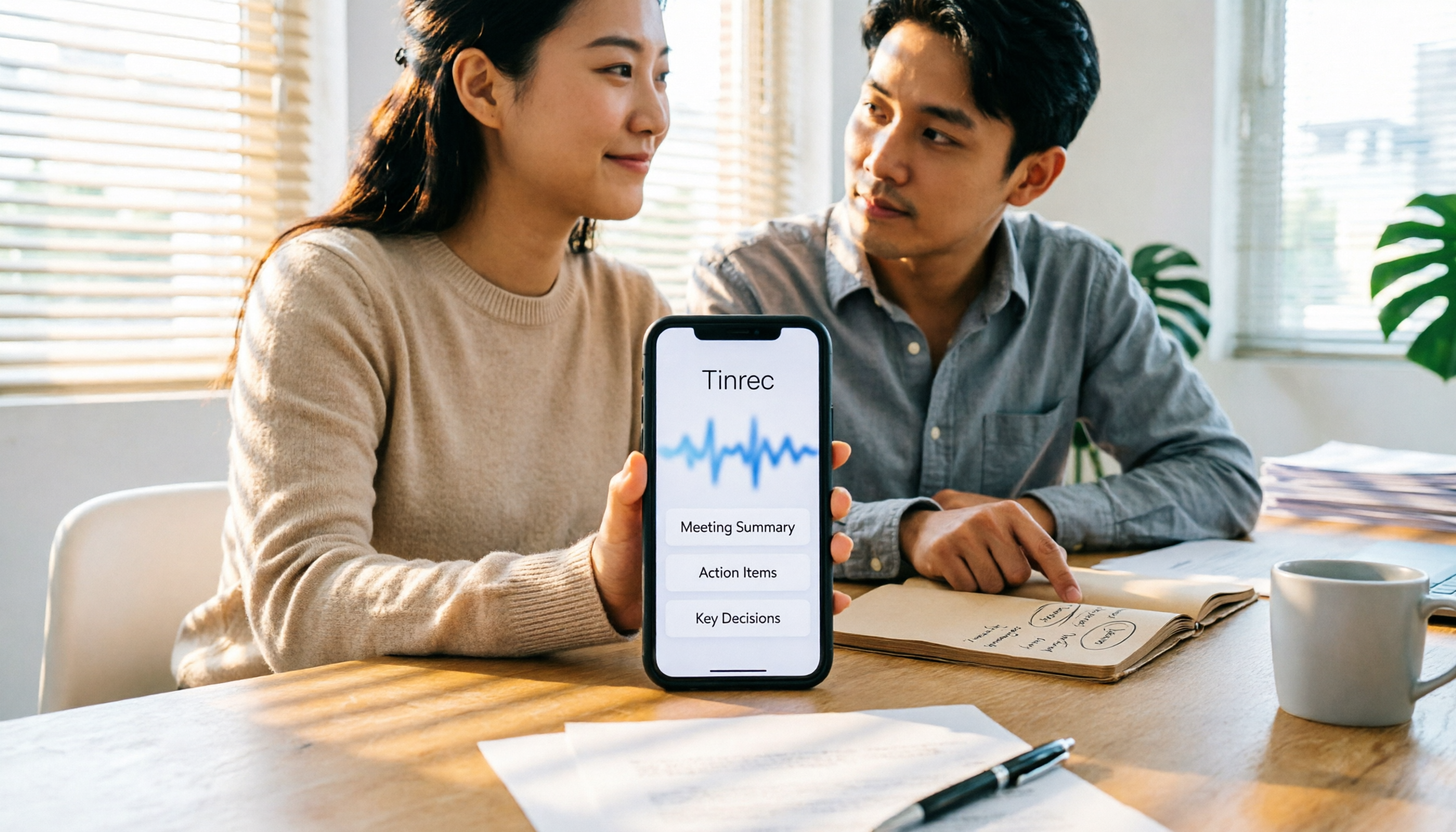
2026 Free Speech-to-Text Tools Buying Guide: 4 Hands-On Tests and Recommendations
There are plenty of free speech-to-text tools, but free quotas, Chinese recognition, and post-meeting organization capabilities vary widely. This article starts from actual usage workflows and compares the free plans and limitations of Tinrec, Google Docs voice typing, Monica, and MyEdit to help you choose a tool that truly saves transcription time.

2026 Tinrec Free Speech-to-Text Review: 3 Key Factors + Automatic Meeting Minutes
There are many free speech-to-text tools, but what really matters is free quota, Chinese recognition, post-meeting organization, and team collaboration. This article breaks down the differences between Tinrec, Otter.ai, Notta, and TurboScribe using 4 key purchasing factors, and summarizes 3 common pitfalls to help you choose a tool that turns meetings into usable data.
WhatsApp Voice to Text vs Tinrec in 2026: Which Is Better for You?
Many people think WhatsApp will automatically convert voice messages to text after an update, but the feature is rolling out gradually and depends on OS version, Siri, and language settings. This article addresses common misconceptions and compares WhatsApp's built-in transcription with Tinrec in terms of setup requirements, post-meeting organization, multi-source support, team collaboration, and cost to help you decide which is more suitable.

4 Free Speech-to-Text Solutions Tested for 2026: Which One Has the Best Free Tier, Export, and Chinese Recognition?
Many people looking for free speech-to-text tools only check the free minutes, but overlook per-recording limits, export restrictions, audio retention, and Chinese recognition. This article compares free plans across 4 practical dimensions and uses Tinrec to demonstrate a complete workflow from recording, transcription, summarization, action items, to team knowledge retention.

Buzz Speech-to-Text Tutorial 2026: 5-Step Walkthrough and 3 Common Mistakes
Buzz is free, open-source, and works offline, but most people are disappointed on their first try—usually because of the default tiny model. This guide starts with common mistakes, then walks through 5 steps covering model selection, language settings, importing or recording, the difference between Transcribe and Translate, and exporting for proofreading. It also lists 6 alternative speech-to-text options with selection advice.
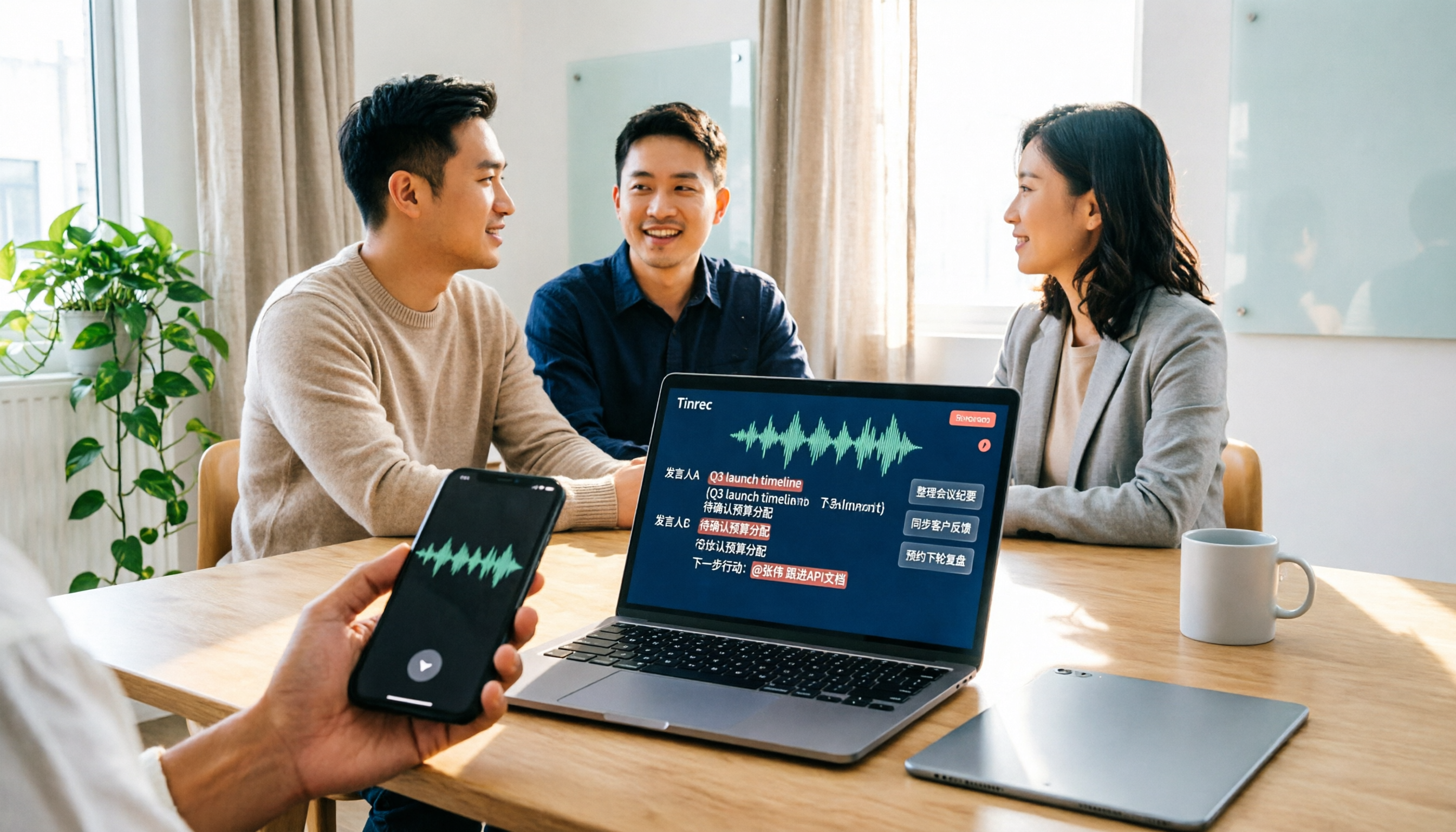
Tinrec vs Notta 2026: 5-Dimension Comparison — Which Speech-to-Text Tool Fits US Users After the Tutorial?
Most speech-to-text tutorials only show you how to turn recordings into text, but skip what to do afterward. This guide starts with common misconceptions and compares Tinrec and Notta across 5 dimensions: online meeting recording methods, post-meeting outputs, Chinese and mixed-language handling, team governance, and audio retention. It also breaks down free and paid plan quotas to help you decide which tool better fits your actual workflow.

2026 Comparison of 4 Free Speech-to-Text Tools: Whose Free Tier Is Enough and Which Is Worth Paying For
There are many free speech-to-text tools, but the real time sink is what happens after transcription. This article compares Tinrec, Notta, Otter.ai, and TurboScribe in real meeting scenarios, focusing on how their free tiers are calculated, post-meeting organization capabilities, and team collaboration differences. It also lists 4 common purchasing pitfalls to help you validate which tool fits your workflow before spending money.

Best Speech-to-Text Tools in 2026: 5 Tested Picks for Chinese Meetings and Team Knowledge Retention
A 2026 comparison guide to speech-to-text tools. We break down the differences among 5 popular options—covering recording methods, post-meeting outputs, Chinese recognition experience, audio retention, and team seat management—and explain how Tinrec performs in bot-free meeting recording, AI Q&A, and team knowledge retention, so you can choose the right tool for your needs.