

Turn recordings into transcripts and summaries in minutes
Upload audio or video for multilingual transcription, AI notes, and action items
Buzz Speech-to-Text Tutorial 2026: 5-Step Walkthrough and 3 Common Mistakes
Most people do the same thing the first time they open Buzz: drag in an entire recording, hit run, and wait for the result.
When it comes out, the transcript is full of errors, so they conclude that free AI transcription just isn't very good.
But after testing it myself, I found the problem is almost never Buzz itself.
The problem is the default model option.
Buzz uses Whisper's tiny model by default. It's fast and resource-light, but only suitable for getting the gist.
For a proper transcript or subtitles, you need to switch to at least small, or even medium.
So this article doesn't just cover which buttons to press—it explains how to configure things so you don't waste a run, and what other options exist besides Buzz.
Why You Need to Clarify Your Purpose First
There are two completely different needs for speech-to-text.
One is "I need readable text right now," and the other is "I need a timeline file I can use for subtitles."
The former cares about fluency and readability; the latter cares about cut points and timestamps.
Figure this out first—your choices of model, format, and tool will all follow from it.
Option 1 | Tinrec (Miao Ting Lu Yin) — Turn Meetings into Usable Team Data
If you need more than a transcript—if you want to keep working after transcription—Tinrec is the most complete option on this list.
It supports real-time recording-to-text, and the desktop version captures system audio directly, so you don't need to invite a meeting bot when processing Zoom, Google Meet, Microsoft Teams, or Webex.
After transcription, it generates summaries, chapters, key points, and action items, and you can ask AI questions about the meeting content—things like "When was that decision made last week?"
Content can be exported to Notion, Google Docs, OneNote, Dropbox, or post-processed with an Agent to generate reports, tables, and documents.
The team version puts meeting data into a separate team space, with role and seat management, usage analytics, audit logs, an audio recycle bin, and team hotwords.
For plans, the personal version offers a free tier, weekly pass, Pro monthly, and Pro annual—choose based on usage frequency. The team version offers a 7-day trial (1 free seat, 300 shared import minutes), monthly at USD 29.80 per paid seat per month, annual at USD 199 per paid seat per year, with 2,000 shared import minutes per seat per month. Real-time recording under an active plan and seat is currently not deducted by the minute.
Who it's for: people who need Chinese meeting notes, don't want a meeting bot in the room, and want to turn meetings into team assets.
Option 2 | Buzz — Free Open-Source GUI for Whisper
Buzz is an open-source tool that runs OpenAI's Whisper model under the hood, supporting Windows, Mac, and Linux.
Its biggest value is packaging the "model + command line" into a graphical interface—double-click to install, open and use, no commands required.
It runs entirely locally; the first launch needs internet to download the model, but after that all audio files stay on your computer.
You can import audio and video files, or use the Record button to record directly from the microphone and transcribe in real time, exporting plain text, timestamps, or SRT subtitle files.
The cost of free: you pick the model yourself, there's no AI summary or action items, no team collaboration, and file management is all on you.
Who it's for: people with zero budget, who value offline privacy, and only need a transcript or subtitle file.
Option 3 | Whisper Command Line and faster-whisper
If you're comfortable with the command line, you can install Whisper via Anaconda or use faster-whisper for batch processing to get the latest components and fastest processing speed.
The advantage is automation: throw in dozens of files at once and wake up to results.
The cost is a learning curve, and you have to read error messages and solve all issues yourself.
Who it's for: people who need to batch-process large volumes of audio and are willing to spend time setting up the environment.
Option 4 | Notta
Notta covers multi-platform transcription, meeting notes, file import, translation, and team plans—multilingual capability is its strength.
Stop organizing recordings by hand
Upload audio or video and automatically get a transcript, summary, and action items
The free version offers 120 minutes per month, with a maximum of 3 minutes per item; Pro annual works out to about USD 8.17 per month with 1,800 minutes per month; Business annual works out to about USD 16.67 per seat per month, offering unlimited transcription, role permissions, and usage reports.
Who it's for: teams that need multilingual transcription and want ready-made team permission mechanisms.
Option 5 | TurboScribe
TurboScribe takes a cost-effective file transcription approach, focusing on long documents, batch uploads, subtitles, and translation.
The free version allows 3 files per day, up to 30 minutes per file; Unlimited annual is USD 120 (about USD 10 per month), with paid plans supporting files up to 10 hours or 5 GB, and up to 50 files per upload.
Who it's for: people with a batch of long recordings who just want quick text files.
Option 6 | Windows Built-in Voice Typing and Live Captions
If you just want to "talk and type at the same time," press Win + H for voice typing.
If you just need "live captions while watching videos or in meetings," Windows Live Captions is enough.
They're completely free and require zero installation, but they won't produce an editable, exportable transcript for you.
Who it's for: people who only need real-time assistance and don't need to save anything.
Buzz's 5-Step Workflow
Step 1: Install and Complete the First Model Download
On Windows, follow the normal installation process; on Mac, drag Buzz into the Applications folder.
On first launch, it downloads the Whisper model—this step requires internet, after which it works fully offline.
Step 2: Choose the Model First, Then the Language
This is the most important step in the entire article.
The larger the model, the higher the accuracy, but hardware load and wait times increase accordingly. The default tiny is only good for checking "can this recording be transcribed at all"—for production output, switch to at least small.
The language defaults to auto-detect. If you already know it's a Chinese meeting, specifying the language directly will be more stable than auto-detection.
Step 3: Import a File, or Record Directly with Record
The "+" in the top-left corner of the window lets you import audio or video files.
To record live, use the Record button—you can also set the language and model first, then start recording from the microphone.
The difference: importing processes existing material, while Record generates content in real time.
Step 4: Choose Transcribe or Translate
If you just want text, choose Transcribe.
Only switch to Translate if you also want it translated into English.
Most people only need Transcribe—choosing wrong means waiting an extra round.
Step 5: Export and Proofread
You can output plain text, text with timestamps, or SRT subtitle files.
For subtitles, choose a format with a timeline; for your own reading, you don't need it.
After exporting, be sure to proofread names, company names, technical terms, and numbers—these are the most commonly misrecognized areas.
With So Many Options, How Should You Choose?
• Want transcription, summaries, action items, and AI Q&A all in one → Tinrec (one workflow does it all)
• Need bot-free recording of Zoom, Meet, Teams meetings → Tinrec (desktop captures system audio)
• Want to turn meetings into searchable, handover-ready team data → Tinrec Team (spaces, roles, seats, usage, audit)
• Zero budget, value full offline → Buzz (free and open-source, but you handle post-processing)
• Need to batch-process many long audio files → TurboScribe or faster-whisper
• Need multilingual transcription and ready-made team permissions → Notta
• Just want to type while talking, or live captions for videos → Windows built-in features
4 Things to Know Before Using Speech-to-Text
First, bigger models aren't always better—"good enough" is what matters. Running a large model on a laptop can take longer than typing by hand.
Second, always proofread the transcript. Names, proper nouns, and numbers are error hotspots—building a glossary first will save you a lot of time.
Third, confirm authorization before recording. Recording meetings and interviews involves other people; obtain consent in accordance with local regulations.
Fourth, a transcript is just raw material. The real value is how you turn it into summaries, action items, and searchable data—which is why I recommend clarifying "what you'll do after transcription" before deciding which tool to use.
Conclusion
Buzz is worth recommending because it turns Whisper—something with a high barrier to entry—into a desktop app you can just open and use.
Free, offline, no uploads: for people handling sensitive recordings, these three points are enough.
But if you want to "keep working after transcription"—summaries, action items, follow-up questions, team sharing—pure transcription tools will get stuck at the next step.
Start by running a transcript through Buzz to feel the difference model size makes; when you start finding post-processing too time-consuming, move up to tools with AI organization and team collaboration.
Test step by step, and you'll gradually find the workflow that suits you best.
References
- How to Use Speech-to-Text in 2026? Complete 5-Step Buzz Tutorial - Miao Ting Lu Yin Blog
- Audio-Visual Processing AI Fun-3: Buzz, a Tool That Makes Speech-to-Text Easier - Tutorial Section | NVDA Taiwan
- Buzz Free Open-Source Speech Recognition Tool: Quickly Convert Recordings or Videos to Plain Text and Subtitle Files
- Whisper Speech-to-Text Tutorial: Local, Offline, No Cloud Upload
- Free Speech-to-Text Tool "Buzz": Beyond Transcripts, It Can Quickly Generate Subtitles for Your Videos - TNL The News Lens
Turn every recording into actionable outcomes
Get 60 free transcription minutes when you sign in. No credit card required.
Related Reading
You might also like

4 Free Speech-to-Text Solutions Tested for 2026: Which One Has the Best Free Tier, Export, and Chinese Recognition?
Many people looking for free speech-to-text tools only check the free minutes, but overlook per-recording limits, export restrictions, audio retention, and Chinese recognition. This article compares free plans across 4 practical dimensions and uses Tinrec to demonstrate a complete workflow from recording, transcription, summarization, action items, to team knowledge retention.
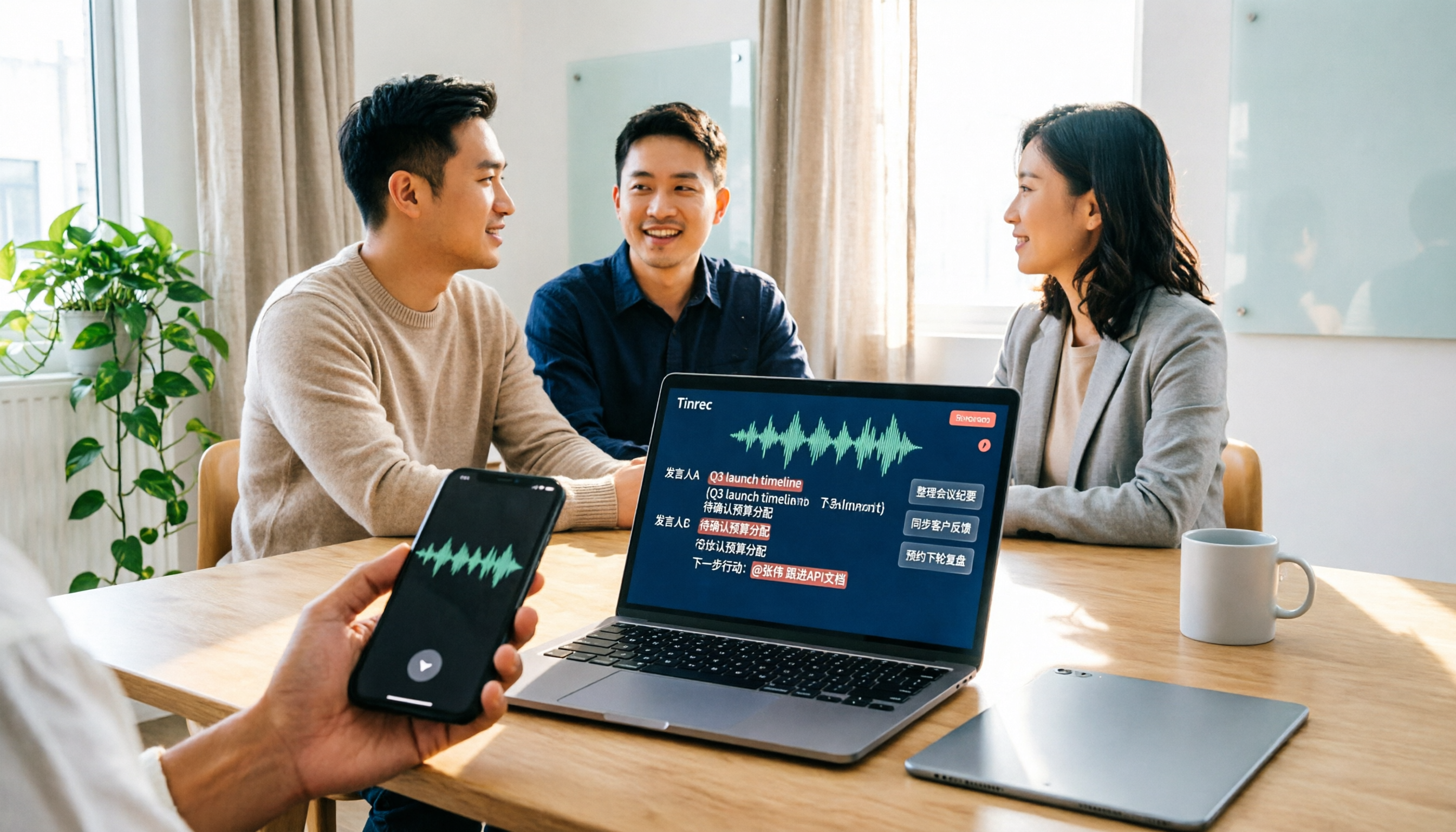
Tinrec vs Notta 2026: 5-Dimension Comparison — Which Speech-to-Text Tool Fits US Users After the Tutorial?
Most speech-to-text tutorials only show you how to turn recordings into text, but skip what to do afterward. This guide starts with common misconceptions and compares Tinrec and Notta across 5 dimensions: online meeting recording methods, post-meeting outputs, Chinese and mixed-language handling, team governance, and audio retention. It also breaks down free and paid plan quotas to help you decide which tool better fits your actual workflow.

2026 Comparison of 4 Free Speech-to-Text Tools: Whose Free Tier Is Enough and Which Is Worth Paying For
There are many free speech-to-text tools, but the real time sink is what happens after transcription. This article compares Tinrec, Notta, Otter.ai, and TurboScribe in real meeting scenarios, focusing on how their free tiers are calculated, post-meeting organization capabilities, and team collaboration differences. It also lists 4 common purchasing pitfalls to help you validate which tool fits your workflow before spending money.

Best Speech-to-Text Tools in 2026: 5 Tested Picks for Chinese Meetings and Team Knowledge Retention
A 2026 comparison guide to speech-to-text tools. We break down the differences among 5 popular options—covering recording methods, post-meeting outputs, Chinese recognition experience, audio retention, and team seat management—and explain how Tinrec performs in bot-free meeting recording, AI Q&A, and team knowledge retention, so you can choose the right tool for your needs.
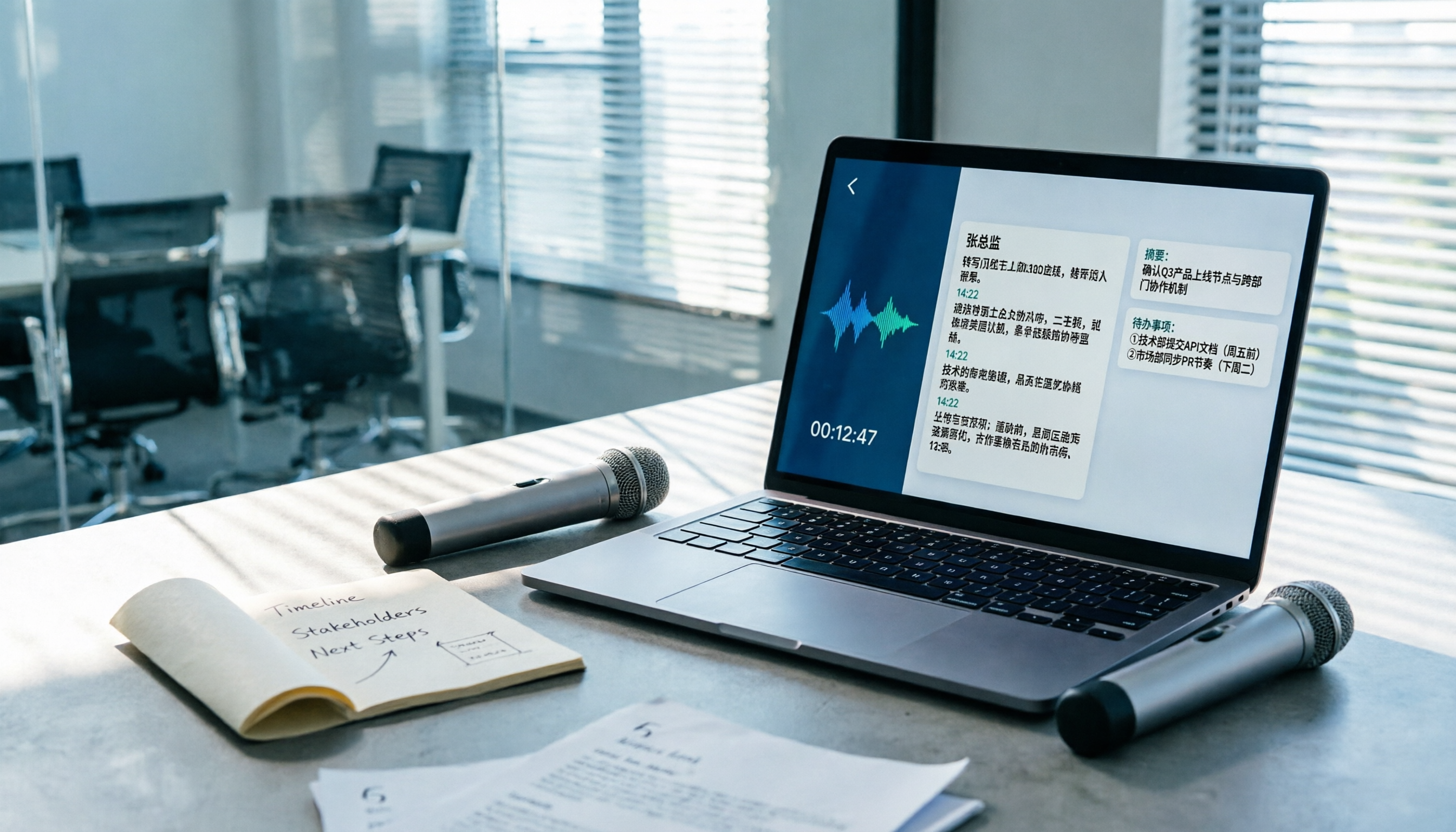
Best Speech-to-Text Tools 2026: PTT-Approved Picks & AI Meeting Notes Guide
Tired of unopened audio files piling up after every project? Starting from the three most common questions asked on PTT, this guide breaks down how to choose a speech-to-text tool, shows how Tinrec turns recordings into usable meeting data, and honestly compares Notta, Otter.ai, and Granola to help you decide which one fits you best. It ends with a step-by-step checklist you can follow right away.

2026 Speech-to-Text Platforms Compared: Which Handles Chinese Meetings and Post-Meeting Cleanup Best?
We tested 5 speech-to-text platforms in 2026, comparing bot-free online meeting recording, Chinese transcripts, post-meeting summaries, and action item organization. We cover key buying factors, pitfalls to avoid, and practical recommendations to help you save that hour after every meeting.

How to Use WhatsApp Voice to Text in 2026: 5-Step Guide & Tinrec Comparison
A 5-step setup guide for WhatsApp voice-to-text in 2026, covering language and privacy limitations, plus a comparison of WhatsApp's built-in transcription with Tinrec for meeting notes, summaries, action items, AI Q&A, and team collaboration—helping you decide which tool to use.

Tinrec vs Yating Transcription 2026: 5-Dimension Comparison — Which Is Better for Free Recording and Post-Meeting Organization?
Compare Tinrec and Yating Transcription across free quota, online meeting recording, post-meeting organization, team collaboration, and language scenarios. Includes a 5-step free speech-to-text workflow using Tinrec as an example to help you decide which free tool to choose.

2026 Speech-to-Text Tools Compared: Buzz Free Open-Source vs. Tinrec for Chinese Meetings—Which Saves More Time?
How to use Buzz for speech-to-text? This guide walks through all 5 steps from download and installation to model selection and subtitle export, and tests three practical limitations of Buzz. It also compares Tinrec, Notta, and TurboScribe in Chinese meetings, bot-free recording, and post-meeting organization to help you decide which tool to use.