

Turn recordings into transcripts and summaries in minutes
Upload audio or video for multilingual transcription, AI notes, and action items
2026 Speech-to-Text Tools Compared: Buzz Free Open-Source vs. Tinrec for Chinese Meetings—Which Saves More Time?
It's 11 p.m. and you've just finished a two-hour online meeting. The recording is saved, but you have to submit meeting notes by 10 a.m. tomorrow. You open the player, listen, pause, and type—a two-hour meeting will probably take another three hours.
Another common scenario: before finals, you open a dozen lecture recordings but can't grasp the key points; or you have a batch of interview recordings that need to be transcribed before you can analyze them. These tasks can't be solved by "typing faster."
If you're looking for a way to turn audio into text, Buzz is probably the name you'll come across most. Free, open-source, no registration—sounds ideal, but most tutorials don't clearly explain what it can do and where it falls short.
In this article, I'll walk through all 5 steps of Buzz from installation to export, honestly discuss its limitations, and finally give you a selection guide that includes Tinrec.
Why Can't Meeting Notes Ever Get Finished? The Problem Usually Isn't That You Type Too Slowly
The first scenario is meetings. In a two-hour discussion, only about ten minutes contain real conclusions, but you have to listen to the whole thing to find those ten minutes.
The second scenario is courses and videos. Students need to organize lecture content, creators need to add subtitles, and they replay the same segment ten times just to confirm whether a sentence was heard correctly.
The third scenario is interviews and research. Recording quality varies, and with multiple people talking over each other, air conditioning noise, and accents, the error rate of manual transcription is actually not lower than that of machines.
What these three scenarios have in common is: what you lack isn't diligence, but a tool that can reliably convert audio to text and then continue processing it afterward.
Before Choosing a Speech-to-Text Tool, Understand These 4 Key Points
Do you want "text" or "usable data"? If you just need a transcript for archiving, a free tool that runs locally is enough. But if you want meeting minutes, to-do lists, or content you can present, then the transcript is only a semi-finished product—there's still a lot of organizing work afterward.
Recognition of Chinese and mixed Chinese-English. Meetings in Taiwan almost always mix Chinese with English product names and technical terms. How well the model supports Chinese and whether you can customize terminology are more important than the advertised "98% accuracy."
Where are the boundaries of free? One type of free is "local computing," running the model on your own computer—no cost but consumes hardware and time; the other type of free is "cloud quota," giving you a few minutes per month, and you pay beyond that. The user experience differs greatly between the two.
Where does the audio file go? Meeting, interview, medical, or legal content is usually not suitable for uploading in full. Local offline processing is clearly more reassuring in this regard, but it lacks the convenience of cross-device and team sharing.
Complete Buzz Speech-to-Text Tutorial: 5 Steps to Turn Recordings into Transcripts
Bottom line first: Buzz is an open-source project on GitHub that wraps OpenAI's Whisper speech recognition model into a desktop application with a graphical interface, supporting Windows, Mac, and Linux. You don't need to type any commands—just install it and open it.
Step 1: Download the installer for your system
Go to Buzz's development page and download the latest version. On Windows, just run the standard installation process; on Mac, drag Buzz to the Applications folder. The whole installation takes about ten minutes.
Step 2: On first launch, let it finish downloading the model
Buzz itself is not the model; it runs Whisper behind the scenes. On first run, it automatically downloads the model file—this step requires an internet connection once, and after that you can use it completely offline.
This is also the most recommended reason for Buzz: your audio files never leave your computer.
Step 3: Import a file, or click Record to record directly
Open Buzz, and the most prominent button on the screen is the "+" button for importing—you can drop in audio files or video files.
To record live, click "Record" in the top left corner, set the language and model, select the microphone device, and press to start recording and transcribing simultaneously. (Screenshot location: Record button in the top left corner of the software)
For friends using screen readers, Buzz's keyboard operation support is also fairly complete; NVDA users can navigate menus with shortcuts.
Step 4: Choose the model and transcription mode—this step determines success
Three settings to pay attention to:
- Mode: Choose Transcribe for pure speech-to-text; switch to Translate to translate content into other languages.
- Language: Default is auto-detect, but you can also specify manually.
- Model: Default is tiny. The larger the model, the higher the accuracy, but the higher the hardware requirements and the longer the processing time.
My hands-on experience: tiny is suitable for first checking "whether this recording is usable," but if you actually want to read the text, choose at least small or above for satisfactory text quality.
Step 5: Export the transcript or subtitle file
After transcription, you can export plain text or output formats with timestamps, including SRT files for YouTube subtitles. Note that if your goal is to produce subtitle files, Buzz and the command-line version of Whisper actually perform similarly.
One final hands-on reminder: transcription time depends on model size, audio length, and your computer's hardware—others' experiences are just for reference. Also, it's currently unclear whether Buzz automatically uses GPU acceleration when a dedicated graphics card is available, so the same file may take very different times on different machines.
Buzz Is Good, But Know These 3 Limitations First
Limitation 1: It only goes as far as "converting to text." No summaries, no chapters, no to-do lists, no AI Q&A. After transcribing a two-hour meeting, you have a transcript of tens of thousands of words, and you still have to read it all to write minutes.
Limitation 2: Large models with long files test your patience. For better recognition quality, you need to choose a larger model, but the larger the model, the longer the wait. If your need is to regularly organize several meetings every week, this waiting time becomes a daily cost.
Limitation 3: No team concept. Files are stored on your own computer; sharing means sending files. There are no members, permissions, usage, or operation logs. It's completely fine for personal use, but a bit difficult for departmental collaboration.
Stop organizing recordings by hand
Upload audio or video and automatically get a transcript, summary, and action items
Tinrec: If You Want More Than Just a Transcript
Simply put, Buzz helps you turn audio into text, while Tinrec handles the journey after the text.
It is an AI meeting notes and collaboration tool for individuals and teams, supporting real-time recording, online meeting transcription, audio/video file import, and real-time translation, and automatically generating summaries, chapters, key points, and to-dos.
The first practical difference is "how to record." Tinrec's desktop version directly captures the computer's system audio. When handling online meetings like Zoom, Google Meet, Microsoft Teams, or Webex, you don't need to bring an extra bot into the meeting room as a participant. Just open Tinrec and initiate recording—no need to change the meeting link or notify others.
The second difference is "after recording." When the meeting ends, the transcript is already running, and summaries, chapters, and to-dos are generated together. Who is responsible for what and what's next—no need to search from the beginning. For cross-language meetings, you can switch between original text, translation, or bilingual view during recording.
The third difference is "you can keep asking questions." This is a capability rarely seen in competitors at the same price: you can directly ask Tinrec "Who mentioned the budget in the last meeting?" and it will answer based on semantic understanding, rather than throwing a bunch of keyword search results for you to sift through. When you need to submit a report, you can also use Agent post-processing to generate documents, reports, or tables, and export to Notion, Google Docs, OneNote, or Dropbox for further editing.
The fourth difference is "team." The team version is an independent collaboration space, not multiple people sharing a personal account. Data belongs to the team; you can create multiple team spaces, invite members via link, set owners/admins/regular members, and distinguish "roles" and "seats"—roles determine who can manage the team, and seats are required to record, upload, edit, and export. Team resources belong to the team; when a member leaves or is removed, data can be handed over to other active members and won't disappear with the person.
Pricing is listed honestly (subject to the official purchase page): The personal version offers a free basic quota to experience recording, import, summaries, and transcription. For short-term high-frequency use, there's a weekly card; for steady use, there's a Pro monthly or annual card. The team version offers a 7-day trial for first-time eligible users, 1 free seat, and 300 minutes of team shared import quota; monthly payment is USD 29.80 per paid seat per month, annual payment is USD 199 per paid seat per year (equivalent to about USD 16.58 per month), each paid seat provides 2,000 minutes of team shared import quota per month, and real-time recording is currently not deducted by minutes under valid plans and seats.
There are also honest reminders: Tinrec does not promise a fixed accuracy rate; actual results are affected by recording quality, noise, accents, overlapping speech, and technical terms. For important content, it's recommended to verify with recording playback. The free version only has a basic quota; heavy users need to pay. File and network imports use the team shared quota. The team version currently focuses on team-level sharing, not a file-level granular permission system.
If you frequently hold Chinese meetings, need bot-free recording, and want to get minutes and to-dos right after recording, Tinrec will save you considerable time compared to pure transcription tools.
Besides Buzz and Tinrec, There Are These Options
Notta A multi-platform transcription and meeting notes tool supporting file import, translation, and team plans, with good Chinese support. Currently, the free version offers 120 minutes per month, with a maximum of 3 minutes per item; Pro annual payment is about USD 8.17 per month (1,800 minutes), Business annual payment is about USD 16.67 per seat per month. If you need bot-free desktop recording and post-meeting Agent output, Tinrec focuses more on this area.
TurboScribe Positioned as a cost-effective file transcription tool, specializing in long documents, batch uploads, subtitles, and translation. The free version allows 3 files per day, up to 30 minutes per file; Unlimited annual payment is USD 120 (about USD 10 per month), paid version supports up to 10 hours or 5 GB per file, and up to 50 files at once. If you're the type to dump a large batch of recordings at once, it's a great deal; but real-time meetings, post-meeting Q&A, and team data management are not its strong suits.
faster-whisper (command line) If you don't mind typing commands and want batch processing or integration into automated workflows, faster-whisper is a good choice with maximum flexibility. The cost is handling the environment and parameters yourself, and troubleshooting on your own.
Pitfall Guide: The 3 Most Common Mistakes When Using Speech-to-Text Tools
Pitfall 1: Concluding based only on the default model. Many people install Buzz, transcribe once with the default tiny model, think "why so many errors," and give up. The problem isn't the tool; it's the model. At least switch to small or above before judging.
Pitfall 2: Submitting the transcript directly as meeting notes. A transcript is raw material, not a finished product. Good meeting notes require conclusions, decisions, and to-dos, which need separate organization. If you have to do this manually every time, it's very time-consuming in the long run.
Pitfall 3: Ignoring the legality and consent of recording. Before recording, please confirm compliance with local regulations and obtain participant consent when necessary. This isn't a tool issue, but many people only think of it after something goes wrong.
Pitfall 4: Sharing one account across the team. To save money, sharing an account results in unclear data ownership and lost files when someone leaves. If meeting data is to be accumulated long-term, use a team plan with seats and permission design, not a shared password.
Conclusion: Which One Should You Choose?
To sum up in one sentence: want free, want offline, only need a transcript—choose Buzz; want to turn meetings into usable data—choose Tinrec.
- Only need to convert audio files to text, completely offline, zero budget → Buzz (remember to choose small or above model)
- Mainly Chinese meetings, also need summaries, chapters, and to-dos → Tinrec (saves the most time in post-meeting organization)
- Don't want a bot to join the meeting room → Tinrec Desktop (captures system audio, initiates recording actively)
- Want to directly ask "who mentioned the budget" after recording → Tinrec (AI Q&A is its biggest difference from pure transcription tools)
- Need to process dozens of long recordings at once → TurboScribe (batch and long documents are its strengths)
- Team needs to share meeting data, manage seats and usage → Tinrec Team
The recommended way to try is simple: first use Buzz to transcribe a recording you have, and feel the time cost of local transcription; then use Tinrec's free version for a meeting, and compare the difference between "transcript only" and "transcript plus summary and to-dos." Which one fits your daily life better—the answer will be obvious.
The 4 Most Frequently Asked Questions After Testing
Q: Does Buzz require payment? No. Buzz is a free open-source tool that runs on your own computer with no subscription fee. The cost is hardware and time.
Q: Does Buzz support Chinese? Yes. It is powered by the Whisper model, which supports multilingual recognition. The language defaults to auto-detect and can also be specified manually. Actual quality is still affected by recording conditions.
Q: Can the files exported by Buzz be used directly for subtitles? Yes, it can export subtitle formats with timestamps (such as SRT). If you only need subtitle files, Buzz and the command-line version of Whisper perform similarly.
Q: Does Tinrec have a free version? Yes, it provides a basic quota to experience recording, import, summaries, and transcription. After the quota is used up, you can choose a weekly card, Pro monthly card, or annual card based on usage frequency.
Q: Can I record if participants disagree? Not recommended. Before recording and transcription, please confirm compliance with local regulations and obtain participant consent when necessary. This is a prerequisite for using any speech tool.
References
- How to Use Speech-to-Text in 2026? Complete 5-Step Buzz Tutorial - Tinrec Blog
- Audio-Video Processing AI Fun-3: A Tool That Lets You Convert Speech to Text More Easily - Buzz - Tutorial Section | NVDA Taiwan
- Buzz Free Open-Source Speech Recognition Tool: Quickly Convert Recordings or Videos to Plain Text and Subtitle Files
- Whisper Speech-to-Text Tutorial: Local Offline, No Cloud Upload
- Free Speech-to-Text Tool "Buzz": Beyond Transcripts, It Can Also Quickly Generate Subtitles for Your Videos - TNL The News Lens
Turn every recording into actionable outcomes
Get 60 free transcription minutes when you sign in. No credit card required.
Related Reading
You might also like
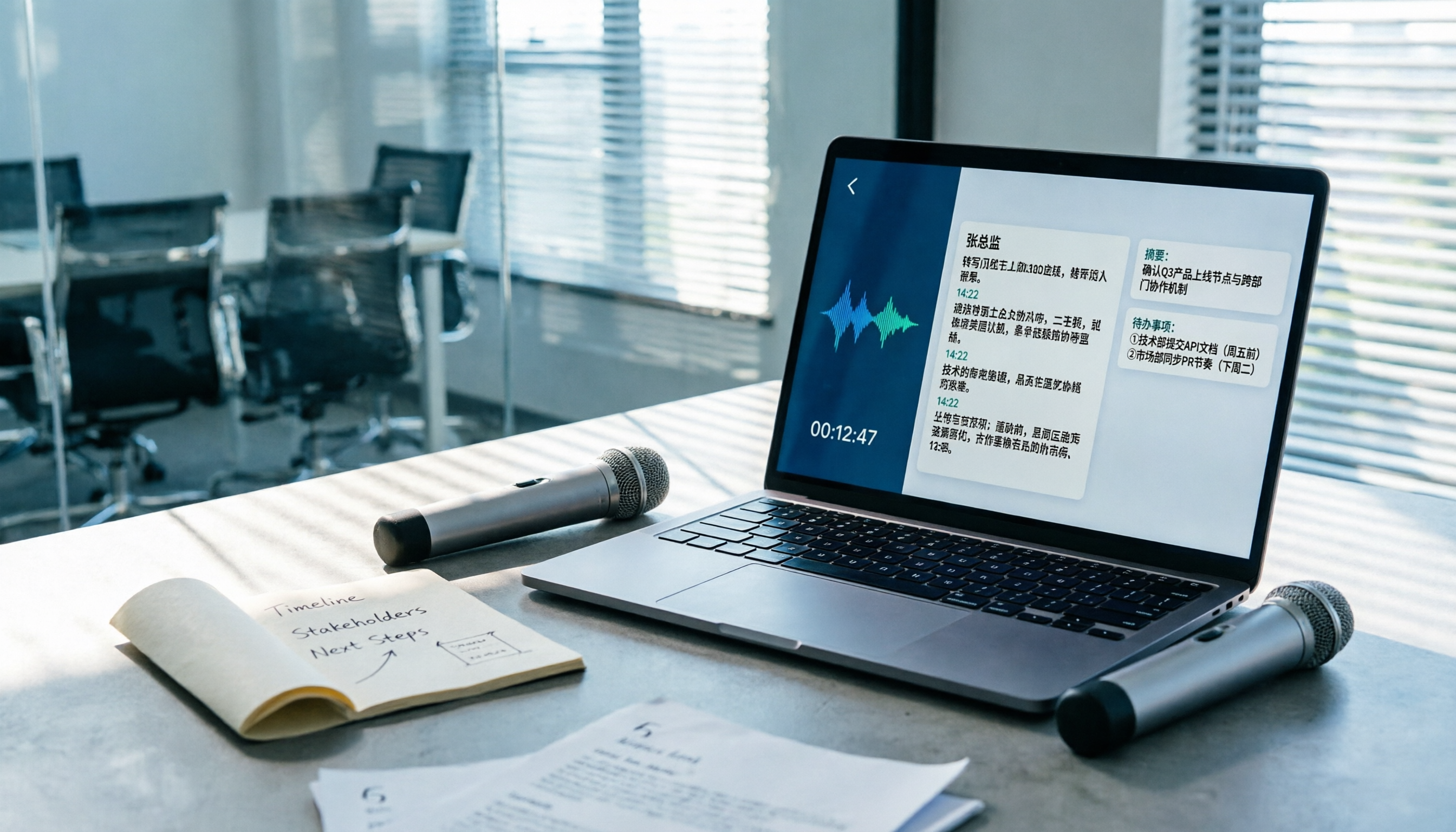
Best Speech-to-Text Tools 2026: PTT-Approved Picks & AI Meeting Notes Guide
Tired of unopened audio files piling up after every project? Starting from the three most common questions asked on PTT, this guide breaks down how to choose a speech-to-text tool, shows how Tinrec turns recordings into usable meeting data, and honestly compares Notta, Otter.ai, and Granola to help you decide which one fits you best. It ends with a step-by-step checklist you can follow right away.

2026 Speech-to-Text Platforms Compared: Which Handles Chinese Meetings and Post-Meeting Cleanup Best?
We tested 5 speech-to-text platforms in 2026, comparing bot-free online meeting recording, Chinese transcripts, post-meeting summaries, and action item organization. We cover key buying factors, pitfalls to avoid, and practical recommendations to help you save that hour after every meeting.

How to Use WhatsApp Voice to Text in 2026: 5-Step Guide & Tinrec Comparison
A 5-step setup guide for WhatsApp voice-to-text in 2026, covering language and privacy limitations, plus a comparison of WhatsApp's built-in transcription with Tinrec for meeting notes, summaries, action items, AI Q&A, and team collaboration—helping you decide which tool to use.

Tinrec vs Yating Transcription 2026: 5-Dimension Comparison — Which Is Better for Free Recording and Post-Meeting Organization?
Compare Tinrec and Yating Transcription across free quota, online meeting recording, post-meeting organization, team collaboration, and language scenarios. Includes a 5-step free speech-to-text workflow using Tinrec as an example to help you decide which free tool to choose.
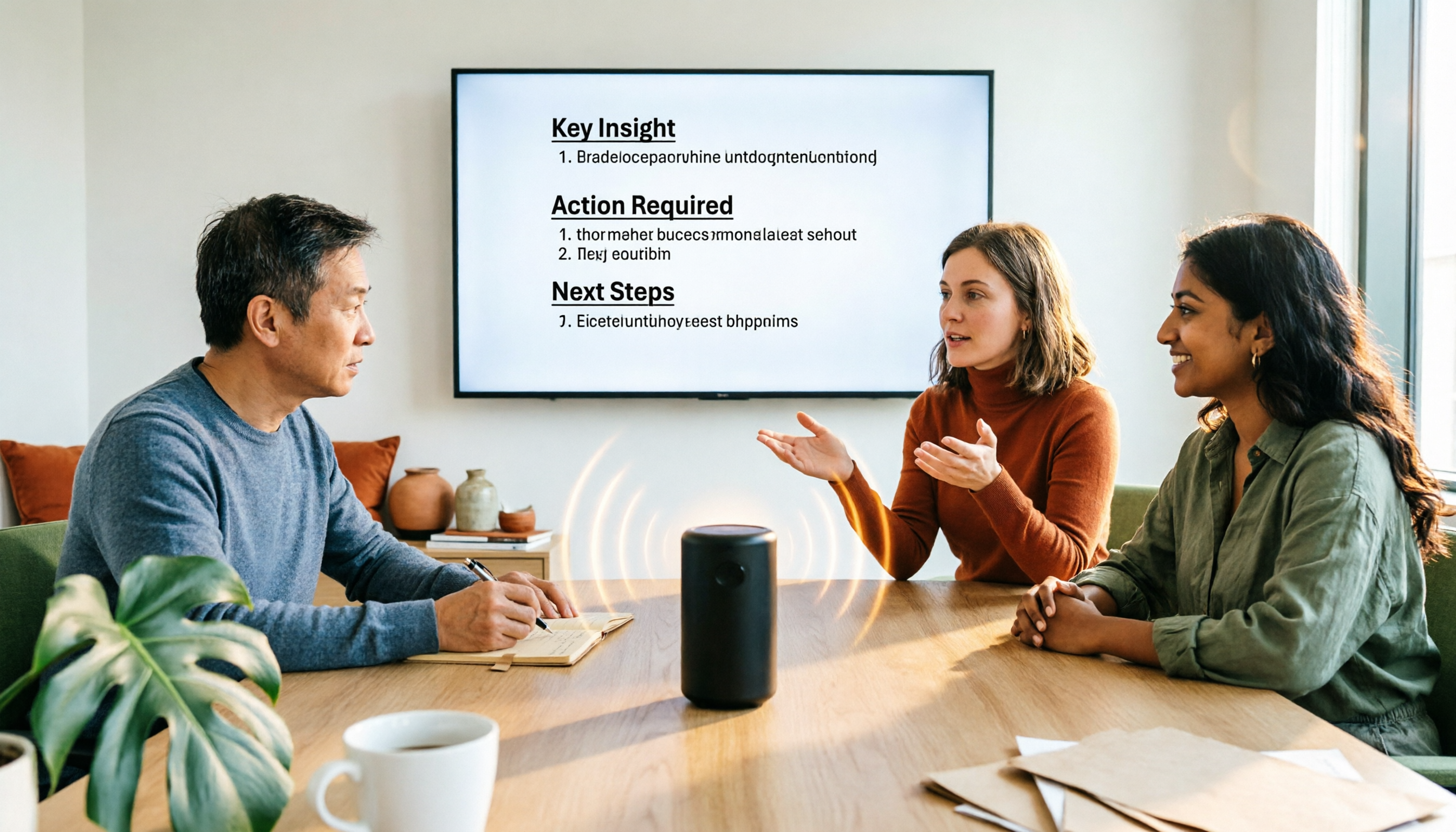
Best Speech-to-Text Platforms in 2026: Tinrec vs Yating Transcription for Meeting Notes & Team Collaboration
Most people choose a speech-to-text platform based only on transcription speed and free minutes, overlooking post-meeting organization and team collaboration. This article compares Tinrec and Yating Transcription—the two most commonly compared options among users in Taiwan—across six dimensions: meeting recording methods, post-meeting outputs, cross-platform support, team governance, export workflows, and pricing structure, helping you decide which one better fits your use case.

2026 Comparison of 5 Speech-to-Text Tools: Contrast Is the Key to Choosing the Right One
Most people compare speech-to-text tools by looking only at the accuracy rate and free minutes on official websites, but this comparison reveals very little difference. This article starts from 'how much effort is still needed to organize after transcription' and breaks down the three levels that truly reveal tool differences, core capabilities, practical scenarios, and purchasing points. It also explains how Tinrec actually works in meeting notes and team knowledge retention.

4 Speech-to-Text Apps Tested for 2026: Generate Chinese Meeting Minutes Without a Meeting Bot
Spend an hour in an online meeting and another hour organizing notes afterward? This article compares four speech-to-text tools—Tinrec, PLAUD Note, Notta, and Otter.ai—based on real-world usage, covering meeting recording methods, Chinese recognition, post-meeting summaries, and team authorization. It also outlines 4 key purchasing factors and 3 common pitfalls to help you choose the one that truly saves time.

Free Speech-to-Text Options in 2026: 4 Plans Compared
There are plenty of free speech-to-text tools, but "free" often doesn't mean "good enough." Starting from real student use cases, this article breaks down three common misconceptions, compares four plans—Free, Weekly Pass, Pro Monthly, and Pro Annual—and demonstrates a complete workflow from class recordings and group discussions to project interviews and exam review.

How to Use Free Speech-to-Text in 2026: 5 Steps to Choose the Right Tool
Free speech-to-text can mean many things: some offer trial credits, some limit file length, and some won't let you export. This article addresses three common misconceptions and walks you through 5 steps to choose a tool. It also tests Tinrec's free version to show what it can and can't do, and compares the free plans of Otter.ai, Notta, and TurboScribe.