

Turn recordings into transcripts and summaries in minutes
Upload audio or video for multilingual transcription, AI notes, and action items
Before You Start | What You Need
If you are looking for a high-capacity recording solution, buying a voice recorder is not the only option. Use your existing smartphone with Tinrec (instant recording) to handle long meetings, classes, and interviews without worrying about storage space.
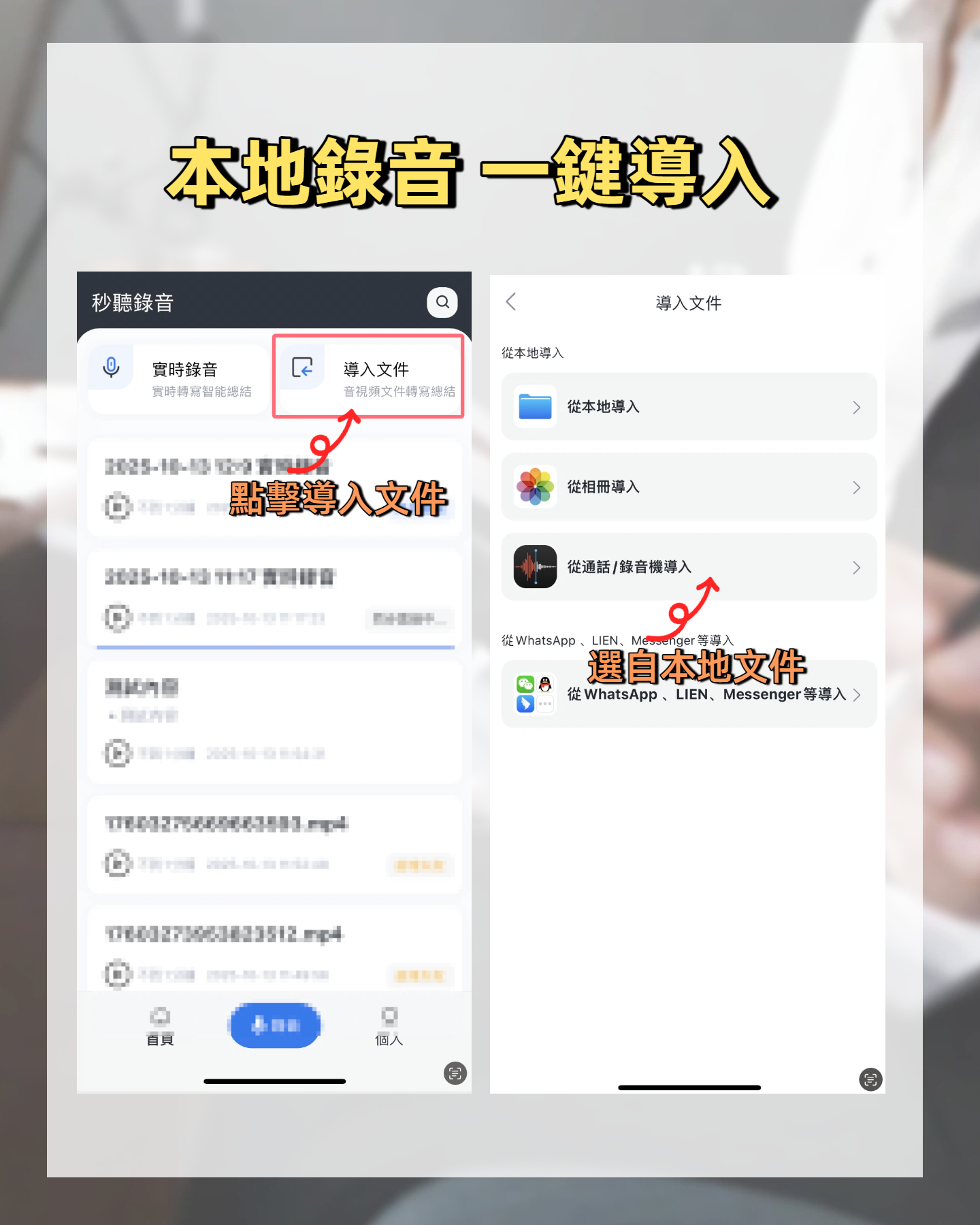
This article takes Tinrec as an example to guide you through the process from high-capacity recording to automatically generating meeting minutes. Before you start, you only need:
- A smartphone (iPhone or Android, Tinrec supports both platforms)
- Download the Tinrec app (free on App Store or Google Play, log in with Google or Apple ID)
- Prepare your recording scenario (meeting, class, or interview, ensure the phone's mic picks up clearly)
- A stable internet connection (real-time transcription requires internet; for offline use, download language packs in advance)
Step 1 | Record High-Capacity Content to Transcribe
The goal of this step is to obtain a clear audio file—whether it's a one-hour project meeting or a three-hour seminar, you can record with confidence.
Open Tinrec and tap the record button on the main screen to start. Keep your phone close to the speaker during recording—the closer the distance, the clearer the audio, and the higher the transcription accuracy. For multi-person meetings, place the phone in the center of the table. Tinrec has no single-file length limit, so you don't have to worry about running out of memory like some voice recorders.
Why emphasize recording quality? Because AI transcription accuracy depends on audio quality—spending an extra 30 seconds to check placement during recording saves time later on proofreading.
Once done, the recording is automatically saved to Tinrec's cloud, not taking up phone storage. You can replay or manage it from the main screen.
(Illustration: A person recording in a meeting room, phone placed at the center of the table, surrounded by participants, professional and natural atmosphere)
Step 2 | Let AI Transcribe into a Transcript
The goal of this step is to quickly convert high-capacity recordings into searchable, editable text.
In Tinrec, you can start transcription immediately after recording. Even a one-hour meeting recording typically produces a transcript within a few minutes. AI automatically identifies different speakers and adds timestamps.
Why use AI instead of manual transcription? Manual transcription of a one-hour recording takes at least three hours and is prone to missing key points. Tinrec's transcription accuracy is high with clear audio, saving a lot of mechanical work.
After completion, you'll get a transcript with a timeline, which you can browse or edit within the app.
(Illustration: Phone screen showing a progress bar for transcription, with transcript text appearing alongside)
Step 3 | Quickly Proofread the Transcript
The goal of this step is to correct key terms that AI might have misjudged, ensuring content accuracy.
On the transcript page, you can listen to the recording while comparing text, and use built-in editing to make changes. Tinrec supports skip playback—tap any point on the timeline to play from there, no need to drag back and forth.
Why proofread? Although AI accuracy is high, it can still make errors with proper nouns, accents, or background noise. A quick review of proper nouns and numbers ensures subsequent meeting minutes or reports are more precise.
After completion, the transcript becomes your "factual foundation" on which all subsequent organization is built.
(Illustration: Phone screen with transcript on the left and audio waveform on the right, user tapping a line of text to adjust)
Step 4 | Let AI Generate Meeting Minutes
The goal of this step is to condense long transcripts into summaries and action items usable by managers.
Stop organizing recordings by hand
Upload audio or video and automatically get a transcript, summary, and action items
Tinrec has built-in AI summary function. After tapping "Generate Summary," it automatically produces the following structure:
- Meeting summary (3-5 sentence recap)
- Section segmentation (broken into topic-based paragraphs)
- Action items (list who needs to do what and deadlines)
- Key highlights (bullet-point summary)
You can also customize prompts, such as "List the resolutions and action items from this week's department meeting in a weekly report format."
Why is this step especially important for managers? Because after a meeting, what you need most is not a transcript, but actionable conclusions that can be directly sent to your boss or team.
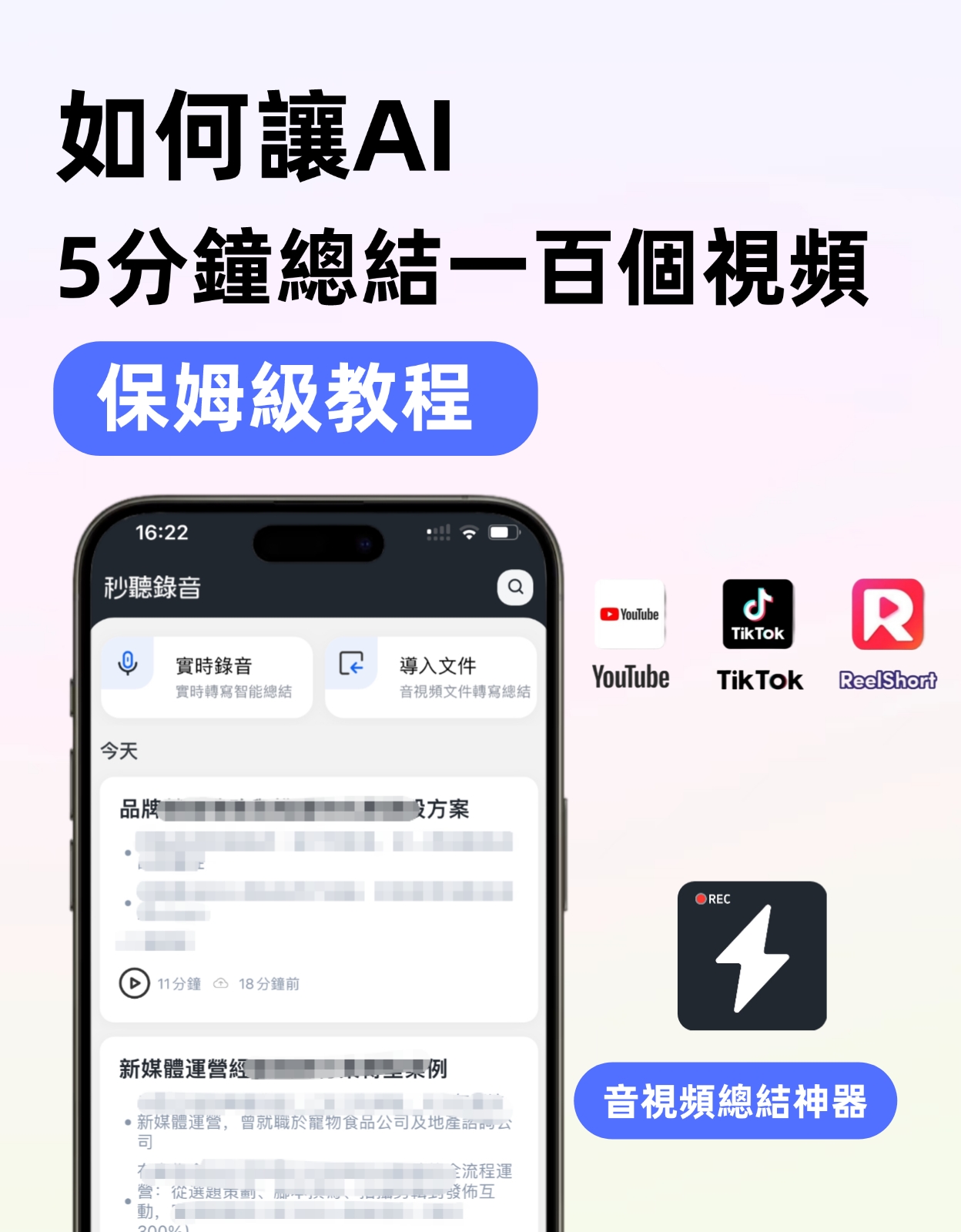
After completion, you'll have a well-structured meeting record that can save half the organization time.
(Illustration: Phone screen showing an AI-generated meeting summary, with abstract at top and to-do list below)
Step 5 | Export and Share
The goal of this step is to bring the organized content from Tinrec to the tools you use daily.
Tinrec supports multiple export formats: TXT, DOCX, PDF, subtitle SRT, and can share links directly with colleagues. If you use Notion, Google Docs, Dropbox, etc., you can set up automatic syncing.
Why export? Because meeting minutes ultimately need to be archived, inserted into project management tools, and included in reports. Tinrec lets you do it with one click, no copy-pasting needed.
After completion, your team can see the same meeting minutes anywhere, eliminating the "I didn't receive it" situation.
(Illustration: Export page showing icons for various formats, with arrows pointing to external apps)
FAQ and Troubleshooting
Q: Does transcription accuracy decrease for long recordings?
A: No, accuracy depends mainly on audio quality, not length. Tinrec's transcription engine is stable even for long files. If you use a voice recorder that records first and then transfers, transcription often fails due to file size; Tinrec's cloud processing doesn't have this issue.
Q: What to do if the transcript has too many errors?
A: Usually due to the recording distance being too far or excessive ambient noise. Tinrec has built-in smart noise reduction; turn it on before recording to improve. If your recording is already done, you can manually select 'High Noise Environment' mode after importing.
Q: Is the free version sufficient for high-capacity recording?
A: The free version has a basic monthly transcription quota, suitable for light users who only need it occasionally. If you have over a dozen meetings per week like I do, I recommend upgrading to Pro for more transcription minutes.
Q: Can Tinrec record with a button press like a voice recorder?
A: Yes, Tinrec has a quick-launch widget—one-tap start on the phone's home screen. It also includes cloud backup and cross-device syncing, which voice recorders cannot do.
Advanced Tips | 3 Ways to Double Tinrec's Efficiency
1. AI Chat Query: Turn high-capacity recordings into a Q&A database
With a voice recorder, once recorded, that's it—if you want to find a specific part, you have to listen from the beginning. Tinrec's AI Chat feature lets you ask questions in natural language, like "What were the annual goals from last month's business meeting?" The AI will directly find relevant segments from all historical recordings. This feature is currently not available on any voice recorder.
2. Direct Transcription from Online Videos: Not only record yourself, but also organize external content
Besides self-recordings, Tinrec can also paste links from public videos such as YouTube and Bilibili, and convert them directly into text summaries. This is very useful for managers who need to reference market information—no more taking notes while watching.
3. Cross-Platform Sync: Record on phone, edit on computer, share to team
Voice recorders are usually single-device, making file transfer cumbersome. Tinrec's data automatically syncs to the web version, so you can proofread and edit on a larger computer screen, then share directly. The workflow smoothness is on a completely different level.
If You Don't Use Tinrec, Here Are Alternatives
- Plaud Note Voice Recorder: Suitable for users who value 'one-press physical recording' and don't want to use their phone. It has strong hardware battery life, but transcription minutes require additional payment, and it cannot handle online videos or cross-device syncing.
- Otter.ai: Focuses on automatic online meeting recording, strong for English scenarios, but Chinese transcription and post-processing are not as tailored to our use cases as Tinrec.
Overall, if you need a smart tool that can handle high-capacity, multi-source recordings and immediately generate summaries and action items, Tinrec is more suited to the pace of the modern workplace than any voice recorder.
Summary
With these 5 steps, you can now use Tinrec to convert recordings of any length and source into transcripts, automatically generate meeting minutes, and even use AI Chat to extract key information from historical records. These capabilities are something traditional voice recorders cannot offer.
Next step: Download the free version of Tinrec, try it with one of your own meeting recordings. The free monthly quota is enough for two or three sessions, so you can experience the difference from the "voice recorder era" to the "AI organization era" firsthand.
Turn every recording into actionable outcomes
Get 60 free transcription minutes when you sign in. No credit card required.
Related Reading
You might also like

2026 Speech-to-Text Tools Compared: Which One Handles Chinese Best According to Dcard 2024 Discussions?
Starting from Dcard discussions about speech-to-text, this article focuses on Tinrec and Notta, the two most frequently compared tools. It compares them on online meeting recording methods, Chinese and mixed Chinese-English recognition, post-meeting organization, team collaboration, free quotas, and pricing to help you decide which one to choose.

Tinrec vs Notta 2026: 5-Factor Comparison for Medical Consultation Recording Apps
Back-to-back clinic visits make it hard to remember what was said and even harder to look up later. This article compares Tinrec and Notta across five practical dimensions—Chinese consultation transcription, post-visit organization, and team sharing—and includes four common pitfalls of clinic recording plus selection advice.

5 AI Speech-to-Text Tools Tested for 2026: Which PTT-Favorite Actually Works for Meeting Minutes?
There's a lot of discussion on PTT about AI speech-to-text, but most reviews only cover transcription accuracy and skip how to use the output. This article starts from real meeting scenarios, outlines 4 key buying factors, and hands-on compares 5 popular tools including Tinrec, Otter.ai, Notta, and Granola. It also honestly lists free quotas and paid pricing to help you decide which one truly saves time on meeting notes.

2026 iPhone Meeting Transcription Showdown: Free Built-in vs. AI Tools—Which Saves More Time?
We tested four iPhone meeting transcription solutions in 2026, from the free built-in Voice Memos to Tinrec, Otter.ai, and Notta. Here's how to decide which one best fits your meeting needs for transcripts, AI summaries, action items, and team collaboration.

5 Gemini Meeting Transcription Options Tested for 2026: Is the Free Version Enough?
Many people upload meeting recordings to Gemini only to find that long recordings yield just a summary. This article reviews 5 Gemini meeting transcription options, from Gemini, Gemini Notebook, and Google AI Studio to Tinrec, with hands-on testing and pricing limits, helping you choose the right approach for short meetings or team knowledge retention.

2026 AI Meeting Notes Comparison: Beyond Notion AI Free — Who Is Tinrec For?
Starting from student use cases, this article debunks common misconceptions about 'Notion AI free meeting notes' and presents Tinrec as an alternative, comparing meeting capture, free quotas, post-meeting organization, and team collaboration, with practical examples for classes, group discussions, and internship interviews.

5 Transcription Tools Tested and Compared in 2026: Is Google Translate Transcription Good Enough? Which Saves the Most Time for Meeting Notes?
Google Translate's Transcribe feature can generate transcripts while recording audio, but it only supports Android and 8 languages, and cannot upload existing audio files. This article walks through its usage and limitations, then compares the scenarios where Tinrec, Otter.ai, Notta, and TurboScribe each fit best.
2026 Comparison of 3 Meeting Notes Methods: LINE vs ChatGPT vs Tinrec — Which Saves the Most Time?
After the meeting ends, the LINE group is still buzzing, but no one has organized the recording? This article compares three meeting notes approaches — LINE, ChatGPT, and Tinrec — covering bot-free recording, transcript organization, AI action items, and team data governance. It includes hands-on workflow tests and pitfalls to help you choose a meeting notes solution that truly saves time.

2026 Meeting Minutes Tools Buying Guide: 3 Hands-On Tests and Chinese Meaning of Meeting Minutes
The Chinese for 'meeting minutes' is '會議紀錄' (meeting record), not '會議幾分鐘' (how many minutes the meeting lasts). This article first explains the Chinese meaning of 'minutes', its plural usage, and common misunderstandings, then outlines the fields a meeting record should have and 4 key points for choosing a tool. It also compares Tinrec, Otter.ai, Notta, and Granola in hands-on tests, covering differences, quotas, and limitations, and finally provides a pitfall guide and selection advice.