
Turn recordings into transcripts and summaries in minutes
Upload audio or video for multilingual transcription, AI notes, and action items
Last semester, I took a fully English online course. The professor held classes weekly on Google Meet, slides were all in English, and he spoke fast—I often got lost. Although Google Meet’s auto-captions were somewhat helpful, they only supported a single language and couldn’t translate into Chinese in real time. After class, I had to listen to the recording from scratch, which was a pain. Later, I started researching solutions for “Google Meet real-time translation,” tried several tools, and finally found the best option for students—Tinrec. This article draws on my semester-long experience to help you handle Google Meet real-time translation and meeting organization!
Before You Start: What You Need
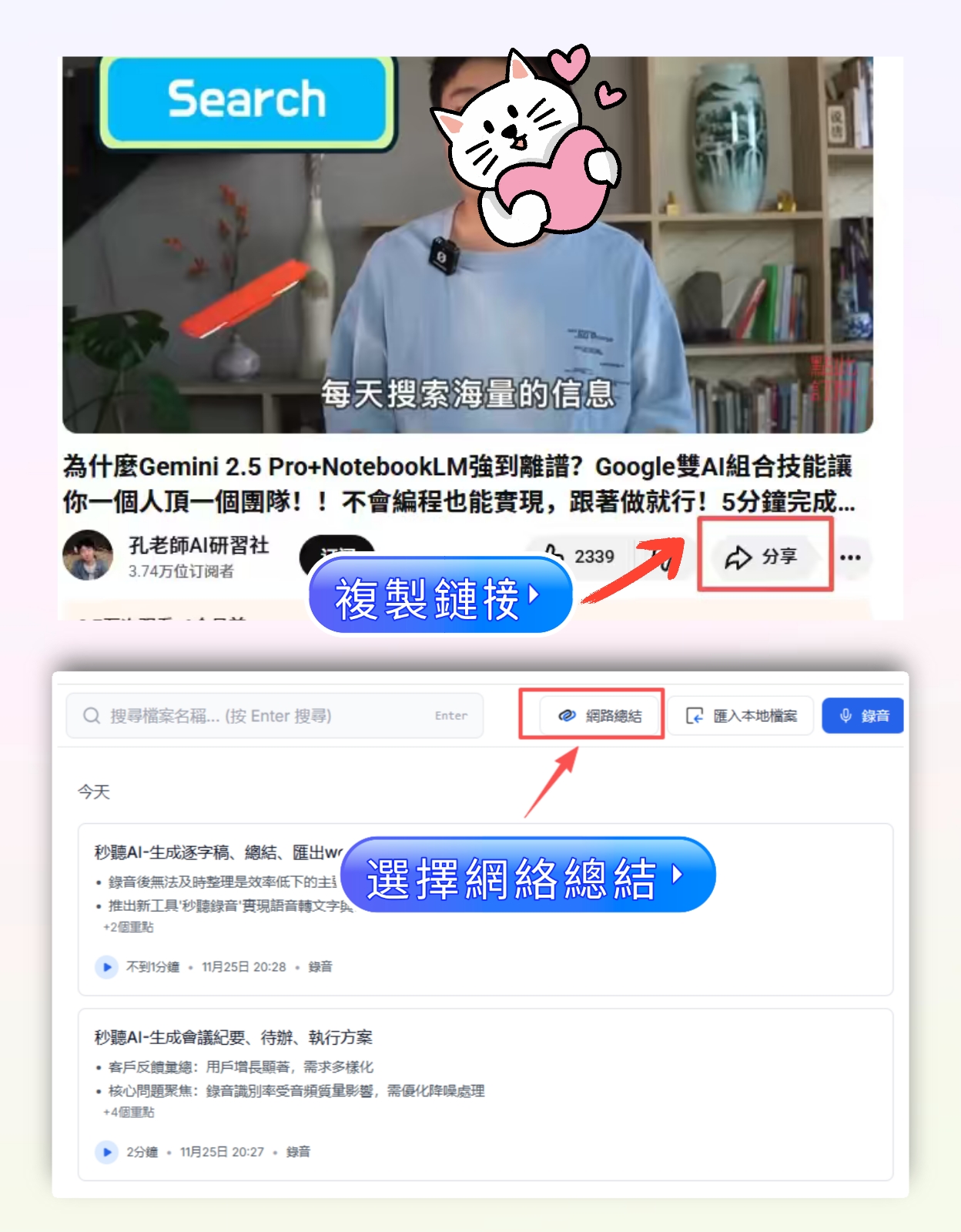
- A phone or computer: I used an Android phone and a Windows laptop. Tinrec’s app and web version both work.
- Download Tinrec and sign up: Free download from the App Store or Google Play. Logging in with a Google account is the easiest—no need to remember an extra password.
- Prepare your Google Meet meeting: Whether it’s a class, group discussion, or online lecture, make sure you have the meeting link.
- Stable internet: Dorm Wi-Fi is enough. Real-time translation requires an internet connection, so operate in a place with good signal.
Step 1: Record the Google Meet Meeting with Tinrec
The goal here is to get clear audio for accurate transcription and translation later.
Open Tinrec, select “Live Recording” mode, and check “System Sound” in the source options (if you also want to record your own speech, enable “Microphone” as well, but use headphones to avoid echo). Go back to Google Meet, start the meeting, and press the record button in Tinrec. Keep the environment as quiet as possible—if you zone out, the AI won’t.
Why ensure audio quality first? Because real-time translation accuracy is directly proportional to audio quality—even the best translation engine can’t handle garbled sound. Rather than spending time correcting later, it’s better to get the audio right from the start.
Once done, you’ll see real-time captions appear as the meeting progresses, with the translation displayed below.
Step 2: Use AI for Real-Time Translation
The goal here is to listen and read the translation simultaneously, truly breaking the language barrier.
During recording, tap the translation feature in Tinrec and select the target language (e.g., English → Traditional Chinese). Tinrec automatically segments the speech, transcribes it, and translates it into Chinese in real time, like bilingual subtitles. If you switch to “Simultaneous Interpretation” mode, you can even hear live voice translation (but in class, it’s better to read to avoid disturbing others).
Why is this better than Google Meet’s native captions? Because native captions can’t translate—you have to force yourself to listen. Tinrec not only translates but also aligns the original and translated text for later reference.
Result: During the meeting, it’s like watching a Hollywood movie with Chinese subtitles—you never miss the key points.
Step 3: Proofread and Adjust the Translation
The goal here is to tailor the translation to your needs, especially for proper nouns or the professor’s pet phrases.
Stop organizing recordings by hand
Upload audio or video and automatically get a transcript, summary, and action items
After the meeting, go to the audio page in Tinrec. You’ll see the complete bilingual transcript. Tap any translated sentence to edit it directly, or mark it as “needs re-translation”—the AI will re-translate based on context. If a whole paragraph sounds off, you can select it and ask the AI to redo it.
Why proofread? Real-time translation can have small errors due to accents, background noise, or overlapping speech. Spending 5 minutes correcting it will pay off during finals.
When done, you’ll have a reliable Chinese-English reference.
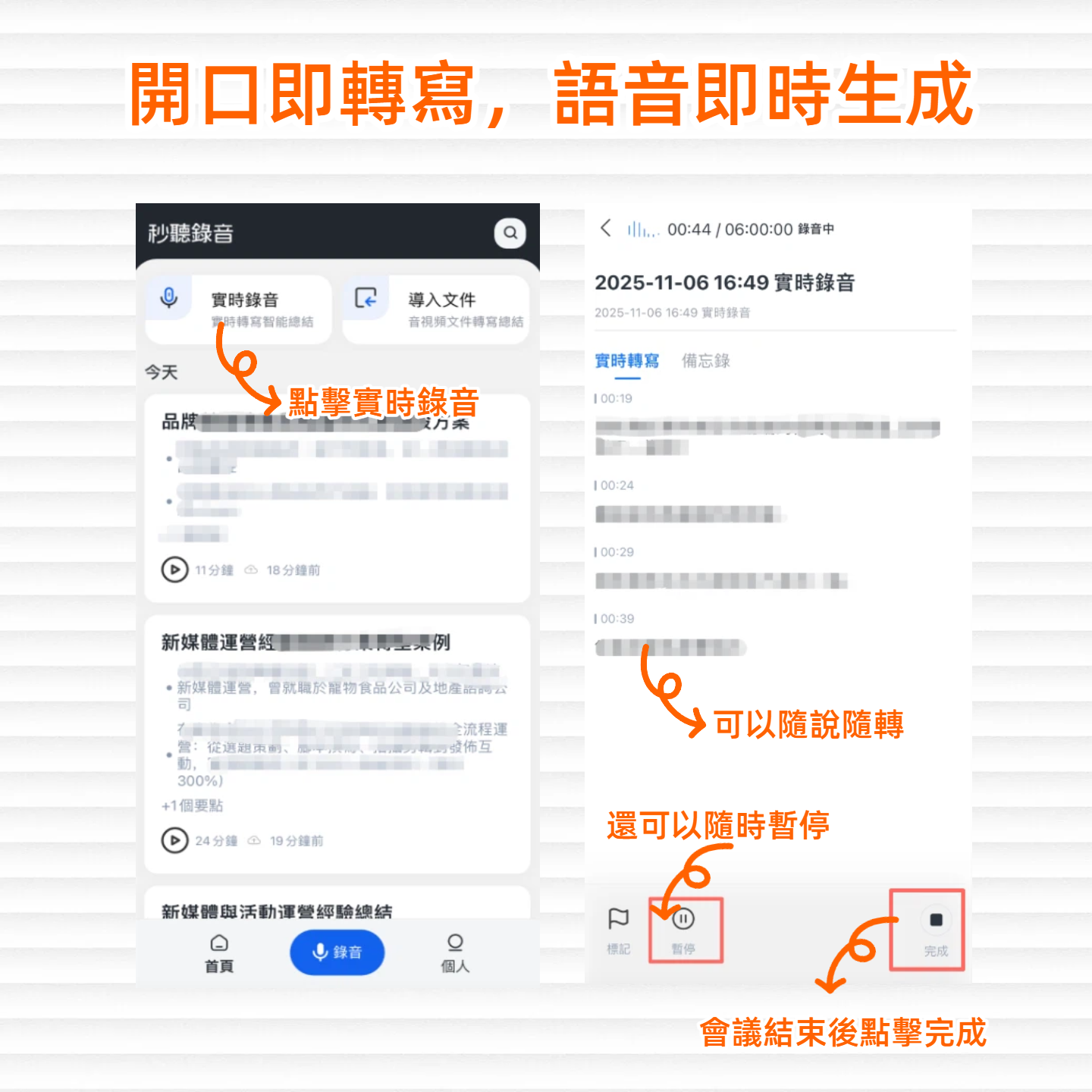
Step 4: Generate Meeting Minutes and Export
The goal here is to turn your notes into a shareable report or study material without manually re-summarizing.
Tap “AI Summary”—Tinrec automatically extracts key points, critical discussions, and action items from the bilingual transcript, and can even generate charts or mind maps. You can also choose export formats: Word, PDF, TXT, or sync directly to Notion or Google Docs. My favorite is the “Meeting Minutes” mode—one click outputs a bilingual summary, perfect for group assignments.
Why is this awesome? Before, I spent two to three hours manually organizing after class. Now it takes 5 minutes.
Common Questions & Troubleshooting
Q: Google Meet already has captions, why use Tinrec? A: Google Meet’s auto-captions only support a single language and cannot translate into Chinese in real time. Besides translation, Tinrec allows you to search for keywords later and use AI Q&A to directly find “which day did the teacher mention the exam date last week?”—something native captions can’t do.
Q: Is real-time translation accurate? Does it mess up? A: In a quiet environment with clear speech, Tinrec’s Chinese-English translation is over 80% usable. However, for technical terms or heavy accents, manual tweaking is recommended. Compared to understanding nothing, it’s saved me multiple times.
Q: Is the free version enough? What’s the student plan? A: The free version includes a basic monthly transcription quota. If you only have one or two classes, it’s definitely enough. For me, with three hours of class per week, the free version lasted the first half of the semester. I upgraded to Pro monthly only later because I also recorded group discussions—it costs about the price of a bubble tea, totally worth it.
Pro Tips: 3 Ways to Double Your Efficiency with Tinrec
Cross-device sync: record on your phone in class, edit on your computer in the dorm
Tinrec supports iOS, Android, and web. Log in to the same account, and all recordings and notes sync automatically. I record on my phone in class, then use my laptop at home to edit translations and summaries—no file transfer needed.- Use AI Chat to ask key questions without re-listening to the whole lecture
This is my favorite feature. Before finals, I asked Tinrec: “Which weeks in this course covered the assumptions of statistical tests?” The AI found relevant segments from all recordings, along with timestamps. Most other transcription tools can only search for keywords; Tinrec understands the content. - Handle multilingual meetings in one go
Our group has international students, so discussions often mix Chinese and English. Tinrec automatically detects multiple languages and translates them separately. I used it for a mixed Chinese-English meeting, and the transcript and translation were quite accurate, saving me the hassle of switching languages manually.
If You Don’t Use Tinrec, Here Are Other Options
- Otter.ai: Strong in English meeting transcription and collaboration, but only outputs in English. To translate into Chinese, you need another tool, which isn’t friendly for Chinese-speaking students. Its free version offers 300 minutes per month, but it doesn’t provide Chinese translation directly.
- Notta: Features are similar to Tinrec, with multilingual transcription and translation, but the free version only gives 120 minutes per month—less than Tinrec’s free version—and there’s no special student discount.
Comparing the two, Tinrec still understands Chinese students’ pain points best: accurate real-time translation, sufficient free quota, and super convenient AI Q&A for finding key points.
Summary
Now you’ve learned to use Tinrec to handle Google Meet real-time translation and meeting organization: record → real-time translation → proofread → generate minutes. Don’t be afraid of fully English courses or cross-border group discussions anymore—the free version can carry you for half a semester. Next step: try it on one of your classes. Download Tinrec’s free version, record once, and you’ll see how much effort it saves.
Turn every recording into actionable outcomes
Get 60 free transcription minutes when you sign in. No credit card required.
Related Reading
You might also like

2026 AI Meeting Management Tools Comparison: Tinrec vs Granola for Recording, Organization, and Team Knowledge
Compare Tinrec and Granola across bot-free recording, audio retention, Chinese and bilingual support, post-meeting outputs, and team governance to help readers quickly decide which AI meeting management tool fits their workflow.

2026 AI Agent Meeting Review Tools Compared: Which One Turns Decisions into Action Items?
Starting from the pain points of mid-level managers in review meetings, this comparison of Tinrec, Otter.ai, Fireflies.ai, and Granola covers differences in bot-free recording, Chinese-language meetings, action item extraction, AI Q&A, and team governance to help you choose an AI Agent tool that turns meeting conclusions into action.

How to Turn Meeting Minutes into a PowerPoint in 2026: Tinrec Highlights + Presentation Outline Walkthrough
Turning meeting minutes into a PowerPoint isn't just about pasting a transcript into a slide tool. This guide uses Tinrec to demonstrate the full workflow—from recording and transcription to AI summaries, action item extraction, and presentation outlines—plus 5 things to consider when choosing a meeting minutes tool and answers to common questions.

5 AI Agent Recording Tools Tested: Which One Actually Saves You Time in 2026?
The real nightmare begins after the meeting ends. This article compares AI Agent recording tools like Tinrec, Granola, Notta, and TurboScribe from real-world usage scenarios, covering the 4 key factors to consider when choosing, our main pick after testing, how each tool differs in positioning, and the 4 most common pitfalls—helping you find the one that truly saves time.

2026 AI Agent Action Item Extraction Free Plans Compared: 4 Options at a Glance
Many people think a transcript equals a to-do list, but they still end up reading it from scratch and copying tasks manually. This article compares four common approaches to AI Agent action item extraction and their free-tier differences, using Tinrec as an example to illustrate the full workflow from recording and transcription to summaries, action items, follow-up questions, and export, plus five things to consider when choosing a tool.

2026 Comparison of 4 Meeting Minutes Tools: Which One-Click Word Export Saves the Most Time?
Still typing meeting minutes into Word after the meeting? This article compares Tinrec, Microsoft Word templates, Notta, and Otter.ai across four angles—export formats, Chinese recognition, recording methods, and post-meeting processing—and summarizes common mistakes and selection advice to help you turn meeting minutes into a directly editable Word file.

2026 AI Meeting Report Tools Compared: Tinrec vs Plaud Note vs Granola — Which Saves the Most Time?
Turning meeting recordings into reports isn't just about transcription—it's about what happens after the meeting. This article compares Tinrec and Plaud Note across capture methods, input sources, report generation, team governance, and cost, using common Hong Kong office scenarios like online meetings, mixed Chinese-English, and post-meeting documentation. It also explains why Granola isn't ideal for team archiving.

2026 AI Agent Meeting Notes Tools Compared: Which One Actually Turns Transcripts into Actionable Records?
Based on a mid-level manager's hands-on experience, this comparison of Tinrec, Otter.ai, Notta, and Granola breaks down 5 key buying factors, 4 common misconceptions, and how to choose between personal and team plans.

2026 Free Meeting Minutes to Word Export Options: Tinrec vs Otter.ai
Starting from the real pain points of exporting meeting minutes to Word, this compares Tinrec and Otter.ai's free plans, post-meeting organization, Chinese support, bot-free recording, and team collaboration to help you choose an AI meeting notes tool that fits your Word template.