
Turn recordings into transcripts and summaries in minutes
Upload audio or video for multilingual transcription, AI notes, and action items
Before You Start: What You’ll Need
Before choosing a speech-to-text app, clarify your use case so you don’t get swept away by the word “free.” The preparation below will help you save time and avoid trial and error:
- Identify your main audio source: meetings, classes, interviews, or online videos? Apps vary widely in how well they support live recording versus file transcription.
- Pick apps to test: This article uses Tinrec as the walkthrough example and compares four other tools at the same time. Download two or three apps and record a 3-minute clip to test transcription quality.
- Prepare a test recording: Ideally record a real scenario (like a meeting or class) for about 3–5 minutes. A little background noise makes the test more realistic.
- Make sure you have an internet connection: Almost all AI transcription requires an internet connection. If you often work offline, check whether the app offers an offline language pack.
Step 1: Record What You Want to Transcribe
The goal here is to get a clear recording, since this is the foundation for everything that follows.
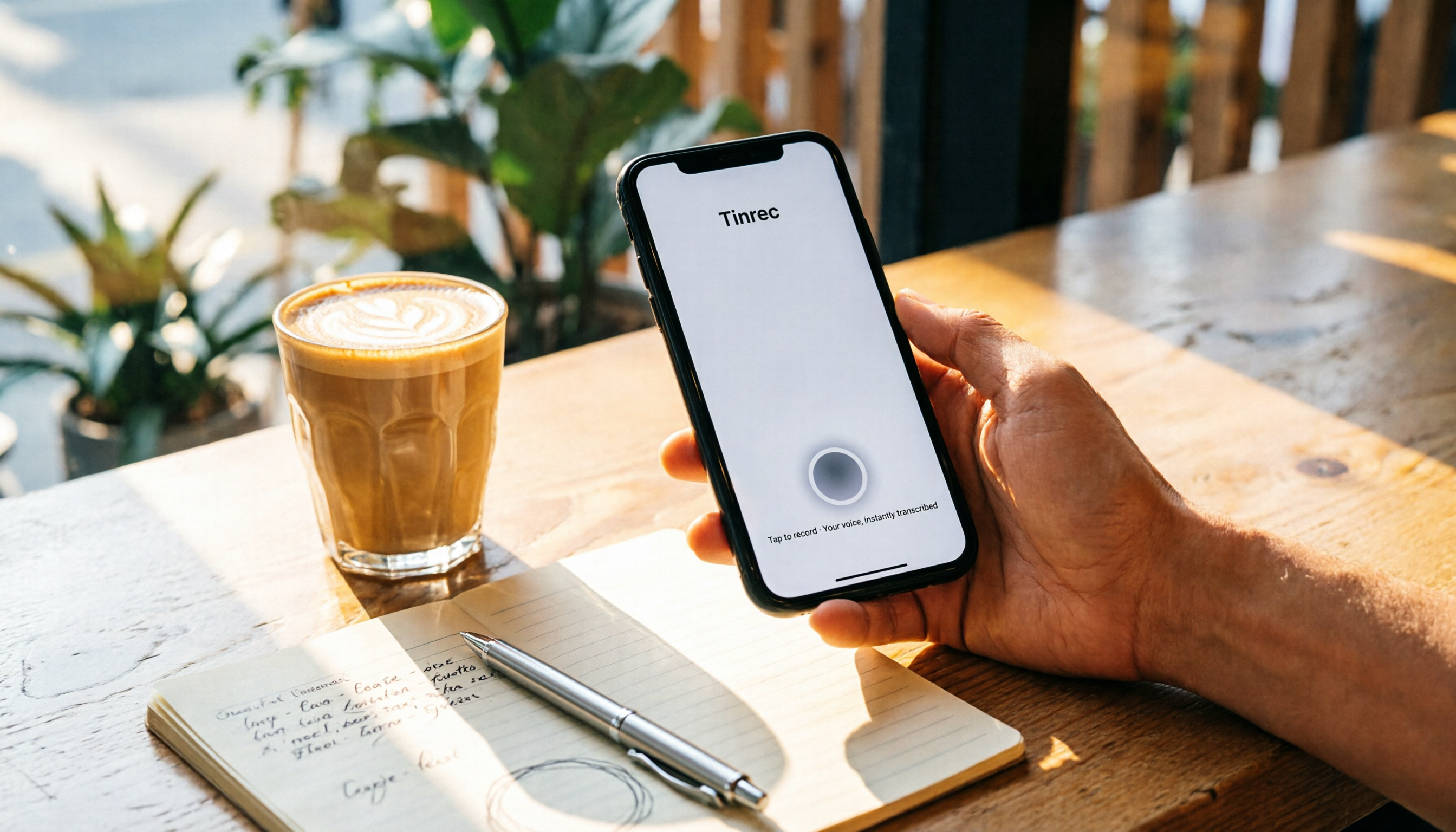
Open Tinrec and tap the record button on the home screen to start recording. Keep the phone close to the speaker; the closer it is, the clearer the audio. For a one-on-one interview, place the phone between both people; for a group meeting, put it in the center of the table.
Why emphasize recording quality? Because AI transcription accuracy depends heavily on audio clarity. Instead of spending time correcting errors later, spend 30 extra seconds checking the phone’s position while recording. This applies to every app: even Yating Transcript, which is optimized for Taiwan Mandarin, will make mistakes in noisy environments; iPhone Notes’s live dictation is only stable in quiet settings.
When you finish, Tinrec displays the recording on the home screen with its duration and file size. Other tools, such as MyEdit, only accept uploaded files and don’t have built-in recording, so if you prefer to record first and transcribe later, you’ll need a separate recording app.
(Illustration placeholder: a person is recording in a meeting room, with a phone placed in the center of the table, surrounded by attendees; the scene looks professional and natural)
Step 2: Let AI Create Your Transcript
After recording, Tinrec automatically starts transcribing and produces a transcript within minutes. If you need to transcribe an external file (such as an old meeting recording or a podcast clip), just choose “Import audio” in Tinrec; it supports common formats. More notably, you can directly paste a public video link from YouTube, Bilibili, or other platforms, and Tinrec will organize the video content for you.
By comparison, Yating Transcript can also import from iOS Voice Memos, but only within the Apple ecosystem. MyEdit requires manual file upload and gives you only 3 free minutes per day; after that, you have to pay. SoundType AI’s free version has a usage-time limit, and early users reported that transcriptions included unrelated advertisement text (the company says this has been fixed).
Tinrec automatically splits the transcript into paragraphs and adds timestamps. This is especially useful for meeting minutes or interviews, since you can quickly jump to a specific point. If you rely on iPhone Notes’s dictation, you only get a plain text stream with no timestamps, making later cleanup much harder.
Step 3: Quickly Review and Correct the Transcript
Once transcription is done, don’t rush to save. Spend a few minutes proofreading, especially for proper nouns, numbers, and sections with multiple speakers. Tinrec’s editor lets you edit the text directly while playing back the recording, making it easy to compare.
In testing, Tinrec recognized Taiwan Mandarin quite well, but mixed Chinese-English text and Taiwanese Hokkien passages still need manual adjustment—this is a common weakness among all current AI transcription tools. Yating Transcript claims to understand Taiwan Mandarin, Taiwanese Hokkien, Cantonese, and Japanese, so it may have a slight edge in mixed-language settings, but a fully accurate transcript still requires manual correction.
While proofreading, use Tinrec’s “Highlight” feature to mark key passages, which makes it easier to focus when generating summaries or meeting minutes later. This feature is missing from most free tools.
Step 4: Let AI Generate Meeting Minutes
Tinrec goes beyond transcripts: it can generate AI summaries, chapters, and action items in one click. For meetings or classes, this is a time-saver—you don’t have to listen through everything and pull out the key points yourself.
How to use it: On the proofread transcript page, tap “AI Summary,” and the system will generate a condensed summary. Then tap “Action Items,” and the action points discussed will be extracted. You can also dig deeper with the AI Q&A feature, for example, “List the budget-related discussion from the meeting just now.”
Other apps vary in AI post-processing: SoundType AI offers AI summaries, but they may not be included in the free version; MyEdit only provides text editing and timestamps, with no summary feature; Yating Transcript currently does not emphasize AI organization and is more of a pure transcription tool. iPhone Notes has no AI post-processing at all. So if your goal isn’t just “turning audio into text” but “turning audio into usable data,” Tinrec offers more complete coverage.
Stop organizing recordings by hand
Upload audio or video and automatically get a transcript, summary, and action items
Step 5: Export and Share
You’ll want to take your organized content with you. Tinrec supports multiple export formats: TXT, Word, PDF, and subtitle files. It can also sync directly to collaboration tools such as Notion, Google Docs, and OneNote. This is convenient for users who need to save meeting minutes to a company knowledge base or organize class notes into their personal system.
When exporting, you can choose to export only the transcript, the summary, or the full package (including action items and chapters). Other tools have more basic export options: Yating Transcript lets you share a link or plain text; MyEdit lets you download after editing but has no third-party integrations; SoundType AI’s export options may be limited in the free version.
At this point, you’ve completed the entire flow, from recording to producing a full meeting record. Below, let’s look at common questions and more advanced use cases.
FAQ and Troubleshooting
Q: The transcription has a lot of wrong characters. What should I do?
This is usually caused by too much background noise or speaking too far from the phone. Tinrec has built-in smart noise reduction; turn it on in Settings before recording. If you’re using an existing recording, select “High Noise Environment” mode after importing. Yating Transcript is tuned for Taiwan Mandarin, but it still distorts in noisy backgrounds; MyEdit relies entirely on the original audio quality and cannot fix issues afterward.
Q: The free plan isn’t enough and I keep getting payment reminders. What can I do?
Most free tools have usage limits. Tinrec’s free plan includes a basic monthly transcription allowance, which is enough for light use. MyEdit only gives you 3 minutes per day, so you’ll need a subscription for real usage. SoundType AI’s free version is reportedly short on time, and the annual and monthly plans offer the same total hours, so you need to calculate carefully. Yating Transcript is currently completely free, but it hasn’t been updated for a long time and contains ads. iPhone Notes’s live dictation is free, but it can’t transcribe recorded audio files. We recommend choosing a tool with a reasonable free tier based on how often you plan to use it.
Q: I don’t want my recordings uploaded to the cloud. Are there secure options?
Privacy is an important consideration. Both Tinrec and Yating Transcript state that they don’t sell data to third parties, and Yating Transcript also offers account deletion. However, any online transcription basically requires sending your audio to a server for processing. If privacy is your top priority, the iPhone’s offline dictation may be the only solution, but its features are very basic.
Advanced Tips: 3 Ways to Double Your Efficiency With Tinrec
These tips rely on Tinrec-exclusive features that other free apps can’t easily replicate:
Use AI Chat to Ask for Key Points Directly
Tinrec’s “AI Q&A” lets you treat all your recordings as a searchable database. For example: “What requirements did the client raise in last Wednesday’s project meeting?” You don’t need to replay the whole recording; the AI pulls the answer straight from the transcribed content. This feature is currently almost unheard of in comparable free tools.Cross-Platform Sync: Record on Your Phone, Edit on Your Computer
Record on your phone and it automatically syncs to the web version, where you can quickly edit the transcript using a computer keyboard and export a formal document. Many apps either have only a mobile version (like Yating Transcript) or a sluggish web version. Tinrec’s cross-device experience is noticeably smoother.Turn Recordings Into Deliverable Documents
Beyond summaries, Tinrec can generate structured meeting record reports (including attendees, time, discussion points, decisions, and action items) and even convert them into tables or presentation outlines. For team leads who need to report upward, this saves about two hours of paperwork.
If You Don’t Use Tinrec, Here Are Other Options
If Tinrec doesn’t fit your workflow, these four free tools are also worth considering, but each has trade-offs:
| App | Free Allowance | Main Strengths | Notable Limitations |
|---|---|---|---|
| Yating Transcript | Completely free | Developed for Taiwan Mandarin; supports Taiwanese Hokkien and Japanese; privacy-friendly | iOS only; no AI summary or action items; hasn’t been updated for a long time and has occasional bugs |
| SoundType AI | Free duration not disclosed | 90+ languages, speaker recognition, AI summaries | Free version has many limits; transcriptions previously included inserted ad messages; monthly and annual plans offer the same total hours |
| MyEdit | 3 minutes per day | Strong editing features with timestamps; 9 languages; online, no installation needed | Very limited free allowance; heavy users must pay; only supports file upload, no live recording |
| iPhone Notes | Free (live dictation) | Built-in, no download needed, works offline, great for short notes | Only supports live dictation, cannot transcribe audio files; no organization or export features |
Our recommendation: If you need something completely free and don’t mind platform limits, Yating Transcript is the top choice. If you occasionally transcribe files and are willing to pay, MyEdit’s editor is solid. But if you want one tool that can handle meetings, classes, and videos while automatically generating summaries and action items, Tinrec’s free plan is the most complete, and its paid plans are also more flexible.
Conclusion
Now that you know the complete workflow from recording to producing meeting minutes, you can start using free tools to clear out the audio files you’ve been putting off. Remember, when choosing a speech-to-text app, instead of chasing “the cheapest,” think about whether you really need “a transcript” or “organized, usable information.” If you often deal with multiple sources such as meetings, interviews, and online videos, Tinrec’s multi-source organization and AI post-processing will be the key to saving time. If you only occasionally transcribe a short Taiwan Mandarin recording, Yating Transcript is enough for basic needs. Next step: download two apps that interest you, test them with the same recording, and you’ll see the difference within 10 minutes.
References
- Yating Transcript App - App Store
- SoundType AI - Accurate Transcript, Speech-to-Text, AI Dictation - Google Play App
- 2026 Recommended 6 Speech-to-Text Tools: Free Online Recording-to-Text Conversion!
- No Time Limit! 3 Free AI Transcript Tools Worth Recommending! AI Voice Notes for Meeting Minutes, Slides, and Mind Maps | 104 Career
- Recommended Apps for Real-Time Speech-to-Text Conversion 1. iPhone/iPad “Notes” App - Supports real-time conversion to text - Cost: Free - Supports Chinese and English
Turn every recording into actionable outcomes
Get 60 free transcription minutes when you sign in. No credit card required.
Related Reading
You might also like

Tinrec vs Notta (2026): Which AI Meeting Notes Tool Is Better for Chinese-Speaking Teams?
People searching for notta reviews often want to know if it can support their meeting workflow, not just accuracy. This comparison of Notta and Tinrec across four dimensions—meeting capture, post-meeting output, free tier limits, and team governance—helps you decide which fits your work style.

2026 Comparison of 5 Online Audio Converter Tools: Conversion Is Just the Start—Instant Transcripts Are the Key
Most people searching for an online audio converter aren't really trying to solve a format issue—they're trying to avoid listening to the recording again. This article breaks down the difference between file conversion and AI transcription, using Tinrec as an example to explain how bot-free meeting recording, transcripts, summaries, action items, AI Q&A, and team spaces work. It also covers 5 key buying considerations and FAQs.

2026 AI Meeting Recorder Comparison: Notta vs. Tinrec for Chinese Meetings
Notta is often the first stop when searching for AI meeting recorder tools, but free tiers and team management involve trade-offs. This article compares Notta, Otter.ai, TurboScribe, and Tinrec based on real meeting scenarios, outlining selection criteria, pitfalls to avoid, and ideal use cases to help you choose the tool that truly saves time.

2026 Audio-to-Text App Comparison: Are Reddit Reviews of Notta Accurate?
People searching "notta review reddit" are usually deciding whether it's worth paying for. This guide breaks down real Reddit feedback and controversies around Notta, explains the 4 key factors when choosing an audio-to-text app, and compares Tinrec, Notta, Otter.ai, and PLAUD Note on differences, limitations, and best-fit users.

How to Use Notta Vocal Remover in 2026: 4-Step Guide & Alternatives
Notta Online Vocal Remover is often the first stop for those searching for a free vocal remover. This guide covers the actual steps, format and length limits, honestly addresses concerns about the page's current status, and explains how to turn separated vocals into transcripts and action items.

2026 Meeting Transcription Tools Compared: Risks of Notta Mod APK and Legal Alternatives
Many people search for the latest Notta Mod APK to bypass free usage limits. This article explains the practical risks of cracked versions—version confusion, update and account data issues—and compares Tinrec, Notta, Otter.ai, and TurboScribe in meeting notes, summary action items, AI Q&A, and team collaboration to help you choose a solution that truly saves time.

4 Paid AI Meeting Recorder Tools Tested for 2026: What to Know Before Buying Notta
Many people search for 'notta purchase' and immediately enter their card details, overlooking the per-recording limit, in-app purchase vs. web pricing differences, and whether the transcription is actually usable. This article covers Notta's purchase channels and plan differences, and compares the paid value of Tinrec, Otter.ai, and PLAUD through hands-on testing to help you avoid common pitfalls before paying.

Notta vs Tinrec (2026): Hands-On Comparison to Avoid 3 Buying Mistakes and Find a Faster Meeting Notes Workflow
People searching for "notta" either want its meaning or the Notta transcription tool. This article tackles three common buying mistakes and compares Notta and Tinrec in meeting capture, post-meeting organization, and team data retention to help you decide which workflow fits your meeting style.

4 Online Transcription Tools Reviewed for 2026: Beyond Notta, How to Choose for Chinese Meeting Notes
Notta's online tool requires no registration and transcribes text upon upload, but the free version is limited to 3 minutes per file. This article compares Notta, Tinrec, Otter.ai, and TurboScribe based on three needs—occasional transcription, weekly meetings, and team knowledge retention—covering free quotas, meeting capture methods, and post-meeting outputs to help you choose the right tool at a glance.