

Turn recordings into transcripts and summaries in minutes
Upload audio or video for multilingual transcription, AI notes, and action items
Two Hours in a Meeting, Two More Hours Taking Notes? Your Time Shouldn't Be Wasted Like This
Busy typing notes during a meeting, only to miss the key points; the lecturer talks too fast in class, and your notes can't keep up; after listening to an interview recording, you still have to spend hours turning it into a transcript—these scenarios must all feel familiar.
Many people simply open Google Docs and use its built-in voice typing to convert speech to text. It's free and convenient, and at first glance it seems to solve the problem. But is it really enough? When you need to organize a two-hour meeting recording, turn a YouTube video into text, or quickly find out who said what in the last meeting, you'll realize that real-time voice-to-text is only the first step.
3 Key Factors to Consider When Choosing a Speech-to-Text Tool
Input sources: only live recording? Or can it import files and parse online videos?
If you can only rely on real-time recording for transcription, everything has to be processed on the spot. But many times, what you have are past meeting recordings, podcast files, or even public courses on YouTube. A good tool should accept a wide range of sources: live recording, audio upload, and web links, so you don't have to switch between different apps for different materials.
Organizing features: after transcription, are there auto-summaries and to-do lists? Can you ask questions about the content?
Getting a dense transcript and having to search for keywords with your own eyes is not enough. A truly time-saving tool will break long content into sections, automatically highlight key points and action items, and even let you chat with it, for example, "Who mentioned the budget in the last meeting?" This is the key to moving from “recording” to “understanding.”
Cross-platform and export: can you export the results to your existing workflow?
You might record on your phone and organize on your computer, or need to drop the meeting notes into Notion or Google Docs. If a tool is locked to a single device or format, your downstream work will be disrupted. Choose a tool that syncs across multiple devices and exports to multiple formats, so it can truly fit into your workflow.
Tinrec (秒聽錄音) — The Top Pick After Testing: More Than Transcription, It's Your AI Knowledge Base
Tinrec is an AI recording and media-organizing tool designed for meetings, learning, interviews, and content creation. It doesn't just convert speech to text in real time; it also supports uploading audio files and pasting YouTube links, so its sources are far more varied than typical voice input. More importantly, after transcription, it automatically generates summaries, chapters, and action items, and you can ask questions about the content just like querying a database.
Meetings, classes, and video organization—all handled by one tool
In actual use, when you open Tinrec and start recording, a live transcript appears on the screen. As soon as the meeting ends, the AI summary has already listed the conclusions, key points, and to-do items—who is responsible for what and when the deadline is, all clear. If you want to review details, you can ask, "What were the key points about the customer feedback mentioned earlier?" and it will answer directly based on the content, without having to skim through the entire transcript.
If you have an interview recording or a YouTube tutorial video, you can upload the file or paste the link, and Tinrec will convert it to text and produce structured notes. For content creators or researchers who need to collect materials, this can save a significant amount of time.
Cross-platform with multi-format export—your data is no longer trapped in a single app
Tinrec offers iOS, Android, and web versions, and recordings and transcripts sync automatically. You can record on your phone in the meeting room, then continue editing the notes on your computer back at your desk, and export the summary to Google Docs, Notion, or download it as Word or PDF. This flexibility means you're not tied to a specific device or format.
Pros and limitations
Pros:
Stop organizing recordings by hand
Upload audio or video and automatically get a transcript, summary, and action items
- Multiple input sources: live recording, audio file upload, and online video links are all supported—it's not just a meeting recorder.
- Powerful AI organization: automatic summaries, chapters, to-do lists, and conversational query of recording content.
- Cross-platform and export: available on mobile and desktop, with results exportable to common services to adjust your workspace.
Limitations:
- The free plan has a basic transcription quota; heavy users need to pay. But for most people who only have a few meetings a week, the free plan is enough to try the core features.
- If the audio quality is extremely poor (heavy background noise or multiple people talking over each other), transcription may still be affected—as is the case with any speech recognition tool.
Who is it for? If the audio sources you need to organize include not only live recordings but also past files and online videos; if you want automatic summaries and the ability to ask questions after transcription; if you often switch between phone and computer—then Tinrec is the most integrated choice currently available.
What Other Speech-to-Text Options Are There Besides Tinrec?
Google Docs voice typing: okay in a pinch, but short of what you need for organizing
If you occasionally need to type a paragraph and happen to have Chrome open, Google Docs' built-in voice typing is indeed quick. It's free, requires no installation, and you can just speak and watch the text appear.
But its limitations are clear: it only transcribes in real time, can't upload old recordings, can't paste online video links, and has no AI summaries or to-do features. If you need to find the important parts from a two-hour meeting recording, you still have to listen to the whole thing yourself. In contrast, Tinrec can both import various files and automatically highlight key points for you.
Otter.ai: a top pick for English meetings, but think twice for Chinese content
Otter.ai is a popular AI meeting assistant abroad, and its free plan includes 300 minutes of transcription per month—a great deal for heavy English meeting users.
But if you mainly work with Chinese meetings, class recordings, or Chinese videos, Otter.ai falls short. Its strengths are in English, and Chinese transcription quality is not as good as tools focused on Asian languages. In addition, it can't paste a YouTube link and turn it into text directly, while Tinrec can.
The 3 Most Common Mistakes When Choosing a Speech-to-Text Tool
Pitfall 1: Only looking at price or free quota, while ignoring downstream organizing costs
Free is great, but if the tool only gives you a transcript, you still have to spend time organizing it yourself. Rather than saving a few dollars and losing hours, choose a tool that can automatically summarize and extract action items, so you can spend your time on more important things.
Pitfall 2: Assuming every tool can handle online videos or old files
Many people assume speech-to-text just means speaking into a microphone, but in reality the content you need to transcribe can come from anywhere: last week's meeting recording, a podcast shared by someone else, or a speech on YouTube. If your tool only supports real-time transcription, you'll always have to take the long way around with these materials.
Pitfall 3: Ignoring cross-platform and export needs
You record on your phone today and plan to organize on your computer tomorrow, only to find the data isn't synced and you have to move it manually. Choosing a tool that supports multi-device sync and exports to multiple formats will save you a lot of unnecessary hassle.
Summary: Which Speech-to-Text Tool Should You Choose?
In a word: if you don't just want a transcript, but want your recordings to be organized, searchable, and useful, Tinrec is the most integrated solution at this stage.
- Need live recording, file upload, and online video transcription → Tinrec (most complete cross-source, cross-platform integration)
- Occasionally type a short text and don't want to install any apps → Google Docs voice typing (but real-time only, in Chrome)
- Many English meetings and want to collaborate on meeting notes → Otter.ai (strong English transcription, but weaker in Chinese)
- Want to turn recordings into a searchable knowledge base for future queries → Tinrec (AI conversational query is one of its most distinctive features)
We recommend starting with Tinrec's free plan—its basic quota is enough to test live recording, file transcription, and AI summaries. Once you see the value, you can choose a plan based on your usage frequency.
References
- Type with your voice - Google Docs Editors Help
- Google Docs voice recognition tricks: use "voice to text" to create transcripts and notes! - Applealmond - iPhone/iOS/tech media
- Speech-to-Text: AI voice input and transcription | Google Cloud
- Make good use of Google voice-to-text - 福留子孫
- How to use speech-to-text on Google Docs | Speechify
Turn every recording into actionable outcomes
Get 60 free transcription minutes when you sign in. No credit card required.
Related Reading
You might also like
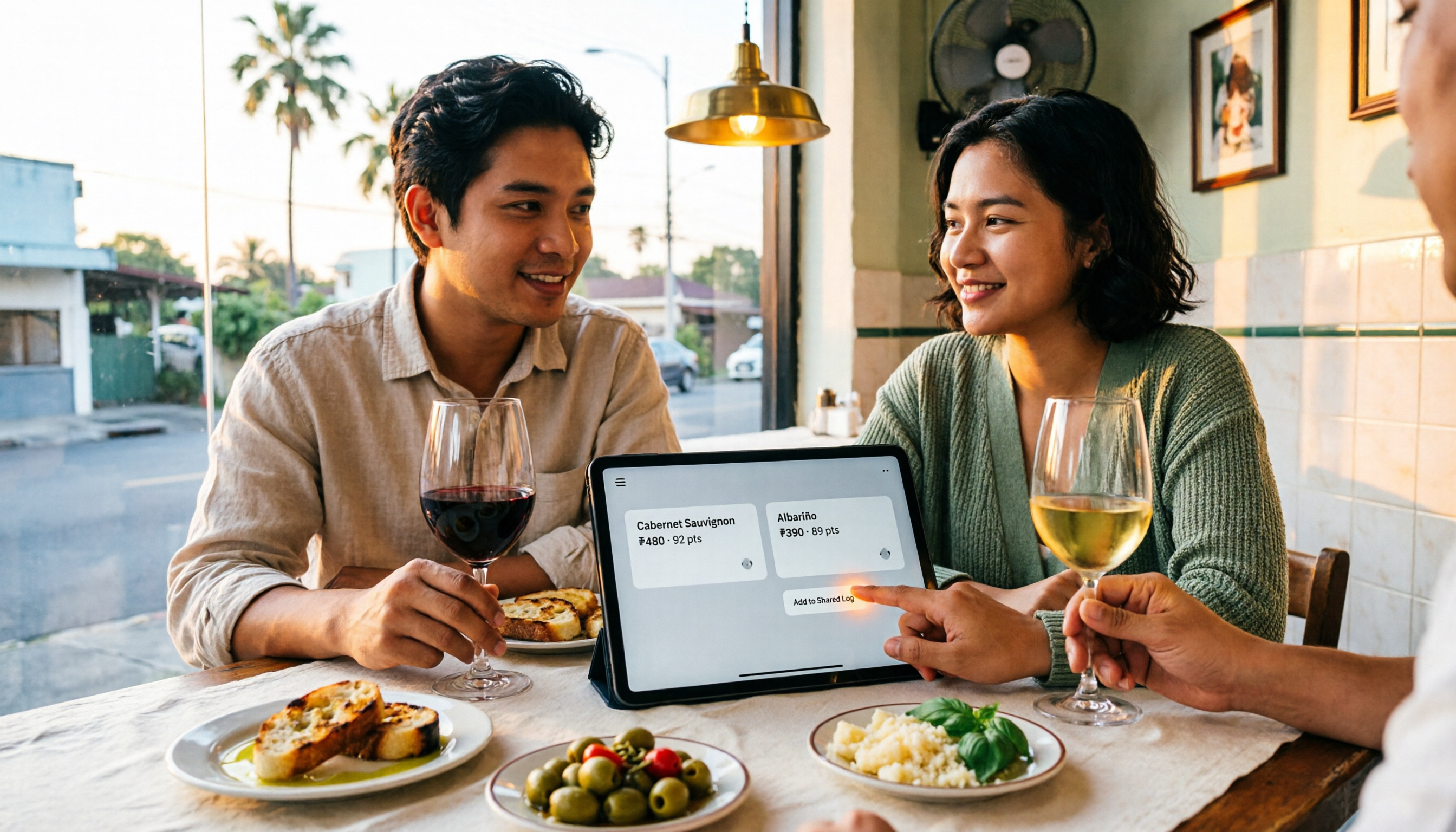
2026 Nottage Hill Wine Prices in the Philippines: Shiraz vs Chardonnay Comparison
Buying Hardy's Nottage Hill in the Philippines? The same bottle has completely different pricing logic on Lazada, online wine shops, and Winery.ph. This guide covers the flavor differences between Shiraz, Cabernet Sauvignon & Shiraz, and Chardonnay, compares公开 listed prices and shipping-inclusive costs, and lists the four most common pitfalls that lead to overpaying or buying the wrong wine.

2026 AI Meeting Transcription Tools Compared: Notta Review and Chinese Transcription — Which Is Enough?
An honest Notta review covering its 58 languages, AI summaries, and meeting bot strengths, plus what to watch for: the free plan's 3-minute per-recording limit, bilingual add-on costs, and billing complaints. Tinrec is compared on the same basis to help you decide which tool fits your meeting style.
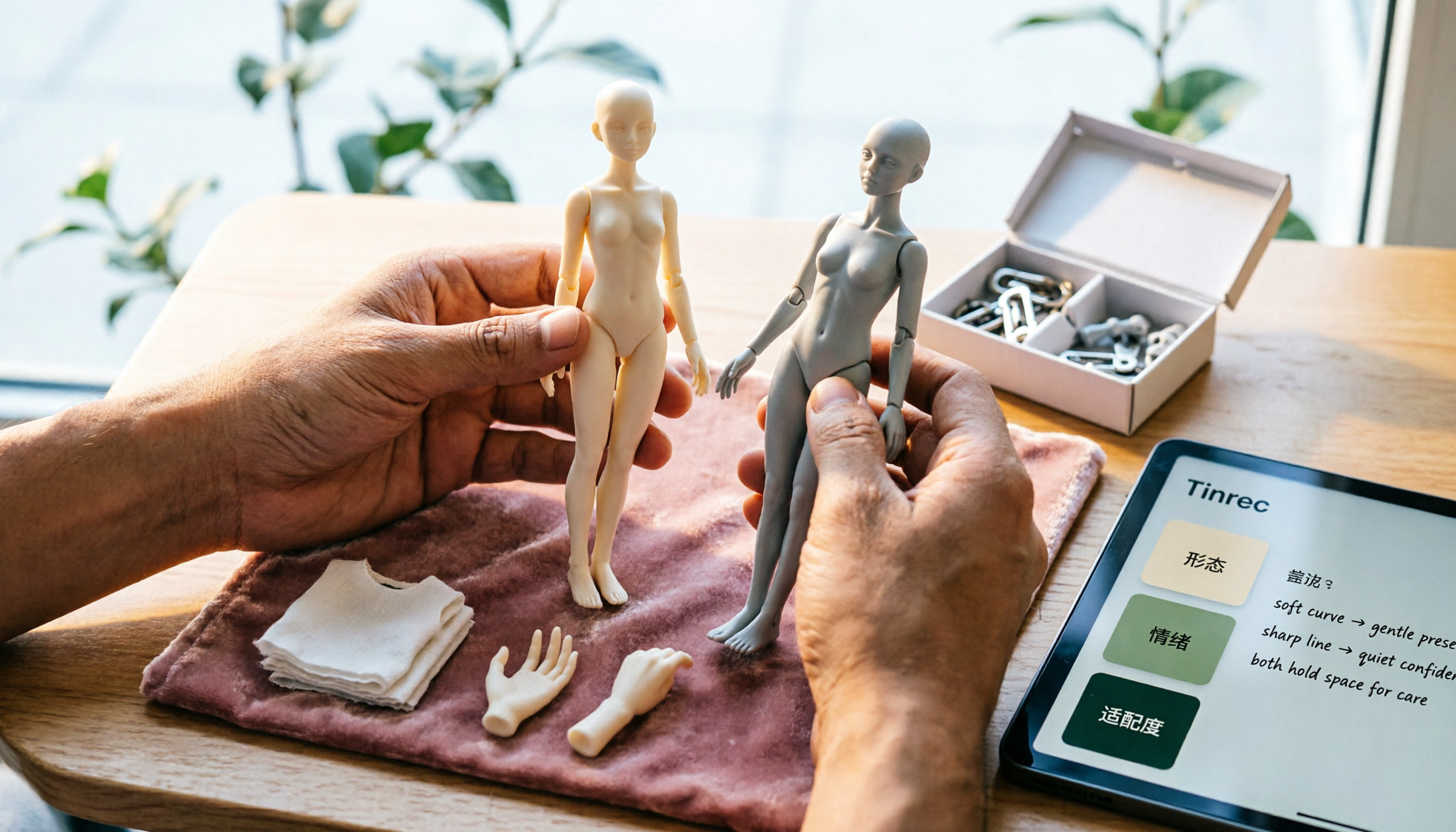
2026 Nottaa Collection 1/12 Female Body Guide: Xiaofang vs. Serena & Accessory Buying Tips
Nottaa Collection 1/12 Female Body NT-04 comes in two versions: Xiaofang and Serena. This guide addresses common concerns of customizers, covering key points to check before buying a 1/12 female body, the differences in character between the two versions, accessory lists, pre-order bonuses, plus common pitfalls and buying advice.

2026 Notta Comparison: NOTTA REAL Jacket Wholesale Pricing vs. Notta Transcription Subscription Costs
Many people search for "notta real jacket price" but confuse two things: the price of Turkish wholesale brand NOTTA REAL Jacket and the subscription plans for AI transcription tool Notta. This article separates the two, then compares Tinrec and Notta across 5 dimensions to help you decide which fits your needs.

6 Audio-to-Text Tools Tested and Compared for 2026: Notta Taj Law Reviews vs. Notta Explained
People searching for "Notta Taj Law reviews" often confuse two names: a London family law firm and the transcription tool Notta. This article first clarifies what each is and where to find reviews, then compares six audio-to-text and meeting notes tools in 2026 by positioning, pricing, and use cases to help you decide which one to use.

Notta Transcription in 2026: Notta Sin Spread vs. Tinrec Comparison Guide
Searching for "notta sin spread review" might bring up Notta Sin, an Indian sugar-free chocolate spread, or Notta.ai, a meeting transcription tool. This guide clarifies the two, then focuses on the transcription tool: bot-free recording, post-transcript summaries and action items, team roles and seats, and compares Tinrec, Notta, Otter.ai, and Granola to help you make an informed choice in 2026.
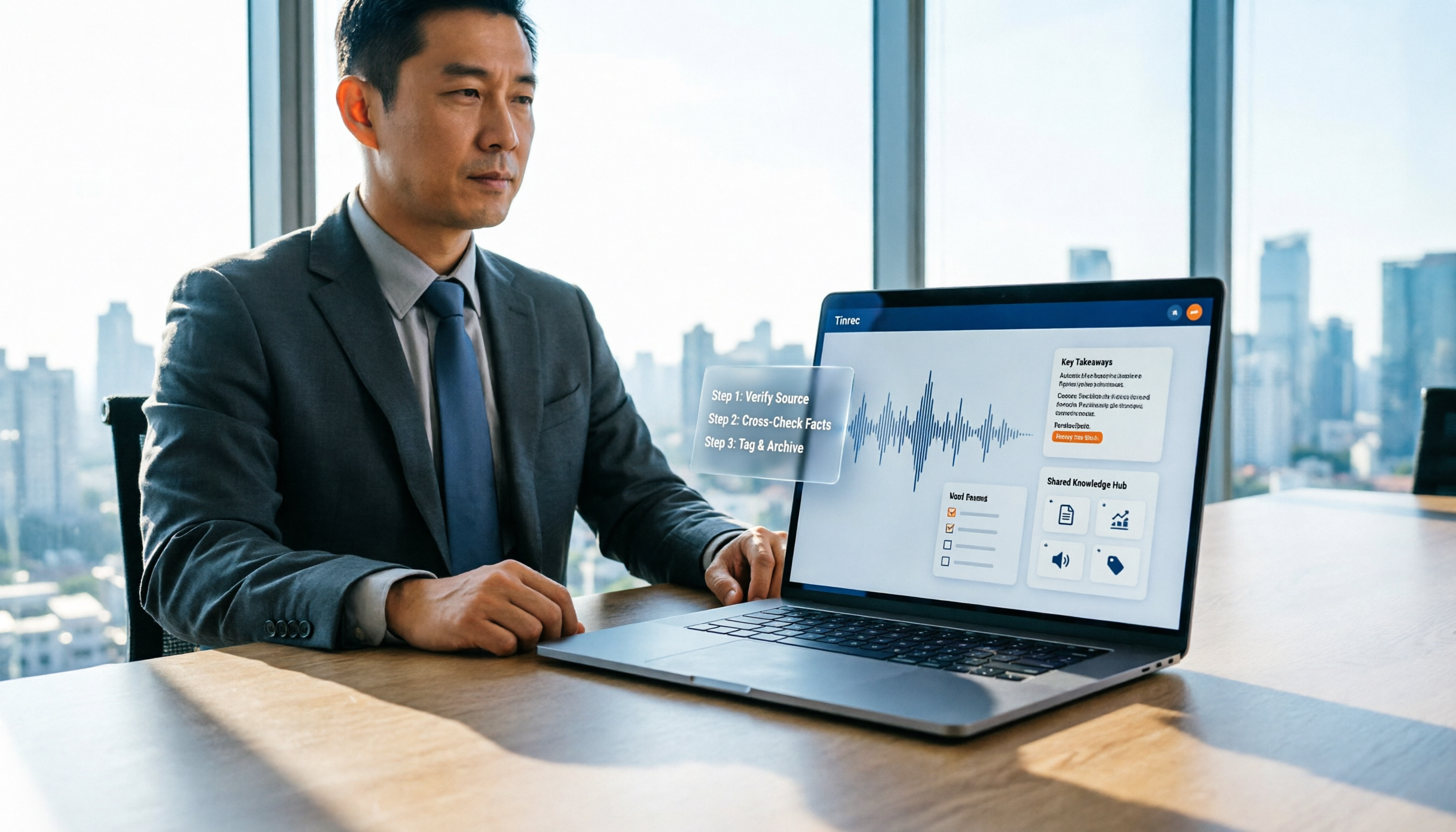
How to Identify Meeting Note Tools in 2026: 3-Step Verification + Tinrec Hands-On Test
When searching for "notta nother builder reviews," half the results are UK construction company registration data and half are meeting note tool reviews. This guide first shows you how to verify a company's background in 3 steps, then explains how to choose a meeting note tool, and includes a hands-on test of Tinrec's complete workflow for bot-free recording, summarization, action items, and team knowledge retention.

2026 Nottage Hill Wine Price Comparison: US, UK, and Taiwan Market Prices at a Glance
How much should a bottle of Nottage Hill cost to be reasonable? This article compiles reference prices for Hardys Nottage Hill in the US, UK, and Taiwan, along with volume conversion and actual tasting notes, and highlights 4 easily overlooked points before buying to help you quickly decide whether the price is worth it at the wine shelf.

4 Free YouTube Video Summary Tools Tested in 2026: Free Tiers Vary Widely, but Few Support Follow-Up Work
Most people use free YouTube video summary tools with a common misconception: they think pasting a link is all it takes. This article tests and compares four tools—Tinrec, Notta, NoteGPT, and TurboScribe—from four angles: free quota, summary structure, follow-up organization, and Chinese recognition. It explains who each tool suits, where the free versions fall short, and how to avoid getting a summary that still requires rewatching the video.