
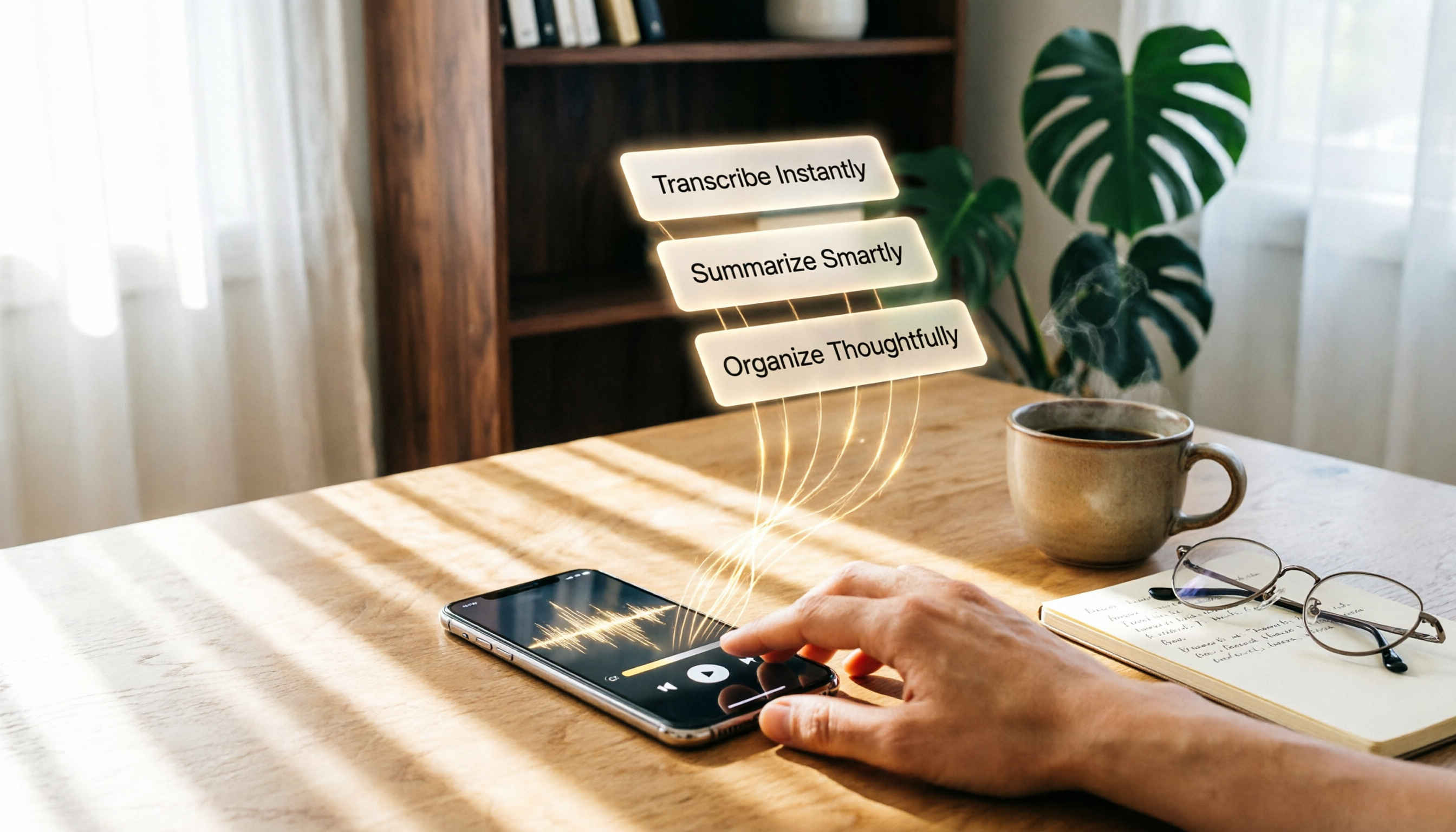
Turn recordings into transcripts and summaries in minutes
Upload audio or video for multilingual transcription, AI notes, and action items
2026's 4 Speech-to-Text Tools Compared: Beyond Free Google Docs, Which One Really Turns Your Audio into Notes?
Still typing meeting notes? The good and the painful sides of Google Docs voice typing
"Open a Google Doc, click the voice typing icon in the toolbar, and meeting content automatically becomes text." — That's probably many people's first impression of speech-to-text. Google Docs' built-in voice typing feature has certainly helped many office workers breathe a sigh of relief—no more frantically typing during meetings, and it's completely free as long as you use the Chrome browser. But after a while, you're likely to run into these situations:
- When the meeting ends, you stare at a screen full of transcript but can't find the key points, so you have to spend another hour organizing it yourself.
- You want to transcribe a previously recorded audio file, only to find that Google Docs only accepts real-time microphone input and won't let you upload a file.
- You want to pull a reference clip from a YouTube video, but there's no corresponding feature at all.
- When the network is unstable during a meeting, voice recognition stutters or even disconnects.
These problems don't mean Google Docs is bad; rather, it was designed as a lightweight add-on, not a complete audio note-taking tool. If you only occasionally need to record a few sentences, it's definitely good enough. But if your work or studies frequently involve meetings, lectures, interviews, or video content, what you need is not just "turning audio into text," but "turning audio into material you can keep using."
In this article, I actually tested four speech-to-text tools, including Google Docs, comparing them across several dimensions to help you find the right solution for you.
Before choosing a speech-to-text tool, understand these four key points
There are many tools on the market with different prices, features, and platform support. So how do you choose? I usually consider these four aspects:
1. How broad is the input source? Not just live recording
If you only hold meetings in front of your computer, Google Docs is sufficient. But in practice, you may also have phone-recorded interviews, downloaded podcasts, instructional videos on YouTube, or even old audio files. Choosing a tool that supports "live recording, file upload, and pasted video links" means you won't have to juggle multiple tools later.
2. After transcription, how much does it help organize?
The transcript is just the first step. What really saves time is whether the tool can automatically pull out summaries, divide content into sections, list action items, or even let you ask "What was the conclusion of the last meeting?" This is something most free plans still can't do.
3. Cross-platform support: usable on phone, computer, and tablet
Meetings aren't always in front of a computer—sometimes they take place at a coffee shop, during a commute, or in a client's office. If your tool only supports one device or one browser, your mobility takes a big hit.
4. Is the free version a trial or actually usable?
Many services advertise a "free" plan, but the allowance is tiny, or the features are so limited that you can't really evaluate the product. A good free plan should let you experience core functionality in a real scenario, not just give you a couple of clicks before it stops.
Next, I evaluated the four tools using these criteria.
Tinrec — Our top pick after testing
If you're looking for a tool that doesn't just transcribe audio but actually "organizes" it, Tinrec is currently my top pick. It's a cross-platform AI recording and audio note-taking tool that supports iOS, Android, and web. It handles a wide range of audio sources: live recordings, audio files from your phone or computer, links to online videos (such as YouTube, Bilibili, etc.), and it can even convert online meeting content into notes.
Seeing it through use cases will make this clearer:
- Meeting notes are automatically generated when the meeting ends: Turn on Tinrec at the start of a meeting, and it live-transcribes as you go. The moment the meeting ends, the summary and action items are already prepared—who should do what and by when, all clear at a glance, with no need to re-listen to the two-hour recording.
- Turn course recordings into study notes: This is the most useful feature for students or lifelong learners. For a three-hour lecture, Tinrec doesn't just generate text; it also splits the content into chapters and highlights the key points. You can even ask it directly, "What was that theory mentioned in Chapter 3?" It will answer you based on the recording, not just give you keyword search results.
- Interview recordings become quotable material instantly: After a journalist or researcher conducts a long interview, they can drop the file into Tinrec at home, get a transcript within minutes, and quickly find a specific topic section to copy and paste into their article or report.
- Turn online videos into organized text notes: When you run into a great YouTube tutorial, paste the link, and Tinrec can produce text, a summary, and even subtitle files, making it easy to search and cite later.
In our test, using a Chinese meeting recording (with slight background noise and two speakers), Tinrec's transcription speed was fast, and the Chinese punctuation and sentence segmentation were natural—no strange pauses or typos. More importantly, its AI conversation query was impressive: after recording, you can ask it the way you would ask a colleague, "What was the budget number we just discussed?" It will tell you the answer directly and mark the timestamp—a feature that's still rare in similar tools.
Stop organizing recordings by hand
Upload audio or video and automatically get a transcript, summary, and action items
Advantages:
- Supports multiple input sources: live recording, file uploads, and video links
- Built-in AI summaries, chapter detection, action items, and conversational Q&A, not just transcripts
- Cross-platform use with data synced between the mobile app and web version
- Stable recognition for Chinese (including Traditional Chinese) and multiple other languages
Limitations and reminders:
- The free version provides trial minutes, but heavy users may need to upgrade; we suggest trying it to see if it fits your usage
- AI summary and Q&A features require an internet connection and can't be used offline
- In extremely noisy environments, recognition accuracy can still be affected (a limitation common to all speech recognition systems)
Who is it best for?
- People who regularly need to organize meeting, course, or interview recordings and want transcription plus summarization done in one place
- Those who don't want to manage multiple tools: one account to handle meetings, online videos, and old audio files
- Users who need Chinese speech-to-text and want AI assistance for follow-up organization
Pricing: A free version is available to try the core features. If you need more minutes or advanced AI processing, you can choose weekly, monthly, or annual plans. We recommend starting with the free version, confirming that it fits your needs, and then paying.
Besides Tinrec, what other options are there?
Google Docs voice typing: a completely free entry point
Google Docs' built-in voice typing is free. All you need is Chrome, and you can start speech recognition in a document. It supports Chinese and dozens of languages, and it costs nothing. If you only need basic "speak and it types" and you're always at your computer, this feature is definitely enough. But the limitations are also obvious: it only works with real-time input and can't handle existing audio or video files; after transcription, you just get plain text with no summaries or organization. If you still have to spend time hunting for key points after a meeting, it may save you typing time, but not your organizing time. Compared with Tinrec, Google Docs lacks file upload, online video transcription, and AI Q&A.
Otter.ai: Great for English meetings, but Chinese users should think carefully
Otter.ai is well known in English speech recognition. Its free plan gives you 300 minutes per month, and it can automatically label different speakers, making it very suitable for all-English online meetings. However, its support for Chinese (especially Cantonese) is still weak, so if your meetings are mostly in Chinese, your experience may be affected. Also, Otter's AI summary and Q&A require a paid plan to be fully used. In comparison, Tinrec is more complete in handling Chinese content and integrating multiple sources (including video links), and it's a good option for users who don't want to be limited by language.
Notta: Strong transcription, but you'll do the organizing yourself
Notta is a multi-platform transcription tool with fast live recording and file upload, and it supports many languages. Its transcription quality is decent, but in our tests, Notta's free version is fairly limited, and the AI Q&A and advanced organization features require a higher tier. If you mainly need high-volume transcription and don't need AI to help you organize the content, Notta is worth considering. But if you want the tool to directly produce usable meeting notes or study notes, Tinrec's AI post-processing is more likely to match your expectations.
Avoiding Pitfalls: 3 Common Mistakes When Choosing Speech-to-Text
Mistake 1: Choosing solely for "free" while ignoring your real needs
Many people say, "Google Docs is free, so why pay for a tool?" That's like saying, "Pen and paper can write, so why buy a notebook?" It's not wrong—it's just that needs differ. If you have frequent, complex meetings and need follow-up organization, a tool that automatically summarizes and generates action items could save you more value in time per month than the subscription fee. Think about how you'll use it first, then decide whether to stay on the free plan or pay to upgrade.
Mistake 2: Assuming the output transcript never needs to be reviewed
AI transcription is smart, but it isn't a human brain. In the presence of technical terms, people talking over each other, or heavy background noise, there can still be typos or missed words. For important meetings, contract discussions, or academic interviews, always skim through the transcript after conversion—especially key information like numbers, names, and dates.
Mistake 3: Buying a tool but using only one-third of its features
Many users download a speech-to-text app and only use the record button and the transcript, never exploring "ask the AI" or "auto-summary." That's like buying a smartphone and using it only to make calls. With Tinrec, for example, its AI conversation search can help you pull answers from hours of recordings in seconds—far faster than manually finding keywords with Ctrl+F. So, as you get started, spend a few minutes exploring these time-saving techniques.
Conclusion: Which One Should You Choose?
Overall, if you only occasionally need to turn spoken thoughts into text and you're always working at a computer, Google Docs' voice typing is enough—and you don't need to install anything. But if you want those recordings not only to become text, but also to be organized and searchable so you can ask questions later, I'd recommend giving Tinrec a try.
Scenario recommendations:
- You only need easy real-time dictation, regardless of platform → Google Docs voice typing (completely free, lightest option)
- You mostly attend English online meetings and need speaker labeling → Otter.ai (better English experience)
- You need to transcribe many files, with no need for extensive AI organization → Notta (stable transcription speed and quality)
- You work with Chinese content, multiple sources, and want AI to help with organization and Q&A → Tinrec (our top pick, most comprehensive)
One last tip: don't rush to spend money. First download Tinrec's free version and record one or two meetings to see how it feels. If it really helps, choose a paid plan based on your usage frequency. Try smart—so you won't waste your budget.
References
Turn every recording into actionable outcomes
Get 60 free transcription minutes when you sign in. No credit card required.
Related Reading
You might also like
2026 Nottage Hill Wine Prices in the Philippines: Shiraz vs Chardonnay Comparison
Buying Hardy's Nottage Hill in the Philippines? The same bottle has completely different pricing logic on Lazada, online wine shops, and Winery.ph. This guide covers the flavor differences between Shiraz, Cabernet Sauvignon & Shiraz, and Chardonnay, compares公开 listed prices and shipping-inclusive costs, and lists the four most common pitfalls that lead to overpaying or buying the wrong wine.

2026 AI Meeting Transcription Tools Compared: Notta Review and Chinese Transcription — Which Is Enough?
An honest Notta review covering its 58 languages, AI summaries, and meeting bot strengths, plus what to watch for: the free plan's 3-minute per-recording limit, bilingual add-on costs, and billing complaints. Tinrec is compared on the same basis to help you decide which tool fits your meeting style.
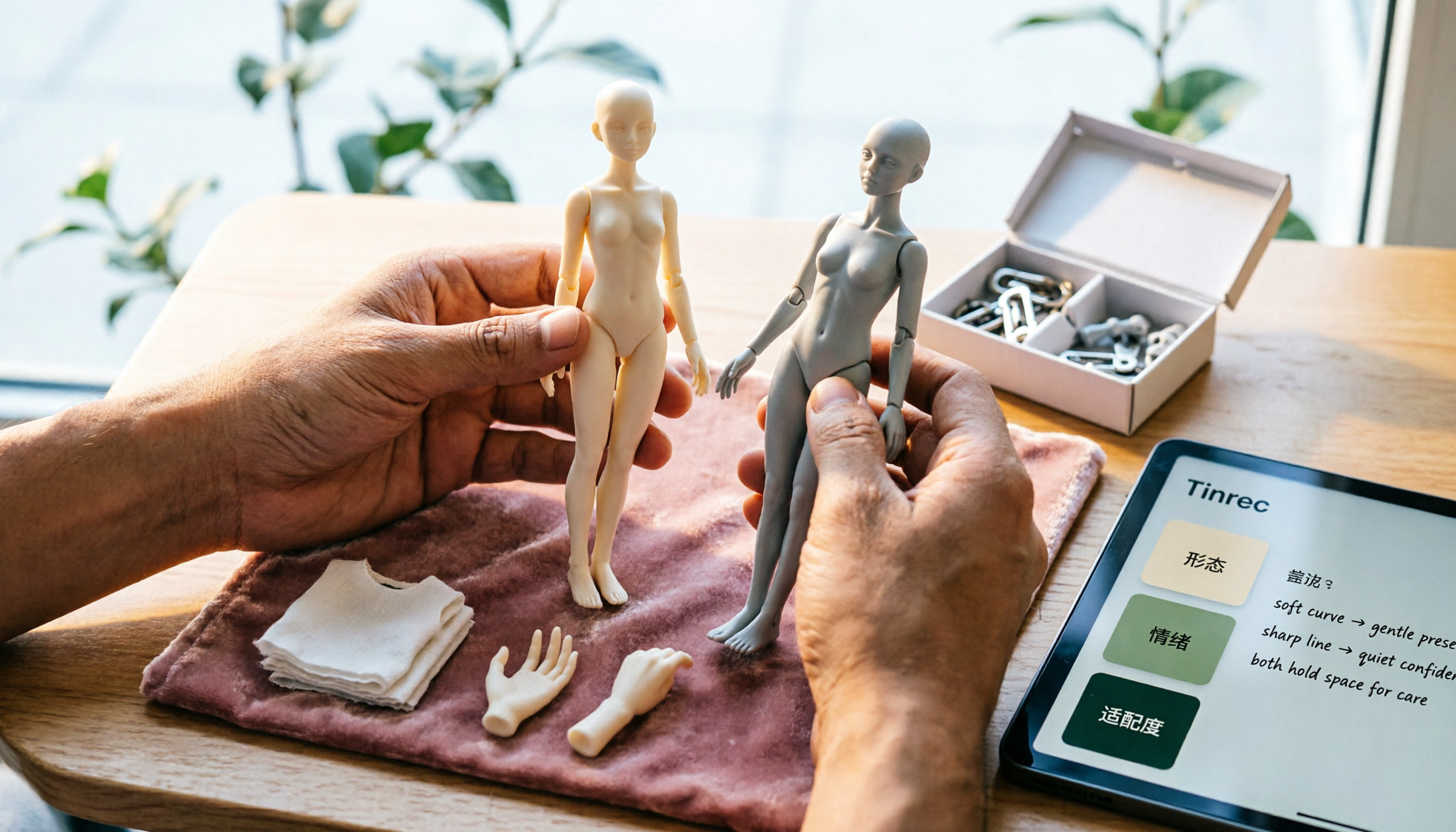
2026 Nottaa Collection 1/12 Female Body Guide: Xiaofang vs. Serena & Accessory Buying Tips
Nottaa Collection 1/12 Female Body NT-04 comes in two versions: Xiaofang and Serena. This guide addresses common concerns of customizers, covering key points to check before buying a 1/12 female body, the differences in character between the two versions, accessory lists, pre-order bonuses, plus common pitfalls and buying advice.

2026 Notta Comparison: NOTTA REAL Jacket Wholesale Pricing vs. Notta Transcription Subscription Costs
Many people search for "notta real jacket price" but confuse two things: the price of Turkish wholesale brand NOTTA REAL Jacket and the subscription plans for AI transcription tool Notta. This article separates the two, then compares Tinrec and Notta across 5 dimensions to help you decide which fits your needs.

6 Audio-to-Text Tools Tested and Compared for 2026: Notta Taj Law Reviews vs. Notta Explained
People searching for "Notta Taj Law reviews" often confuse two names: a London family law firm and the transcription tool Notta. This article first clarifies what each is and where to find reviews, then compares six audio-to-text and meeting notes tools in 2026 by positioning, pricing, and use cases to help you decide which one to use.

Notta Transcription in 2026: Notta Sin Spread vs. Tinrec Comparison Guide
Searching for "notta sin spread review" might bring up Notta Sin, an Indian sugar-free chocolate spread, or Notta.ai, a meeting transcription tool. This guide clarifies the two, then focuses on the transcription tool: bot-free recording, post-transcript summaries and action items, team roles and seats, and compares Tinrec, Notta, Otter.ai, and Granola to help you make an informed choice in 2026.
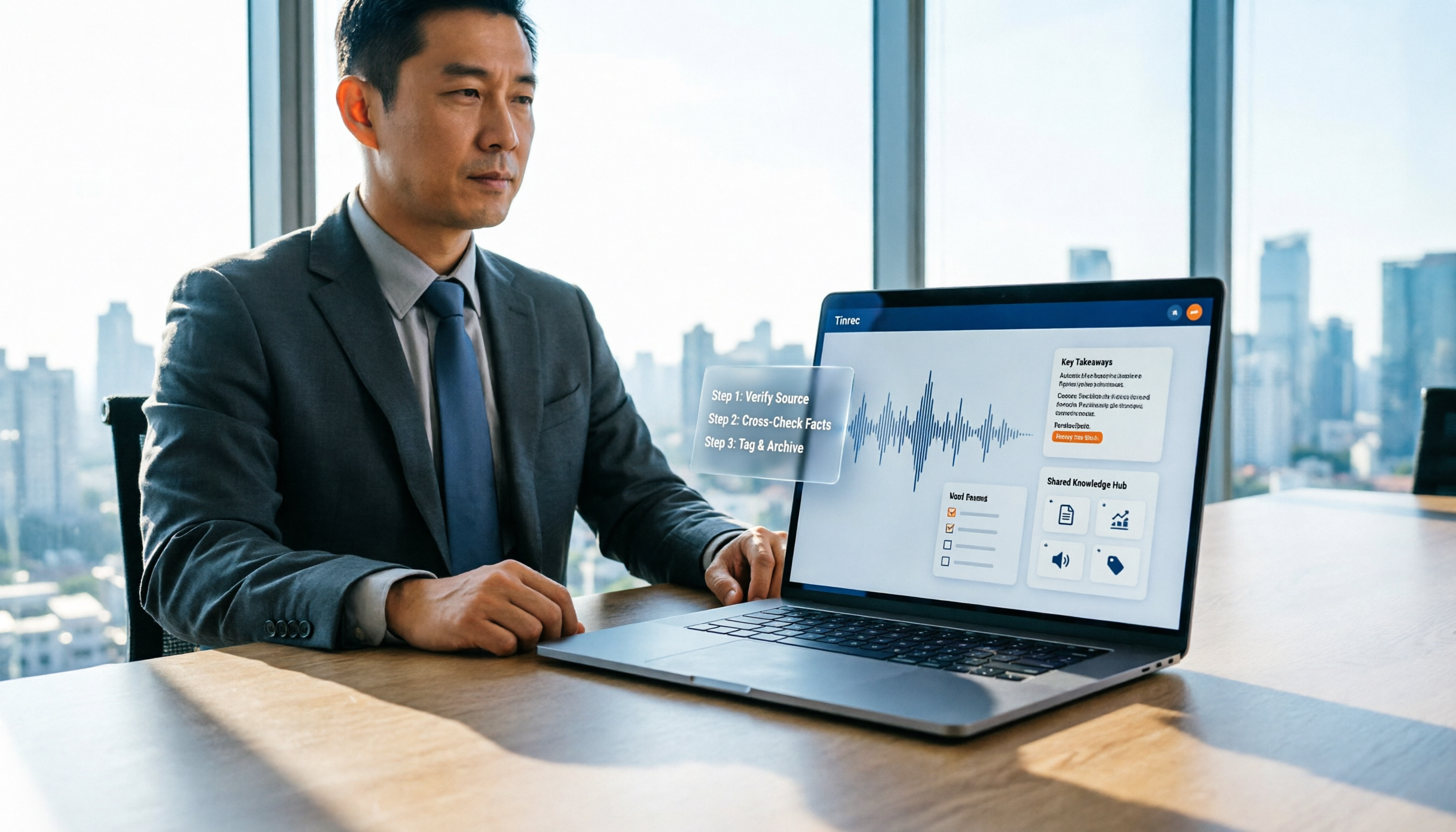
How to Identify Meeting Note Tools in 2026: 3-Step Verification + Tinrec Hands-On Test
When searching for "notta nother builder reviews," half the results are UK construction company registration data and half are meeting note tool reviews. This guide first shows you how to verify a company's background in 3 steps, then explains how to choose a meeting note tool, and includes a hands-on test of Tinrec's complete workflow for bot-free recording, summarization, action items, and team knowledge retention.

2026 Nottage Hill Wine Price Comparison: US, UK, and Taiwan Market Prices at a Glance
How much should a bottle of Nottage Hill cost to be reasonable? This article compiles reference prices for Hardys Nottage Hill in the US, UK, and Taiwan, along with volume conversion and actual tasting notes, and highlights 4 easily overlooked points before buying to help you quickly decide whether the price is worth it at the wine shelf.

4 Free YouTube Video Summary Tools Tested in 2026: Free Tiers Vary Widely, but Few Support Follow-Up Work
Most people use free YouTube video summary tools with a common misconception: they think pasting a link is all it takes. This article tests and compares four tools—Tinrec, Notta, NoteGPT, and TurboScribe—from four angles: free quota, summary structure, follow-up organization, and Chinese recognition. It explains who each tool suits, where the free versions fall short, and how to avoid getting a summary that still requires rewatching the video.