

Turn recordings into transcripts and summaries in minutes
Upload audio or video for multilingual transcription, AI notes, and action items
Recently, while transcribing a Cantonese podcast recording, I found that many transcription tools either don't support Cantonese or have such restrictive free plans that they're unusable. I tried Tool A first, and the error rate in the transcript was so high I basically had to listen again from scratch. Then I tried Tool B, which only offered a free allowance of a few dozen minutes — one meeting used it all up. Later, I tried several tools, including Tinrec (秒聽錄音), and found a method that truly fits into my workflow.
This article isn't just about which app to use — it's about understanding the methodology behind speech-to-text. Because no matter how good a tool is, without the right process, you'll still end up stuck fixing mistakes and redoing work. I'll use Tinrec as an example to walk you through the complete steps from recording to generating meeting minutes.
Before You Start | What You'll Need
• A smartphone or computer (Tinrec supports iPhone, Android, and a web version, so cross-platform use is no problem)
• Download the Tinrec app (free from the App Store or Google Play; registration only requires a Google or Apple ID login)
• A Cantonese recording you want to transcribe (could be a meeting, lecture, interview, or a link to an online Cantonese video)
• A stable internet connection (real-time transcription requires connectivity; if you need offline use, remember to download the language pack first)
(Illustration placeholder: A phone on a conference table showing Tinrec's recording-ready screen, with a cup of coffee nearby, a relaxed yet focused atmosphere.)
Step 1 | Record Your Cantonese Content
The goal here is to get a clear Cantonese recording — the foundation for all the steps that follow.
Open Tinrec and tap the record button on the main screen to start. For a one-on-one interview, placing the phone between the two people is enough. For a group meeting, put it in the center of the table so all voices are captured clearly. Don't worry about background noise while recording — Tinrec's built-in smart noise reduction handles it during the transcription stage.
Why stress audio quality? Because AI transcription accuracy depends on audio quality — even the best engine can't fix a blurry recording. Spending an extra 30 seconds checking your setup is better than spending time correcting later.
When you're done, you'll see the recording on Tinrec's main screen, with the duration and file size next to it.
(Illustration placeholder: A person conducting an interview in a cafe, phone in the center of the table, the first line of transcript already appearing on screen, the interviewee smiling naturally.)
Step 2 | Import into Tinrec and Start Transcribing
If you already have an audio file or an online video, Tinrec supports direct import — no need to re-record.
In Tinrec, tap "Import" and choose an audio file from your phone, or paste a link to a Cantonese video from YouTube or Bilibili. Tinrec uploads and analyzes it, producing a transcript within minutes. If you made a live recording, it automatically starts transcribing when you finish — no extra button to press.
I tested a 10-minute Cantonese meeting recording, and Tinrec finished in about 3 minutes, automatically labeling speakers (when voices are clearly distinct). Once transcription is complete, you'll see the transcript on the left and AI summary, chapters, and action items on the right.
(Illustration placeholder: A laptop screen showing the transcript and AI summary side by side, with a notebook and headphones on the desk, afternoon sunlight outside the window.)
Step 3 | Quickly Proofread the Transcript
Once you have the transcript, don't rush to share it — spend a few minutes proofreading first. Many people skip this step, but it saves you a ton of time later.
Tinrec's transcript includes timestamps, so you can click any sentence to jump to that exact spot in the recording and listen to the audio. This makes proofreading very intuitive: spot something questionable, tap it, listen to the original, then edit directly. I usually only proofread proper nouns, numbers, and names, and just skim the rest — the error rate is actually low under normal recording conditions.
If you're unsure how a word is spelled correctly, just select the text and use Tinrec's AI chat to ask: "What's the correct spelling for this text?" It will give suggestions based on context.
(Illustration placeholder: A finger tapping a line of transcript on a phone screen, an audio playback button appearing nearby, clean and simple interface.)
Step 4 | Have AI Generate Meeting Minutes or Key Points
After proofreading the transcript, the real magic begins: you can have Tinrec organize the transcript into whatever format you need.
Click "AI Summary" and it automatically generates key points, section summaries, and action items. For a more structured meeting record, you can write a prompt, for instance:
Please generate meeting notes from this transcript, including the following items:
1. Meeting topic
2. Attendees
3. Discussion points
4. Decisions
5. Action items and owners
Stop organizing recordings by hand
Upload audio or video and automatically get a transcript, summary, and action items
Tinrec generates clean meeting minutes based on your prompt, which you can copy directly into Notion, Google Docs, or email to colleagues. In my tests, a one-hour meeting recording, from transcription to generating minutes, took less than 15 minutes — this used to take me almost an entire afternoon.
(Illustration placeholder: Transcript on the left side of the screen, generated meeting minutes on the right, and an AI chat box in the middle saying "Help me turn this into meeting minutes.")
Step 5 | Export and Share
The final step is to export your finished work in the format you need.
Tinrec supports exporting to TXT, Word, PDF, and can even sync directly to third-party tools like Notion, Google Drive, and Dropbox. If you need subtitle files, you can also export SRT format for video post-production.
My own habit is: save meeting minutes as PDF for archiving, paste key summaries into Notion's project pages, and sync action items to Todoist. Because Tinrec's export and sync work smoothly, these steps require almost no manual effort.
(Illustration placeholder: Phone screen showing an export menu with icons for Notion, Google Drive, etc., finger ready to tap "Export".)
FAQ & Troubleshooting
Q: The transcription has lots of errors. What should I do?
Usually it's because the recording environment is too noisy or the mic is too far. Tinrec has built-in smart noise reduction — just enable it in settings before recording. If you're using an existing file, you can manually select "high noise environment" mode after importing. Most transcription tools on the market don't have this option — they use a default mode for all recordings.
Q: The Cantonese is very colloquial, but the transcript uses written language. Can I keep the colloquial style?
Tinrec's engine automatically recognizes colloquial and formal language, and you can choose to output a "colloquial transcript" or a "formal summary." If you want to keep the conversation authentic, remember to select "colloquial mode" in the transcription settings. This is especially handy for podcasts or interviews.
Q: Is the free version enough?
The Tinrec free plan includes a base number of transcription minutes each month, roughly enough for two or three meetings or a few long recordings. If you only need transcription occasionally, the free version is more than enough. If you record extensively every week, consider the Pro plan. I recommend trying the free version for a month and deciding after you see how it fits into your workflow.
Pro Tips | 3 Ways to Double Your Efficiency with Tinrec
1. Use "AI Chat" to Query Your Recordings Like a Database
This is a unique Tinrec feature: after transcription, you can ask questions in natural language directly in the chat box, such as "Did this meeting mention the budget? What's the amount?" Tinrec answers based on the recording content. This is especially useful for building a database of past recordings — you don't need to listen back to the whole audio; just ask what you need. Most other tools give you a transcript but require manual searching when you want to find something.
2. Cross-Platform Sync: Record on Your Phone, Review on Your Computer
All Tinrec data syncs in real time. You can start a recording on your phone, then open the web version on your computer and continue editing after transcription. This is super convenient for people who switch between devices, especially for workflows like interviewing on the go and organizing in the office.
3. Use "Web Video to Text" to Organize Learning Materials
If you often watch Cantonese YouTube tutorials or podcasts, paste the link to get a transcript, then use AI Summary to pull out the key points. This saves huge amounts of time compared to just watching, and lets you create text notes for long-term reference.
If You Don't Use Tinrec, Here Are Some Alternatives
• Speechnotes (Hong Kong Cantonese Version): Available directly in your browser, designed specifically for Cantonese, with colloquial character correction, but it lacks AI summaries and integrated export — better for short notes than for organizing long recordings.
• Otter.ai: The king of English meeting transcription, but Cantonese support is almost zero — Hong Kong users should avoid it.
• Notta: Strong transcription and subtitles, and also supports Cantonese, but the free plan's 120 minutes per month is limited, and its later organizing features aren't as rich as Tinrec's.
If you need more than just a transcript — if you want to turn recordings into a sustainable knowledge base — Tinrec is the more complete choice.
Conclusion
Now that you've learned these 5 steps, you can use Tinrec to turn any Cantonese recording into a transcript, automatically generate meeting minutes, and use AI chat to pull out key points directly. Next step: download the free version of Tinrec and try it with one of your own recordings. The monthly free transcription allowance is enough for a few meetings or a few podcast episodes. Once you try it, you'll find that organizing recordings is no longer a chore — it becomes a habit that easily fits into your daily work.
(Illustration placeholder: A person sitting at a desk with a phone, laptop, and a cup of tea. The screen shows the "聲意" completion page, with a calm evening sky outside the window.)
References
- Free Cantonese Speech-to-Text Apps 2025 | Subanana
- Hong Kong's Top 5 Speech-to-Text Tools: Accurate Cantonese Recognition, Doubling Meeting and Interview Efficiency!
- Speechnotes | Hong Kong Cantonese | Speech to Text Online Notepad
- Speech to Text - Google Play Apps
- 《 Free + Cantonese OK: How to Use Google AI Studio to Turn Your Recordings into Text》 Finding a good transcript app is painful; you've probably tried a bunch of speech-to-text apps — either fake free trials that charge big money after the first few minutes, or they only support English and not Cantonese, or you have to go through a whole API setup to use it // Recently I discovered that Google Gemini is world-class in this respect: - [Really Free] No subscription charge after a few uses - [Cantonese-friendly] Gemini accurate
Turn every recording into actionable outcomes
Get 60 free transcription minutes when you sign in. No credit card required.
Related Reading
You might also like

What is VOCOL GmbH Kevelaer? 5-Step Verification and Meeting Intelligence Guide
Searching for VOCOL GmbH Kevelaer usually means you're verifying a German tank manufacturer or preparing for a meeting with a European supplier. This article first uses public sources to quickly answer VOCOL GmbH's address, products, and contact details, then uses Tinrec as an example to explain how cross-language meetings can be turned from recordings and transcripts into summaries and action items—organized into trackable team data.

2026 VOCOL Capillary GC Column Comparison: How to Choose for Purge-and-Trap VOC Analysis
VOCOL capillary GC columns come in more than one specification—change the film thickness, inner diameter, or column length, and the suitable application changes completely. Based on real-world needs for purge-and-trap and GC/MS, this article covers 4 key column selection points, a comparison of common specifications, suitable and unsuitable scenarios, and the 4 most common pitfalls before purchasing, helping you avoid detours before placing your order.

2026 Comparison of 3 Meeting Notes Tools: How to Choose Between Dcard-Buzzed Vocol.ai and Tinrec
Searching for vocol.ai on Dcard mostly yields feature lists about 'one-click transcript generation.' But what really matters is three things: whether meetings are online or in-person, whether you need a transcript or deliverable post-meeting materials, and whether data stays in a personal account or a team space. This article breaks down the actual workflow and uses Tinrec to explain how each step works.

What Does Notta Mean in 2026? A 5-Dimension Comparison of Tinrec vs. Notta to See Which Fits You Better
Notta is not the same as nada. This article breaks down three meanings of notta (colloquial contraction, rare surname, and transcription tool brand), then compares Notta and Tinrec's meeting note capabilities across 5 dimensions to help you decide whether to check a dictionary or choose a tool.

Notta vs Tinrec in 2026: 5-Dimension Comparison — Which Is Better for Chinese Meeting Notes?
What exactly can Notta do? This article first explains Notta's positioning, 58-language transcription, meeting integrations, and free plan limits in one paragraph, then compares it with Tinrec across five dimensions: transcription languages, meeting capture methods, post-meeting organization, team governance, and pricing structure. Finally, it offers scenario-based recommendations for choosing the right tool.

Notta vs Ultimate Vocal Remover 2026: 4-Factor Comparison — Which Free Vocal Remover Should You Choose?
Free vocal removers seem plentiful, but their limitations vary widely. This article compares Notta's free online vocal remover with the open-source desktop tool Ultimate Vocal Remover across 4 dimensions, covering format support, the 20-minute limit, dual-track output, and how to judge separation artifacts. It also includes selection criteria and 3 common pitfalls to help you find the right tool.

2026 AI Meeting Recorder Comparison: Notta Tutorial & Tinrec Review
Starting with a complete Notta tutorial, we tested and compared five AI meeting recorder tools—Notta, Tinrec, Otter.ai, TurboScribe, and Granola—on transcription, post-meeting organization, Chinese language experience, and free tier limits. Includes key buying factors and three common pitfalls to help you decide which tool truly saves time on meeting follow-ups.
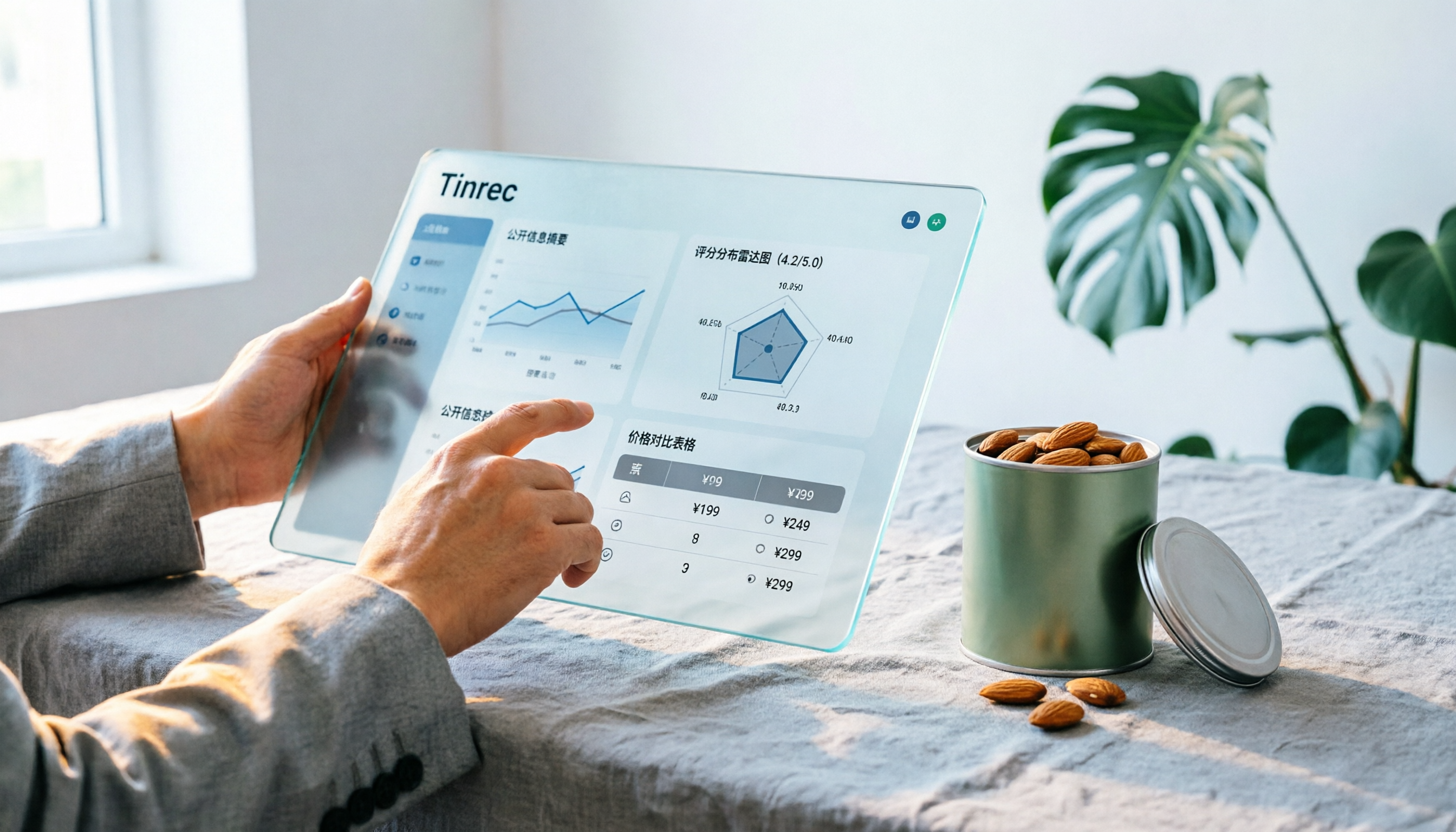
Notta Sin Foods Sugar-Free Snacks Buying Guide 2026: Reviews of 2 Products and Recommendations
There are few Chinese reviews of Notta Sin Foods. This guide compiles public information from the official website, Instagram, Amazon, and bigbasket into a buying guide: it breaks down the two main products, Choco Almond Spread and MilBites, explains the rating distribution behind the 4.5 stars, and summarizes three common buying mistakes to help you think clearly before ordering whether the alternative sweetener taste and price are really right for you.

How to Prepare for the 2026 Vocol Gubin Job Opening: 5 Steps from Understanding the Job Posting to Interview Notes
Vocol Sp. z o.o. has an opening for a pracownik biurowy (office administrator) in Gubin, Poland, with a gross salary starting at 4,666 PLN, a fixed-term contract, and 40 hours per week. This article covers 4 key points for understanding the job posting, a practical interview preparation process, and the tools I actually use to record and organize communication.