
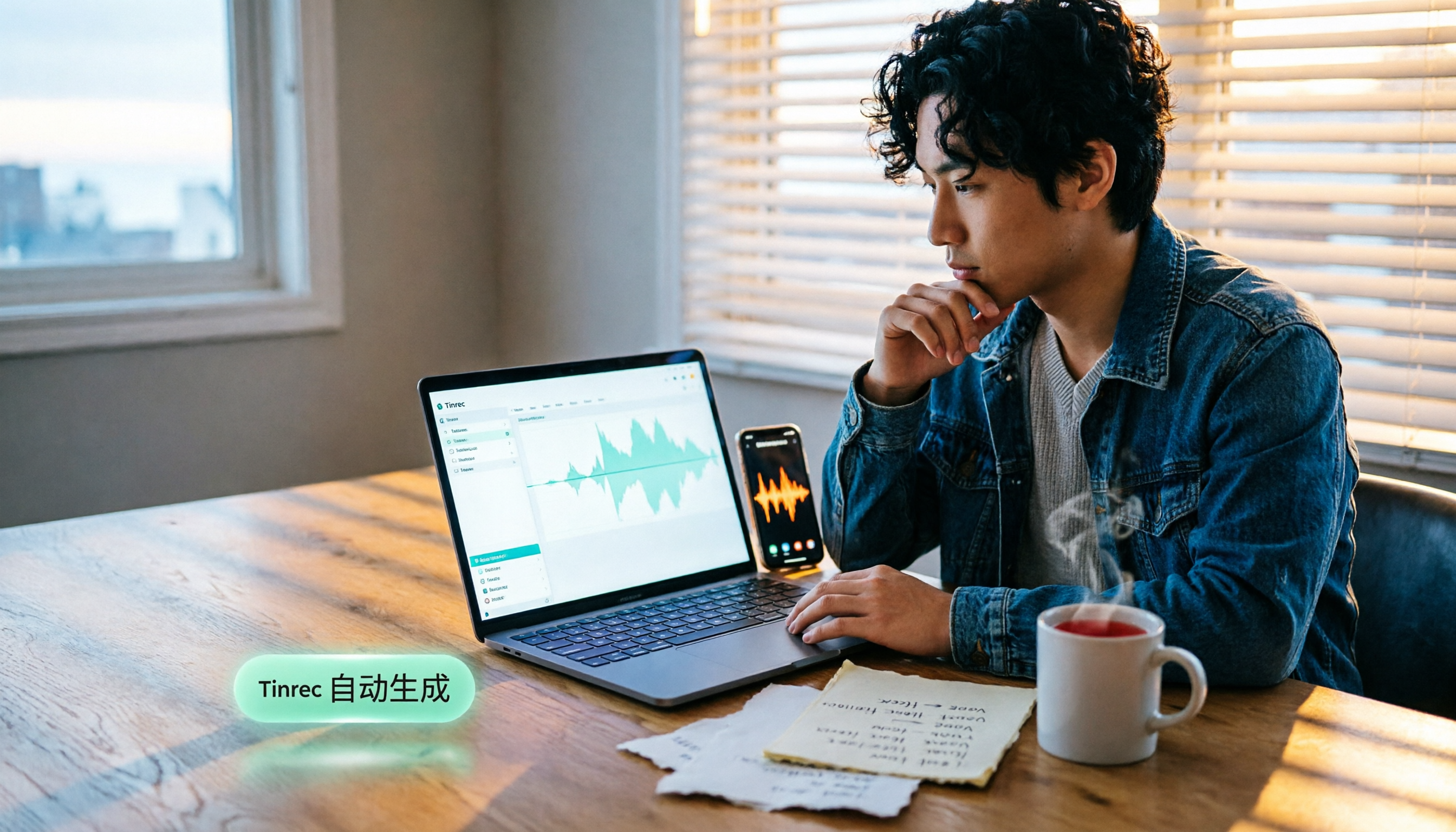
Turn recordings into transcripts and summaries in minutes
Upload audio or video for multilingual transcription, AI notes, and action items
Adding text to videos by hand is too slow? What you need isn’t another tool—it’s efficiency.
When you’ve shot a video to share on social media or send to friends, you often want to add a few explanatory lines, titles, or subtitles—but tapping out every character on your phone and syncing it to the timeline is enough to make you give up.
Especially when you need subtitles for interviews or tutorial videos, or you want to highlight key points with text, post-production often takes longer than shooting if you don’t have the right tool.
If this sounds familiar, this article is for you. Below we’ll cover three ways to add text to videos on iPhone, ranging from fully manual to semi-automatic, and recommend an auto-captioning solution that can save you a lot of time.
Before choosing an iPhone video text tool, understand these 3 key points
1. Do you need “a few words” or “full subtitles”?
If you just want to add a title or note to one clip, built-in apps work fine. But if you need subtitles for an entire conversation, typing them manually is a nightmare. Pin down your needs first, then choose a tool so you don’t waste effort.
2. Automation level determines your time cost
Some tools on the market automatically convert speech in your video to text, export a subtitle file, and then you can import it into your editing app. This is several times faster than manual entry and is especially great if you produce videos regularly.
3. Output format must fit your editing workflow
Once you have the subtitle text, can you export it to common formats like SRT or VTT? Can you copy and paste it directly into iMovie or another editing app? This directly affects how smoothly the rest of the workflow goes.
Tinrec (instant voice transcription)—the top choice for auto-generating subtitle text
If you need to add a lot of text to videos, don’t type until your eyes blur. Instead, convert the video’s audio track to text first, then import it into your editing app—Tinrec is currently the best automation tool for this.
Tinrec is an AI-powered app focused on audio recording and audio/video organization. It supports live recording, uploading video files, and pasting public video links like YouTube, then generates transcripts, summaries, to-dos, and SRT subtitle files.
Here’s the actual workflow for creating subtitles with Tinrec:
- Transfer your video to your phone, or open an online video via its link.
- Tinrec automatically recognizes the speech, turns it into a transcript, and syncs the timeline for you.
- Export the SRT subtitle file, import it into iMovie or any editing tool, tweak the position and style, and you’re done.
The benefit is that a task that used to take 30 minutes of manual captioning can now be done in a few minutes. Plus, Tinrec has an AI summary feature, so after transcription you can jump straight to key points without listening through the whole video.
We tested it with a 5-minute Chinese interview video (iPhone 15, quiet indoor environment). The transcription quality was quite good for normal spoken conversation. Names and proper nouns may occasionally need adjustments, but overall it can be used directly as subtitles.
Pros:
- Automatically generates transcripts and timelines, exports SRT files you can use directly.
- Supports multiple sources: video files, online video links, and live recordings.
- Not just transcription—it can also summarize, answer questions, and export in multiple formats for reuse.
Things to note:
- The free plan includes a monthly transcription allowance. Heavy users may want the Pro plan, but for occasional captioning needs, the free version is more than enough.
- After transcription, we still recommend a quick proofread to catch any proper nouns or numbers that need correcting.
Stop organizing recordings by hand
Upload audio or video and automatically get a transcript, summary, and action items
Who it’s for:
- Creators who need subtitles for interviews, tutorials, or vlogs.
- People who want to extract key text from long videos quickly, then decide how to add titles or descriptions.
- iPhone users who don’t want to type word by word and want an automated tool to help.
What other options are there besides Tinrec?
iMovie (built-in manual text)
iMovie is Apple’s built-in video editor for iPhone. It lets you add text to any clip and provides simple title and credit styles.
iMovie is the most straightforward if you already know exactly what text to add. But the downside is that you have to type every word manually and align the timeline yourself—if your video is longer than a minute, it starts to feel inefficient. By contrast, Tinrec can auto-generate a subtitle file, saving you the time of typing it character by character—something iMovie can’t do.
Clips (built-in animated text)
Clips is another built-in Apple app designed for quickly making fun videos. It includes a variety of animated text and filter effects, making it great for adding eye-catching titles or animated cards to videos.
Clips’ strength is “fun,” not “precision.” If you want to create lively social videos, use it to quickly add big text; but for serious interview or tutorial subtitles, you need a tool like Tinrec that generates a transcript to ensure every line matches correctly.
YouTube Create (free video editing with text)
YouTube Create is YouTube’s mobile editing app. It lets you add plain text or text effects to videos and offers a range of Google fonts, making it suitable for creators already on YouTube.
Its text features lean more toward “decoration,” suited for adding channel titles or notes rather than being designed for subtitles. If you need a lot of spoken-word captions, we recommend running the audio through Tinrec first and importing the text into your video editor for final tweaks—it’s much faster than typing manually in YouTube Create.
Pitfall guide: 3 mistakes to avoid when adding text to iPhone videos
1. Typing subtitles manually without trying auto-transcription first
Many people open iMovie and start typing subtitles slowly, unaware that there are tools that can transcribe speech into text for you. Running an auto-transcription and then adjusting will always be more efficient than starting from scratch.
2. Starting to edit without checking subtitle format support
Different editing apps support different subtitle formats—some only take SRT, others need VTT. Use Tinrec to export multiple formats upfront so you don’t discover halfway through that you can’t import the file.
3. Using only free tools to save money, then spending more time
Built-in apps are free, but if your videos are often 10 minutes or longer, the time you spend manually captioning quickly adds up to more than the cost of a coffee. Using the free version occasionally is fine, but in the long run, investing a little in an automation tool is more cost-effective.
Conclusion: Which method should you use?
Overall, if your goal is to add text to videos efficiently and accurately, the best combination is to use Tinrec to auto-generate subtitles, then import them into iMovie or another editing app for fine-tuning—this gives you the best balance of speed and quality.
- Need full spoken subtitles without manual typing → Use Tinrec to generate SRT subtitles, then fine-tune in iMovie.
- Just want to add a title or big text to a few seconds → Use Clips or iMovie’s built-in text features.
- Already use YouTube and prefer an all-in-one editor → YouTube Create can add text, but for heavy captions, run the audio through Tinrec first.
- Very limited budget and want a completely free option → Add text manually in iMovie, and use Tinrec’s free version to generate a first pass at subtitles for reference.
We suggest downloading Tinrec’s free version first, uploading a video to transcribe, and seeing for yourself the speed and accuracy of auto-generated subtitles. If it helps, consider upgrading—there’s no need to pay right away.
References
- iPhone Video Text Tutorial: 2 Built-in Ways to Add Text Effects! - Tech-Girlz
- Add text to an iMovie project - Apple Support (Taiwan)
- Add titles and audio to Magic Movies and storyboard clips in iMovie on iPhone - Apple Support (Taiwan)
- iPhone Subtitle Tutorial: 3 Ways to Auto-add Subtitles to iPhone Videos! - Tech-Girlz
- Add text to videos - iPhone and iPad - YouTube Help
Turn every recording into actionable outcomes
Get 60 free transcription minutes when you sign in. No credit card required.
Related Reading
You might also like

2026 Comparison of 4 Audio-to-Text Solutions: From ChatGPT to Professional Tools – See the Differences at a Glance
Can ChatGPT record audio? Yes, but is it truly suitable for your meeting note needs? This article compares four solutions — ChatGPT recording mode, Tinrec, Otter.ai, and Notta — covering recording sources, AI organization, language support, and cross-platform flexibility to help you find a truly time-saving audio-to-text tool.
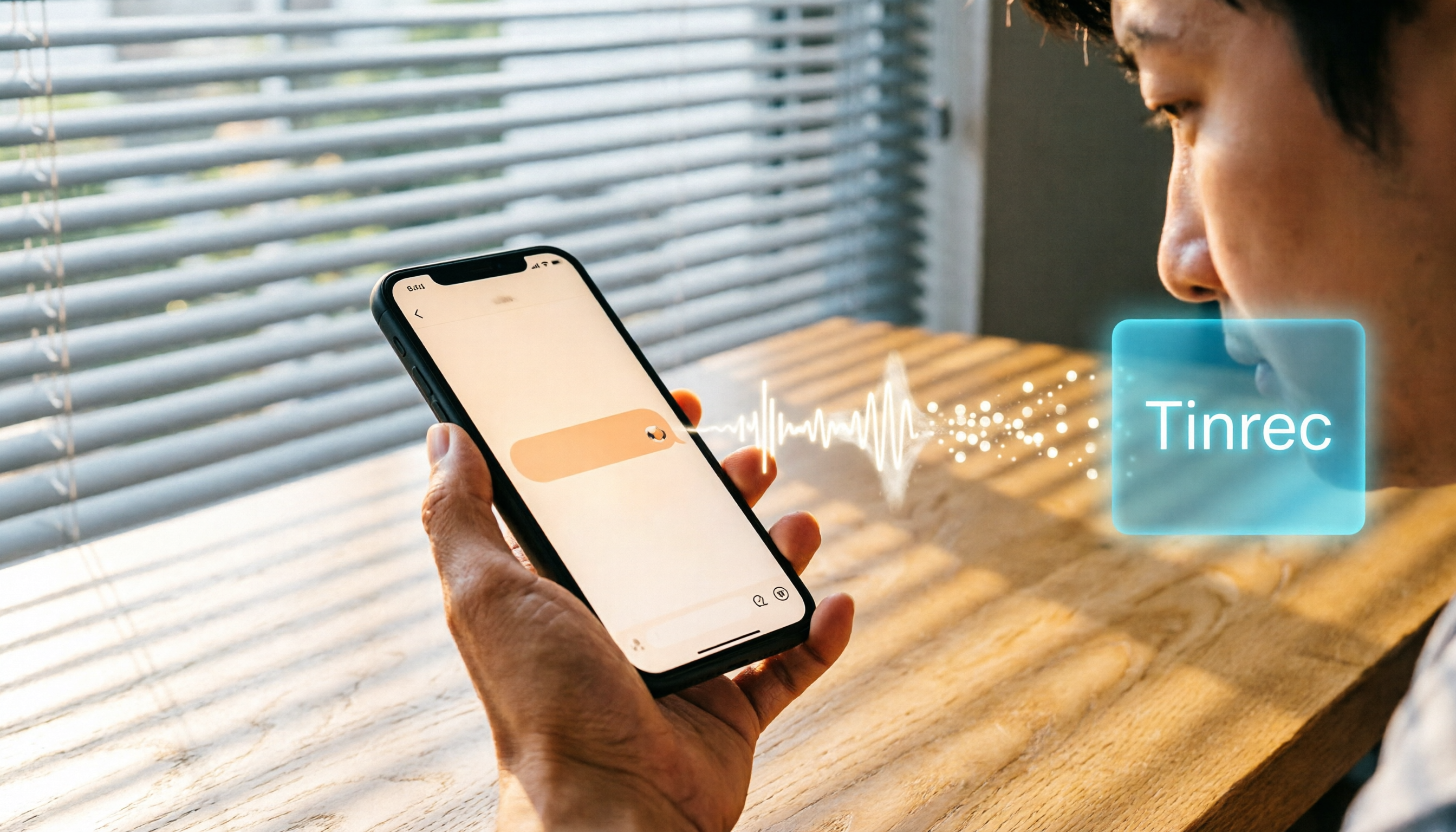
How to Convert WhatsApp Voice Messages to Text in 2026: A Complete 5-Step Guide
This article teaches you how to turn WhatsApp voice messages into text. With the Tinrec voice-to-text app, you can complete transcription, proofreading, and export in 5 simple steps—even without an official WhatsApp feature.

5 Free Audio-to-Text Tools Compared for 2026: From Beginner to Pro in One Read
There are many audio-to-text tools, but are free plans enough? This article compares five free audio-to-text tools, covering features, limitations, and use cases, to help you find the best fit.
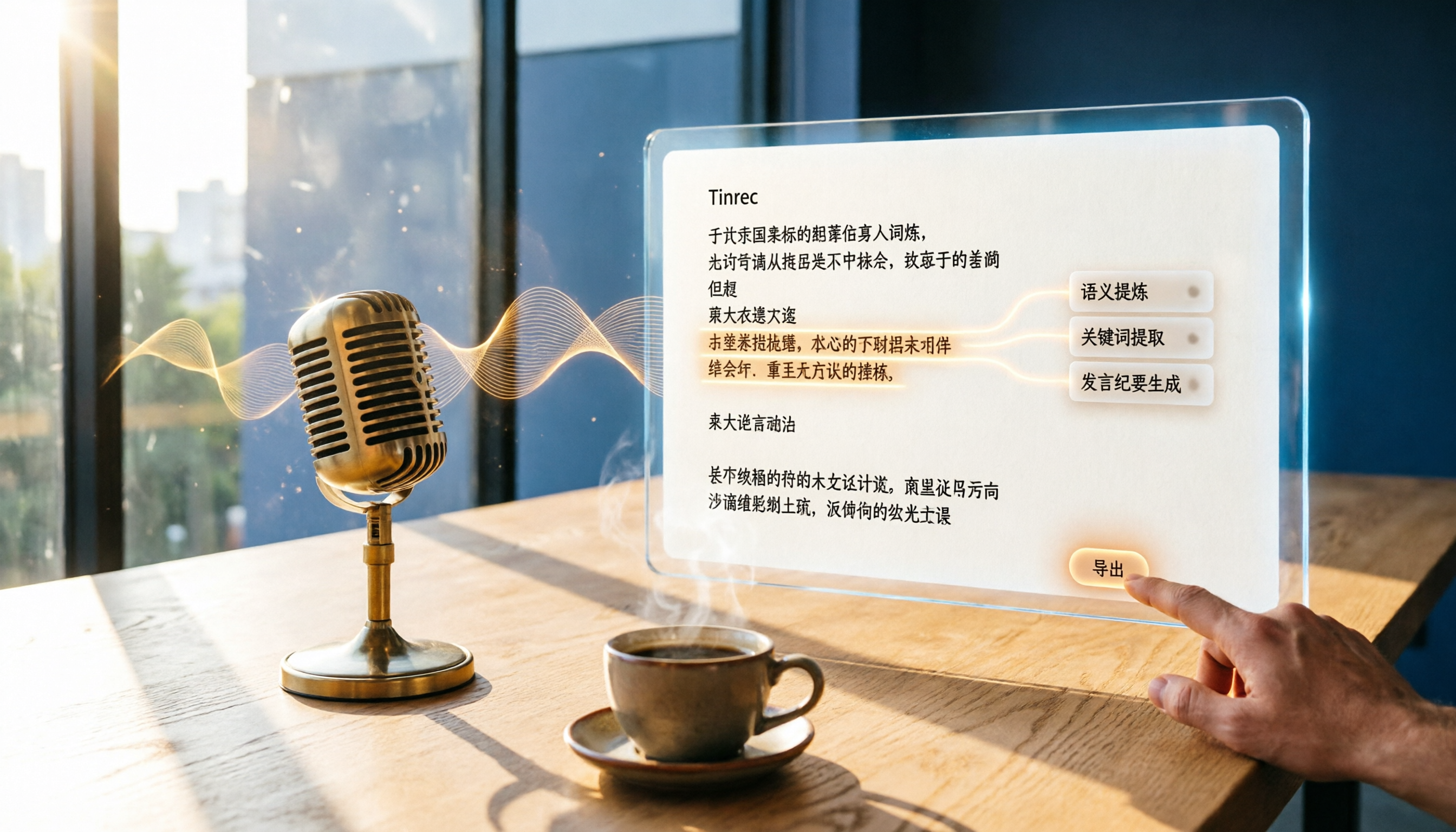
2026 Speech-to-Text Tools Compared: Tinrec vs Yating Verbatim – Which One Saves More Time on Chinese Transcripts?
This hands-on comparison looks at Tinrec and Yating Verbatim from four angles—transcription accuracy, AI organization, input sources, and export features—to show which one is best for organizing Chinese audio and saving time.

Tinrec vs youtube-transcript.ai in 2026: 4-Dimension Face-Off – Which Is Better for YouTube Transcripts?
Want to get a YouTube transcript but don't know which tool to use? This article compares Tinrec and youtube-transcript.ai across four key dimensions—transcription sources, content organization, Chinese-language experience, and long-term value—to help you pick the best solution.
![[Tutorial] 2026 Tinrec Transcript Tool: AI Auto-Summarization + Multi-Source Transcription](https://record-img.tos-accelerate.volces.com/images/2026/08/07/1786108729028402517.png)
[Tutorial] 2026 Tinrec Transcript Tool: AI Auto-Summarization + Multi-Source Transcription
Still turning interview, meeting, and course recordings into transcripts the slow way? I tested Tinrec and Notta, two leading AI transcription tools, covering Chinese recognition, post-processing, and cross-device collaboration, so you can find a transcription workflow that actually saves you time.

Best iPhone Video Converter Apps in 2026: 3 Tested, Free Shortcut Is Easiest
MOV videos from iPhone often won't play on Windows or when shared. We tested 3 ways to convert them to MP4—from the built-in Shortcuts app to professional desktop software—and compared speed, quality, and convenience to help you choose the right method.
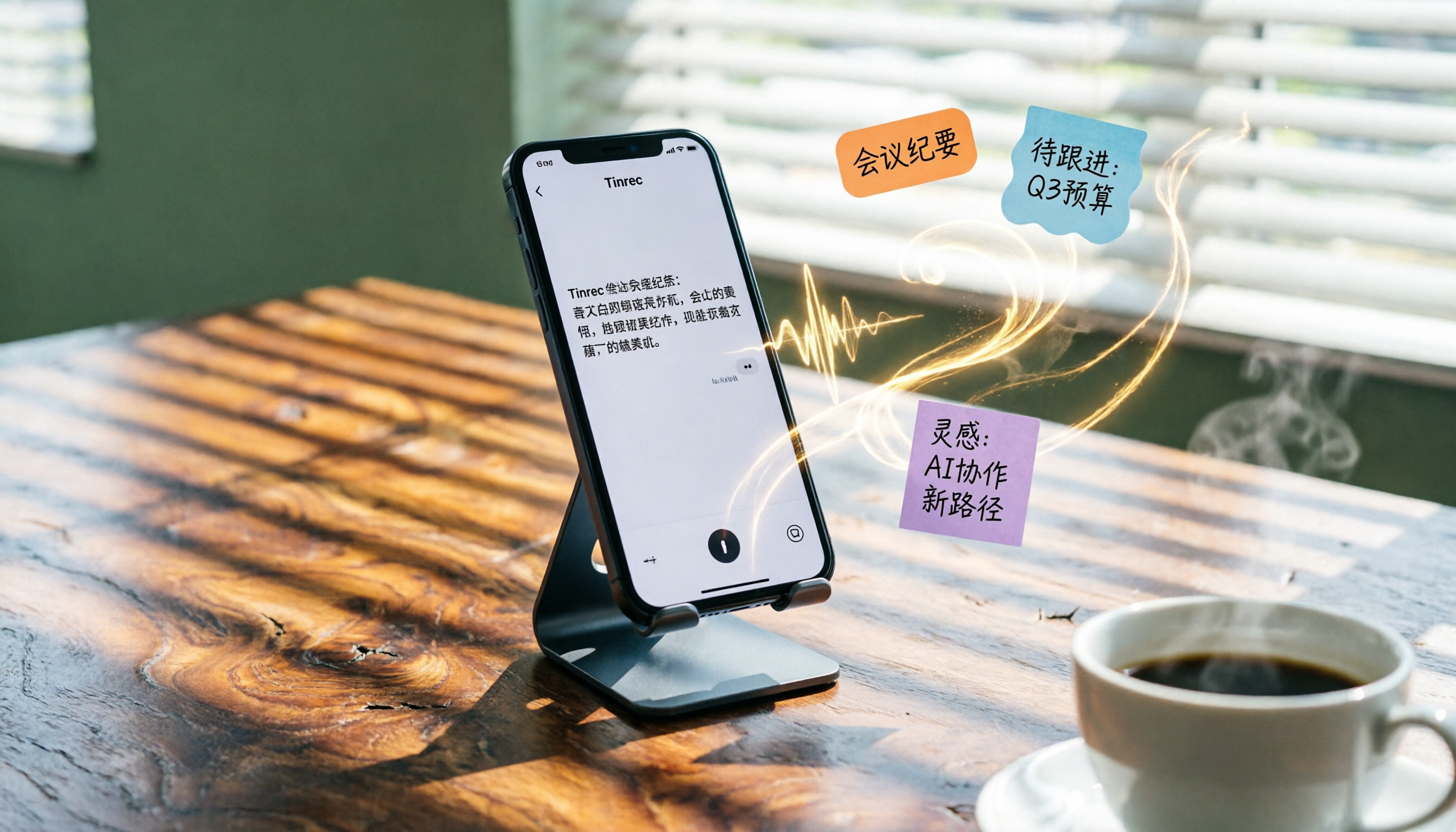
2026 iPhone Voice-to-Text Buyer's Guide: 2 Hands-On Tests and Recommendations
How to choose iPhone voice-to-text? The built-in Voice Memos app is free but limited; the third-party tool Tinrec turns recordings into a searchable, organized knowledge base. This hands-on comparison covers accuracy, organization, AI features, and cross-platform support to help you decide.

Best Meeting Recording App 2026: We Tested 4, and This One Is Most Accurate for Cantonese Transcription
Office workers in Central dread transcribing recordings after meetings. After testing multiple AI recording apps, we found Tinrec's instant transcription has the most practical Cantonese recognition and summary features. It supports meetings, classes, and YouTube video-to-text. The free version is enough for everyday use and helps you save overtime hours.