
Turn recordings into transcripts and summaries in minutes
Upload audio or video for multilingual transcription, AI notes, and action items
Before You Start | What You Need
• A smartphone (iPhone or Android—Tinrec supports both platforms) • Download the Tinrec app (free on the App Store or Google Play; sign up with just a Google or Apple ID) • A WhatsApp voice message you've received (long-press the message to save it to your phone; it's usually stored in the "WhatsApp/Audio" or "WhatsApp/Voice Notes" folder) • A stable internet connection (transcription requires internet; if you plan to use it offline, remember to download the language pack first)
Step 1 | Extract the Audio File from WhatsApp
The goal of this step is to turn a WhatsApp voice message into a standalone audio file that Tinrec can read.
Open WhatsApp and find the voice message you want to convert to text. Long-press the message, then choose "Save" or "Share" → "Save to Files" (iPhone) / "Save to Device" (Android). Some versions will save the file directly to your phone's "WhatsApp Audio" folder.
Why save the file first? WhatsApp voice messages are end-to-end encrypted, so forwarding them directly to other tools from inside the app may fail and also raises privacy concerns. By saving the file and then importing it into Tinrec, you keep the entire process under your control.
When you're done, you'll see a .opus or .m4a file in your phone's file manager—that's the original recording you're about to transcribe.
(Illustration: A person long-pressing a WhatsApp voice message; a menu pops up, and the finger taps the "Save" option. The background is a chat screen, with soft lighting and a relaxed atmosphere.)
Step 2 | Import the Recording into Tinrec to Get a Transcript
Now that you have a standalone audio file, you'll let Tinrec turn it into text.
Open Tinrec and tap "Import audio" or "Upload file," then select the WhatsApp recording you just saved from your phone's folders. Tinrec supports many formats, including common ones like .opus, .m4a, .mp3, and .wav. Once uploaded, Tinrec will start transcribing automatically; typically, a one-minute recording is done in just a few seconds.
During transcription, Tinrec automatically adjusts the speech recognition model based on the audio quality. If your recording has a lot of background noise, you can enable "Smart Noise Reduction" in the app settings first to get cleaner results.
When transcription is complete, the full transcript appears on the screen. You can scroll up and down to preview it, and you can tap any sentence to play the corresponding original audio snippet.
(Illustration: A smartphone screen showing the Tinrec app. The top half shows the audio waveform playing, and the bottom half shows the transcript text being generated. The background is a coffee shop table with a cup of coffee, representing a relaxed scene for organizing messages.)
Step 3 | Quickly Proofread the Transcript
Even with high AI recognition accuracy, spoken fillers like "um," "uh," abbreviations, or proper nouns sometimes need a manual touch. This step lets you spend 2–3 minutes making sure the key points haven't been lost.
In the Tinrec transcript screen, you can tap any text and edit it directly. If there are obvious typos—like names, company names, or numbers—just fix them in place. Tinrec's editor automatically saves your changes, so you don't have to worry about losing them if you leave the screen.
Also, if the recording has multiple speakers (for example, a group conversation or an interview), you can manually tag speakers or let Tinrec auto-detect them. This is especially useful when organizing minutes from a multi-person meeting.
Once you're done, you'll have a high-quality transcript that you can copy, screenshot, or move on to the next step.
(Illustration: The Tinrec app on a desktop, with the transcript on the left and the original audio player on the right. The user is tapping text to edit, with a notebook and pen nearby, suggesting careful proofreading.)
Step 4 | Let AI Generate a Summary and To-Dos (Optional)
If your WhatsApp recording is a meeting discussion, class notes, or an interview, a transcript alone isn't enough. Tinrec can further help you turn it into structured key points.
On the transcript page, tap "AI Summary," and Tinrec will generate a summary within seconds, listing the core points. Then you can continue by tapping "Extract To-Dos," which pulls out all action items from the conversation. This feature is especially helpful for team collaboration—you can directly paste the to-dos into a group, and everyone can see at a glance who is responsible for what.
Additionally, you can ask questions about the content, such as: "Does this conversation mention a budget amount?" Tinrec acts like a knowledge base, pulling the answer directly from the recording without you having to listen from start to finish.
(Illustration: A smartphone screen showing Tinrec's AI summary results, with three bullet points listed and an "Extract To-Dos" button below. The background is a clean office desk with a cup of coffee and a Moleskine notebook.)
Stop organizing recordings by hand
Upload audio or video and automatically get a transcript, summary, and action items
Step 5 | Export and Share
Of course, you'll want to take the organized text back to the tools you use every day. Tinrec supports multiple export formats, such as plain text, Word, PDF, and Markdown, as well as direct sharing to services like Google Docs, Notion, OneNote, and Dropbox.
If you want to share the transcription back to WhatsApp, you can choose "Copy Text" or "Export as a Text File" and then paste it into a conversation. Alternatively, you can take a screenshot of the AI summary and to-dos and send it directly to colleagues or friends.
For meeting minutes or study notes you want to keep long-term, I'd suggest saving them directly to Notion or Google Docs. You can then search by keyword to pull them up in seconds later.
(Illustration: A laptop screen showing Tinrec's export menu with options like Google Docs, Notion, PDF, and others. The user is selecting Notion. The background is a co-working space with a phone, headphones, and a cup of tea on the desk.)
Frequently Asked Questions & Troubleshooting
Q: What if the transcription has a lot of errors? Usually, this happens when the recording is too noisy, the speaker is too far from the microphone, or the speaker has a strong accent. Tinrec includes smart noise reduction—after importing an audio file, you can select the "High Noise Environment" mode in settings. Most transcription tools don't have this option; they only use default recognition settings.
Q: Can I use Tinrec to transcribe a WhatsApp voice message directly without saving it first? Not right now. Because WhatsApp voice messages are encrypted, third-party apps can't read them directly. You must first save the voice message to your phone, then import it into Tinrec for transcription. It's an extra step, but it protects your privacy—your recording stays on your device and Tinrec only, and doesn't go through other platforms.
Q: Which languages does Tinrec support? Can it transcribe Cantonese? Yes. Tinrec supports over 40 languages, including Chinese, English, Japanese, Korean, Cantonese, and Taiwanese, and you don't need to switch manually—the AI auto-detects. It also works well with mixed Chinese-English conversations.
Q: Is the free version enough? The free version of Tinrec provides a basic monthly transcription allowance that can handle about 100 minutes of audio. If you only transcribe a few WhatsApp messages occasionally, the free version is more than enough. If you have a large volume of audio to process every week, you can consider the Pro plan.
Q: Can Tinrec handle very long recordings, like over 10 minutes? Yes. The Pro plan supports recordings that are several hours long, with transcription faster than real time and no per-file length limit. The free version has a per-transcription time limit, so you can try it out first.
Advanced Tips | 3 Ways to Double Your Efficiency with Tinrec
1. Transcribe Online Video Links Directly If you want to turn tutorial videos or podcasts from YouTube or Bilibili into text notes, Tinrec lets you paste the video link directly. It automatically extracts the audio track and transcribes it—no need to download the whole video. This is something most meeting-note tools can't do, and it's especially useful for content creators and learners.
2. Use AI Chat to Search Past Transcriptions All your transcriptions are stored in your Tinrec account. You can search by keyword, or just ask the AI directly: "What budget items did we discuss in last month's meeting?" Tinrec will pull the relevant passages from your past recordings, saving you the time of digging around. This feature is currently offered by only a few tools, and it's often locked behind enterprise plans.
3. Automatically Generate Meeting Minutes Templates You can set up a "Meeting Minutes" template in Tinrec in advance. After transcription, the AI will automatically apply the format and produce a complete document with "Meeting Topic, Attendees, Key Discussion Points, Decisions, and Action Items." This is at least twice as fast as doing it manually, and the format is consistent—ideal for teams that meet frequently.
If You Don't Use Tinrec, Here Are Other Options
WhatsApp's Official Voice-to-Text Feature: WhatsApp has launched built-in transcription in some regions, supporting Chinese and Cantonese, but it's basic—you can't edit, export, or generate summaries. If you don't see this option in your app yet, it means it hasn't been rolled out to you.
iMyFone VoxBox: A paid voice-to-text software that supports multiple languages, including Cantonese. However, it processes recordings by uploading them to the cloud, so it may not be the best choice if you have privacy concerns.
Overall, if you're looking for complete features, controllable privacy, and a way to organize all your audio data over the long term, Tinrec remains the most comprehensive solution today.
Conclusion
With these 5 steps, you can now convert WhatsApp voice messages to text anytime. Not just the transcript, but you can also automatically generate summaries, to-dos, and even ask the AI for details. Next step: download the free version of Tinrec, pick one of your own WhatsApp recordings, and give it a try. The monthly 100-minute free allowance is enough for a dozen or so voice messages—try it before you decide whether to upgrade.
References
- "Latest" WhatsApp Voice-to-Text 2026 Official Method!
- Reporter's Test: WhatsApp Voice-to-Text Works — ISO/Android 3-Step Setup Guide
- WhatsApp Voice-to-Text Feature Complete Guide: How to Enable It and FAQ – AirDroid
- WhatsApp Voice-to-Text Officially Launches in Hong Kong! iOS/Android 3-Step Setup Guide + Non-Official AI Conversion Method
- WhatsApp Voice-to-Text Feature Finally Launches! 3-Step Setup Guide—No More Forced Listening to Voice Notes
Turn every recording into actionable outcomes
Get 60 free transcription minutes when you sign in. No credit card required.
Related Reading
You might also like

2026 Transcribe vs Tinrec: A 4-Dimension Security & Features Face-off — Is Your Recording Data Safe?
Are transcription tools safe? This article compares Transcribe App and Tinrec across four key dimensions—privacy policy, data encryption, anonymization, and practical features—so you can choose with confidence.

2026 Comparison of 4 Real-Time Voice Translation Solutions: From Free to Paid, with AI Recording Assistance
Can Gemini do real-time voice translation? This article tests 4 mainstream solutions, from Google Gemini Live, Google Translate app, third-party tools, to the AI recording assistant Tinrec. We analyze latency, tone preservation, recording capabilities, and suitable scenarios to help you find the best cross-language communication stack.
How to Turn Videos into Text in 2026? 5 Steps to Choose the Best AI Transcription Tool (Tinrec Hands-On Review)
Still manually transcribing video audio into text? This article walks you through choosing a video-to-text tool, comparing accuracy, AI features, cross-platform support, and pricing, and recommends Tinrec (Instant Audio Transcription) after hands-on testing to save you time and effort.
Tinrec Review 2026: Video-to-Text + AI Q&A – 4 Tools Tested
Struggling to extract text from videos? We tested 4 video-to-text tools and recommend Tinrec (秒聽錄音) for its multi-source support, AI Q&A, and summaries—perfect for meeting notes, course notes, and content creation.
2026 Cell Phone Call Recording Buyer's Guide: 4 Tested Methods and Recommendations
Can you record a call while talking? This article tests four call recording approaches—built-in system features, third-party apps, and external accessories—and recommends Tinrec, an AI-powered recording app, for organizing important conversations. Learn how to record legally and efficiently.

2026 Comparison of 4 Audio-to-Text Solutions: From ChatGPT to Professional Tools – See the Differences at a Glance
Can ChatGPT record audio? Yes, but is it truly suitable for your meeting note needs? This article compares four solutions — ChatGPT recording mode, Tinrec, Otter.ai, and Notta — covering recording sources, AI organization, language support, and cross-platform flexibility to help you find a truly time-saving audio-to-text tool.

5 Free Audio-to-Text Tools Compared for 2026: From Beginner to Pro in One Read
There are many audio-to-text tools, but are free plans enough? This article compares five free audio-to-text tools, covering features, limitations, and use cases, to help you find the best fit.
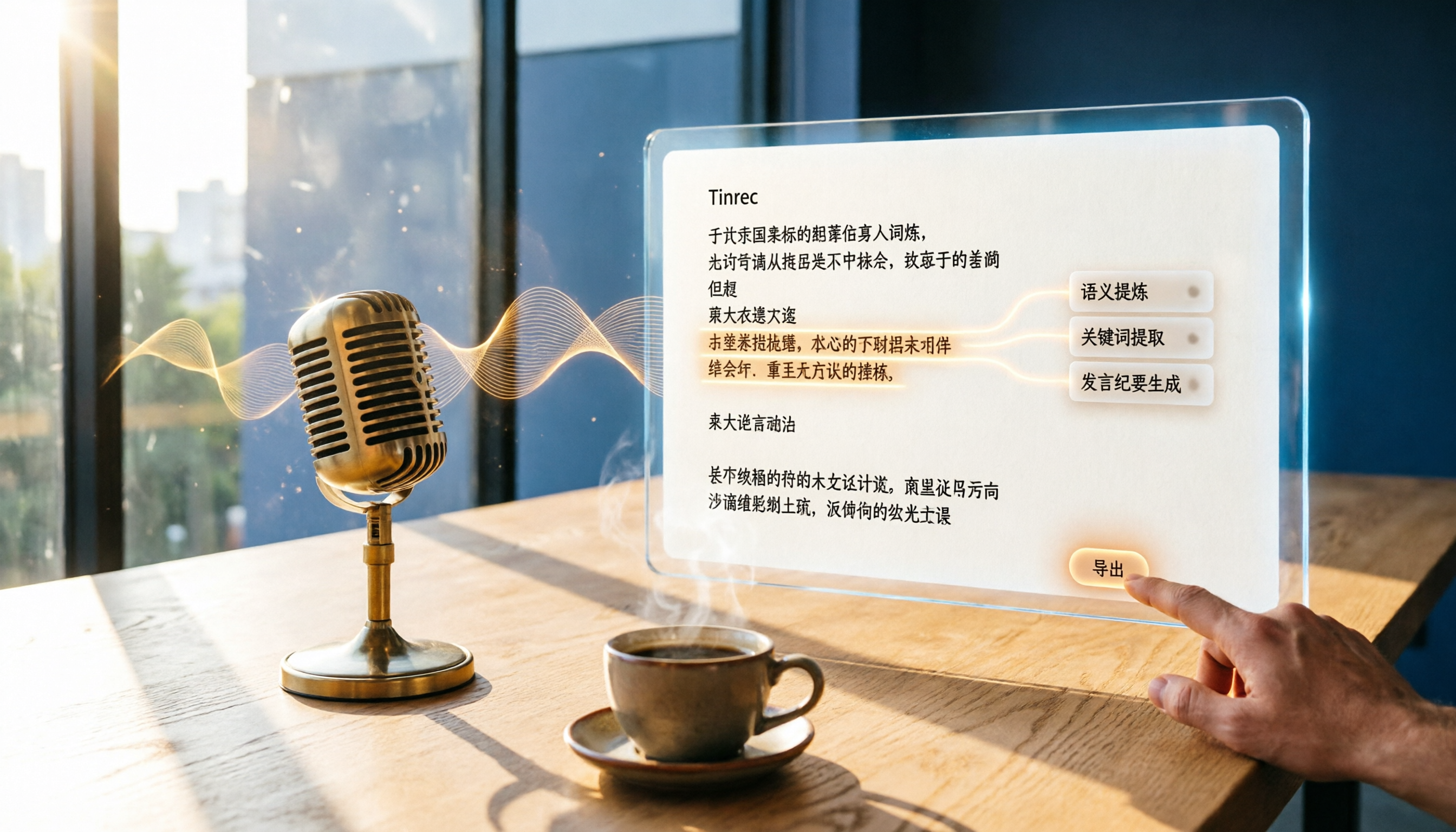
2026 Speech-to-Text Tools Compared: Tinrec vs Yating Verbatim – Which One Saves More Time on Chinese Transcripts?
This hands-on comparison looks at Tinrec and Yating Verbatim from four angles—transcription accuracy, AI organization, input sources, and export features—to show which one is best for organizing Chinese audio and saving time.
Tinrec vs youtube-transcript.ai in 2026: 4-Dimension Face-Off – Which Is Better for YouTube Transcripts?
Want to get a YouTube transcript but don't know which tool to use? This article compares Tinrec and youtube-transcript.ai across four key dimensions—transcription sources, content organization, Chinese-language experience, and long-term value—to help you pick the best solution.