
Turn recordings into transcripts and summaries in minutes
Upload audio or video for multilingual transcription, AI notes, and action items
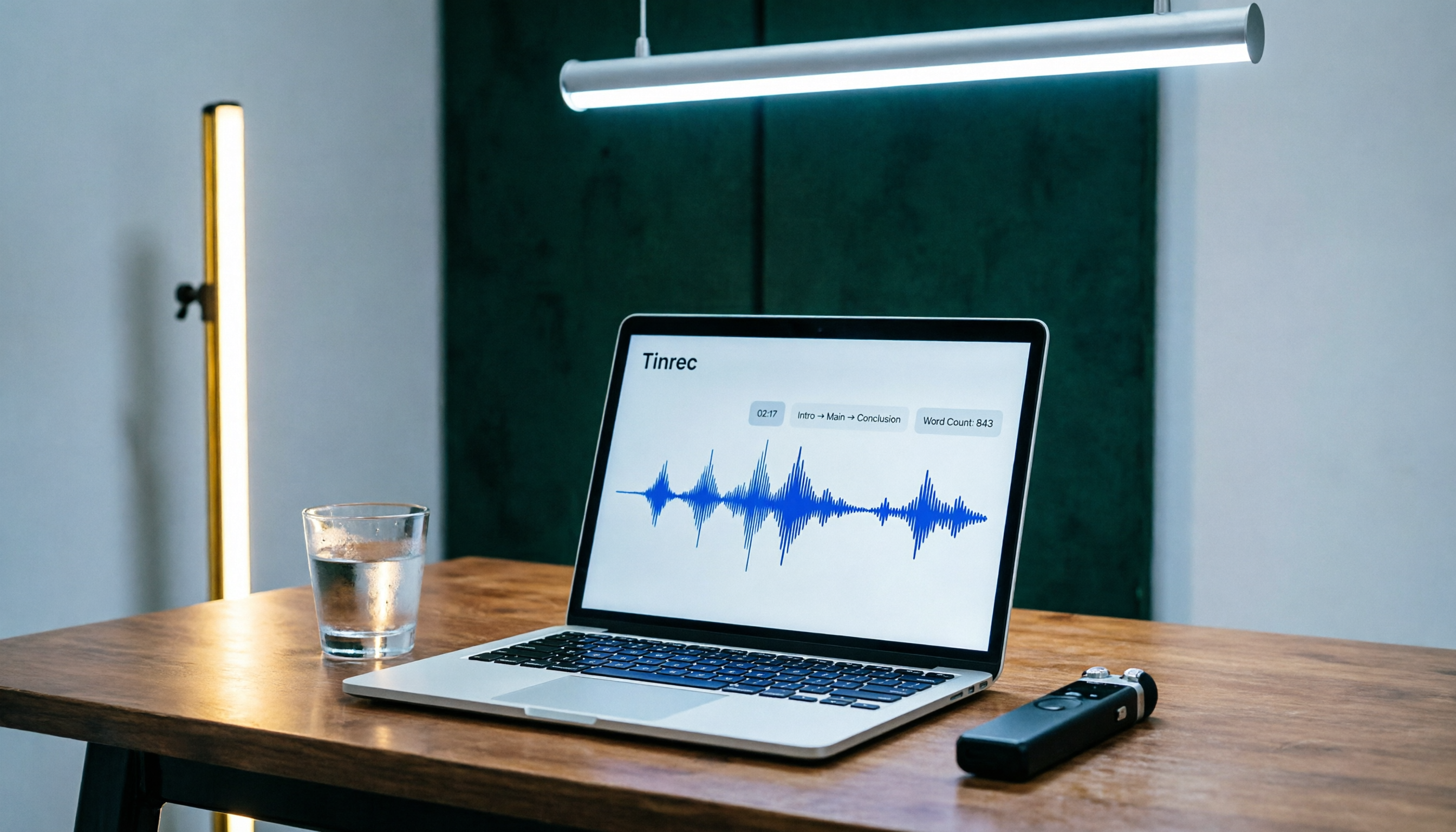
How long does it take to speak 1,000 words? Speaking rate varies by context. A formal speech takes about 6–7 minutes, a business presentation about 5 minutes, but if you pause or interact along the way, the actual time can be longer. Rather than guess, record yourself and see! This article walks you through the speech-to-text feature of Tinrec (instant recording) to not only measure your speech length precisely but also auto-generate transcripts and key summaries, so you can speak with confidence every time.
Before You Start | What You Need
- A smartphone or computer (Tinrec supports iOS, Android, and Web)
- Download and sign up for Tinrec (you can log in quickly with Google or Apple ID; the free plan includes a monthly basic transcription allowance)
- Prepare your speech script or topic outline (around 1,000 words)
- Find a quiet environment to ensure good recording quality
Step 1: Record Your Speech
The goal of this step is to capture a clear recording so you can calculate the time accurately.
Open Tinrec and tap the 'Record' button to start. Place your phone about 30 centimeters from your mouth and speak your 1,000-word content into the microphone. Try to simulate a real speech: add pauses, vary your tone, and even simulate interaction. When you're done, you'll see the recording file on the home screen with its duration displayed next to it.
(Illustration: a person sits at a desk, recording with a phone held on a stand, while the screen shows live transcription text; the atmosphere is focused and natural)
Step 2: Let AI Turn It Into a Transcript
Tap the file you just recorded in the recording list, then choose Transcribe. Tinrec will start converting the audio into text, and within a few minutes you'll have a full transcript. Once transcription is done, you can browse the entire text directly in the app; the system also adds automatic timestamps so you can compare sections easily.
(Illustration: a phone screen showing Tinrec's transcription output, with the transcript neatly arranged and timestamps beside every sentence)
Step 3: Quickly Proofread the Transcript
AI transcription is accurate, but minor errors can still occur due to accents or background noise. Spend a few minutes scrolling through, especially checking names, proper nouns, or numbers. Tinrec offers a 'listen-and-correct' feature: tap any text segment and the audio will start playing from that point, letting you make quick edits.
(Illustration: a user proofreading a transcript on their phone, tapping a line of text while a playback control bar appears at the bottom)
Step 4: Let AI Generate Key Takeaways
Just reading the transcript isn't enough? Tinrec can automatically extract summaries, key points, and action items. Tap 'AI Summary' on the file page, and the system will analyze the content and produce a structured summary. When practicing a speech, this helps you review what points you covered and whether your time distribution made sense.
Stop organizing recordings by hand
Upload audio or video and automatically get a transcript, summary, and action items
(Illustration: a summary card generated by Tinrec, showing sections such as 'Key Takeaways,' 'Keywords,' and 'Speech Duration,' with a clean design)
Step 5: Export and Share
Once you've organized everything, you can export the transcript or summary as a text file or PDF, or simply share a link with others. Tinrec supports export to popular tools like Notion and Google Docs, making it easy to save or further edit your material.
(Illustration: an export menu screen listing multiple formats and third-party tool icons)
Common Questions and Troubleshooting
- Q: The word count from the transcription doesn't match my actual script? A: This may be due to pauses or changes in speaking rate. Try to practice in a way that matches the real situation. Tinrec accurately records total duration and word count, giving you a clear picture of your actual performance.
- Q: What if the transcription has a lot of errors? A: Check whether your recording environment is quiet, or use an external microphone. Tinrec has built-in noise reduction; you can turn on 'High Noise Environment' mode in settings to improve clarity.
- Q: Not enough free plan quota? A: The free plan offers a basic monthly transcription allowance, generally enough for light practice. If you need more, consider the Pro plan (see the official website for details).
Advanced Tips: 3 Ways to Double Your Productivity with Tinrec
- AI Query by Chat: After transcription, you can ask Tinrec conversational questions like, 'How much time did I spend on my opening remarks?' or 'Which key figures were mentioned?' It will find the answers directly from the content, saving you from manual searching.
- Multilingual Transcription: If your speech mixes Chinese and English, Tinrec can automatically identify and transcribe both. You can even set a primary language for better accuracy.
- Cross-Platform Sync: Record on your phone, then continue editing or exporting on your computer. All data syncs in real time, so your workflow never skips a beat.
If You Don't Use Tinrec, Here Are Some Alternatives
- Otter.ai: Great for English meetings, but weaker in Chinese transcription, and the interface is centered on team collaboration.
- Notta: Strong transcription capabilities, but its summary and Q&A features aren't as intuitive as Tinrec. Each tool has its strengths, but if your needs are speech practice, Chinese content organization, and follow-up use, Tinrec offers better overall value.
Summary
Now that you've learned the five steps above, you can use Tinrec to measure the time of a speech of any length and automatically generate transcripts and key summaries. The next time you prepare a presentation or a speech, try recording yourself first and use the data to refine your performance. Download the free version of Tinrec and put your 1,000-word script to the test so every speech you give lands right on time.
References
- How Long Does It Take to Speak 1,000 Words? Speaking Rate Formula and Recommended Efficient Audio-to-Text Tools - Tinrec Blog
- How to Estimate Word Count for 10/15/20 Minute Speeches? A Guide to Script Length and Presentation Timing | SlideMaster AI
- Interactive Speech Time Calculator | Speechify
- How Many Words Should You Speak Per Minute? Mastering the Art of Speaking Pace - JB Women's Style Accessories
- How Many Chinese Words Can You Speak in a Minute? - Superman Marketing
Turn every recording into actionable outcomes
Get 60 free transcription minutes when you sign in. No credit card required.
Related Reading
You might also like
2026 Hands-On Comparison of 3 Mobile Recording-to-Transcript Tools: Is the Free Version Enough? This AI Organizer Saves the Most Effort
Is iPhone's built-in transcription feature any good? We tested Tinrec, iPhone Voice Memos, and Otter.ai, comparing accuracy, AI summaries, cross-platform support, and free tiers to help you find the best recording-to-text solution.
Laptop Recording to Text in 2026: Use Tinrec to Auto-Generate Transcripts and Meeting Minutes
Tired of spending time sorting through laptop recordings? This guide shows you how to record with Windows’ built-in voice recorder, upload to Tinrec, and automatically get transcripts, summaries, and to-dos—making meeting and course notes stress-free.
2026 Recording Notes: Real-Time Transcription + AI Summary – iPhone Built-in vs Tinrec, Which Is More Complete?
This article compares iPhone's built-in Voice Memos/Notes recording features with the Tinrec recording tool, covering recording sources, transcription accuracy, AI organization, database search, and cross-platform export, to help you find the best way to organize meeting and course recordings.
2026 Free Speech-to-Text Tools Roundup: 5 Options at a Glance
Looking for where the recording feature is? What you actually need may not just be a recording feature, but a tool that turns recordings into useful information. This article rounds up 5 free or freemium speech-to-text options, from built-in apps to all-in-one AI tools, to help you pick the most time-saving choice.
Where Are iPhone Voice Memos Stored in 2026? 5 Steps to Find and Manage Recordings (Tutorial)
iPhone Voice Memos are stored in iCloud or within the app. Want to export them to the Files app or other cloud services? This article shows you how to locate recordings and use AI tools to turn meeting and lecture recordings into searchable text.
2026 Hands-On Comparison of 5 AI Voice Tools: From ChatGPT Read-Aloud to Tinrec Audio/Video Organization, Which Is More Practical?
Can ChatGPT read aloud? This article compares 5 AI voice tools hands-on, taking you from simple voice read-aloud to recording transcription, AI summarization, and cross-source organization. With Tinrec as the core, we analyze which tool is best for meetings, learning, and content creation.
2026 Police Interview Recording Guide: Legal Self-Protection & AI Summarization
Can you record your own police interview? A senior student shares hard-won lessons, legal rules, and practical tips on when and how to record legally—and how Tinrec can auto-transcribe, summarize, and help protect your statement.

2026 Free Recording Organization Solutions: 2 Tools Compared
iPhone Notes is built-in and free, but Tinrec offers automatic transcription, AI summaries, and cross-platform organization. This article compares two free recording organization options across transcription, organization features, syncing, and exporting to help you find the right productivity tool.

How to Change Font in iPhone Notes in 2026: A 5-Step Complete Guide
Changing fonts in iPhone Notes has its limits. This guide shows you how to use the latest iOS 18 features to apply bold, italics, headings, and text color, and compares Notes with Notion's full font capabilities to help you choose the right note-taking app for your needs.