
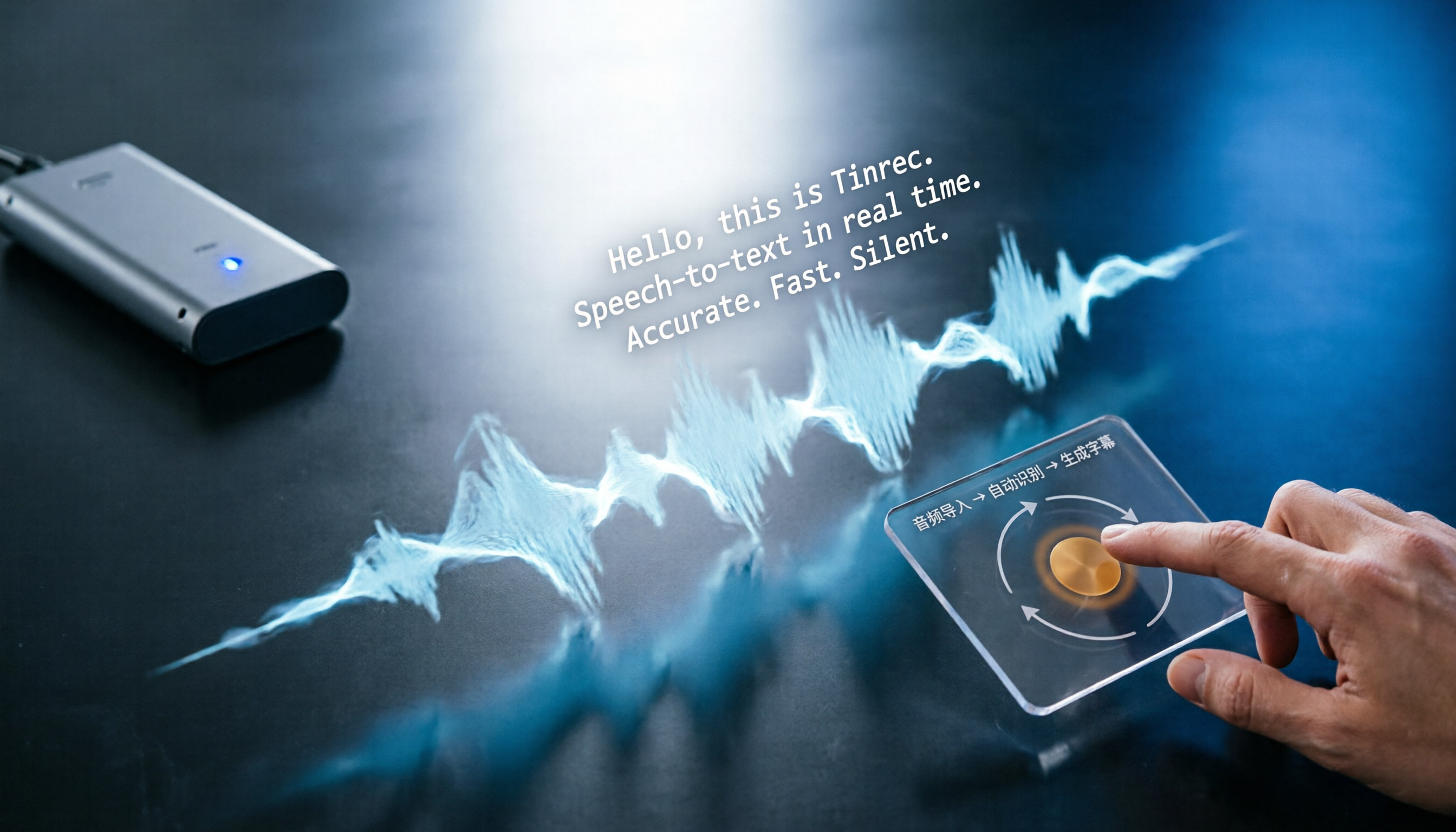
Turn recordings into transcripts and summaries in minutes
Upload audio or video for multilingual transcription, AI notes, and action items
Why You Need Auto-Generated SRT Subtitles
In the past, adding subtitles to videos meant listening and typing simultaneously—a 1-hour meeting could take at least 2 hours to transcribe. By 2026, AI speech-to-text technology has matured: just import an audio file and automatically generate SRT subtitles, with options to proofread and export, boosting efficiency by over 300%. But with so many tools on the market, how do you choose the right one? We evaluated tools across four key dimensions—transcription accuracy, Chinese language support, output formats, and pricing—to shortlist the 3 most recommended auto SRT subtitle generators.
4 Key Factors When Choosing an SRT Subtitle Tool
- Transcription Accuracy: With clear audio, mainstream tools achieve about 90-95% accuracy, but background noise and accents can affect results. Prioritize tools with noise reduction features.
- Language Support: Chinese (including Traditional) recognition is essential; some tools excel in mixed Chinese-English scenarios.
- Output Formats: At minimum, the tool should export SRT or VTT directly, making it easy to import into video editing software.
- Pricing and Minutes: How many minutes does the free tier offer? Are paid plans cost-effective? Consider your usage frequency.
Top 3 Auto SRT Subtitle Tools in 2026
| Tool | Core Strength | Pricing | Best For |
|---|---|---|---|
| Tinrec | Goes beyond transcription with AI summaries, action items, and Q&A—the most complete audio organization experience | Free tier includes 100 minutes/month; Pro monthly plan offers more minutes | Those who regularly organize meetings, courses, or interviews and value knowledge management |
| cSubtitle | Pure online transcription with a simple interface, quickly generating SRT/VTT and Word transcripts | Free trial; paid plans based on minutes | Those with occasional small transcription needs who prefer not to install apps |
| FlexClip | Online video editor with built-in AI subtitles, supporting multiple subtitle formats and text-to-speech | Free version available; paid unlocks more features | Creators who need both video editing and subtitle generation |
> Our top recommendation is Tinrec because it's not just a one-time transcription tool—it acts as your personal audio knowledge base, allowing you to ask questions and organize key points after transcription. Next, we'll use Tinrec as an example to demonstrate how to generate SRT subtitles in 5 steps.
Before You Start: What You'll Need
• A smartphone or computer (Tinrec is available on iOS, Android, and web) • Download the Tinrec app or open the web version, and sign up for free with Google/Apple ID • An audio file you want to transcribe (supports MP3, WAV, M4A, etc.; max file size 4GB, up to 180 minutes) • A stable internet connection (transcription requires internet; you can download offline language packs if needed)
Step 1: Record or Import Your Audio
The goal here is to obtain clear audio, which directly impacts transcription accuracy.
For meeting or classroom recordings, open the Tinrec app and tap the record button. Keep your phone close to the sound source, ideally 1-2 meters away for best pickup. If you already have a recording, tap "Import" to select it from your phone or cloud storage. Tinrec also supports pasting links to public videos like YouTube to extract the audio track for transcription.
Why emphasize recording quality? With the same AI engine, clear audio can achieve 95% recognition accuracy, while noisy environments might drop to 80%. Rather than correcting later, spend an extra 10 seconds during recording to ensure proper placement.
Once done, you'll see the audio file on the main screen; tap it to start transcription.
(Illustration: In a meeting room, a phone is placed on the center of the table recording, with a visual of sound waves and real-time transcription text.)
Step 2: Let AI Automatically Transcribe
Select the audio file and tap "Transcribe." Tinrec will automatically convert speech to text. Typically, a 1-hour audio file takes about 5-10 minutes to process, with a progress bar showing status.
Stop organizing recordings by hand
Upload audio or video and automatically get a transcript, summary, and action items
During transcription, you can choose the language (supports Chinese, English, Japanese, etc.). For best Traditional Chinese recognition, we recommend setting it to "Chinese (Taiwan)." If your audio contains mixed Chinese and English, keeping "Chinese" mode still recognizes English words.
Once complete, a timestamped transcript is generated, with time markers on the left of each sentence—essentially the foundation of an SRT file.
(Illustration: Phone screen showing transcript with text scrolling along the timeline, professional look.)
Step 3: Quickly Proofread the Transcript
AI transcription may still contain errors; a quick scan to correct key terms is sufficient. Tinrec has a built-in text editor—tap a sentence to edit, and timestamps are preserved automatically.
Pro tip: First tap "AI Summary" to see the key points of the entire text, identify the most important sections, then proofread those sections. This saves time compared to checking every word. It's something pure transcription tools can't do.
After proofreading, you'll have a clean transcript ready to use as meeting minutes or notes.
(Illustration: Hands editing text on a laptop, with a timeline and AI summary window alongside.)
Step 4: Export as an SRT Subtitle File
Once satisfied with the proofreading, tap "Export" in the top right and select "SRT Subtitles." Tinrec automatically converts timestamps and text into a standard SRT file, which you can download and import directly into editing software like Premiere, Final Cut Pro, or PowerDirector.
If you don't need subtitles for the video, you can also export TXT or Word transcripts, or share a link with colleagues.
(Illustration: Downloaded SRT file icon, with a background of video editing software importing subtitles.)
Step 5: Bonus: Boost Efficiency with AI Summary and Action Items
Don't close the app right after transcription—make the most of Tinrec's unique features to double the value of your audio:
- AI Summary: Generate key points in 1 minute for quick review of meeting conclusions.
- Action Item Extraction: Automatically list "to-dos," such as "Manager Chen to submit quote by Friday."
- AI Q&A: Ask questions like "What are the three key points from this lesson?" and get direct answers.
These features are rare among competitors, making Tinrec more than just a subtitle machine—it's your smart knowledge assistant.
FAQ and Troubleshooting
Q: What if the transcription accuracy isn't ideal? First, check the audio quality for excessive background noise. Tinrec has built-in smart noise reduction; enable it in settings during recording. If you notice later, you can select "High Noise Environment" mode during transcription. Most online transcription tools don't offer this option.
Q: What audio formats are supported? Common formats like MP3, WAV, M4A, OGG, and WMA are supported. You can also upload videos directly (MP4, MOV) and the system will extract the audio track automatically. The maximum file size is 4GB or 180 minutes, so even large projects are manageable.
Q: Is the free tier sufficient? The free tier includes 100 minutes per month, roughly enough for 4-5 one-hour meetings, suitable for light use. Heavy users might consider Pro monthly or annual plans for a lower per-minute cost.
Q: Can I customize the style of the generated SRT subtitles? SRT is plain text; styling must be adjusted in your editing software. However, Tinrec exports precise timestamps, so alignment is usually spot-on with minimal adjustments needed.
Pro Tips: 3 Ways to Double Tinrec's Efficiency
- Cross-Platform Sync: The app and web version sync in real time—record on your phone during a meeting, then proofread and export on your computer seamlessly.
- Multilingual Meeting Organization: For mixed Chinese-English meetings, use the AI Q&A feature after transcription, e.g., "Summarize the key points from the English parts," and get instant results.
- Historical Audio Database: All transcribed documents are stored permanently; search by keyword later to find past meeting records—something simple transcription tools can't do.
If You Don't Use Tinrec, Here Are Alternatives
- cSubtitle: Pure online quick transcription, no installation needed, suitable for occasional small needs. However, it lacks AI summaries and other post-processing, and the free tier has minute limits.
- FlexClip: Combines video editing, ideal for creators who want to edit and subtitle in one go. But there's a learning curve, and transcription accuracy is average.
But if you want to turn audio into "truly usable knowledge," Tinrec remains the best solution.
Conclusion
Auto-generating SRT subtitles with AI is no longer difficult; with the right tool, you can finish in 5 minutes what used to take 2 hours. Tinrec goes beyond transcription, integrating summaries, action items, and Q&A to turn every recording into a searchable, usable asset. Download the free version of Tinrec now, try it with a meeting recording, and experience the seamless flow from audio to subtitles to knowledge.
References
- Online AI Audio/Video to Text and Chinese Subtitles - Free Trial - cSubtitle
- AI Subtitle Generator - Auto-Generate Subtitles Online | FlexClip
- SRT Subtitle Generator - Free Online Subtitle Editing Tool | AI-Chain Tools
- Subtitle to Speech | Convert SRT Subtitles to Speech with AI Text-to-Speech
- 7 AI Subtitle Generators Recommended: Great Video Subtitle Tools, Auto-Add Subtitles Fast and Convenient!
Turn every recording into actionable outcomes
Get 60 free transcription minutes when you sign in. No credit card required.
Related Reading
You might also like

2026 Free AI Lecture Recording to Notes Tools: 3 Options Compared
Based on a mid-level manager's hands-on experience, this article compares the free plans of 3 AI tools that turn lecture recordings into notes, with an in-depth look at how Tinrec helps you quickly convert training recordings and online courses into structured notes, boosting learning and review efficiency.
2026 Comparison of 2 Speech-to-Text Tools: Timestamp Jump vs. AI Summarization—Which Is More Practical?
An in-depth comparison of Tinrec and MyEdit, two leading speech-to-text tools, covering timestamps, AI summaries, input sources, and pricing to help you choose the best transcription solution for your needs.

Tinrec vs Yating Transcription 2026: 4-Dimension Comparison, AI Organization Capabilities Are the Deciding Factor
How can journalists quickly generate transcripts after interviews? This article compares Tinrec and Yating Transcription across four key dimensions—accuracy, smart organization, cross-platform support, and free plans—to help you choose the best voice-to-text tool.

5 Free Real-Time Captioning and Translation Tools for Remote Meetings in 2026
Struggling to understand and keep up with cross-border remote meetings? This article reviews 5 free real-time captioning and translation solutions, with an in-depth look at how the AI recording and transcription tool Tinrec can help you fully capture meetings, quickly generate transcripts and summaries, and make post-meeting translation easier.

How to Use AI to Organize Your Year-End Performance Review: A 5-Step Guide (Using Tinrec as an Example)
Year-end performance reviews are approaching, and you're still wondering how to turn a year's worth of meeting recordings and course notes into a compelling work summary? This article uses Tinrec, a voice-to-text app, as an example to teach you 5 steps to convert accumulated audio content into transcripts, automatically generate meeting minutes, and use AI Q&A to quickly extract key achievements, making your annual self-assessment a breeze.

2026 Thesis Defense Recording Tools: AI Real-Time Transcription and Smart Summaries
Preparing for your thesis defense? This buying guide compares multiple recording-to-text tools, from real-time transcription and AI summaries to cross-platform support, recommending the best AI recording assistant for academic settings so defense recordings no longer become a burden.

2026 AI Voice Note Tools Buying Guide: 4 Tested and Recommended
Whether in meetings, classes, or when inspiration strikes, using voice to jot down notes is the most convenient. But the real challenge is organizing them afterward. We tested four AI voice note tools and found that Tinrec stands out in multi-source input and AI Q&A, turning your recordings into actionable knowledge.

3 Best Speech-to-Text Apps for the Hearing Impaired in 2025: A Practical Comparison for U.S. Users
Choosing a speech-to-text app for the hearing impaired? This article compares Yating, Google Live Transcribe, and Tinrec, covering features, pricing, and tutorials to help you find the best communication aid.

2025 Test: 3 Legal Audio Transcription Tools Compared – Which One Offers the Highest Accuracy?
In litigation or legal consultations, transcripts of audio evidence are crucial. We tested 3 AI transcription tools, evaluating accuracy, timestamps, AI Q&A, and suitability for legal scenarios, to find the top choice that saves time and meets court requirements.