

Turn recordings into transcripts and summaries in minutes
Upload audio or video for multilingual transcription, AI notes, and action items
This article uses Tinrec as an example, an AI meeting minutes app that is also free to use, supporting iOS, Android, and web versions. The free plan provides a monthly basic transcription quota, allowing you to try real-time recording, audio file import, and online video link transcription. The following 5 steps will guide you from recording to producing meeting minutes.
Before You Start | What You Need to Prepare
- A smartphone or computer (Tinrec supports iOS, Android, and web versions; choose whichever is convenient for you).
- Download the Tinrec app or open the web version, and quickly register with Google or Apple ID. The free version does not require a credit card.
- Prepare a meeting recording you want to organize, which can be a live recording, an existing audio file, or a recording of an online meeting.
- A stable internet connection, as real-time transcription and AI summaries require connectivity; if you plan to use it offline, check if offline language packs are available.
Step 1 | Record the Content You Want to Transcribe
The goal of this step is to obtain a clear recording, which is the foundation for all subsequent steps.
Open Tinrec, select the "Live Recording" feature, and place your phone or computer's microphone close to the main speaker. For one-on-one interviews, place the phone between the two people; for multi-person meetings, place it in the center of the table to avoid blocking the microphone.
Why pay special attention to recording quality? Because the accuracy of AI transcription heavily depends on audio clarity; even the best transcription engine will make errors with blurry recordings. Rather than spending time proofreading later, it's better to spend an extra 30 seconds during recording to confirm the position and ambient noise.
After finishing the recording, you will see it on the Tinrec home screen, showing the duration and file size.
(Illustration here: a person sitting in a meeting room, phone placed flat in the center of the table, screen showing real-time transcription text, participants discussing)
Step 2 | Let AI Transcribe It into a Verbatim Transcript
This step turns the recording into a searchable, editable text file.
Open the recording in Tinrec and click the "Transcribe" feature. The system will automatically process the audio and generate a verbatim transcript within minutes. You can also upload existing audio files or paste online video links (e.g., YouTube, Bilibili), and Tinrec can transcribe them as well.
Why recommend AI transcription? Traditional manual transcription of one hour of audio can take three to four hours. Tinrec can significantly reduce that time, and the free version already includes a basic quota sufficient for testing.
After transcription, you will see a transcript with timestamps, making it easy to refer back to original sections.
(Illustration here: computer screen showing Tinrec's transcription result, with audio waveform on the left and transcript text on the right, with time markers next to the text)
Step 3 | Quickly Proofread the Transcript
This step ensures the accuracy of the transcript, especially for important terms or names.
Tinrec's transcription quality is already good with generally clear audio, but it may still make errors with accents, overlapping speech, or technical terms. You can edit directly in the transcript interface to correct obvious typos, or use the search function to quickly jump to specific sections.
Why spend time proofreading? Because the subsequent AI summary is generated based on the transcript; if the transcript has errors, the summary may also be wrong. Spending a few minutes proofreading can prevent glaring errors in the meeting minutes.
After proofreading, the transcript becomes a reliable foundation.
(Illustration here: user viewing the transcript on a phone, swiping the screen, with annotation marks indicating edits)
Step 4 | Let AI Generate Meeting Minutes for You
This step organizes the transcript into key summaries, action items, and section structures.
In Tinrec, select the "AI Summary" or "Meeting Minutes" feature. The system will automatically analyze the transcript, extracting key decisions, action items, and discussion points. You can also use "Custom Templates" to adjust the summary format, such as client interview records, project meeting minutes, etc.
Why use AI summaries? It not only saves you time from re-listening to recordings but also helps you quickly grasp meeting highlights, especially for long meetings over an hour. Tinrec's summary includes sections, allowing you to jump directly to the part you want to review.
After completion, you will get a structured meeting minutes document, including a summary, key points, and action items.
(Illustration here: computer screen showing Tinrec-generated meeting minutes, with a section list on the left and summary and action items on the right)
Stop organizing recordings by hand
Upload audio or video and automatically get a transcript, summary, and action items
Step 5 | Export and Share
This step brings the organized results into your daily workflow.
Tinrec supports multiple export formats, including plain text, Markdown, and PDF, and can also sync directly to tools like Notion, Google Docs, and OneNote. You can choose to copy the summary content or share the transcript and minutes together with team members.
Why export? Because Tinrec is not just for recording; it aims to make these materials continuously usable. After exporting, you can continue editing, archiving, or collaborating in your familiar tools.
After exporting, your meeting notes are officially complete.
(Illustration here: phone screen showing Tinrec's export menu with various formats and third-party tool icons)
FAQ and Troubleshooting
Q: Is the free version's transcription quota sufficient? A: Tinrec's free version provides a basic monthly transcription quota, suitable for occasional meeting organization or trying out the effect. If you have meetings every week, you might consider upgrading to the Pro plan, which is reasonably priced per month.
Q: What if the transcribed text has many errors? A: This is usually due to a noisy recording environment or being too far away. Tinrec supports multiple audio sources; we recommend getting closer to the speaker during recording or using an external microphone. If errors are concentrated in specific sections, you can manually edit the transcript and regenerate the summary.
Q: Can it automatically join online meetings? A: Tinrec currently focuses on live recording, file upload, and online video link transcription. If you want to automatically record online meetings like Zoom or Google Meet, you can use the system's recording function and then import the audio file into Tinrec for processing; the results are just as good.
Q: Is transcription accurate for Chinese content? A: Tinrec is particularly suitable for organizing Chinese meetings, courses, and interviews. It performs well with generally clear audio, but actual results depend on sound quality, accents, and technical terms. For important content, we recommend verifying against the original.
Q: What else can it do besides meeting minutes? A: Tinrec can also organize course recordings, interviews, podcasts, and online videos, not just meetings. You can paste a YouTube video link and directly get the transcript and summary, which is useful for learning and content creation.
Advanced Tips | 3 Ways to Double Your Efficiency with Tinrec
1. Use "AI Q&A" to directly find key points without re-listening to the recording Tinrec has a built-in AI Q&A feature. You can directly ask, "What budget items were discussed in this meeting?" or "What pain points did the client mention?" The system will provide answers based on the transcript, complete with timestamps. Most other free transcription tools only provide transcripts without conversational query capabilities. This saves you a lot of re-listening time, especially for research interviews or historical meeting reviews.
2. Paste online video links to quickly organize study notes Tinrec supports transcription of public video links from YouTube, Bilibili, etc. You just copy and paste the URL to get the transcript and summary. Similar free tools on the market mostly only support uploading files, not directly parsing video links. This is very helpful for students organizing online courses and office workers researching competitor videos.
3. Customize summary templates to make minutes format comply with company standards Tinrec allows you to customize summary templates, such as setting "Client Interview Record: List pain points, needs, next steps," and every subsequent summary will use the same format. Many meeting minutes tools only have fixed templates and cannot adjust for different meeting types. This way, your meeting minutes are more consistent and easier to submit directly to supervisors or clients.
If You Don't Use Tinrec, Here Are Other Options
Otter.ai: The free version offers 300 minutes per month, suitable for English meetings and team collaboration, but Chinese transcription is weaker. If you need more Chinese organization and online video transcription, Tinrec is more suitable.
Notta: The free version offers 120 minutes per month, with strong multilingual transcription and subtitle features, but the free quota is smaller. Tinrec's free version also has a basic quota and emphasizes AI organization and export after transcription, making it more suitable for personal knowledge management.
Summary
By learning the 5 steps above, you can now use Tinrec to convert meeting recordings into verbatim transcripts, automatically generate minutes, export to common tools, and use AI Q&A to quickly find key points. Next step: download the free version of Tinrec and try it with a real meeting. The free quota is enough to experience the complete process, so you can judge whether it's suitable without spending money.
References
- Meeting Ink - 2026 AI Meeting Minutes Tool Test | 7 Voice-to-Text and Summary Speed Comparison | Meeting Ink - AI Meeting Minutes Assistant Auto-Transcribe Verbatim and Summarize Meeting Notes
- Recently, many people have asked me if there are any AI tools for meeting minutes. They still type manually, often unable to multitask, and it's quite time-consuming. I always recommend — SeaMeet. Why? Let me summarize the key points: -Tied to Google Meet, online meetings are transcribed in real-time with instant summaries, super convenient. -No need to reorganize; after the meeting, it directly emails all participants. -So easy to use that even middle-aged and elderly people who have never used AI tools can learn it in 10 minutes. -Physical meetings
- AI Meeting Minutes Software Recommendations: 5 Apps Tested and Compared, Auto-Transcribe to Make Meetings Easier!
- Unlimited Time! 3 Free AI Verbatim Tools, Highly Recommended! AI Voice Notes Generate Meeting Minutes, Presentations, Mind Maps | 104 Career Force
- r/ProductivityApps on Reddit: Does anyone know of a free or cheap app that can take meeting minutes for you?
Turn every recording into actionable outcomes
Get 60 free transcription minutes when you sign in. No credit card required.
Related Reading
You might also like

2025 Live Transcription Tools Compared: Which One Actually Saves You Time?
How to choose a live transcription tool in 2025? We tested Tinrec, Granola, Notta, and Otter.ai across Chinese recognition, meeting audio capture, post-meeting organization, and team quotas. We also cover common pitfalls and scenario-based recommendations to help you find the one that truly saves you time.

2026 Real-Time Transcription Tools Buying Guide: 6 Tested Picks and Recommendations
Recording the meeting is just the beginning of the pain? This guide covers 6 real-time transcription tools, comparing Chinese language support, meeting note methods, and pricing plans. It also explains the most common pitfalls before buying, helping you find the right transcription tool for your needs.

Which Auto-Generated Meeting Notes Tool for Teams Is Best? 2026 Hands-On Test of 3 Tools: This One Works Best for Chinese Meetings
Teams built-in transcription only gives you a verbatim transcript; post-meeting organization is where the real time goes. This article uses Teams meetings as the scenario to compare Tinrec, Otter.ai, and Notta, helping you decide which is best for Chinese meetings and team collaboration.

3 Meeting Recording Tools Tested in 2026: Notion AI vs. Tinrec — Which Saves More Time?
Based on three real meetings, this comparison examines how Notion AI Meeting Notes, Granola, and Tinrec differ in meeting recording, transcription, post-meeting organization, and team handoff. Includes selection criteria, pitfalls to avoid, and a ready-to-use starter checklist.

2026 Comparison of 4 Teams Meeting Transcription Tools: Which Saves More Time with Auto Transcripts and AI Summaries?
Starting from the pain points of student group meetings on Teams, this comparison covers Teams built-in transcription, Tinrec, Otter.ai, and Notta, evaluating auto transcripts, AI summaries, action items, and cost limits to help you choose the best meeting notes workflow.
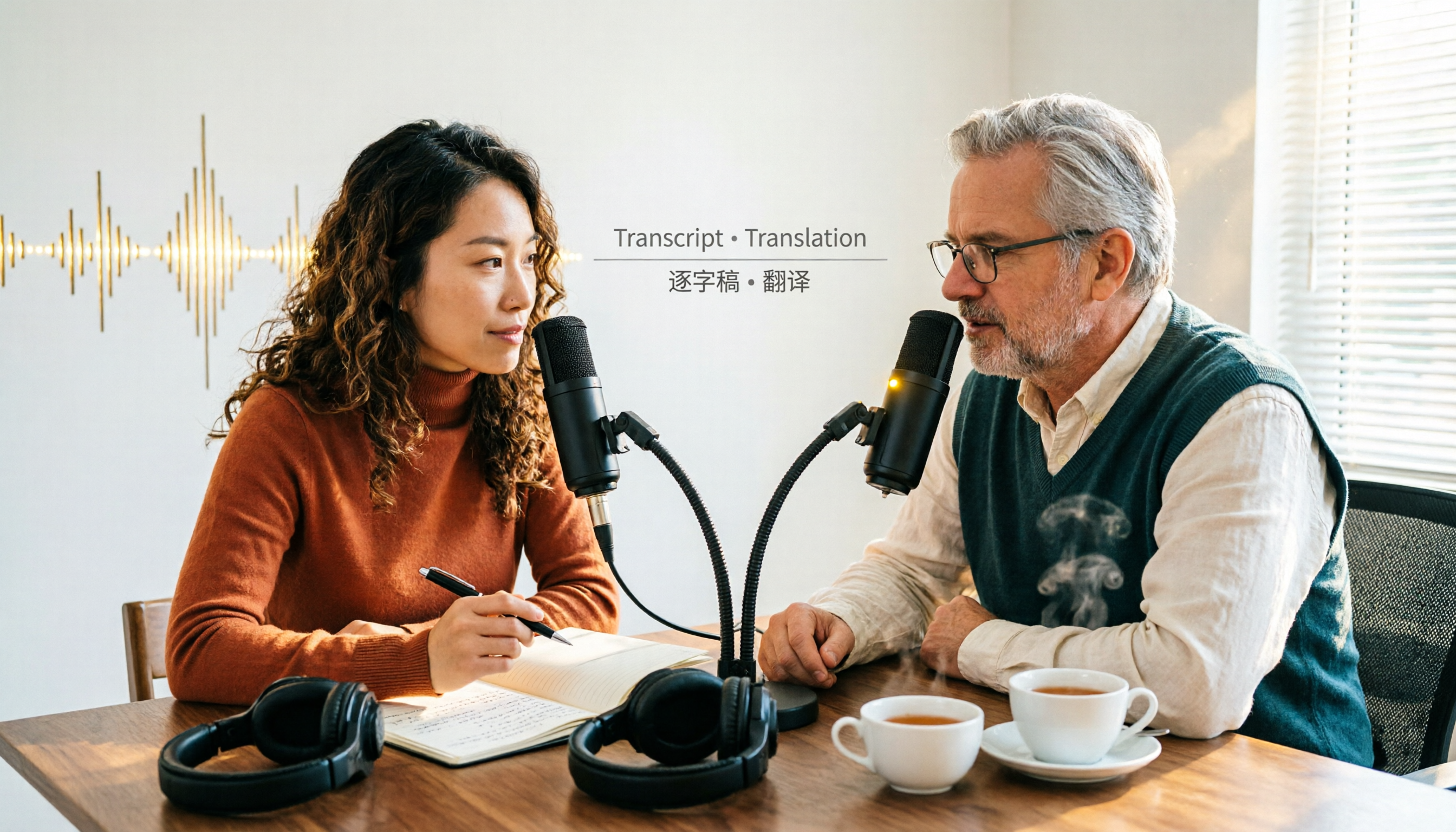
4 Podcast Transcript Translation Tools Tested for 2026: Which Free Version Is Enough?
This article starts with common misconceptions about Podcast transcript translation and compares four tools—Tinrec, Otter.ai, Notta, and TurboScribe—covering transcription, translation, summarization, export, free quotas, and team collaboration differences to help you choose the right solution for Chinese or mixed Chinese-English shows.

Best Notion Meeting Notes Templates in 2026: 6 Options Compared, and the One That Makes Follow-Ups Easiest
A roundup of 6 Notion meeting notes templates and AI meeting tool combinations, from free templates to team collaboration solutions, explaining which meeting scenarios each suits, how to handle post-meeting follow-ups, and selection advice.

2026 Comparison of 3 Meeting Notes Tools: Notion AI, Tinrec, and Notta — Which One Actually Saves You Cleanup Time?
Starting from a Notion meeting notes tutorial, this comparison examines the meeting notes workflows of Notion AI, Tinrec, and Notta, covering differences in templates, transcripts, summaries, action items, AI Q&A, and team collaboration to help you choose the right tool for Chinese-language meetings.

The Complete Guide to YouTube Transcripts in 2026: How to Get Free Transcripts and Summarize Key Points
Starting from student scenarios like exam review and class notes, this guide breaks down common misconceptions about free YouTube transcripts and shows how Tinrec turns transcripts into searchable, summarizable, and queryable study materials.