

Turn recordings into transcripts and summaries in minutes
Upload audio or video for multilingual transcription, AI notes, and action items
Many people ask me how to join a Teams meeting. Actually, joining is easy, but the real hassle starts after the meeting when you need to take notes. This article briefly covers the steps to join a Teams meeting, but the focus is on how to use Tinrec to record Teams meetings without a bot and automatically generate transcripts, summaries, and action items, saving you tons of time.
What Can an AI Meeting Recorder Do for You?
Scenario 1: Get Meeting Notes 5 Minutes After a Teams Meeting
In the past, after a two-hour Teams meeting, you might spend another hour re-listening to the recording and organizing key points. Now, with AI meeting recording tools like Tinrec, the moment the meeting ends, the AI has already generated the transcript, summary, and action items. Who is responsible for what and deadlines are all clear at a glance.
Scenario 2: Real-Time Transcription for In-Person Meetings
It's not just for online meetings. Tinrec can also record in-person meetings or interviews, transcribing as you go, so you don't have to record on your phone and listen back later.
Scenario 3: Quickly Organize Historical Audio Files
If you have accumulated meeting recordings or interview audio files, Tinrec lets you upload them and automatically converts them to text. You can then summarize or ask questions, turning old data into searchable assets.
What Are Tinrec's Core Capabilities?
Record Online Meetings Without a Bot
The Tinrec desktop app captures your computer's system audio directly, so you don't need to invite an extra meeting bot. In other words, when you're in a Teams meeting, just open Tinrec on your desktop, and it records the meeting audio in the background and transcribes it in real time. Other participants won't see an extra bot.
Real-Time Speech-to-Text
Tinrec supports live transcription with low latency. During the meeting, you can follow along with the text to make sure you don't miss anything.
AI Summaries and Action Item Extraction
After transcription, Tinrec automatically generates a meeting summary, chapters, and key points, and extracts action items from the discussion. No need to go through the transcript line by line.
Export in Multiple Formats
You can export meeting results to Word, PDF, TXT, and more, or send them directly to tools like Notion, Google Docs, and OneNote, keeping your existing workflow.
Team Collaboration Space
Tinrec's team plan provides a dedicated team space where meeting data belongs to the team. Members can share, search, and track historical meetings, and admins can manage roles, seats, and usage. This turns meeting notes into a team asset rather than scattered across personal devices.
Practical Use Cases
Use Case 1: Online Teams Meetings
Joining a Teams meeting is simple: when you receive an invitation, click the link or open Teams, find the meeting in your calendar, and click "Join." If you don't have a link, you can enter the meeting ID on the Teams home page.
But joining is just the beginning. During the meeting, open the Tinrec desktop app and select "Record System Audio." It will capture the entire meeting in the background. When the meeting ends, the transcript, summary, and action items are ready. You can share them with your team or export them as documents.
Stop organizing recordings by hand
Upload audio or video and automatically get a transcript, summary, and action items
Use Case 2: In-Person Client Interviews
If you often meet clients face-to-face, Tinrec's mobile app can record and transcribe simultaneously. Afterward, you get summaries and action items, so you don't have to rely on handwritten notes.
Use Case 3: Classes or Lectures
Students or professionals can also use Tinrec to record online or in-person classes, automatically converting them to text. Later, searching for key points or creating study notes is very convenient.
4 Things to Consider When Choosing an AI Meeting Recorder
1. Whether You Need to Invite a Meeting Bot
Some tools require a bot to join the meeting, which adds an extra participant and may trigger platform alerts. Tinrec uses bot-free desktop recording, so no extra bot is needed, making it especially friendly for Teams meetings.
2. Chinese Transcription Quality
If you primarily handle Chinese meetings, be sure to test how well the tool recognizes Chinese and mixed Chinese-English content. Tinrec performs reliably in Chinese meeting scenarios and supports Traditional Chinese and team-specific terms to improve recognition of professional jargon.
3. Post-Meeting Organization Features
Transcription is just the first step. The key to saving time is whether the tool can automatically generate summaries, action items, and chapters. Tinrec doesn't just give you a transcript; it also organizes structured meeting highlights and even lets you use AI Q&A to ask follow-up questions about the meeting content.
4. Team Collaboration and Management
If you need to share meeting data with your team, check whether the tool offers a team space, member management, and usage analytics. Tinrec's team plan lets you set roles and seats, centralizing meeting data so it can be handed over when team members change.
Frequently Asked Questions
Is the Tinrec free plan enough?
It depends on how often you have meetings. The free plan offers basic credits, suitable for occasional recording or trying out features. If you have meetings every week, consider the Pro plan. Teams can try the team plan, which includes shared credits.
Can Tinrec record Teams meetings?
Yes. The Tinrec desktop app captures your computer's system audio directly, so no bot needs to join the meeting. Just open Tinrec and start recording before your Teams meeting, and it will transcribe in real time.
What's the difference between Tinrec and Teams' built-in transcription?
Teams' built-in transcription usually requires meeting recording permissions and is a backend feature. Tinrec offers real-time transcription plus summaries, action items, AI Q&A, and export options, turning meeting content into reusable data.
Do I need consent to record with Tinrec?
Yes. Recording and transcription involve privacy. We recommend informing participants and obtaining consent before the meeting starts, and complying with local laws.
How is the team plan priced?
The team plan is billed per paid seat, with monthly and annual options. The annual plan costs less per month on average. For detailed pricing, please refer to the official purchase page.
Conclusion
AI meeting recorders are no longer futuristic technology—they're tools you can use now, and they really do save time. If you have more than three meetings a week, especially if you often use Teams, I highly recommend trying Tinrec. Download the free version, use the basic credits to experience a few meetings, and see what it's like to have AI organize your meeting notes.
References
- — Computer Version User Guide— Teams Meetings
- Join a Microsoft Teams Meeting by ID | Microsoft Teams
- Join a Meeting in Microsoft Teams | Microsoft Support
- Microsoft Teams Remote Teaching/Meeting Guide - Taipei University of Marine Technology Library and Information Center
- Join a Teams Meeting - Microsoft Support
Turn every recording into actionable outcomes
Get 60 free transcription minutes when you sign in. No credit card required.
Related Reading
You might also like

2026 Best 4 Sales Meeting Note Apps Compared: Chinese Transcription, Post-Meeting Action Items, and Team Knowledge—Which One Works Best?
Sales meetings need more than just recording. This article compares Tinrec, Granola, TurboScribe, and PLAUD from four angles: bot-free recording, Chinese and sales terminology, post-meeting action items, and team data ownership. It covers pricing, limitations, and buying tips to help you choose a meeting note app that truly helps you follow up with clients.

2026 Comparison of 4 Sales Meeting Note Tools: Which Is Less Work for Chinese Meetings and Follow-Ups?
Starting from customer needs, objections, and action-item tracking in sales meetings, this hands-on comparison tests Tinrec, Otter.ai, Fireflies.ai, and Notta on Chinese transcription, post-meeting organization, and team collaboration to help you choose a meeting note tool suited to sales scenarios.

2026 Comparison of 4 Sales Meeting Note Tools: Which One Turns Customer Needs into Action Items?
Starting from the most common inefficiencies in sales meetings, this comparison examines Tinrec, Fireflies.ai, Granola, and TurboScribe across Chinese-language meetings, bot-free recording, post-meeting Q&A, action items, and team knowledge retention, helping you choose the right meeting note tool for your sales team.
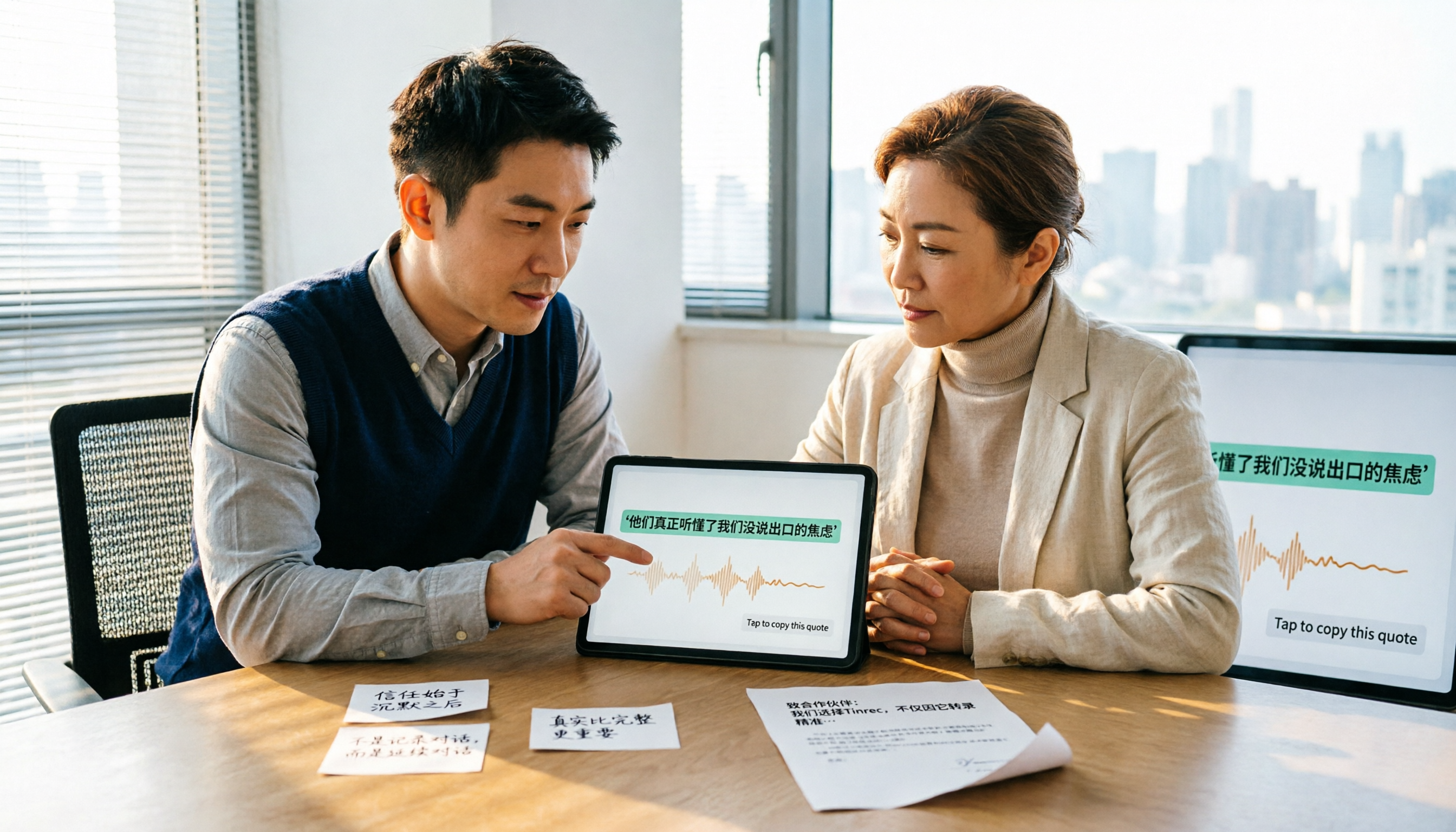
Tinrec vs Notta 2026: 5-Dimension Comparison — Which Is Better for Chinese Sales Meeting Notes and Recommendation Letter Material?
From sales meeting notes to recommendation letters, the real key is whether you can extract citable concrete examples after the meeting — transcription speed is not the point. This article compares Tinrec and Notta across 5 dimensions, explains who Otter.ai and Granola are each suited for, and includes pricing, limitations, and a guide to avoiding pitfalls.

2026 Comparison of 4 Sales Meeting Notes Tools: Is AI Auto-Generation Better Than Templates?
Are sales meeting notes templates useful? Starting from real pain points in sales meetings, this article compares pure templates with AI meeting notes tools and tests Tinrec, Notta, Otter.ai, and Granola on Chinese transcription, post-meeting summaries, action item extraction, and team collaboration to help you choose a truly time-saving sales meeting notes solution.

How to Create a Sales Meeting Notes Template in 2026: 5 Steps from Template to AI Organization
The problem with sales meeting notes rarely lies in the format—it's that no one is available to take notes during the meeting, and no one reviews them afterward. This article starts with three common misconceptions, outlines 7 essential fields and a 5-step process, and explains how to use Tinrec's bot-free recording, AI summaries, and AI Q&A to turn a one-hour client meeting into a trackable record within 10 minutes after it ends.

How to Take Sales Meeting Notes in 2026: 5 Steps from Recording to AI Summaries
How do you take sales meeting notes? This article examines four key decision points—free tier limits, recording methods, post-meeting organization, and team data ownership—and compares Tinrec, Otter.ai, Notta, and TurboScribe. It also outlines 5 practical steps from recording to AI meeting summaries and highlights pitfalls to avoid when choosing a tool.

2026 Comparison of 4 Sales Meeting Recording Tools: Plus 3 Sales Books to Make Every Client Meeting Count
After a sales meeting, having the recording stuck on your phone and key points only in your memory is a common waste. This article starts from real client meeting workflows and compares Tinrec, Notta, Otter.ai, and Granola on recording methods, post-meeting organization, Chinese recognition, and team data retention. It also includes 3 sales books worth reading alongside these tools to help you turn every client conversation into a trackable asset.
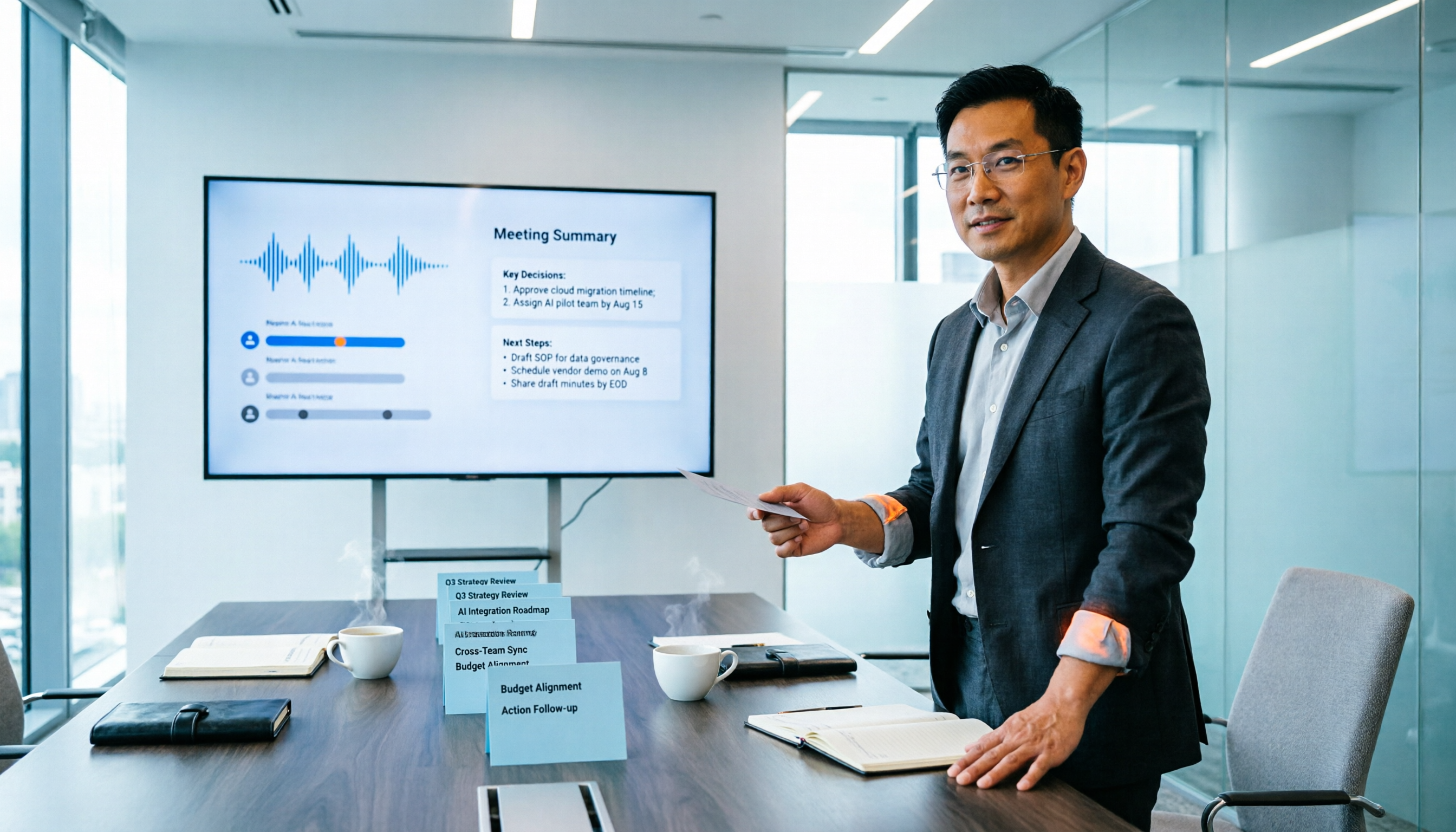
2026 Smart Meeting Collaboration Platforms Free Plans Compared: 4 Options at a Glance
Starting from the real pain points of mid-level managers juggling a dozen meetings a week, this guide organizes the free plans and selection criteria for 2026 smart meeting collaboration platforms. It hands-on compares Tinrec, Dcard's newly established GNTC (EntryDesk, VibeHost), Notta, and Otter.ai, explaining who each suits, how free quotas work, and pitfalls to watch for in team seats and governance.