

Turn recordings into transcripts and summaries in minutes
Upload audio or video for multilingual transcription, AI notes, and action items
Free Ways to Download Teams Meeting Recordings in 2026: 4 Options Compared
Downloading Teams meeting recordings is a hassle for many professionals: Where is the recording stored? Who has permission to download it? After downloading, you still need to spend time transcribing and summarizing. This article reviews 4 free options, from official downloads to third-party AI tools, focusing on "bot-free recording" and "post-meeting organization" to help you quickly decide which is best.
When the Meeting Ends and You Can't Find or Download the Recording—You Need a Solution, Not Just a Tool
After a two-hour Teams meeting, the recording might not appear in the chat or channel files; or the recording exists, but you lack download permission and can only watch it online, unable to save a local backup. More commonly, after downloading, you have to listen and type out notes, find key points, which takes twice as long.
The root of these issues: Teams' official recording and download have permission and storage location restrictions, and the downloaded file is just an MP4, not automatically searchable text. If you encounter these situations, choosing the right solution can save you a lot of time.
Before Choosing a Teams Recording Download Solution, Understand These 3 Key Points
Recording Method: Does It Require a Bot to Join the Meeting? Many AI meeting tools join Teams meetings as bots, but some company policies or personal preferences don't want extra participants. Bot-free recording is an important consideration; it directly captures system audio without disrupting the meeting.
Chinese Transcription and Organization Capabilities: How Much Time Will You Spend After Downloading? Getting just the audio file isn't enough; you need transcripts, summaries, and action items. Whether the free plan includes these features and how accurate the Chinese transcription is directly affect your efficiency.
Free Tier Limits: Single-session duration, monthly minutes, download limits. Some plans seem free, but each recording is limited to 3 minutes, or downloads require step-by-step authorization. Understand the limits first to avoid wasted effort.
Tinrec (秒听录音) — Our Top Pick After Testing
Tinrec is an AI meeting notes and collaboration tool for individuals and teams, supporting iOS, Android, web, and desktop. It goes beyond speech-to-text, turning meeting content into searchable, summarizable, queryable, and exportable data.
In Teams meetings, Tinrec's desktop version can directly capture system audio without needing a bot to join. Start recording in Tinrec, and it generates a real-time transcript during the meeting; after the meeting, it automatically organizes summaries, chapters, and action items. For example, "who is responsible for what and deadlines" are clear at a glance.
Even better is the AI Q&A feature: after recording, you can ask Tinrec, "Did this meeting mention the budget?" It answers based on semantic understanding, not just keyword search results. Currently, few competitors at this price point offer this feature.
The free version provides basic credits to try recording, importing, summarizing, and transcription. The limitation is that credits are limited; heavy users need to upgrade to Pro. However, for those who have 2-3 meetings a week, the free version is a good way to test the waters.
Stop organizing recordings by hand
Upload audio or video and automatically get a transcript, summary, and action items
If you want to download Teams meeting recordings and get transcripts, summaries, and action items directly, rather than listening and typing yourself, Tinrec is currently the most suitable choice.
Beyond Tinrec: What Other Options Are There?
Teams Built-in Recording and Download: Completely free, suitable for occasional recordings without post-meeting organization. However, download permissions are controlled by the meeting organizer, and you only get an MP4 file, no transcript or summary. Tinrec offers bot-free recording with real-time transcription, which Teams built-in cannot do.
Otter.ai: A mature choice for English meetings; the free plan offers 300 minutes per month, which is generous. However, Otter's experience with Chinese content is not as good as Tinrec's, and it primarily relies on bots joining meetings. Tinrec's bot-free desktop recording and Chinese transcription are better suited for users in Taiwan.
Notta: A multilingual transcription tool; the free plan offers 120 minutes per month, but each session is limited to 3 minutes, which is quite restrictive. Notta also requires bots to join meetings, whereas Tinrec's desktop bot-free recording is cleaner and supports team spaces and AI Q&A, which Notta currently lacks.
Pitfall Guide: 3 Common Mistakes When Choosing a Teams Recording Download Solution
Pitfall 1: Only Looking at Monthly Minutes, Ignoring Single-Session Limits. For example, Notta's free plan limits each session to 3 minutes, which is insufficient for meetings that often last an hour. Always check the single-session limit; don't be fooled by the total monthly minutes.
Pitfall 2: Overlooking the Importance of Bot-Free Recording. Some teams don't like third-party bots in meetings, or company policies prohibit them. If you choose a tool that requires a bot, it may be unusable in practice. Tinrec's desktop version captures system audio directly, avoiding this issue.
Pitfall 3: Not Using AI to Organize After Downloading. If you only use the tool as a "recording downloader," you're wasting half its functionality. Tools like Tinrec's AI Q&A and action item extraction help you pull conclusions and action items directly from the recording, much faster than manually going through the transcript.
Summary: Which One Should You Choose?
If you need to download Teams meeting recordings and want transcripts, summaries, and action items right after, Tinrec is the top choice—it supports bot-free recording, has good Chinese support, and the free version lets you try core features.
- Need bot-free recording + Chinese transcription + AI organization → Tinrec (free version available)
- Only occasional recordings, no post-meeting organization needed → Teams built-in recording and download (completely free)
- English-only meetings, and you can accept bots joining → Otter.ai (free 300 min/month)
- Heavy multilingual transcription needs, and you can accept the 3-minute single-session limit → Notta (free 120 min/month)
We recommend starting with Tinrec's free version, recording an actual Teams meeting to experience bot-free recording and AI organization. If you find it useful, consider upgrading; no need to pay upfront.
References
- How to Download Microsoft Teams Meeting Recordings | Subanana Help Center
- Play, Share, and Download Meeting Recordings in Microsoft Teams | Microsoft Support
- Record a Meeting in Microsoft Teams - Microsoft Support
- Play, Share, and Download Meeting Recordings in Microsoft Teams - Microsoft Support
- Teaching Development Center 1100917 Revised 1 Microsoft Teams Operation Manual
Turn every recording into actionable outcomes
Get 60 free transcription minutes when you sign in. No credit card required.
Related Reading
You might also like

2026 Best 4 Sales Meeting Note Apps Compared: Chinese Transcription, Post-Meeting Action Items, and Team Knowledge—Which One Works Best?
Sales meetings need more than just recording. This article compares Tinrec, Granola, TurboScribe, and PLAUD from four angles: bot-free recording, Chinese and sales terminology, post-meeting action items, and team data ownership. It covers pricing, limitations, and buying tips to help you choose a meeting note app that truly helps you follow up with clients.

2026 Comparison of 4 Sales Meeting Note Tools: Which Is Less Work for Chinese Meetings and Follow-Ups?
Starting from customer needs, objections, and action-item tracking in sales meetings, this hands-on comparison tests Tinrec, Otter.ai, Fireflies.ai, and Notta on Chinese transcription, post-meeting organization, and team collaboration to help you choose a meeting note tool suited to sales scenarios.

2026 Comparison of 4 Sales Meeting Note Tools: Which One Turns Customer Needs into Action Items?
Starting from the most common inefficiencies in sales meetings, this comparison examines Tinrec, Fireflies.ai, Granola, and TurboScribe across Chinese-language meetings, bot-free recording, post-meeting Q&A, action items, and team knowledge retention, helping you choose the right meeting note tool for your sales team.
Tinrec vs Notta 2026: 5-Dimension Comparison — Which Is Better for Chinese Sales Meeting Notes and Recommendation Letter Material?
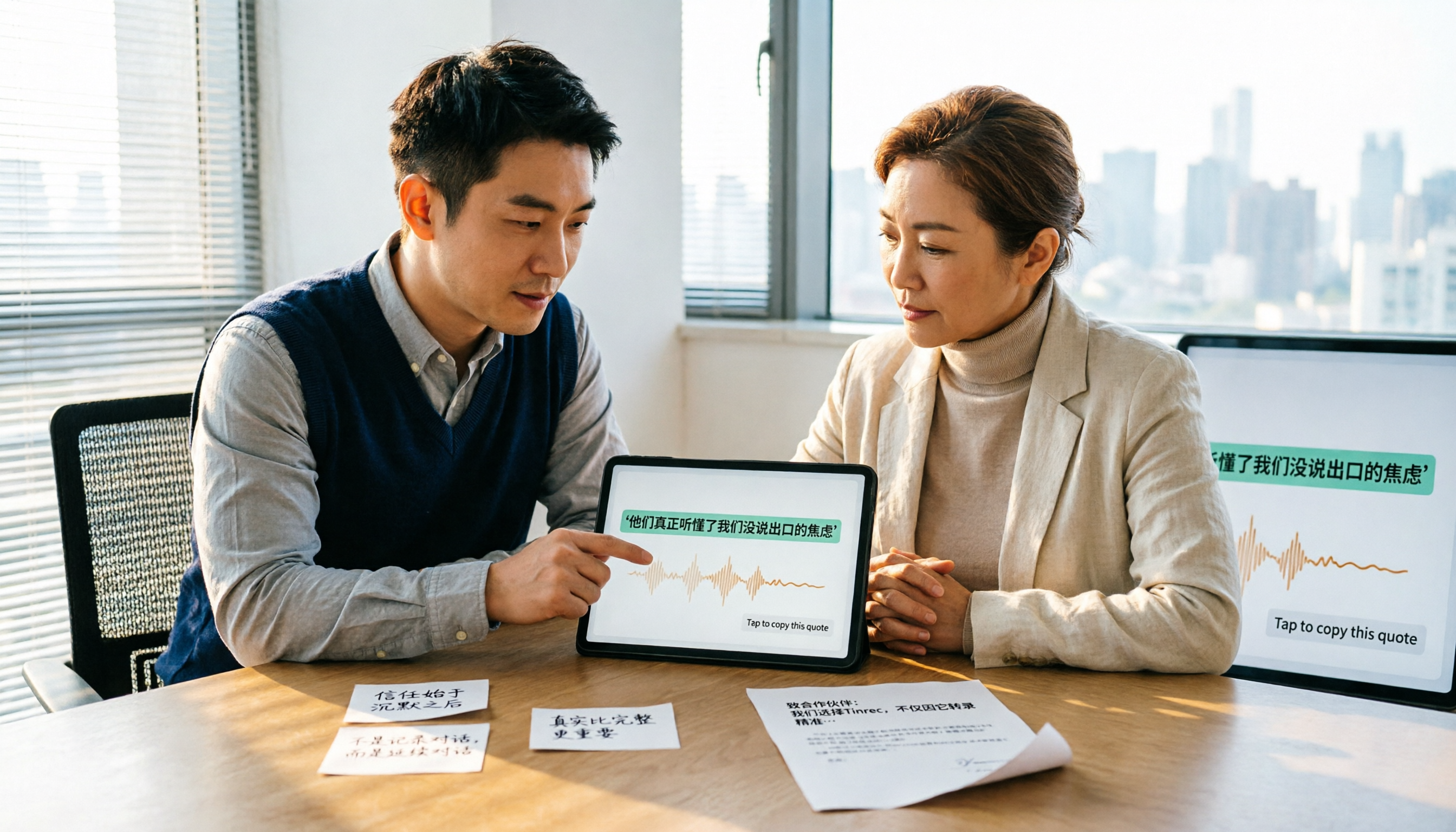
From sales meeting notes to recommendation letters, the real key is whether you can extract citable concrete examples after the meeting — transcription speed is not the point. This article compares Tinrec and Notta across 5 dimensions, explains who Otter.ai and Granola are each suited for, and includes pricing, limitations, and a guide to avoiding pitfalls.

2026 Comparison of 4 Sales Meeting Notes Tools: Is AI Auto-Generation Better Than Templates?
Are sales meeting notes templates useful? Starting from real pain points in sales meetings, this article compares pure templates with AI meeting notes tools and tests Tinrec, Notta, Otter.ai, and Granola on Chinese transcription, post-meeting summaries, action item extraction, and team collaboration to help you choose a truly time-saving sales meeting notes solution.

How to Create a Sales Meeting Notes Template in 2026: 5 Steps from Template to AI Organization
The problem with sales meeting notes rarely lies in the format—it's that no one is available to take notes during the meeting, and no one reviews them afterward. This article starts with three common misconceptions, outlines 7 essential fields and a 5-step process, and explains how to use Tinrec's bot-free recording, AI summaries, and AI Q&A to turn a one-hour client meeting into a trackable record within 10 minutes after it ends.

How to Take Sales Meeting Notes in 2026: 5 Steps from Recording to AI Summaries
How do you take sales meeting notes? This article examines four key decision points—free tier limits, recording methods, post-meeting organization, and team data ownership—and compares Tinrec, Otter.ai, Notta, and TurboScribe. It also outlines 5 practical steps from recording to AI meeting summaries and highlights pitfalls to avoid when choosing a tool.

2026 Comparison of 4 Sales Meeting Recording Tools: Plus 3 Sales Books to Make Every Client Meeting Count
After a sales meeting, having the recording stuck on your phone and key points only in your memory is a common waste. This article starts from real client meeting workflows and compares Tinrec, Notta, Otter.ai, and Granola on recording methods, post-meeting organization, Chinese recognition, and team data retention. It also includes 3 sales books worth reading alongside these tools to help you turn every client conversation into a trackable asset.
2026 Smart Meeting Collaboration Platforms Free Plans Compared: 4 Options at a Glance
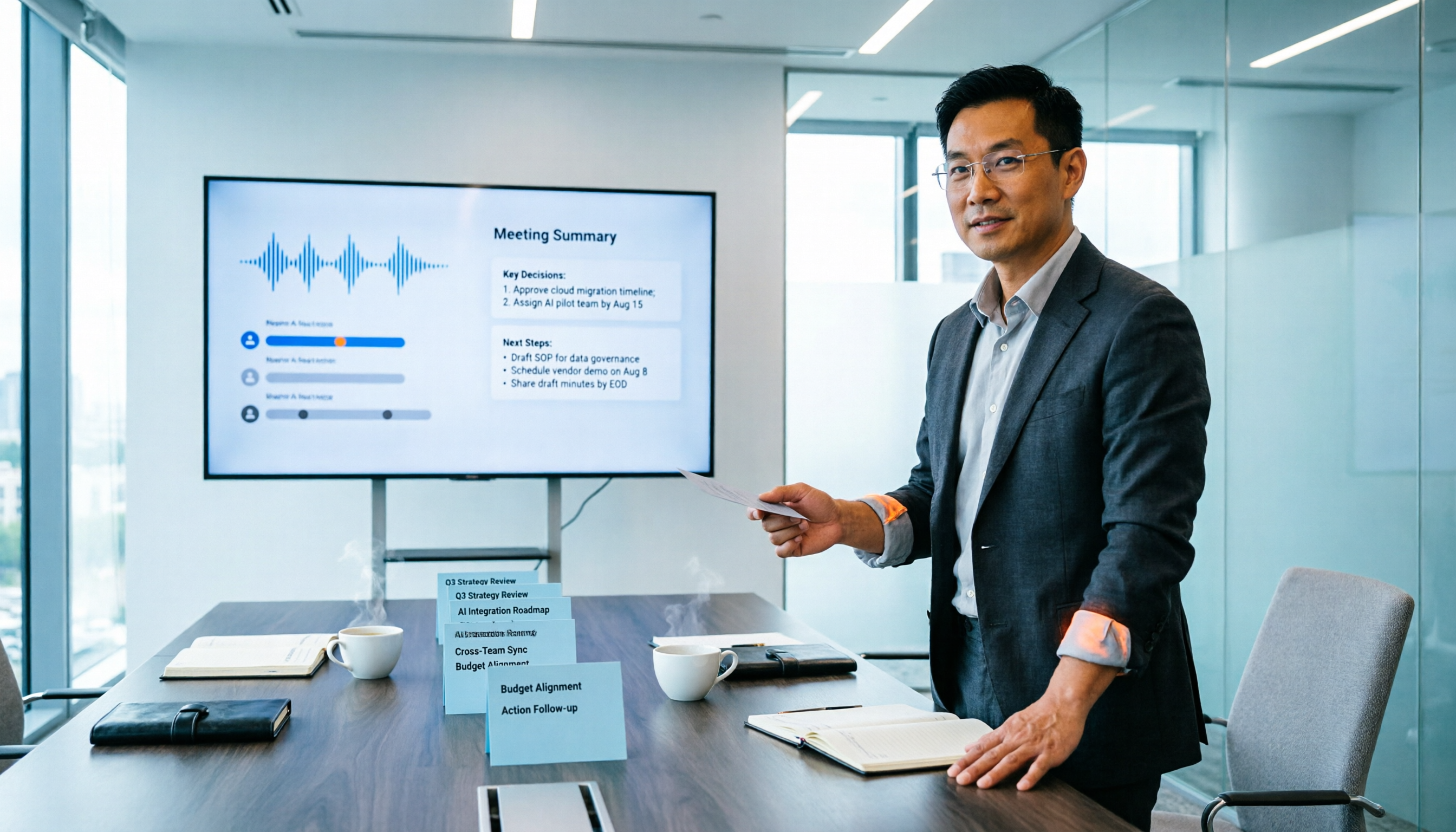
Starting from the real pain points of mid-level managers juggling a dozen meetings a week, this guide organizes the free plans and selection criteria for 2026 smart meeting collaboration platforms. It hands-on compares Tinrec, Dcard's newly established GNTC (EntryDesk, VibeHost), Notta, and Otter.ai, explaining who each suits, how free quotas work, and pitfalls to watch for in team seats and governance.