
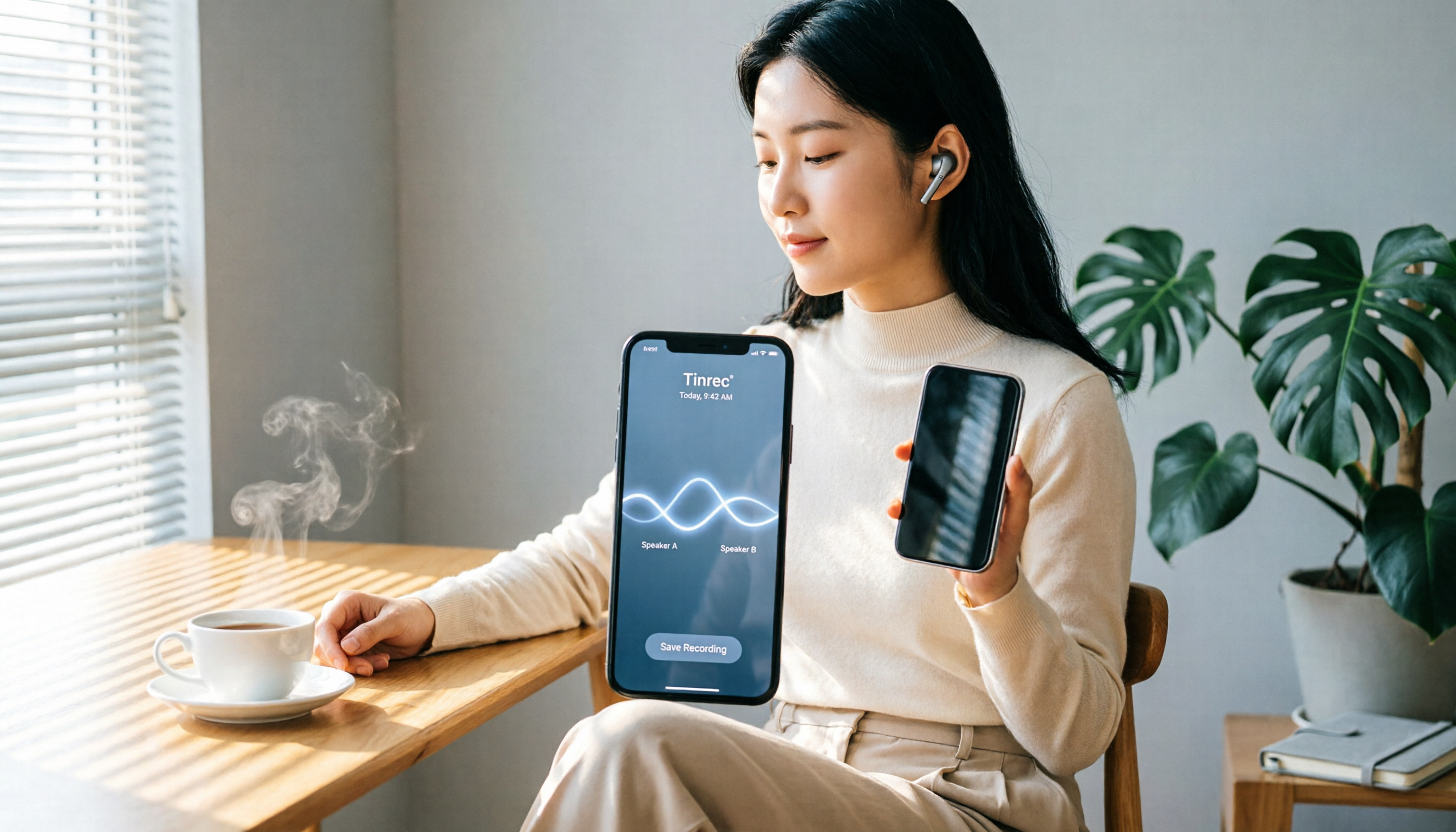
Turn recordings into transcripts and summaries in minutes
Upload audio or video for multilingual transcription, AI notes, and action items
Need to Record Meetings or Client Calls? LINE Has No Built-in Button? Dcard Users Seek Help
A Taiwanese user on Dcard's 3C board asked, "How do I record LINE calls on iPhone?" They tried screen recording but got no audio; another Android user wanted to use Cube ACR, but their Sony Z3 lacked VoIP support, so they had to resort to speakerphone and a voice recorder.
This isn't an isolated case—if you use LINE for work, client meetings, or legal discussions, recording is a necessity. But LINE has never had a built-in recording button, leaving users to find their own solutions.
Below, we tested 3 mainstream methods, from the most convenient to the most professional, and explain each in detail.
Before Choosing a LINE Call Recording Method, Clarify 3 Key Points
1. Are you using an iPhone or Android?
iPhone users now have iOS 26's built-in feature to save the day, while Android users need to check if their phone supports VoIP recording—many on Dcard have been caught out.
2. Are you using LINE on your phone or computer?
If you're willing to use LINE on your computer for meetings, recording becomes much simpler—just record the system audio directly, no phone permissions needed.
3. Do you want audio only or video too?
If you just need to keep a record of the conversation, audio-only files are smaller and easier to manage; screen recording is only necessary if you need the visual.
Tinrec Desktop: Top Choice for Recording LINE Calls on Computer Without Bots
If your work meetings often involve LINE on your computer, Tinrec (秒听录音) is an AI meeting notes tool worth trying. It's not just a recording app—it turns recordings into immediately usable data.
Tinrec Desktop can capture system audio, working the same way as recording Zoom or Google Meet—no need to add a meeting bot or use speakerphone. Just start a LINE call on your computer, open Tinrec, and hit record; it transcribes in real time. While the official documentation mainly lists platforms like Zoom, Meet, Teams, and Webex, and doesn't specifically mention LINE, in practice, as long as LINE audio goes through the computer's sound card, Tinrec usually captures it. We recommend trying the free version first.
Three standout features from our experience:
Instant AI summaries and action items: No need to listen back to two hours of audio. Tinrec automatically breaks down chapters, highlights key points, and lists action items—perfect for employees who need to write meeting minutes afterward.
AI Q&A to find answers directly: You can ask Tinrec, "Who mentioned the budget?" or "What did the client request?" and it will answer based on the recording, not just give you keyword search results. This feature is rare in tools at this price point.
Multi-platform sync: Works on iPhone, Android, and web. Record on your computer, organize there, and review on your phone on the go—no lock-in to one device.
Limitations to note: The free version has basic quotas; heavy users need to upgrade. Also, it primarily records system audio, so if you insist on using LINE on your phone for the entire call, check out the iPhone built-in method below.
Stop organizing recordings by hand
Upload audio or video and automatically get a transcript, summary, and action items
Who it's for: Office workers who frequently use LINE on their computer for meetings, want transcripts and AI organization after recording, and don't want to manually write meeting minutes.
Other LINE Call Recording Methods
iPhone Built-in "Local Capture" (iOS 26)
According to online tests, starting with iOS 26, the iPhone's built-in "Local Capture" feature can record not only cellular calls but also LINE, WhatsApp, and Messenger calls, without notifying the other party. Setup: Go to LINE settings and enable "Integrate with iPhone Calls," then go to iPhone Settings → Phone → Incoming Calls and change to full screen. During a call, pull down the Control Center and tap "Local Capture," choosing "Audio Only" to keep files smaller. This method is free and straightforward, but it doesn't provide AI summaries or action items—you'll need to find key points yourself.
Cube ACR (Android Third-Party App)
Some Dcard users have tried Cube ACR, but not all Android phones support VoIP recording; the Sony Z3 failed. If your phone supports it, Cube ACR can record calls, but you'll have to deal with compatibility risks. Also, it's purely a recorder—no AI Q&A or auto-organization like Tinrec.
Voice Recorder / Another Phone on Speakerphone
As a last resort, audio quality is poor, background noise is high, and organizing is a pain. Tinrec's digital direct recording with transcription is a whole different world.
Pitfall Guide: 3 Common Mistakes in LINE Call Recording
Pitfall 1: Assuming screen recording captures audio
Dcard users tried iPhone screen recording and got no audio. iOS blocks call audio, so screen recording only captures video, not the conversation. You need the right tool for audio.
Pitfall 2: Not checking if your Android phone supports VoIP recording
Apps like Cube ACR don't work on all devices. Before buying, verify your phone's VoIP recording support, or you'll waste money and time.
Pitfall 3: Recording without organizing
After recording two hours, you'll have to listen back and take notes—more overtime. When choosing a tool, think about "what happens after recording." Tools like Tinrec that auto-generate summaries, action items, and AI Q&A truly save time.
Summary: How Should You Choose?
- iPhone users who want to record LINE calls directly → Use iOS 26's built-in "Local Capture," free and no notification to the other party, but no AI post-processing.
- Use LINE on your computer for meetings and want transcripts and AI organization → Tinrec Desktop, get meeting notes immediately without listening back.
- Android users → First check if your phone supports VoIP recording; if not, consider using LINE on your computer with Tinrec, or use an iPhone's built-in feature.
- Only have a phone temporarily → Use speakerphone and a voice recorder, but audio quality and organization are poor—only as a stopgap.
We recommend trying Tinrec's free version or updating to iOS 26 to use the built-in feature, so you don't have to spend money upfront. Recording legality depends on your local laws; recording as a participant is usually fine, but don't share recordings indiscriminately.
References
- #Question iOS system LINE call recording? - 3C forum | Dcard
- Can LINE calls be recorded? - App forum | Dcard
- Help: LINE call recording app (urgent) 🙏🙏 - 3C board | Dcard
- LINE finally supports call recording! No need for external devices—use iPhone's built-in system feature
- [Phone Tip] LINE call recording is now possible! iPhone built-in call recording trick, no notification to the other party! | Jyes Communication~Challenging the lowest price in the phone market
Turn every recording into actionable outcomes
Get 60 free transcription minutes when you sign in. No credit card required.
Related Reading
You might also like

2026 AI Meeting Assistant Comparison: Which One Saves the Most Time on Chinese Meeting Notes?
Starting from the real scenario of "having to stay after the meeting to re-listen to the recording," this hands-on comparison tests four AI meeting assistants—Tinrec, Notta, Otter.ai, and Granola—breaking down buying criteria, each tool's limitations, and the most common purchasing pitfalls. It also compares pricing, seats, and data ownership between personal and team plans to help you pick the one that truly saves time after meetings.

Tinrec vs Notta 2026: 5 Criteria for Chinese Meeting Notes
Avoid three common mistakes when choosing an AI meeting assistant: relying only on lab accuracy, focusing only on transcription, and judging team features by personal experience. This article establishes evaluation criteria across five dimensions: meeting capture method, transcription and language support, post-meeting organization depth, output workflow, and team governance. It uses Tinrec's actual approach as an example, and includes buying tips and FAQs.

2026 AI Meeting Assistant Comparison: 4 Tools Tested on Free Tiers and Pricing
We break down the cost structure of AI meeting assistants—free tiers, per-meeting caps, seat-based pricing, and hidden limits—and walk through a 3-step workflow covering recording, organizing, follow-up Q&A, and export. We also compare Tinrec, Otter.ai, Notta, and Granola on pricing and best-fit scenarios.

2024 Review: 5 AI Meeting Assistants Tested — No Bots Needed for Chinese Meetings
Starting from the real pain of 'can't find key points after a meeting,' we tested and compared five AI meeting assistants: Tinrec, Otter.ai, Fireflies.ai, Notta, and Granola. We organized five key buying factors: recording method, post-meeting output, Chinese language performance, team permissions, and quota calculation. Also included are common pitfalls to avoid and scenario-based selection advice.

5 AI Meeting Assistants Tested for 2026: Which Free Tier Is Actually Enough?
Our hands-on comparison of 5 AI meeting assistants. Most people only look at free minutes, but overlook 4 things: post-meeting organization, how meetings are recorded, Chinese language performance, and team data ownership. This article covers selection criteria, real-world use cases for Tinrec, alternatives like Otter.ai, Notta, and PLAUD, plus 4 common pitfalls to help you decide which one truly saves you post-meeting time.

2026 AI Meeting Assistant Comparison: Tinrec vs. Notta — Which Is Better for Chinese-Speaking Teams?
There are countless meeting tools, but only three key criteria really matter: how meeting audio gets in, whether the transcribed text is directly usable, and who ultimately holds the data. This article focuses on Tinrec, comparing it with Notta across key dimensions—meeting capture methods, Traditional Chinese experience, post-meeting organization workflow, quota pricing, and team governance—and includes practical use cases and purchasing considerations.

2026 AI Meeting Assistant Review: Bot-Free Recording + Post-Meeting AI Q&A
How to choose an AI meeting assistant in 2026? This review examines five key decision points: meeting bots, transcript quality, post-meeting AI Q&A, team data ownership, and quota calculation. We tested Tinrec, Otter.ai, Notta, and Granola, and compiled four common pitfalls to help you choose the right tool within your budget.

2026 AI Meeting Assistant Comparison: 4 Tools Tested to See Which Really Saves You Time
Online meetings never stop, and post-meeting cleanup is the real nightmare. This article focuses on how meetings are recorded and whether the output can be used directly, testing and comparing four AI meeting assistants: Tinrec, Otter.ai, Notta, and Granola. It outlines 5 key buying criteria and 4 common pitfalls to help you choose the one that truly saves time.

2026 AI Meeting Assistant Comparison: Tinrec vs Granola – Which Is Better for Chinese Meetings?
Most people looking for an AI meeting assistant first check how many free minutes they get, but that's actually the easiest way to make a mistake. This article compares two bot-free AI meeting assistants, Tinrec and Granola, across dimensions including meeting capture, audio retention, post-meeting outputs, Chinese language support, team governance, and pricing, to help you decide which one better fits your meeting scenarios.