
Turn recordings into transcripts and summaries in minutes
Upload audio or video for multilingual transcription, AI notes, and action items
Why You Need to Manage Your iPhone Voice Memos
After recording, many people search through the Photos or Files app but can't find their recordings. In fact, iPhone voice memos are stored only in the Voice Memos app by default and don't appear directly in the file system. You need to manually export recordings to the Files app or sync via iCloud or iTunes to access the actual files.
If you only record occasionally, it might not matter. But if you need to organize meeting notes, interviews, or lecture recordings, finding the file is just the first step. Next, you'll need to transcribe, summarize, and share with colleagues. This article rounds up 5 free solutions, from built-in features to AI tools, to help you manage the location and processing of your iPhone voice memos.
Option 1 | Tinrec (Instant Voice Memo) – The Most Complete AI Recording Assistant
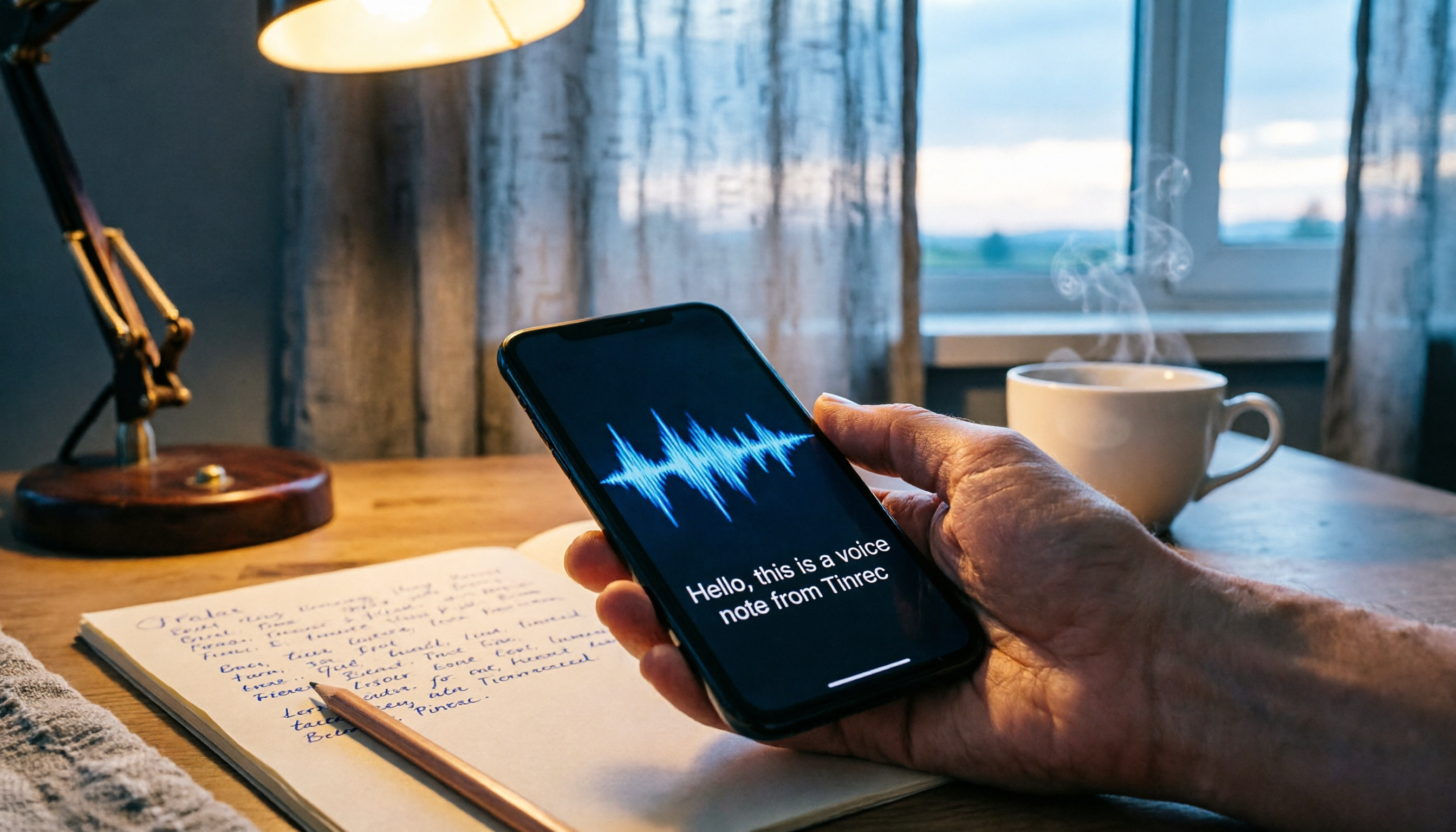
Tinrec is an AI meeting notes and collaboration tool that not only transcribes but also turns your recordings into searchable, summarizable, and queryable data. If you have iPhone voice memos that need to become transcripts, meeting minutes, or to-do items, Tinrec is the most complete choice.
- Upload recordings for transcription: Upload .m4a files exported from your iPhone to Tinrec, and it will automatically transcribe them, generating summaries, chapters, and key points, saving you time from re-listening.
- AI Q&A: You can ask questions about the recording content, such as "What requirements did the client mention?" or "What decisions were made in the meeting?" Tinrec provides direct answers without you having to listen from start to finish.
- Multiple export formats: Export transcripts as Word, PDF, TXT, or sync directly to Notion or Google Docs for further editing or sharing.
- Free tier: The free version offers basic credits, suitable for occasional transcription; heavy users can consider the Pro monthly or annual plan for better long-term value.
Ideal for professionals, students, and freelancers who need to turn iPhone voice memos into searchable, actionable data.
Option 2 | Apple Voice Memos + Files App – Built-in Free Solution
If you just need to locate and share recordings, the built-in Voice Memos app combined with the Files app is sufficient. Open Voice Memos, select a recording, tap Share, then Save to Files to export it as .m4a. You can then view and manage it in the Files app.
- Pros: Completely free, no extra apps needed, and you can share via AirDrop, LINE, etc., after exporting.
- Limitations: Only provides the raw recording file; no transcription, summarization, or AI organization features. Suitable for those who just need backup or transfer.
Best for those who only need to export recordings without further processing.
Option 3 | iCloud Sync – Automatic Backup of Voice Memos
If you use multiple Apple devices, enable Voice Memos sync in iCloud, and recordings will automatically upload to the cloud and appear in the Voice Memos app on your other devices. Just sign in with the same Apple ID to access them.
Stop organizing recordings by hand
Upload audio or video and automatically get a transcript, summary, and action items
- Pros: Automatic backup without manual export; ideal for those worried about losing their phone or wanting cross-device access.
- Limitations: Recordings remain only within the Voice Memos app and don't become regular files; iCloud storage is limited, and heavy recording may require additional paid storage.
Suitable for users who need cross-device sync and prefer not to manage manually.
Option 4 | iTunes Sync to Computer – Old but Effective
If you want to transfer recordings to a PC, you can use iTunes sync. Connect your iPhone, check "Voice Memos" in the music sync options, and after syncing, recordings will appear in the folder C:Users[YourUsername]MusiciTunesiTunes MediaVoice Memos (path differs on Mac).
- Pros: Direct access to raw files; great for bulk backup or editing on a computer.
- Limitations: Requires iTunes (or Finder on Mac) and a wired connection; less convenient than cloud solutions. Best for those who prefer local storage.
Ideal for users who want to save recordings to a computer without using cloud services.
Option 5 | Otter.ai – Free Transcription for English Meetings
Otter.ai is a well-known AI meeting assistant. The free plan offers 300 minutes of transcription per month, supports uploading audio files for automatic transcription, and includes summaries and keyword search.
- Pros: Mature English transcription; suitable for English meetings or interviews.
- Limitations: Chinese transcription is less localized compared to Tinrec, and the free tier has minute limits; heavy usage requires a paid plan.
Best for those who need English transcription occasionally.
With So Many Options, How Do You Choose?
- For the most complete AI features (transcription + summary + AI Q&A + export) → Tinrec (the only option with all these features)
- If you just need to export recordings without extra apps → Built-in Voice Memos + Files app
- For automatic cross-device sync → iCloud sync
- To back up recordings to a computer → iTunes sync
- For English transcription only, with zero budget → Otter.ai free plan
If you frequently need to turn iPhone voice memos into meeting minutes, interview summaries, or to-dos, Tinrec is the most worthwhile to try first.
4 Things to Know Before Using iPhone Voice Memo Management Tools
- Recordings are not in the Files app by default: You must first share from Voice Memos and save to Files; otherwise, you'll never find the actual file. Tinrec can also directly upload after exporting from Voice Memos, saving you the hassle of locating the file.
- Recording format and quality: Exported files are usually .m4a; spatial audio becomes stereo. If you need to preserve the original effect, adjust options when sharing.
- Free plans have limits: Both Tinrec and Otter free versions have monthly or per-session transcription minute caps. Check your usage before heavy use.
- Respect privacy and consent: It's best to inform the other party before recording and ensure compliance with local laws. Transcription tools are just aids; always verify important content against the original recording.
Summary
Finding iPhone voice memos isn't hard once you know they're stored in the Voice Memos app by default and need to be exported to become regular files. If you record occasionally, built-in features are enough. If you want to turn recordings into searchable, organized data, Tinrec is currently the most complete AI assistant, especially for Chinese content and team collaboration. We recommend starting with the free version and then deciding whether to upgrade.
References
- Where Are iPhone Voice Memos Located? How to Export, Save, or Share Recordings? - Tech Girlz
- 2026 Guide: Where Are iPhone Voice Memos? 3 Quick Ways to Find Them, Plus Tinrec AI Assistant for Easy Transcription - Tinrec Blog
- Record Voice Memos on iPhone - Apple Support (Taiwan)
- Export Voice Memos to Files on iPhone - Apple Support (Taiwan)
- How to Transfer Voice Memos from iPhone to Computer - Mobile01
Turn every recording into actionable outcomes
Get 60 free transcription minutes when you sign in. No credit card required.
Related Reading
You might also like

2026 AI Meeting Assistant App Comparison: Chinese Transcription, Bot-Free Recording, and Team Knowledge Retention
A 2026 hands-on comparison of AI meeting assistant apps, examining Tinrec and Notta across Chinese meeting transcription, bot-free recording, post-meeting AI Q&A, team knowledge retention, and pricing to help professionals and teams choose the right meeting notes tool.

2024 Comparison of 5 AI Meeting Assistant Platforms: Why Tinrec Is a Better Fit for Chinese-Speaking Teams Than Notta
A procurement-focused comparison of 5 AI meeting assistant platforms, highlighting Chinese-language meetings, bot-free recording, post-meeting AI Q&A, and team knowledge retention, and explaining why Tinrec is a Notta alternative worth evaluating first.

5 AI Meeting Assistants Compared in 2024: Free vs. Paid, How to Choose for Chinese Meetings and Post-Meeting Organization
How to choose an AI meeting assistant in 2024? This article compares Tinrec, Fireflies.ai, Granola, TurboScribe, and PLAUD Note across five dimensions: meeting capture method, Chinese recognition, post-meeting summaries and Q&A, team seats and pricing. It also outlines selection criteria and common pitfalls to help you find the right tool for Chinese meetings and team collaboration.

2024 AI Meeting Assistant Comparison: Chinese Meetings, Bot-Free Recording, and Post-Meeting Organization—Which Saves the Most Time?
2024 AI meeting assistant review comparing Tinrec, Otter.ai, Notta, and PLAUD on Chinese transcription, bot-free recording, post-meeting summaries, and team collaboration—covering use cases, pricing, and limitations to help you choose the right meeting tool.

2026 AI Meeting Assistant Comparison: 5 Tools Tested for Chinese Transcripts, Bot-Free Recording, and Post-Meeting Organization
A practical comparison of five popular AI meeting assistants in 2026, covering how meetings are captured, post-meeting outputs, audio retention, and team management, with a comparison chart and pitfalls to avoid—helping you choose the one that best fits your meeting habits.

2026 AI Meeting Assistant Comparison: Which One Saves the Most Time on Chinese Meeting Notes?
Starting from the real scenario of "having to stay after the meeting to re-listen to the recording," this hands-on comparison tests four AI meeting assistants—Tinrec, Notta, Otter.ai, and Granola—breaking down buying criteria, each tool's limitations, and the most common purchasing pitfalls. It also compares pricing, seats, and data ownership between personal and team plans to help you pick the one that truly saves time after meetings.

Tinrec vs Notta 2026: 5 Criteria for Chinese Meeting Notes
Avoid three common mistakes when choosing an AI meeting assistant: relying only on lab accuracy, focusing only on transcription, and judging team features by personal experience. This article establishes evaluation criteria across five dimensions: meeting capture method, transcription and language support, post-meeting organization depth, output workflow, and team governance. It uses Tinrec's actual approach as an example, and includes buying tips and FAQs.

2026 AI Meeting Assistant Comparison: 4 Tools Tested on Free Tiers and Pricing
We break down the cost structure of AI meeting assistants—free tiers, per-meeting caps, seat-based pricing, and hidden limits—and walk through a 3-step workflow covering recording, organizing, follow-up Q&A, and export. We also compare Tinrec, Otter.ai, Notta, and Granola on pricing and best-fit scenarios.

2024 Review: 5 AI Meeting Assistants Tested — No Bots Needed for Chinese Meetings
Starting from the real pain of 'can't find key points after a meeting,' we tested and compared five AI meeting assistants: Tinrec, Otter.ai, Fireflies.ai, Notta, and Granola. We organized five key buying factors: recording method, post-meeting output, Chinese language performance, team permissions, and quota calculation. Also included are common pitfalls to avoid and scenario-based selection advice.