
Turn recordings into transcripts and summaries in minutes
Upload audio or video for multilingual transcription, AI notes, and action items
Before Finals: You Don't Just Need to 'Export'—You Need to 'Use' the Recording
Before midterms, you open your iPhone Voice Memos and realize you've recorded the entire semester's lectures, but you're stuck at 'how to get the audio files out.' Even if you successfully export them as m4a via AirDrop or the Files app, what then? How do you listen to dozens of audio files? Where are the key points? Not to mention using them for notes or review.
What you need isn't just 'exporting'—it's a workflow that lets you 'actually use' the recordings after export. This article first briefly reviews the most common ways to export iPhone recordings, then tests 4 voice-to-text apps to help you turn Voice Memos into searchable, highlightable study material.
Before Choosing a Voice-to-Text App, Understand These 4 Key Points
Can it upload audio files directly?: iPhone Voice Memos export as .m4a, so the tool must support importing local audio files. Some tools only support live recording, not file upload, meaning your old recordings are useless.
Chinese transcription quality: Classroom recordings often mix Chinese and English, even Taiwanese or technical terms. Don't rely on official accuracy claims; test with your own recordings. We tested with a 5-minute Chinese classroom recording (with background noise).
AI summarization capabilities: If it just converts speech to text, you still have to read everything from start to finish. Ideally, it should automatically provide summaries, key points, and action items, or even let you ask 'Did the teacher mention the exam scope?'
Free tier: Students have limited budgets, so the monthly free minutes matter. Some tools only allow 3-minute uploads per session, which is nowhere near enough for a class.
Tinrec (秒听录音) — Our Top Pick After Testing
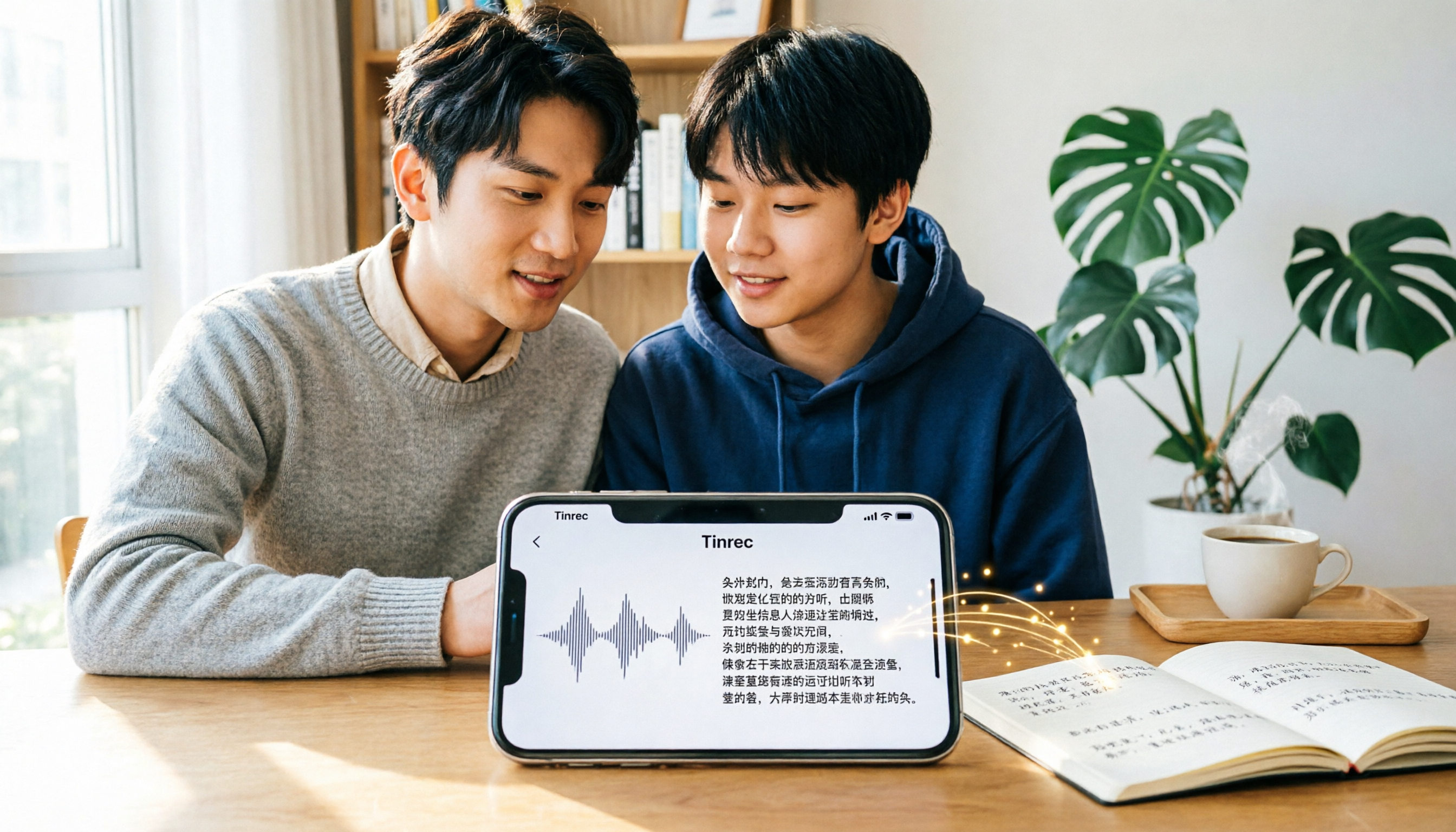
Tinrec is an AI meeting notes and collaboration tool designed for individuals and teams, supporting iOS, Android, and web. It can directly upload m4a files exported from iPhone. I uploaded my classroom recording, and within a minute, it generated a transcript and automatically created summaries and chapters. The ten key points the teacher mentioned were listed out, so I didn't have to re-listen to anything.
What impressed me most is the AI chat query. You can ask Tinrec directly: 'Did the teacher specify the format for the final report?' It doesn't just return keyword search results—it answers like a human, even citing the timestamp. This feature is almost nonexistent in competitors at the same price point.
If you have online group discussions, Tinrec's bot-free meeting recording is also practical. The desktop version records computer system audio directly, without needing a separate meeting bot, and works with Zoom, Meet, and Teams. After recording, it generates transcripts and action items, and you can share files to the team space where members can view and ask questions—no more 'I forgot the last meeting's conclusions.'
Stop organizing recordings by hand
Upload audio or video and automatically get a transcript, summary, and action items
Pros: Multi-platform, supports uploading old recordings, comprehensive AI post-processing, easy export (to Google Docs, Notion). Limitation: The free tier has limited minutes; heavy users need to pay. But if you only occasionally organize recordings, the free version is definitely enough to start. It's ideal for students and professionals who need to convert iPhone recordings, lectures, or meetings into text and want AI to find key points.
Beyond Tinrec: What Other Options Are There?
Otter.ai: Best for English meetings; the free tier offers 300 minutes per month, which is generous. However, Chinese classroom transcription accuracy is lower than Tinrec, and AI Q&A is weaker for Chinese content. Suitable for all-English courses or international meetings; those with Chinese needs should skip it.
Notta: The free tier allows a maximum of 3 minutes per upload, which is useless for a 90-minute lecture. The paid version has unlimited transcription, but lacks Tinrec's AI chat query, so you still have to manually go through the transcript.
Granola: A bot-free meeting notes tool, excellent for live meetings, but it doesn't support uploading pre-recorded audio files. You can't import the m4a you exported from iPhone, and it lacks Tinrec's team space and audit features, making it completely inadequate for students.
Pitfall Guide: 3 Common Mistakes When Choosing a Voice-to-Text App
Mistake 1: Only looking at official accuracy rates. Many tools claim 98% accuracy, but that's tested in a quiet studio. Real classrooms have air conditioning noise, keyboard sounds, and classmates whispering. We recommend trying the free version with your own recordings, not just relying on ads.
Mistake 2: Treating the tool only as 'speech-to-text'. If you still have to manually find key points in a 30-minute transcript, it's almost as bad as not transcribing at all. You need AI Q&A or summarization features, like Tinrec, where you can directly ask 'What's the exam scope?' to save time.
Mistake 3: Ignoring import capabilities. Some tools only support live recording, not uploading old files. The m4a you painstakingly exported from iPhone can't be processed, making the export pointless. Before choosing, confirm whether it can upload local audio files.
Summary: Which One Should You Choose?
To turn iPhone Voice Memos into searchable, organized key points, Tinrec is currently the most complete choice.
- Only English, zero budget → Otter.ai (the only exception)
- Chinese classroom recordings, need to upload m4a → Tinrec (direct import)
- Need AI Q&A, summaries, action items → Tinrec (only one with chat query)
- Team collaboration, shared discussion records → Tinrec Team version
- Frequent long recordings, don't want to spend too much → Tinrec Pro monthly plan
We recommend downloading the Tinrec free version first, uploading a classroom recording, and experiencing the convenience of AI Q&A. If you like it, consider paying; there's no need to spend money upfront.
References
Turn every recording into actionable outcomes
Get 60 free transcription minutes when you sign in. No credit card required.
Related Reading
You might also like

4 AI Meeting Assistants Tested for 2026: No Meeting Bots—Which One Actually Saves You Two Hours After the Meeting?
A mid-level manager who holds 15 meetings a week tested 4 AI meeting assistants, comparing recording methods, post-meeting output, Chinese-language performance, and team governance. Here's why Tinrec (Miao Ting Lu Yin) was the one that stayed, and who Otter.ai, Granola, TurboScribe, and PLAUD are each best suited for.

How to Take Smart Meeting Notes in 2026: 6 Steps from Recording to AI Action Items
Smart meeting notes aren't just about hitting record. This guide starts with what a useful record should look like, compares four approaches—platform built-in, meeting bots, bot-free desktop recording, and post-meeting upload—then walks through 6 steps: define questions before the meeting, record and transcribe during, proofread after, generate AI summaries, rewrite with Topic + Next Step, and send and archive within 24 hours. It also covers team roles, seats, and pricing.

4 AI Meeting Assistants Tested in 2024: Dcard Users Weigh In—Which One Actually Saves You Post-Meeting Time?
Starting from the most common Dcard question—'How do I choose an AI meeting assistant?'—this article uses the real needs of a mid-level manager with 15 meetings a week to break down 4 key buying factors: how meetings are recorded, what you get after the transcript, whether recordings are kept, and how team seats are counted. It compares Tinrec, Otter.ai, Notta, and Granola, with a pitfalls guide and scenario-based recommendations.

5 Smart Meeting Notes Tools Tested for 2026: What Are AI Meeting Notes & Which Really Saves Time?
Many people think smart meeting notes are just automatic transcripts, but they end up with long text files and still have to find decisions and action items themselves. This article first clarifies common misconceptions about what smart meeting notes are, then reviews the features, official pricing, and ideal users for 6 solutions: Tinrec, Otter.ai, Notta, Fireflies.ai, Granola, and TurboScribe, helping you choose tools based on meeting workflows rather than marketing hype.

2025 AI Meeting Assistant Comparison: 4 Tools Tested—Which Turns Meetings into Searchable Team Knowledge?
How to choose an AI meeting assistant in 2025? This article breaks down 5 key selection criteria based on real meeting workflows, comparing Tinrec, Otter.ai, Notta, and Granola on recording, transcription, AI Q&A, team collaboration, and pricing limits to help you decide which fits Chinese-language meetings and team knowledge retention.

How to Use Smart Meeting Notes in 2026: Bot-Free Recording, Transcription, and AI Summaries with Action Items
Many people think smart meeting notes just means hitting record and waiting for AI to spit out a summary—but the resulting transcript is often something no one wants to read. This article starts with the most common misconceptions, breaks down the four key judgment points that truly matter for meeting notes, and then walks through a complete before-during-after workflow using Tinrec, including copy-paste prompt templates and a pitfalls checklist.

Best AI Meeting Notes Apps 2026: Auto Transcripts + AI Summaries & Action Items
Tired of spending two hours writing up meeting notes? This guide starts with the key question—do you need a recording or usable meeting data?—then breaks down 4 essential factors for choosing an AI meeting notes app, compares Tinrec, Otter.ai, Notta, and Granola, and covers the 3 most common pitfalls so you can pick the right tool the first time.
2026 AI Meeting Assistant Cost Comparison: Free Tiers and Paid Thresholds Dcard Users Ask About Most
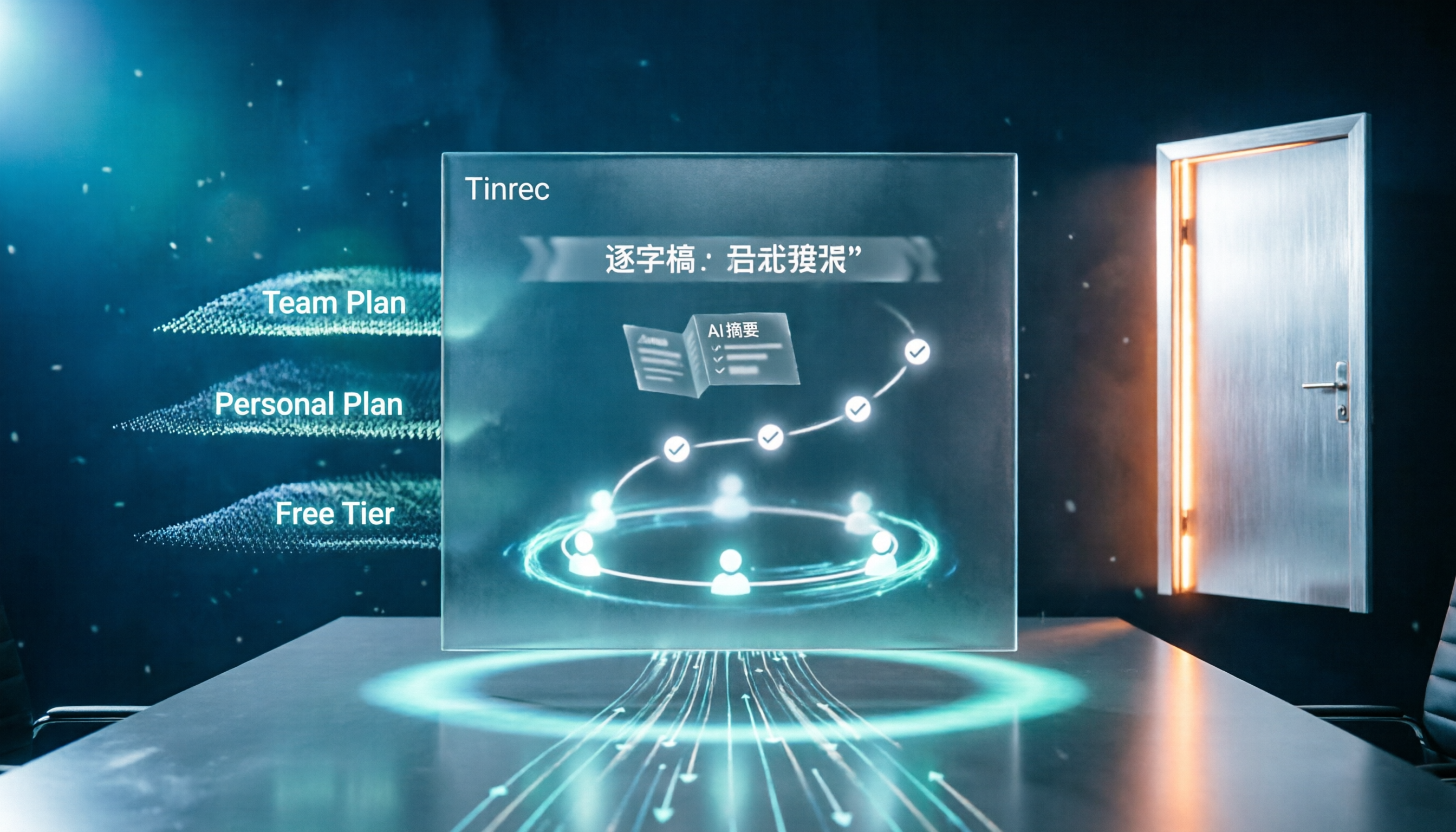
Starting from the common Dcard question about free minutes, this article explains how to evaluate AI meeting assistant costs. Using Tinrec as the main test subject, it covers the quotas and pricing for the free, personal, and team plans, and compares bot-free recording, Chinese transcripts, AI summaries, action items, and team collaboration, with 6 cost FAQs.
Tinrec vs Notta 2026: 5-Dimension Comparison for Chinese Meeting Notes
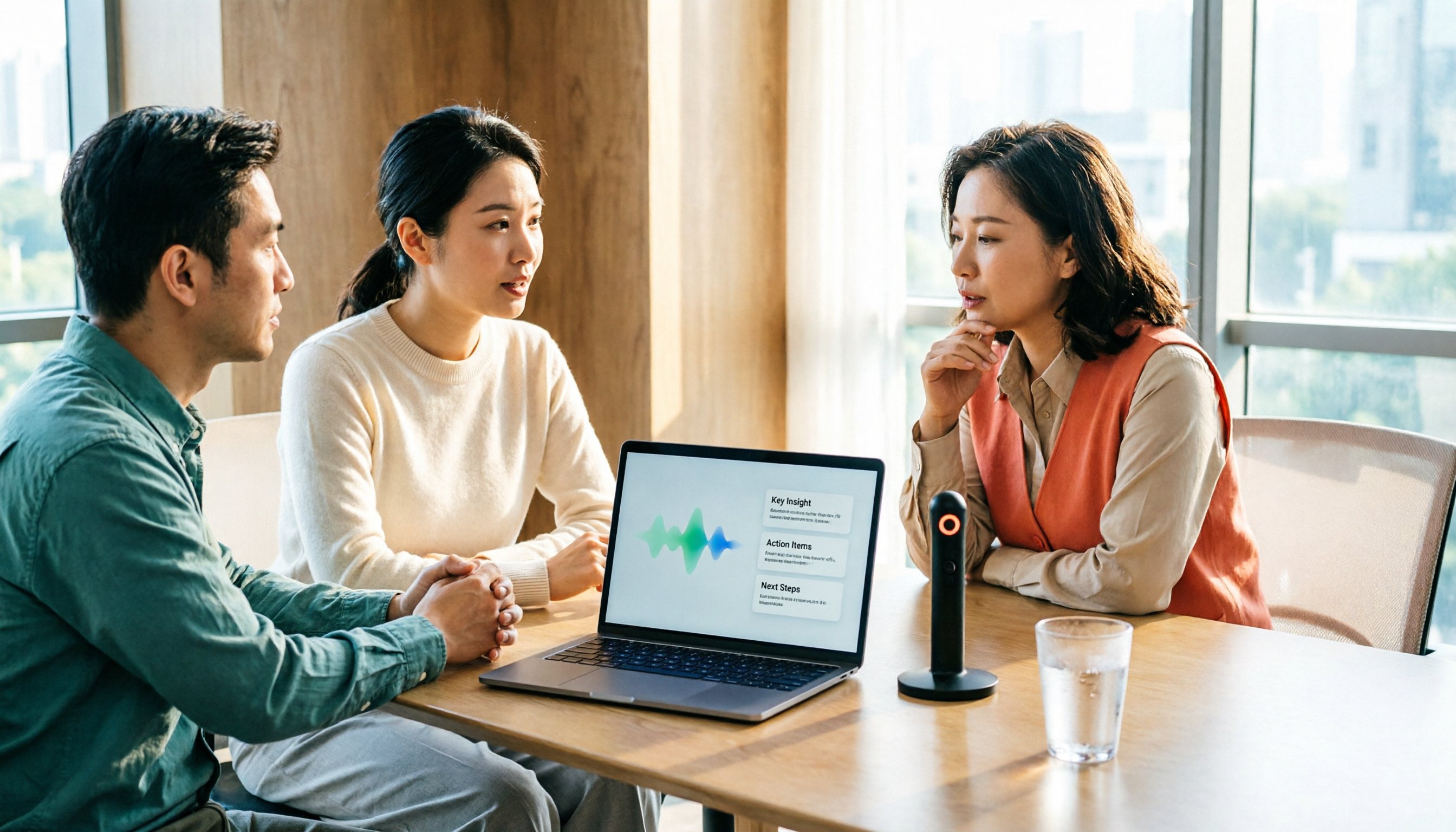
How to choose the latest AI meeting assistant in 2026? This article compares Tinrec and Notta across 5 dimensions: Chinese transcription, meeting capture methods, post-meeting output, team data governance, and pricing quotas. It honestly lists free quotas and paid prices for both, and includes 4 common pitfalls when choosing an AI meeting assistant to help you decide which one fits your meeting scenarios.